
Sending a Borrowing Request
Questa pagina fornisce una panoramica sull'invio di Richiesta di prestito in uscita, inclusi ARTEmail o partner ISO e CCC GetItNow Resource. For more information on resource sharing including locating items for resource sharing, working with resource sharing partners, managing borrowing and lending requests and contributing to the resource sharing directory, see Resource Sharing.
Invio di una richiesta per un partner ARTEmail o ISO
-
On the Resource Sharing Borrowing Requests Page (Fulfillment > Resource Sharing > Borrowing Requests > Edit), select Send for a request. Quando si invia a un partner ARTEmail, si tab apre la tab.
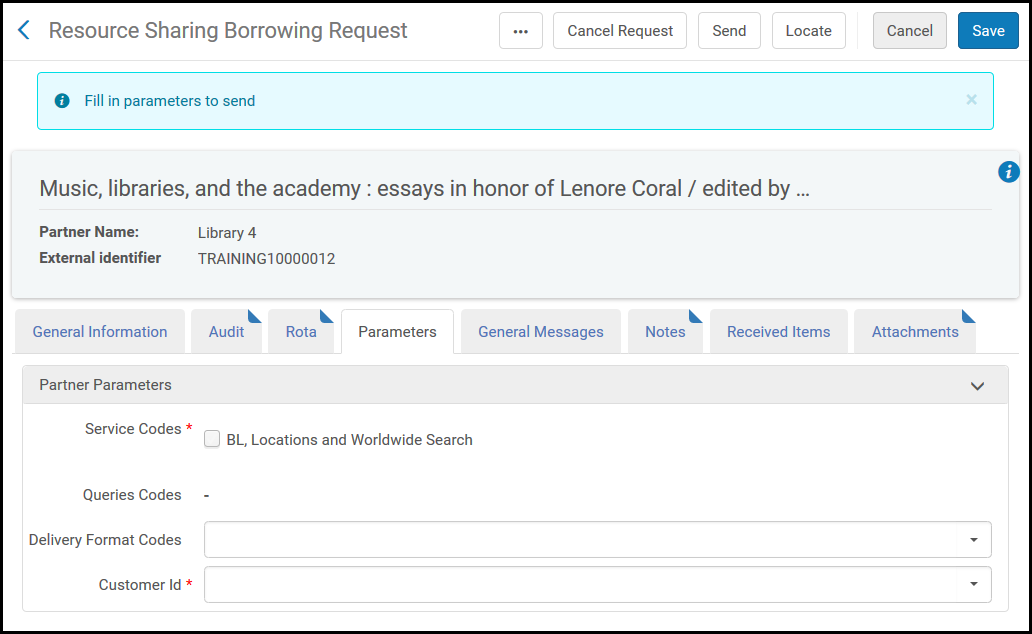
- Selezionare uno o più parametri di prestito nelle sezioni codici di servizio e codici di ricerca.The service codes and query codes displayed depend on those configured in Fulfillment Configuration when configuring Resource Sharing Partners (see Resource Sharing Partners). For an explanation of the service and query code values, refer to the British Library's Guide to ARTEmail.
- Select a delivery format code in the Delivery Format Codes field.
- Select the requesting customer in the Customer Id field.
- Select Save to save the request with the selected parameters, or select Send to save the request with the selected parameters and send the request to the ARTEmail or ISO partner.
Sending a Request for a CCC GetItNow Resource
You can use the CCC GetItNow service in a mediated manner, if you do not want to have this as an open service to all patrons.
- Attivare la collezione elettronica CCC GetItNow pertinente gestita nella Community Zone.
- Crei un nuovo partner Biblioteca per il servizio CCC GetItNow.
- Crea una Richiesta di prestito in uscita per la condivisione delle risorse con il servizio CCC GetItNow selezionato come partner. Dal portfolio elettronico, acceda al link CCC GetItNow in un browser e invii la Richiesta di articolo.
- Una volta che CCC GetItNow invia il link di accesso all'articolo, copia il link nella finestra di dialogo ottenuta esternamente per inviare un'email all'utente con il link all'articolo.
Per sopprimerla dalla View It tab e renderla disponibile solo al personale addetto alla condivisione delle risorse, la raccolta può essere attivata senza esternalizzarne la disponibilità. For more information, see Adding a Local Electronic Collection.
For more information on configuring the CCC GetItNow partner, see Resource Sharing Requests in the Alma Integrations with External Systems Guide.
-
Crea una richiesta di prestito in uscita.
Ci sono sei campi obbligatori per il servizio GetItNow: Titolo dell'articolo/capitolo, Titolo della rivista, Volume, Fascicolo, Pagina iniziale e Data di pubblicazione.
-
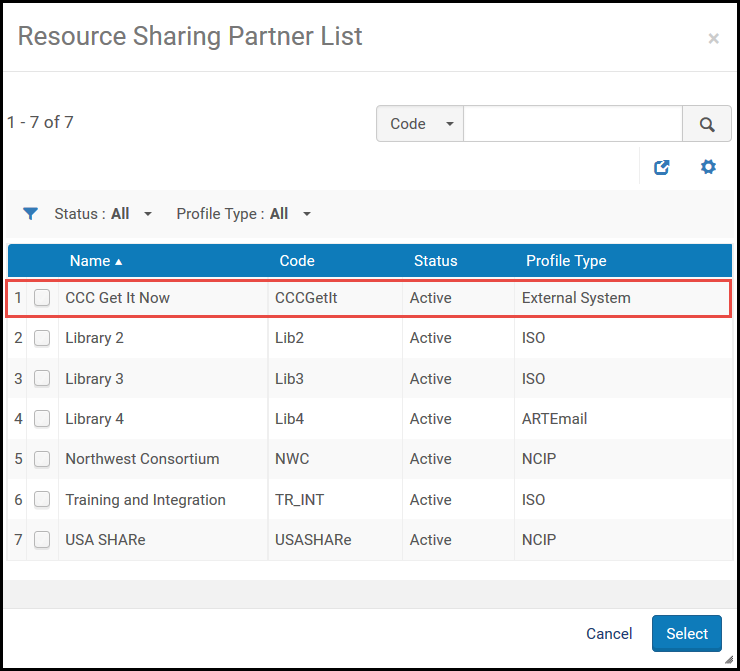
Select Add partners and select a partner with a profile type External System.
-
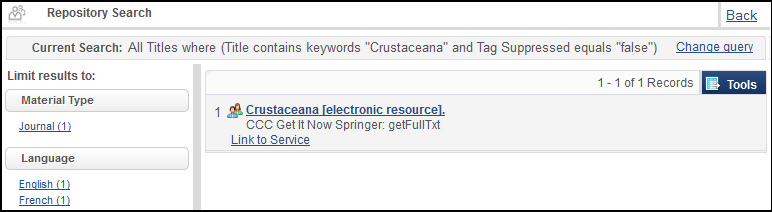
Select Send for the request. La pagina del portfolio elettronico appare.
-
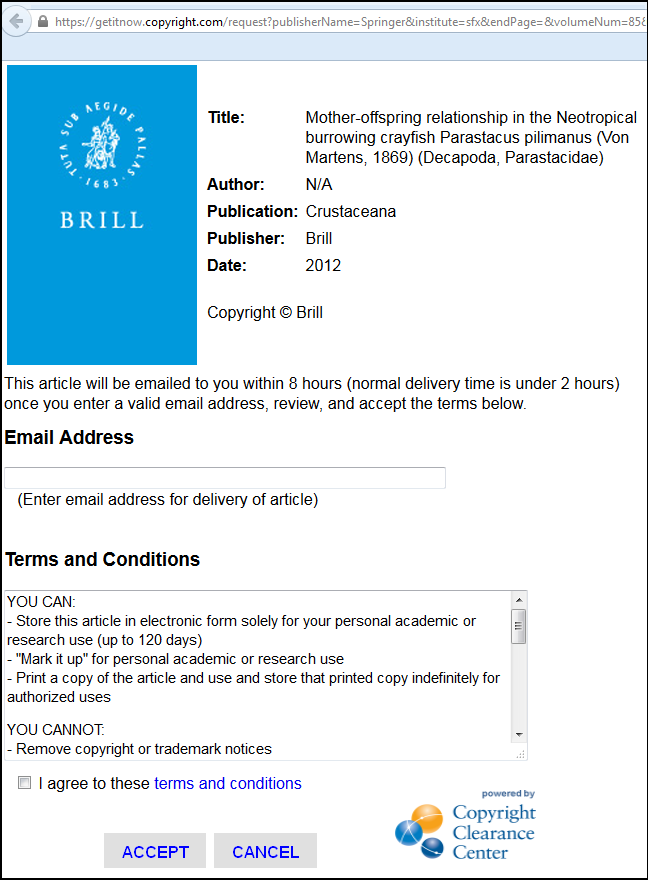
Select Link to Service to display information about the article. L'operatore utilizza l'interfaccia CCC per richiedere l'articolo.
-
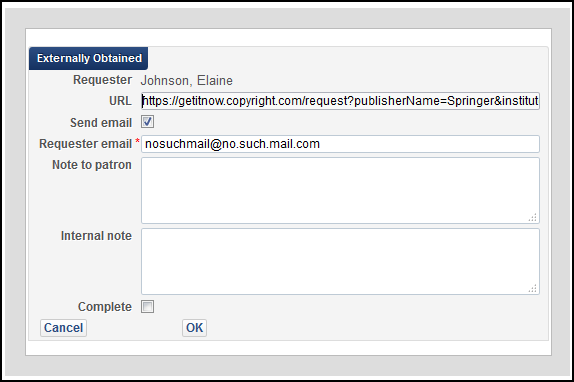
On returning to the resource sharing task list, a new action is available,Externally Obtained. Selezioni questo collegamento per visualizzare una finestra di invio email. Inserisca l'URL fornito dal servizio GetItNow in questa finestra e lo invii al patron della richiesta.
-
Selecting the Complete box marks the request as Completed once you select OK to send this email to the patron. A sample of the Externally Obtained Email Letter follows.
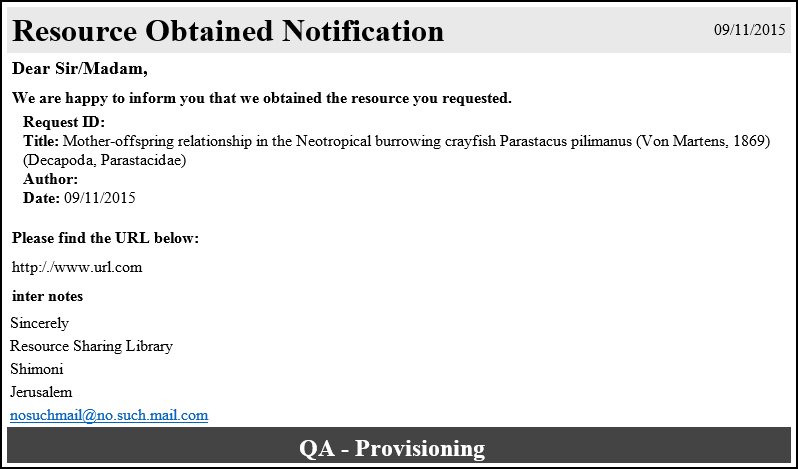
For more information on configuring letters, see Configuring Alma Letters.
For more information on requesting a CCC GetItNow resource, see the Support for CCC GetItNow Service in Resource Sharing video (4:05 min.).
