
Roles and Registration Configuration
このページでは、役職プロファイル、割り当ておよび登録ルール、オペレーターの詳細の表示、ユーザーの編集の制限、役職と権限のレポートなど、ユーザー役職と登録を設定する方法について説明します。For working with users see Managing Users.For more information about working with roles see Managing User Roles.
The base unit of permission for viewing an item (page, option, link) or performing an action is a privilege; privileges are internally used and configured by Ex Libris.Privileges are grouped by roles.Roles are grouped by role profiles.
Configuring Role Profiles
- ユーザー管理者
- 一般システム管理者
A role profile is a collection of roles, grouped according to job function, that can be assigned to a user in a single action.Role profiles make it easy to add a common list of roles to a user automatically when adding a new user (by assigning the user a job category or user group for which a role-assignment rule exists; see Configuring Role Assignment Rules below) or when managing a user's roles manually (by assigning a role profile to them; see Adding Roles to Users).
役職プロファイルは、それが割り当てられているユーザーに直接リンクされていません。むしろ、個々のロールの定義済みリストをユーザーに割り当てるために使用される手段です。役職プロファイルを更新しても、すでに割り当てられているユーザーには影響しません。
You can configure role-assignment rules that automatically assign role profiles to new users (see Configuring Role Assignment Rules below).
You configure role profiles on the Profiles List page (Configuration Menu > User Management > Roles and Registration > Profiles).既存のロールプロファイルは、このページの名前の欄にリストされ、それらに関連する役割は、含まれる役割の欄にリストされます。各役割の範囲は、役職の後の括弧内に表示されます。
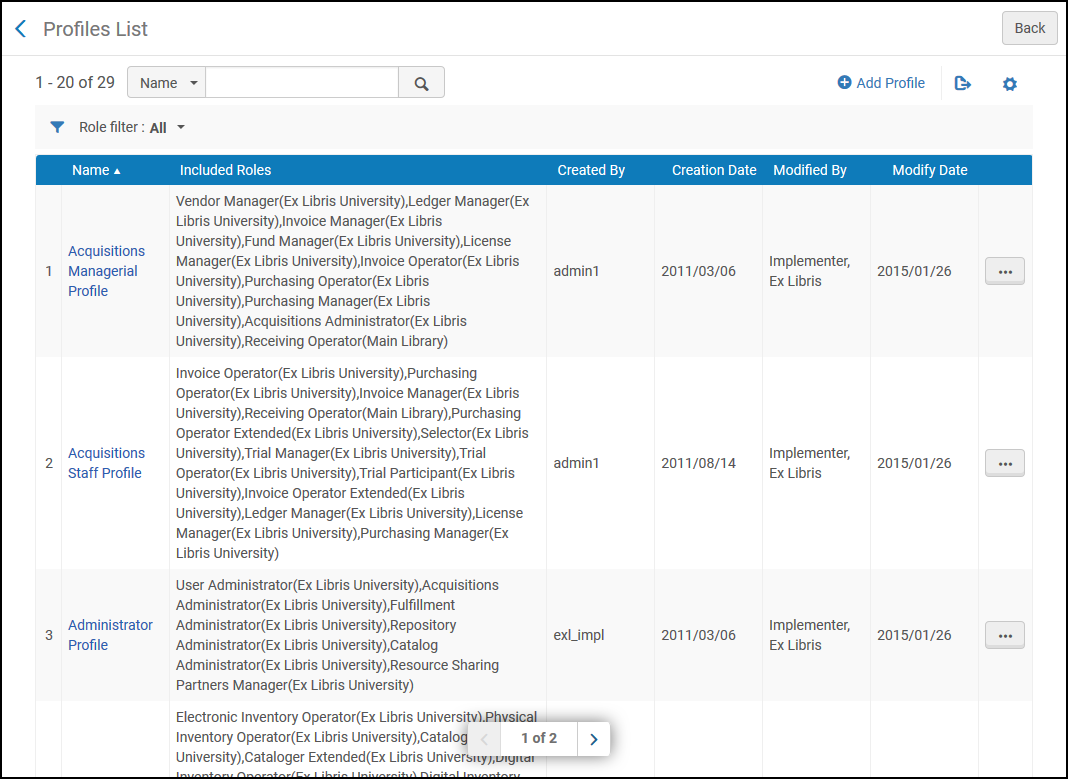
If the selected role profile does not have roles assigned to it, you can add roles as described under Adding a Role Profile.
役職プロファイルに関して次のアクションを実行できます。
- Add a role profile - See Adding a Role Profile below.
- Edit a role profile - Select Edit in the row actions list and follow the instructions in Adding a Role Profile.For information about applying the changes you make to users to which the role profile was previously applied, see Updating User Accounts to Which a Role Profile Has Already Been Applied below.
- Duplicate a role profile - Select Duplicate in the row actions list and follow the instructions in Adding a Role Profile to edit the profile.
- 役職プロファイルの削除 - その行のアクションリストで[削除]を選択し、確認ダイアログボックスで[確認]を選択します。
Adding a Role Profile
名前を指定し、適切な役割をすべて追加することで、システムに役割プロファイルを追加します。
To add a role profile:
- On the Profiles List page (Configuration Menu > User Management > Roles and Registration > Profiles), select Add Profile.[プロファイル]ページが表示されます。This is the first page of a two-page wizard.

- 役職プロファイルの名前(必須)を入力し、[保存して続行]を選択します。The Profile Roles area appears.
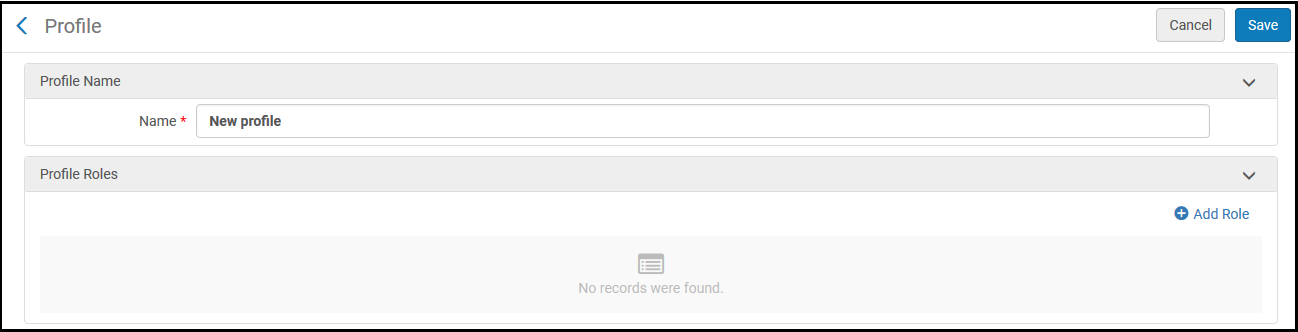
- 役職を追加するには、[役職を追加]を選択します。[新規役職を追加]ページが表示されます。Follow the instructions in Adding Roles to Users for adding roles manually.役職を追加した後に、役職は、「プロファイルの役所」の領域にリストされます。役職プロファイルがユーザーに適用されたときにロール プロファイルでアクティブ化されたロールのみが、そのユーザーのアカウントに追加されます。範囲設定が不要な役職 (例:範囲は常に機関) は、追加されるとすぐに有効化されます。スコープが必要であるが役職プロファイルにまだ設定されていな役職は非アクティブ化され、編集して範囲を選択するまでアクティブ化できません。Once a scope is set for a role as required, you can activate or deactivate the role manually, under Active, by selecting the button in the role's row.
- 保存を選択して、プロファイルを保存します。
Modifying a Role Profile
役職プロファイルが作成されると、必要に応じてその名前を変更したり、役職を追加および削除したりできます。これらの変更は、変更後に役職プロファイルが適用されるユーザー アカウントに直接影響するだけです。In order to implement them in user accounts to which they were previously applied, you must modify those user accounts, either manually, by running a job, or through the API (see Updating User Accounts to Which a Role Profile Has Already Been Applied below).
次の 2 つの方法のいずれかで、ユーザー アカウントを手動で変更できます。
- 役職を手動で追加および削除する
- 役職プロファイルをアカウントに再度割り当てます。ただし、これを行うと、以前ユーザーに適用された後に役職プロファイルに追加された役職は追加されますが、役職プロファイルから削除された役職はユーザーから削除されないことに注意してください。
To modify a role profile:
- On the Profiles List page (Configuration Menu > User Management > Roles and Registration > Profiles), in the row actions list of the role profile, select Edit.プロファイルページが開き、プロファイルの名前と ID 番号、およびプロファイルに含まれる役職のリストが表示されます。
- To add additional roles to the profile, select Add Role, and follow the instructions above for adding roles.
- 役職を削除するには、行動リストで削除を選択してください。To remove multiple roles, you can also select the checkboxes of the roles you want to remove, and then select Remove Selected.
- 役職の設定を編集する場合は、行リストで編集を選択してください。Follow the instructions in Editing Roles Assigned to Users.
- When you have finished modifying the role profile, select Save.
Updating User Accounts to Which a Role Profile Has Already Been Applied
役職プロファイルがユーザー アカウントに適用されるたびに、一般メモがアカウントに追加されます。The note includes the name and ID number of the role profile.You can find all user accounts to which a particular role profile was applied in the past (from May 2023, when this feature was introduced, onwards) by searching the user records for the name or the ID number of the role profile.You can also save the search parameters as a logical set, so that you can easily locate these user accounts in the future.The logical set can also be input to the Update/Notify Users job in order to update these users' roles in accordance with the changes you have made to the role profile.
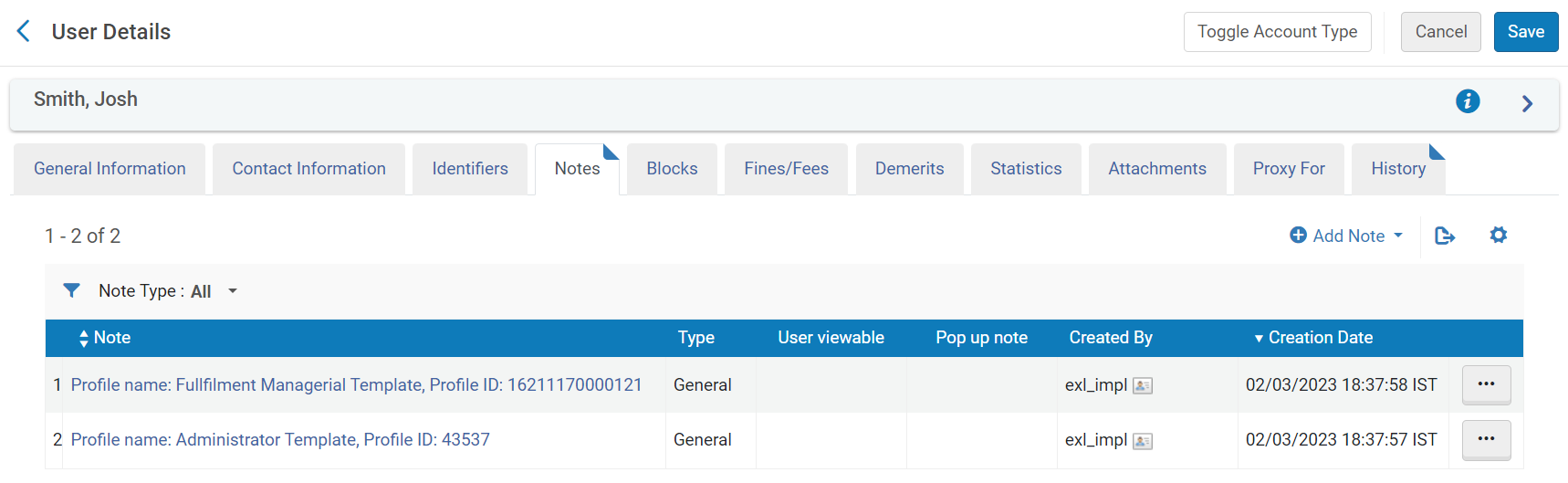
Finding User Accounts to Which a Role Profile Was Applied
Almaの検索の仕組みを使用して、役職プロファイルが過去に適用されたユーザー アカウントを見つけることができます。必要に応じて、検索クエリを論理セットとして保存して、これらのユーザーの役職を更新できるジョブの入力として使用することもできます。
To find the user accounts to which a role profile has previously been applied:
- On the Profiles List page (Configuration Menu > User Management > Roles and Registration > Profiles), in the row actions list of the role profile, select Edit.The Profile page opens, and displays the name and ID number of the profile, as well as the list of roles currently included in it.
- 役職の ID 番号または名前をコピーします。
- Select Back to leave the Configuration menu and return to the main menu.
- In the Persistent Search box, select Users>All, enter the ID number or the name of the role profile in the text field , and press Enter.The Find and Manage Users page opens and displays a list of user accounts to which the role profile was assigned in the past.
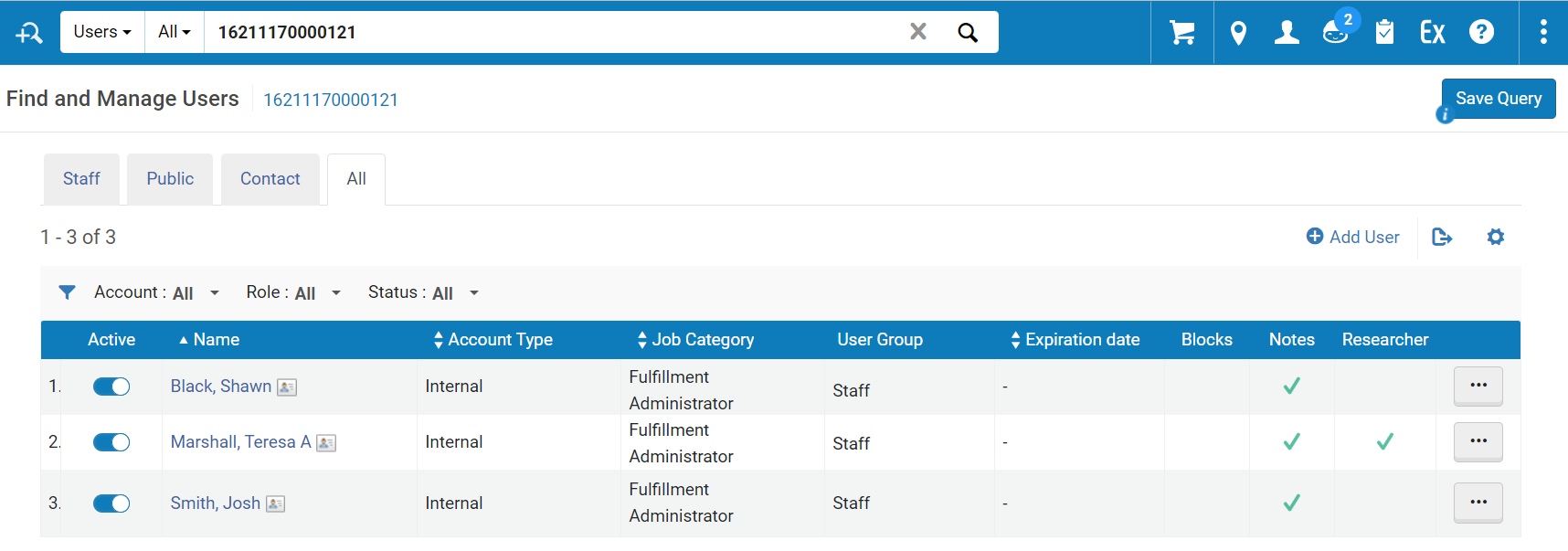
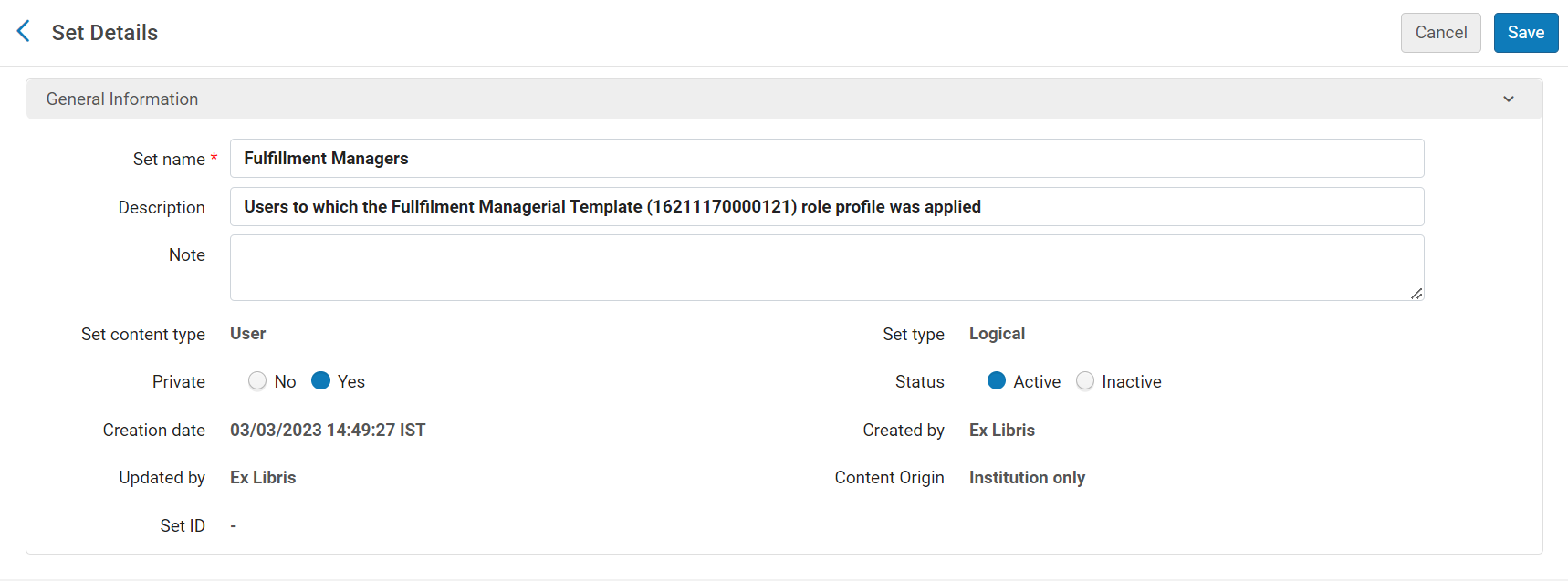
- 検索条件をロジカル セットとして保存する場合は、クエリを保存 。In the Set Details page, enter a name for the set, modify the other fields as required, and then select Save.For additional information about sets, see Managing Search Queries and Sets.
Running a Job to Update Users' Roles
論理セット内のユーザー アカウントに追加または削除する役職ごとに、更新/ユーザー通知を実行できます。(You can actually add one role and remove one role in the same run, but to add or remove multiple roles, you must run the job multiple times.) For additional information about logical sets and running a manual job, see Managing Search Queries and Sets and Manual Jobs.
To update the roles of the user accounts in the logical set:
- In the Run a Job - Select Job to Run page (Admin > Manage Jobs and Sets > Run a Job), select the Update/Notify Users job, and then select Next.
- ジョブを実行する - セットページを選択し、クエリとして保存した論理セット(上記)を選択し、次へを選択します。
- In the Run a Job - Enter Task parameters page, select Add role, and/or Remove role, and then select the role to add and/or the role to remove, and the scope for each role you selected.Then select Next.

- ジョブを実行 - 確認と送信ページでは、送信を選択してください。ジョブが実行され、ユーザーアカウントで役職が更新されます。
Configuring Role Assignment Rules
- ユーザー管理者
- 一般システム管理者
After you define role profiles (see Adding a Role Profile), you can create rules that automatically assign role profiles to a newly added user.When a user is added (see Adding Users), if the user's information matches one of the enabled role assignment rules, the user is assigned the role profiles associated with the rule.複数の有効なルールが適用される場合、それらはすべて新しいユーザーに適用されます。適用される有効なルールが存在しない場合、デフォルトのルールがユーザーに適用されます(ユーザーが他のルールに一致しなかった場合、すべてのユーザーが自動的にこのルールに該当することになります)。Note that the rules are applied when users are added using the Add User option in Find and Manage Users (Admin > User Management > Manage Users).
For an example of role assignment rules, watch Assign User Roles Automatically (3:05).
You configure role assignment rules on the Automatic Role Assignment rules table (Configuration Menu > User Management > Roles and Registration > Role Assignment Rules).For more information about rules tables, see Rules Tables.
役職プロファイルは、ユーザーに役職を割り当てるために使用されますが、それ自体はユーザーに関連付けられていません。したがって、既存のユーザーは、新しく設定されたルールの影響を受けません。役職プロファイルがユーザーアカウントに適用されるたびに、メモがユーザーの [メモ] タブに追加されます。これにより、役割に必要な変更を実装するために、(プロファイル名またはIDを使用して) 適用されたユーザーを検索できるようになります。The automatic adding of a note can be deactivated by using the User Management menu (Configuration > User Management > Other Settings) to set the show_profile_in_user_notes parameter to false.
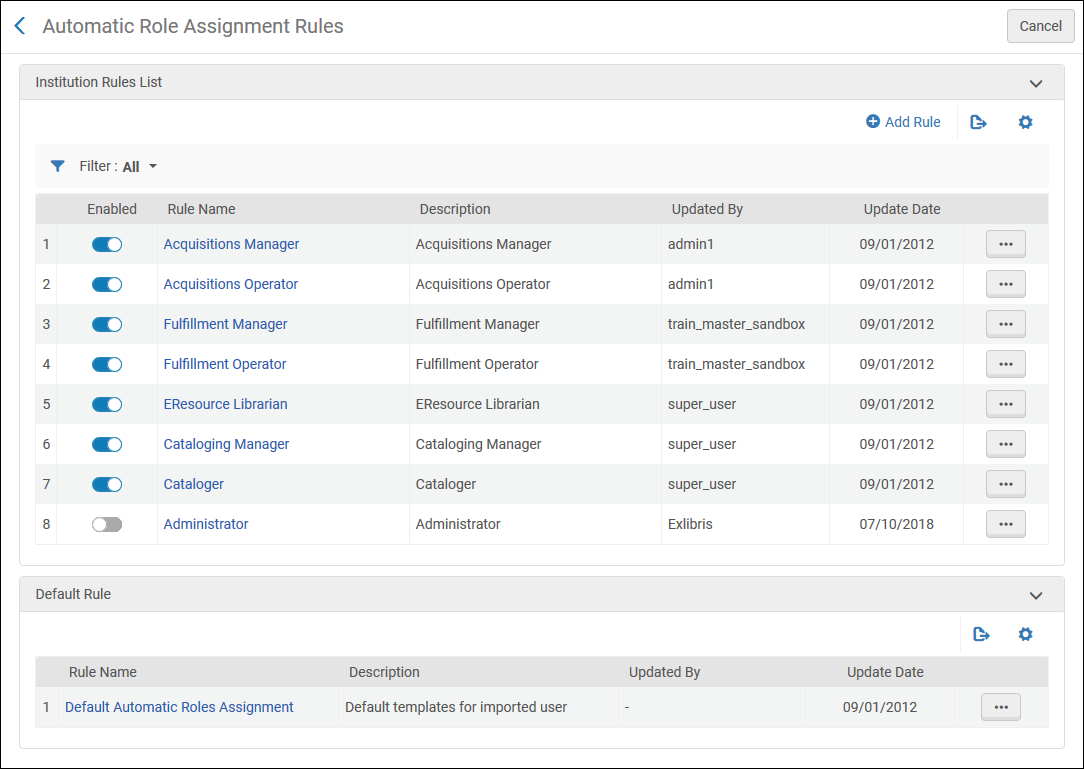
入力パラメータは次の通りです。
- 生年月日 - 特定の日付より前に生まれたユーザー、特定の日付に生まれたユーザー、または特定の日付より後に生まれたユーザーを照合します。
- ジョブカテゴリ - 選択したジョブカテゴリのいずれかを割り当てられたユーザーを照合します。
- レコードタイプ - 選択したレコードタイプ(コンタクト、パブリック、スタッフ)のいずれかのユーザーを照合します。
- ステータス - アクティブなユーザーか非アクティブなユーザーを照合します。
- ユーザーグループ - 選択したユーザーグループのいずれかに割り当てられたユーザーを照合します。
出力パラメータについては、入力パラメータに一致するアカウントプロパティを持つユーザーに割り当てる役割プロファイルを選択してください。
Configuring User Registration Rules
- ユーザー管理者
- 一般システム管理者
このルールは、[ユーザーサービスの管理]ページで新規ユーザーを登録するオプションを使ってユーザーを追加した際に適用されます。See Registering Patrons.
After you define user registration terms of use sets (see Configuring Terms of Use), you can create rules that automatically assign a user registration terms of use to a newly added user.When a user is added (see Adding Users), if the user's group matches one of the enabled user registration rules, the user is assigned the terms of use associated with the rule.有効なルールのうち最初に一致したルールだけが新しいユーザーに適用されます。適用される有効なルールが存在しない場合、デフォルトのルールがユーザーに適用されます(ユーザーが他のルールに一致しなかった場合、すべてのユーザーが自動的にこのルールに該当することになります)。
既存のユーザーは、新しく設定されたルールの影響を受けません。
You configure user registration rules on the User Registration rules table (Configuration Menu > User Management > Roles and Registration > User Registration Rules).For more information about rules tables, see Rules Tables.
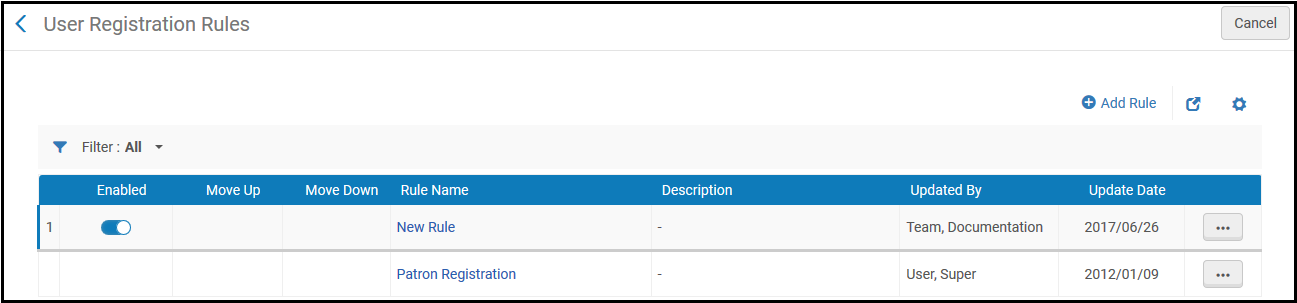
ルールの入力パラメータは次の通りです。
- User Group- Match users assigned any of the selected user groups.
- Library - The 'currently at' library if user is being registered at the circulation desk, or the owning library of the item if the patron role is being renewed at the circulation desk following a loan block.
出力パラメーターについては、利用規約を選択して、入力パラメーターに一致するユーザーに割り当てます。
Configuring Users' Ability to View Operator Details
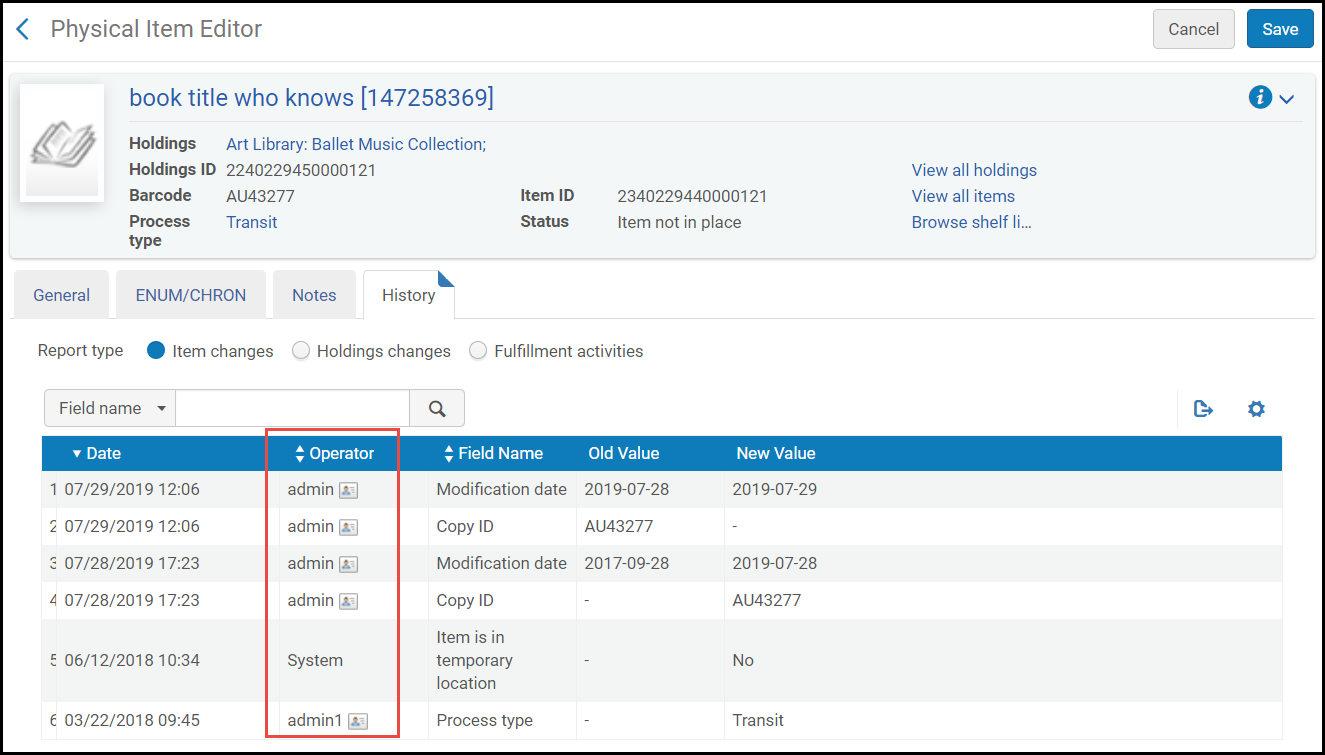
デフォルトでは、Almaの多くのページで、[履歴]タブ(およびその他いくつかのタブ)に[オペレータ]列が表示されます。マネージャーや管理者の役職を持つすべてのユーザーは、この列を表示できます(ページを表示できる場合)。オペレータの役職のみを持つユーザーは、この列を表示できません。
On the Manage Operator Details Visibility page (Configuration Menu > User Management > General > Manage Operator Details Visibility), you can configure that only the managers and administrators relevant to specific areas can view the Operator column in the pages in these areas.

To restrict users' ability to view operator details:
[オペレータ詳細表示の管理]ページで[非表示]を選び、[保存して実行]を選択します。When Hide is selected, the following roles can view the Operator column in the History tab on the following pages:
| 役職 | 「履歴」タブ(注記がない限り) |
|---|---|
|
|
|
|
|
|
|
|
|
|
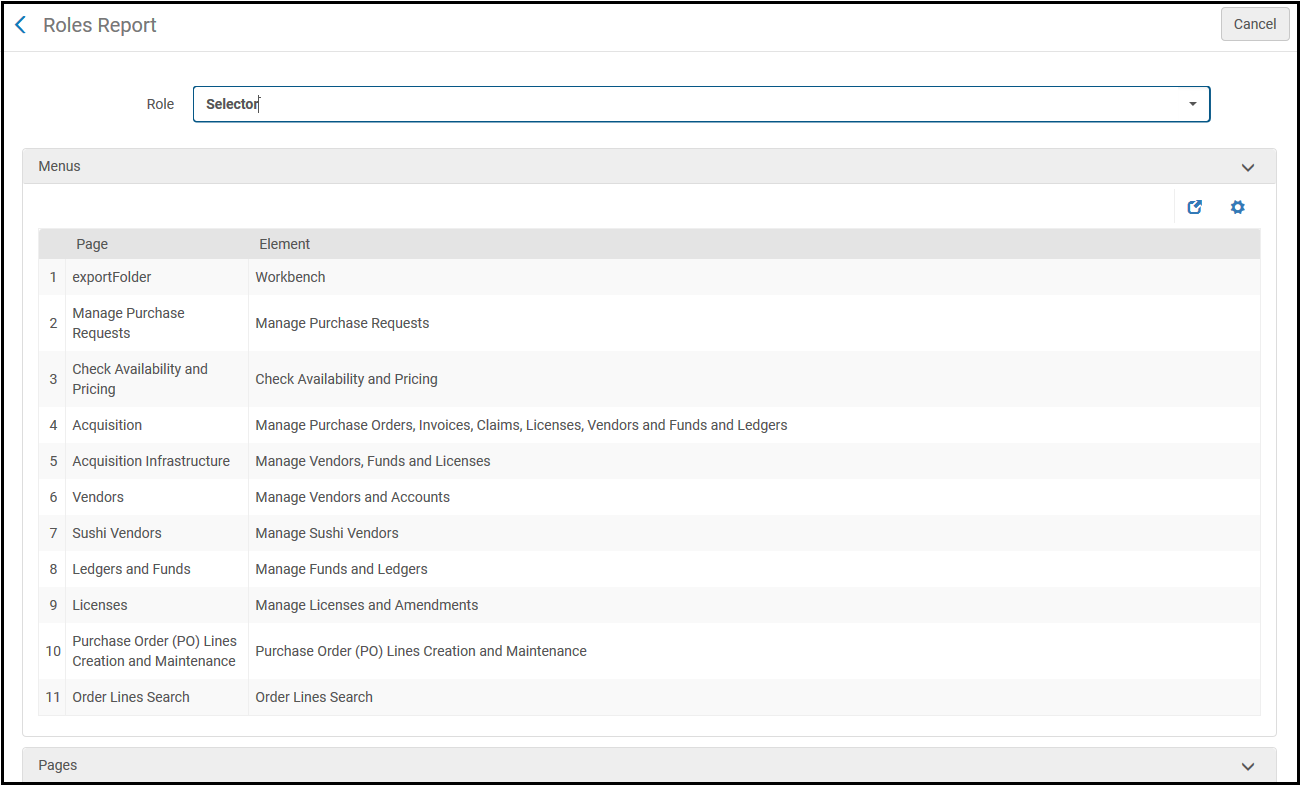
Roles Report
役職レポートは、特定の役職を持つユーザーがシステムで実行できること(特定の役職を持つユーザーに表示されるメニューアイテム、ユーザーがアクセスできるページ、ユーザーがそのページで情報を追加・表示・編集できるかどうかなど)を示した詳細なリストを提供します。このページのサポートについては、Ex Librisにお問い合わせください。
For a description of the various user roles and the Alma components that each user can access, see User Roles – Descriptions and Accessible Components.
View the Roles Report at Configuration Menu > User Management > Roles and Registration > Roles Report.[役職]ドロップダウンリストから必要な役職を入力します。
Some of the roles, such as Exlibris(all),SAAS Operator, and Technical Analyst, are internal and cannot be assigned to users.
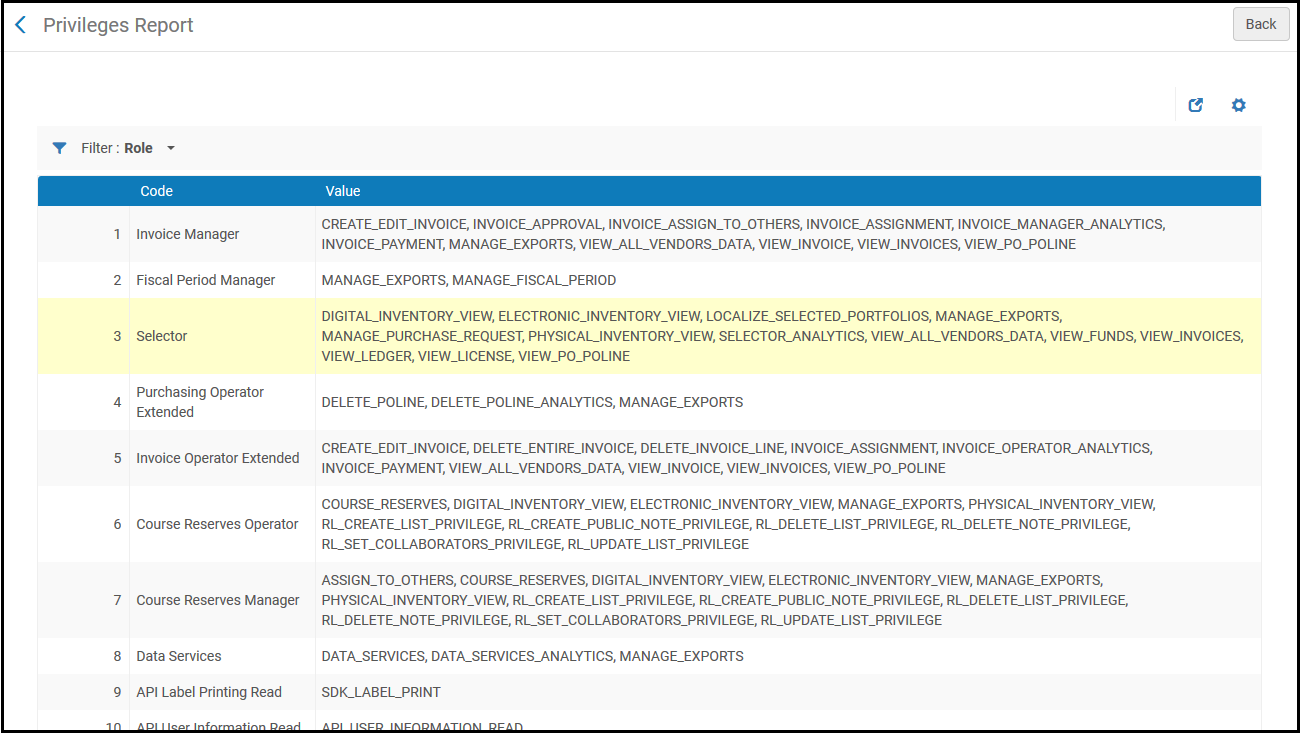
Privileges Report
The Privileges Report (Configuration Menu > User Management > Role and Registration > Privileges Report) provides a list of the privileges associated with each role.この情報は、特定のページとリンクの機能を理解するのに役立ちます。残念ながら、各権限がどのように機能するかについて詳細かつ完全な説明を提供することはできません。For a description of the various user roles and the Alma components that each user can access, see User Roles – Descriptions and Accessible Components.For a list of the privileges available for each role see Role Privileges.
レポートは、役職や権限でフィルタリングできます。
- Some roles, such as Exlibris(all),SAAS Operator, and Technical Analyst, are internal and cannot be assigned to users.
- 一部の役職は、LegantoやEsploroなど、他のURM関連製品に関係しています。ご質問があれば、Ex Librisカスタマーサポートにお問い合わせください。
Restricting Users for Editing
Almaの次のユーザー役職は、Almaユーザーアカウントに変更を加えることができます。
- 一般システム管理者
- ユーザー アドミン
- ユーザーマネージャー
- 貸出・返却受付マネージャー
- 貸出・返却受付オペレータ
- 貸出・返却受付オペレータ - 限定
- リポジトリマネージャー
ただし、これらのユーザー役職が特定のユーザーアカウントに変更を加えないようにすることができます(例えば、コンタクト情報の編集など)。これは2段階のプロセスです。
- You define accounts as 'restricted for editing' in the Users Restricted for Editing table (Configuration Menu > User Management > Roles and Registration > Users Restricted for Editing).ユーザーアカウントがこの表に定義されている役職のいずれかを持っているか、この表にリストされているユーザーグループのいずれかが割り当てられている場合、このアカウントは「編集が制限されている」と見なされます。
- For the user roles that can make changes to Alma user records (the above-listed roles), you can activate the "Can't edit restricted users" parameter.This prevents these users from making any changes to the ‘restricted for editing' accounts.See Managing User Roles.
For example: PAT_A is an account assigned a Licenses Manager role.The Licenses Manager has been defined in this Users Restricted for Editing table as ‘restricted for editing'.ユーザーUSER_Bには、ユーザーマネージャーの役職を持ちます。したがって、このユーザーはユーザーアカウントをアップデートできます。ただし、ユーザーマネージャーの役職は「制限付きユーザーを編集できません」とマークされています。This user therefore cannot update PAT_A's account, but will be able to update other accounts that are not assigned the License Manager role.
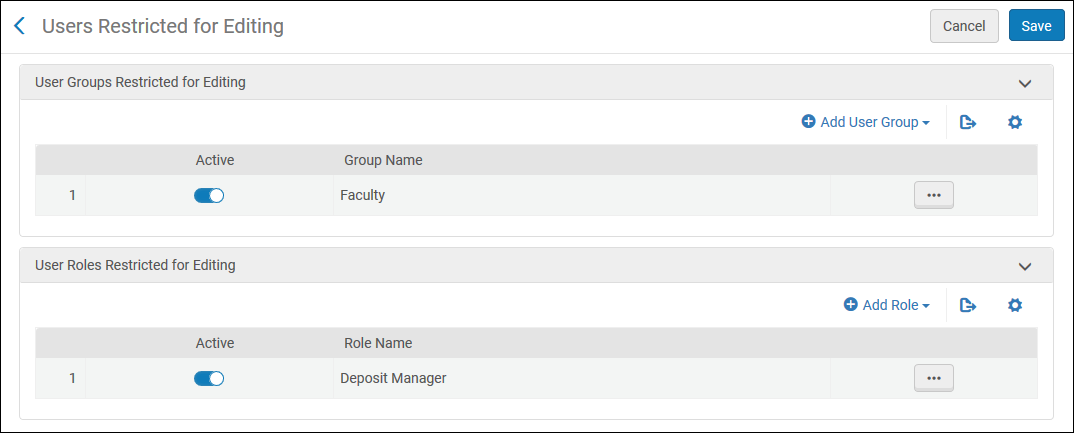
Select Add User Group or Add Role and select the user group or user role that you wish to restrict.
