
Discovery in Encore

Encore enables you to apply familiar Web searching techniques to find library materials. The discovery process begins with a keyword or phrase search:
- Enter a word, phrase, or call number in the Search: text box. If you library has the Autosuggest feature enabled, suggested search terms appear in a drop-down list after you type the third character.
Search Terms
You can enter an author's name, a title, or keywords describing a subject. To search for an exact phrase, enclose the phrase in quotation marks. Encore returns a list of all the library resources that match your search terms.
- Do one of the following:
- Press the <Enter> key to use the search term you entered.
- Click one of the suggested search terms from the drop-down list.
- The Search Results browse page appears.
The following optional actions are available on the Home page to enhance your Encore session:
- Click the Advanced Search link to go to Encore's advanced searching form.
- Use the content tabs (if offered by your library) to specify the resources to search.
- Select a language setting (if offered by your library) to change the Encore interface language. The language settings appear in the footer of all Encore pages.
- Click the Sign in button, and then enter your username, or patron ID, and password to access Encore's personalized features.
You do not need to log in to search with Encore.
Using the Autosuggest Feature
The Autosuggest feature provides real-time suggestions as you enter your search term. Up to 8 suggestions appear after you enter the third character. For example:
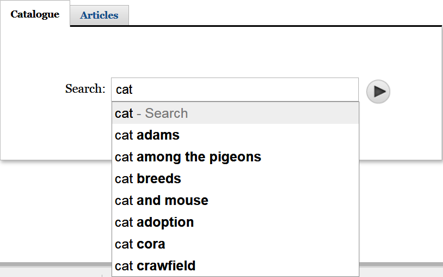
Encore uses the subject, title, and author fields to generate suggestions, and sorts the suggestions by relevancy. Note that Encore ignores punctuation when generating suggestions. The Autosuggest feature is available on the Catalog and Image tabs only; this feature is not available on EDS or Catalog Plus tabs.
