
Requesting
In Encore, you can request items from the brief view of the search results list, from the record detail page, or from My Book Cart:
To request an item:
- Click Request it.
- If you are not logged in, Encore prompts for patron verification. When you are logged in, Encore presents a request form similar to the following:
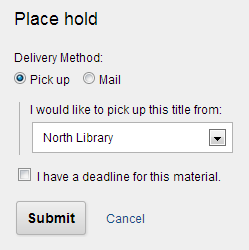
- Select an item, and specify either Pick up or Mail delivery. If you select Pick up, you must also specify the pickup location. If your library has acquired Held Item Delivery, the pickup location list is determined by patron type.
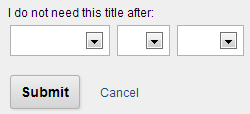
- To specify a "not needed after" date, select the I have a deadline for this material check box, and specify a date in the date fields:
- Click Submit.
Note that this example is one possible configuration. Your library's form might include information and options different from the example above. Optional features include a request note (up to 126 characters) and Held Item Delivery.
Requesting cloudLibrary ebooks
Encore integration with cloudLibrary enables users to check out available items directly through Encore.
To check out available cloudLibrary ebooks:
- Click the Check Out icon.
- If you are not logged in, Encore prompts for patron verification.
- If you are logged in, the item is checked out and shows a due date for check in. The ebook shows in the patron record display of My Ebooks.
If an item is not available, you can place a hold through the Book Cart.
When the item becomes available, it is moved to the reserves list.
CloudLibrary sends notification that the item is in reserves and available to be checked out. You can check out the item normally through the cloudLibrary API in the patron record display or through cloudLibrary directly.
