
Use Bibliographic Templates
You can create bibliographic templates in Leap to use when creating bibliographic records. The information in the bibliographic template is copied into every bibliographic record created with the template, reducing the number of fields you need to modify. For example, you can create a bibliographic template specifically for creating bibliographic records for DVDs. Then, cataloging staff could use this template when they create bibliographic records for DVDs.
This section covers the following topics:
Create a New Bibliographic Template
To create a bibliographic template, you need the following permissions:
- Bibliographic templates: Access
- Bibliographic templates: Create
or
Use 'own' bibliographic templates
For more information about administration cataloging permissions, see Cataloging Permissions Reference.
To create a new bibliographic template
-
Select the New menu.
A dropdown menu appears.
-
Select Template > Bibliographic.
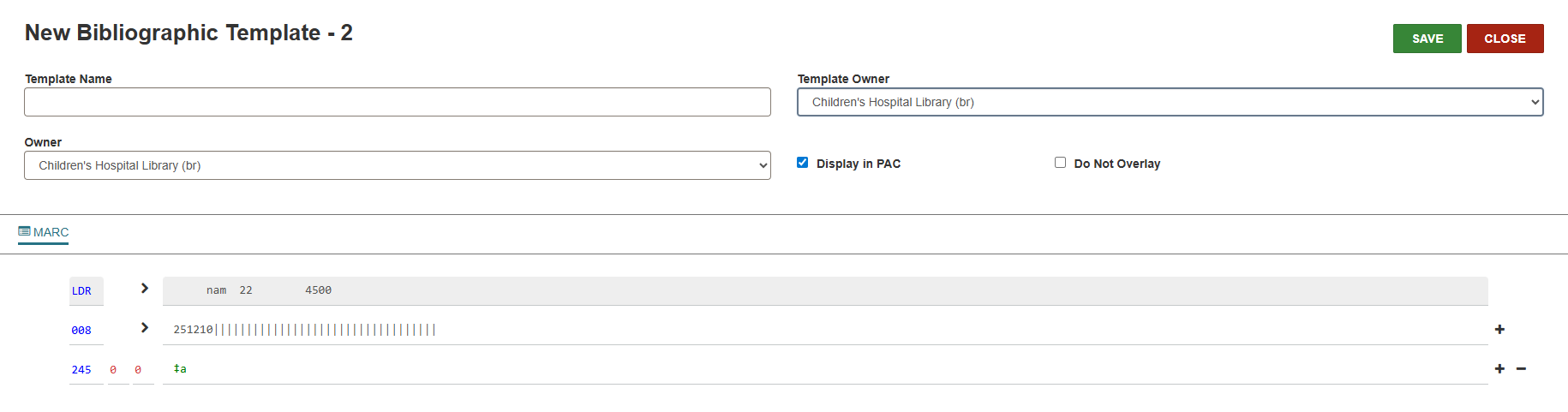
A New Bibliographic Template workform appears with the MARC view.
-
In the Template Name field, enter the unique template name.
-
From the Template Owner and Owner dropdown lists, select the organization for which you want to create the template. Available organization on the lists depend on your Bibliographic template: Create permissions, and only organizations for which you have the permission will be visible on the list.
Note:
To create a bibliographic template and designate yourself (not the organization) as the owner, you need the following permissions:Use 'own' bibliographic templates
For more information about administration cataloging permissions, see Cataloging Permissions Reference.
-
(Optional) Select the Display in PAC checkbox if you want the bibliographic record using this template to be displayed in the PAC.
-
(Optional) Select the Do Not Overlay checkbox to prevent bibliographic records using this template from being overlaid.
-
In the MARC tab, update the values you would like to be applied when you create bibliographic records using this template. Starting values are LDR, 008, 245. You can add any tag that exists in a bibliographic record.
-
Select SAVE.
Find an Existing Bibliographic Template
To find a bibliographic template, you need the following permissions:
- Bibliographic Templates: Access
or
Use 'own' bibliographic templates
For more information about administration cataloging permissions, see Cataloging Permissions Reference.
To find an existing bibliographic template
-
Open the Find Tool.
-
Select Bibliographic Template as the search term.
-
Type a name in the search bar and select Search.
The list of available bibliographic templates appears.
-
Select the checkbox next to a bibliographic template you would like to access and select OPEN.
Bibliographic template workform appears.
Create Bibliographic Templates from a Bibliographic Record
You can create a bibliographic template from an existing bibliographic record.
To create a bibliographic template from an existing bibliographic record, you need the following permissions:
- Bibliographic templates: Access
- Bibliographic templates: Create
or
Use 'own' bibliographic templates
For more information about administration cataloging permissions, see Cataloging Permissions Reference.
To create a bibliographic template from an existing bibliographic record
-
Open the Find Tool.
-
Select Bibliographic Record as the search term.
-
Type a name in the search bar and select Search.
The list of matching bibliographic records appears.
-
Select the checkbox next to a bibliographic record from which you would like to create a template and select OPEN.
Bibliographic Record workform appears.
-
In the Bibliographic Record workform, select the ACTIONS menu.
-
Select Create Template.
Bibliographic Template appears with all the fields pre-populated to match the original bibliographic record.
-
Select SAVE.
Copy a Bibliographic Template
To copy a bibliographic template, you need the following permissions:
- Bibliographic Templates: Create
or
Use 'own' bibliographic templates
For more information about administration cataloging permissions, see Cataloging Permissions Reference.
To copy a bibliographic template
-
Find a bibliographic template.
-
In the Bibliographic Template workform, select the ACTIONS menu.
-
Select Copy.
The copy of the bibliographic template opens in a New Bibliographic Template workform.
-
(Optional) To create a unique template from the copy, change the values, update the Name field and select SAVE.
Delete a Bibliographic Template
To delete a bibliographic template, you need the following permissions:
- Biblographic Templates: Delete
or
Use 'own' item templates
To delete an item template
-
Find a bibliographic template.
-
In the Bibliographic Template workform, select the ACTIONS menu.
-
Select Delete.
The Delete Bibliographic Template dialog opens.
-
Select CONTINUE to delete the bibliographic template.
If the bibliographic template was successfully deleted, a notification confirms the deletion.
