
Compare Bibliographic Records
You can compare and edit multiple bibliographic records at the same time on the Compare Records workform. To access the Compare Records workform, you must have the Bibliographic records: Modify permission enabled in Polaris System Administration (web-based). For more information about cataloging permissions, see Cataloging Permissions Reference.
Tip:
You can use keyboard shortcuts to navigate records on the Compare Records workform without using the mouse. See Keyboard Shortcuts for a list of all available shortcuts.
To compare bibliographic records
-
Find the bibliographic record you want to compare to one or more other records, and open it in the Bibliographic Record workform.
Note:
We refer to this record as the current record in the workflow below. -
Select Actions > Compare.
The bibliographic record Find Tool appears.
-
Search for the bibliographic record or records you want to compare to the current record.
-
From the list of search results, select one or more records. You can select up to 19 records.
Note:
We refer to these records as the compare records in the workflow below. -
Select Open.
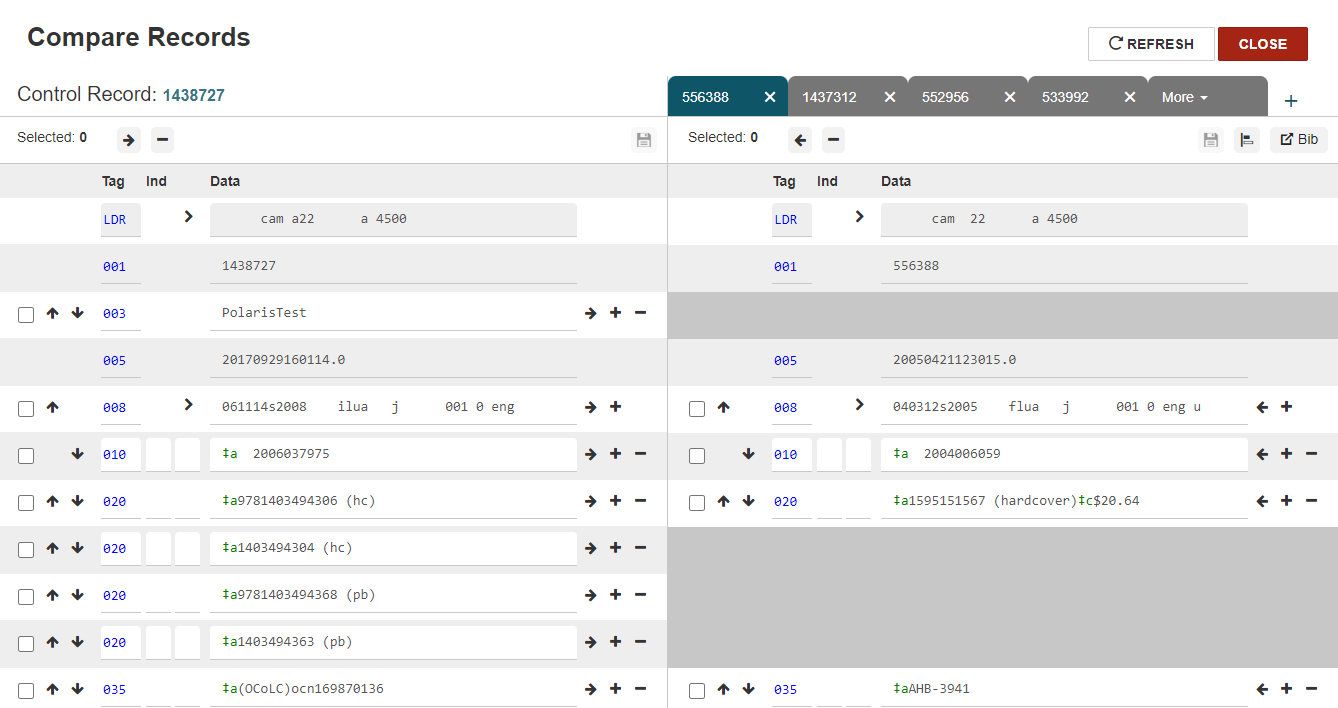
Leap displays the records in the Compare Records workform. The current record appears on the left side of the screen and the compare record or records appear on the right side of the screen.
-
Do one or more of the following:
 View a different compare record.
If you selected multiple compare records in step 4, the first record you selected appears on the Compare Records workform. You can switch between compare records.
To view a different compare record
-
Do one of the following:
-
Select the tab with the control number of the record you want to view.
-
Select More, then select the control number of the record you want to view.
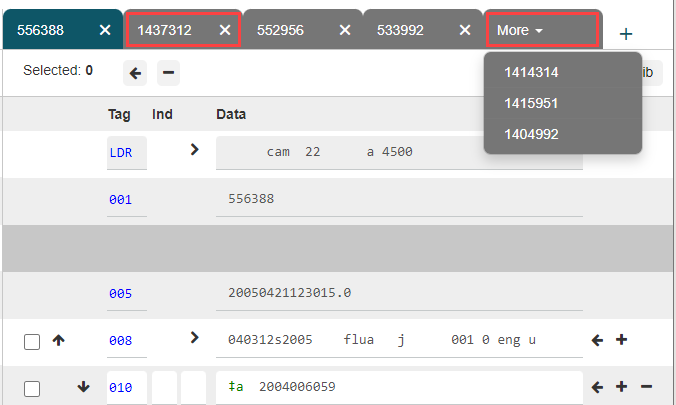
Leap displays the new compare record on the right side of the Compare Records workform.
-
Add or edit MARC data.
You can add or edit MARC data in one or more of the records displayed in the Compare Records workform. For details on editing bibliographic records, see Edit a Bibliographic Record.
Align MARC tags.
If tags appear in a different order in the records you are comparing, you can align the tags.
Note:
If your library uses automatic MARC tag sorting for bibliographic records, tags displayed on the MARC Compare workform are aligned by default. However, you may still want to use the align tags feature to reorder tags after editing one or more of the records you are comparing. For more information about automatic tag sorting, search for "Turn Automatic MARC Tag Sorting On or Off" in the Polaris staff client help.To align MARC tags
-
In the header of the compare record, select Align Tags
 .
.
Leap sorts the tags in the records that appear on screen according to the order specified in the MARC validation: Bibliographic profile in Polaris Administration (staff client). For more information, search for "Change the Sort Order of MARC Tags" in the Polaris staff client help.
Note:
The changes to the tag order are temporary unless you save the record or records.
Copy MARC tags from one record to another.
You can copy tags between the two records that currently appear on the Compare Records workform.
You can't copy the Leader, the 001 tag, or the 005 tag.
To copy tags from one record to another
-
Do one of the following:
-
To copy a single tag, select the right arrow
 or the left arrow
  next to the tag.
Leap copies the tag from one record to the other.
-
To copy multiple tags:
-
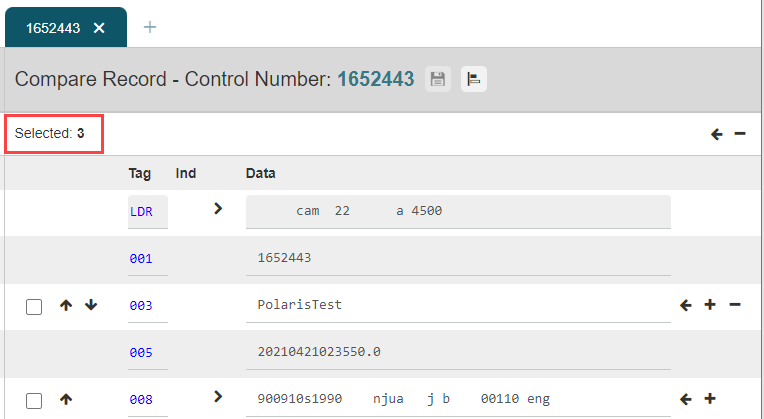
Select the tags you want to copy.
Leap displays the number of tags you selected.
-
Select the Copy Selected Rows icon at the top of the record. The icon is a right arrow
or a left arrow , depending on whether you are copying tags from the current record or from the compare record.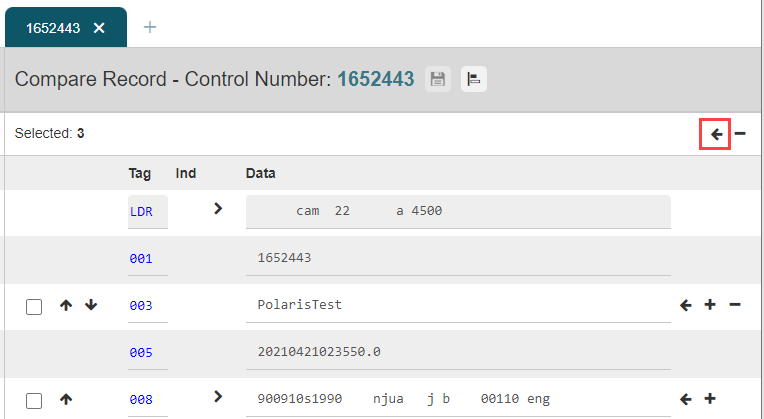
-
-
Delete MARC tags.
You can delete tags from any record in the Compare Records workform.
You can't delete the 001 tag, the 005 tag, or any tag that your library has defined as a required bibliographic record tag. For more information about required tags, search for "Administering MARC Validation and Display" in the Polaris staff client help.
To delete tags
-
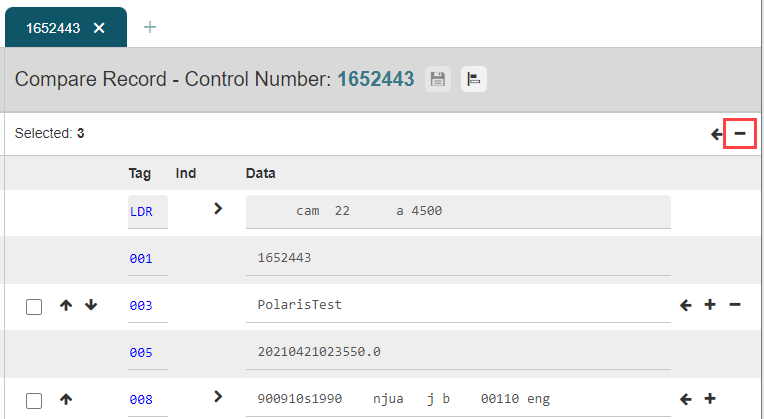
Select the tags you want to delete.
Leap displays the number of tags you selected.
-
At the top of the record, select the delete rows icon
 .
.
Add a new compare record.
You can add a new compare record to the Compare Records workform.
To add a new compare record
-
In the header of the compare record, select the plus sign.
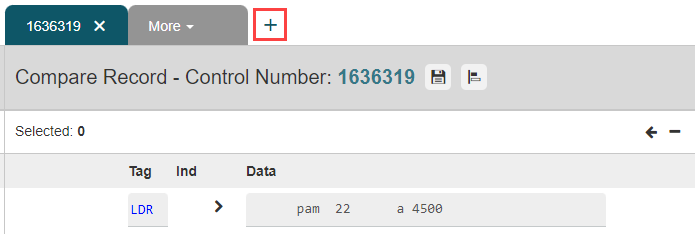
Leap displays the bibliographic record Find Tool.
- Search for the record or records you want to compare to the current record.
- From the list of search results, select one or more records. The Compare Records workform can display up to 19 compare records.
-
Select Open.
The new compare record or records appear on the Compare Records workform.
Close a compare record.
You can close a compare record to remove it from the Compare Records workform.
To close a compare record
-
In the header of the compare record you want to delete, select the close button.
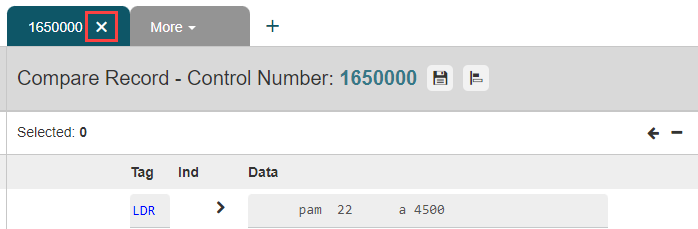
Leap removes the compare record from the Compare Records workform.
-
-
When you're finished comparing and editing records, do one or both of the following:
-
Save your changes to one or more of the records on the Compare Records workform. To do this, select Save Record
 in the header of the records you want to save.
Leap performs record validation, duplicate detection, and authority control, and then saves the record. For more information, see Bibliographic Record Validation, Duplicate Checking, and Authority Control.
-
Select CLOSE to close the Compare Records workform.
-
