
Check for and Fix Unlinked Authority Headings
The Check Headings feature lets you check for unlinked authority headings in a bibliographic record and fix them without manually editing multiple bibliographic or authority records.
You can fix unlinked authority headings if you have the Authority records: Create and Authority records: Modify permissions in Polaris System Administration (web-based). For more information about cataloging permissions, see Cataloging Permissions Reference.
To check for and fix unlinked authority headings
-
Find the bibliographic record you want to check for unlinked authority headings, and open it in the Bibliographic Record workform.
-
Select Actions > Check Headings.
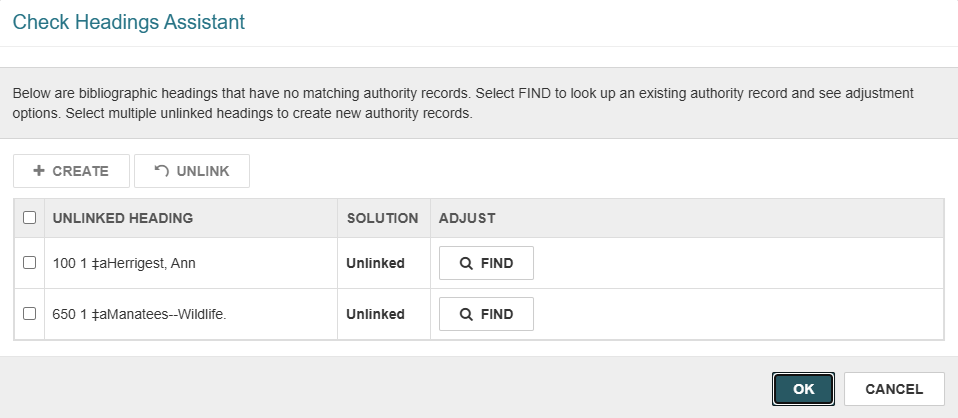
Leap displays the Check Headings Assistant dialog, which lists all unlinked headings for the bibliographic record.
-
Fix each unlinked heading by doing one of the following:
 Link a heading to an existing authority record
To link a heading to an existing authority record
-
Select a heading and then select FIND. You can select more than one heading.
Leap displays the authority record Find Tool.
-
Search for an existing authority record and select it.
-
Select OPEN.
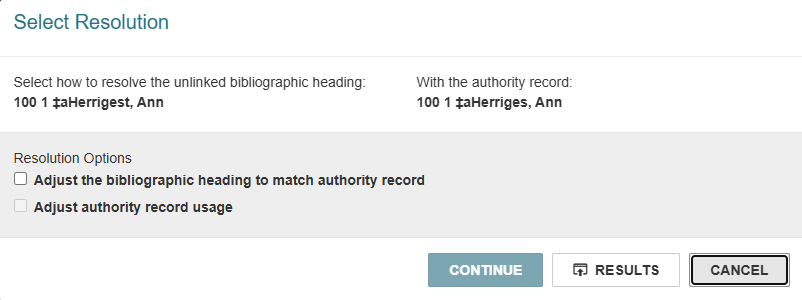
Leap displays the Select Resolution dialog.
-
Select one or both of the following resolution options:
-
Adjust the bibliographic heading to match authority record — Updates the bibliographic record heading to match the heading from the authority record.
-
Adjust authority record usage — Updates the authority record usage to match the heading from the bibliographic record.
Note:
Resolution options are disabled if you are not allowed to perform the specified action with the selected authority record. If neither resolution option is enabled, the system displays a notification. In this situation, you can select Results to return to the authority record search results and select a different authority record. -
-
Select CONTINUE.
Leap closes the Select Resolution dialog and updates the Check Headings Assistant dialog. The SOLUTION column displays a status of Adjust for the headings you selected. The ADJUST column displays a summary of the changes that Leap will make when you select OK.
Note:
Changes to the bibliographic record are not saved until you select OK to close the Check Headings Assistant dialog and then save the bibliographic record. Changes to authority records are not saved until you select OK to close the Check Headings Assistant dialog.
Create a new authority record for an unlinked heading
To create a new authority record for an unlinked heading
-
Select an unlinked heading. You can select more than one heading.
-
Select CREATE.
Leap updates the Check Headings Assistant dialog. The SOLUTION column displays a status of Create for the headings you selected.
Note:
Leap does not create the new authority record until you select OK on the Check Headings Assistant dialog. When you select OK, Leap creates an authority record based on the bibliographic record heading and links the new authority record to the heading.
-
-
(Optional) If you need to undo a change you made in step 3 (for example, if you linked a heading to the wrong authority record by mistake), do the following:
-
Select one or more headings.
-
Select UNLINK.
Leap discards your changes for the selected headings and updates the Check Headings Assistant dialog. The SOLUTION column displays a status of Unlinked for the headings you selected. You can link the headings to different authority records.
-
-
Select OK to close the Check Headings Assistant dialog.
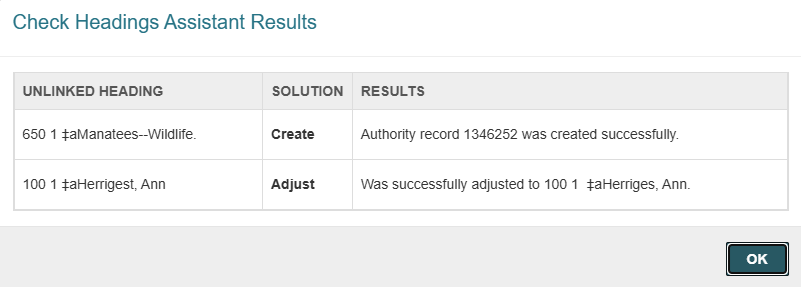
Leap displays the Check Headings Assistant Results dialog, which shows a summary of your changes to the unlinked headings.
-
Select OK to close the Check Headings Assistant Results dialog.
Leap displays a notification to confirm that your changes were made successfully.
-
Save the bibliographic record.
Leap saves your changes to fix unlinked authority headings and updates the Headings view of the Bibliographic Record workform to reflect your changes.
