
Adding and Deleting Dated Patron Notes
The Dated Notes view for patron records allows staff members to enter timestamped non-blocking notes through the Patron workform.
This topic covers the following:
Enabling Dated Notes View
You can enable or suppress the Dated Notes view through settings located in the Staff Client settings module:
To enable the Dated Notes view Set the Web App: Suppress view: Dated notes setting to No.
To suppress the Notes tab view, set the Web App: Suppress view: Notes setting to Yes. Both views can be enabled or suppressed at the same time.
Using the Dated Notes View
When enabled, the Dated Notes tab is visible in the right end of the patron record. Within this view, the dated notes are listed as a table, with each row containing:
-
Note
-
Creator
-
Branch
-
Creation Date
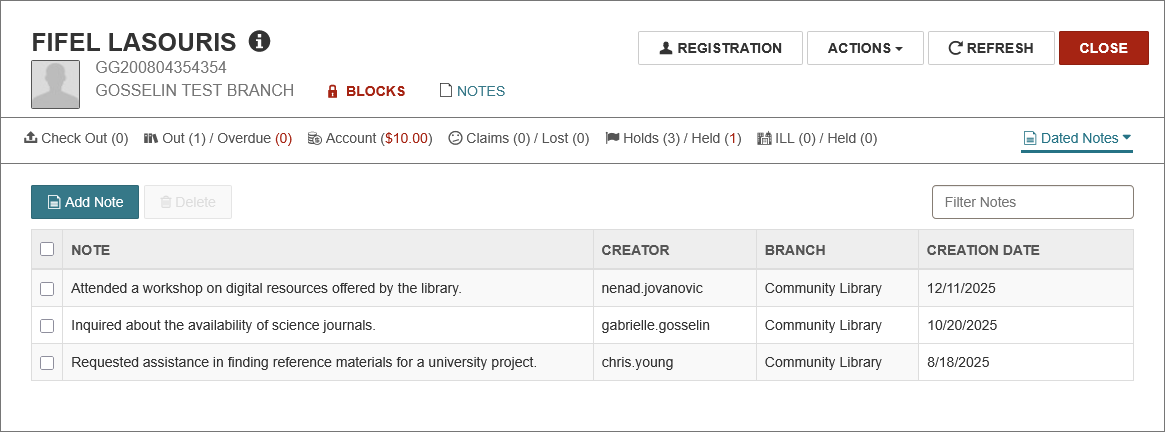
Here, the staff members can use the options to Add Note or Delete one or more selected dated notes. Once a dated note is added, it cannot be edited.
Dated note length is limited to 4,000 characters.
Setting Permissions for Staff Members
There are separate permissions in Polaris System Administration (web-based) for staff members to view, add, and delete dated notes in patron records. The following can be found in the Circulation subsystem:
-
Patron status: Display dated notes
-
Patron status: Create dated notes
-
Patron status: Delete dated notes
For more information, see Circulation Permissions Reference.
