
Configuring the Journal Search
Click Journal Search and A-Z List from the Configuration section of the Setup & Administration area and click the Main tab.
The following sections are available:
- General
- Content
- Design
- Search/Results
- Languages
General
Click General to display the following page:
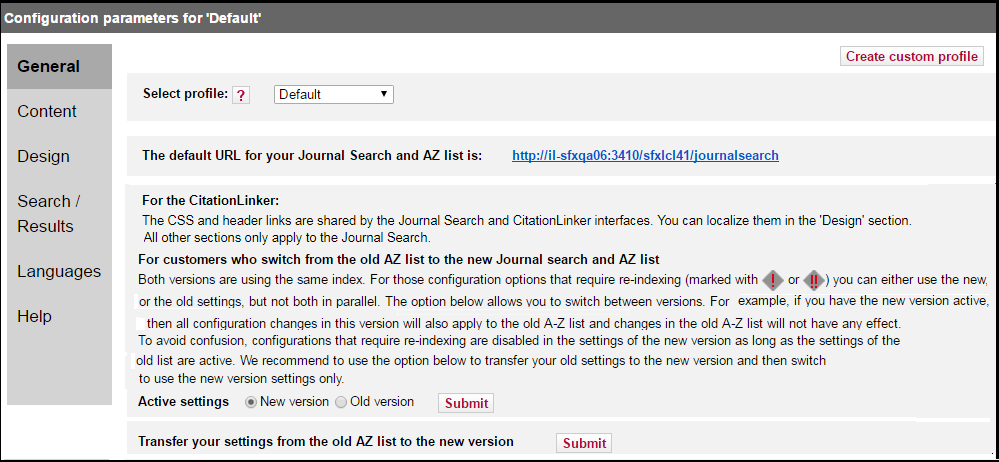
The following table describes the options on this page:
| Field | Description |
|---|---|
| Select Profile | Select which profile is affected by changes made in the Content, Design, Search/Results, and Languages sections. |
| Create Custom Profile | Click Create custom profile to display the Profile name field |
| Profile Name | Enter a name for the new profile and click Create Profile. See |
| Default URL for your Journal Search and AZ list | The default URL for your Journal Search and AZ list that you can integrate into a Web page. |
| Active Settings | If you want to switch to the new version of the A-Z list, select New Version and click Submit to make the new version settings your active settings. |
| Transfer your settings from the old AZ list to the new version | Click Submit to switch to the new version settings. |
Both the Journal Search and the old A-Z list use the same index. For those configuration options that require re-indexing you can either use the new, or the old settings, but not both in parallel. The following symbols indicate the areas that require reindexing:
- ! – Requires rebuild of Journal Search index only
- !! – Requires rebuild of RSI and Journal Search indexes
It is possible to define Journal Search profiles (for example, in a consortium environment, for the different institutes defined in a particular instance). To do this, click Create custom profile from the General section. The profile name field is displayed. Enter a name for your custom profile and click Create profile.
For custom profiles, it is possible to define the same parameters that exist for the DEFAULT profile. Additionally, you need to define a profile name that is used in the URL when accessing the A-Z List for this profile. For example, if the profile named Boston is created, the URL to access this A-Z List is:
http://<sfx_server>:<port>/<instance>/az/boston
It is possible in the A-Z List to include institute information as part of the SFX base URL.
The A-Z URL is in the following format:
http://<SFX_base_URL><-institute>/az/<institute>
This institute information is retained when searching or browsing the A-Z List and when using outside links such as the SFX menu.
In the additional profiles, it is possible to add, delete, and edit profiles for one institute, multiple institutes, or groups. This can be done in the Content section of each additional profile:
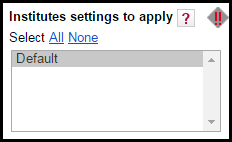
Select an institute from the box to have the Journal Search function like the SFX menu, so that selecting an institute results in an Journal Search that contains everything active for this institute, for groups with which it is affiliated, or active by default.
Inactive settings are taken into account. For example, inactive settings for an institute or a higher-ranked group override active defaults or lower group settings. With this option selected, the DEFAULT institute cannot be selected independently because it is included by inheritance when selecting any other institute or group.
If more than one institute or group is selected, the Journal Search includes anything active for the institutes, groups, and defaults selected. Inactive institutes and group settings are ignored. This option is similar to the way the current Journal Search is calculated.
For more information about institutes, refer to the Institute Feature section of the SFX Advanced User's Guide.
Content
From the Content section you can configure the content of the A-Z List results. The following fields are available in the Content section:
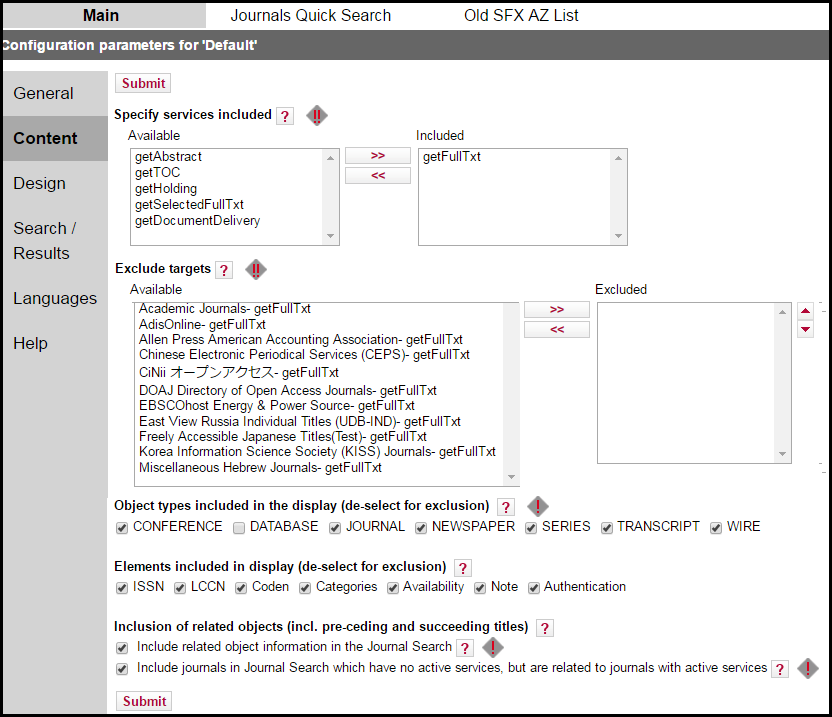
The following table describes the fields of the Content section:
| Field | Description |
|---|---|
| Specify services included | Select the services to be displayed in the A-Z List. |
| Exclude Targets | Select the target services to exclude from the A-Z List. |
| Object types included in the display | Select the object types to include in the A-Z List. |
| Elements included in display | Select the elements you want displayed. |
| Include related object information in the Journal Search | Select to include related object information in the Journal Search. |
| Include journals in Journal Search which have no active services, but are related to journals with active services | Select to include journals in the Journal Search which have no active services, but are related to journals with active services. |
Design
The Design section is divided into two parts. The top part contains fields that are applicable for both Journal Search and CitationLinker and the bottom part contains fields that are applicable only for Journal Search.
The following fields are available in the Design section:
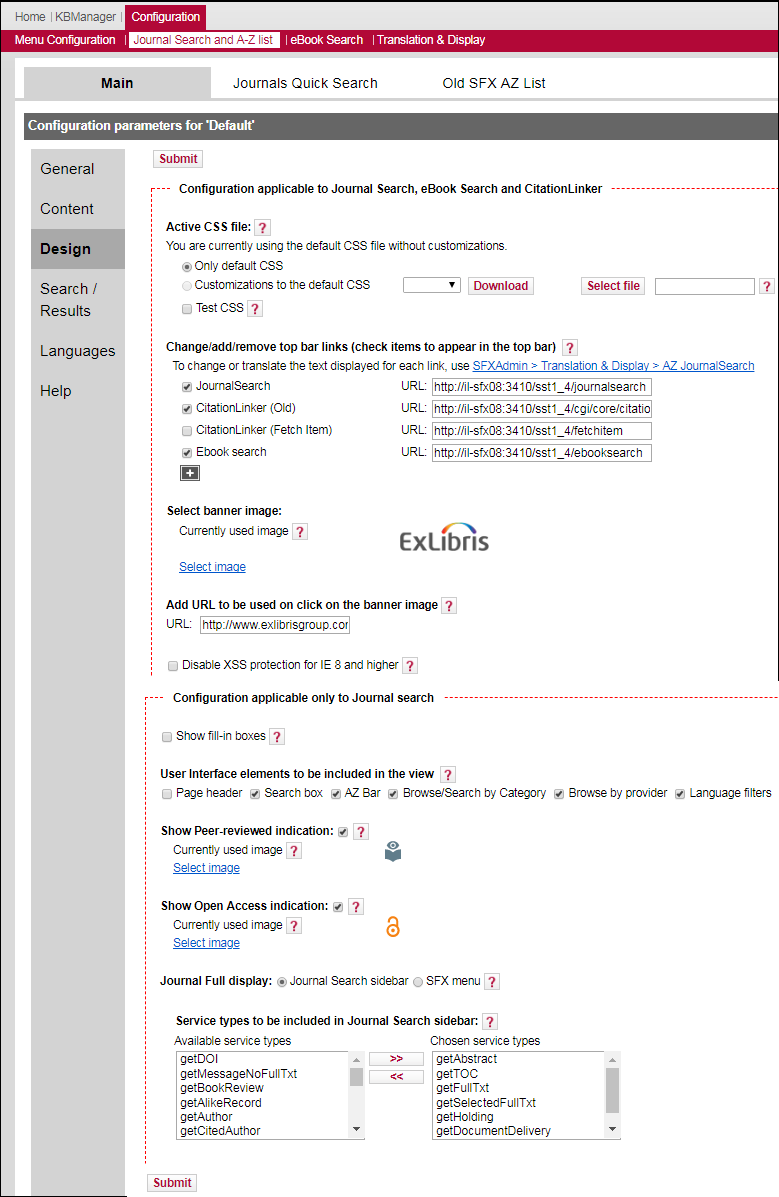
The following table describes the fields of the Design section:
| Field | Description |
|---|---|
| Configuration Applicable to both Journal Search and CitationLinker | |
| Only default CSS | Select this option to use the default CSS for the Journal Search. |
| Customizations to the default CSS | Select this option to use a customized CSS or the Journal Search. Click Download to download a customized CSS. Click Select File, select a CSS file, and click Submit to upload a customized CSS. |
| Test CSS | Select this option when testing a customized CSS file. Select a CSS file from the drop-down list and enter an IP address to restrict use of the CSS file to that address. |
| Change/add/remove top bar links | Select the items that you want to appear in the top bar. |
| Select banner image | Click Select Image to select a banner image. |
| Currently used image | Click Select image to select an open access indication image. |
| Add URL to be used on click on the banner image | Enter the URL to open when clicking the banner image. |
| Disable XSS protection for IE 8 and higher | Select if Internet Explorer’s cross site scripting protection prevents Open URLs from being accepted. |
| Configuration Applicable only to Journal Search | |
| Show fill-in boxes | Display the fill-in boxes in the Journal Search sidebar. |
| User Interface elements to be included in the view | Select the UI elements you want to appear in the Journal Search. |
| Show Peer-reviewed indication | Select to display a peer reviewed indication in the Journal Search. |
| Show Open Access indication | Select to display an open access indication in the Journal Search. |
| Journal Full display | Select Journal Search sidebar to display the Journal Search sidebar when clicking a journal in the Results List. (The Service Types to be Included selection boxes appear.) Select SFX menu to display the SFX menu when clicking a journal in the Results List. |
| Service Types to be included in Journal Search sidebar | Use the arrows to move the services that you want to appear in the sidebar to the Chosen Service Type box. |
Search/Results
The following fields are available in the Search/Results section:
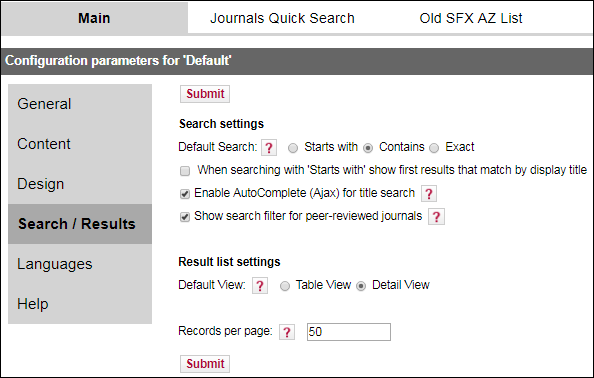
The following table describes the fields of the Search/Results section:
| Field | Description |
|---|---|
| Default Search | Select either Starts with, Contains, or Exact. By default this is set to Contains. |
| When searching with ‘Starts with’ show first results that match by display title | Select to display first the results where the Main Title starts with the search term and only after that the results where the alternative titles start with the search term. |
| Enable AutoComplete (Ajax) for title search | Select to enable the AJAX auto-complete feature. For more information about AJAX, see AJAX Auto-Complete. |
| Show search filter for peer-reviewed journals | Select to have a check-box displayed that allows you to filter the results to include only peer-reviewed journals. |
| Default View | Select either Table View or Detail View. |
| Records per page | The number of records you want displayed on each page. |
Languages
The following fields are available in the Languages section:
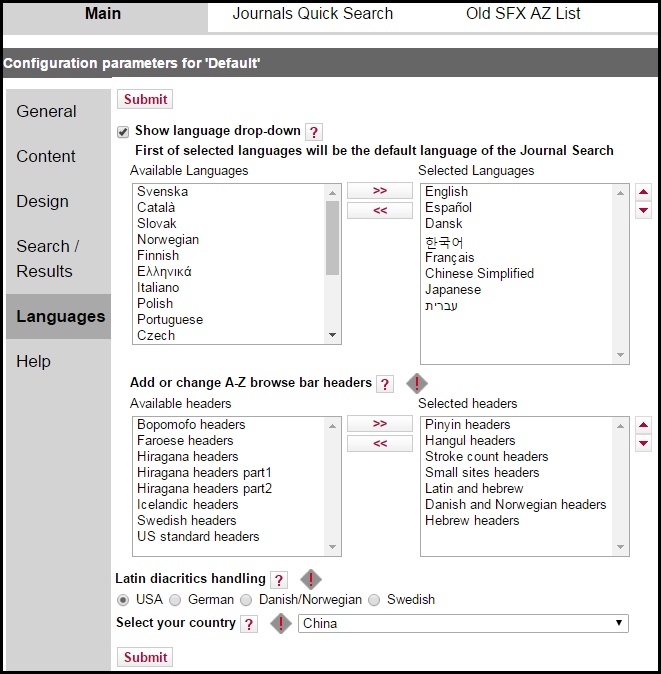
The following table describes the fields of the Languages section:
| Field | Description |
|---|---|
| Show language drop-down | Select to display the language drop-down list in the Journal Search. Select the languages you want to appear in the drop-down list. |
| Add or change A-Z browse bar headers | Select the headers you want to appear in the Journal Search and the order in which you want them to appear. By default this is set to US standard headers. |
| Latin diacritics handling | Select how diacritics should be handles when sorting journal titles in the Journal Search:
|
| Select your country | Select your country. By default this is set to United States. This selection determines the display and sorting of results in the Journal Search interface. For example:
|
