Multi-Language A-Z List
The SFX A-Z List can be set up to support several languages in order to cater to end users in multiple language environments. For additional information about creating new language translations, see Translations and Display.
The user interface language can be set in several ways:
- A drop-down list can be displayed in the A-Z List, allowing end users to select their language of choice.
- A parameter in the A-Z List URL can be used to set the appropriate language. This option is used by MetaLib. For more information, see Accessing the A-Z List.
- The default language can be defined for each A-Z List profile by the SFX administrator.
Below is an example of an A-Z List with the language drop-down list:
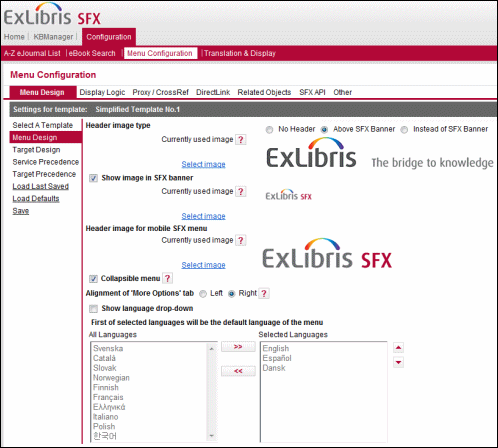
The language of the SFX A-Z List also determines the language in which the SFX menu is presented when clicking an SFX link in the A-Z List.
A set of configuration options and a separate translations section are available for this feature in the SFX Admin Center.
Configuring the Multi-Language A-Z List
You can configure the multi-language A-Z list.
- Confirm that all the languages in which you want to offer the A-Z List are available in the Translations & Display tool. (See Translations and Display for more information.) Adapt the wording for any A-Z textual element, as desired.
- If the interface language of your choice is not currently offered in the global KnowledgeBase, define a new language and the wording for each A-Z textual element in the Translations & Display tool.
Out-of-the-box, SFX comes with English A-Z wording and a number of additional languages. More languages will be added in the future.
- For each A-Z profile, define the:
- Target public names
- The target service public name defined for specific target services
- Note and authentication information
Working with the Hebrew A-Z List
To use the A-Z List in Hebrew, select  from the language drop-down list. The following is displayed:
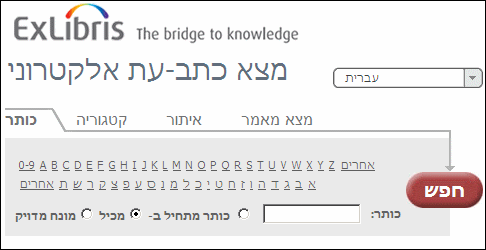
The following elements are now displayed in Hebrew and are right-aligned in all tabs of the A-Z list:
- All search boxes, all search options including radio buttons, as well as all search box labels
- All result display elements - including all the journal and availability information, SFX and 'i' buttons (note that both Hebrew and non-Hebrew journals will be right-aligned)
- All result navigation elements
The following elements, however, remain left-aligned:
- The top header, A-Z list title, and language drop-down list
- The navigation tabs for Title, Category, Locate, and CitationLinker
- The Go button.
The following is an example of the results display in Hebrew:
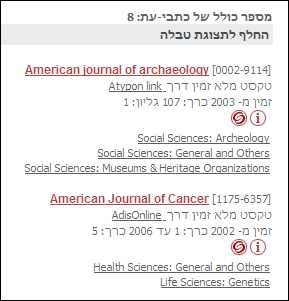
In the Hebrew A-Z List results display, text is right-aligned.
