
Searching with the Journal Search
The Journal Search consists of the following sections:
- Searching by Title or ISSN – Allows browsing and searching of journal titles
- Browse by Subject – Allows browsing of journals by category
- Browse by Provider – Allows browsing of journals by provider
- CitationLinker – Form to fill in journal citation information in order to get a corresponding SFX menu. It can be used if the user found citation information prior to accessing the Journal Search.
Searching by Title or ISSN
Enter a title or ISSN in the text box. The Journal Search supports two types of searches:
- Contains – The result set includes all journal titles that contain the search terms entered. When multiple search terms are used, double quotes can be used to indicate a phrase search. In a phrase search, the order and adjacency of the search terms are taken into account when performing the search.
When no double quotes are used to indicate a phrase search, all search terms must exist in the main or abbreviated titles of the journals displayed, but adjacency and order of words are not taken into account.
For example, if you search for university journal, the following two results are displayed:
University journal of excellence in research Research journal from Columbia University
If you search for “university journal” only the first journal is displayed.
- Starts with– Displays a limited list of Journal Search journal titles that start with the search term used in any of the title fields of the journal. The result count number in the search set is the number of journals that start with the search term used.
- Exact – The result set includes all journal titles that match the search term exactly. The Exact search option is not shown when the AJAX auto-complete option is enabled, as its functionality is replaced by clicking a title within the auto-complete list. More information on AJAX can be found in AJAX Auto-Complete.
The following is an example of a title search result:

If the Journal Search result includes journals with titles in languages with different writing systems (for example English and Hebrew), an option to filter by language is displayed on the right side of the result list.
For more information on configuring the language check boxes, see Language.
Browse by Subject
Select a value from the Browse by Subject drop-down list and click Search to see results according to the subject you selected:
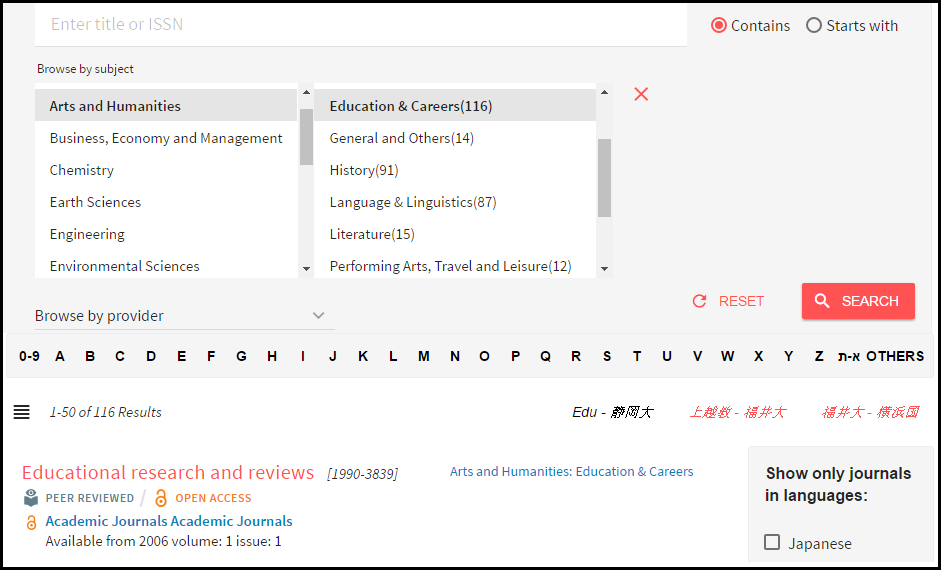
Browse by Provider
Select a value from the Browse by Provider drop-down list and click Search to see results according to the content provider you selected:
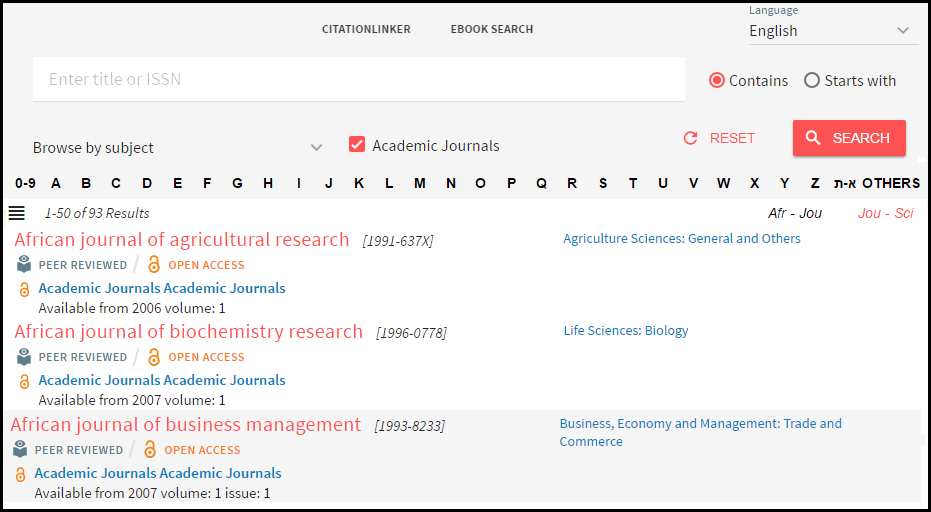
CitationLinker
Click CitationLinker to manually create an OpenURL that is then sent to the SFX server. The following is displayed:

For more information, see CitationLinker and Fetch Item.
