
A-Z Result Display
After you perform a search, the A-Z list displays the results in Table view or Detail view. For information on determining which view is displayed by default, see Display.
Table View
The following is an example of the A-Z List display in Table view:

Table View
In Table view, the following information is displayed:
- Journal title – Click to skip the SFX menu and display full text (if directLink is turned on).
- ISSN – The ISSN of the journal.
- i button – Click to display the details dialog box with journal information.
- SFX button – Click to display the SFX menu.
Detail View
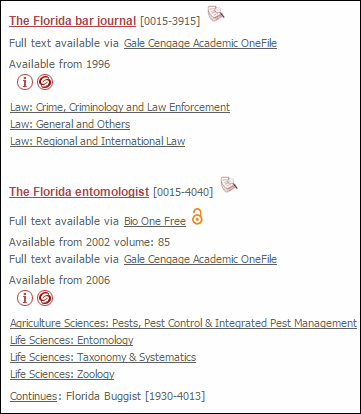
The following is an example of the A-Z List display in Detail view:
Detail View
In Detail view, the following information is displayed:
- Journal Title – Click to skip the SFX menu and display full text (if directLink is turned on).
- Availability Statement – Click the target name to skip the SFX menu and display full text (if directLink is turned on). The OpenURL link includes the Object portfolio ID to ensure the SFX menu displays only this target. The Object portfolio threshold information is displayed in the Availability Statement. Note that object portfolio thresholds (of the type parsedDate and TimeDiff) are included, but not target or target service thresholds.
- i button – Click to display the details dialog box with journal information.
- SFX button – Click to display the SFX menu.
- Peer-reviewed indicator – Indicates that the journal is peer reviewed
- Open Access indicator – Indicates that the journal is at least partially openly accessible
By default, the following information is included in the Details dialog box:
- Journal titles
- Main
- Abbreviated
- Uniform
- Alternative
- Translation
- ISSN
- CODEN
- Categories
- Availability information
- Note
- Authentication
- Journal History (with related journal information)
