
Release Date: March 7, 2026
Account Portal
For those customers who have requested that the feature is "off":
-
We will not re‑enable it until the May release (May 5/6, depending on region) unless you would like to turn it back on sooner.
-
If you would like to turn the Account Portal at any time before May, please open a case in Support Center.
-
We will keep the Known Issues for Vega Products article updated as we progress through the fixes.
-
Release Notes will be sent the Thursday before each release to confirm status of feature releases and fixes.
If you have any questions please do not hesitate to reach out.
Account Linking for Patrons
This feature will be enabled shortly after updates are completed, during the non-business hours deployment window for your region.
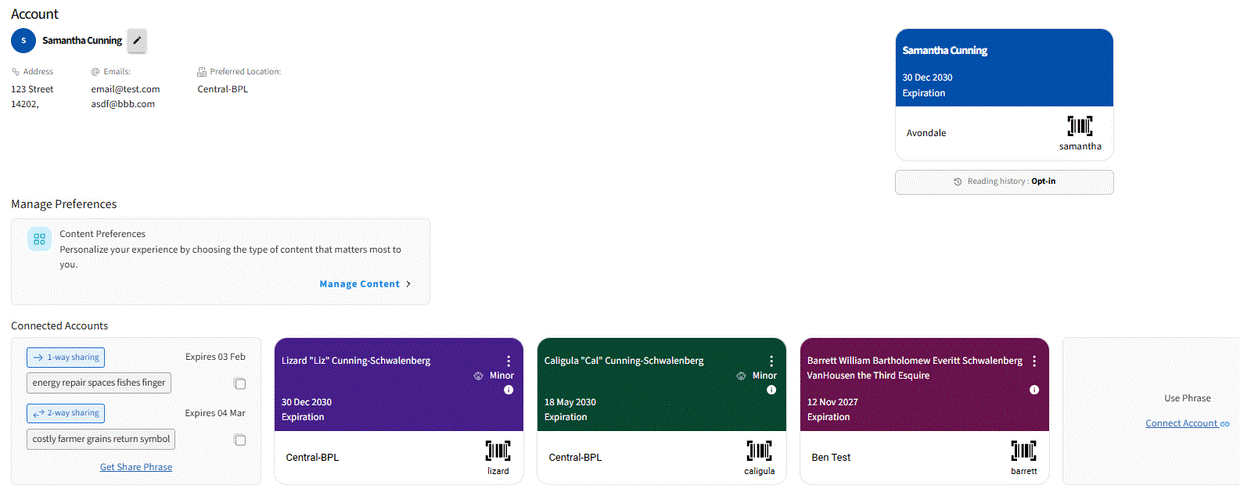
An Account Linking feature toggle has been added to the Vega Admin > Cog menu > Interface configurations > Account portal settings page.
By default this feature is off and requires that the Account Portal be turned ON to use.
The Account Linking feature can be set at the Institution Level and cascaded to member library sites in a consortia or multi-library system. If individual member libraries would like to turn the feature on or off separately from the Institution, Site Level override settings can be found in the individual site settings under Account portal settings.
Turning on Account Linking will enable the following patron account features for all libraries using the Account Portal.
-
In the Account view of the Account Portal, Non-minor patrons will be able to generate 1-way and 2-way passphrases to facilitate linking to other patron accounts.
-
The linked account must use the Connect Account feature in their Account view to input the barcode of the linkee and the passphrase to complete the linking.
-
Passphrases will differ for 1-way and 2-way links and can be used to link multiple accounts before they expire (7 days).
-
All linked accounts can be managed by Non-minor patrons, allowing them to: modify patron account profile details, renew circulating items, cancel or modify holds, view and managed/edit linked account lists and saved searches with functions available in the account portal views.
-
For linked minor accounts only, the Non-minor managing accounts can choose to set a default catalog for the minor, that will lock the minor user to a specific catalog such as a kids or teen catalog view.
-
Non-minor managing accounts cannot perform catalog functions for linked users such as; add items to a list, save searches, checkout eContent or place new holds.
-
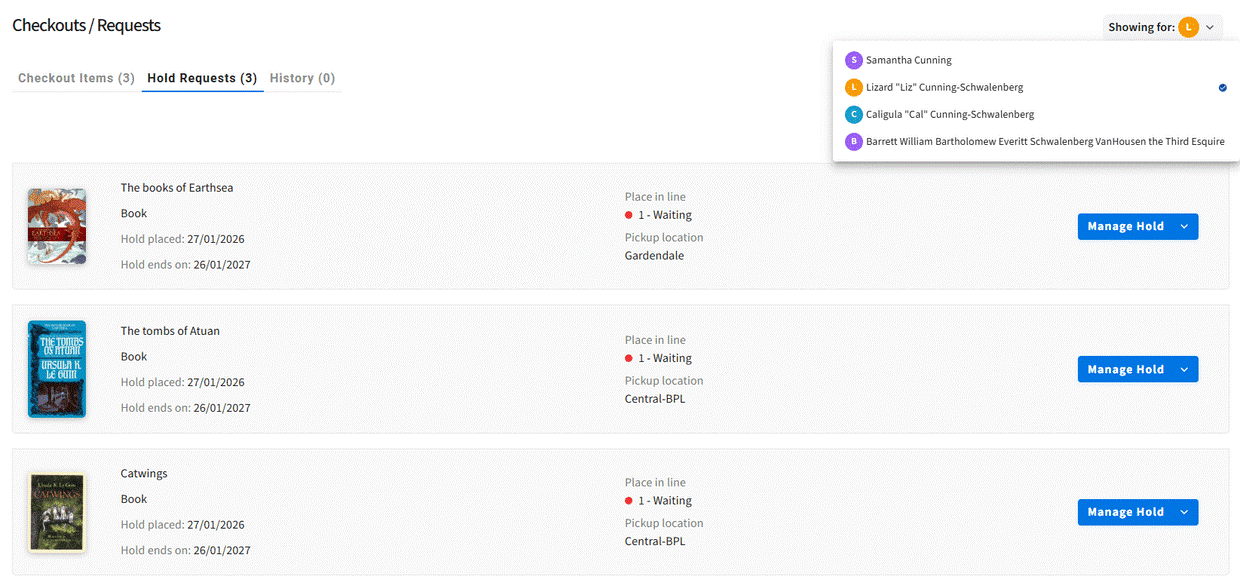
When a user has linked accounts, a menu displaying the names of linked users will appear throughout the account portal screens allowing the user to toggle between account views for selected users.
-
In a 2-way linking, both Non-minor patrons can manage each others accounts.
-
In a 1-way linking, the linked user cannot view any details for the originating account. But will see a card for this account in their Account page showing that they are connected, and if enabled will allow them to unlink. A 1-way linking is designed for guardians to assist with managing the library accounts for their dependents.
-
Other settings in the Account portal settings allow your library to control how the concept of 'minor' is defined in your library system and whether minor accounts are permitted to unlink from guardians.
Training Materials
Log In to Support Center Knowledgebase to Access All Training Resources
-
FAQs – Perfect for printing and keeping at service desks as a quick reference.
-
Account Linking FAQs
-
-
Quick Reference Guides – Includes detailed steps and screenshots for visual learners.
-
Staff Talking Points Guide
-
Step-by-Step Patron Workflow
-
Admin settings for internal linking and default showcases
-
-
Video Demos – For those who prefer a walkthrough.
-
Patron View of Account Linking
-
Non-displaying MARC fields setting
This feature will be enabled shortly after updates are completed, during the non-business hours deployment window for your region.
If your library would like to set rules to hide indexed concepts/subjects you must run a full MARC extraction after this feature is live, and before configuring these rules. If indexed subject rules are configured before a full MARC extraction is done, the terms will not fully deindex and can still appear to users. This can be remedied by running the full MARC extraction, then removing and adding back the subject rule in the settings page.
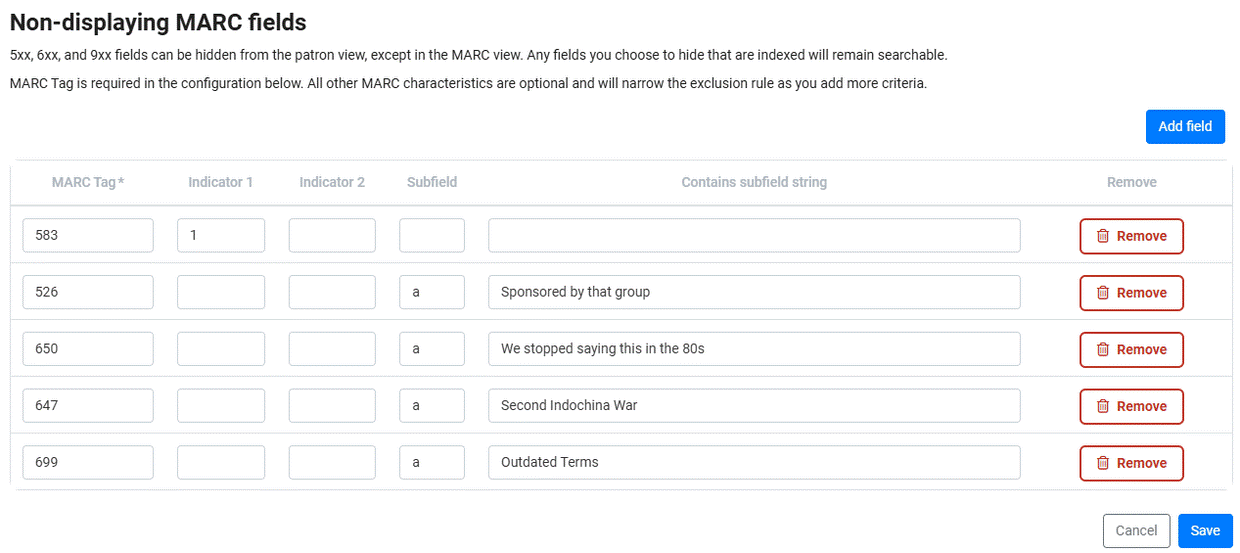
We now support libraries who are implementing catalog changes that promote DEI initiatives with a feature that helps suppress metadata from certain fields without deindexing antiquated terms. The Non-displaying MARC fields setting allows libraries to define specific tag data coming from 5xx, 6xx, and 9xx fields that should not be displayed to patrons when searching and viewing records. Data hidden in this manner will still display as cataloged in the Full MARC view, but will not display in the Edition Details, in Facets, in type-ahead search suggestions, or in Linked Data showcases such as the Related Topics showcase.
Hidden field data will remain searchable if the data is included in indexed fields so that patrons using the hidden terms will still be able to locate materials.
These rules can be configured in the Vega Admin > Cog Menu > Library Defaults > Display settings page. To configure data that should be hidden enter the tag number and optionally other details to pinpoint what data is hidden. You can limit what specific tag data is hidden by specifying indicators, subfields, and strings that must match in order for field data to be hidden.
When you save rules or make changes to your configuration, Vega Discover will need to reindex to apply your changes. A job will automatically be scheduled and run you. Confirming that you would like to apply a rule change will result in a scheduled index job and Vega Discover will alert you to when this index job will run. If you make multiple changes before the current scheduled index job runs, all changes will be applied during the same scheduled indexing job.
The indexing required for this feature is not a Full MARC Ingestion and the job will not appear in the Record Extraction queue.
Edition Table Buttons Update
This feature will be enabled shortly after updates are completed, during the non-business hours deployment window for your region.
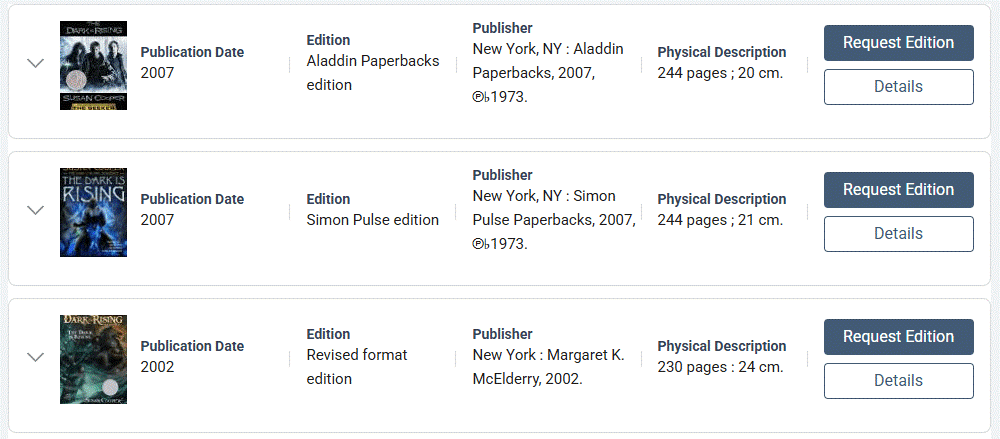
We have updated the Edition Table by moving the Details button that gives users access to additional information and the MARC record to the right side of the edition table below the Edition level request button. This change was made to help users more easily find this feature.
OPAC Message Added to Streaming Updates
This feature will be enabled shortly after updates are completed, during the non-business hours deployment window for your region.
The OPAC Message has been added to item level updates that Vega Discover receives as streaming updates from the Sierra ILS. After the deployment any changes you make to OPAC Message data will stream to Vega Discover without a need for a Full MARC Extraction to apply the updates.
Checkout and Requests Account Portal Views Update
This feature will be enabled shortly after updates are completed, during the non-business hours deployment window for your region.
The Account Portal Patron views for Checkouts and Requests now allow users to view all transactions by scrolling down the view. This provides consistency with all other Account Portal views, and also applies when viewing the transactions from selected linked accounts.
BUG FIXES
Cookie Banner Unable to be Dismissed
An older version of the cookie banner was displaying at the top of the screen and could not be dismissed. This problem has been fixed, and the correct, dismissable banner from OneTrust now displays at the bottom of the screen again.
OverDrive Features in Account Portal
-
Checkouts View Features
-
The ability to Get Items for checked out OverDrive materials has been restored.
-
The ability to checkin OverDrive materials has been restored.
-
-
Holds/Requests View Features
-
The ability to cancel OverDrive holds/requests has been restored.
-
