
Gestionar Licencias y Enmiendas
- Gestor de licencias
- Visor de Licencia
- Operador de compras
- Gerente de compras
To manage licenses, license amendments, and create license templates you must have the following role:
- Gestor de licencias
Muchos recursos electrónicos requieren licencias de los vendedores que proporcionan los recursos. Alma permite introducir información de licencia para fines informativos y de rastreo.
Se puede introducir información de licencia y enmiendas. You associate a license with an activated electronic resource in your local inventory on the Repository Search page (see Searching in Alma) or on the PO Line Summary page of the purchasing workflow (see Manually Creating a PO line). You manage licenses on the Licenses and Amendments page (Acquisitions > Acquisitions Infrastructure > Licenses).
- Alma's functionality does not change based on license information; the exception to this is ordering Network Zone managed electronic resources in a collaborative network; see Adding a Negotiation License or a Centrally Negotiated License. Alma no restringe el acceso a los recursos si no se presenta una licencia o si esta expira.
- Alma soporta DLF-ERMI y ONIX-PL para gestionar licencias. For details about setting up ONIX-PL licenses, see Adding ONIX-PL-Formatted Licenses.
Adding a License
- On the Licenses and Amendments page (Acquisitions > Acquisitions Infrastructure > Licenses), select Add License.
- Select Manually.For information about adding a license from an ONIX-PL file, see Adding ONIX-PL-Formatted Licenses. For information about adding a license from a template, see Loading a License from a Template.
- The Summary tab on the License Details page appears.
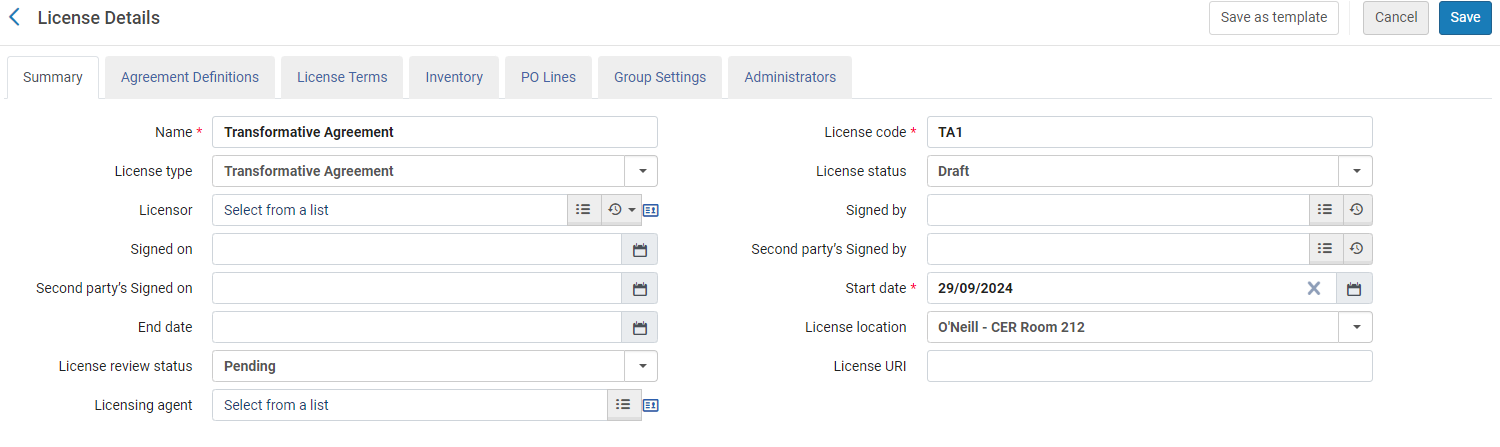 Pestaña de Resumen - Página de Datos de licencia
- Introduzca el nombre y el código de la licencia. Seleccione la fecha de inicio de la licencia. Estos campos son obligatorios.
- Configurar los siguientes campos opcionales:
Datos de la licencia (Campos adicionales) Campo Descripción Tipo de licencia Select License for a regular license or Transformative Agreement if you are working with Open Access Agreements (see Transformative Agreement Licenses). Estado de la licencia El estado de la licencia. Los valores son: - Active – The license is activated and in use
- Inactive – Mark the license as inactive. Inactive licenses can be re-activated by selecting Edit in the row actions list and changing the license status value. They can also be reactivated by selecting the Activate action.
- Draft – The license is created but not in use
- Expired – License "End date" is in the past (can be extended)
- Retired – The license is no longer relevant
Emisor de la licencia Un proveedor para asociar con la licencia. Una licencia puede estar asociada a un solo proveedor.Firmado por El usuario que autorizó las licencias Firmado el Le fecha en la que la licencia fue autorizada por el usuario anterior. Second party's signed by El usuario que es un autorizador secundario de la licencia. Second party's signed on Le fecha en la que la licencia fue autorizada por el autorizado secundario. Fecha de inicio La fecha de inicio Fecha de finalización La fecha en que termina Ubicación de la licencia La ubicación física de la licencia impresa. The values are configured in the License Storage Location code table (see Configuring License Storage Locations).Estado de revisión de licencia El estado de la revisión de la licencia. Los posibles valores son: - Accepted – The license has passed review and is available for use.
- In review – The license is being reviewed by the library/institution.
- Pending – A license for which review has not yet begun.
- Rejected – A license which has been determined to be unacceptable. La licencia no esta disponible para su uso, pero se mantiene un registro de ella en el sistema.
Estos valores son exclusivamente para fines informativos.Licencia URI El URI donde una licencia electrónica está disponible. Agente de licencia Un proveedor adicional, que puede ser la organización (como por ejemplo un agente de suscripción) o el individuo que facilita una transacción de licencia en nombre de una o más partes. Las posibles funciones del agente incluyen actuar como un intermediario en la negociación (con o sin una cargo por los servicios), un proveedor que acepta un pago por el producto o licenciatario designado para un acuerdo en concreto. - In the License Terms tab, configure the terms of the license, such as its terms of use, restrictions, and perpetual rights. For information on these terms, see List of License Term Types.Las secciones y campos de esta pestaña representan un sub conjunto de todo el conjunto completo. An Acquisitions Administrator can configure which fields appear and in which order; for more information, see Configuring Sections Order and Managing License Terms.Es posible crear las declaraciones de derechos de autor en diferentes idiomas. A language should be preceded by the following syntax:--<language code>
-- For example:--fr-- A globe icon (  ) is displayed for all translatable text area for License Terms. Cuando se hace clic, abre una pantalla similar a los campos traducibles normales. La interfaz de usuario se rellena según el contenido del área de texto, y cuando se cierra, agregará el texto correctamente formateado al área de texto.
- The Inventory tab, when you first create a license, is populated only if you associate the license with an activated electronic resource in your local inventory (see Managing Electronic Collections). From within this tab, you can access the Electronic Collection Editor and Electronic Portfolio Editor by selecting the links to the electronic collection or portfolio. The editor opens as follows (for details, see Library set on electronic resource):
- If the electronic collection/portfolio is within the user's role's scope - the editor opens in Edit mode.
- If the electronic collection/portfolio is not within the user's role's scope - the editor opens in View mode.
- Skip the PO Lines and Administrators tabs for now (see Editing Licenses or Amendments). Select Save to store the information you entered and return to the Licenses and Amendments page.
Adding an Amendment to a License
Se pueden crear enmiendas a licencias existentes, lo que modifica las propiedades de la licencia base. Las enmiendas añadidas a una licencia invalidan la licencia base.
- On the Licenses and Amendments page (Acquisitions > Acquisitions Infrastructure > Licenses), select Create Amendment in the row actions list for the license you want to amend. The Summary tab on the License Details page appears.
- Introducir un nombre y un código de licencia único para la licencia enmendada.
- Editar los campos restantes en esta pestaña, si es necesario. For more information on these fields, see Adding a License.
- In the License Terms tab, modify the fields of the amended license, as required.
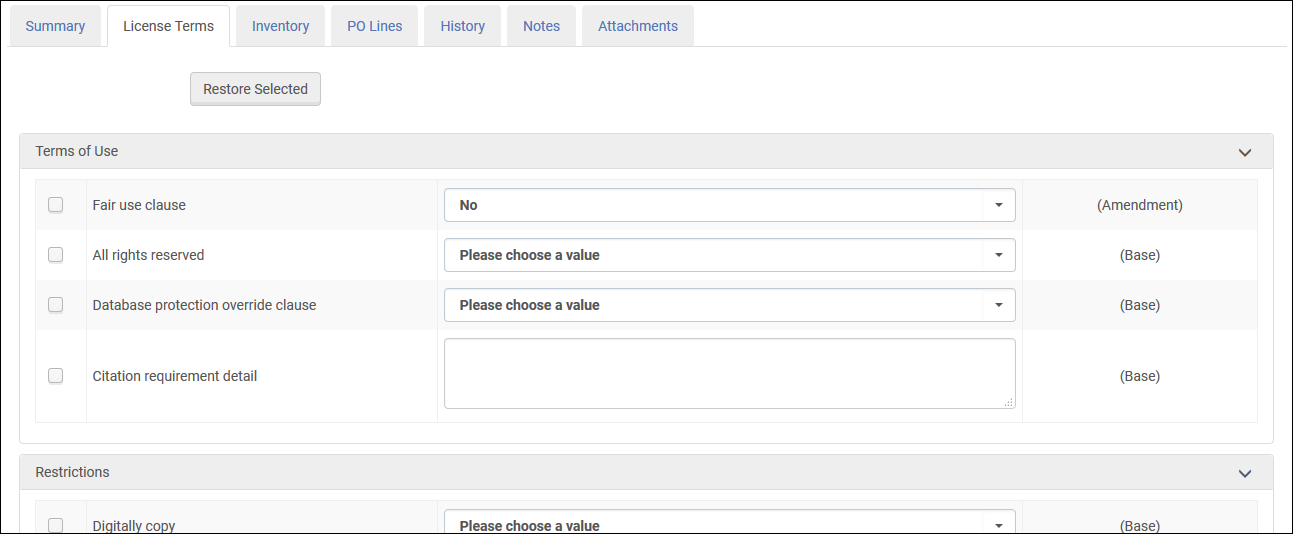
Página de Datos de Términos de licencia - Pestaña de Términos de licencia - Select Restore Selected to restore the selected values (that is, the values whose check boxes are selected) to their original value.
- El lado derecho de la página contiene uno de los siguientes valores que se verán una vez se guarde y se vuelva a abrir la enmienda.
- (Base) – The value is taken from the parameter in the license.
- (Amendment) – The value is unique to the amendment and is not taken from the parameter in the license.
- In the Inventory tab, you can view the active packages associated with the license and the historical packages that are no longer associated with the license.
- A resource may be removed from the license history by selecting Remove from the row actions menu.
Licenses can be associated with packages either by searching in the repository (see Searching in Alma) or from the PO Line Summary page of the purchasing workflow (see Manually Creating a PO line). - In the PO Lines tab, you can view PO lines linked to the license. For information about the actions for each PO line, see Searching for PO Lines.For more information about linking closed or canceled PO lines to a license, see the Link Closed/Canceled PO Lines to Licenses video (1:10 mins).
- Select Save to store the amendment information you entered and return to the Licenses and Amendments page.
Editing Licenses or Amendments
Es posible editar la información de una licencia o una enmienda. Si una licencia es negociada de forma centralizada en una Zona de red, no se debe editar la licencia fuera de la Zona de red. Para hacer cambios, añadir una enmienda. See Distributing Centrally Negotiated Licenses.
- On the Licenses and Amendments page (Acquisitions > Acquisitions Infrastructure > Licenses), select Edit in the row actions list for a license or amendment. The Summary tab on the License Details page appears. See Adding a License.
- Actualizar los campos según sea necesario. For more information on these fields, see Adding a License.
- In the License Terms tab, update the fields used to define the terms of the license or amendment, as required. For more information on these fields, see Adding a License.
- In the Inventory tab, you can view the active packages associated with the license/amendment and the historical packages that are no longer associated with the license/amendment.
- In the PO Lines tab, view PO lines linked to the license. For information about the actions for each PO line, see Searching for PO Lines.
- If you are editing a license, you can perform the following actions on amendments in the Amendments tab:
- Add an amendment – Select Add Amendment to open the License Details page and add a new amendment (see Adding an Amendment to a License)
- Edit the amendment – Select Edit in the row actions list.
- View the license information – Select Base in the row actions list (or just select the Summary tab of the license).
- Duplicate the amendment – Select Duplicate in the row actions list.
- Delete the amendment – Select Delete in the row actions list.
- Se puede establecer la licencia disponible para un grupo. In the Group Settings tab, select Add Settings for Group to add a group. To remove a group, select Remove from the group's row action menu. This tab is only visible when the license type is License or Negotiation. This functionality is similar to the Inherited Group Settings for electronic resources.
- In the Administrators tab, select Add administrator and select the administrator to add to the license or amendment. Esto tiene únicamente fines informativos.
- In the History tab, view changes to licenses. For more information, see History Tab.
- Select License changes to display changes to the license.
- Select License terms changes to display changes to the terms of the license.
- In a collaborative network implementing a Network Zone, select Negotiation changes to display changes to the license negotiations.
Cuando una licencia se crea por primera vez no hay historial. - In the Notes tab, add, update, or delete notes for the license or amendment. For details, see Notes Tab.
- In the Attachments tab, add, update, or delete attachments for the license or amendment. For details, see Attachments Tab.
- Select Save to store the changes you made to the license or amendment.
Imprimir licencias o enmiendas
Se puede imprimir una licencia o una enmienda. The letter used to print the license is the License Printout Letter; see Configuring Alma Letters. Al imprimir una enmienda solo se incluyen los términos de uso de la enmienda, no su licencia matriz. Cuando se imprime una licencia de negociación se incluyen los detalles de negociación.
- On the Licenses and Amendments page (Acquisitions > Acquisitions Infrastructure > Licenses), select the Print license button at the top of the page or select Print license in the row actions list for a license or amendment. Aparecerá la página de licencia impresa.
- Introducir una dirección de correo electrónico o seleccionar una impresora a la que enviar la impresión. Al menos uno de estos campos es obligatorio.
- Select Submit. La licencia se envía al correo electrónico introducido o a la impresora seleccionada. The printout is also added as an attachment on the Attachments tab of the license.
Deleting Licenses or Amendments
Esta acción elimina permanentemente la licencia. If you do not want to permanently delete the license, see Deactivating Licenses or Amendments.
- Navigate to the Licenses and Amendments page (Acquisitions > Acquisitions Infrastructure > Licenses).
- Select Delete in the row actions list for a license or amendment.
- Select Confirm in the confirmation message dialog box.
- La licencia se borra de forma permanente de la lista.
- Las licencias asociadas a recursos o las líneas de orden de compra no se pueden borrar (pero se pueden desactivar).
- Las licencias con enmiendas en cualquier estado no se pueden borrar.
Desactivación y reactivación de licencias o enmiendas
Esta acción conserva la licencia en la lista y le asigna el estado "Inactiva". Una licencia inactiva se puede reactivar según se describe a continuación.
- Navigate to the Licenses and Amendments page (Acquisitions > Acquisitions Infrastructure > Licenses).
- Select Deactivate in the row actions list for a license or amendment.
- Select Confirm in the confirmation message dialog box. The license will now have the Inactive status.
- También puede editar la licencia y establecer el estado en Inactiva.
- Las licencias con enmiendas activas no se puede establecer en Inactivas.
- Navigate to the Licenses and Amendments page (Acquisitions > Acquisitions Infrastructure > Licenses).
- Select Activate in the row actions list for an inactive license or amendment.
- Select Confirm in the confirmation message dialog box.
- También puede editar la licencia y establecer el estado en Activa.
Licencias de acuerdo transformativo para acceso abierto
After selecting the Transformative Agreement License Type (see Adding a License), the Agreement Definitions tab appears. (For general information on working with transformative agreements in Alma see Best Practices for Open Access in Alma).
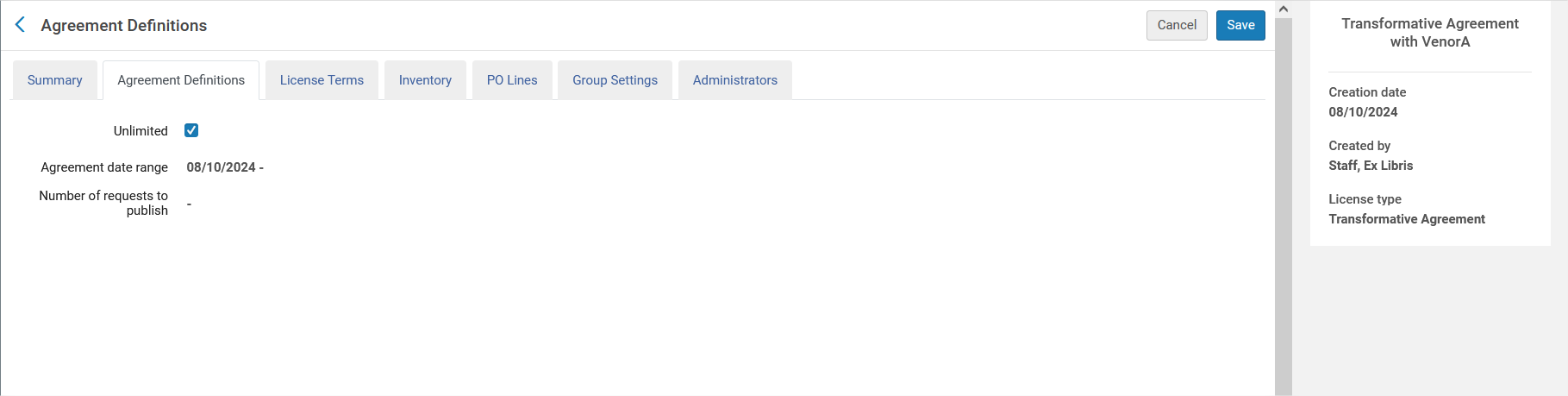
En la siguiente tabla se describen los campos de Definición del acuerdo. See Workflow for Tokens for a description of how the tokens are calculated. See also Working with Open Access Agreements for an overview of Open Access agreements in Alma.
| Campo | Descripción |
|---|---|
| Ilimitado | Utilice este campo para indicar si el acuerdo transformativo tiene un número limitado de ejemplares disponibles para su publicación en el período del acuerdo, o bien es ilimitado.
|
| Tokens totales | Especifique el número de tokens disponibles para el período del acuerdo. |
| Número de solicitudes para publicar | Número de "tokens utilizados" que se calcula como el número de líneas de orden de compra de tipo "Cargos de procesamiento de artículos (APC)" que tienen precio 0 y están vinculadas con la licencia. |
| Tokens totales restantes | Tokens restantes que están disponibles para vincular a las líneas de orden de compra "Cargos de procesamiento de artículos (APC)" con precio 0. |
Workflow for Tokens
A token is considered as an item to publish, as part of the transformative agreement. Cuando el acuerdo es limitado, en algunos casos la institución y el editor acuerdan el número de tokens disponibles para su uso durante el período del acuerdo. Alma can help you keep track of the token usage during this period. When an "Article Processing Charges (APC)" PO line (one time or subscription) is linked with the license, it is considered as a used token only of it is free of charge (price 0 or "No charge" field checked). Cuando se cumplen estas condiciones, se contabiliza un token para esta línea de orden de compra.
Para reflejar los cargos de procesamiento de artículos que no forman parte del acuerdo, es decir, los costes adicionales, puede crear una línea de orden de compra "Cargos de procesamiento de artículos (APC)" y fijarle un precio. Esta línea de orden de compra puede vincularse con la licencia de acuerdo transformativo, pero no se contabiliza como token.
Adding ONIX-PL-Formatted Licenses
Se puede integrar información online de intercambio para licencias de publicación (ONIX-PL) con estándares de licencias que se adaptan a los estándares de la Federación de biblioteca digital (DLF, por sus siglas en inglés). Alma asigna los campos del fichero XML ONIX-PL a los campos en la plantilla de licencia basada en DLF, tal como se describe en las siguientes tablas.
Trazado de campos ONIX a Alma
If any of the following terms exists in the ONIX file, Alma maps the field with the value Yes.
| Campo ONIX | Campo Alma |
|---|---|
| Sección de términos generales: | |
| Todos los derechos reservados | Todos los derechos reservados |
| DatabaseProtectionOverride | Cláusula de ignorar protección de base de datos |
| StatutoryRightsAffirmation | Cláusula de uso justo |
| Hacer click en Anular | Indicador de la cláusula de modificación clickwrap |
| ConfidentialityOfUserData | Confidencialidad del indicador de información del usuario |
| LicenseeIndemnity | Indemnización por clausula del licenciatario |
| LicensorIntellectualPropertyWarranty | Indicador de garantía de propiedad intelectual |
| Anular UCITA | Indicador de cláusula de anulación de la UCITA |
| Sección de Términos se suministro: | |
| Cumplimiento de los estándares de accesibilidad | Indicador de cumplimiento de accesibilidad |
| CompletenessOfContent | Integridad del indicador de cláusula de contenido |
| ConcurrencyWithPrintVersion | Concurrencia con el indicador de cláusula de la versión impresa |
If any of the following terms exists in the ONIX file, Alma maps the text from the href id field of the ONIX file to the Alma field.
| Campo ONIX | Campo Alma |
|---|---|
| Sección de términos generales: | |
| ApplicableCopyrightLaw | Ley de derechos de autor aplicable |
| Legislación vigente | Legislación vigente |
| ApplicableCopyrightLaw | Requisitos de terminación |
| Sección de Términos se suministro: | |
| Garantía de contenido | Garantía de contenido |
| ApplicableCopyrightLaw | Garantía de tiempo de actividad de garantía de rendimiento |
Si alguna de las siguientes condiciones existiese en el fichero ONIX, Alma asigna el campo con el ENUM relevante (Permitido/ Prohibido/ Silencio/Sin interpretar/No aplicable).
| Campo ONIX | Campo Alma |
|---|---|
| Sección de términos de uso: | |
| SupplyCopy | Compartir academicamente |
| PrintCopy | Copia Impresa |
Los campos que están asignados desde ONIX-PL reciben los atributos y características (como el orden y si un campo aparece o no en la licencia) de los campos DLF, según lo configurado por el Administrador de Adquisiciones de Alma. Un campo que ha sido asignado de ONIX-PL a Alma puede que no aparezca en la licencia, aunque esté en uso, según la configuración del campo DLF al que se asigna el campo ONIX-PL.
Los campos que existen en el fichero ONIX-PL XML pero no en Alma se almacenan en el fichero original XML desde la biblioteca.
Crear y configurar una licencia desde ONIX-PL
Se puede cargar un fichero ONIX-PL XML y crear una licencia basada en sus especificaciones.
- On the Licenses and Amendments page (Acquisitions > Acquisitions Infrastructure > Licenses), select Add License.
- Select From ONIX-PL file.Aparecerá Crear licencia desde la página del archivo.

Campos requeridos para la nueva licencia - Introducir el nombre y el código de la licencia.
- Select the folder in the Upload File field, browse to the ONIX-PL upload file, select it, and select Upload.Alma uploads the file and displays the Summary tab of the License Details.
-
Fill in any remaining information (see Adding a License) and select Save.
Managing License Templates
Una licencia puede ser guardada como una plantilla de licencia o como una plantilla de negociación de licencia.
Crear plantillas de licencias
Una plantilla de licencia se crea a partir de una licencia ya existente. Guardar una licencia como plantilla guarda el resumen de la licencia, los términos de la licencia, las configuraciones de grupos e información de administradores para usar cuando se crea una nueva licencia o una nueva licencia de negociación. To create a template, edit the license to be used as a template and select the Save as template button at the top of a license.
Cargar una licencia desde una plantilla
A new option on the Add License menu,Load from template, allows creating new licenses based on previously defined templates.
Editar plantillas de licencia
License templates may be edited and deleted from the License Template menu option on the Acquisitions menu.
Page tags: article:topicproduct:almacontent:Documentationlang:englishlicense informationlicenselicense amendmentONIX-PLDLF-ERMILicenses and Amendmentsadd licenselicense statuslicense codelicensorlicense review statusreview licenselicensing agentadd license term to licenseadd license amendmentedit licenseedit license amendment
