
Search Results List
The Results List displays the library resources and related contents that match your search terms. The Results List can include:
- A "Did you mean?" alternative search term, in cases where another search term might return more results, appears in the header area.
- The results summary, such as "Results 1-25 of 39 for stage fighting".
- The Sorted by options, including Relevance, Title, and Date. Note that Encore for EDS supports Relevance and Date, but does not support Sorted by Title.
- Up to five groups of results in RightResult relevance order. (Title and Date sort options are available, as well, except for CatalogPlus.)
- A brief view of each result.
- The page navigator, which is a numeric link for each page of results, appears at the bottom of the results list.
Brief View
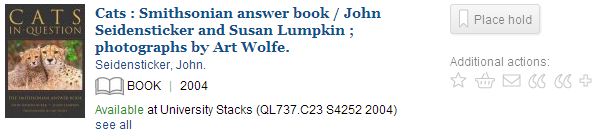
The brief view of each result contains a variety of links and information depending on the type of record. The content can include:
- Text or an icon that indicates the type of material.
- The year of publication appears, if that information is available.
- The title of the material, which is a link to the Record Details display providing more information about the resource.
Note that EDS results in Encore with EDS use the EDS record detail view rather than the Encore record detail view. - The author's name, which is a link that starts a new search using that author's name.
- A statement of availability. Click "see all" for a pop-up list of all items. You can filter the list to show available items only.
- Links for requesting or booking available items, if your library offers these services.
- An image of the book cover, if your library is configured to display cover images.
If your library uses Syndetics Solutions to offer book cover images, Encore supports cascading image display as follows:- Encore displays images by matching against the item's ISBN.
- If there is no image associated with the ISBN, Encore uses the image associated with the item's UPC.
- If there is no image associated with the item's UPC, Encore does not display an image for the item.
- A set of configuration-dependent icons that link to additional actions:
- add to book cart
- Add a tag
- export to integrated citation managers such as RefWorks or EndNote.
- A link to reviews and ratings by patrons.
- In Encore with EDS, EDS results can include a "More" link. Hovering your mouse pointer over the "More" link displays an abstract of the EDS result.
Personalized Browse
Personalized browse enables logged-in Encore users to view the status of materials in the view of search results (a results browse, in record detail, or the book cart).
Status details include information pertaining to:
- bookcart (whether materials are in the user's book cart)
- bookings
- checkouts
- eBooks
- holds
Off-Campus Login to View
Off-campus users who click on the title of a result and are prompted to log in from a second window or tab may have to refresh the browser to show as logged-in from the original browser window.
Availability Summary
Availability summary provides users with availability status for a local item, allowing users to quickly scan a page for available items. The summary information includes:
- If the item is available, Encore displays a green Available message.
- If the item is not available, Encore displays a red Not Available message.
- If the item is not available at the current location but is available at an alternate location, Encore displays alternate locations.
- A See All link to view expanded availability information, such as location, call number, status, and any associated messages.
Items are determined to be "local" based on the user's location or home library.
ebooks Availability
ebook providers, such as cloudLibrary and Overdrive, display availability in Encore with the number of available copies and number on hold as part of the availability message. For example:
Available online (5 of 7 copies available; 0 on hold)
Not Available (0 of 1 copies available; 0 on hold)
Axis 360 Availability
For Axis 360 items, Encore does not automatically display the availability message on the Browse Results screen. The patron can view this information by clicking the Availability link for a specific item.
