Request Manager Workform
To access the Request Manager workform, select Utilities > Request Manager.
Note:
The default status selected in the Holds and ILL views can be set using Web App Staff Client profiles. You can also set your own status filters for these views on the Leap Settings page.
Request Manager Header
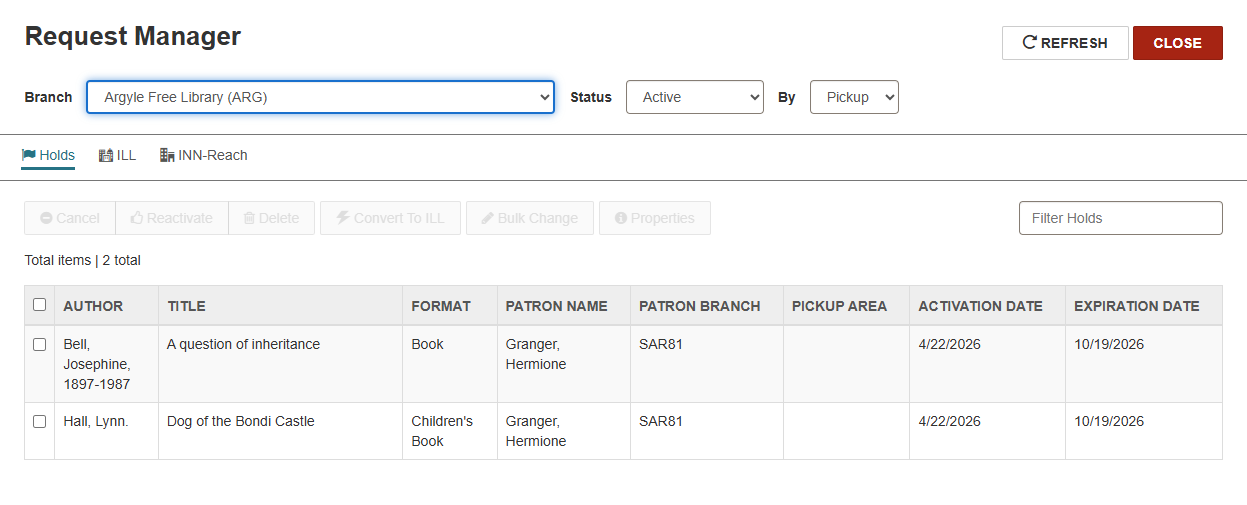
The following elements appear in the Request Manager header:
-
Branch drop-down list where you can select a different branch
Note:
Only organizations for which you have Access hold request manager: Access or Access ILL request manager: Access permissions appear in the Branch drop-down list. - Status drop-down list where you can select a hold status
- By drop-down list where you can select the Pickup, Patron, or Item branch
Request Manager Holds View
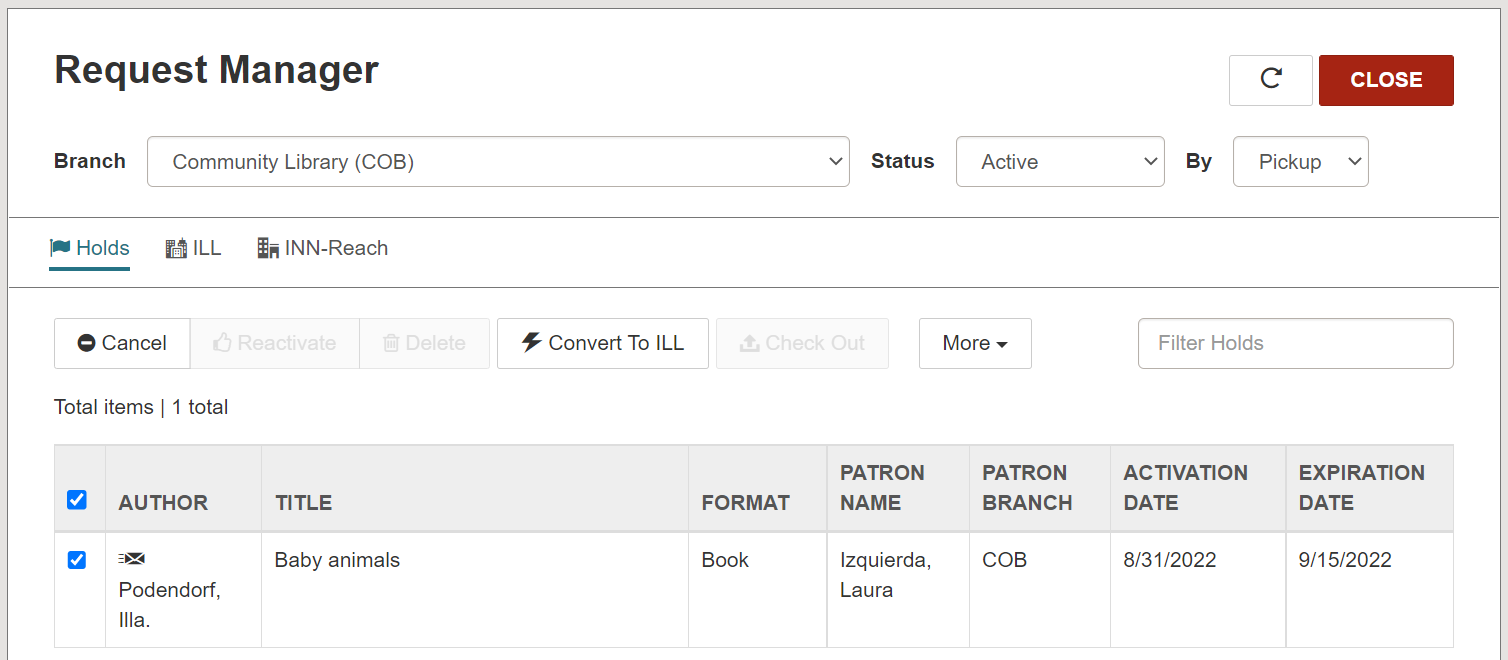
The Holds view lists the hold requests according to the selections in the Branch, Status, and By boxes in the workform header. You can filter the list by typing in the Filter Holds box.
When you select a hold in the list, action buttons are enabled if the action can be performed on the selected hold request: Cancel, Reactivate, Delete, Convert to ILL, Bulk Change, and Properties. Libraries licensed for borrow by mail functionality and signed in to the processing center also see:
-
Print Checklist - enables you to print the list in a checklist.
-
Print Mailer - enables you to print a slip that can be included in a borrow by mail order.
Request Manager ILL View
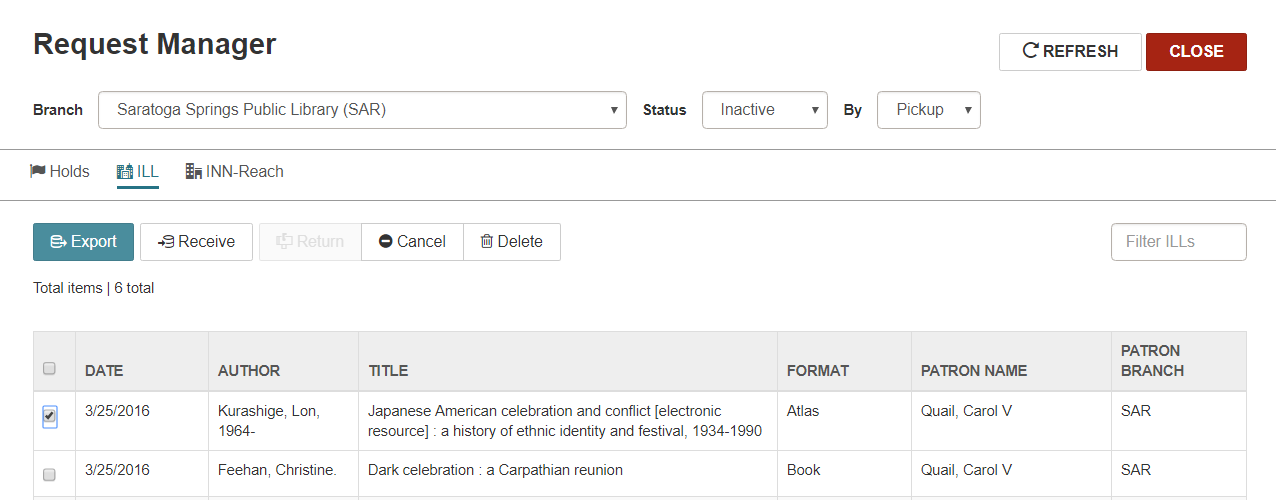
The ILL view lists the interlibrary loan (ILL) requests according to the selections in the Branch, Status, and By boxes in the workform header. You can filter the list by typing in the Filter Holds box.
When you select an ILL request in the list, action buttons are enabled if the action can be performed on the selected ILL request: Export, Receive, Return, Cancel, Delete.
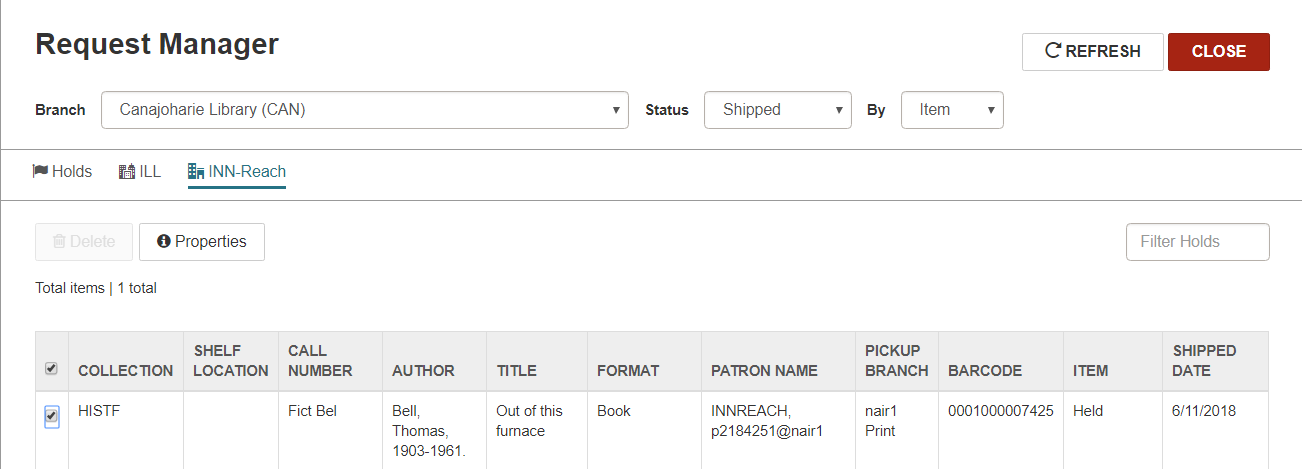
Request Manager INN-Reach View
The INN-Reach view lists the INN-Reach requests according to the selections in the Branch, Status, and By boxes in the workform header. You can filter the list by typing in the Filter Holds box. You can select an INN-Reach request and select Properties to see more information regarding the request.