
Cancel Hold Requests
You can cancel a single hold request from the Patron Record, Request Manager, or Hold Request workforms.
To cancel a single hold request
-
Do one of the following actions:
From the Patron Record > Holds view: select a hold request, and select Cancel.
From the Request Manager > Holds view: select a hold request, and select Cancel.
From the Hold Request workform: select ACTIONS > Cancel on the Hold Request workform.
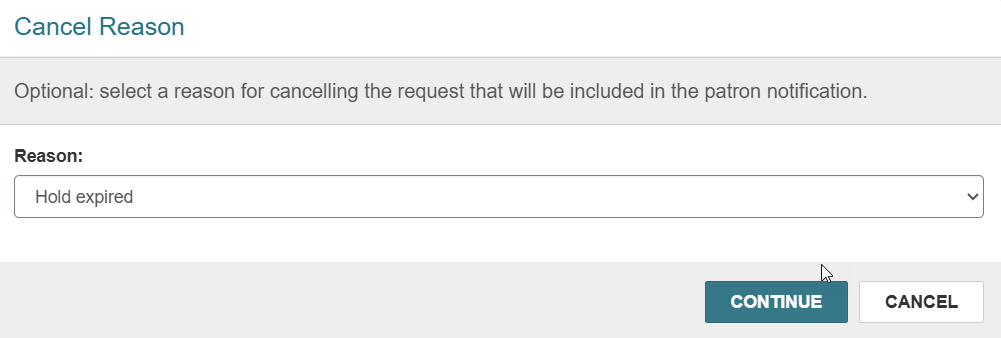
(Optional) The Cancel Reasons dialog appears.
The Cancel Reasons dialog appears only if Web app: Prompt for hold cancellation reason setting was enabled in Polaris System Administration (web-based). For more information, see Staff Client Settings Reference.
The cancellation reasons are configured in the Hold Cancellation Reasons table in Polaris System Administration (web-based). For more information, see Administrative Tables Reference.
-
(Optional) Select the reason for canceling the hold request from the Reason drop-down list and select CONTINUE.
The system cancels the hold and updates the status in the holds list.
Cancel Multiple Requests
You can quickly cancel multiple requests on a title without having to open each request by using the Cancel action on the Holds Queue / All Hold Requests view action bar.
To cancel multiple hold requests placed on the same title
- Open the Holds Queue workform.
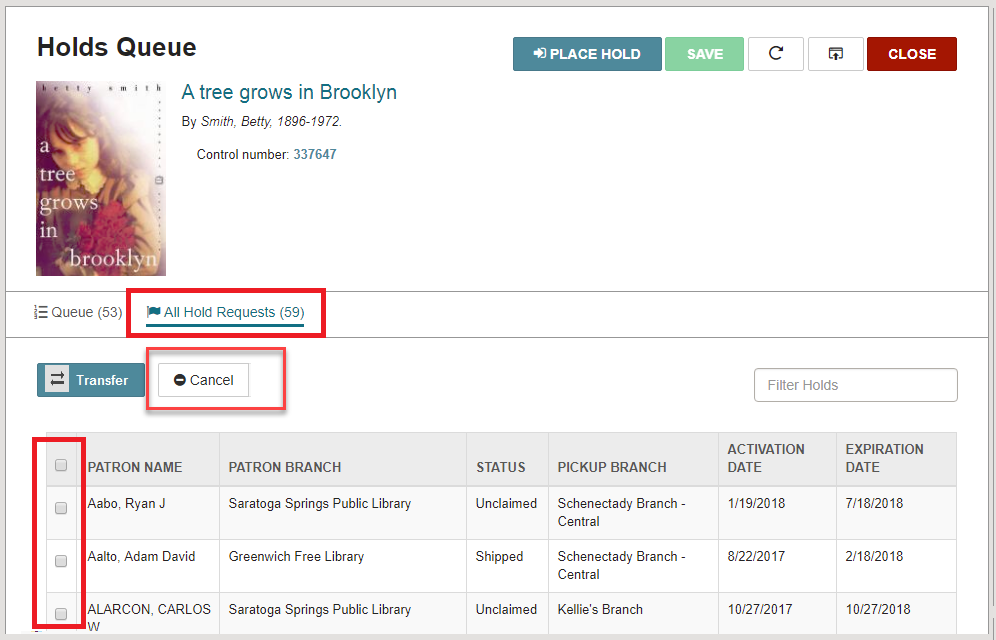
- Select the All Hold Requests tab to view all the hold requests.
-
Select the hold requests to cancel.
The Cancel button is active only when all the selected hold requests have a status of: Inactive, Active, Pending, Located, or Not Supplied. If the library allows it, you can also cancel holds with the statuses of Shipped and Held.
-
Select Cancel.
-
(Optional) The Cancel Reasons dialog appears. For more information about the configuration of this dialog, see To cancel a single hold request section.
-
(Optional) Select the reason for canceling the hold request(s) from the Reason drop-down list and select CONTINUE.
The cancellation reason you choose will apply to all selected hold requests.
The Hold request(s) canceled successfully message appears.
-
