
Suppressing Nonblocking Circulation Notes
Your library can choose to suppress nonblocking circulation notifications when staff members use Leap to check out an item to a patron. When the feature is configured, you can suppress the following informational circulation notes:
-
Money Owed — Patron owes money, but not enough to be blocked
-
Held Item — Patron has an item or items on hold
-
Unread Messages — Patron has unread messages
-
Accrued Money Owed — Patron owes money, but not enough to be blocked
Suppressed notes don't appear during the checkout process in Leap.
Suppress All Four Circulation Notes
You can suppress informational circulation notes at the system, library, or branch level.
To suppress informational circulation notes at the system level
-
Open Polaris Administration (staff client), and select Administration > Explorer > System.
The Administration Explorer appears.
-
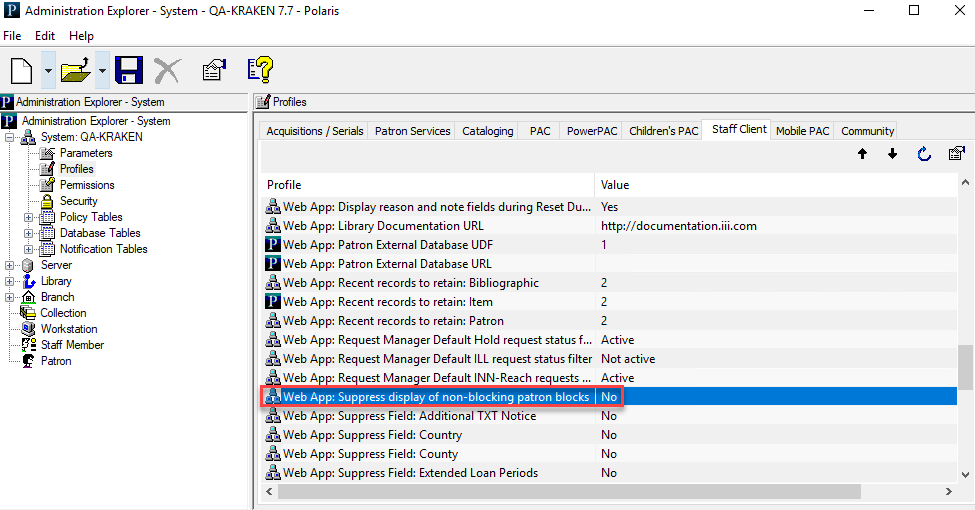
Select Profiles > Staff Client > Web App: Suppress display of non-blocking patron blocks.
-
Double-click Web App: Suppress display of non-blocking patron blocks and select Yes.
The default setting is No, meaning no circulation notes are suppressed.
Polaris checks the settings in System > Policy Tables > Patron Block Suppression. Because all four circulation notes are suppressed by default, you can stop here if you want to suppress all four circulation notes.
Select Circulation Notes to Show
By default, each of the informational circulation notes is set to Yes (suppressed). To choose which informational circulation notes to show, you can set any of the notes to No (not suppressed) at the system, library, or branch level.
To select informational circulation notes to show at the system level
-
Open Polaris Administration (staff client), and select Administration > Explorer > System.
The Administration Explorer appears.
-
Select Profiles > Staff Client > Web App: Suppress display of non-blocking patron blocks.
-
Double-click Web App: Suppress display of non-blocking patron blocks and select Yes.
The default setting is No, meaning no circulation notes are suppressed.
-
Select System > Policy Tables > Patron Block Suppression.
Notes:You must have the permission Modify patron block suppression table: Allow to access this policy table.
This policy table is considered only if the Web App: Suppress display of nonblocking patron blocks profile is set to Yes.
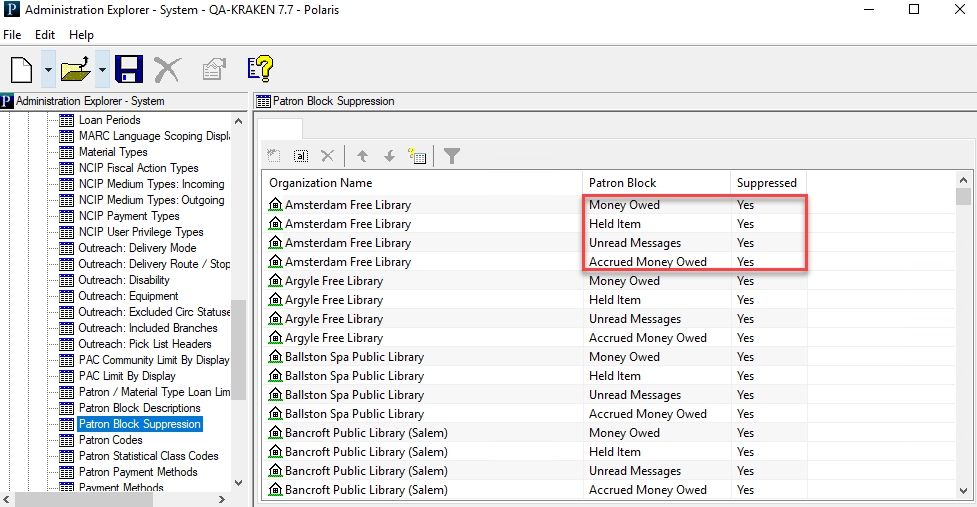
All notes are set to Yes — suppress (don't show) by default.
-
To change the suppression setting, double-click to name of the circulation note.
The Modify: Patron Block Suppression dialog appears.
-
Click the arrow to select No — don't suppress (show) in the Suppressed field.
-
Select OK.
