
External Systems
Configuring Integration Profiles
- 総合システム管理者
Almaは、標準プロトコル(S/FTPなど)を使用して、ベンダーシステム、エンタープライズリソース計画システム、目録システム、リモートストレージシステムなどの外部システムと統合します。For more information, see Integrations with External Systems.
一部の統合プロファイルは、外部システムへの情報のエクスポートや外部システムからの情報のインポートに使用できるジョブを作成します。他の統合プロファイルは、外部システムの設定に使用するトークンとコードを提供します。
For a video on integrating external systems, watch Integration with External Systems (6 min.)
You begin configuring integration profiles on the Integration Profile List page (Configuration Menu > General > External Systems > Integration Profiles).
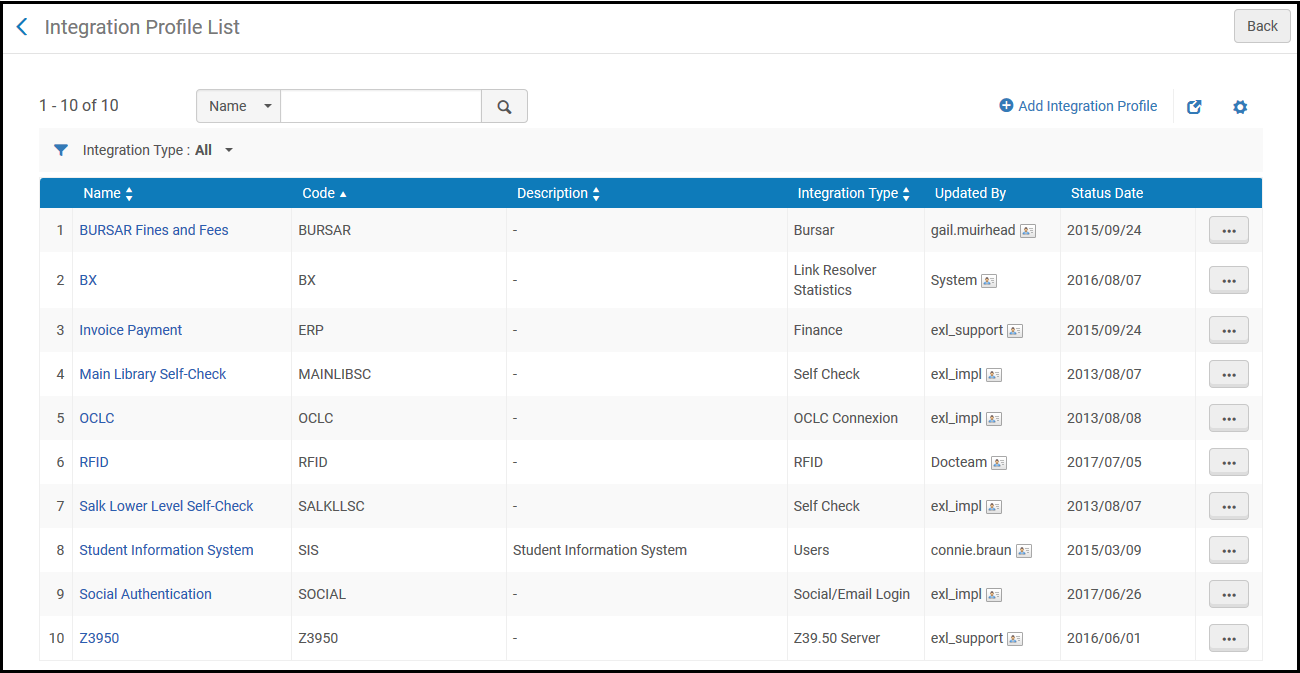
[統合プロファイルリスト]ページには、統合プロファイルのリストが含まれています。
このページでは次のアクションを実行できます。
- 統合プロファイルを追加します(下表にあるリンク先の各セクションを参照)。
- 統合プロファイルを編集します(その行のアクションリストで編集)。プロファイルを編集する際、プロファイルのタイプを変更することはできません。また、連絡先情報タブで、プロファイルに関連する連絡先情報を追加できます。For more information about the fields on this tab, see Configuring Institution/Library Contact Information.
- 統合プロファイルを削除します(その行のアクションリストで[削除])。
- View job history (Job History in the row actions list; see Viewing Completed Jobs.)
統合プロファイルの追加と編集の詳細については、次のセクションを参照してください。
| プロファイル種別 | 説明 | その他の情報 |
|---|---|---|
| Alephブリッジ統合 | Alma以外のメンバーの目録を、中央システムからAlmaネットワークゾーンが管理するブリッジ機関に統合します。 | Integrating a Non-Alma Member's Inventory from a Central System into a Bridge Institution Managed by a Network Zone |
| APIの制限 | For more information about this profile, see the developer's network documentation at https://developers.exlibrisgroup.com/blog/working-with-api-restriction-profiles/. | |
| 拡張 | OpenURLの強化を設定します。 | Alma Resolver Augmentation |
|
典拠レコード投稿 |
将来使用するためのものです (コミュニティゾーンのみ) |
|
| Bursar | Export fines and fees to the institution's bursar system. | Exporting Fines and Fees to a Bursar Systems |
| CAS | 外部システムとのシングルサインオンのために認証および承認情報を交換します。 | CAS-Based Single Sign-On/Sign-Off |
| セントラル目録統合 | 外部の中央目録をAlmaと統合します。 | |
| クラウドIdP | 将来使用するためのものです | |
| コースユーザーマッピング | Legantoで使用するためにコース登録情報をAlmaにインポートします。 | Configuring Importing Course Enrollment Jobs |
| コース読み込み | コース管理システムからコースをインポートします。 | Configuring Course Loading |
| デジタルコンテンツストア | 英国CLAのデジタルコンテンツストアと統合します。 | Integrating with the UK's Digital Content Store (DCS) |
| ディスカバリーインターフェイス | [Get It]タブで所在地の地図へのリンクを設定します。 | Configuring the Template for the Location Map Link |
| 財務 | Import and export orders and invoices by vendors from and to an institution's financial system. | Financial Systems |
| For customers who are exposing their library's unique materials to Google and want to monitor their site's exposure to Google, can use this integration to allow Google Console to verify the connection for Primo VE customers. | ||
| 処理 | Integrates directly with the hosted Handle server and creates Handles using the existing control number functionality | Configuring Persistent Handle Identifiers for Digital Resources |
| LDAP | LDAP(Lightweight Directory Access Protocol)システムから情報をインポートします。 | Supporting LDAP |
| リンクリゾルバ プラグイン | EBSCO リンクリゾルバ プラグインは、フルテキストで利用可能な最も正確なURLを判定するAPIを使用して外部チェックを実行します。TLS 1.2 のみがサポートされています。 | |
| リンクリゾルバ統計 | bX統合プロファイルは、Almaのリンクリゾルバデータの統計を共有するために、AlmaとbX間の接続を統合します。
さらに、Primo VEのお客様は、bX推奨サービスを登録して有効にすることができます。 |
|
| リンク済みデータ | 構造化されたリンク済みデータを公開します。 | Linked Data |
| LTIツール | Legantoとコース管理システム間の認証。 | Configuring Learning Tools Interoperability (LTI) |
| メールの取扱い | 送信Eメールの取扱い | Configuring Outgoing Email |
|
メタデータの外部強化 |
Happiness音訳ツールを使用して日本語表記を充実させるには、この統合オプションを選択します。 |
|
| NACSIS | Configurations for the communication with the NACSIS-CAT/ILL system. | Configuration with NACSIS |
| 新規発注API |
Synchronize records from a vendor's database to PO lines. This profile works with any vendor that uses the new order API, and is also used if the order is created using the API by a REST client.For more information, see the following in the Developer Network: For Collaborative Networks, the Use network zone checkbox appears.For more information, see Managing Import Profiles. |
|
| OAIリポジトリ定義 | レコードをOAIタイプとして公開します。 | Setting Up OAI Integration |
| OCLC Connexion | OCLC Connexionからレコードをインポートします。 | Importing Records from OCLC Connexion |
| オンラインの支払い | WPM Education電子決済システムを使用して、支払い領収書のEメールをユーザーに送信します。 | Configuring the WPM Education E-Payment System |
| オンラインユーザー更新 | 将来使用するためのものです | |
| OpenID Connect | User authentication layer. | OpenID Connect |
| ORCID | Enables the use of ORCID credentials to add ORCID URIs into Bib records using the Alma Refine cloud app. | For more information, see ORCID URI Enrichment for Bib Records Using Alma Refine.
クラウド アプリの詳細については、Alma Refineを参照してください。 |
| リーディングリストローダー | .txtまたは.csvファイルからリーディングリストをインポートします | Reading List Loader |
| RFID | RFIDリーダーを使用して、アイテムのRFIDタグと通信します。 | RFID Support |
| リモートストレージ | リモートストレージの場所や、自動ストレージおよび検索システムからリソースをリクエストします。 | Requests to Remote Storage Facilities or Configuring the Dematic ASRS |
| リゾルバプロキシ | リゾルバプロキシの定義を設定 | Resolver Proxies or OpenAthens Redirector |
| リソースシェアの統合 | 外部システムから取寄せリクエストをインポートします。 |
Importing Resource Sharing Borrowing Requests From an External System |
| SAML | 外部システムとのシングルサインオンのために認証および承認情報を交換します。 | SAML-Based Single Sign-On/Sign-Off |
| SMSコミュニケーション | ユーザーとのSMSコミュニケーションを設定します。 | SMS Communications |
| SRUサーバー | SRU/SRW検索機能を有効化します。 | SRU/SRW Search |
| SWORDサーバー | リポジトリに追加するコンテンツをAlmaに送信します。 | Configuring the SWORD Server Integration Profile |
| セルフチェック | Almaとセルフチェックマシン間の通信を設定します。 | Self-Check Machines |
| ソーシャルログイン/Eメールログイン | ユーザーログイン用のソーシャルネットワークまたはEメールとの接続を設定します。 | Social and Email Login |
| Springshare API統合 | AlmaとSpringshare API間の通信を構成します。 | Springshare Integration |
|
電子所蔵のアップロード |
Elsevierの電子所蔵をアップロードおよび更新します。 Ovidの電子所蔵をアップロードおよび更新します。 ProQuest Ebook Centralから電子所蔵をアップロードおよび更新します。 Springerから電子所蔵資料をアップロードする Taylor & Francis の電子所蔵をアップロード Wileyから電子所蔵をアップロード |
Upload Electronic Holdings from Elsevier Upload Electronic Holdings from Ovid Upload Electronic Holdings from ProQuest Ebook Central for Subscriptions/Owned/DDA Upload Electronic Holdings from Springer |
| ユーザー | 学生情報システムとの間でユーザーをエクスポートまたはインポートします。 | Student Information Systems |
| Webhook | ジョブが終了した際に、設定されたURIへのHTTPリクエストを行います。 | Webhooks |
| Z39.50サーバー | Z39.50検索機能を有効化します。 | Z39.50 Search |
Configuring S/FTP Connections
- 一般システム管理者
Many connections to external systems require an S/FTP connection to transfer files between Alma and the external system.Once this connection is defined, you can assign it to the applicable integration profiles (see Configuring Integration Profiles).For configuring allowed S/FTP connections during testing, see below.
- サンドボックス環境や、実稼働前のAlma環境で作業している場合、許可されるS/FTP接続を定義する必要があります。For details, see Configuring Allowed S/FTP Connections During Testing.
- Almaは、SSH上のセキュアFTP(SFTP)をサポートしていますが、SSL上のFTPSはサポートしていません。For detailed port information, see Technical Requirements for Alma and Discovery Implementation.
- The Allowed Emails and Allowed S/FTP Configuration lists are kept during the Premium Sandbox (PSB) refresh (see Alma Sandbox Environments).
You configure S/FTP connections (for institutions only) from the List of S/FTP Connections page (Configuration Menu > General > External Systems > S/FTP Definitions).

- diffie-hellman-group-exchange-sha1
- diffie-hellman-group1-sha1
- diffie-hellman-group14-sha1
- diffie-hellman-group-exchange-sha256
- ecdh-sha2-nistp256
- ecdh-sha2-nistp384
- ecdh-sha2-nistp521
Ex Librisは、さまざまなサイトとの下位互換性のために非推奨バージョンをサポートしていますが、上記のより強力なアルゴリズムを推奨しています。
このページで次のアクションを実行できます。
- Add an S/FTP connection (see Adding S/FTP Connections)
- S/FTP接続を表示します(その行のアクションリストで[表示])。
- S/FTP接続を編集します(その行のアクションリストで[編集])
- S/FTP接続を複製します(その行のアクションリストで[複製])
- S/FTP接続を削除します(その行のアクションリストで[削除])
Adding S/FTP Connections
統合プロファイルで使用するために、新しいS/FTP接続を定義できます。
To add a new S/FTP connection:
- On the List of S/FTP Connections page (Configuration Menu > General > External Systems > S/FTP Definitions), select Add S/FTP Connection.The Update S/FTP Connection page appears.
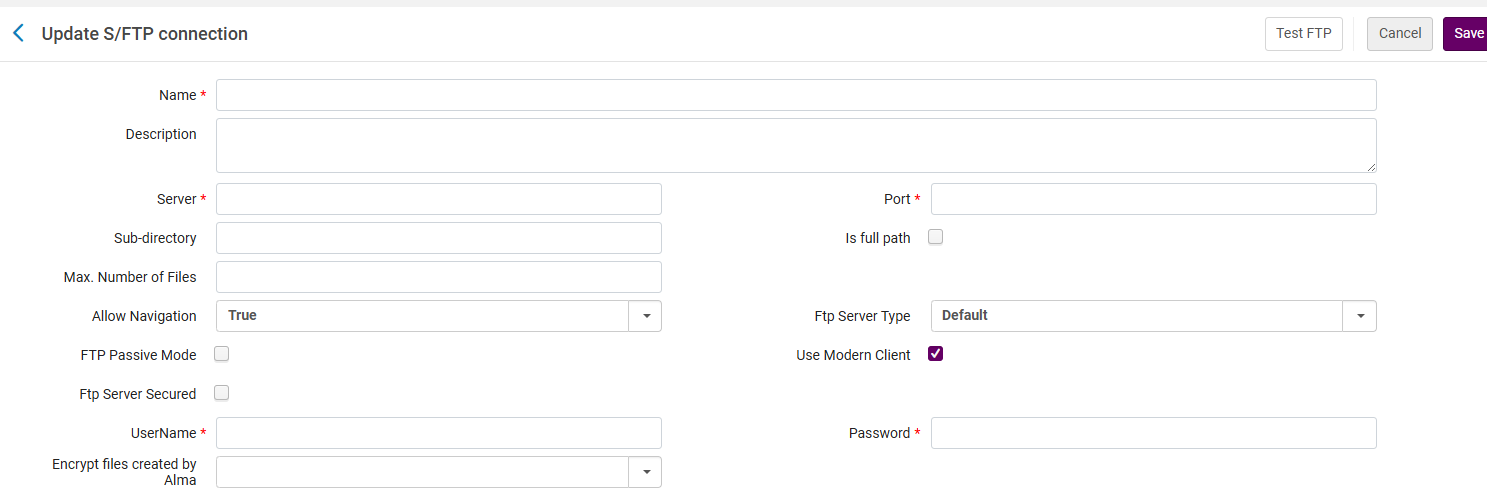
- 新しいS/FTP接続の名前(必須)と説明(任意)を入力します。
- 以下のテーブルの説明に従って、残りのフィールドに情報を入力します。
S/FTP接続に関するフィールド
フィールド 説明 サーバー(必須) ファイルを送受信するサーバーのIPアドレス。ドットで始めることはできません。また、引用符で始めたり終えたりすることはできません。 ポート(必須) サーバーのポート。 サブディレクトリまたはフルパス ファイルが保存されるサブディレクトリ。これが絶対パスの場合は、「フルパスである」チェックボックスを選択し、パスの前に「/」記号を付けます。これが相対パスの場合、「フルパスである」をクリアのままにして、現在のディレクトリからパスを開始します。
統合プロファイルでサブディレクトリも指定すると、このディレクトリはそれに連結されます。For example, if you define the system1 S/FTP connection as: Sub-directory – ftp
次のように書誌レコードのエクスポートプロファイルを定義したとします。
- FTPの設定 – system1
- FTPサブディレクトリ – alma
Then files transferred by this integration profile are saved in the external system's ftp/alma directory.
S/FTP定義のディレクトリと統合プロファイルは、次のように機能します。
- There is a subdirectory in the definition of the S/FTP connection defined in Configuration Menu > General > External Systems > S/FTP Definitions.
- The integration profiles defined in Configuration Menu > General > External Systems > Integration Profiles also have a field called subdirectory which defines where the file will be taken from or placed.
- 統合プロファイルのサブディレクトリは、S/FTPの定義のサブディレクトリに相対的です。したがって、たとえば:
- 統合プロファイルによって使用されるS/FTPプロファイルに、Almaというサブディレクトリがあり、
- The input file path of the integration profile of the type Users is yilis_patrons
- ファイルは、[ルートディレクトリ]/Alma/yilis_patronsから取得されます
The sub directory is mandatory for the the Send Requests to Remote Storage job.
最大ファイル数 使用中でない。デフォルト値を受け入れます。 最小ファイル数 使われていません。デフォルト値を受け入れます。 最大ファイルサイズ 使用中でない。デフォルト値を受け入れます。 サイズのタイプ ファイルサイズに使用される単位。有効な値は、GB、MB、およびTBです。デフォルト値はGBです。 ナビゲーションを許可 FTPサイトの他の領域へのアクセスを有効にする場合は[True]、しない場合は[False]にします。デフォルトでは、ナビゲーションを許可する(Ture)になっています。 FTPサーバーのタイプ デフォルトまたはMVS。Select MVS to work with IBM's Multiple Virtual Storage operating system. FTPパッシブモード クライアントIPがパッシブモードで動作するかどうかを示します。 OCLC公開統合プロファイルは、パッシブモードを必要とします。
モダンクライアントを使用する このチェックボックスを有効にすると(デフォルト設定)、Alma 内で行われるすべての FTP リクエストが、最新の FTP プロトコル標準を使用して実行されます。 FTP サーバーのセキュリティを確保する FTPサーバーが保護されている場合に選択します。このオプションが選択されている場合認証方法オプションが表示されます。 FTPサーバーのタイプとしてMVSを選択する場合、このオプションは選択しないでください。セキュアMVSサーバーはサポートされていません。
認証方法 FTPサーバーの保護が有効になっている場合に表示されます。次のいずれかを選択します:
- Username/password authentication- Use a user name and password.
- Key authentication(public key encryption) - When you select this, a public key appears.公開キーは、Almaから受入したファイルの認証に使用されます。このオプションを選択すると、パスワードフィールドが削除されます。
ユーザー名(必須) S/FTPのユーザー名。このフィールドは、セキュアFTPを使用しているかどうかに関係なく表示され、入力は必須です。 パスワード(必須。ただし、キー認証が選択されている場合を除く) S/FTPパスワード。キー認証を使用していない場合は必須です。 Almaは、特殊文字を含むパスワードをサポートしていません。
公開キー
認証方法にキー認証が選択されている場合、ページには公開キーが表示されます。
Almaの公開キー。FTPサーバー上の.ssh/authorized_keysファイルにこのキーを追加する必要があります。 Alma上の機関はすべて独自の公開キーを持っています。ネットワークゾーンを実装する場合、顧客はauthorized_keysファイルに各機関の公開キーを追加する必要があります。
-
Select Test FTP(recommended) to test the S/FTP connection.次のFTPコマンドアクションが成功したことを示すメッセージが届きます。
- List and check files in the specified directory using ls,pwd, and cd commands
- putとgetコマンドを使用して、ファイルをアップロードおよびダウンロードする
- deleteコマンドを使用して削除する
これらのアクションが成功したというメッセージが届かない場合は、続行する前にS/FTP接続の問題を解決してください。
OCLC FTP接続の場合は、FTPをテストするボタンを無視してください。OCLC immediately moves files into a queue for subsequent processing after files are uploaded to the OCLC file exchange system.その結果、FTPをテストするプロセスは失敗します。
- 完了したら[保存]を選択します。
Regenerate Key in S/FTP Profile
機関に関連付けられた公開キーは静的なままであり、更新やリフレッシュができませんでした。Alma enables users to refresh the Public Key by following these steps: Go to Alma configuration > General > S/FTP definitions and click on the Regenerate X Keys.
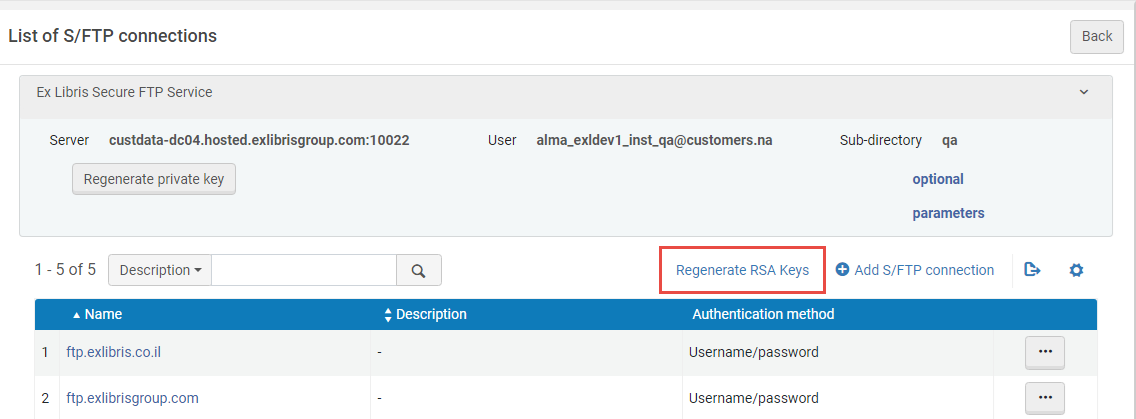
Selecting the Regenerate private key button immediately regenerates the private key for the Ex Libris Secure FTP Service.これにより、以前に生成された秘密鍵は無効となり、Almaの本番環境およびサンドボックス環境の両方に影響します。
Configuring Allowed Emails
- 総合システム管理者
この機能は、a) サンドボックス環境か、b) なお実装/テスト段階にあり、まだ設定が認められていないお客様のAlma実稼働環境でのみ使用できます。
テスト中に機関の通信に使用する特定のEメールアドレス/ドメインを定義できます。これにより、不要な通信が回避されます。Almaは他のEメールアドレスにEメールを送信しません。
- Eメールでの通信がこのテーブルのEメールアドレスに制限されるのは、少なくとも1つのEメールアドレスがこのテーブルで定義されている場合のみです。このテーブルのエントリすべてを完全に削除しないでください。このテーブルに何も入力されていない場合、Almaの任意の場所に入力されたEメールアドレスに対して、無制限のEメール通信が有効になります。
- In Sandbox environments, an email cannot be sent unless the receiving address is on the allowed emails list (Configuration Menu > General > External Systems > Allowed Emails).If the list is empty, no email is sent.
- If MFA is activated (see Ex Libris Identity Service), the Allowed Emails list should be configured with the email addresses of all staff members who need to be able to login.
- The Allowed Emails and Allowed S/FTP Configuration lists are kept during the Premium Sandbox (PSB) refresh (see Alma Sandbox Environments).
You configure emails or domains on the Email Include List mapping table (Configuration Menu > General > External Systems > Allowed Emails).For more information about mapping tables, see Mapping Tables.
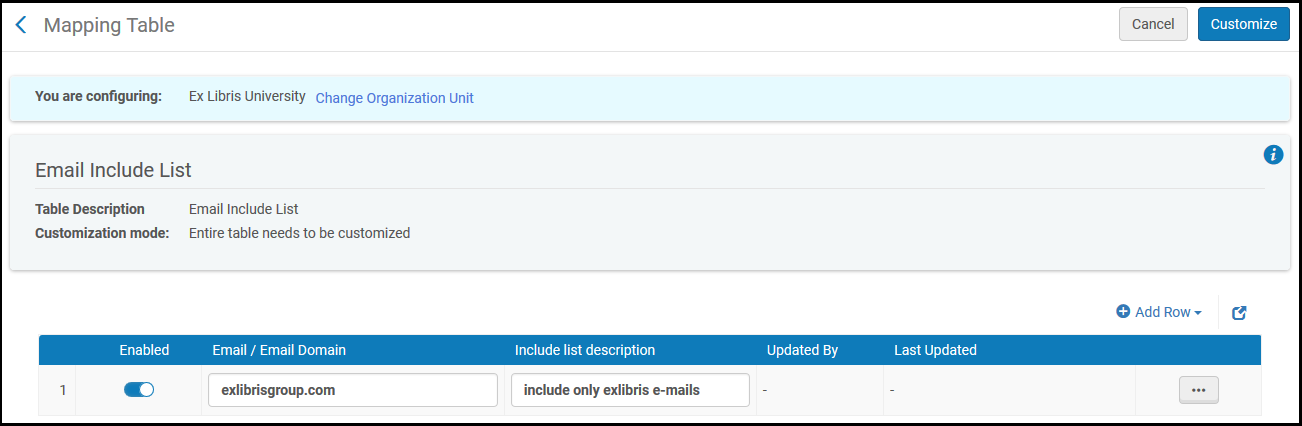
ドメインとアドレスを追加・削除・有効化/無効化できます。Almaは、アクティブなアドレスやドメインにのみEメールを送信します。
If you are at the Network Zone level, access to that configuration table is done directly from the Central Configuration Dashboard (Configuration Menu > Network Zone > General > External Systems > Allowed Emails).For more information about the Central Configuration Dashboard, see Consortia Central Configuration Dashboard.
Domains only work in an implementation Production environment, and not in Sandbox environments.
Configuring Allowed S/FTP Connections During Testing
- 総合システム管理者
この機能は、a) サンドボックス環境か、b) なお実装/テスト段階にあり、まだ設定が認められていないお客様のAlma実稼働環境でのみ使用できます。
Almaでは、テスト中に機関の通信に使用することを許可されたS/FTP接続を定義できます。これにより、不要なファイル転送が回避されます。Almaが他のS/FTP接続の使用を試みることはありません。For further information on configuring S/FTP connections see above.
S/FTPがこのテーブルのアドレスに制限されるのは、少なくとも1つのアドレスがこのテーブルで定義されている場合のみです。このテーブルのエントリすべてを完全に削除しないでください。このテーブルに何も入力されていない場合、Almaの任意の場所に入力されたアドレスに対して、無制限のS/FTP通信が有効になります。
You configure test S/FTP connections on the FTP Include List mapping table (Configuration Menu > General > External Systems > Allowed S/FTP Connections).For more information about mapping tables, see Mapping Tables.
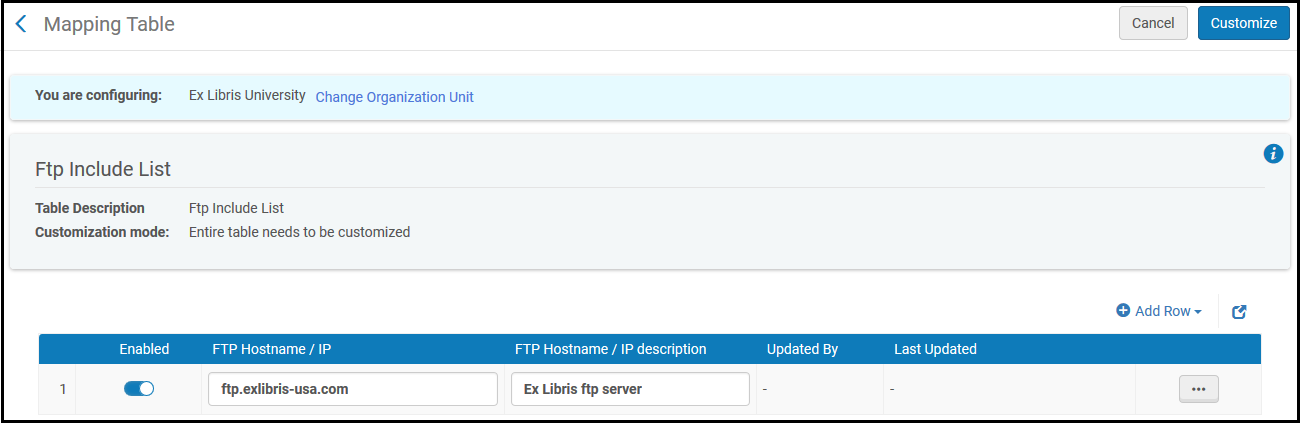
アドレスを追加・削除・有効化/無効化できます。
If you are at the Network Zone level, access to that configuration table is done directly from the Central Configuration Dashboard (Configuration Menu > Network Zone > General > External Systems > Allowed S/FTP connections).For more information about the Central Configuration Dashboard, see Consortia Central Configuration Dashboard.
