インポートプロファイルの管理

多様なフォーマットのさまざまなソースからレコードを取得できるようになるインポートプロファイルの作成、編集、コピー、削除に関する概要と設定手順。

翻訳可能
インポートプロファイルを作成、編集、コピー、または削除するには、次のいずれかの役職である必要があります:
  • Catalog Administrator (via Resources - see Managing Import Profiles section below)
  • Acquisitions Administrator (via Acquisitions - see Managing Import Profiles section below)

インポートプロファイルを表示または共有するには、次のいずれかの役職である必要があります:

  • 発注・受入オペレータ
  • 購入 オペレータ
  • 購入 マネジャー
  • リポジトリ管理者
  • 目録管理者
  • 目録マネージャー
  • 一般システム管理者

インポートプロファイルを削除するには、次のいずれかの役職である必要があります:

  • リポジトリ管理者
  • 目録管理者
  • 発注・受入オペレータ
  • 総合システム管理者

デジタルインポートプロファイルを作成/編集するには、次の役職である必要があります:

  • デジタル目録オペレータ

この章の内容は次のとおりです。

If you want to run an import profile, see Importing Records Using an Import Profile.For more details on setting up import profiles, see Best Practice Toolkit: Setting Up Import Profiles.

インポートプロファイルの管理

次のセクションでは、インポートプロファイルを作成および管理する方法を紹介します。

For information, watch Import Bibliographic Records in Batch(5:25 mins).

インポートプロファイルページ

インポートプロファイルは、[プロファイルのインポート]ページで管理されます。See Types of Import Profiles for the various ways of accessing this page and the different types that appear for each.

Ex Librisでは、同じブラウザの複数タブでこのページを使用しないことをお勧めしています。複数のタブでこのページを操作するには、各タブを別々のブラウザで開いてください(たとえば、Chromeで1つのタブを開いている場合、別のタブはFirefoxで開いてください)。

import_profiles_ux

[インポートプロファイル]ページ

インポートプロファイルの種類

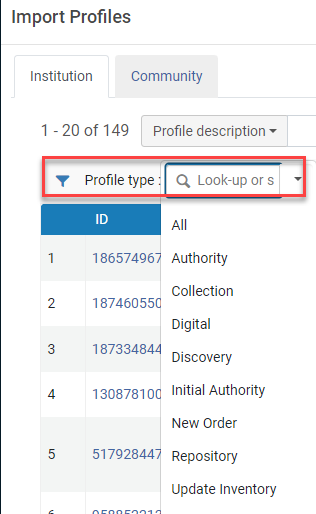
プロファイルを種類に応じてフィルタリングできます。

プロファイル種類。

次の表では、UIのさまざまな場所から[プロファイルのインポート]ページにアクセスする際に表示されるさまざまなプロファイル種類について説明します。

プロファイルタイプをインポートする
パス プロファイルタイプ 役職 コメント

[受入 > インポート > インポートプロファイルの管理]

コレクション、デジタル、ディスカバリー、新規注文、リポジトリ、インベントリ更新

Acquisitions Administrator Discovery Administrator


[受入 > インポート > インポート]

インベントリ更新、新規注文

購入オペレーター

購入マネージャー

[コミュニティ] タブと [ネットワーク] タブは表示されません。

また、新規プロファイルを追加オプションは利用できません。

[リソース > インポート > インポートプロファイルの管理]

コレクション、デジタル、ディスカバリー、新規注文、リポジトリ、インベントリ更新

受入管理者

ディスカバリー - 管理者


[リソース > インポート > インポート]

コレクション、デジタル、ディスカバリー、リポジトリ

購入オペレーター
購入マネジャー
ディスカバリー - 管理者
 

[インポートプロファイル]ページのタブ

[インポートプロファイル]ページには、次のタブがあります。場合によっては、一部のタブが表示されないことがあります。See Types of Import Profiles for more details.

  • Institution- Your institution's import profiles
  • Community- Import profiles contributed by other institutions.これらを機関にコピーできます。
  • Network(when implementing a Network Zone) - Import profile templates managed by the Network Zone; see Creating Import Profile Templates in the Network Zone.

「プロファイルのインポート」ページで利用可能なアクション

You can do the following actions on this page.場合によっては、一部のタブが表示されないことがあります。See Types of Import Profiles for more details.

  • Create an import profile: See Creating an Import Profile: Profile Type.
  • インポートプロファイルの編集-行アクションリストから[編集]を選択します。各タブの説明については、以下のセクションを参照してください。Also see Editing Import Profiles.
  • インポートプロファイルの表示-行アクションリストから[表示]を選択します。
  • インポートプロファイルからコピーする-行アクションリストから[コピー]を選択します。コミュニティから提供されるインポートプロファイルをコピーすると、これは所属機関のローカルインポートプロファイルになります。
  • インポートプロファイルのジョブ履歴を表示する-行アクションリストから[ジョブ履歴]を選択します。See Monitor and View Import Jobs.
  • インポートプロファイルの実行-行アクションリストから[インポートの実行]を選択します。For more information, see Importing Records Using an Import Profile.
  • Contribute an import profile to the community - See Sharing Import Profiles in the Community Zone.
  • インポートプロファイルの削除-行アクションリストから[削除]を選択します。
    • 無効なインポートプロファイルのみを削除できます。
    • インポートプロファイルを使用すると、ジョブ履歴が残るため(削除不可)削除できません。

Creating/Editing an Import Profile: Overview

インポートプロファイルを作成する際、いくつかの設定ページ(手順)を順番に進めます。インポートプロファイルを編集する場合、プロファイルの関連タブを選択することにより、同じ設定ページのいずれかまたはすべてに任意の順序でアクセスできますが、プロファイル種別を変更することはできません。

使用可能な設定手順/タブは、プロファイル種別、特定オプションについて選択した初期値、およびプロファイルを作成または編集しているかどうかによって異なります。次の表は、さまざまなプロファイル種別といくつかのシナリオで使用可能なステップまたはタブを示しています。

また、一部のフィールドまたはセクションは、そのページまたはタブ、あるいは前ページまたはタブで他のオプション用に特定の値を選択した場合にのみページに表示されます。これは、関連するドキュメントに記載されています。

インポートプロファイルの作成/編集ステップ
プロファイル種別 シナリオ ステップ/タブ
新規発注 作成
  1. Profile Type
  2. General Profile Information
  3. Normalization and Validation
  4. Match Profile
  5. Set Management Tags
  6. Inventory Information
  7. PO Line Information
‎編集
  • General Profile Information
  • Normalization and Validation
  • Match Profile
  • Set Management Tags
  • Inventory Information
  • PO Line Information
  • Mapping(in some cases)
目録を更新

Also see Configuring the Update Inventory Import Profile.

作成
  1. Profile Type
  2. General Profile Information
  3. Normalization and Validation
  4. Match Profile
  5. Inventory Information
  6. PO Line Information(half page)
‎編集
  • General Profile Information
  • Normalization and Validation
  • Match Profile
  • Inventory Information
  • PO Line Information(half page)
  • Mapping(in some cases)
リポジトリ 作成
  1. Profile Type
  2. General Profile Information
  3. Normalization and Validation
  4. Match Profile
  5. Set Management Tags
  6. Inventory Information
‎編集
  • General Profile Information
  • Normalization and Validation
  • Match Profile
  • Set Management Tags
  • Inventory Information
権限 作成
  1. Profile Type
  2. General Profile Information
  3. Normalization and Validation
  4. Match Profile
‎編集
  • General Profile Information
  • Normalization and Validation
  • Match Profile
初期権限 作成
  1. Profile Type
  2. General Profile Information
‎編集
  • General Profile Information
デジタル 作成
  1. Profile Type
  2. General Profile Information
  3. Normalization and Validation
  4. Match Profile
  5. Set Management Tags
  6. Inventory Information
‎編集
  • General Profile Information
  • Normalization and Validation
  • Match Profile
  • Set Management Tags
  • Inventory Information
コレクション 作成
  1. General Profile Information
  2. Set Management Tags
  3. Inventory Information
‎編集
  • General Profile Information
  • Set Management Tags
  • Inventory Information
ディスカバリー 作成/編集
  • プロファイル種別
  • 一般プロファイル情報
  • 正規化
  • リンキング

For details, see Configuring Import Profiles for Primo VE.

リサーチアセット

自動キャプチャ(将来用)

(Esploro専用)

Esploroを実装する際、ファイルをアップロードするか、外部サーバーに接続するか、自動キャプチャを実行することにより、リサーチアセットをインポートできます。See Adding Research Assets in Bulk.

Creating an Import Profile: Profile Type

インポートプロファイルを作成する代わりに、同じタイプの既存のプロファイルをコピーして変更することを検討してください。次のセクションで説明するように、行アクションリストから、プロファイルの横にある[コピー]を選択して、タブのすべての値を編集します。

インポートプロファイルを作成する第1ステップは、プロファイル種別を選択することです。このページを離れた後は、タイプを変更できません([次へ]を選択するか、プロファイルの下書きを保存した後)。

インポートプロファイル種別を選択するには:
  1. [インポートプロファイル]ページで、[新しいプロファイルを追加する]を選択します。
    [インポートプロファイルの詳細]ウィザードが表示されます。
    [インポートプロファイル種別の選択]ウィンドウ:
    [インポートプロファイルの詳細]ウィザード-プロファイル種別を選択します
  2. プロファイル種別を選択します。
    このページでウィザードが開まり、ページ上部の丸で囲まれた番号1で示されます。プロセスの残りの手順は、プロファイル種別によって異なります。For example,Initial Authority(if it is available to you) has two steps.New Order has seven steps.
  3. 次へを選択します。
    Continue with Creating/Editing an Import Profile: General Profile Information.

Creating/Editing an Import Profile: General Profile Information

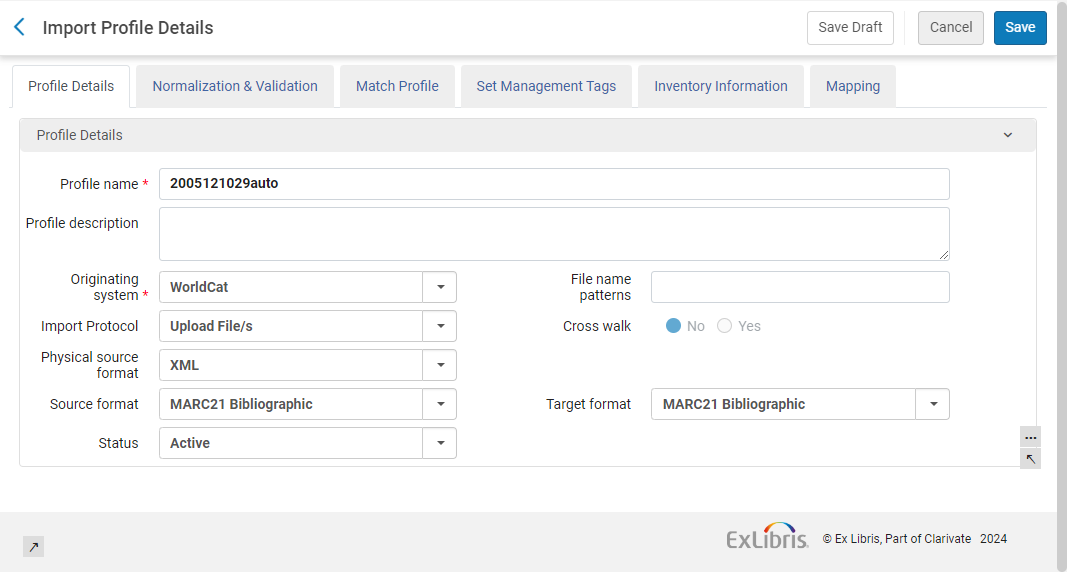
このセクションでは、[インポートプロファイルの詳細-プロファイル詳細]ページで、一般プロファイル情報を入力する方法について説明します。この情報には、レコードおよびスケジュール情報を取得またはアップロードする方法が含まれます。

プロファイルの詳細タブを表示するプロファイルのインポートウィザード

インポートプロファイルの詳細-プロファイル詳細

インポートプロファイルを作成する際、あるいは、インポートプロファイルを編集する場合には[プロファイル詳細]タブを選択することで、ウィザードの一部としてこのページにアクセスしてください。

一般プロファイル情報を入力するには:
  1. [インポートプロファイルの詳細-プロファイル詳細]ページで、次の情報を入力します。特定のプロファイル種別に関係のないフィールドを以下に示します。
    [インポートプロファイルの詳細-プロファイル詳細]フィールド
    フィールド説明
    プロファイルの詳細

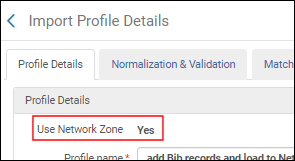
    ネットワークゾーンの使用

    (ネットワークゾーンのみ)

    レコードをネットワークゾーンにインポートし、機関ゾーンではなくネットワークゾーンに基づいて照合します。For more information on this option, see Network-Managed Records in a Collaborative Network.

    コンソーシアムには、どのメンバーがネットワークゾーンリポジトリにレコードをインポートできるかを制御するオプションがあります。For more information on restricting members to import records from the Institution Zone, see Selecting Where to Create New Bibliographic Records.

    リモート

    (デジタルプロファイルのみ)

    リモートデジタルインポートプロファイルを作成する場合に選択します。(For information on remote digital repositories, see Managing Remote Digital Repositories.) Leave empty to create an Alma (non-remote) digital import profile.For more information, see Import Profile Types.この選択は、プロファイルの保存後には変更できません。

    プロファイル名

    (必須)

    プロファイルの名前。この名前は、インポートプロファイルのリストに表示され、ページの上部にも表示されます。

    プロファイル説明

    インポートプロファイルのリストに表示されるプロファイルのフリーテキストの説明。

    システム作成

    (必須。デジタルインポートプロファイルには関係ありません)

    米国議会図書館やOCLCなど、レコードの作成元システムの種類。
    The options can be configured; see Configuring Originating Systems for Import Profiles.

    リモートデジタルリポジトリインスタンス

    (デジタルプロファイルのみ)

    このプロファイルで使用されるリモートデジタルリポジトリインスタンスの名前。
    The options can be configured; see Managing Remote Digital Repositories.

    プロトコルをインポートする

    (Alma(非リモート)デジタルインポートプロファイルには関係ありません)

    レコードを含むファイルを取得するために使用されるプロトコル。オプションは次のとおりです:

    • FTP–FTPで取り出します。[インポート処理とFTP情報]下のフィールドを入力する必要があります(以下を参照)。
      When the FTP Import Protocol is selected, the FTP Information section is displayed.
    • ファイルのアップロード – ローカルドライブまたはネットワークドライブからファイルをアップロードします。
    • OAI(Repository and Authority profiles only) – Retrieve using OAI.OAIサーバーに関連する追加フィールドを定義する必要があります(以下を参照)。

    既存のインポートプロファイルのインポートプロトコルを変更すると、スケジュールオプションはプロファイルから削除されますが、[ジョブを監視する]ページの[スケジュール]タブからは削除されないことに注意してください。これを解決するには、次の回避策を使用します:

    • インポートプロファイルを編集してから、スケジュールオプションを戻します
    • スケジューラのステータスを非アクティブに設定して保存します
    • アップロードするインポートプロファイルを変更します

    「アップロード」ファイルプロファイルを作成する際に、スケジュール設定オプションはありません。ただし、タイプをFTPに変更してスケジュールオプションを有効にすると、スケジュールされたジョブがすぐに作成されます。このジョブを無効にするには、スケジューラを非アクティブに変更する必要があります。これによってジョブは削除されません。ジョブは、インポートプロファイルを削除した場合にのみ削除されます。

    FTPからのインポートは、実際には2つのプロセスで実行されます。まず、ファイルが転送され、転送が完了すると、Almaはインポートプロファイルの定義に従ってファイルを処理します。

    セットスペックで拡張

    (リモートデジタルプロファイルのみ)

    [はい]を選択し、セットスペック値からコレクションの外部IDを持つインポートされた書誌レコードを拡張します。

    Physical source format

    (リモートデジタルまたはコレクションのインポートプロファイルには関係ありません)

    インポートファイルのファイルフォーマット。利用可能なオプションは次のとおりです:

    • バイナリ
    • CSVファイル。このオプションを選択する場合、ファイル内のテキスト/データの区切り方法を指定する必要があります。下記のオプションが表示されます:
      • Comma – This option is for CSV files that contain comma-separated values.
      • Tab – This option is for TSV files that contain tab-separated values.
      The Delimited Text File option is available when one of the following import profile types is selected and FTP or Upload File/s is the selected import protocol (see Import protocol):
      • 新規発注
      • 目録を更新する
      • リポジトリ
      • デジタル(Alma(非リモート)デジタルプロファイル専用)
    • Excel
      This option is available when one of the following import profile types is selected and FTP or Upload File/s is the selected import protocol (see Import protocol):
      • 新規発注
      • 目録を更新する
      • リポジトリ
      • デジタル(非リモート)
    • XML
    • RVK XML (Authority and Initial Authority profiles only; for more information, see Working with the Regensburger Verbundklassification (RVK) Authority Record Classification)
    • OAIXML(OAIインポートプロトコルのみ)
      OAIインポートプロトコルを選択すると、これは自動的にOAI XMLに設定され、変更できません。
    • CAT-Pテキスト (NACSIS-CAT/ILLとの統合にのみ関連しており必須)

    For the Delimited Text File and Excel options, the content of these files can be converted from one metadata standard to another (such as CNMARC to MARC 21) by using the existing cross walk capability (see Cross walk).

    For CSV (non-digital) and Excel file (non-digital) imports, see Importing Records with CSV or Excel Files for more information.

    Encoding format (binary physical source format only)

    物理ソースフォーマットにバイナリを選択する場合、インポートするデータのエンコーディングを指定する必要があります。次のエンコードオプションのいずれかを選択します:

    • ISO8859-1
    • UTF-8
    • BIG5
    • GBK
    出典フォーマット
    The format of the records in the file (when available for your institution):
    • 書誌 (MARC21)
    • CNMARC書誌
    • DANMARC Bibliographic
    • KORMARC書誌
    • OAI MARC21書誌
    • UNIMARC書誌
    • MARC21 権限(権限および初期権限プロファイルのみ)
    • OAI MARC21 Authority (Authority and Initial Authority profiles only)
    • UNIMARC権限、所属機関で利用可能な場合(権限および初期権限プロファイルのみ)
    • OAI UNIMARC 権限(権限および初期権限プロファイルのみ)
    • RVK Classification (Authority and Initial Authority profiles only; for more information, see Working with the Regensburger Verbundklassification (RVK) Authority Record Classification)
    • ダブリンコア(デジタルのみ)-dc-xmフォーマットのレコード。すべてのプレフィックスがサポートされており、Alma dc / dctermsプレフィックスに正規化されています。
    • OAI-DC(デジタルのみ)-oai-dcフォーマットでラップされたダブリンコアレコード
    • CSV-コンマ区切り値(冊子ソースフォーマットにCSVを選択した場合)
    • EAD(コレクションプロファイルのみ)-EAD XMLフォーマットのレコード
    • OAI-PMH ListSets(コレクションプロファイルのみ)-OAI-PMHダブリンコアListSetsフォーマットのレコード。ListSetsドキュメントは有効である必要があり、階層が含まれている場合は、階層をもれなく指定する必要があることに注意してください(上位層のセットにレコードが含まれていない場合でも)。
    • MODS
    • ETD-MS
    • CAT-Pテキスト (NACSIS-CAT/ILLとの統合にのみ関連しており必須)。
    ターゲットフォーマットAlmaにレコードを保存するフォーマット。利用可能なオプションは、選択したソースフォーマットと、所属機関で利用可能な他の形式によって異なります。
    BIBFRAMEターゲットフォーマットを有効にするこのチェックボックスは、BIBFRAME作業とインスタンスがアクティブレジストリでアクティブ化されている場合にのみ表示されます。

    This option enables the merging of new OCLC numbers into BIBFRAME instances as a <bf:identifyBy> for match method by 001 to MMS_ID.

    ステータスデフォルトは[有効]です 。この時点で、インポートプロファイルを使用できるようにしたくない場合、[無効]を選択します。When set to inactive, attempting to run an import job fails immediately.

    メタデータファイル名

    (Alma (non-remote) digital profile only)

    ファイル名を含むメタデータファイルへのパス。この情報が正しくない場合、取り込みは機能しません。

    • 冊子ソースフォーマットがCSVの場合、CSVテンプレートを使用できます。
    • ワイルドカードがサポートされています。

    単語コード

    (権限および初期権限タイプのみ)

    LCNAMES、LCSH、MeSHなどの単語コード。UNIMARCなどの他のMARC形式の場合、関連する権限を選択します。See the relevant sections in Configuring Cataloging.

    The options that appear are configured in the Managed Locally Metadata Configuration settings (see Controlling the Display and Access of Global Authorities in the MD Editor on the Configuring Cataloging page).
    MARC 21 XMLファイルを作成することを選択した場合(ソース用)、以下で示すように、標準のMARC 21 XMLフォーマットを使用します。
    <?xml version="1.0" encoding="UTF-8"?> <record xmlns="http://www.loc.gov/MARC21/slim"> <leader>00096nam a2200049 i 4500</leader> <controlfield tag="003">EXL</controlfield> <datafield tag="245" ind1="0" ind2="0"> <subfield code="a">bibliographic record sample</subfield> </datafield> <datafield tag="949" ind1="0" ind2="0"> <subfield code="a">1234</subfield> </datafield> </record> <record xmlns="http://www.loc.gov/MARC21/slim"> <leader>00096nam a2200049 i 4500</leader> <controlfield tag="003">EXL</controlfield> <datafield tag="245" ind1="0" ind2="0"> <subfield code="a">bibliographic record sample2</subfield> </datafield> <datafield tag="949" ind1="0" ind2="0"> <subfield code="a">12345</subfield> </datafield> </record> </collection>
    ファイル名のパターン ファイル名のパターン( * .xml など )は、指定したパターンに適合しないレコードを除外します。これは、FTPディレクトリにインポートすべきではない追加ファイルが含まれている場合に使用します。
    このフィールドは、わずかな変更を加えた正規表現をサポートしています:
    • ピリオド.はピリオドのみに一致します(\\の入力と同様))。
    • アスタリスク*は、任意のタイプの0個以上の文字に一致します( .*の入力と同様)。
    正規表現を使用。
    使用する正規表現が、インポートするファイルのみと完全に一致することを確認してください。例:
    The following retrieves all files ending in ".xml" (without the quotes):.xml$
    The following retrieves all files containing the string “yLk” (without the quotes):yLk
    以下は、「YLK」で始まるすべてのファイルを取得します(引用符なし): ^YLK
    次の例では、「YLK」で始まり、後にスペースが続くすべてのファイルを取得します(引用符なし): ^YLK\s
    The following retrieves any file that contains at least one of the following words (without the quotes): “harry” or “potter” or “rowling”:\b(harry|potter|rowling)\b
    The following retrieves any file that contains all of the following words (without the quotes): “harry” and “potter” and “rowling”:(?=*?\bharry\b)(?=*?\bpotter\b)(?=*?\browling\b)
    Configuration options to import ZIP files via FTP:
    • Physical source format =Binary, File name patterns =empty- will try to import all files formats as mentioned above - the job will be Completed with Errors, profile configured to handle binary files and received another 'illegal' file's formats.
    • Physical source format =Binary, File name patterns =.zip/.zip$- will make the split job's stage (find and present the files to import), but will stillFail since the zip files will be extracted and we will have '.mrc' files that not match to the File name patterns definition.
    • Physical source format =Binary, File name patterns = *.zip|.mrc* - will be Completed Successfully since the job will pass the split stage successfully and filter out the files that shouldn't be imported (txt / xlsx), and also will manage to match the 'mrc' file with the File name pattern.

    クロスウォーク

    このフィールドは、ソース書誌フォーマットとターゲット書誌フォーマットが異なる場合、およびソース権限フォーマットとターゲット権限フォーマットが異なる場合に有効になります。
    For more information on the crosswalks used in Alma for conversion of metadata during metadata import, see Metadata Format Conversions.
    For use case examples, see Creating a UNIMARC Profile and Creating a KORMARC Profile.
    クロスウォークの後に正規化ジョブが実行されます。
    詳細の共有(別の機関が共有するプロファイルのみ)
    提供元プロファイルを提供した機関の名前
    連絡窓口提供されたこのプロファイルの詳細の問い合わせ先。
    Scheduling
    Appears for any Alma (non-remote)digital profile or if you selected FTP as the import protocol.OAIのスケジューリングについては、以下を参照してください。プロファイルがスケジュールされると、メタデータインポートジョブがAlmaのスケジュールされたジョブのリストに表示されます。For more information on this job, see Viewing Scheduled Jobs and Viewing Running Jobs.
    インポートするファイルすべてのファイルがFTPの場所で見つかったため[すべて]を選択します。[新規]を選択して、まだインポートされていないファイルのみを選択します。
    スケジューラーの状態スケジューリングが有効または無効か。

    スケジューラー

    ドロップダウンリストからスケジュールオプションのいずれかを選択します。時間は、タイムゾーンと使用しているサーバーによって異なります。

    プロファイルが同じ複数のスケジュールされたジョブが絶対に同時実行されないようにするために、スケジューリングロジックが実装されていることに注意してください。

    For large consortia, it is recommended to schedule the imports of member institutions at varied times as running many imports to the Network Zone and when the check box "use network" is selected at the same time could result in some files failing and a need to rerun them.

    If a scheduled job is started and a previous instance of the job is still running, the This instance of the job is skipped since previous instance of the job is still running message appears in the job report.

    If you manually run an import job and a previous instance of the job is still running, the Job did not run – a dependent job is already in process message appears.If you run an import job via API and a previous instance of the job is still running, the same error message appears in the response.

    Eメール通知公開プロファイルを実行する際にEメール通知を受入するユーザーとメールアドレス。スケジュールされたジョブのページに送信する通知 Eメールを開きます。成功したジョブやエラーを含むジョブについて通知を送信するかどうかを選択できます。
    FTP Information
    インポートプロトコルとしてFTPを選択した場合にのみ表示されます。
    Select from Configured FTP Other FTP SiteFTP 入力プロトコルを選択すると、ユーザーが選択できる次の 2 つのオプションが表示されます。
    • Select from Configured FTP- select a predefined FTP account to be used in the input protocol.
    • Other FTP Site- manually enter the FTP details for the input protocol.

    インポートがFTPベースであるため、入力ディレクトリはファイルが取得されるフォルダを指定します。

    FTP情報セクションに、設定済みFTPとその他のFTPサイトから選択するオプションが表示されます

    FTP情報
    説明このセクションで定義されているFTP送信フォーマットに関する説明。
    サーバー/ポートファイルを送信または受入するFTPサーバーのIPアドレスとポート。
    ユーザー名/パスワードファイルを送信または受入しているサーバーにログオンするためのユーザー名とパスワード。
    サブディレクトリまたはフルパスThe path of the submission format's input directory.これが絶対パスの場合は、「フルパスである」チェックボックスを選択し、パスの前に「/」記号を付けます。これが相対パスの場合、「フルパスである」をクリアのままにして、現在のディレクトリからパスを開始します。 
    最大ファイル数ユーザーは、特にインポートプロファイル内で、ジョブによって処理されるファイルの数を制限できます。これにより、ファイルのインポートをより適切に制御できるようになり、各インポート プロセス中に処理されるファイルの最大数を設定できるようになります。
    FTP サーバーのセキュリティを確保するセキュアなFTP転送(SFTP)を使用するかどうか
    FTPパッシブモードFTPパッシブモードを使用するかどうか。これは、FTPサーバーの設定によって異なります。
    FTPのテスト

    FTP接続をテストする場合に選択します。The test includes attempts to upload, modify, and delete a fictitious record in the input directory.

    FTP接続が成功すると、テストはftpサーバー上の指定された入力ディレクトリにあるファイルを一覧表示します。

    When testing connection to OCLC, the modify and delete attempts will fail.However, if the upload attempt was successful, this means that the connection to OCLC server has been established.

    スケジューリング (OAI; FTPスケジューリングについては、上記を参照)
    インポートプロトコルとしてOAIを選択した場合にのみ表示されます。プロファイルがスケジュールされると、メタデータインポートジョブがAlmaのスケジュールされたジョブのリストに表示されます。For more information on this job, see Viewing Scheduled Jobs and Viewing Running Jobs.
    インポートするファイルすべてのファイルがFTPの場所で見つかったため[すべて]を選択します。[新規]を選択して、まだインポートされていないファイルのみを選択します。

    スケジューラー

    このインポートジョブをスケジュールします。時間は、タイムゾーンと使用しているサーバーによって異なります。

    プロファイルが同じ複数のスケジュールされたジョブが絶対に同時実行されないようにするために、スケジューリングロジックが実装されていることに注意してください。

    If a scheduled job is started and a previous instance of the job is still running, the This instance of the job is skipped since previous instance of the job is still running message appears in the job report.

    If you manually run an import job and a previous instance of the job is still running, the Job did not run – a dependent job is already in process message appears.If you run an import job via API and a previous instance of the job is still running, the same error message appears in the response.

    Eメール通知公開プロファイルを実行する際にEメール通知を受入するユーザーとメールアドレス。スケジュールされたジョブのページに送信する通知 Eメールを開きます。成功したジョブやエラーを含むジョブについて通知を送信するかどうかを選択できます。
    OAI 詳細
    インポートプロトコルとしてOAIを選択した場合にのみ表示されます。
    OAIベースURLThe OAI provider's URL, which OAI harvesters can use to load metadata.有効なURLを入力したら 、 [接続と編集]を選択して、関連するフィールドを表示します。デフォルトのOAIベースURLを設定した場合、ここに表示されます。
    認証OAIサーバーがユーザー名とパスワードの入力を要求するかどうか。
    ユーザー名サーバーにアクセスする際の認証が必要な場合のユーザー名。
    パスワードサーバーにアクセスする際の認証が必要な場合のパスワード。
    接続と編集必要に応じて、サーバーのベースURLと認証情報を入力した後、関連するOAIフィールドでページを更新することを選択します。
    Alma は、OAI サーバーからの最大1000セットの取得をサポートしています。
    [接続と編集]を選択した後、次のフィールドが表示されます。
    接続と編集後のOAI詳細セクション
    リポジトリ名Almaが入力したOAIプロバイダーから。
    最早の日付スタンプデータがOAIプロバイダーレコードに存在する最も古いもので、Almaがデータを取り込みます。
    管理者のEメールAlmaが入力したOAIプロバイダーの管理者のEメール。
    メタデータプレフィックスAlmaが入力したOAIプロバイダーから利用できるMDプレフィックス。デフォルトのメタデータプレフィックスを設定した場合、ここに表示されます。
    セットAlmaが入力したOAIリポジトリが利用できるセット。

    識別子プレフィックス

    識別子プレフィックスは、識別子によるハーベスト時に実際の一意なレコード識別子の前に表示される共有プレフィックスです。
    ハーベスト開始日When submitting a new import job and after the job completes successfully, the Harvest Start Date is updated automatically with the job's ending time.
    エンコード日リポジトリが日付のエンコードをサポートするかどうか。
    テストページを開くOAI接続とフローをテストする場合に選択します。See Testing OAI Import Protocol Flow.
    • 初期権限インポートプロファイルを作成しているか、またはいずれかのタイプのインポートプロファイルを編集している場合、ジョブが完了した際、[保存]を選択します。
    • If you are creating a collection import profile, select Next and continue with Creating/Editing an Import Profile: Set Management Tags.
    • Otherwise, select Next and continue with Creating/Editing an Import Profile: Normalization and Validation.
    • 無効としてプロファイルを保存する場合、[下書きを保存]を選択します。後で編集すれば、引き続き、インポートプロファイルを作成することができます。

Testing OAI Import Protocol Flow

インポートプロトコルとしてOAIを使用している場合、インポートプロファイルの[OAIの詳細]セクションからテストチェックを実行できます。

OAIインポートプロセスをテストするには:
  1. [OAI詳細]セクションでは、OAIサーバーのベースURLと認証情報(必要な場合)を入力した後、[接続と編集]を選択します。
  2. [OAI詳細]セクションでテストする追加フィールドを指定して、[テストページを開く]を選択します。

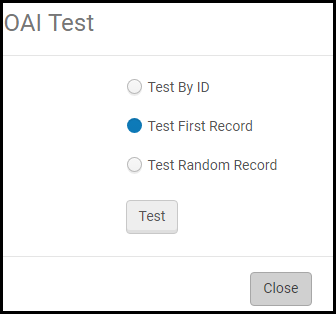
[OAIテスト]ダイアログボックスが表示されます。

OAI_Test_SelectRecord_new

[OAIテスト]ダイアログボックス
  • 次のオプションのいずれかを選択して、使用するテストレコードを指定します:
    • IDでテスト – レコード識別子をもれなく入力し、このレコードをハーベストします。
    • 最初のレコードをテストする – セットの最初のレコードを収集します。
    • ランダムレコードをテストする –セット内のランダムなレコードをハーベストします。

The options Test First Record and Test Random Record are dependent on the date configured in the "Harvest Start Date" field.If no modifications were done to the first/random record after the Harvest Start Date, the test will not yield any results.

  • [テスト]を選択します。
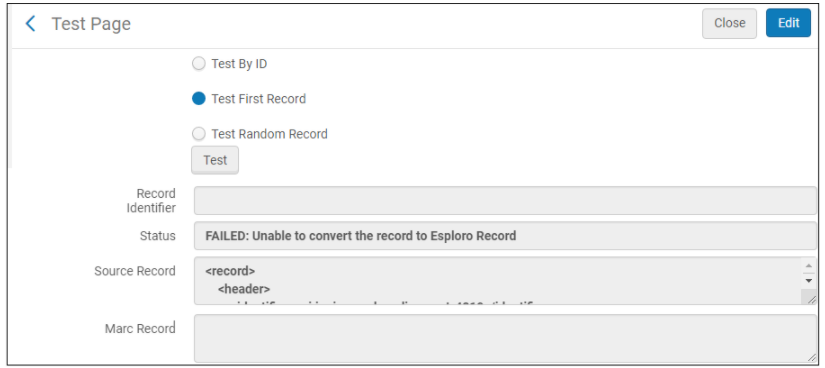
    結果には次のフィールドが含まれます:
    • レコード識別子
    • ステータス-プロセスが成功したかどうか。フローが失敗した場合、 [ステータス]フィールドにエラーが表示されます。
    • 出典データ–ハーベストされた元レコード
    • Marcレコード – MARC 21フォーマットに変換した後で受入した書誌レコード
    [デジタルリモートリポジトリの場合]、結果には次のフィールドも含まれます:
    • このプロファイル用に設定されたリモートデジタルリポジトリのオブジェクトテンプレートで定義された設定に従って、リモートファイルにリンクします。
    • このプロファイルに設定されたサムネイルテンプレートで定義された設定に従って、サムネイルオブジェクトにリンクします。
    • 目録構造-生成されたデジタルリモート表現のXML構造
    OAI_Test_ExampleResults2.png
    OAIプロトコルを使用したリポジトリのテスト例

インポートプロファイルの作成/編集:正規化と検証

このセクションでは、インポートプロファイルの正規化および検証情報を入力する方法について説明します。このページは、初期権限インポートプロファイルとは関係ありません。

Fields indicated in the profile mapping for creating physical or electronic inventory, or populating physical or electronic fields, must be present in the original file and cannot be taken from fields added by normalization or from an existing record.

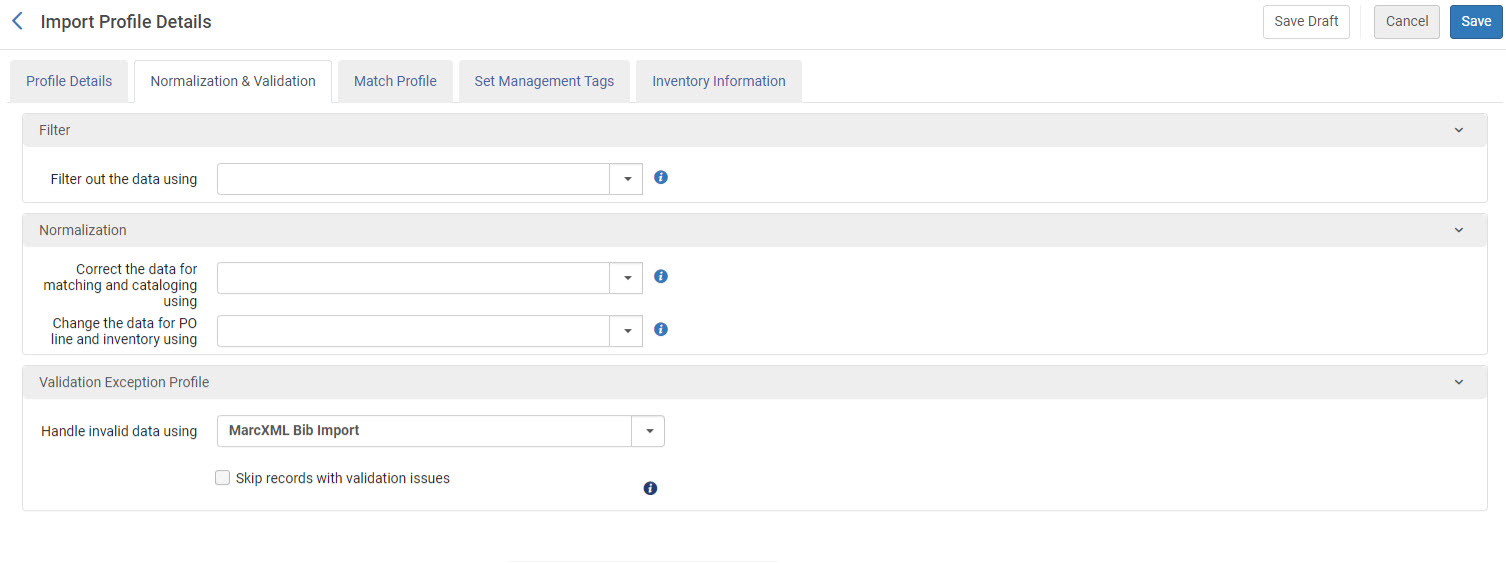
01_Skip_Validations.jpg

インポートプロファイルの詳細-正規化と検証
インポートプロファイルを作成する際、あるいは、インポートプロファイルを編集する場合には[正規化と検証]タブを選択することで、ウィザードの一部としてこのページにアクセスしてください。
インポートプロファイルの正規化と検証情報を入力するには:
  1. [インポートプロファイルの詳細-正規化と検証]ページで、次の情報を入力します。
    インポートプロファイルの詳細-正規化と検証フィールド
    フィールド説明
    フィルター
    次を利用してデータを絞り込み検索するインポートプロファイルの表示ルールを選択します。表示ルールのロジックに一致するインポートされたレコードは、インポートプロセスの一部としてインポートされません。For more information about indication rules, including how to add new ones, see Working with Indication Rules and Filtering Sets.

    正規化

    Normalization rules run before the merge process.

    次を使用して、マッチングとカタログ化のためにデータを修正する
    データを修正する正規化ルールを選択します。For information, see Working with Normalization Processes.
    During metadata import, the MARC 21 Bib Initial Normalization and MARC 21 BIB normalize on save tasks are applied to the loaded data to correct the imported records, in addition to the normalization option selected here (Note that this does not apply to Authority and Initial Authority import profile types).You can see details of the MARC 21 Bib Initial Normalization process at Resources > Cataloging > Metadata Configuration; select MARC 21 Bibliographic; select the Normalization Processes tab; select MARC 21 Bib Initial Normalization.
    When records are imported, the normalization processes identified here are applied/processed before matching and merging/overlaying occur.
    Select Add BIB to Collection in this dropdown list to configure Alma to automatically assign imported digital titles to a collection according to the value of the 787 field of the MARC record.For more information, see Preparing the XML Metadata File.
    インポートプロファイルの物理的ソース形式としてCSVまたはExcelファイルが選択されているときに、固定位置フィールド(MARC 21 LDR/008やCNMARCLDR/100など)がソースコンテンツにない場合は、これらの固定位置フィールドはここで選択した正規化プロセスから作成されます。正規化プロセスが選択されておらず、固定位置フィールドが欠落している場合、enable_import_computer_generated顧客パラメーターがtrueに設定されているときにデフォルトのテンプレートが使用されます。(see enable_import_computer_generated for more information).
    A normalization will run after the crosswalk.In addition, the MARC 21 Bib Initial Normalization will apply to metadata import even if disabled.If you don't want any specific initial normalization drool, you will need to delete that drool.
    以下を使用して発注明細とインベントリのデータを変更する Enables users to use a dedicated normalization process in the import profile to update the data used in inventory and POL mapping.たとえば、図書館は定価フィールドから通貨情報を削除したり、アイテムにマップされたフィールドに一時的な位置情報を追加したりする場合があります。

    正規化はインベントリと注文明細にのみ適用され、カタログに保存されるときのレコードの一部にはなりません。

    For more information, watch the Import Enhancements: Normalize PO Lines and Inventory, Assign Cataloging Level video (1:56 minutes).
    検証例外プロファイル
    無効なデータ使用を処理するインポートされた無効なデータの処理方法を選択します。For more information, see Working with Validation Exception Profiles.
    Ex Librisは、MarcXML 書誌インポート検証例外プロファイルの使用を推奨しています。
    検証の問題があるレコードをスキップするこのオプションを選択すると、インポート中の検証エラーをスキップし、プロセスを停止したり、手動での介入を必要とせずに完了できるようになります。In case a validation error occurs, the process completes with a status of Completed with Errors.ユーザーは詳細をレポートで表示できます。
    Network Zone Records Handling

    ローカル拡張機能のインポート(ネットワークゾーンメンバーオプションのみ)

    See Adding Local Extensions Using Import for an explanation of this feature.

    Note that the Network Zone Records Handling section in the import profile only appears when you select the Use Network Zone parameter.

  2. 何らかのタイプのインポートプロファイルを編集している場合、編集が完了したら[保存]を選択します。Otherwise, select Next and continue with Creating/Editing an Import Profile: Match Profile.無効としてプロファイルを保存する場合、[下書きを保存]を選択します。後で編集すれば、引き続き、インポートプロファイルを作成することができます。

Creating/Editing an Import Profile: Match Profile

このセクションでは、[インポートプロファイルの詳細-一致プロファイル]ページで、インポートプロファイル一致処理情報を入力する方法について説明します。このページは、初期権限のインポートプロファイルには関係ありません。このページの一部のフィールド/値は、特定のプロファイルにのみ関連しています。これらを以下に示します。

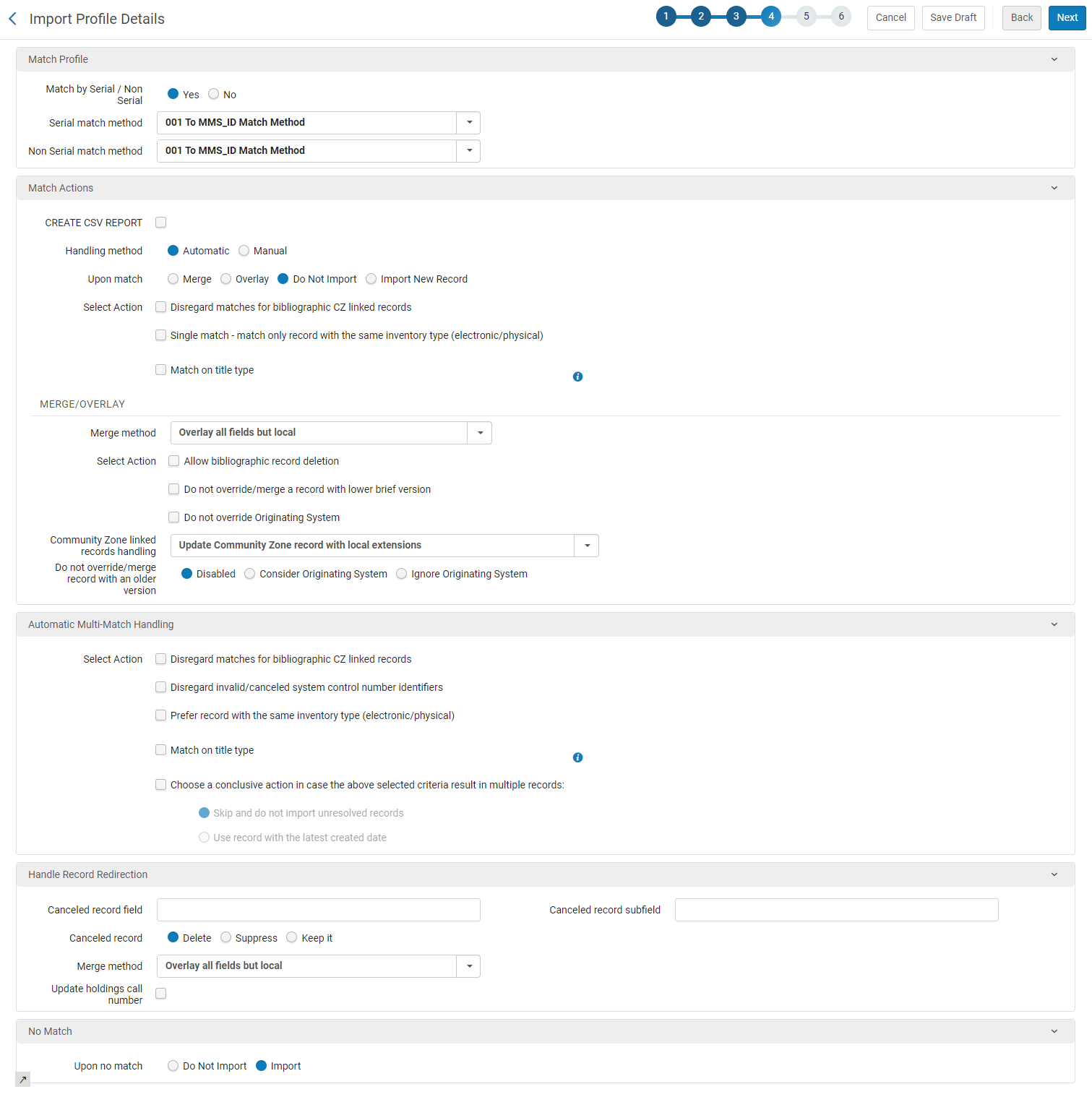
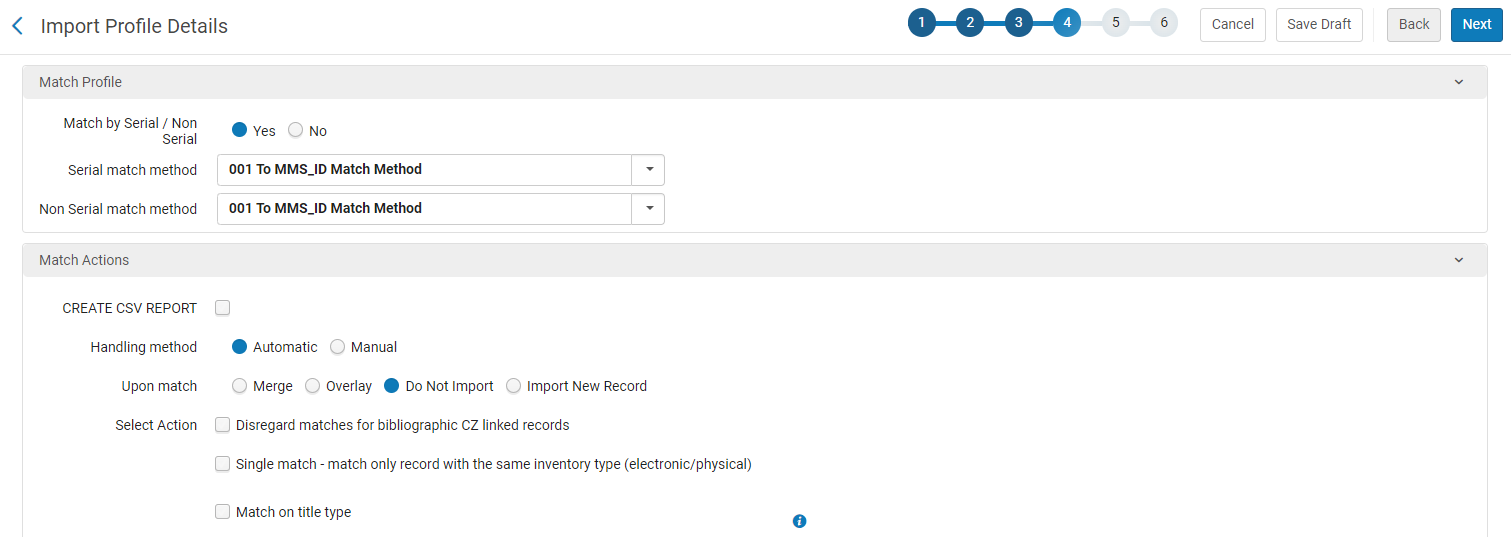
インポートプロファイルの詳細-一致プロファイルタブ

インポートプロファイルの詳細-一致プロファイル

デジタルインポートプロファイルの場合、ダブリンコアまたはMODSターゲットフォーマットのデジタルインポートプロファイルを作成/編集する際、一部のページのみが表示されます。See the following fields in the table below:Match Method,Handling method,Upon match,Allow bibliographic record deletion(Not for MODS),Do not override originating system, and Upon no match and ignore the rest.

  • Records with related records cannot be deleted using the Allow bibliographic record deletion and the Delete/deactivate portfolios options in the profile.

  • (New for February 2026) For the New Order import profile, you can configure Alma to take the call number into account for the match with the eod_match_holdings_by_call_number parameter.See Configuring Other Settings for more information.

インポートプロファイルの詳細 - 一致操作

Import Profile Details - New Order Profile Type

インポートプロファイルを作成する際、あるいは、インポートプロファイルを編集する場合には[一致プロファイル]タブを選択することで、ウィザードの一部としてこのページにアクセスしてください。

インポートプロファイルの一致処理情報を入力するには:
  1. [インポートプロファイルの詳細-一致プロファイル]ページで、インポート要件に応じて、下表に記載のパラメータオプションを入力します。
    Import Profile Details - Match Profile Fields
    フィールド説明
    一致プロファイル
    一致方法(目録、権限、デジタルの更新(上記参照)のみ)データの照合で使用される方法。For a detailed description and examples of some of these methods, see Match Methods – Explanations and Examples.
    目録プロファイルの更新の場合、これは自動的に[発注明細ごと]に設定され、変更できません。
    ダブリンコアフォーマットで構成されたデジタルインポートプロファイルについては、自動的に[dc:identifier]に設定され、変更できません。Almaは、次のロジックに従ってレコードを照合します:
    1. MMS_IDに基づき、次のように参照されます:<dc:identifier> alma:{INST_CODE} / bibs / {MMS_ID} </ dc:identifier>。
      MMS_IDを参照する[dc:identifier]フィールドは、照合でのみ考慮され、インポートされたレコードとともに保存されません。
    2. 完全な[dc:identifier]値を[dc:identifier値]が同じ別のレコードと照合することにより、他の[dc:identifier]値に基づきます。

    識別子プレフィックスを指定した場合、入力したプレフィックスを持つ識別子のみが正常に一致したと見なされます。

    逐次刊行物/逐次刊行物以外による照合(新規発注、リポジトリ、およびデジタル(上記を参照)のみ)
    既存レコードを照合する際にリソースタイプ(逐次刊行物/逐次刊行物以外)を検討するには、[はい]を選択します。逐次刊行物レコードは逐次刊行物レコードと照合され、逐次刊行物以外のレコードは逐次刊行物以外のレコードと照合されます。逐次刊行物レコードと逐次刊行物以外のレコードについて、個別の一致方法を選択できます。このオプションを選択すると、逐次刊行物一致方法と非逐次刊行物一致方法のフィールドが表示されます。
    既存のレコードと一致する場合、リソースタイプを無視する[いいえ]を選択します。逐次刊行物レコードと逐次刊行物以外のレコードについて、単一の照合方法を選択できます。このオプションを選択すると、照合方法フィールドが表示されます。
    For a detailed description and examples of some of these methods, see Match Methods – Explanations and Examples.
    照合法(新規発注、リポジトリ、およびデジタル(上記を参照)のみ)
    逐次刊行物レコードと逐次刊行物以外のレコードの双方に一致する照合方法を選択します。逐次刊行物レコードと逐次刊行物以外のレコードの両方に適用できる照合方法のみが使用可能です。For a detailed description and examples of some of these methods, see Match Methods – Explanations and Examples.
    逐次刊行物の一致方法(新規発注、リポジトリ、およびデジタル(上記を参照)のみ)逐次刊行物のデータ照合で使用される方法。For a detailed description and examples of some of these methods, see Match Methods – Explanations and Examples.
    逐次刊行物以外の一致方法(新規発注、リポジトリ、およびデジタル(上記を参照)のみ)逐次刊行物以外のデータ照合で使用される方法。For a detailed description and examples of some of these methods, see Match Methods – Explanations and Examples.
    照合する電子コレクションを選択してください書誌レコードの照合を特定の電子コレクションに制限します。This gives users the ability to match incoming repositories against a selected collection and not the entire catalog, enabling you to avoid multi-match events.Select the "Select from a list" button (リストから選択ボタン) to display and select the Electronic collection to match against.

    If in the import profile, you select to configure the "No Match" section with any option other than "Do Not Import", it might create a duplication of Bibliographic records that are in the catalog, but not the collection.

    一致操作:
    取扱い方法一致を処理する方法。以下から選択できます:
    • Automatic(default) – Alma resolves the matching according to the selected Upon match behavior.If you select this option, additional options appear in the Automatic Multi Match Handling section on this page.
    • 手動–インポートされた書誌レコードがAlmaで一致する場合、インポートプロセスは[マニュアル操作が必要です]ステータスに設定され、ユーザーはレコードをインポートするかどうかを選択する必要があります。See Resolving Import Issues.
    150以上一致するレコードはインポートされません。一致が多すぎるレコードの数は、ジョブレポートにリストされます。
    一致時一致がある場合に実行するアクション。以下から選択できます:
    • Import New Record(New Order and Repository types only) – The record is imported, but there may be redundant data.
    • Do not import(default; New Order and Repository types only) – The new record is discarded.
    • Merge(all profiles except Digital profiles NOT configured for Dublin Core) – Merge the records according to the options chosen in the profile configuration.このレコードについて実行したすべてのリンキング履歴(添付された発注明細など)は、保持されます。
    • Overlay(all profiles) – Discard all bibliographic data in the old record and replace with the data in the new record.統合と同様に、このレコードに対して実行されたすべてのリンキングの履歴は保持されます。
    • Use NZ Record(for Network Zone member institution only) – Discard the new record and instead use the record from the Network Zone.
    • Use existing record(New Order type only) - Select to use the existing matched bibliographic record without modifying it, and associate the newly created resource and PO line under this matched bibliographic record.In case a matching resource is also found under the bibliographic record, only the PO line will be created.
    アクションを選択

    CZにリンクされた書誌レコードの一致項目を無視する

    Disregard matches for bibliographic records that are linked to the Community Zone and process only matches on local records.In case of a match where there is a Community Zone record that matches the incoming record, this record is disregarded.Only a local record is considered a match.

    Single match - match only record with the same inventory type (electronic/physical)

    このオプションを選択すると、システムが目録タイプを使用して、レコードインポート時に一致するかどうかを判断します。When this option is selected, records with different inventory types (such as electronic and physical) are not considered a match when a single match is found.このオプションは、たとえば、タイトルが同じ電子目録タイプと冊子目録タイプの個別の書誌レコードを保守する場合に使用します。

    When this option is not selected and a single match is found, records with different inventory types are considered a match.

    このオプションを選択すると、ジョブのインポートリポートに追加情報が表示されることに注意してください。[書誌レコード一致]セクションには、[一致がスキップされました-目録タイプが異なります]というラベルの行が追加されています。この行には、目録タイプが異なることによりスキップされた一致の数が表示されます。See Monitor and View Import Jobs for more information.

    タイトルタイプの一致

    このオプションは、電子または冊子タイトルのタイプを一致させます。受信した印刷タイトルをリポジトリ内の印刷タイトルと照合し、受信した電子タイトルをリポジトリ内の電子タイトルと照合します。Only a record with the same title type is considered a match.

    For more information on how Alma calculates the title type, see Rules Used to Create the Resource Type Field – MARC 21/KORMARC and UNIMARC.

    一致操作- 統合/上書き:
    統合方法 ([一致時]が設定されている場合のみ、[統合]に設定されます)データを統合するのに使用される方法。利用可能な事前定義オプションは次のとおりです:
    • 条件付き主題見出し
    • 古い値のみを保持
    • ローカル以外のすべてのフィールドを上書きする
      When using the Overlay all fields but local merge rule as part of theredirection, the 035 field is not part of the rule.これは、マージ前にリダイレクトが発生するためです。
    • 存在する場合、245および035 OCoLCの置き換え
    For information on merge rules, see Working with Merge Rules.

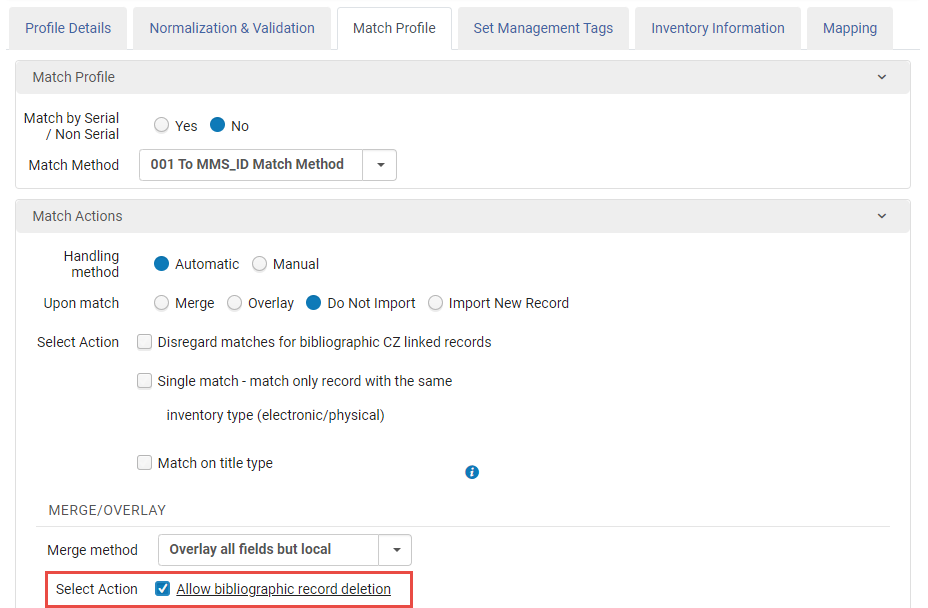
    Select Action: Allow bibliographic record deletion

    以下の条件で、Almaが一致するレコードを削除するよう選択します:

    • インポートされたレコードには、LDR位置5に [d]が含まれています。
    • 書誌レコードに関連付けられている発注明細または目録リソースはありません。
    • PDAポートフォリオの場合、書誌レコードに関連付けられているポートフォリオのPDA IDは、PDAプロファイルと同じであり、PDAは有効ではありません。For more information, see Patron Driven Acquisitions.
    • 共同ネットワークでは、ローカル機関レコードをネットワークゾーンレコードにリンクすることはできません。
    • [書誌レコードの削除を許可]パラメーターが選択されているインポートプロファイルを使用してインポートジョブを実行し、一致するものが1つ見つかった場合、インポートプロファイルで選択されている可能性のある統合または上書きの一致アクションよりも削除アクションが優先されます。Multiple matches that are found appear in the "Bibliographic Record Matches" section of the job report and can be deleted outside of the import process (see Managing Bibliographic Records.)
    • Selecting Do not import prevents deletion.
    これは、[インポートプロファイル-目録情報]ページ上で[ポートフォリオを削除/無効化する]を選択するために、指定する必要があります。
    Records with related records cannot be deleted using the Allow bibliographic record deletion and the Delete/deactivate portfolios options in the profile.

    アクションを選択:下位の簡略化バージョンでレコードを上書き/統合しない

    このパラメータは、インポートされたレコードが既存のレコードを上書き、またはこれと統合する際、低品質のレコードが高品質のレコードを上書きするのを防ぐのに役立ちます。このオプションは、完全な(または詳細な)バージョンのレコードを、簡潔なバージョンのレコードで上書き/統合したくない場合に適用します。選択すると、Almaは既存のレコードとインポートされたレコードの要約レベル番号(01-10)を比較します。要約レベル番号が低いレコードは、要約レベル番号が高いレコードと統合、またはこれを上書きしません。

    For more information, see Working with Brief Record Levels.

    アクションを選択:発信元システムは上書きしないで下さい

    インポートプロセスが元のシステムを上書きしないようにするには、このオプションを選択します。This means that merging/overlaying a record that was loaded with a different originating system will not change its existing originating system.

    Community Zone linked records handling

    コミュニティゾーンのリンクされたレコードの処理パラメータは、ignore_cz_records顧客パラメータがfalseに設定されている場合のみに表示されます。See ignore_cz_records for more information.

    次のオプションのいずれかを選択します

    • ローカル拡張機能でコミュニティゾーンレコードを更新する
      Select to add/remove local extensions for the matched bibliographic Community Zone-linked records (records that already have a Community Zone cached copy) when the Merge or Overlay Upon match options are selected.これにより、コミュニティゾーンレコードへのリンクが保持され、インポートされたレコードで定義されている拡張機能でレコードがローカルに更新されます。
      Note that any other update of the Community Zone-linked record that is not adding or modifying a local extensions will not occur.If, for example, the imported record includes an update that is not related to local extensions such as adding the 260 $a with New York, that update will not occur.
      If the imported record includes a setting of $$9LOCAL for a local extension tag such as the bibliographic field 906, the local extension is created for the Community Zone-linked record similar to how local extensions are added using the Metadata Editor.See Working with Local Extension Fields for Community Zone Records for more information.
      For member import profiles where the Use Network Zone parameter is set to Yes, the Update Community Zone record with local extensions option does not appear as an available option.
      Use_Network_Zone_Yes_02.png
      [はい]に設定されたネットワークゾーンを使用
      Note that the Update Community Zone record with local extensions option is available when you are logged into the Network Zone.
    • レコードをスキップする
      When this option is selected and the matching bibliographic record is a Community Zone-linked record, the record is skipped.つまり、更新は行われていません。When the profile is configured to skip CZ matches, but no match was found, the bibliographic record and the portfolio are created locally.
      Note that if no match is found in the Institution Zone, no matching attempt in made within the Community Zone.
      For import profiles configured prior to the March 2020 release where the option Unlink bibliographic records from Community Zone is not selected, the Skip record option is selected by default.
    • コミュニティゾーンからレコードのリンクを解除し、ローカルレコードを作成する
      When this option is selected and the matching bibliographic record is a Community Zone-linked record, the record is unlinked from Community Zone and a local copy is created at the institution level (no Community Zone cached copy is created).Any updates are performed on the newly created local record.
    Do not override/merge record with an older version (Repository type, for Upon match selections Merge and Overlay only)古い書誌レコードが新しいレコードを上書きしたり、統合されないようにします。これは、既存のレコードが同じレコードの古いバージョンで更新されないようにすることで、正しい順序でレコードをアップロードできるようにします。This feature is enabled by the metadata record field Originating System Version, which is created from the record's 005 control field the first time the record is imported.For information regarding normalizing the Originating System Version field, see the Update originating system information process and the procedure To configure normalization for managing the Originating System and Originating System Version information.
    次のオプションから選択します:
    • 作成元システムの値で上書きする–一致するレコードが見つかると、既存のレコードとインポートされたレコードの作成元システムの値が同じで、既存のレコードの作成元システムバージョンの日付が、インポートされたレコードの005フィールドの日付よりも新しい場合、Almaは古いレコードを新しいレコードで上書きまたは統合しません。同じ情報源からの一致するレコードの日付を比較する場合は、このオプションを選択します。
    • 作成元システムの値で上書きしない–一致するレコードが見つかると、既存のレコードの作成元システムバージョンの日付が、インポートされたレコードの005フィールドの日付より新しい場合、Almaは古いレコードを新しいレコードで上書きまたは統合しません。古いレコードを上書きするか統合するかを決定する際、作成元システムメタデータフィールドの値は無視されます。レコード源に関係なく、一致するレコードの日付を比較する場合は、このオプションを選択します。
      たとえば、YBPがOCLC制御番号を含むレコードを配布し、そのレコードが、YBPにより追加情報とともに再配布されるOCLCレコードであれば、このオプションを使用できます。レコードがOCLCで作成されたという事実は、YBPレコードが新しい場合に、YBPレコードによるOCLCレコードの上書きを妨げてはなりません。
    • Disabled(default) – When a matching record is found, Alma ignores the Originating System Version date of the existing record and overlays or merges the external record with the Alma repository record according to the profile definition.
    See Viewing Records Not Imported Due to Version Prevention in a Job Report for additional information regarding report results from jobs run using these options.
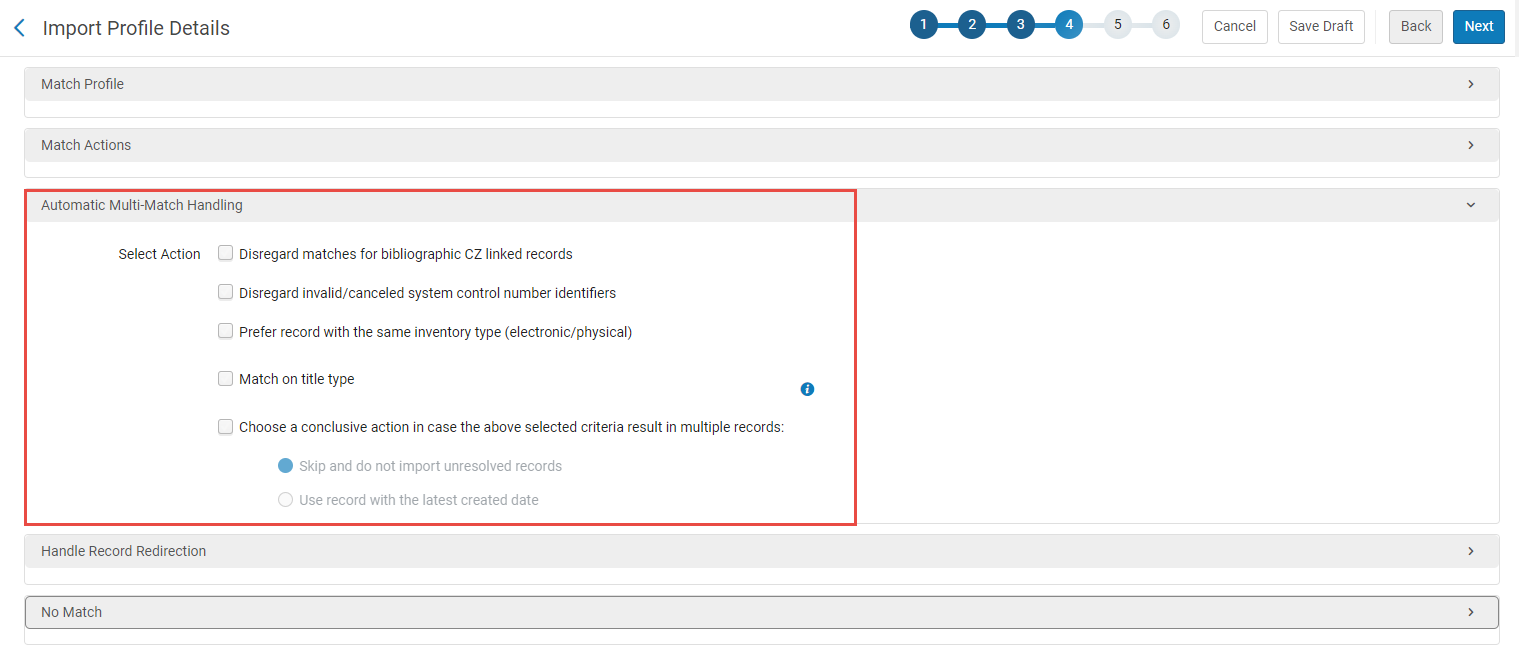
    自動複数一致処理:
    [処理方法]で[自動]を選択すると表示されます。

    To automatically resolve cases of multi-matches when importing a record, Alma supplies some options to prefer specific records according to different criteria.このセクションのオプションは階層的に機能します。The hierarchy is according to the order in which these options appear (only the selected options are considered).Assuming all of these options are selected, the algorithm works as follows:

    1. Alma preforms the filtering of multi matches according to the top four options:
      1. CZにリンクされた書誌レコードの一致項目は無視します。If a single match is not found, the filtered set of matches (i.e., non CZ-linked records) is transferred to be resolved the next step.
      2. Disregards invalid/canceled system control number identifiers.If a single match is not found, the entire set of matches is transferred to be resolved the next step.
      3. Prefers record with the same inventory type (electronic/physical).If a single match is not found, the entire set of matches is transferred to be resolved the next step.
      4. Match on title type.このオプションは、電子または冊子タイトルのタイプを一致させます。
      これにより、一致候補のセットを最小化し、複数一致の問題を解決できる可能性があります。
    2. If more than one record remains in the set of possible matches, Alma acts according to your selection of a conclusive action - you can choose to either skip and not import unresolved records, or choose the latest created record from the whole set of potential matches.

    CZにリンクされた書誌レコードの一致項目を無視する

    Appears only if the parameter ignore_cz_records is set to false(see Configuring Other Settings.

    コミュニティゾーンにリンクされた書誌レコードの一致は無視し、ローカルレコードの一致のみを処理します。Almaは、受入レコードと一致するローカルレコードとコミュニティゾーンレコードの両方があるため、複数の一致があるケースを自動的に解決します。ローカルレコードのみが一致と見なされます。
    このフィールドは、複数の一致にのみ関連します。
    無効/キャンセル済みのシステム制御番号識別子を無視する

    035 $ zのキャンセル済み/無効な識別子を除外(無視)します。See Automatic Handling of Multiple Matches During Import for Canceled/Invalid Identifiers in the 035 for more information.

    同じ目録タイプ(電子/冊子)のレコードが好ましいインポートするレコードと同じタイプの目録を含む一致する書誌レコードを優先します。
    This option is also supported when implementing a Network Zone and for real-time ordering (see Real-Time Ordering), if configured in the profile.
    目録タイプが優先される場合、インポート中に次のように最適一致が決定されます:

    Almaは、[目録操作]フィールドを使用して出典データの目録種別を決定します([インポートプロファイルの作成/編集:目録情報]を参照):

    • None- No preference based on inventory.
    • Physical- The preference is based on physical inventory.
    • Electronic- The preference is based on electronic inventory.
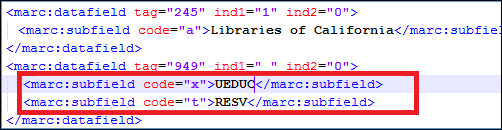
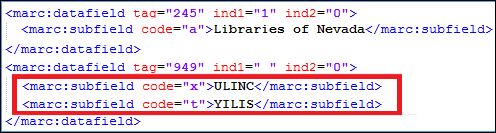
    • Mixed- The inventory type (electronic or physical) is determined for each bibliographic record according to the mapping of the Resource type field.入力ファイルには、リソースタイプとして定義されているフィールドに、冊子(Physical)の「P」と電子(Electronic)の「E」が含まれている必要があります。For example, if the Resource type field is 888 $d, each record in the input file should include:
      • <datafield tag="888" ind2=" " ind1=" "> <subfield code="d">P</subfield> </datafield>
      • OR <datafield tag="888" ind2=" " ind1=" "><subfield code="d">E</subfield></datafield>

    Almaは、一致する各レコードの目録タイプを次のように決定します:

    • 一致するレコードに冊子目録と電子目録の双方が含まれる場合、目録は混在していると見なされます。
    • 一致するレコードに冊子目録または電子目録のみが含まれる場合、一致するレコードの目録はそのタイプの目録と見なされます。
    • 一致するレコードの1つだけが出典と同じ目録タイプ(電子レコードまたは冊子レコード)を含む場合、それは一致と見なされます。出典と同じ目録タイプを含む一致するレコードが複数ある場合、目録タイプに基づく設定はありません。
    • 一致するレコードの1つのみに混合目録が含まれ、電子レコードまたは冊子レコードのみを含む一致レコードがない場合、混合レコードは一致と見なされます。それ以外の場合、設定は目録タイプに基づきません。
    タイトルタイプの一致

    このオプションは、電子または冊子タイトルのタイプを一致させます。受信した印刷タイトルをリポジトリ内の印刷タイトルと照合し、受信した電子タイトルをリポジトリ内の電子タイトルと照合します。Only a record with the same title type is considered a match.Alma automatically resolves cases in which there is a multiple match because there is both a physical and electronic record that match the incoming record.Only the same record type is considered a match.

    このフィールドは、複数の一致にのみ関連します。

    上記で選択した条件により複数のレコードが発生した場合の決定的なアクションを選択します。

    Select if you want to automatically determine what to do if more than one record remains in the set of possible matches.

    • Skip and do not import- Select to not import multiple matches.In the import job report, instead of multiple matches being sent to the Matching section of the Resolve Import Issues page (see Resolving Import Issues), they are added to a report (Download records that were skipped due to multi-match automatic handling).
    • Use record with the latest created date- Select to use the record that was created last.このオプションを使用すると、複数の一致がある場合に常に単一のレコードを選択できます。In the import job report, the amount of multi matches that was resolved this way appears under the counter "Multi-matches resolved automatically, use latest created record".This option is applicable only in the Repository and New Order import profile types.

    If this option is not selected, multi matches will have to be handled manually.

    Merge Records and Combine Inventory for Multi-Match(New Order, Update Inventory, Repository, and Digital types only):
    The settings in this section are used when processing failed import records in the Resolve Import Issues page (see Resolving Import Issues).このパラメータとオプションを使用して、インポートされるファイルの新しい一致が失敗する原因となるAlmaデータベースに存在する複数の一致する重複レコードを処理します(統合および結合による)。インポートに失敗したレコードは、これを防ぐためにインポートプロファイルでオプション[スキップしてインポートしない]などを選択しない限り、[インポートに関する問題を解決する]ページに表示されます。この設定を使用して、インポートしようとしている新しいレコードと後で統合(または上書き)できる1つのレコードに重複する複数の既存レコードへと統合、組み合わせます。See Merging Records and Combining Inventory on the Resolving Import Issues page for more information.
    • 新しいインポートプロファイルを作成する際、[複数の一致項目のあるレコードの統合及び目録の結合]セクションが表示されるよう、[一致時]パラメータの[統合]または[上書き]オプションを選択する必要があります。
    • For information on configuring Alma to take an identifier from the secondary record and place it in the primary record when merging records, see Configuring BIB Redirection Fields.
    • この機能は、ユーザーがログインしている機関にインポートするときに使用できます。Note that the Merge Records and Combine Inventory for Multi-Match in the import profile is displayed when the Use Network Zone parameter isnot selected.
    統合して結合する
    [手動]を選択します。
    [無効化]を選択すると、インポートプロファイルの[複数の一致項目のあるレコードの統合及び目録の結合]セクション全体が無視されます。
    優先レコード
    Almaデータベースに存在する複数の一致するレコードの優先レコードを識別する方法を選択します。次のオプションが提供されます:
    • 最も多くのアイテムを含むレコード
    • 最も高い要約レベルのレコード
    セカンダリレコード
    Almaデータベースに存在する複数の一致するレコードの1つ以上のセカンダリレコードを処理する方法を選択します。次のオプションが提供されます:
    • 削除
    • サプレス
    • そのままにする
    統合方法オプションのドロップダウンリストから希望の統合方法を選択します。

    所蔵請求番号を更新する

    Select to update the call number information (using the bibliographic call number) for all the holdings associated with the preferred record, after the bibliographic merge has been processed.書誌レコードで請求番号フィールドの1つを更新すると、最終的に所蔵レコードに表示される請求番号が影響を受ける可能性があります。

    This setting applies to the initial merge and combine of previously-existing duplicate records into one record.It does not apply to the subsequent merge (or overlay) of the merged record with the record that you are trying to import.

    This parameter does not update a call number in an existing holdings record.To update a call number in a holdings record after its bibliographic record was updated from running import, open the holdings record in the MD Editor and use the function Tools > MARC21 Holdings > Update from Bibliographic.

    Handle Record Redirection(Repository and Digital):
    See Handling Record Redirection for more information.
    キャンセルされたレコードフィールドキャンセルされるレコードのIDを含むインポートされたレコードのフィールド(035や889など)を指定します。
    キャンセルされたレコードサブフィールドキャンセルされるレコードのIDを含むインポートされたレコードの[キャンセルされたレコードフィールド]において、サブフィールドを指定します(035の$ zや889の$ wなど)。
    キャンセルされたレコード
    次のオプションのいずれかを選択して、キャンセルされたレコードの処理方法を指定します:
    • 削除
    • サプレス
    • そのままにする
    統合方法
    この方法では、キャンセルされたレコードをプライマリレコードと統合する方法を決定します。
    所蔵請求番号を更新このオプションを選択すると、レコードを統合する際に所蔵請求番号が更新されます。
    No Match(New Order, Repository, and Digital types only):
    不一致時

    Almaで一致するレコードが見つからなかったレコードをインポートするかどうかを示します:

    • Do Not Import- Select not import the records that do not already exist in Alma.
    • Import Records for Redirection - Select this option only when the "Do Not Import" option is already selected, and if you have configured the "Handle Record Redirection" section (see Handling Record Redirection).Select this option in cases when your institution prefers to import record updates only for records that already have inventory information in Alma, and not new records.When selected, the redirection is done even if the new record does not exist in Alma, as long as there was an existing match for the cancelled record.For details, see Records redirection when the record is not in Alma.
      このオプションはデフォルトで無効になっています。To enable this option, please contact the Ex Libris customer support.
    • Import - Select to import the records to local institution.
    • Add to Network Zone - (Network Zone only)
    デフォルトは、インポートプロファイル種別によって異なります。
    • 権限インポートプロファイルを作成しているか、またはいずれかのタイプのインポートプロファイルを編集している場合、ジョブ完了時、[保存]を選択します。
    • If you are creating an Update Inventory profile, select Next and continue with Creating/Editing an Import Profile: Inventory Information.
    • Otherwise, select Next and continue with Creating/Editing an Import Profile: Set Management Tags.
    • 無効としてプロファイルを保存する場合、[下書きを保存]を選択します。後で編集すれば、引き続き、インポートプロファイルを作成することができます。

Match Methods – Explanations and Examples

一致ルーチン/方法は、受入レコードが既存のレコードの複製と見なされる状況を判断するために使用されます。

Almaは、逐次刊行物レコードを逐次刊行物レコードと照合し、更に、逐次刊行物以外のレコードを逐次刊行物以外のレコードと照合します。

目録プロファイルの更新では、一致方法は[発注明細ごと]であり、これは、発注明細リファレンス番号またはベンダーレファレンス番号に基づいて照合します。

他のプロファイルについては、逐次刊行物と逐次刊行物以外の一致方法を使用できます。次の逐次刊行物一致方法を使用できます:

逐次刊行物一致方法
フィールド 注記
001からMMS IDへの一致方法(Ex Librisによって事前定義)

Alma IDに基づく一致。以前にAlmaからエクスポートされたレコードをインポートするときに使用されます。For information on defining the fields for match profiles for serial items, see Serial Match Profile.

When this match method is picked for as Serial / Non Serial match method, automatically it is used also as the Non-Serial / Serial match method; even when the MD Import > Match profile > "Match by Serial / Non-Serial" indicates "Yes".
001からMMS IDに基づくマージ中にOCLCからレコードをインポートする場合、チェックボックスがマークされていれば、インポートはBIBFRAMEインスタンスにもOCLC番号を持つbf:idenfitiedByを追加することをサポートします。
024 / 035一致方法

024または035フィールドに基づく一致。フィールドに複数の値が含まれる場合、値のいずれか1つが照合で使用されます。どちらのフィールドも最初にチェックされます。For information on defining the fields for match profiles for serial items, see Serial Match Profile.

照合プロセスの精度を高めるため、レコードを比較する前に、この一致方法は、受入レコードの001フィールドと003フィールドを結合する新しい035フィールドを受入レコードに追加します。(受入レコードに001フィールドと003フィールドが共に含まれていない場合、一致方法によって035フィールドは作成されません。)この新しい035フィールドは、照合プロセスで考慮されます。

035 (その他のシステム識別子) 一致方法
およびシステム識別子プレフィックス

035フィールドを使用するシステム制御番号に基づいて照合します。035フィールドに複数の値が含まれている場合、これらの値のいずれか1つを使用して照合します。括弧内の内容を含む、入力ファイルと図書館レコードの値は同一でなければならないことに注意してください(ただし、括弧内の内容は、認識されたOCLCプレフィックスである必要はありません)。この一致方法と一意のOCLC識別子一致方法が機能する方法の比較については、以下を参照してください。

For information on defining the fields for match profiles for serial items, see Serial Match Profile.

照合プロセスの精度を高めるため、レコードを比較する前に、この一致方法は、受入レコードの001フィールドと003フィールドを結合する新しい035フィールドを受入レコードに追加します。(受入レコードに001フィールドと003フィールドが共に含まれていない場合、一致方法によって035フィールドは作成されません。)この新しい035フィールドは、照合プロセスで考慮されます。
[035 (その他のシステム識別子) 一致方法]を選択すると、システム識別子プレフィックスパラメータが表示されます。このオプションにより、照合処理がより詳細になります。このパラメータを使用すると、入力したプレフィックスに基づいて照合プロセスをフィルターする035プレフィックスを指定できます。
有効な035(その他のシステム識別子)一致方法 Matches based on the system control number that uses only 035 $a.For information on defining the fields for match profiles for serial items, see Serial Match Profile.

Extended Fuzzy Serial Match Method

Select this option to have Alma invoke the Fuzzy Serial Match Method and do additional checks for the following:

  • 発行日は1年以下とし、以下により決定されます:
    • MARC 21の008フィールドの7〜10番目
    • UNIMARCの100フィールドの9-12番目
  • LDRで指定されたレコードタイプで決まる同一フォーマット

For information on defining the fields for match profiles for serial items, see Serial Match Profile.

タイトルステートメント拡張ファジー逐次刊行物一致方法

Same functionality as the Extended Fuzzy Serial Match Method, except that when matching against the title, this profiles matches only by 245 a,b,k,n,p and not by 245 a,b,k,n,p, 245 a, 210 a, 246 a.

For information on defining the fields for match profiles for serial items, see Serial Match Profile.

Fuzzy Serial Match Method (CDLSeMatchingProfile)

For information on defining the fields for match profiles for serial items, see Serial Match Profile.

次のアルゴリズムを使用します:
Almaは、少なくとも次のいずれかの一致するIDを含むレコードを見つけようとします:
  • ISSN
  • ISBN
  • LCCN
  • CODEN
  • OCLCの一意の番号
  • その他のシステム番号(035フィールド)
この試行で一致が見つからない場合:
  • 受入レコードに著者が含まれる場合、Almaは、タイトルと著者の一致する組み合わせが少なくとも1つあるレコードを検索しようとします。
  • 受入レコードに著者が含まれない場合、Almaは、少なくとも1つの一致するタイトルを含むレコードを検索しようとします。
次のタイトルと著者のフィールドは、照合で使用されます:
  • MARC 21タイトル:245 a; 210 a; 246 a
  • MARC 21著者: 100 a-d,jq,u; 110 a-e,n,u; 111 a,c-e,n,q,u; 700 a-d,jq,u; 710 a-e,I,n,u; 711 a,c-e,I,j,n,q,u
  • UNIMARCタイトル: 200 a,e,d,h,i; 531 a
  • UNIMARC著者: 700 a-d,f,p; 701 a-d,f,p; 710 a-h,p; 711 a-h,p; 720 a,f; 721 a,f; 702 a-d,f,g; 712 a-h,p; 722 a,f
例:
100/245が一致し、210がAlmaレコードに存在するが、受入レコードにない場合、一致はありますか?はい。レコードが100/245に一致したら、それで十分です。210を確認する必要はありません。
100/245が一致し、246がAlmaレコードに存在するが、受入レコードにない場合、一致はありますか?はい。レコードが100/245に一致したら、それで十分です。246を確認する必要はありません。
100/245の一致があり、Almaレコードに存在する246に700フィールドが1つ以上あるが、受入レコードに700フィールドのすべてまたは一部が欠けている場合、一致はありますか?はい。レコードが100/245に一致したら、それで十分です。700フィールド(複数)を確認する必要はありません。
いずれを試みても一致が見つからない場合、Almaは一致が見つからないというメッセージを発行します。
ISSN (サブフィールドの完全一致) / 024 / 035一致方法

For information on defining the fields for match profiles for serial items, see Serial Match Profile.

次のフィールドのいずれかに基づく一致:
  • 022 $aまたは022 $z
    完全に一致するためには、インポートされたレコードの022サブフィールドとその内容が、Almaの022サブフィールドと内容と正確に一致する必要があります。インポートレコードの022 $ aにISSNがあり、Almaのレコードの022 $ zにISSNがある場合、一致するものはありません。
    たとえば、インポートされたレコードに022 $ a 12345が含まれ、インポート処理で022 $ a 12345を含むレコードをAlma で検出すると、完全一致が発生します。
  • 024
  • 035
  • 775 (subfield x, which is indexed to ISSN)
  • 776(ISSNにインデックス付けされたサブフィールドx)
フィールドに複数の値が含まれる場合、値のいずれか1つが照合で使用されます。
ISSN / 024 / 035一致方法

For information on defining the fields for match profiles for serial items, see Serial Match Profile.

次のフィールドのいずれかに基づく一致:
  • 022(ISSNにインデックス付けされたサブフィールドaおよびz)
  • 775 (subfield x, which is indexed to ISSN)
  • 776(ISSNにインデックス付けされたサブフィールドx)
  • 024
  • 035
フィールドに複数の値が含まれる場合、値のいずれか1つが照合で使用されます。
ISSN一致方法

Matches based on the 022 (subfields a and z, which are indexed to ISSN), 775 (subfield x, which is indexed to ISSN), or 776 (subfield x, which is indexed to ISSN) fields only.

For information on defining the fields for match profiles for serial items, see Serial Match Profile.

ISSN一致方法 (サブフィールドの完全一致)
Matches based on an exact match of the 022 $a or the 022 $z, 775 (subfield x, which is indexed to ISSN), or 776 (subfield x, which is indexed to ISSN) fields.
For an exact match to occur, the 022 subfield, for example, and its content in the imported record must exactly match an 022 subfield and its content in Alma.インポートレコードの022 $ aにISSNがあり、Almaのレコードの022 $ zにISSNがある場合、一致するものはありません。
022を例にとると、インポートされたレコードに 022 $a 12345が含まれ、インポート処理で022 $a 12345を含むレコードをAlmaで検出すると、完全一致が発生します。
For information on defining the fields for match profiles for serial items, see Serial Match Profile.
LCCN逐次刊行物一致方法

010 $ aフィールドのみに基づく一致。

For information on defining the fields for match profiles for serial items, see Serial Match Profile.

マルチステップ一致方法

It can be difficult to select the most appropriate matching routine, as different routines might be suitable for different situations.This method allows you to match based on several matching routines that are run one after the other on each record.

For information on defining the fields for match profiles for serial items, see Serial Match Profile.

This method is available in the following profile types:

  • 新規発注
  • リポジトリ
  • デジタル - 「024からOriginalSystemIdまたはMMSIdへの一致メソッド」を除くすべての一致メソッドを構成できます。

To use this method, the desired matching routines and the order in which they are run must be defined in the Multi Step Match Configuration mapping table (Configuration > Resource Management > General > Multi Step Match Configuration), see Multi Step Match Configuration.

コンソーシアムメンバーの場合、インポートプロファイルがネットワークゾーンを使用するように定義されている場合 ([プロファイル詳細]で[ネットワークゾーンを使用する] = [はい])、マルチステップ一致方法の構成をネットワーク機関で定義する必要があります。

重複のないOCLC識別子の一致方法

For information on defining the fields for match profiles for serial items, see Serial Match Profile.

独自のOCLC一致メソッドは、[MDインポート] > [一致プロファイル] > [逐次刊行物/逐次刊行物以外による一致]が「はい」を示している場合でも、逐次刊行物および逐次刊行物以外の一致を検索します。

一致するOCLCプレフィックスと番号に基づく一致。Any one of the following prefixes in the 035 field, subfields a or z, regardless of any zero-padded data is considered to be the same for matching purposes:(OCoLC),ocm,ocn, or on.(つまり、図書館レコードと入力ファイルのOCLCプレフィックスは、照合では同一である必要はありません。)

照合プロセスの精度を高めるため、レコードを比較する前に、この一致方法は、受入レコードの001フィールドと003フィールドを結合する新しい035フィールドを受入レコードに追加します。(受入レコードに001フィールドと003フィールドが共に含まれていない場合、一致方法によって035フィールドは作成されません。)この新しい035フィールドは、照合プロセスで考慮されます。

次の逐次刊行物以外の一致方法を使用できます:

非逐次刊行物の一致方法
フィールド 注記
001からMMS IDへの一致方法(Ex Librisによって事前定義)

Alma IDに基づく一致。以前にAlmaからエクスポートされたレコードをインポートするときに使用されます。

For information on defining the fields for match profiles for non-serial items, see Non-Serial Match Profile.

When this match method is picked for as Serial / Non Serial match method, automatically it is used also as the Non-Serial / Serial match method; even when the MD Import > Match profile > "Match by Serial / Non-Serial" indicates "Yes".
024 / 035一致方法

024または035フィールドに基づく一致。フィールドに複数の値が含まれる場合、値のいずれか1つが照合で使用されます。どちらのフィールドも最初にチェックされます。

For information on defining the fields for match profiles for non-serial items, see Non-Serial Match Profile.

035 (その他のシステム識別子) 一致方法
およびシステム識別子プレフィックス

035フィールドを使用するシステム制御番号に基づいて照合します。035フィールドに複数の値が含まれている場合、これらの値のいずれか1つを使用して照合します。括弧内の内容を含む、入力ファイルと図書館レコードの値は同一でなければならないことに注意してください(ただし、括弧内の内容は、認識されたOCLCプレフィックスである必要はありません)。この一致方法と一意のOCLC識別子一致方法が機能する方法の比較については、以下を参照してください。

For information on defining the fields for match profiles for non-serial items, see Non-Serial Match Profile.

照合プロセスの精度を高めるため、レコードを比較する前に、この一致方法は、受入レコードの001フィールドと003フィールドを結合する新しい035フィールドを受入レコードに追加します。(受入レコードに001フィールドと003フィールドが共に含まれていない場合、一致方法によって035フィールドは作成されません。)この新しい035フィールドは、照合プロセスで考慮されます。
[035 (その他のシステム識別子) 一致方法]を選択すると、システム識別子プレフィックスパラメータが表示されます。このオプションにより、照合処理がより詳細になります。このパラメータを使用すると、入力したプレフィックスに基づいて照合プロセスをフィルターする035プレフィックスを指定できます。

Extended Fuzzy Non-Serial Match Method

For information on defining the fields for match profiles for non-serial items, see Non-Serial Match Profile.

Select this option to have Alma invoke the Fuzzy Non-Serial Match Method and do additional checks for the following:

  • 発行日は1年以下とし、以下により決定されます:
    • MARC 21の008フィールドの7〜10番目
    • UNIMARCの100フィールドの9-12番目
  • LDRで指定されたレコードタイプで決まる同一フォーマット
タイトルステートメント拡張ファジー非逐次刊行物の一致方法

Same functionality as the Extended Fuzzy Non-Serial Match Method, except that when matching against the title, this profiles matches only by 245 abknp and not by 245a, 210a, 246a.

For information on defining the fields for match profiles for non-serial items, see Non-Serial Match Profile.

Fuzzy Non-Serial Match Method (CDLMatchingProfile)

For information on defining the fields for match profiles for non-serial items, see Non-Serial Match Profile.

次のアルゴリズムを使用します:
Almaは、少なくとも次のいずれかの一致するIDを含むレコードを見つけようとします:
  • ISSN
  • ISBN
  • LCCN
  • CODEN
  • OCLCの一意の番号
  • その他のシステム番号(035フィールド)
この試行で一致が見つからない場合:
  • 受入レコードに著者が含まれる場合、Almaは、タイトルと著者の一致する組み合わせが少なくとも1つあるレコードを検索しようとします。
  • 受入レコードに著者が含まれない場合、Almaは、少なくとも1つの一致するタイトルを含むレコードを検索しようとします。
次のタイトルと著者のフィールドは、照合で使用されます:
  • MARC 21タイトル:245 a; 210 a; 246 a
  • MARC 21著者: 100 a-d,jq,u; 110 a-e,n,u; 111 a,c-e,n,q,u; 700 a-d,jq,u; 710 a-e,I,n,u; 711 a,c-e,I,j,n,q,u
  • UNIMARCタイトル: 200 a,e,d,h,i; 531 a
  • UNIMARC著者: 700 a-d,f,p; 701 a-d,f,p; 710 a-h,p; 711 a-h,p; 720 a,f; 721 a,f; 702 a-d,f,g; 712 a-h,p; 722 a,f
例:
100/245が一致し、210がAlmaレコードに存在するが、受入レコードにない場合、一致はありますか?はい。レコードが100/245に一致したら、それで十分です。210を確認する必要はありません。
100/245が一致し、246がAlmaレコードに存在するが、受入レコードにない場合、一致はありますか?はい。レコードが100/245に一致したら、それで十分です。246を確認する必要はありません。
100/245の一致があり、Almaレコードに存在する246に700フィールドが1つ以上あるが、受入レコードに700フィールドのすべてまたは一部が欠けている場合、一致はありますか?はい。レコードが100/245に一致したら、それで十分です。700フィールド(複数)を確認する必要はありません。
いずれを試みても一致が見つからない場合、Almaは一致が見つからないというメッセージを発行します。
ISBN (サブフィールドの完全一致) / 024 / 035一致方法

For information on defining the fields for match profiles for non-serial items, see Non-Serial Match Profile.

次のフィールドのいずれかに基づく一致:
  • 020 $a または 020 $z
    インポートされたレコードの020サブフィールドとその内容が、Almaの020サブフィールドとその内容と正確に一致する必要があります。インポートレコードの020 $aにISBNがあり、Almaのレコードの020 $zにISBNがある場合、一致するものはありません。020 $a、020 $z、または775/776(ISBNに索引付けされたサブフィールドz)の完全一致に基づく一致。
    たとえば、インポートされたレコードに 020 $a 12345が含まれ、インポート処理で020 $a 12345を含むレコードをAlmaで検出すると、完全一致が発生します。
  • 024
  • 035
  • 775 (subfield z, which is indexed to ISBN)
  • 776(ISBNにインデックス付けされたサブフィールドz)
フィールドに複数の値が含まれる場合、値のいずれか1つが照合で使用されます。
ISBN / 024 / 035一致方法

For information on defining the fields for match profiles for non-serial items, see Non-Serial Match Profile.

次のフィールドのいずれかに基づく一致:
  • 020(ISBNにインデックス付けされたサブフィールドaおよびz)
  • 775 (subfield z, which is indexed to ISBN)
  • 776(ISBNにインデックス付けされたサブフィールドz)
  • 024
  • 035
フィールドに複数の値が含まれる場合、値のいずれか1つが照合で使用されます。
ISBN一致方法

020(ISBNに索引付けされたサブフィールドaおよびz)または775/776(ISBNに索引付けされたサブフィールドz)フィールドのみに基づく一致。

For information on defining the fields for match profiles for non-serial items, see Non-Serial Match Profile.

When using an import profile, the ISBN match method for non-serial records is not applied.これは、シリアルレコードに「001からMMS IDへの照合方式」が使用されているためです。この方法を逐次刊行物用に選択した場合、逐次刊行物以外にも同様に使用されます。

ISBN一致方法 (サブフィールドの完全一致)

For information on defining the fields for match profiles for non-serial items, see Non-Serial Match Profile.

020 $a、020 $z、または775/776(ISBNに索引付けされたサブフィールドz)の完全一致に基づく一致。

完全に一致するためには、インポートされたレコードの020サブフィールドとその内容が、Almaの020サブフィールドとその内容と正確に一致する必要があります。インポートレコードの020 $aにISBNがあり、Almaのレコードの020 $zにISBNがある場合、一致するものはありません。
020を例にとると、インポートされたレコードに 020 $a 12345が含まれ、インポート処理で020 $a 12345を含むレコードをAlmaで検出すると、完全一致が発生します。
LCCN一致方法

010 $ aフィールドのみに基づく一致。

For information on defining the fields for match profiles for non-serial items, see Non-Serial Match Profile.

マルチステップ一致方法

It can be difficult to select the most appropriate matching routine, as different routines might be suitable for different situations.This method allows you to match based on several matching routines that are run one after the other on each record.

For information on defining the fields for match profiles for non-serial items, see Non-Serial Match Profile.

This method is available in the following profile types:

  • 新規発注
  • リポジトリ
  • デジタル - 「024からOriginalSystemIdまたはMMSIdへの一致メソッド」を除くすべての一致メソッドを構成できます。

To use this method, the desired matching routines and the order in which they are run must be defined in the Multi Step Match Configuration mapping table (Configuration > Resource Management > General > Multi Step Match Configuration), see Multi Step Match Configuration.

コンソーシアムメンバーの場合、インポートプロファイルがネットワークゾーンを使用するように定義されている場合 ([プロファイル詳細]で[ネットワークゾーンを使用する] = [はい])、マルチステップ一致方法の構成をネットワーク機関で定義する必要があります。

重複のないOCLC識別子の一致方法

独自のOCLC一致メソッドは、[MDインポート] > [一致プロファイル] > [逐次刊行物/逐次刊行物以外による一致]が「はい」を示している場合でも、逐次刊行物および逐次刊行物以外の一致を検索します。

一致するOCLCプレフィックスと番号に基づく一致。Any one of the following prefixes in the 035 field, subfields a or z, regardless of any zero-padded data is considered to be the same for matching purposes:(OCoLC),ocm,ocn, or on.(つまり、図書館レコードと入力ファイルのOCLCプレフィックスは、照合では同一である必要はありません。)

For information on defining the fields for match profiles for non-serial items, see Non-Serial Match Profile.

照合プロセスの精度を高めるため、レコードを比較する前に、この一致方法は、受入レコードの001フィールドと003フィールドを結合する新しい035フィールドを受入レコードに追加します。(受入レコードに001フィールドと003フィールドが共に含まれていない場合、一致方法によって035フィールドは作成されません。)この新しい035フィールドは、照合プロセスで考慮されます。
  • F番号(F1、F2、F3など)は内部専用であり、無視します。

Comparison Between 035 (Other System Identifier) and the Unique OCLC Identifier Match Methods

次の表では、これら2つの一致方法を比較しています。

括弧なしのテキストocmは、OCLCプレフィックスです。括弧付きのテキスト(ocm)は、OCLCプレフィックスではありません。
For matching purposes, zero-padded data is considered the same for OCLC numbers that contain 8-digits or more per OCLC Policy.
035(その他のシステム識別子)と重複のないOCLC識別子の一致方法の比較
図書館レコードの値 入力ファイルの値 重複のないOCLC識別子の一致方法 035 (その他のシステム識別子) 一致方法
035 $$a(OCoLC)2014031801 035 $$a2014031801 一致なし 一致なし
035 $$a(OCoLC)2014031801 035 $$ aocm2014031801 統合 一致なし
035 $$a(OCoLC)2014031801 035 $$a(ocm)2014031801 一致なし 一致なし
035 $$a(OCoLC)2014031801 035 $$a(OCoLC)2014031801 統合 統合
035 $$a(apple)2014031801 035 $$a2014031801 一致なし 一致なし
035 $$a(apple)2014031801 035 $$a(orange)2014031801 一致なし 一致なし
035 $$a(apple)2014031801 035 $$a(apple)2014031801 一致なし 統合
035 $$a2014031801 035 $$a(OCoLC)2014031801 一致なし 一致なし
035 $$a2014031801 035 $$a2014031801 一致なし 統合
035 $$a(OCoLC)2014031801 001 2014031801 003 OCoLC 統合 統合

Automatic Handling of Multiple Matches During Import for Canceled/Invalid Identifiers in the 035

インポートプロファイルオプションには、無効な識別子に基づく一致を無視するオプションが含まれます。無効な識別子に基づく一致を自動的に無視すると、複数一致の発生量が減り、その結果、オペレータが複数の一致を解決するのに要する手動処理の量が少なくなります。このオプションがないと、有効な(035 $ a)およびキャンセル済み/無効な(035 $ z)制御番号/識別子により、複数の一致が発生して、レコードのスムーズなインポートが妨げられます。

インポートプロファイルで選択された[無効/キャンセル済みのシステム制御番号識別子を無視する]機能により、Almaは035 $ z内のキャンセル済み/無効な識別子を無視(除外)し、複数の一致を含むインポートジョブをより正確に実行します。

For information about resolving multiple matches by inventory type, see the Bib Import Manual Orders: Create Multiple Portfolios video (7:01 mins).
キャンセル済み/無効な制御番号(035 $ z)を無視するようにインポートプロファイルを構成するには:
  1. Open the Import Profiles page (Resources > Import > Manage Import Profiles).
  2. Create a new import profile or edit (From the row actions list, select Edit) an existing import profile and locate the Automatic Multi Match Handling section.

    自動複数一致処理セクション - プロファイルの詳細をインポートする

    Automatic Multi Match Handling Section
  3. [無効/キャンセル済みのシステム制御番号識別子を無視する]パラメータを選択します。
    無効/キャンセル済みのシステム制御番号識別子を無視することに加えて、[書誌CZリンクレコードの一致を無視する]を選択すると、Almaは、[書誌CZリンクレコードの一致を無視する]パラメータの複数一致を最初に対処/処理してから、[無効/キャンセル済みのシステム制御番号識別子を無視する]パラメータを使用して残りの複数の一致を処理します。The parameters selected in the Automatic Multi Match Handling section of the import profile are processed sequentially as displayed/selected in the profile.
  4. インポートプロファイルの残りの部分を通常どおりに完了し、[プロファイルの一致]セクション(035フィールドを使用)で次の一致方法のいずれかを選択したことを確認します:
    • 重複のないOCLC識別子の一致方法
    • 024 / 035 一致方法
    • ファジー逐次刊行物一致方法
    • ISSN / 024 / 035一致方法
    • 035 (その他のシステム識別子) 一致方法
    See http://www.loc.gov/marc/bibliographic/concise/bd035.html for more information regarding the 035$a and 035$z.
    このインポートプロファイルを実行した結果のジョブレポートが更新され、以下に関連して解決された複数一致の数が記録されます:
    • キャンセル済み/無効な制御番号を無視する
    • 書誌コミュニティゾーンのリンクされたレコードを無視する
    複数の一致に関する追加のインポートジョブレポートカウント
    これらの新しいカウントは、[複数箇所の一致が自動的に解決されました]のサブセットであり、それらのカウント合計は、[複数箇所の一致が自動的に解決されました]のカウント合計と等しくなるようにする必要があります。

典拠一致方法

典拠一致ルーチン/方法は、受入典拠レコードが既存のレコードの重複と見なされる状況を判断するために使用されます。

典拠一致方法
フィールド 説明
153(分類番号)一致方法 この一致は、分類タイプのレコード(153フィールドに請求番号の見出しを含むレコード)をインポートするときに使用できます。たとえば、RVK分類レコードを操作する場合です。
001からMMS IDへの一致方法 Alma IDに基づく一致。以前にAlmaからエクスポートされたレコードをインポートするときに使用されます。
001からORIGINATING_SYSTEM_IDへの一致方法 典拠レコードのIDに基づいて一致します。外部システムからレコードをインポートするときに使用されます。

定義された一致方法に従って一致する典拠が見つかった場合、典拠レコードは受入更新でオーバーレイされます。

001 To ORIGINATING_SYSTEM_ID以外の方法が選択され、定義された方法に従って一致が見つからない場合、Almaは001 To ORIGINATING_SYSTEM_IDの一致をチェックして、システム内に重複した発信システムIDが存在しないことを確認します。受入元のシステム ID が一致しない典拠レコードで見つかった場合、受入典拠は重複を防ぐために拒否されます。

レコードのリダイレクトを処理する

Almaインポートプロセスは、書誌レコードの外部目録管理をサポートしています。外部目録からの入力に基づいてAlma目録を管理する機関の場合、Almaインポートプロファイルは、外部目録で決まるAlmaデータベース内の書誌レコードの変更を管理するためのオプションを提供します。These options are located in the Handle Record Redirection section of the Import Profile (on the Match Profile tab when editing a profile).

[レコードのリダイレクトを処理する]オプションを使用して、外部カタログでキャンセルされるレコードを特定するIDを含むフィールド/サブフィールド(035 $zや889 $wなど)を指定します。Almaでは、キャンセルされたレコードは、削除、保持、またはサプレスできます。If the ID in the Canceled record field/Canceled record subfield matches multiple records in the Alma database, the Merge method option determines how the duplicate records are merged prior to merging the incoming record with the merged duplicates in Alma.重複レコードを統合するプロセスの一部として、オプションとして、所蔵請求番号をアップデートするように指定できます。

レコードのリダイレクトを処理するロジックは、次の方法で処理されます:

  • 受入レコードとAlmaデータベースとの照合は、通常どおり行われます。
  • キャンセルされたレコードフィールド/キャンセルされたレコードサブフィールドでは、キャンセルするレコード(複数)を管理できます。

Certain institutions need the MD import to update only records that already exist in the institution's catalog, and to skip the non-matched records changes.This is useful for customers of some external catalogs that publish all record changes to all members.Thus the institution needs to get updates only for records that are in use by the institution, so as to not to inflate the Alma repository.(For example, institutions working with the ZDB external catalog.) If this is the case in your institution, select the option "Import Record for Redirection" under the No Match section.When "Import Record for Redirection" is selected, the redirection is performed even if there was no match for the new record in Alma, as long as there was a match for the cancelled record.

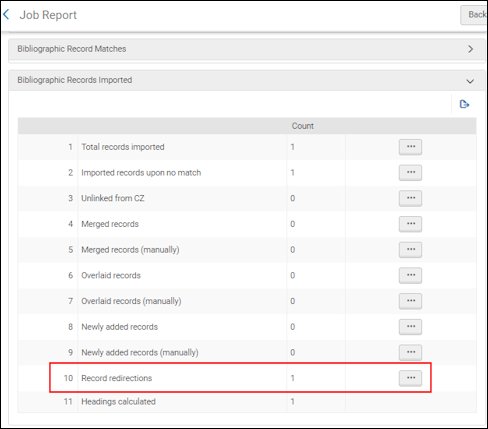
The Record redirections counter of the job report (produced when the import job is run) contains information about the records processed as part of the redirection handling:Import_Job_Report_Record_Redirections_04_TC

When the "Import Record for Redirection" option is selected in the import profile, the counter Redirection upon no match - new records added appears in the report: as well.

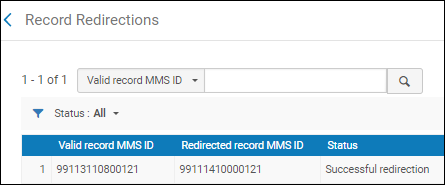
Select the ellipsis button for Record redirections in the report to preview these records:Preview_Records_from_Record_Redirections_02

See Monitor and View Import Jobs for more information.

  • If there are multiple matching records based on the settings for Serial match method or Non Serial match method in the Import Profile, these records are not processed for redirection, even if the incoming record contains a matching ID in the field/subfield specified in the Canceled record field/Canceled record subfield(such as the 035 $z or the 889 $w).
  • For information on configuring Alma to take an identifier from the secondary record and place it in the primary record when merging records, see Configuring BIB Redirection Fields.

Creating/Editing an Import Profile: Set Management Tags

このセクションでは、[インポートプロファイルの詳細-管理タグの設定]ページで、インポートプロファイル管理タグ情報を入力する方法について説明します。このページのフィールドは、インポートされたすべてのレコードについて、これらレコードをディスカバリーシステムに公開するかどうかを決定します。このページは、目録、権限、または初期権限のインポートプロファイルの更新には関係ありません。

インポートプロファイルの管理タグの設定

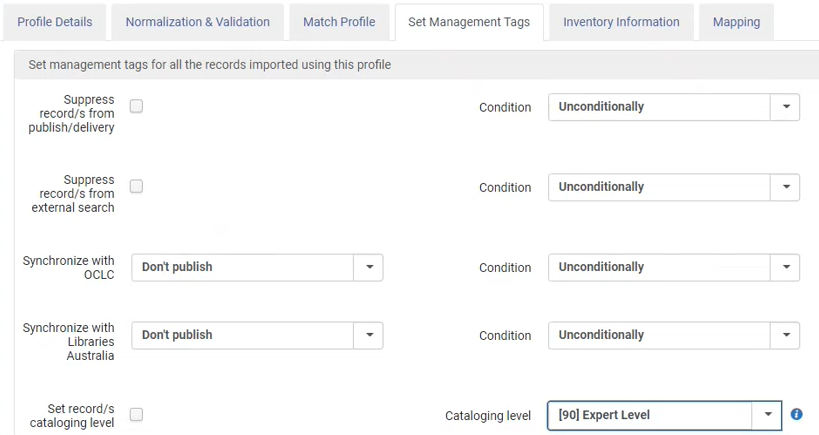
インポートプロファイルの詳細-管理タグの設定

インポートプロファイルを作成する際、あるいは、インポートプロファイルを編集する場合には[管理タグの設定]タブを選択することで、ウィザードの一部としてこのページにアクセスしてください。

インポートプロファイル管理タグ情報を入力するには:
  1. [インポートプロファイルの詳細-管理タグの設定]ページで、次のプロファイル詳細を入力します。
    Import Profile Details - Set Management Tags Fields
    フィールド注記
    管理タグの設定:
    Suppress records from publish/delivery
    条件
    このパラメータを選択して、Primoへの発行または配信をサプレスするために、インポートされたレコードをタグ付けすることを示します。
    [公開/配送からのレコードをサプレス]パラメータを選択した後、[条件]パラメータを使用して、インポートされたレコードが既存のレコードと統合または上書きされる際のサプレスの処理を特定します。オプションは次のとおりです:
    • 無条件–このオプションを選択すると、インポートされたレコードが、サプレス解除の既存レコードと統合または上書きされた場合でも、インポートされたレコードはすべてサプレスされます。この場合、既存レコードのサプレス解除タグがサプレスに変わります。
      また、[公開/配信からのレコードのサプレス]および[無条件]オプションの組み合わせが選択されておらず、インポートされたレコードがサプレスされた既存レコードと統合または上書きされる場合、その逆になります。つまり、既存レコードのサプレスタグはサプレス解除に変わります。
    • 新規レコードのみ-このオプションが選択され、インポートされたレコードが既存レコードと統合または上書きされる場合、既存のレコードのサプレスステータスは同じままです(サプレスまたはサプレス解除)。新しいレコード(既存レコードと統合または上書きされていないレコード)のみがサプレス対象として記録されます。
    デジタルインポートプロファイルの場合、サプレスでは、エンドユーザーによるリソースへの直接アクセスは妨げません。This is controlled only by Access Rights (see Creating/Editing a Digital Import Profile: Inventory Information).
    When working in the Institution Zone for a network, and the profile is set to Use Network, this functionality suppresses both Institution Zone and Network Zone records.
    外部検索からのレコードを抑制する
    このパラメータを選択して、外部検索を抑制するために、インポートされたレコードをタグ付けすることを示します。
    After selecting the Suppress records from external search parameter, use the Condition parameter to identify the handling of suppression when imported records are merged or overlaid with existing records.オプションは次のとおりです:
    • 無条件–このオプションを選択すると、インポートされたレコードが、サプレス解除の既存レコードと統合または上書きされた場合でも、インポートされたレコードはすべてサプレスされます。この場合、既存レコードのサプレス解除タグがサプレスに変わります。
      Also the opposite is true when the Suppress records from external search and Unconditionally option combination is not selected and the imported records are merged or overlaid with existing records that are suppressed, the suppressed tag of the existing record changes to unsuppressed.
    • 新規レコードのみ-このオプションが選択され、インポートされたレコードが既存レコードと統合または上書きされる場合、既存のレコードのサプレスステータスは同じままです(サプレスまたはサプレス解除)。新しいレコード(既存レコードと統合または上書きされていないレコード)のみがサプレス対象として記録されます。
    デジタルインポートプロファイルの場合、サプレスでは、エンドユーザーによるリソースへの直接アクセスは妨げません。This is controlled only by Access Rights (see Creating/Editing a Digital Import Profile: Inventory Information).

    Synchronize with OCLC (not relevant for Digital profiles with a target format of Dublin Core)

    条件

    オンラインコンピュータ図書センターInc.と同期するためのオプション。(OCLC)

    • 書誌レコードを公開する
    • 所蔵のみを公開する
    • 公開しない

    同期オプションを選択した後、[無条件]または[新規レコードのみ]のいずれかの条件を選択します。

    Synchronize with Libraries Australia (not relevant for Digital profiles with a target format of Dublin Core)

    条件

    オーストラリア国立図書館全国目録と同期するためのオプション:

    • 書誌レコードを公開する
    • 公開しない

    同期オプションを選択した後、[無条件]または[新規レコードのみ]のいずれかの条件を選択します。

    書誌レコードの目録レベルを設定するMDインポートプロファイルを使用してAlmaにインポートされたレコードに割り当てられる目録レベルを定義するオプション。

    This field is only relevant to institutions that manage cataloging levels!

    The set record/s cataloging level option is only enabled and visible when the cataloging_level_availablecustomer parameter is set to true.In Alma, access the customer parameter via:Configuration Menu > Resources > General > Other Settings.機関で利用可能なすべてのオプションの目録レベルは、Almaの設定 > リソース > 目録 > 目録者の許可レベルで定義されています

    Almaインポートの書誌レコードの目録レベルを設定するオプションの動作は次のとおりです。

    • New records - automatically assigned with the selected cataloging level.
    • 一致するレコード:
      • If the existing cataloging level is equal to or lower than the cataloging level configured in the import profile - a new cataloging level (configured on the import) is assigned to all matched records as part of the import, i.e. it not only sets the cataloging level but performs the overlay/merge defined on the import profile.
      • 既存の目録レベルがインポートプロファイルで設定された目録レベルよりも高い場合、レコードは拒否され、インポートレポートで報告されます。

    If the set record/s cataloging level option is not checked on the import profile, there is no change in the import logic.

    • 何らかのタイプのインポートプロファイルを編集している場合、編集が完了したら[保存]を選択します。
    • If you are creating a digital import profile, select Next and continue with Creating/Editing a Digital Import Profile: Inventory Information.
    • If you are creating a collection import profile, continue with Creating/Editing a Collection Import Profile: Inventory Information.
    • Otherwise, select Next and continue with Creating/Editing an Import Profile: Inventory Information.
    • 無効としてプロファイルを保存する場合、[下書きを保存]を選択します。後で編集すれば、引き続き、インポートプロファイルを作成することができます。

Creating/Editing an Import Profile: Inventory Information

このセクションでは、[インポートプロファイルの詳細-目録操作]ページでインポートプロファイル目録情報を入力する方法について説明します。このページは、権限、初期権限、あるいはデジタルインポートプロファイルには関係ありません。

インポートプロファイル目録情報を入力するには:
  1. Access the Inventory Operations portion of the profile wizard or select the Inventory Information tab when editing an import profile.

    インポートプロファイルの詳細-目録操作

    [インポートプロファイルの詳細] > [目録操作]タブ
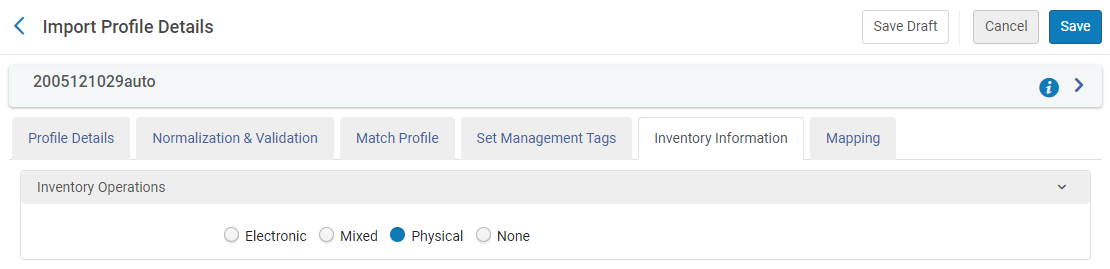
  2. Select Electronic,Mixed, or Physical to identify the type of inventory you are importing.選択した目録タイプに対して、追加のパラメータが開きます。

    電子目録をインポートする場合、レコードにフィールド856がない場合でも、入力ファイルからのすべてのレコードに対してポートフォリオが作成されます。この場合、空のポートフォリオが作成されます。Repository type Import profile is intended to add new portfolios.If Standalone is selected in the import profile, new standalone portfolios will be added regardless of existing portfolios.If existing portfolios part of a collection already exist and "Part of an electronic collection" is selected in the import profile, the existing portfolios linked to that collection will be deleted and replaced by new portfolios.In this case, to add portfolios when portfolios already exist, use the Portfolio loader.

    Select None to create a bibliographic record with no inventory.No additional parameters open.
  3. 以下の表に従って、要件に一致するようにこれらのパラメーターを構成します。

    インポートプロファイルの詳細-目録操作
    フィールド 説明
    電子ブックマッピング
    ポートフォリオを削除/無効化する Indicates how to process portfolios when linked bibliographic records are identified for deletion with a d in position 5 of the leader.

    このオプションは次の場合に使用可能です:

    • リポジトリの作成または変更、あるいは目録インポートプロファイルの更新
    • Allow bibliographic record deletion is selected in the Match Profile tab.For more information, see the table in Creating/Editing an Import Profile: Match Profile.
    • Part of an electronic collection portfolio type was selected on the current tab, or if the Standalone portfolio type is selected and the profile is a PDA profile.

    The Allow bibliographic record deletion option must be selected in order to select Delete/deactivate portfolios.Note that when both Allow bibliographic record deletion and Delete/deactivate portfolios parameters are selected, any single match that is found is deleted.(見つかった複数の一致は、手動で処理する必要があり、ジョブレポートで特定されます。)

    Records with related records cannot be deleted using the Allow bibliographic record deletion and the Delete/deactivate portfolios options in the profile.

    一致プロファイルで書誌レコードの削除を許可する

    書誌レコードの削除パラメータを許可する

    関連する発注明細が存在せず、ポートフォリオがPDAに関連付けられていない場合にのみ、ポートフォリオを削除できます。Almaがポートフォリオを削除しようとし、関連する発注明細が存在する場合、Almaは代わりにポートフォリオを無効化します。For more information about electronic portfolios deactivated during the import process, see import reporting.

    For information about deactivating/deleting electronic portfolios by running an import job, see the Delete/Deactivate and Electronic Portfolio Using Import Profile video (7:39 min).

    コミュニティゾーンポートフォリオを使用する

    各書誌レコードを、コミュニティゾーンからアクティブ化されたコレクションの一部であるポートフォリオを持つ書誌レコードと照合する場合に選択します。

    • If a matching bibliographic record is found, Alma imports the relevant portfolio to the collection selected in the profile.

    Almaはこのポートフォリオをアクティブ化しないことに注意してください。いつでもアクティブ化できます。To activate upon import, select Activate resource.

    • If a matching bib record is found, its information is taken from the Community Zone.The information filled in the following fields is ignored:

      • フィールドからポートフォリオ情報を抽出する

      • フィールドからアクセスURLを抽出する

      • フィールドからインターフェイス名を抽出する

      • フィールドから内部説明メモを抽出する

      • フィールドから認証メモを抽出する

      • Extract public note from field Extract library from field

    • 一致する書誌レコードが見つからない場合 - Almaは、CZコレクションに関連付けられたローカルポートフォリオを作成します。

    • If multiple bibliographic records are found as a match in the CZ under the specific collection – no import takes place.このレコードは、「インポートの問題の解決」リストに報告されます。

    ポートフォリオタイプ
    • Select Standalone if the records your are importing are standalone portfolio (not grouped into an electronic collection).このオプションを選択すると、次の追加パラメーターが開きます。
      • 資料タイプ
      • Enable Proxy
      • 複数のポートフォリオ/単一のポートフォリオ

    When linking a   standalone portfolio that has a library set to an electronic collection that has a library set, the portfolio's library is deleted.When the library of the standalone portfolio and the library of the destination electronic collection are different, a warning is displayed on the collection selecting popup (see below): "The portfolio you are about to attach has a different library definition than the selected electronic collection.Once confirmed, the portfolio will inherit the electronic collection's library definition.Note that this action cannot be reversed." For details, see Library set on electronic resource.

    • Select Part of an electronic collection if the records your are importing are part of an electronic collection.このオプションを選択すると、次の追加パラメーターが開きます。
      • Electronic Collection - The selection screen where you need to select the electronic collection displays all collections, but allows selecting only the collections that match your role scope(s).For details, see Library set on electronic resource.
      • サービス
      • 資料タイプ
      • 複数のポートフォリオ/単一のポートフォリオ

    For Update Inventory import profile select Standalone when updating standalone portfolios, and Part of an electronic collection when updating portfolios that are already part of that collection.それ以外の場合、注文明細はスキップされます。See Configuring the Update Inventory Import Profile.

    資料タイプ Indicate the material type of the electronic resources you are importing (such as Book, CD-ROM, Dissertation, Journal, Musical Score).

    Enable Proxy (for Standalone portfolios)

    Select True to enable a proxy to which to redirect the URL.The default is False.

    For Part of an electronic collection, this field is hidden.Enable the proxy at the electronic collection level.

    Electronic Collection (for Part of an electronic collection  portfolios)  Indicate the electronic collection to which to import the portfolios.Once selected, Alma refreshes the Service option to display the relevant services for the selected collection.

    Service (for Part of an electronic collection  portfolios)

    適切な電子コレクションサービスを選択します。

    インポートファイル内のすべての電子タイトルは、同じ電子コレクションサービスに属している必要があります。

    複数のポートフォリオ/単一のポートフォリオ

    When importing a record with multiple 856 $u fields (which represents the portfolio's URL), indicate here how to create portfolios:

    • Single Portfolio - Select to create one portfolio (randomly selected URL).

    • Multiple Portfolios - Select to create one portfolio for each   URL.

    Standalone imports cannot be imported to multiple portfolio.They can only be imported into single portfolio.

    新しい書誌レコードのためだけに目録を作成する

    このオプションは、リポジトリタイプのインポートプロファイルで使用できます。

    Select to add electronic inventory records only when new bibliographic records are created as part of the import job.

    このオプションを選択すると、インポートジョブは最初に入力ファイルを処理し、検証、正規化、および照合を処理します。At the end of all this normal processing, the system notes the new bibliographic records that were created during the job, and creates electronic inventory only for these records.

    一致処理など、インポートジョブの結果として変更されたレコードは、新しいレコードとは見なされないことに注意してください。

    Extract portfolio information from field (for Multiple portfolio only)

    ここでは、複数のポートフォリオの情報を収集するためのソースとして使用されるMARCフィールドを示します。This field does not appear for single portfolio.For single portfolios, field information can be extracted from different fields.

    Enter the field number in which the portfolio information appears.When you enter the field number, the "Field" for all parameters is populated automatically with this value.import profile details - electronic.png

    Extract access URL from field (for Multiple portfolio  only)
    • 電子書籍のURLを含むフィールド/サブフィールドの組み合わせを示します。Use the Indicators to skip field for multiple portfolios only.Almaがインジケータを基にフィールドをスキップするには、コンマで区切られたインジケータペアを使用します。For single portfolios, a random 856 URL field is used.
    • Under "Default value", indicate the e-Book URL that will be mapped by default if the URL is empty or if an incorrect value is indicated in the input file.

    「#」記号は、空のインジケータに使用されます。

    Extract interface name from field (for Standalone portfolio types only)
    • インターフェイス名の取得元となるMARCフィールドまたはサブフィールド、あるいはその両方を示します。
    • 「デフォルト値」の下に、レコードのインターフェイス名フィールドが空の場合や、入力ファイルに誤った値が示されている場合に、デフォルトのフィールドを示します。[検索]アイコンを選択して、利用可能なベンダーのリストから選択します。
    フィールドから内部説明メモを抽出する
    • Indicate the source record's field/subfield that contains the internal description note.
    • Under "Default value", indicate the internal description note that will be mapped by default if the note is empty or if an incorrect value is indicated in the input file.
    フィールドから認証メモを抽出する
    • Indicate the source record's field/subfield that contains the authentication note.
    • Under "Default value", indicate the authentication note that will be mapped by default if the note is empty or if an incorrect value is indicated in the input file.
    フィールドから公示を抽出する
    • Indicate the source record's field/subfield that contains the authentication note.
    • Under "Default value", indicate the public note that will be mapped by default if the note is empty or if an incorrect value is indicated in the input file.
    フィールドから利用可を抽出する
    • Indicate the source record's field/subfield that contains the "Available for" groups for the portfolio.
    • 「デフォルト値」の下で、入力ファイルで指定されていない場合にデフォルトで設定される「利用可能」グループを示します。
    フィールドから図書館を抽出する
    • Indicate the source record's field/subfield that contains the library.The following happens during import (For details, see Library set on electronic resource):

      Currently this only happens when using the "Repository" import profile type.

      • Standalone portfolios are imported/created.
      • If the extracted library matches the library set on the electronic collection of the portfolio, then the portfolio is imported/created.
      • If the extracted library does not match the library set on the electronic collection of the portfolio, the portfolio is skipped.The report's counter for portfolios skipped due to library mismatch is "Electronic portfolio skipped due to library conflict with the electronic collection library".
      • If there is no library value to be extracted from the field, the portfolio is imported/created.
      • If the extracted library does not match any existing library due to a typo, then the job takes the library from the "Default library" field.
    • Under "Default value", select the library that will be mapped by default if the library is empty or if an incorrect value is indicated in the input file.
    ライセンス Select the license to apply to the imported portfolios. 
    有効化リソース インポート後にリソースを自動的にアクティブ化するかどうかを選択します。

    冊子マッピング

    (appears if you select Physical or Mixed for inventory operations)

    アイテム作成ポリシー

    このパラメータを使用して、作成する目録のタイプを示します。

    • Select Create items and holdings(default option) to create both items and holdings records OR only items for existing holdings records.
    • Select Create holdings only  to create only holdings records.

    選択したオプションに応じて、構成パラメータが変わります。

    When you select the Create holdings only option, complete the Item information field parameter and confirm that the input file(s) only contain Library and Location subfields.Note that Item information field must be populated even if the Library and Location settings are taken from the default values and not from the input file.

    For more information, see the Import Holdings Only, Without Items video (2:00 min.).

    資料タイプ Select the material type from the list of material types for physical resources (such as Art Original, Audiobook, Book, DVD, Transparency). 

    アイテム情報フィールド

    Here you indicate the field from which you want to map item-level information from the input files.

    • Enter the field number if, in the input file, all of the item information is contained in a specific field, and the item's attributes are contained in the subfields of that field.When you enter the field number, the "Field" for all parameters is populated automatically with this value (besides the "Number of items" parameter - see below).Field field filled in.png
    • Leave blank if, in the input file, the item information for a given item is dispersed across several fields.In this case, the "Field" for all parameters is left blank, and you will be able to populate the "Field" for each parameter with the relevant value.
    General Information 
    バーコード バーコードを含むフィールド/サブフィールド。アイテムポリシーも変更する場合、このフィールドは必須です。
    コピーID
    • Indicate the field/subfield that contains the item's copy ID to identify individual copies of the same title when multiple copies exist at the same location.
    • Under "Default value", indicate the item's copy ID that is mapped by default if the item's copy ID is empty or if an incorrect value is indicated in the input file.
    アイテムポリシー
    • アイテムポリシーを含むフィールド/サブフィールドを示します。アイテムポリシーを変更するには、バーコードも含める必要があります。これは、異なる場所の異なるアイテムに違うアイテムポリシーが適用される恐れがあるためです。
    • 「デフォルト値」の下に、アイテムポリシーが空の場合や、入力ファイルに誤った値が示されている場合に、デフォルトでマッピングされるアイテムポリシーを示します。

    アイテム数

    This field is enabled only when the Item information field is empty.アップロードする入力ファイルに含まれるアイテムの数を入力します。When the Item information field is populated, this field is disabled.

    ソース
    • Indicate the field/subfield that contains the provenance code indicating the item's origin.
    • 「デフォルト値」の下に、ソースコードが空の場合や、入力ファイルに誤った値が示されている場合に、デフォルトでマッピングされるソースコードを示します。
    磁気媒体です
    • アイテムが磁性であるかどうかに関する情報を含むフィールド/サブフィールドを示します。
    • 「デフォルト値」の下に、アイテム請求番号タイプが空の場合や、入力ファイルに誤った値が示されている場合に、デフォルトでマッピングされるアイテム請求番号タイプを示します。
    • In the input file, indicate the values as True/False.
    受領日
    • 資料が初めて受入/アクティブ化された日付を含むフィールド/サブフィールドを示します。
    • Under "Default value", indicate the receiving date that is mapped by default if the receiving date is empty or if an incorrect value is indicated in the input file.
    • In the input file, indicate the date in the format yyyyMMdd.
    受入予定日
    • アイテムが受入されると予想された日付を含むフィールド/サブフィールドを示してください。

    If you set an expected receiving date for the resource, but it has a POL and that POL is sent to the vendor, the expected receiving date set here will change to that of the POL.For details, see Approving and Sending POs.

    • Under "Default value", indicate the expected receiving date that is mapped by default if the expected receiving date is empty or if an incorrect value is indicated in the input file.
    • In the input file, indicate the date in the format yyyyMMdd.
    ページ数
    • Indicate the field/subfield that contains the item's number of pages.
    • 「デフォルト値」の下に、ページ数が空の場合や、入力ファイルに誤った値が示されている場合に、デフォルトでマッピングされるページ数を示します。
    ピース
    • Indicate the field/subfield that contains the item's number of pieces.
    • Under "Default value", indicate the number of pieces that is mapped by default if the number of pieces is empty or if an incorrect value is indicated in the input file.
    交換費用
    • Indicate the field/subfield that contains the charge administered to the patron if the item is lost.
    • Under "Default value", indicate the replacement cost that is mapped by default if the replacement cost is empty or if an incorrect value is indicated in the input file.
    Inventory Numbers:  
    原簿番号
    • この冊子の目録番号を含むフィールド/サブフィールドを示します。
    • Under "Default value", indicate the inventory number that is mapped by default if the inventory number is empty or if an incorrect value is indicated in the input file, up to 20 characters.

    蔵書点検日

    • 在庫日を含むフィールド/サブフィールドを示します。
    • Under "Default value", indicate the inventory date that is mapped by default if the inventory date is empty or if an incorrect value is indicated in the input file.
    • In the input file, indicate the date in the format yyyyMMdd.
    納入価格
    • アイテムの価格を含むフィールド/サブフィールドを示します。
    • Under "Default value", indicate the item price that is mapped by default if the item price is empty or if an incorrect value is indicated in the input file.For values less than 1, enter a leading 0: 0.44, not .44.
    常設的な配架場所
    図書館
    • 図書館情報を含むフィールド/サブフィールドを示します。If the input file of bibliographic records contains your library code, you can map it here (for example, if the vendor is sending bibliographic records with your library code in the 999 $x).ベンダーがEODを使用している場合、このフィールド/サブフィールドは、EODで参照される資料および最終的な発注明細を発注する図書館を示します。
    • 「デフォルト値」の下に、アイテムの図書館情報が空の場合や、入力ファイルに誤った値が示されている場合、または図書館フィールドを使用してマッピングしない場合、デフォルトでマッピングされるアイテムの図書館情報を示します。このデフォルトの図書館は、通常のインポートまたはEODインポートのいずれかに使用されます。EODを使用している場合、EODで参照される資料と最終的な発注明細を発注するデフォルト図書館。[検索]アイコンを選択して、利用可能な図書館リストから図書館を選択します。
    ロケーション
    • Indicate the field/subfield that contains the location information.
    • Under "Default value", indicate the location that is mapped by default if you are not using the Library field to map, or if the data is not found in the mapped Library field.This default library will be used for either regular or EOD imports.This field becomes enabled once you have selected the library.EODを使用している場合、EODで参照される資料と最終的な発注明細を発注するデフォルト図書館。[検索]アイコンを選択して、利用可能な図書館リストから図書館を選択します。

    図書館/配架場所のマッピング

    図書館の配架場所をマッピングする場合に選択します。このオプションを選択した場合、目録情報を保存した後、[マッピング]タブに配架場所マッピングを入力する必要があります。

    Location_Mapping_04_TC.png

    The Source value displays the value (from the input file) of the subfield as defined in Inventory Information > Permanent Location > Location field.Location is where the institution locations are grouped by the libraries.screenshot-2.png

    アイテム請求記号
    • Indicate the field/subfield that contains the item call number.
    • 「デフォルト値」の下に、アイテム請求番号が空の場合や、入力ファイルに誤った値が示されている場合に、デフォルトでマッピングされるアイテム請求番号を示します。
    代替の請求記号タイプ
    • アイテム請求番号タイプを含むフィールド/サブフィールドを示します。
    • 「デフォルト値」の下に、アイテム請求番号タイプが空の場合や、入力ファイルに誤った値が示されている場合に、デフォルトでマッピングされるアイテム請求番号タイプを示します。
    一時的な配架場所
    一時的な図書館
    • 一時的な図書館情報を含むフィールド/サブフィールドを示します。
    • 「デフォルト値」の下に、アイテムの一時的な図書館情報が空の場合や、入力ファイルに誤った値が示されている場合に、デフォルトでマッピングされるアイテムの一時的な図書館情報を示します。
    一時的な配架場所
    • Indicate the field/subfield that contains the temporary location information.
    • Under "Default value", indicate the temporary location that is mapped by default if the item's location information is empty or if an incorrect value is indicated in the input file.This field becomes enabled once you have selected the temporary library.

    一時的な図書館/配架場所のマッピング

    図書館の場所をマップするかどうかを選択します。このオプションを選択する場合は、[マッピング]タブに場所マッピングを入力する必要があります。

    一時的な請求番号
    • Indicate the field/subfield that contains the temporary call number.
    • 「デフォルト値」の下に、アイテムの請求番号情報や、入力ファイルに誤った値が示されている場合に、デフォルトでマッピングされる一時的な請求番号を示します。
    一時的な請求番号タイプ
    • 一時的な請求番号タイプを含むフィールド/サブフィールドを示します。
    • 「デフォルト値」の下に、アイテムの一時的な請求番号タイプや、入力ファイルに誤った値が示されている場合に、デフォルトでマッピングされるアイテムの一時的な請求番号タイプを示します。
    一時的なアイテムポリシー
    • 一時的なアイテムポリシーを含むフィールド/サブフィールドを示します。
    • Under "Default value", indicate the temporary item policy that is mapped by default if the item's item policy is empty or if an incorrect value is indicated in the input file.
    返却期限日
    • アイテムが貸し手から返却される日付を含むフィールド/サブフィールドを示します。
    • Under "Default value", indicate the due back date that is mapped by default if the due back date is empty or if an incorrect value is indicated in the input file.
    • In the input file, indicate the date in the format yyyyMMdd.
    Retention Information
    保持を確約
    • アイテムが保持されることが確約されているかどうかを示すフィールド/サブフィールドを示してください。入力ファイルでは、値は true/false(はい/いいえ)として指定する必要があります。
    • 「デフォルト値」には、フィールド/サブフィールドが空の場合や、入力ファイルに不正な値が指定されている場合に、デフォルトでマッピングされる値を指定してください。
    保持の理由
    • アイテムの保存理由が含まれているフィールド/サブフィールドを指定してください。
    • 「デフォルト値」には、保存理由が空である場合や、入力ファイルに不正な値が指定されている場合に、デフォルトでマッピングされる保存理由を指定してください。
    保持メモ
    • アイテムの保存メモが含まれているフィールド/サブフィールドを指定してください。
    • 「デフォルト値」には、保存メモが空の場合にデフォルトでマッピングされる保存メモを指定してください。
    For more information on Retention Information, see Retention Reason. 
    ENUM/CHRON情報
    刊行年
    • 発行年を含むフィールド/サブフィールドを示します。
    • 「デフォルト値」の下に、アイテムの発行年が空の場合や、入力ファイルに誤った値が示されている場合に、デフォルトでマッピングされる発行年を示します。
    一覧A、BおよびC
    • 列挙を含むフィールド/サブフィールドを示します。
    • Under "Default value", indicate the enumerations that are mapped by default if the item's enumerations are empty or if an incorrect value is indicated in the input file.
    時系列 I, J, K
    • Indicate the field/subfield that contain the chronologies.
    • Under "Default value", indicate the chronologies that are mapped by default if the item's chronologies are empty or if an incorrect value is indicated in the input file.
    説明
    • 説明を含むフィールド/サブフィールドを示します。
    • 「デフォルトアイテムポリシー」の下に、アイテムの説明が空の場合や、入力ファイルに誤った値が示されている場合に、デフォルトでマッピングされる説明を示します。
    Notes 
    公開メモ
    • 公開メモを含むフィールド/サブフィールドを示します。
    • [デフォルト値]で、アイテムの公開メモ情報が空白の場合にデフォルトでマップされるメモを指定できます。
    フルフィルメント注記
    • フルフィルメントノートを含むフィールド/サブフィールドを示します。
    • 「デフォルト値」の下で、アイテムのフルフィルメントメモ情報が空白の場合にデフォルトでマップされるメモを指定することができます。
    内部注記1, 2, および3
    • 関連する内部メモを含むフィールド/サブフィールドを示します。
    • 「デフォルト値」の下で、アイテムの関連する内部ノート情報が空白の場合にデフォルトでマップされるノートを指定することができます。
    統計メモ1、2、および3
    • 関連する統計メモを含むフィールド/サブフィールドを示します。
    • 「デフォルト値」の下で、アイテムの関連する統計ノート情報が空白の場合、デフォルトでマップされるノートを指定することができます。

    Holdings Records Mapping

    (appears if you select Physical or Mixed for inventory operations for Update Inventory and Repository import profiles)

    ホールディングマッピングを追加

    この機能を使用して、受信/インポートされた書誌レコードから、Almaで作成する新しい所蔵レコードのフィールドへのフィールドのマッピングを識別します。この機能を使用する場合、複数の所蔵レコードまたは複数のアイテムレコードは作成されません。

    Select Add Holdings Mapping to enter the following mapping and then select Add Row.

    • Input Record Tag/Subfields – Enter the source location in the imported records for the holdings information.

    • 所蔵レコードタグ/サブフィールド - 所蔵情報を保存するために、Alma所蔵レコードにターゲットの場所を入力します。

    It is not possible to map indicators via the Add Holdings Mapping functionality.

    1つのエントリに複数のサブフィールドを入力することができます。

    â–º To map multiple subfields in a single line in the mapping table, use commas to separate the subfields.

    入力ファイルのサブフィールドの数は、所蔵レコードのサブフィールドの数と一致しなければいけません。番号が一致しない場合は、エラーメッセージが表示されます。

    When you select Add Row, Alma validates that you entered a proper mapping.

    [目録操作]ページの[冊子マッピング]セクションで構成された図書館と配架場所のフィールド/サブフィールドは、所蔵レコードの852 $ bおよび$ cへとマップされます。このマッピングが存在しない場合、[冊子マッピング]セクションで定義したデフォルトの図書館と配架場所の値が使用されます。所蔵レコードの852 $bと$cは、これらの書誌フィールド/サブフィールドによって処理されるため、「所蔵レコードマッピング」セクションで852 $bと$cを個別にマップする必要はありません。これを行おうとすると、Almaは検証エラーを出します。

    If more than one tag needs to be mapped, repeat the Add Holdings Mapping process to add more mapping rows.複数のマッピング行を入力する場合、任意の順序で入力できます。フィールドの順序は無視されます。

    インポートを実行すると、受入する書誌レコードごとに1つの所蔵レコードが作成されます。

    既存の所蔵レコードの更新や上書きはサポートされておりません。

    所蔵請求番号を更新する このオプションを選択すると、インポートされた書誌レコードの一部である請求番号で書誌レコードを更新できるようになります。

    このオプションは、852へのフィールドのマッピングを制御します。When this option is selected, its mapping is used in addition to the mapping defined in the Holdings Records Mapping section of the import profile.It will override any duplicate mapping that may be defined in the Holdings Records Mapping section.

    目録処理

    (appears if you select Physical or Mixed for inventory operations for Update Inventory import profiles)

    アイテムを受け取りますか? このオプションは、「目録のアップデート」インポートプロファイルにのみ関連します。When selected, the items are received but are kept in the department and must still be scanned in and marked done in Acquisitions > Post-Receiving Processing > Scan.Almaは、ワークオーダーとしてこれを処理します。

    If not selected, the items are not kept in the department but must still be received in Acquisitions > Receiving and Processing > Receive.受入されると、それらは貸出・返却受付でスキャンされるまで通過中となります。

  4. リポジトリインポートプロファイルを作成する場合、または任意のタイプのインポートプロファイルを編集する場合、次のいずれかの手順を使用して、プロファイルの目録操作部を完了させます:

    • Select Save when you are done.
    • Otherwise, select Next and continue with Creating/Editing an Import Profile: PO Line Information.
    • Select Save Draft to save the profile as inactive.You can continue creating the import profile it at a later time.

Creating/Editing a Digital Import Profile: Inventory Information

This section describes how to enter bibliographic record and representation details information for records imported by a digital import profile.すべてのデジタル表現はコレクションに属している必要があります。

この情報は、[デジタルインポートプロファイルの詳細-書誌レコードレベル]ページに入力されます。作成/編集中のデジタルインポートプロファイルのタイプ(リモートまたはローカル)、およびレコードのソースまたは対象フォーマットに応じて、このページの異なるバージョンが表示されます。

デジタルインポートプロファイルを作成する際、あるいは、デジタルインポートプロファイルを編集する場合には[目録情報]タブを選択することで、ウィザードの一部としてこのページにアクセスしてください。

デジタルインポートプロファイルの書誌レコードレベルと表現物詳細情報を入力するには:
  1. [デジタルインポートプロファイルの詳細-書誌レコードレベル]ページで、次の情報を入力します。
    デジタルインポートプロファイルの詳細-目録情報
    フィールド注記
    デフォルトのコレクション(すべてのプロファイル)インポートされたレコードが割り当てられるデフォルトのコレクションの名前。For information on configuring collections, see Adding a Top Level Collection.
    ターゲットフォーマットがダブリンコアではないリモートデジタルインポートプロファイル(たとえば、MARC 21)
    digital_import_profile_remote_non_dublin_core.png
    表現物詳細
    このセクションを使用して、インポートプロファイルの各レコードに適用する表現物詳細を追加します。
    有効/無効[有効]または[無効]を選択して、表現物が検出可能かどうかを判断します。
    図書館作成された表現物を所有する図書館。
    ターゲットフォーマットがダブリンコアであるリモートデジタルインポートプロファイル
    digital_import_profile_remote_dublin_core_new.png
    有効/無効[有効]または[無効]を選択して、表現物が検出可能かどうかを判断します。
    蔵書外部システムインポートされたレコードに外部IDが含まれるが外部システムが含まれない場合、このフィールドは既存コレクションの外部システムと照合するために使用される定数値を提供します。
    図書館作成された表現物を所有する図書館。
    冊子の出所がXMLで、ターゲットフォーマットがダブリンコアではないAlma(非リモート)デジタルインポートプロファイル(たとえば、MARC 21)
    表現物詳細
    このセクションを使用して、インポートプロファイルの各レコードに適用する表現物詳細を追加します。
    有効/無効[有効化]または[無効化]を選択して、表記が検出可能かどうかを判断します。
    使用タイププライマリまたは派生物 。
    図書館作成された表現物を所有する図書館。
    次の条件でファイルをグループ分けするファイルをグループ化するオプションを選択します:
    すべての表現物は同じ方法でグループ化する必要があります。
    • 正規表現-ファイルをさまざまな表現物へとグループ化するための正規表現を入力します。たとえば、表現物にjpgファイルのみを含めるには、[\ .jpeg $]を入力します。この値フィールドを空のままにすると、すべてのファイルが1つの表現物へとグループ化されます。
    • サブフィールド$ 8リンキング番号–書誌レコードの856 $ 8リンキング番号に従ってファイルをグループ化します。
    フィールド/サブフィールドからアクセス権を抽出する表現物に割り当てるアクセス権ポリシー名を抽出するフィールドとサブフィールド。この情報がレコードで利用できない場合、またはこのプロファイルによって作成されたすべての表現物に同じポリシーが割り当てられる場合、[デフォルトアクセス権ポリシー]フィールドを使用します。
    デフォルトアクセス権ポリシーメタデータレコードにアクセス権ポリシー参照がない場合のデフォルトのアクセス権ポリシー。To configure these, see Configuring Access Rights Policies for Digital Objects.
    フィールド/サブフィールドからラベルを抽出する表現物ラベルを抽出するフィールドとサブフィールド。
    フィールド/サブフィールドからメモを抽出する内部表現物メモを抽出するフィールドとサブフィールド(繰り返し可能)。
    フィールド/サブフィールドから公開メモを抽出する表現物公開メモを抽出するフィールドとサブフィールド。表現物公開メモは、[見る]サービスページで表示されます。
    表現物を追加インポートプロファイルに表現物の詳細を追加する場合に選択します。追加された詳細は、表のこのセクションの下に行ごとに1つずつ表示されます。レコードごとに追加の表現物を作成するには、プロセスを繰り返します。行の1つを削除するには、その行で[削除]を選択します。
    ファイル詳細
    このセクションを使用して、インポートプロファイルの各レコードに適用するファイル名の詳細を追加します。
    フィールド/サブフィールドからファイル名/ラベルを抽出するファイル名とラベルを抽出するフィールドとサブフィールド。(表現物に複数のファイルが含まれている場合)、ファイルラベルはコンテンツのビューアテーブルに表示されます。
    ファイル名をラベルとして使用するファイル名をラベルとして使用する場合に選択します。
    冊子の出所がXMLで、ターゲットフォーマットがダブリンコアであるAlma(非リモート)デジタルインポートプロファイル
    digital_import_profile_local_dublin_core_new.png
    蔵書外部システムインポートされたレコードに外部IDが含まれるが外部システムが含まれない場合、このフィールドは既存コレクションの外部システムと照合するために使用される定数値を提供します。
    表現物詳細
    このセクションを使用して、インポートプロファイルの各レコードに適用する表現物詳細を追加します。フィールドの説明については、上記を参照してください。
    インポートされたDCレコードは、それぞれの[dc:identifier]フィールドでファイルを参照する必要があります。ファイルラベルはファイル名から取得されます。
    冊子ソース形式がMODSであるAlma(非リモート)デジタルインポートプロファイル
    digital_import_profile_mods.png
    表現物詳細
    このセクションを使用して、インポートプロファイルの各レコードに適用する表現物詳細を追加します。フィールドの説明については、上記を参照してください。
    インポートされたMODSレコードは、/mods/location/url内のファイルと/mods/location/url[@displayLabel]内のラベルを参照する必要があります。ラベルを指定しない場合、ファイル名がラベルに使用されます。
    冊子の出所フォーマットがCSVであるAlma(非リモート)デジタルインポートプロファイル
    表現物詳細
    このセクションを使用して、インポートプロファイルの各レコードに適用する表現物詳細を追加します。
    有効/無効[有効]または[無効]を選択して、表現物が検出可能かどうかを判断します。
    デフォルト使用種別プライマリまたは派生物 。
    デフォルト図書館作成された表現物を所有する図書館。
    デフォルトアクセス権ポリシーデフォルトアクセス権ポリシー。To configure these, see Configuring Access Rights Policies for Digital Objects.
    • 完了したら[保存]を選択します。
    • 無効としてプロファイルを保存する場合、[下書きを保存]を選択します。後で編集すれば、引き続き、インポートプロファイルを作成することができます。

Collection Assignment

デジタル目録のあるAlmaの書誌レコードは、少なくとも1つのコレクションに割り当てる必要があります。このさまざまなMDインポートワークフローは、コレクション情報を含まないレコードのデフォルトコレクションへの割り当て、および関連するメタデータフィールドに基づく割り当てを可能とすることで、コレクションの割り当てプロセスの合理化に役立つように設計されています。

For more information, see Preparing the XML Metadata File and Preparing the CSV Metadata File.

Creating/Editing a Collection Import Profile: Inventory Information

このセクションでは、コレクションインポートプロファイルでインポートされたコレクションの目録情報を入力する方法について説明します。この情報は、[コレクションインポートプロファイルの詳細-目録情報レベル]ページに入力されます。

コレクションインポートプロファイルを作成する際、あるいは、コレクションインポートプロファイルを編集する場合には[目録情報]タブを選択することで、ウィザードの一部としてこのページにアクセスしてください。

コレクションインポートプロファイルの目録情報を入力するには:
  1. [コレクションインポートプロファイルの詳細-目録情報レベル]ページで、次の情報を入力します。
    コレクションインポートプロファイルの詳細-目録情報レベル
    コレクションインポートプロファイルの詳細-目録情報レベル
    コレクションインポートプロファイルの詳細-目録情報レベルフィールド
    フィールド注記
    目録操作Alma determines the source record's inventory type using the Inventory Operations field:
    • None- No preference based on inventory.
    • Physical- The preference is based on physical inventory.
    • Electronic- The preference is based on electronic inventory.
    • Mixed- The inventory type (electronic or physical) is determined for each bibliographic record according to the mapping of the Resource type field.
    入力ファイルには、リソースタイプとして定義されているフィールドに、冊子(Physical)の「P」と電子(Electronic)の「E」が含まれている必要があります。For example, if the Resource type field is 888 $d, each record in the input file should include:
    • <datafield tag="888" ind2=" " ind1=" "> <subfield code="d">P</subfield> </datafield>
    • OR <datafield tag="888" ind2=" " ind1=" "><subfield code="d">E</subfield></datafield>

    Almaは、一致する各レコードの目録タイプを次のように決定します:

    • 一致するレコードに冊子目録と電子目録の双方が含まれる場合、目録は混在していると見なされます。
    • 一致するレコードに冊子目録または電子目録のみが含まれる場合、一致するレコードの目録はそのタイプの目録と見なされます。
    • 一致するレコードの1つだけが出典と同じ目録タイプ(電子レコードまたは冊子レコード)を含む場合、それは一致と見なされます。出典と同じ目録タイプを含む一致するレコードが複数ある場合、目録タイプに基づく設定はありません。
    • 一致するレコードの1つのみに混合目録が含まれ、電子レコードまたは冊子レコードのみを含む一致レコードがない場合、混合レコードは一致と見なされます。それ以外の場合、設定は目録タイプに基づきません。
  2. 完了したら[保存]を選択します。
  3. 無効としてプロファイルを保存する場合、[下書きを保存]を選択します。後で編集すれば、引き続き、インポートプロファイルを作成することができます。

Bulk Collection Import

You can use the Collections import profile to perform a bulk import of collections by providing either an EAD XML file or an OAI-PMH Dublin Core ListSets document describing the collection hierarchy.コレクションのサムネイルを含めることもできます。その場合、サムネイル画像とEAD XMLファイルを含むzipファイルを送信する必要があります。For more information, see the Developer Network.

Creating/Editing an Import Profile: PO Line Information

このセクションでは、インポートプロファイルの詳細-注文明細情報ページでインポートプロファイルの注文明細情報(埋め込みオーダーデータ(EOD))を入力する方法について説明します。このページには、プロファイルに関する発注明細情報と指示が含まれています。

このページは、新規発注および目録インポートプロファイルの更新に関連しています。新規発注インポートプロファイルの場合には、全ページが表示され、目録インポートプロファイルの更新の場合は、ページの一部が表示されます。違いは以下のとおりです。

インポートジョブごとに処理できる注文明細の数に制限はありません。

インポートプロファイル/注文明細情報タブ。

インポートプロファイルの詳細-発注明細情報

インポートプロファイルを作成する際、あるいは、インポートプロファイルを編集する場合には[目録情報]タブを選択することで、ウィザードの一部としてこのページにアクセスしてください。

インポートプロファイルの発注明細情報を入力するには:
  1. プロファイルの詳細のインポート-注文明細情報ページで、次の情報を入力します。
    すべてのフィールドは、新規発注インポートプロファイルに関連しています。ほとんどのフィールドは、目録プロファイルの更新には関係ありません。関連するフィールドが指定されます。フィールドが指定されていない場合、新規発注プロファイルにのみ関連します。
    インポートプロファイルの詳細-発注明細情報フィールド
    セクションフィールド説明
    EOD一般パラメータ
    電子発注明細タイプ([電子]または[混合]目録操作のみ、必須)発注明細の電子資料のタイプ。For a detailed explanation of the PO line types and their ramifications for the order workflow and inventory, see Explanation of Purchase Types Workflow and Inventory.
    冊子発注明細タイプ([冊子]または[混合]目録操作のみ;必須)発注明細の冊子資料のタイプ。For a detailed explanation of the PO line types and their ramifications for the order workflow and inventory, see Explanation of Purchase Types Workflow and Inventory.
    複数のベンダー(目録タイプも更新)複数のベンダーの新規発注インポートプロファイルを設定する場合に選択します。これは、複数のベンダーに発注する第三者によって注文が履行される場合に必要です。複数のベンダー用に新規発注インポートプロファイルを構成すると、Almaは複数のベンダーからのデータを含むEODファイルを読み取ることができます。選択時、 [ベンダーのマッピング]チェックボックスおよび[ベンダーフィールド]と[サブフィールド]フィールドが表示されます。
    For more information on Multiple Vendors, see the Multiple Vendors in EOD Import File video (8:56 min).
    ベンダーのマッピング(複数ベンダー;目録タイプも更新)[複数のベンダー]を選択すると表示されます。Almaに表示されるベンダー名とEODファイルに表示されるベンダー名とをマッピングする場合に選択します。このチェックボックスを選択した場合、インポートプロファイルの保存後、[ベンダーマッピング]を入力する必要があります。
    ベンダーをマッピングするには:
    1. マッピングタブに移動します。Under Vendor Mapping, enter the Source value, which is the vendor code in the input file.
    2. 正しいベンダーを検索して選択します。
    3. 正しいベンダーアカウントを選択します。
    4. 追加を選択して、ベンダーマッピングを追加します。
      ベンダーマッピング
      ベンダーマッピング
    ベンダーフィールド/サブフィールド(複数ベンダー;目録タイプも更新)[複数のベンダー]を選択すると表示されます。EODファイル内でベンダー名の場所を示すベンダーフィールドとサブフィールド番号を入力します。
    ベンダーアカウントフィールド/サブフィールド(複数ベンダー)[複数のベンダー]を選択すると表示されます。EODファイル内でベンダーアカウントの場所を示すベンダーアカウントフィールドとサブフィールド番号を入力します。
    ベンダー(目録タイプも更新)発注明細が最終的に送信されるベンダー。[複数のベンダー]が選択されている場合、このフィールドは無効です。
    ベンダーアカウントベンダーが使用するベンダーアカウント。[複数のベンダー]が選択されている場合(またはベンダーが選択されていない場合)、このフィールドは無効です。
    発注明細通貨発注明細の通貨。
    小数点の場所発注明細の資料の価格における小数点の位置。たとえば、ベンダーが10.00ドルについて「1000」と価格を入力する場合、小数2桁を入力します。「10.00」として価格を入力する場合、小数点の位置を0のままにします。
    入手方法発注明細の入手方法のタイプ。For detailed information on acquisition methods, see Acquisition Methods.
    Split PO Lines by Library Location
    The Split PO Lines by Library Location checkbox controls how Alma will behave once a file is imported via the "New order" import profile.
    There are 2 options for this checkbox: 1.Checkbox is unchecked (Default) — Alma checks the imported file and creates a single PO line with the number of items according to the number of locations specified on the imported file.
    2.Checkbox is checked — Alma reviews the imported file and creates a PO line for each location on the file.For example, a file can contain a single record with two locations and two PO line information sections.ファイル上の指針を使用して、Almaは関連する場所を関連する発注明細に関連付けます。If the file does not contain POL information for each item, or the file does not contain a location (item) for each POL, then the default value in the Import Profile (if exists) will be used.
    Note that the PO number field should be empty because two PO lines with different owning libraries cannot be under the same PO.In the imported file, all inventory information should be included in the same field and not split across several fields.The same applies to POL information.
    このチェックボックスは、「冊子」および「混合」インポートプロファイルの場合にのみ表示されます。
    EOD Mapping
    追加の発注明細レファレンスフィールド/サブフィールド(目録タイプも更新)Map these fields to the appropriate EOD field/subfield as described in Embedded Order Data (EOD) Field Mapping.
    The PO Line and Vendor reference number fields can be used as match points for vendor orders containing updates to inventory.mapping
    ベンダーレファレンス番号フィールド/サブフィールド(目録タイプも更新)
    ベンダーレファレンス番号種別のフィールド/サブフィールド
    記載価格フィールド/サブフィールド
    ベンダータイトル番号フィールド/サブフィールド
    巻パート番号フィールド/サブフィールド
    発注番号フィールド/サブフィールド
    発注明細所有者フィールド/サブフィールド
    デフォルトの発注明細所有者発注明細を担当する組織単位。[検索]を選択して、表示された組織単位のリストから組織単位を選択します。
    所有者のマッピングこのチェックボックスを選択した場合は、「注文明細の所有者」フィールドとサブフィールドを適切な「EOD」フィールド/サブフィールドにマップしてから、プロファイルのマッピングタブ、および[場所]マッピングセクションで、Almaの図書館の可能な各入力値をマッピングします。「場所」のマッピングに使用される図書館は、所有者に使用されます。
    予算の流通分野Map these fields to the appropriate EOD field/subfield as described in Embedded Order Data (EOD) Field Mapping.
    名前サブフィールド
    パーセントサブフィールド
    デフォルト予算発注に予算を提供する基金。
    予算のマッピング
    Select this to map the fund as it appears in the EOD file (MARC field and subfield) to the fund as it appears in Alma.このチェックボックスを選択した場合、インポートプロファイルを保存する前に、[マッピング] タブの [予算マッピング] を入力する必要があります。
    第1リポーティングコード/サブフィールドとデフォルト
    第2リポーティングコード/サブフィールド
    第3リポーティングコード/サブフィールド
    4th reporting code/subfield
    第5リポーティングコード/サブフィールド
    Map these fields to the appropriate EOD field/subfield as described in Embedded Order Data (EOD) Field Mapping.マッピングは、ご自身とベンダーの間で合意する必要があります。
    関心のあるユーザーフィールド/サブフィールド
    These are the field/subfield that map the interested users from the input file.Valid values are the user's primary identifier or the user's email address.
    PO Lines created via EOD enable control over the interested users options "Notify user upon receiving/activation", "Notify upon cancelation" and "Hold item".For more information, see the section on Interested users in Manually Creating a PO Line.
    ベンダー請求書番号フィールド/サブフィールド(目録タイプも更新)ベンダーの請求書番号フィールド/サブフィールド
    メモフィールド/サブフィールドメモフィールド/サブフィールド
    至急項目リクエスト/サブフィールド発注を急ぎとして扱う必要があることを決めるMARCフィールド/サブフィールド。至急発注の有効値は、Yes, Y, y, TRUE, True, affirmativeです。
    ルーティングリクエスト/サブフィールド発注をルーティングする必要があるかどうかを決めるMARCフィールド/サブフィールド。Valid values for routing the item associated with this order are Yes, Y, y, TRUE, True, affirmative.
    製本リクエスト/サブフィールドThe MARC field/subfield that determine that the order should be bound.Valid values for a binding the item associated with this order are Yes, Y, y, TRUE, True, affirmative.
    受入メモ/サブフィールドEODの受入メモのテキストを含むMARCフィールド/サブフィールド。
    ベンダー向けメモベンダー向けメモのテキストを含むMARCフィールド/サブフィールド。このフィールドは、発注明細の[メモ]タブにマッピングされます。
    発注済みISBN/ISSN /サブフィールドEODでマッピングするアイテムの識別子を含むISBN/ISSNフィール/サブフィールド。
    The identifier that is referenced by this field appears on the PO Line Summary page (see PO Line Summary Page – Electronic Item in Manually Creating a PO Line).
    電子有効化タスクを作成しないでください(電子目録または混合目録のみ)選択した場合、発注明細を作成し、これをベンダーに送る際、Almaは有効化タスクを作成しません。リソースが有効な場合、有効化タスクの完了を待たずに、発注明細はワークフローを継続します。
    Require Manual ReviewSet to True to stop PO line for review when the PO line is created via EOD.Valid values are Yes, Y, y, TRUE, True, affirmative.
    既存のリソースを見つける
    When a PO line is created using the New order import profile, you can have Alma locate and use existing inventory and associate the newly created PO line to it.このチェックボックスを選択すると、ポートフォリオタイプに応じて、一致した書誌レコードの下にある既存のリソースがAlmaに検索されます。
    ポートフォリオが電子コレクションの一部である場合:
    • If a matching portfolio was found under the specified collection, Alma creates the PO Line as its Main order.
    • 既存のポートフォリオにすでにメインオーダーある場合、Almaはその既存のメイン注文を追加注文に変更し、新しいポートフォリオをメイン注文として作成します。
    • コレクションの下に一致するポートフォリオが見つからなかった場合、Almaは注文明細作成の一部としてポートフォリオを作成し、注文明細をメインオーダーにします。
    A standalone portfolio- Alma tries to locate the portfolio under the matched bibliographic record:
    • 書誌レコードの下で一致するポートフォリオが見つかった場合、Almaは注文明細をメインオーダーとして作成します。
    • 既存のポートフォリオにすでにメイン注文がある場合、Almaはその既存のメイン注文を追加注文に変更し、新しいポートフォリオをメイン注文として作成します(上記のとおり)。
    • ポートフォリオが書誌レコードの下に存在しない場合、Almaはポートフォリオを作成し、その注文をメイン注文明細として関連付けます。
    • 一致した書誌レコードの下に一致するリソースが複数ある場合:
      • Almaは注文明細を作成し、「レビュー中」に設定します。
      • 注文明細にはリソースが関連付けられていません
      • [アラート]タブに新しいメッセージが表示されます:「インポート時に、書誌レコードの下に複数のレコードが存在しました - 注文明細はリソースなしで作成されました」。
      • The types of PO Lines that were created with no resource and are 'In Review' are displayed in the import's job report.
    When enabling the Create inventory only for new bibliographic records checkbox, ensure it is not enabled with the locate existing resource option under the “EOD mapping” sections.故障の原因となります。
    • 完了したら[保存]を選択します。
    • 無効としてプロファイルを保存する場合、[下書きを保存]を選択します。後で編集すれば、引き続き、インポートプロファイルを作成することができます。

Embedded Order Data (EOD) Field Mapping

EODファイルをAlmaにインポートすると、EODファイルレコードがメタデータ管理システムにロードされて、発注関連データがレコードから抽出され、発注明細、発注および目録レコードが作成されます。Ordering information is determined by the MARC fields/subfields provided by the vendors' EOD records.パラメータによっては、インポートプロファイルが修正する場合があります。

ベンダー提供のEODファイルで使用されるフィールドとコードに従って、EODインポートプロファイルを設定できます。

次表に記載のマッピングは、汎用949プロファイルの例ですが、Alma 発注明細のターゲットフィールドのセットは、独自のソースフィールドからマッピングできます。

949にアイテムレベルの情報を入力する場合、このフィールドには予算情報を入力しないでください。予算情報は、948などの別のフィールドに入力します。予算情報はアイテムレベルで表示することはできず、同じレコードに複数回表示することはできません(複数の予算がない場合)。
EODフィールドマッピングの例
出典フィールド 発注明細のターゲットフィールド データ制限
949‡1 標準番号タイプ 現在ISBN, ISSN, またはISAN
949‡2 標準番号 フリーテキスト
949‡3 ベンダータイトル番号 フリーテキスト
949‡4 ベンダーレファレンス番号種別 コードテーブルベンダーレファレンス番号タイプからの有効なタイプ
949‡5 ベンダーレファレンス番号 フリーテキスト、オプション
949‡a 巻/パート番号 フリーテキスト、オプション
949‡b 発注明細リファレンス 新規注文の場合、同じ組織単位の既存の発注明細と同じ参照にすることはできません。目録更新の場合、これは、装備済みの目録を更新する発注明細と一致する必要があります。
949‡c 発注番号 フリーテキスト
949‡d メモ フリーテキスト
949‡e レポートコード ベンダーと機関の間で値を同期させる必要があります
949‡f 日付によって必要 有効日付。例: 2010-09-30
949‡g 関心のあるユーザー ベンダーと機関の間で値を同期させる必要があります:プライマリまたはローカルで構成された識別子、ユーザー名またはEメールのいずれか。大文字と小文字を区別。
949‡h 発注明細タイプ 発注明細タイプテーブルから取得した有効なタイプ。例:DVD
949‡i DVDフォーマット フリーテキスト
949‡j DVD地域コード フリーテキスト
949‡k ベンダー請求書番号 ベンダーと機関の間で値を同期させる必要があります
パッケージルールによらず、ベンダー請求書番号が同じ発注明細はすべて、同じ発注としてパッケージ化されます。このベンダー請求書番号を持つ発注がすでに存在する場合、この発注に発注明細が追加されます。
949‡l 第2レポートコード ベンダーと機関の間で値を同期させる必要があります
949‡m ベンダーアカウント 有効なベンダーアカウントコード
949‡n 製本 フリーテキスト
949‡o Quantity (repeatable) (required) 数、数量、配架場所は組として繰り返されます。
949‡p 第3レポートコード ベンダーと機関の間で値を同期させる必要があります
949‡r 至急発注に対する「はい」または「いいえ」 至急発注を指定するために使用されます。[はい]とは、発注を至急で処理することです。
949‡s 記載価格 小数点付き番号。例: 27.90
949‡t 冊子配架場所(繰り返し可能) 有効な配架場所コード
949‡u 予算コード 無効な予算コード(大文字と小文字を区別)
949‡v ベンダー 有効なベンダーコード
949‡w パーセント 番号
949‡x Ownership (required) 有効な組織単位コード

ロードロジックは以下に基づいています:

  • 949フィールドに‡1が含まれる場合、‡2が含まれる必要があり、逆も同様です。
  • 949フィールドに‡4が含まれる場合、サブフィールド‡5が含まれる必要があり、逆も同様です。
  • 949フィールドに‡o‡tペアのシーケンスが含まれている場合、どのペアも未完了ではない可能性があります。EODに‡oが含まれる場合、そのすぐ後に‡tが続く必要があります。唯一の例外は、フィールドに‡oのみがあり、‡tが存在しない場合、数量を含む‡oが単独でレコードに存在できることです。
  • 949フィールドに‡u‡wペアのシーケンスが含まれている場合、どのペアも未完了ではない可能性があります。EODに‡uが含まれる場合、そのすぐ後に‡wが続く必要があります。唯一の例外は、フィールドに‡uのみがあり、‡wが存在しない場合、予算を含む‡uが単独でレコードに存在できることです。
  • 949‡oサブフィールドの数量はすべて数値です。
  • ‡b および ‡c には一意の値が含まれている必要があります。
  • この段階で‡tは必須です。つまり、目録のEODレコードから冊子アイテムを作成するには、冊子配架場所コードを提供する必要があります

最新の目録インポートプロファイルを設定する

目録プロファイルの更新では、目録はまだ完了していない発注明細についてのみ更新されます。完了した発注明細のデータは、[レコードがインポートされませんでした] > [一致が存在しないためレコードがインポートされませんでした]のジョブレポートに表示されます。

You can configure the actual record field used for matching using the Additional PO Line Reference and/or Vendor reference number field in the PO Line Information tab (note:additional here refers to the reference; the PO line does not have to be an additional PO line).

「目録インポートプロファイルのアップデート」をスケジュールする場合、2つのジョブ間の競合を回避するために、同じベンダーの「EDIのロード」ジョブと同時にスケジュールされていないことを確認してください。どちらも同じエンティティで機能し、お互いをブロックする可能性があります。

POL 情報はゼッケンの識別に使用されます。書誌が識別された後、請求記号情報を使用して所蔵を識別します。Therefore, in the case of a bib with two POLs and two holdings, if they have an empty call number and the input file has a call number, both of them are updated with the input file's call number information.

目録作業:物理的または混合

For information on working with Dawson as a vendor for an automatic shelf ready process, see the Dawson Shelf Ready Best Practices document.

リポジトリでバーコードが重複しないように、アイテムが更新される場合は、Almaは、[基本]と[詳細]マッピングプロファイルの両方について、受信バーコードに基づいてアイテムの照合を試みます。

  • If the barcode exists in the repository, Alma performs a further attempt to match, this time by library and location in the input file.
  • If no library and location appear in the input file, the match is done by the default values in the import profile.
  • 一致するものが見つからない場合、アイテムはアップデートされず、エラーが表示されます。

バーコードのチェックはありません。インポートジョブを使用してバーコードが送信され、同じバーコードがシステムにすでに存在する場合、インポートされたバーコードは重複としてアイテムに追加されます。

The results of this are below:

もし: これにより:
バーコードがリポジトリに存在し、アイテムが以前に更新された場合。 アイテムはスキップされます([基本]と[詳細]マッピングプロファイルの両方で)。
バーコードがリポジトリに存在し、アイテムが以前に更新されていない場合。 アイテムは更新されます([基本]と[詳細]マッピングプロファイルの両方で)。
If the barcode does not exist in the repository and the Basic mapping profile is used, and there are multiple items from the same PO line in different locations. 図書館/場所は、アイテムを識別するために使用されます。アイテムは、バーコードの一致に関係なく、以前に更新されていなかった場合に更新されます。すべてのアイテムが既に更新されている場合、受入レコードは無視されます。
If the barcode does not exist in the repository and the Advanced mapping profile is used, and there are multiple items from the same PO line in different locations. 図書館/場所は、アイテムを識別するために使用されます。バーコードがないアイテムにはバーコードが設定されます。
  • このプロファイルでアイテムの図書館/配架場所を更新することはできません。図書館/配架場所は、アイテムを特定するためのみに使用されます。更新できるのはバーコードとアイテムのポリシーのみです。
  • ベンダーから取得したバーコードを変更すると、Almaは正しいアイテムと一致させることができません。ベンダーから受け取ったバーコードを保管しておき、必要に応じて、Almaに最初にロードする前にバーコードフォーマットを更新するようベンダーに依頼することをお勧めします。バーコードに変更を加えた場合(プレフィックスを削除した場合など)、これに応じてベンダーが情報を更新しなければ、目録プロファイルの更新を使用しないことをお勧めします。

目録作業:電子または混合

電子資料の発注明細の場合、更新しようとしている既存のポートフォリオに応じて、[目録情報]タブでポートフォリオタイプを選択します。

  • Select Standalone when updating standalone portfolios.If you select this option and run the profile on portfolios that are part of a collection, they are skipped with the error "portfolios skipped (profile not allowing)".
  • Select Part of an electronic collection when updating portfolios that are already part of that collection.If you select this option and run the profile on portfolios that are standalone, they are skipped with the error "portfolios skipped (profile not allowing)".これらのスタンドアロンポートフォリオは、選択したコレクションの下に追加で作成されることはありません。

電子コレクションの一部が選択され、そのコレクションにリンクされたポートフォリオでプロファイルが実行されると、新しいポートフォリオがそのコレクションと発注明細に追加される可能性があります。

Creating an Import Profile: Use Cases

次のユースケースでは、特殊なケースのインポートプロファイルを作成する例を示します。

Use Case: Creating a UNIMARC Profile

UNIMARCインポートプロファイルを作成するには:
  1. [インポートプロファイル]ページを開きます( [リソース]> [インポート]> [インポートプロファイルの管理] または[[受入]> [インポート]> [インポートプロファイルの管理] )。
  2. [新しいプロファイルを追加する]を選択します。
  3. 作成するプロファイルのタイプを選択し、 [次へ]を選択します。[インポートプロファイルの詳細]ページが表示されます。
  4. [プロファイルの詳細]セクションで、要件に合わせて、UNIMARC[ソースフォーマット]または[ターゲットフォーマット]のオプションを選択します。作成用に選択したプロファイルのタイプに応じて、UNIMARC権限またはUNIMARC書誌オプションが表示されます。
    ソース/ターゲットフォーマットの選択(権限)
    ソース/ターゲットフォーマットの選択(書誌)
    [ソースフォーマット]は、インポートプロセスで使用される入力ファイル(UNIMARCまたはMARC 21など)のフォーマットを特定します。
    When the Source format and Target format are different, Alma automatically sets the Cross walk selection to Yes.This indicates that during the import process, the format of the content in the input file (the source) will be converted to the format specified in the Target format parameter.上図では、入力ファイルのMARC 21書誌の内容がインポート中にUNIMARC書誌フォーマットへと変換されます。
    権限インポートプロファイルを作成し、[ソースフォーマット]としてUNIMARC権限を選択し、[ターゲットフォーマット]としてMARC 21権限を選択する場合、以下の基準を満たす必要があります。そうしないと、ソース入力ファイルのレコードがインポートされません:
    • UNIMARCリーダーの06位置は[X]に等しくなければなりません。
    • 入力レコードには、UNIMARC 100フィールドのエントリが含まれている必要があります。
    これらの条件が満たされない場合、[インポートジョブレポート]ページには、[追加されなかったレコード数]カウントが表示され、[イベントレポート]ページには、インポートされていないレコードごとに、レコードがインポートされなかった原因となる満たされなかった上記基準を示すエントリーが表示されます。See Viewing Completed Jobs for more information.
  5. Complete the remainder of the parameters for this page referring to the Creating/Editing an Import Profile: General Profile Information section as needed, and select Next.
  6. Select an indication rule for the import profile (see Filtering Sets) and then select a normalization option.
    If you selected UNIMARC Bibliographic for your Source format parameter, the Correct the data using parameter in the Normalization section provides the following UNIMARC options from which to choose:
    • 保存時のUNIMARC書誌正規化
    • UNIMARC書誌の再シーケンス
    • UNIMARC書誌の再シーケンスおよび空欄フィールドのクリア
  7. 検証例外オプションを選択します。
    If you selected UNIMARC Bibliographic for your Source format parameter, the Handle invalid data using parameter in the Validation Exception Profile section provides UNIMARC options (as defined for the MD Editor).
  8. [次へ]を選択して、[一致プロファイルと一致操作]セクションを入力します。提供される一致プロファイル法のオプションは、MARC 21とUNIMARCでは同じです。
  9. [次へ]を選択し、[管理タグの設定]セクションを入力します。
  10. Select Next and complete the mapping options if you selected Electronic,Physical, or Mixed in the Inventory Operations section.
    抽出パラメータ([フィールドからアクセスURLを抽出する]など)は、[ソースフォーマット]パラメータ(入力ファイル用)の選択で特定されたフィールドフォーマットに固有であることに注意してください。たとえば、[ソースフォーマット]パラメータを[UNIMARC 書誌]として特定する場合、タイトルフィールドは200です。たとえば、[ソースフォーマット]パラメータを[MARC 21 書誌]として特定する場合、タイトルフィールドは245です。
  11. 終了したら、[保存]を選択してください。

Use Case: Creating a KORMARC Profile

インポートプロファイルのKORMARCパラメータを選択するには:
  1. [インポートプロファイル]ページを開きます( [リソース]> [インポート]> [インポートプロファイルの管理] または[[受入]> [インポート]> [インポートプロファイルの管理] )。
  2. Select Add New Profile, select New Order,Update Inventory, or Repository, and select Next(or edit the Profile Details tab of an existing import profile).[インポートプロファイルの詳細]ページが開きます。
  3. [プロファイルの詳細]セクションで、 [ソースフォーマット]や[ターゲットフォーマット]について、[KORMARC書誌]を選択します。
    [ソースフォーマット]は、インポートプロセスで使用される入力ファイルのフォーマットを特定します。
    [ソースフォーマット]と[ターゲットフォーマット]の選択が異なる場合、Almaは[クロスウォーク]の選択を[はい]に自動設定します。これは、インポートプロセス中に、入力ファイル(ソース)の内容のフォーマットが[ターゲットフォーマット]パラメータで指定されたフォーマットへと変換されることを示します。上図では、入力ファイルのMARC 21書誌の内容がインポート中にKORMARC書誌フォーマットへと変換されます。
  4. このページの残りのパラメータを通常どおりに入力し、[次へ]を選択します。
  5. Select an indication rule for the import profile (see Filtering Sets) and then select a normalization option.
    [ソースフォーマット]パラメータに[KORMARC書誌]を選択した場合、[正規化]セクションの[データ利用を訂正する]パラメータは、選択可能な次のKORMARCオプションを提供します:
    • 保存時のKORMARC書誌正規化
    • KORMARC書誌の再シーケンス
    • KORMARC書誌の再シーケンスおよび空欄フィールドのクリア
  6. 検証例外オプションを選択します。
    [ソースフォーマット]パラメータに[KORMARC書誌]を選択した場合、[検証例外プロファイル]セクションの[無効なデータ使用を処理する]パラメータは、KORMARCオプションを提供します(MDエディタで定義)。
  7. [次へ]を選択して、通常どおり、[一致プロファイルと一致操作]セクションを入力します。提供される一致プロファイル法のオプションは、MARC 21とKORMARCでは同じです。
  8. [次へ]を選択し、通常どおり[管理タグの設定]セクションを入力します。
  9. Select Next and complete the mapping options if you Electronic,Physical, or Mixed in the Inventory Operations section.
    抽出パラメータ([フィールドからアクセスURLを抽出する]など)は、[ソースフォーマット]パラメータ(入力ファイル用)の選択で特定されたフィールドフォーマットに固有であることに注意してください。
  10. 終了したら、[保存]を選択してください。

Use Case: Creating Multiple Items in Multiple Libraries/Locations

To create multiple items, set up a Repository Import Profile as follows:

  • Match Profile: Match on 001 Upon Match: Merge.Method: Keep old values Upon no match: Do not import
  • Inventory Information: Inventory Operations: Physical Item Creation Policy: Create Items and Holdings Library & Location and Mapping - explained below.

入力ファイルの以下のオプションのいずれかと、対応するインポートプロファイルを使用して、複数の図書館と配架場所に複数のアイテムを作成できます:

  • オプション1 –すべてのサブフィールドは、949などの単一のデータフィールドの一部であり、図書館や配架場所の情報、並びにバーコードやアイテムポリシーなどのアイテム情報が含まれます。
  • オプション2 –図書館や配架場所のサブフィールドは、949などのある1つのデータフィールドの一部であり、アイテムサブフィールドは、948などの別のデータフィールドの一部です。
  • 図書館と配架場所のフィールドが複数のフィールドへとマッピングされている場合(たとえば、図書館が950にマッピングされ、配架場所が949にマッピングされている)、あるいはアイテムフィールドが複数のフィールドにマッピングされる場合(たとえば、バーコードが949にマッピングされ、アイテムポリシーが950にマッピングされている)、インポートプロセスでは複数のアイテムを作成することはできません。
  • For this use case, there is no need to fill out the Holdings Record Mapping table (Creating/Editing an Import Profile: Inventory Information).The Call Number Mapping mapping table is used; see Mapping Call Numbers to Holdings.

Also, see the Example Use Case that describes how to configure a profile to load/import bibliographic records with attached items where you want to maintain the same relationship.

Example of Option 1: All subfields are part of a single data field

次の例は、図書館、配架場所およびアイテムサブフィールドがすべて、単一のデータフィールドの一部であるさまざまなシナリオを示しています。

インポートプロファイルは、すべての例について次のように定義されています:

import_profile_1_new.png

インポートプロファイル-同じフィールドへとマッピングされたすべてのデータサブフィールド

例1:各データフィールドタグに単一アイテムのデータが含まれる

入力ファイルは次のとおりです:

=949 $bBARCODE-1$pPOLICY-1 =949 \\$mTML$tUNASSIGNED$bBARCODE-2$pPOLICY-2 =949 \\$mMAIN$tMUSIC$bBARCODE-3$pPOLICY-3

この場合、3つのアイテムが作成され、それぞれが対応するバーコードとポリシーを受け取ります。第1アイテムは、デフォルトの図書館と配架場所用に作成されます。

option_1_eg_1

インポート時に作成されるアイテム-例1

例2:配架場所と関連アイテムが同じデータフィールドタグ内にある

入力ファイルは次のとおりです:

=949 \\$mTML$tUNASSIGNED$bBARCODE-1$bBARCODE-2$bBARCODE-3$pPOLICY-1 =949 \\$bBARCODE-4$bBARCODE-5$bBARCODE-6$pPOLICY-2 =949 \\$bBARCODE-7$bBARCODE-8$pPOLICY-7 =949 \\$mONL$tONL ABC$o3$bBARCODE-9$bBARCODE-10

この場合、以下が作成されます:

  • TML/未割り当ての図書館/配架場所に、バーコード1、2、3、およびポリシー1を含む3つのアイテムが作成されます。
  • デフォルトの図書館/配架場所に、バーコード 4、5、6、およびポリシー2を含む3つのアイテムが作成されます。
  • デフォルトの図書館/配架場所に、バーコード7、8およびポリシー7を含む3つのアイテムが作成されます。
  • ONL/ONL ABC図書館/配架場所に、3つのアイテムが作成されます。バーコード9と10を含む2つのアイテムが作成され、自動生成されたバーコードを1つ含むアイテムが生成されます。

option_1_eg_2

インポート時に作成されるアイテム-例2

例3:規定されたバーコードが存在しない

入力ファイルは次のとおりです:

=949 \\$mTML$tUNASSIGNED$o5 =949 \\$mONL$tONL ABC =949 \\$o3

この場合、以下が作成されます:

  • TML/未割り当ての図書館/配架場所に、5つのアイテムが作成されます。
  • ONL/ONL ABC図書館/配架場所に、4つのアイテムが作成されます。(アイテムの数が指定されていないため、デフォルトの数が使用されます。)
  • デフォルトの図書館と配架場所に3つのアイテムが作成されます。

option_1_eg_3

図64-インポート時に作成されるアイテム-例3

Example of Option 2: Library and location are part of one data field, and item subfields are part of another

次の例は、図書館や配架場所のサブフィールドが、ある1つのデータフィールドの一部であり、アイテムサブフィールドが、別のデータフィールドの一部であるシナリオを示しています。

インポートプロファイルは次のように定義されます:

import_profile_2_new.png

インポートプロファイル-異なるフィールドにマッピングされた図書館/配架場所およびアイテムのサブフィールド

入力ファイルは次のようになります。図書館/配架場所のリストの後にバーコードのリストが続きます:

=949 \\$mULINC$tMUSIC$o3 =949 \\$mONL$tONL ABC =949 \\$mTML$tUNASSIGNED$o3 =948 $bBARCODE-1$pPOLICY-1 =948 $bBARCODE-2 =948 $bBARCODE-3 =948 $bBARCODE-4 =948 $bBARCODE-5 =948 $bBARCODE-6 =948 $bBARCODE-7 =948 $bBARCODE-8

または、入力ファイルは、図書館/配架場所とバーコードのリストを組み合わせた次のとおりになります:

=949 \\$mULINC$tMUSIC$o3 =948 $bBARCODE-1$pPOLICY-1 =948 $bBARCODE-2 =948 $bBARCODE-3 =949 \\$mONL$tONL ABC =948 $bBARCODE-4 =948 $bBARCODE-5 =948 $bBARCODE-6 =948 $bBARCODE-7 =949 \\$mTML$tUNASSIGNED$o3 =948 $bBARCODE-8

上記の入力ファイルのいずれかをインポートすると、以下が生成されます:

  • ULINC(メイン図書館)/音楽図書館/配架場所に、バーコード1、2、3を含む3つのアイテムが作成されます。
  • ONL/ONL ABC図書館/配架場所に、バーコード4、5、6、7を含む4つのアイテムが作成されます。(アイテムの数が指定されていないため、デフォルトの数が使用されます。)
  • TML /未割り当ての図書館/配架場所に、3つのアイテムが作成されます。バーコード8を含む1つのアイテムが作成され、自動生成されたバーコードを2つ含むアイテムが生成されます。

option_2_eg_1

インポート時に作成されるアイテム-検索結果とリスト

Example Use Case

このユースケース例では、アイテムが添付された書誌レコードをロード/インポートし、同じ関係を保つ方法について説明します。Almaのインポートプロファイルでは、アイテム情報を取得する特定のフィールドとサブフィールドを定義できます。このようにして、書誌レコードと添付アイテムレコードは明確な関係を保ってAlmaにロードされます。

この例では、インポートプロファイルは次の方法で構成されます:

  • アイテム図書館名/コードは949 $ xから取得されます
  • アイテム配架場所名/コードは949$tから取得されます
  • 949 $ xがない場合、デフォルト図書館は、[メイン図書館]になります
  • 949 $ tがない場合、デフォルト配架場所は[一般]になります
  • アイテム数は949 $ oから取得されます
  • 949 $ oがない場合、デフォルトのアイテム数は[1]です

この例では、入力ファイルには次のものが含まれます:

  • カリフォルニア州立図書館というタイトルの予約配架場所にある教育図書館の1つのアイテム
  • ネバダ州立図書館というタイトル用のYILIS本館のメイン図書館にある1つのアイテム

Import_Profile_Input_File_1

入力ファイルレコード1

Import_Profile_Input_File_3

入力ファイルレコード2

レコードが正常にアップロード/インポートされると、ジョブレポートが生成され、検索結果にレコードが表示されます。

Editing Import Profiles

インポートプロファイルを編集するには、次の役職が必要です:
  • 目録管理者

[インポートプロファイルの詳細]ページでは、インポートプロファイルを編集または表示できます。このページのタブは、[インポートプロファイル]ウィザードの各ステップに対応しています。このセクションの手順では、[インポートプロファイルの詳細]ページにアクセスする方法について説明します。このページには、[プロファイル作成]ウィザードのステップで入力したすべての情報が含まれます。

インポートプロファイルを編集するには:
  1. On the Run Import page (Resources > Import > Manage Import Profiles or Acquisitions > Import > Manage Import Profiles), from the row actions list, select Edit for the import profile.
    [インポートプロファイルの詳細]ページが表示されます。
    [インポートプロファイルの詳細]ページ
    [インポートプロファイルの詳細]ページには最大7つのタブがあり、各タブはプロファイル作成時のウィザード手順に対応しています。
    The Import Profile Details page includes the Mapping tab if you selected Map Library/Location,Fund Distribution Field or Map Owner check boxes in wizard steps 6 or 7.これにより、配架場所、予算、所有者のマッピングの詳細を入力できます。You can find a description of these check boxes in Creating/Editing an Import Profile - PO Line Information.
    [インポートプロファイルの詳細]タブ
    タブ名フィールド説明への参照
    プロファイルの詳細Creating/Editing an Import Profile - General Profile Information
    正規化と検証Creating/Editing an Import Profile - Normalization & Validation
    一致プロファイルCreating/Editing an Import Profile - Match Profile
    管理タグの設定Creating/Editing an Import Profile - Set Management Tags
    インベントリ情報
    Digital profiles:Creating/Editing a Digital Import Profile: Inventory Information
    Other profiles:Creating/Editing an Import Profile - Inventory Information
    発注明細情報Creating/Editing an Import Profile - PO Line Information
    マッピングIf you selected Map Library/Location (available for physical material only), Fund Distribution Field or Map Owner for the profile, you must enter the field mapping in this tab.以下のステップ3を参照してください。

    入力ファイルにAlma用語にマッピングする必要がある値が含まれている場合は、マッピング機能を使用します。For example, when the file has fund codes that exist in the provider's system and should be mapped to Alma's funds.

  2. 必要に応じてフィールドを編集します。
  3. If you selected Map Library/Location(available for physical material only),Fund Distribution Field or Map Owner for the profile, add the necessary mapping as follows:
    1. [予算マッピング]セクションで、予算の[ソース値]を入力し、[検索]ボタンを選択して必要な値を指定することにより、宛先の予算を追加します。
    2. [追加]を選択して、[予算マッピング]に行を追加します。
    3. [配架場所マッピング]セクションで、配架場所の[ソース値]を入力し、[検索]ボタンを選択して必要な値を指定することにより、宛先配架場所を追加します。
    4. [追加]を選択して、[配架場所マッピング]に行を追加します。
  4. [下書を保存]、または[保存]を選択して、変更を保存します。

コミュニティゾーンでインポートプロファイルを共有する

共有されているインポートプロファイルを共有およびコピーするには、次のいずれかの役職が必要です:
  • 購入 オペレータ
  • 購入 マネジャー
  • リポジトリ管理者
  • 目録管理者
  • 総合システム管理者

機関は、外部システムからレコードをインポートするインポートプロファイルの作成に多くの時間を費やしています。多くの機関は同じ外部システムと統合しています。これらの機関が時間と労力を節約するために、図書館員はインポートプロファイルをコミュニティゾーンに提供したり、他の機関がコミュニティゾーンに提供したインポートプロファイルをコピーして使用したりすることができます。

提供されたインポートプロファイルは、[インポートプロファイル]ページの[コミュニティ]タブに表示されます( [リソース]> [インポート]> [インポートプロファイルの管理] )。

Copying an import profile also copies the profile's associated associated merge rule, scheduling option, and normalization process (and the indication rule and normalization rules associated with its normalization process).

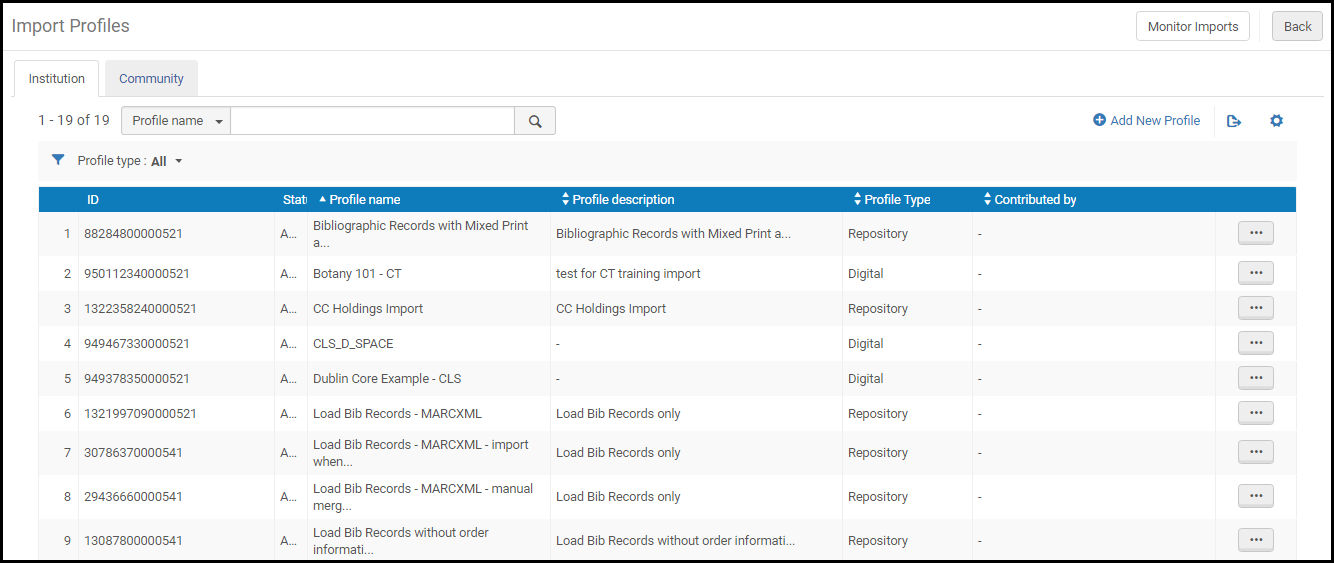
コミュニティゾーンにインポートプロファイルを提供するには:
  1. 行のアクションから、[インポートプロファイル]ページの[機関]タブで、インポートプロファイルの[提供]を選択します。
    [インポートプロファイル]ページ
    確認メッセージダイアログボックスが表示されます。
    インポートプロファイル提供確認メッセージ
  2. オプションで、[プロファイル名]を変更できます。
  3. プロファイルをコピーする機関の詳細情報を含めるには、[説明]を変更することをお勧めします。図書館情報、FTP情報やベンダー情報などの機関情報を含めます。
  4. 必要に応じて、[連絡窓口]のためのEメールアドレスを入力、または変更することができます。
  5. [確認]を選択します。プロファイルは、[コミュニティ]タブに表示され、どの機関からでもコピーできます。
インポートプロファイルがネットワークゾーン内からコミュニティゾーンに共有され、[ネットワークゾーンの使用]パラメータが[はい]に設定されている場合、コミュニティゾーンのプロファイルには、ネットワークゾーンのメンバーではないものを含むすべての機関がアクセスできるので、コミュニティゾーンでインポートプロファイルを共有するプロセスによって、[ネットワークゾーンの使用]パラメータ設定が[いいえ]に変更されます。
提供されたインポートプロファイルを表示や提供されたインポートプロファイルをコピーするには:
  1. [インポートプロファイル]ページの[コミュニティ]タブを開きます( [リソース]> [インポート]> [インポートプロファイルの管理] )。
    プロファイルに関する詳細情報を表示するには、行アクションリストから[表示]を選択します。プロファイルの詳細が表示されます。コミュニティに提供されたプロファイルに加えて、次のインポートプロファイルもEx Librisから提供されています(すぐに使用できます):
    • 目録を更新する:
      • DAWSON-E全レコード
      • DAWSON-P全レコード
      See the Dawson Shelf Ready Best Practices document for more information.
    • 新規発注:
      • E目録による一般的なEOD
      • P目録による一般的なEOD
    • リポジトリ:
      • Librisから書誌レコードをインポートする
  2. プロファイルの行アクションリストで[コピー]を選択します。[インポートプロファイル詳細]ページで[プロファイル詳細]タブが開きます。インポートプロファイルが機関にコピーされ、新しいプロファイルが編集用に開きます。[インポートプロファイル]ページの[機関]タブに新しいプロファイルが表示されます。そのステータスはデフォルトで無効です。
    ネットワークゾーンから作成および共有されたコミュニティゾーンからインポートプロファイルをコピーすると、[ネットワークゾーンの使用]パラメータが[いいえ]に設定されます。この設定は、コピーされたインポートプロファイルでは変更できません。
  3. 要件に合わせてインポートプロファイルの詳細を編集します。
  4. 完了したら、 [保存]を選択します。
  5. [機関]タブを選択して、コピーしたプロファイルを表示します。提供者は、[提供元]列に表示されます。
提供されたインポートプロファイルを削除するには(コミュニティゾーンから削除):

行アクションリストから、[インポートプロファイル]ページのコミュニティタブで、提供されたインポートプロファイルの横の[削除]を選択し、[確認]ダイアログボックスで[確認]を選択します。プロファイルは、提供されたプロファイルのリストから削除されます。機関が以前に提供したプロファイルのみを削除できます。提供されたプロファイルを削除しても、そのプロファイルで作成されたコピーは影響を受けません。