
一般電子サービス
ディスカバリーインターフェイス表示のルールを設定します。
This page describes how to configure general electronic (HTTP) services including the URL template, sharing general electronic services in the community zone, configuring the order of electronic services, etc. For links to all the main fulfillment documentation pages see Fulfillment.
Configuring General Electronic Services
一般的な電子サービスを設定するのは、次のいずれかの役職でなければなりません。
-
一般システム管理者
-
フルフィルメント管理者
独自のコレクションにあるサービス(フルテキスト、リクエストなど)に加えて、Almaでは一般的なHTTPサービス(ProQuest学位論文やAmazon.comでの検索、司書への質問など)を定義して、利用者に全画面表示ページの表示、入手、入手方法セクションを通して提示します。ユーザーによる資料へのアクセスまたは購入を可能にするサービスは、郵送関連と見なされ、レコードの全画面表示ページの [表示]、[入手]、および [入手方法] セクションに表示されます。
To have these services appear in Leganto, see Enabling General Electronic Services in Leganto.
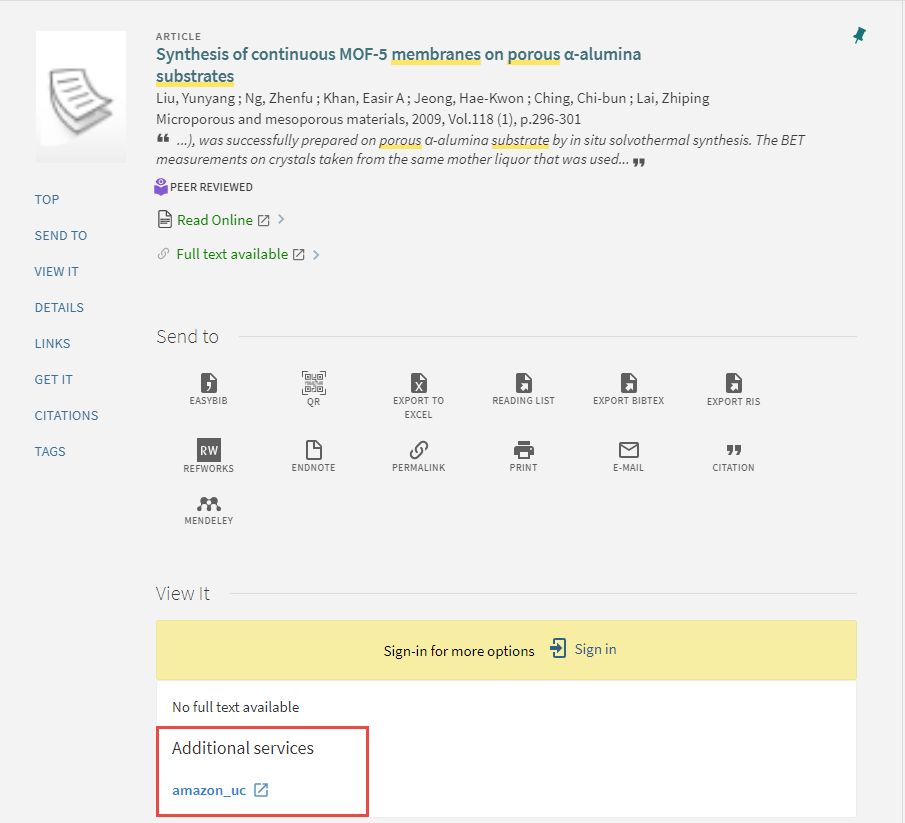
In order to create a general electronic service, you must be familiar with the syntax of the service's URL, which includes any parameters that are required to query or access specific information from the service.The service's URL along with OpenURL context object attributes returned from Alma's link resolver are used to define the URL template, which Alma uses to create the service link that appears in View It and/or Get It.
さらに、一般電子サービスの次の表示を設定できます。
-
Specify service order – see Configuring General Electronic Services Order
-
Define display logic rules – see Configuring Display Logic Rules
You can also share your general electronic services in the Community Zone, and use general electronic services defined by other institutions.See Sharing General Electronic Services in the Community Zone.
It is recommended to use ExLibris' Unpaywall service in View It and not an externally used customer Unpaywall GES.This is because the open access in ExLibris' Unpaywall service is 100% available.
- [一般電子サービス設定]ページ([設定メニュー]> [フルフィルメント]> [ディスカバリーインターフェイス表示ロジック]> [一般電子サービス])を開きます。
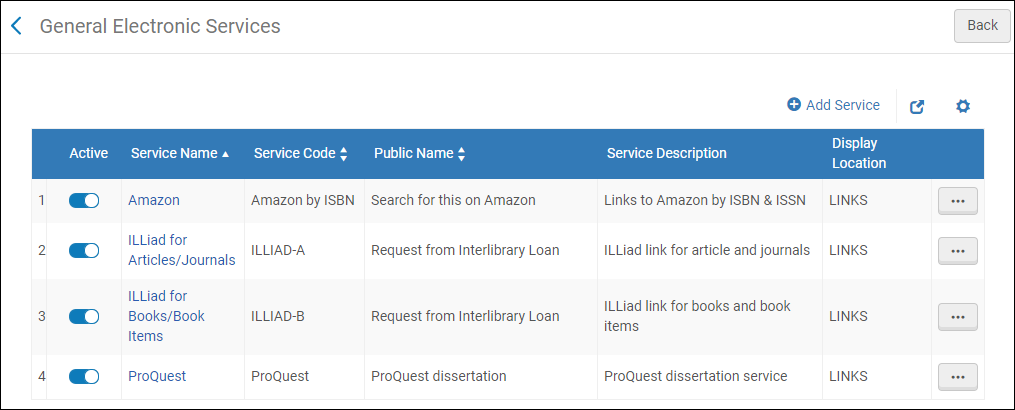 一般電子サービスリスト(Alma-Primo)
The Item Level column is hidden by default; you can add it to the table by selecting the Manage Column Display icon above the table.
The Is this a Document Delivery/ILL Service column is available only with Primo VE and Alma-Summon environments.
-
サービスの追加を選択します。サービスの追加ダイアログボックスが開きます。
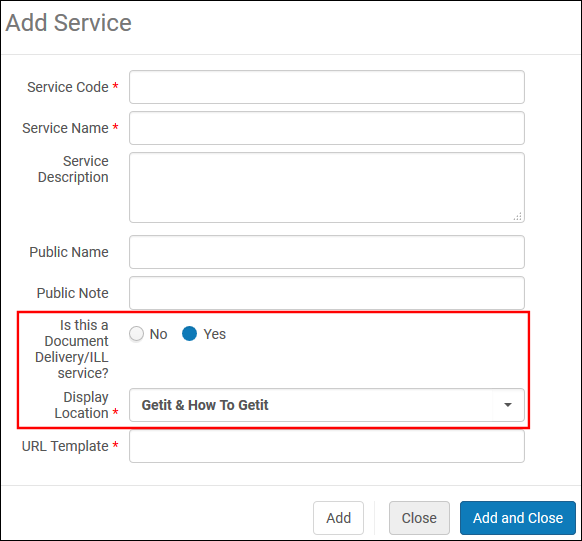 [サービスの追加]ダイアログボックス
Unless otherwise noted, all fields are supported in the following environments: Alma-Primo, Primo VE, and Alma-Summon.
-
次のサービス情報を入力します。
-
サービスコード - サービスの内部コード。
-
サービス名 - サービスに使用する内部名。
-
サービスの説明 - サービスの説明。
-
パブリック名 - [表示する]と[入手する]の両方またはいずれか一方に表示されるリンクのラベル。
-
Public Note – The note or description of the service that is displayed below the link in the View It, How To GetIt and Links sections.
-
Is this a Document Delivery/ILL service – Select Yes to indicate that this service is delivery-related and provides access to the resource.Select No to indicate that this service is not delivery-related and will appear only in the Links section.
このフィールドは、Alma-Primo環境では利用できません。
-
表示場所– GES リンクを表示するレコードの全画面表示のセクションを指定します。次の表に、お客様の環境ごとに利用可能なオプションを示します。
The Display Location is only displayed if Is this a Document Delivery/ILL service is selected Yes.The Display Location is not displayed if Is this a Document Delivery/ILL service is selected No.Alma-Primo Primo VE and Alma-Summon - Getit
- Viewit
- Getit & Viewit
- なし– サービスは、レコードのフル表示のリンクセクションの下に表示されます。
- Getit & How to Getit
- Viewit & How to Getit
- Getit, viewit,and How to Getit
- なし– リンクセクションを含め、レコードの完全な表示にはサービスが表示されません。
[入手方法] セクションは、レコードに在庫がない場合にのみ表示されます。通常、[入手方法]セクションは、リソースの共有と関連する ILL サービス リンクに使用されます。
-
For Primo VE and Alma-Summon only, this field appears only when the Is this a Document Delivery/ILL Service field is set to Yes.
-
一般的な電子サービスの表示は、一般的な電子サービスの編集中に表示される[サービス利用可否ルール]タブで定義されたサービスの利用可否ルールに基づいています。For more details, see step 5.See Configuring Display Logic Rules if you want to hide the general electronic service based on additional criteria (such as the existence of another type of service or the type of user).
-
URLテンプレート - 外部サービスリンクが選択されたときにユーザーがリダイレクトされるURL。外部サービスリンクは、サービスのベースURLと、サービスから特定の情報を照会またはアクセスするために必要なパラメータで構成されます。サービスのURLの構文に従ってフォーマットされます。For more information, see URL Template.
-
アイテムレベル - 入力ルールに一致する各アイテムの横にリンクを表示するには、Yesを選択します。所蔵レベルでリンクを表示するには、[いいえ]を選択します。
- This option displays only when the value of the Display Location field includes GetIt.
- To prevent potential performance issues, item level General Electronic Services cannot be used for the If Exists portion of Display Logic Rules.
- 既存の一般電子サービスを更新し、アイテムレベルの設定を「いいえ」から「はい」に変更すると、このサービスで作成された表示ロジックルールは機能しなくなり、サービスのラベルが変更されてサフィックス (リストに表示されていない) が表示されます。ドロップダウンリストからサービスを削除するには、以前に作成した表示ロジックルールを削除する必要があります。
For more information, see Item Level General Electronic Services.
-
-
追加して閉じるを選択します。The new service appears on the General Electronic Service page with the following row actions:Remove and Edit.
-
新しい行を編集して、追加のサービス詳細を設定します。
[サービスの詳細]ページが表示されます。
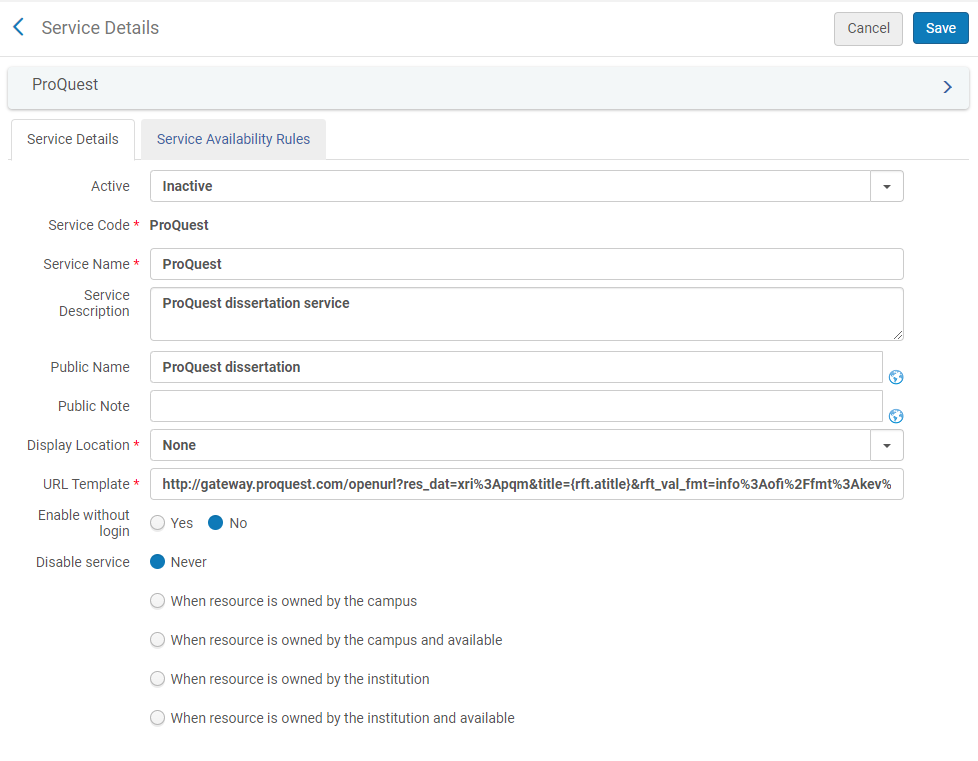 [サービスの詳細]ページ([サービスの詳細]タブ)
-
このサービスをサインインしているユーザーのみに表示するには、ログインなしで有効にするフィールドでいいえを選択します。
-
機関リポジトリ内の冊子リソースの利用可否に基づいてこのサービスを非表示にするには、サービスの無効化の次のオプションのいずれかを選択します。
ゲストユーザーまたはキャンパスが設定されていないユーザーがキャンパスレベルの無効化アクティビティを実行すると、Almaは機関レベルで行われた自己所有チェックに基づいてサービスを無効/非表示にします。
-
絶対なし - サービスは無効になりません。
-
リソースがキャンパスによって所有されている場合 - リソースの冊子アイテムがキャンパスによって所有されている場合、サービスは無効になります。
-
リソースがキャンパスによって所有されて利用可能な場合 - リソースの冊子アイテムがキャンパスによって所有されており、利用可能な場合(つまり、プロセスに関与していない場合)、サービスは無効になります。
-
機関がリソースを所有している場合 - 機関が所有しているリソースの冊子アイテムがある場合、サービスは無効になります。
-
リソースが機関によって所有され、利用可能な場合 - 機関によって所有され、所定のロケーションにあり、オープンなロケーションにあるリソースの冊子アイテムが配置済みの場合、サービスは無効になります。Note that if a physical location is set to Unavailable(see Adding a Physical Location) and this option is selected, the service is enabled.特定のロケーション(リーディングルームなど)にあるアイテムをリクエストできない場合、このオプションを使用できます。このロケーションを利用不可に設定すると、サービスの表示が有効になります。
-
-
Select the Service Availability Rules tab.
[サービス利用可否ルール]タブには、サービスをユーザーから非表示にするかどうかを決定するためにシステムが使用するルールが表示されます。各サービスには、他のルールが適用されない場合に適用されるデフォルトのルールがあります。The Default general electronic service rule hides the service by default (IsDisplay=False).デフォルトのルールを編集し、必要に応じてルールを追加できます。
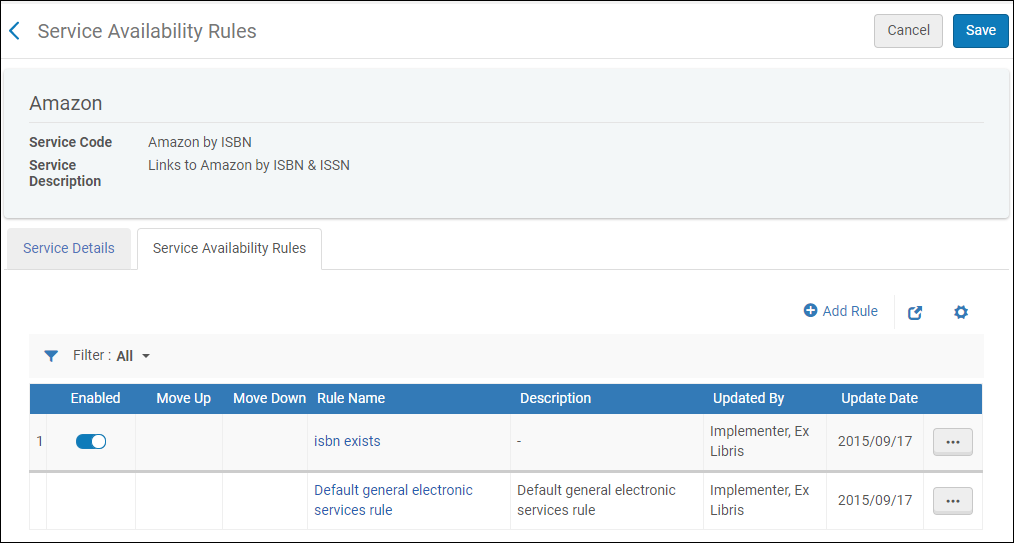 サービス利用可否ルールタブ
-
Add rules regarding the OpenURL context object attributes (which may be returned by Alma's link resolver during the user's search) to ensure that Alma has the necessary information to display the service.
-
利用可能な属性は、標準のOpenURL属性です。For more information, see Commonly Used OpenURL Attributes for the URL Template.
-
アイテムレベルのサービスが設定されている場合、次のアイテムレベルの属性が使用できます。
-
material_type
-
item_policy - 値は機関のアイテムポリシーテーブルから入力されます。See Configuring Item Policies.
-
process_type
-
base_status - 値は、配置済みでないアイテムおよび配置済みのアイテムです。
-
-
ルール内にパラメータを追加すると、パラメータは互いにAND関係になります。つまり、ルールが真であると見なされる前にすべての値が真である必要があります。For OR conditions, where only one value must be true, parameters should be entered separately in a new rule.
-
複数のルールが真と評価された場合、出力パラメータは真である最初のルールに基づいて適用されます。
-
It isnot recommended to create GES rules based on rft.genre=unknown.その代わり、「記事」や「雑誌」など、特定のジャンルについてのルールを作成できます。
-
新しいルールを追加するには、ルールの追加を選択します。[ルールの編集]ページが開きます。
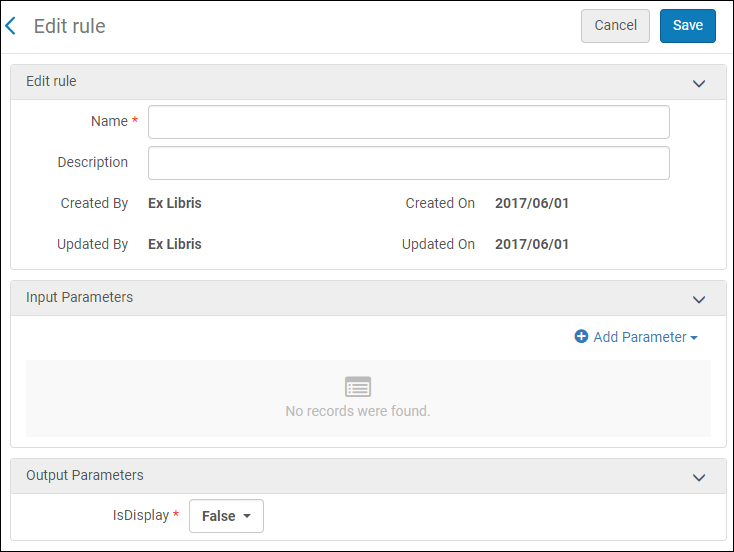 ルールの編集ページ
-
ルールの編集セクションで、ルール名(必須)と説明(オプション)を入力します。
-
[入力パラメータ]セクションで、パラメータの追加を選択します。[パラメータの追加]ダイアログボックスが開きます。
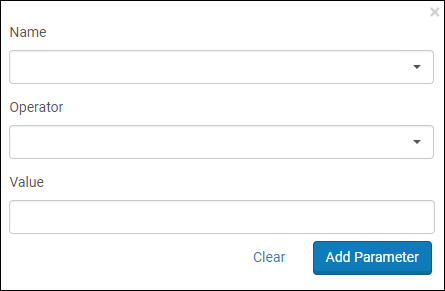 ルールの編集ページ
-
次のフィールドに入力します。
-
名前 - OpenURL属性対象の属性の名前。For more information about these attributes, see Commonly Used OpenURL Attributes for the URL Template.
-
オペレータ - この属性対象属性で使用する比較オペレータ。
-
値 - このパラメータに受け入れられる値。複数の値を一致させるには、値ごとに個別のルールを作成します。すべてのオペレータが値を必要とするわけではないことに注意してください。
-
-
パラメータを追加を選択します。パラメータが入力パラメータリストに追加されます。
-
出力パラメータセクションで、IsDisplayを真に設定します。
-
保存を選択します。[サービス利用可否ルール]ページに新しいルールが表示されます。
-
-
保存を選択します。[一般電子サービス]ページに新しいサービスが表示されます。
共同ネットワークでは、ネットワークゾーンで一般的な電子サービスを作成し、それをメンバー機関に配分できます。メンバー機関は、共有されたレコードの表示を許可されますが、それらを編集または削除することはできません。When the Network Zone general electronic service has been distributed, the local list will show either the distributed records only or both the distributed records and the previous local general electronic service records, depending on the configuration in the customer parameter,network_ges_distribution_members_behavior.
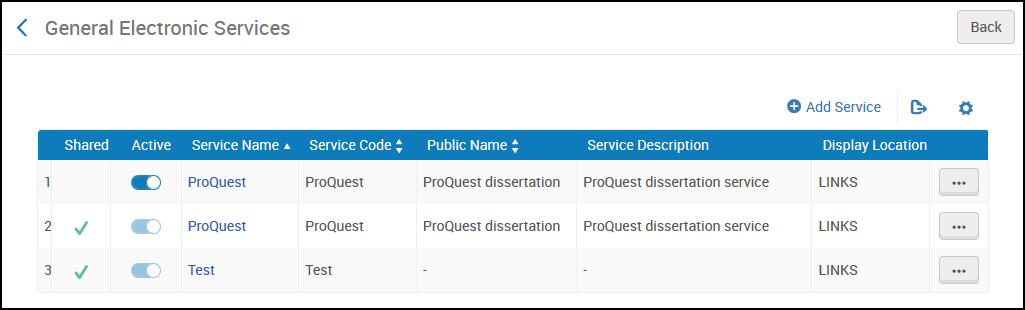
For more information, see Configuring Fulfillment Information in the Network Zone.
URLテンプレート
URLは、括弧(「{」および「}」)で囲まれたOpenURLフィールドを関連する値に置き換えます。For example, the referring URL's ISBN is substituted into a URL containing:...&isbn={rft.isbn}&...
たとえば、特定のISBNのAmazon検索のURL:
リソースシェアブローカーに接続する場合、このフィールドに使用中のブローカーに対応する属性が含まれていることを確認してください。たとえば、OCLCブローカーを使用する場合:
ILLiad - Books/Book Items (based on your institution's base URL).例:
ILLiad - Articles/Journals (based on your institution's base URL).例:
ProQuest - 論文サービス。例:
以下の値は、ISBN、ISSN、eISBN、またはeISSNの正規化に使用される中括弧の間のURLテンプレートパラメータで指定できます。
-
rft.normalized_isbn
この正規化により、数字とハイフン(-)の後のテキストが削除され、ISBN 10がISBN 13に変換されます
-
rft.normalized_issn
この正規化により、数字の後のテキストが削除され、テキストが小文字に変更されます。
-
rft.normalized_Eisbn
この正規化により、数字とハイフン(-)の後のテキストが削除され、ISBN10がISBN 13に変換されます
-
rft.normalized_Eissn
この正規化により、数字の後のテキストが削除され、テキストが小文字に変更されます。
OpenURLの詳細については、次を参照してください。
-
Commonly Used OpenURL Attributes for the URL Template
-
OpenURLの詳細のための特定のベンダーのウェブサイト
URLテンプレートに一般的に使用されるOpenURL属性
The following table describes general categories by which the OpenURL attributes returned from Alma's link resolver are grouped.
| カテゴリ | プレフィックス | 説明 |
|---|---|---|
| 依頼者 | req. | リクエスト元のエンティティ、つまりユーザーに関する情報。一般電子サービスのサービス利用可否ルールを作成する場合は使用されません。 |
| ReferringEntity | rfe. | 参照エンティティ、つまりPrimoに関する情報。一般電子サービスのサービス利用可否ルールを作成する場合は使用されません。 |
| レファレント | rft. | リクエストされたアイテムに関する情報。 |
| ServiceType | svc. | リファレントの特定のフォーマットが利用可能か:「はい」または「いいえ」。たとえば、リクエストされたターゲットが要約またはフルテキストとして利用可能か。複数のサービスタイプが利用できる場合があります。 |
| その他 | さまざま | 以下に記載されていない限り、他の戻り値は使用されません。 |
Any attributes returned by the link resolver, that do not belong to any of the categories above (such as DC attributes), are unused and will not appear in the URL template.サービス利用可否ルールの入力パラメータを作成するときは、これらを選択しないでください。For additional information about OpenURL attribute categories see the related knowledge article.
以下は、サービス利用可否ルールの作成で使用できる頻繁に返される属性です。Some of these attributes are taken from the MARC 21 fields of the relevant records.For these attributes, the MARC 21 sources appear in the MARC 21 Fields column.Attributes that are not taken from MARC 21 fields are retrieved from various other sources, including CDI records, Primo, OpenURL, and other external sources.
| 属性 | PNXマッピング | MARC 21フィールド | 説明 |
|---|---|---|---|
| req_id | The PDS handle (see Identify Patrons to Provide Relevant Services) | ||
| rft.advisor | 学位論文のための顧問 | ||
| rft.applcc | 特許の場合、ISO 2文字フォーマットの出願国コード。特許出願が主要であった国。 | ||
| rft.appldate | Date of application for a patent | ||
| rft.applyear | Year of application for a patent | ||
| rft.artnum | addata/artnum | 記事番号。発行者によって割り当てられます。オンライン記事に使用できる唯一のIDはURLです。 | |
| rft.assignee | 譲受人、特許の場合:「Smith, John J.」, 「IBM」 | ||
| rft.atitle | addata/atitle | 章/記事タイトル: | |
| rft.au | addata/au | 100または110または111 | ある著者の氏名:「Smith, Fred James Jr.」 |
| rft.aucorp | addata/aucorp | 文書を作成した組織または法人:「Mellon Foundation」 | |
| rft.aufirst | 第一著者の名:「Fred James」スペースと句読点が含まれる場合があります。 | ||
| rft.auinit | addata/auinit | 筆頭著者の最初とミドルネームのイニシャル | |
| rft.auinit1 | addata/auinit1 | 第一著者の最初のイニシャル | |
| rft.auinitm | addata/auinitm | 第一著者のミドルネームのイニシャル | |
| rft.aulast | addata/aulast | 筆頭著者の姓: 「Smith」スペースと句読点がある場合があります。 | |
| rft.ausuffix | addata/ausuffix | 第一著者の名前の接尾辞:「Jr.」等 | |
| rft.bici | addata/bici | 書籍アイテムとコンポーネント識別子(BICIコード) | |
| rft.btitle | addata/btitle | For the LDR positions, see Fields that Identify the Bibliographic Material Type. | LDR material_type = BKの場合、書籍のタイトル。rft.jtitleを参照してください。 |
| rft.cc | ISO 2文字フォーマットの発行国コード:「US」。coを参照してください。 | ||
| rft.chron | 標準フォーマットではない列挙または年表:「第1四半期」。可能であれば、日付を使用します。ssnおよびquarterを参照してください。 | ||
| rft.co | 発行国:「米国」。ccを参照してください。 | ||
| rft.coden | addata/coden | 030 a | CODEN(英数字コード) |
| rft.date | addata/date | 発行日:特許の場合、これは特許が発行された日付です。フォーマットはYYYY、YYYY-MM、またはYYYY-MM-DDです。 | |
| rft.day | 発行日 | ||
| rft.dcContributor | ダブリンコアの貢献者:人、組織、またはサービス | ||
| rft.dcCreator | ダブリンコアクリエーター:個人、組織、またはサービス | ||
| rft.dcDescription | ダブリンコアの説明:要約、目次、グラフィカルな代表、またはフリーテキスト | ||
| rft.dcFormat | ダブリンコアフォーマット:ファイルフォーマット、冊子メディア、またはMIMEタイプなどの寸法 | ||
| rft.dcIdentifier | ダブリンコア識別子:明確なリソース識別子 | ||
| rft.dcLanguage | ダブリンコア言語:リソース言語 | ||
| rft.dcPublisher | ダブリンコア発行者:個人、組織、またはサービス | ||
| rft.dcRelation | ダブリンコア関係:関連リソース | ||
| rft.dcRights | Dublin Core rights: Terms rights and access rights information | ||
| rft.dcSource | ダブリンコアソース:このリソースが取得された関連リソース | ||
| rft.dcSubject | ダブリンコアの主題:キーワードと分類コード | ||
| rft.dcTitle | ダブリンコアタイトル:リソースタイトル | ||
| rft.dcType | ダブリンコアタイプ:DCMITYPEで記述されているような特質とジャンル。フォーマットについては、dcFormatを参照してください。 | ||
| rft.degree | 学位発行、学位論文 | ||
| rft.doi | addata/doi | DOI(デジタルオブジェクト識別子)フィールド | |
| rft.edition | 表示/版 | 250 a | 書籍の版、通常は番号付きまたは番号なしのフレーズ:「初版」、「第4版」。 |
| rft.eisbn | addata/eisbn | 020 eがなく、レコードが物理的資料でない場合は020 a。それ以外の場合は020 e。 | 電子版の国際標準図書番号。複数のISBNをコンマで区切って指定できます。ハイフンを含めることができます。rft.isbnと区別される場合とそうでない場合があります。 |
| rft.eissn | addata/eissn | 022 eがなく、レコードが物理的資料でない場合は022 a。それ以外の場合は022 e。 | 電子版の国際標準逐次刊行物番号。複数のISSNをコンマで区切って指定できます。ハイフンを含めることができます。rft.issnと区別される場合とそうでない場合があります。 |
| rft.epage | addata/epage | 巻/発行内の記事/章の終了ページ。 | |
| rft.format | addata/format | フォーマットのMIMEタイプ | |
| rft.genre | addata/genre |
It isnot recommended to create GES rules based on rft.genre=unknown.その代わり、特定のジャンルについてのルールを作成できます。 次のうちの1つ:
|
|
| rft.inst | 論文のための発行機関 | ||
| rft.inventor | Inventor's full name: "Smith, John J.".特許の場合。 | ||
| rft.invfirst | Inventor's given names: "John J.".特許の場合。 | ||
| rft.invlast | Inventor's last name: "Smith".特許の場合。 | ||
| rft.isbn | addata/isbn | 020 eがある場合は020 a。それ以外の場合、レコードが物理的資料でない場合は776 z、020 eがなくレコードが物理的資料である場合は020 a | 国際標準図書番号9桁とチェックディジット。ハイフンを含むことがあります。 |
| rft.issn | addata/issn | 022 eがなく、レコードが物理的資料の場合は022 a。それ以外の場合、022 eがある場合は022 a、レコードが物理的資料でない場合は776 x | 国際標準逐次刊行物番号ハイフンを含めることができます。書籍のISSNがシリーズに関連付けられている場合があります。 |
| rft.issue | addata/issue | ジャーナルの発行:「Spring 1998」。通常は数値。 | |
| rft.jtitle | addata/jtitle | For the LDR positions, see Fields that Identify the Bibliographic Material Type. | LDR material_type = CRの場合、完全なジャーナルタイトル。rft.btitleを参照してください。たとえば、「Journal of the American Medical Association」。短いタイトルには、stitleを使用します。 |
| rft.kind | 特許のタイプコード:「AU A1」。タイプコードは、原産国内で意味があります。 | ||
| rft.lccn | addata/lccn | 010 a、z | 議会図書館管理番号 |
| rft.mms_id | アイテムの MMS ID | ||
| rft.month | 発行月 | ||
| rft.number | 特許の出願番号 | ||
| rft.object_type | For the LDR positions, see Fields that Identify the Bibliographic Material Type. | The LDR material_type.デフォルトはBOOKです。 | |
| rft.oclcnum | addata/oclcid | 035 a,z | OCLC制御番号またはジャーナルレベルOCLC番号。コンマで区切られた複数のOCLCコントロール番号の場合があります。 |
| rft.pages | addata/pages | 巻/発行内の記事/章の開始ページと終了ページ:「53-58」。連続していないページを含めることもできます。「12-6,64-67」。spageおよびepageを参照してください。 | |
| rft.part | addata/part | 巻の下位区分、または巻の代わり。例:「B」、「補足」。 | |
| rft.place | addata/cop | 260 aまたは264 a | 発行ロケーション:「ニューヨーク」。 |
| rft.prioritydate | Priority date for a patent | ||
| rft.pub | addata/pub | 502 a,cまたは260 bまたは264 b | 発行者名:「Harper and Row」。 |
| rft.pubdate | 260 cまたは260 gまたは264 cまたは362 aまたは008(date1) | 特許の発行日 | |
| rft.publisher | 502 a,cまたは260 bまたは264 b | 発行者名 | |
| rft.pubyear | 発行年 | ||
| rft.quarter | addata/quarter | 年表:「1」、「2」、「3」、または「4」。非標準の年表については、chronを使用します。 | |
| rft.series | addata/seriestitle | この本を含むシリーズのタイトル。シリーズに関連付けられたISSNもあります。 | |
| rft.sici | addata/sici | 逐次刊行物アイテムコントリビューション識別子(SICIコード) | |
| rft.spage | addata/spage | 巻/発行内の記事/章の開始ページ | |
| rft.ssn | addata/ssn | シーズン:「冬」、「春」、「夏」、または「秋」。標準外のシーズンには、chronを使用します。 | |
| rft.stitle | addata/stitle | 245 a | 短いジャーナルタイトル:「J Am Med Assn」。完全なタイトルには、jtitleを使用します。 |
| rft.title | 245 a,b | 書籍タイトル(非推奨:btitleを使用)、ジャーナルタイトル(非推奨:jtitleを使用)、論文タイトル、特許タイトル | |
| rft.tpages | 総ページ数: 「392」。通常、モノグラフ(書籍および印刷リポート)のみ。数値ではない場合があります: 「F96」。 | ||
| rft.volume | addata/volume | ジャーナル巻:「124」通常は数値ですが、ローマ数字などでもかまいません。 | |
| svc.abstract | 抄録 | ||
| svc.any | 任意のフォーマット | ||
| svc.citation | 引用 | ||
| svc.fulltext | フルテキスト | ||
| svc.holdings | 所蔵情報このフィールドは、レコードに所蔵があるかどうかに基づいてサービスを非表示にするためには使用されません。If it is included in the OpenURL, it will be saved in the Context Object for use in the GES. | ||
| svc.ill | 図書館間貸出 |
アイテムレベルの一般電子サービス
一般電子サービスがアイテム レベルサービスとして追加されると、URL テンプレートを設定して、次の所蔵およびアイテム レベルの情報を含めることができます。
| 所蔵/アイテム要素 | プレースホルダーの名前 |
|---|---|
| 現在の図書館(コード) | 図書館 |
| 現在の場所(コード) | 配架場所 |
| 現在の請求番号 | call_number |
| バーコード | barcode |
| 資料タイプ(コード) | material_type |
| 現在のアイテムポリシー(コード) | item_policy |
| MMS ID | mms_id |
| プロセスタイプ(コード) | process_type |
| アイテム説明 | description |
| ストレージ場所ID | storage_location_id |
| 請求番号 | item_call_number |
また、所蔵レコードのフィールドをURLテンプレートに追加することもできます。プレースホルダーの構文はHOL_{field}_{indicators}_{subfields}です。インジケータの使用はオプションです。例:
-
HOL_506_ab-Almaは、506フィールドからサブフィールドaとサブフィールドbを抽出します。各サブフィールドは、スペースで隣のサブフィールドと区切られます。インジケータは考慮されません。
-
HOL_506_12_df-Almaは、指針1および2が存在する場合にのみ、506フィールドからサブフィールドdおよびサブフィールドfを抽出します。各サブフィールドは、スペースで隣のサブフィールドと区切られます。
-
HOL_506_1#_g - このシナリオでは、Almaは、最初の指針値が1で、2番目の指針に依存しない場合にのみ、506フィールドからサブフィールドgを抽出します。
サンプルURLテンプレートは、<baseURL>?LIB={library}&BARCODE={barcode}&FIELD1={HOL_506_ab}です。
一般電子サービスを定義する際に書誌レコードの任意のフィールドを使用できるようにします。
The General Electronic Services Bib Fields Enrichment configuration screen (Configuration > Fulfillment > Discovery Interface Display Logic > General Electronic Services Bib Fields Enrichment) enables institutions to define which field are extracted from the record's metadata and be available for use when defining an Availability Rule or enhancing the URL template field upon definition of a General Electronic Service(Configuration > Fulfillment > Discovery Interface Display Logic > General Electronic Services).
-
各GES(一般電子サービス:General Electronic Service)テンプレートは、1レコードにつき1つのGESリンクのみを生成します。テンプレートで指定された書誌フィールドがレコードに複数回現れる場合、そのフィールドの最初のインスタンス(たとえば、書誌レコードに最初に現れるもの)のみが使用されます。
-
カラムインジケータ1およびインジケータ2は必須ではありません。その他の列はすべて必須です。有効行のみが考慮されます。
-
If you choose to export the table and use the file to import it again, you need to add the Enabled and Target Code columns to the file.
以下はワークフローの例です。
- 設定画面にアクセスし、特定の書誌フィールド(例では020_a)を指す新しい行を追加してください。
- 新しく定義された書誌フィールドは、ルールの入力パラメーターセクションで見つけることができます。
- 一般電子サービスの URL テンプレートフィールドで新しく定義されたフィールドを利用することもできます。
- Below is an example of how this will appear to patrons in the Discovery (Primo) system, as well as how the actual URL is constructed.(Constructed URL example:https://www.google.com/isbn=0491001304)
When adding a row to the "General Electronic Service Bib Fields Enrichment" configuration screen, you need to define the Record format, Bibliographic field and subfield.「一般電子サービスのフィールド名」内で定義された値は、一般電子ルール/URL テンプレートを定義するときに表示される値になります。
1.When two bibliographic records are matched, the logic only applies to the Selected bibliographic record.2.If the URL template field starts with a parameter placeholder with no text or URL before it (and regardless of what comes after it), no decoding is applied to the first parameter's information.
3.For Network Zone members whose General Electronic Services derive values from the General Electronic Service Bib Fields Enrichment page, we recommend using the same names as in the network zone.This is in order to display the General Electronic Service for institution or network zone resources.
For more information, see General Electronic Services.
Sharing General Electronic Services in the Community Zone
共有の一般的な電子サービスを共有およびコピーするのには、次のいずれかの役職でなければなりません。
- フルフィルメント アドミン
- 統括システム管理者
機関は、一般的な電子サービスの作成に何時間も費やしています。In order for these institutions to save time and effort, librarians can contribute their general electronic services to the Community Zone and copy and use the general electronic services that other institutions contributed to the Community Zone.一般的な電子サービスが機関にコピーされると、機関はニーズに合わせてカスタマイズするために、それを変更できます。
When a general electronic service is contributed, all its related rules are contributed as well.
Contributed general electronic services appear in the Community tab on the General Electronic Services page (Configuration Menu > Fulfillment > Discovery Interface Display Logic > General Electronic Services).Copied general electronic services appear in the Institution tab.
ネットワーク機関が設定した一般電子サービスは、[機関]タブにも表示されます。To distribute the general electronic service to consortia members, the Distribute Fulfillment Network Configuration job is used (see Configuring Fulfillment Information in the Network Zone).This is since these general electronic services are managed by the network institution and therefore, cannot be edited or contributed by the member institution.
- From the row actions, select Contribute for a general electronic service on the Institution tab of the General Electronic Services page (Configuration Menu > Fulfillment > Discovery Interface Display Logic > General Electronic Services).
確認メッセージが表示されます。
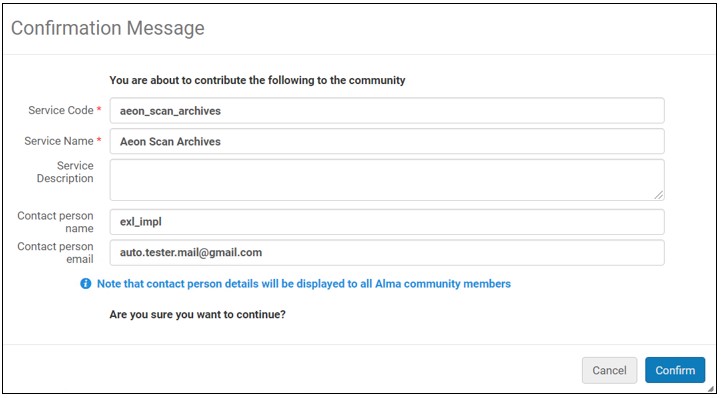
- You can optionally change the Service Code and Service Name.
- We recommend changing the Description to include detailed information for institutions that copy the GES.
- You can optionally enter or change the name and email address for the Contact person.
- Select Confirm.The service appears in the Community tab and can be copied by any institution.
If the general electronic service has already been contributed by the institution to the CZ, you may also edit and re-contribute an edited general electronic service.最新の一般的な電子サービスは、以前の一般的な電子サービスを上書きします。This action has no effect on local copies of the general electronic services used by other institutions.
- Open the Community tab on the General Electronic Services page (Configuration Menu > Fulfillment > Discovery Interface Display Logic > General Electronic Services).
To view more information about the general electronic services, from the row actions, select View.プロファイルの詳細が表示されます。
- Select Copy in the row actions list of the general electronic service.一般電子サービスが機関にコピーされ、新しい一般電子サービスが開き、編集できます。The general electronic service is copied, and its status is Inactive by default.
- 一般的な電子サービスの詳細を編集して、要件に一致させます。
- When you are done, select Save.
- Select the Institution tab to view the general electronic service that you copied.
- Select Delete in the row actions list of the general electronic service and select Confirm in the confirmation dialog box.The general electronic service is no longer available to other institutions.However, it is not deleted; you can continue using it in the Institution tab.Also, if another institution has already copied this general electronic service, the deletion of your general electronic service has no effect on their local copy.
一般的な電子サービスのオーダーの設定
- 一般システム管理者
- フルフィルメント アドミン
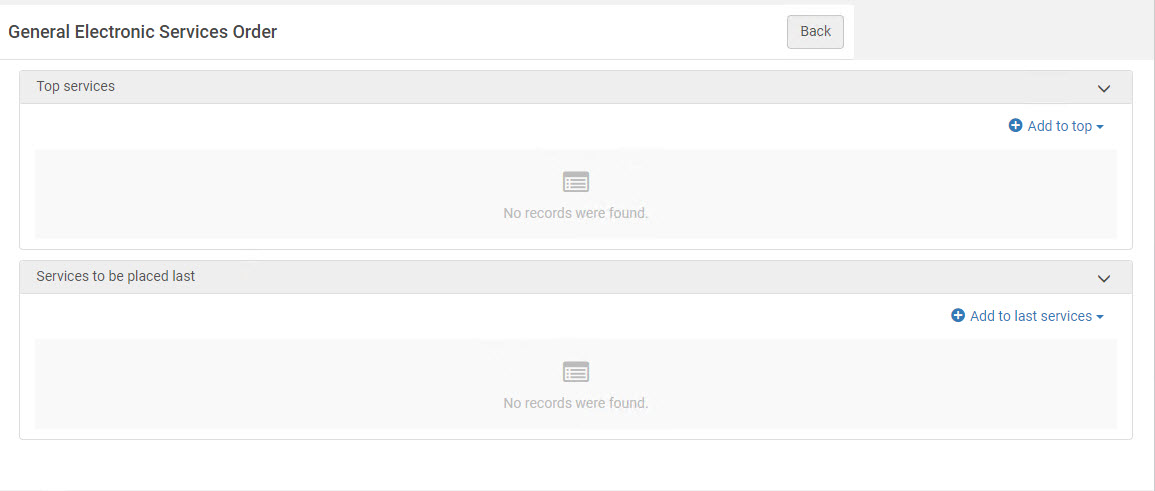
With the General Electronic Services Order page, you can configure the order in which general electronic services appear in Primo.他のサービスと同様に、リストの最初または最後のグループに表示されるようにサービスを割り当てることもできます。
機関レベルでのみ、一般的な電子サービスのオーダーを設定できます。フルフィルメント設定ページの設定フィルタから必要な機関を選択します。
このページには保存ボタンはありません。ここで行われたすべての選択は、Almaに自動的に保存されます。
-
Open the General Electronic Services Order page (Configuration Menu > Fulfillment > Discovery Interface Display Logic > General Electronic Services Order).
-
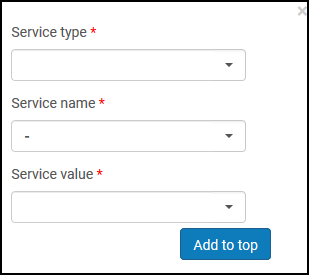
Select Add to top or Add to last services to configure the order of services at the top and bottom of the list of results, respectively.
-
サービスのタイプフィールドで、一般的な電子サービスを選択します。
-
サービス名フィールドで、サービスを選択します。
-
サービス値フィールドで、サービス値を選択します。
-
Depending on which list you are defining, select either Add to top/Add to last services.定義するリストにサービスが表示されます。
-
各リストについて、上に移動列と下に移動列の矢印を選択して、サービスをオーダーします。
Page tags: article:topicproduct:almacontent:Documentationlang:englishgeneral electronic servicediscovery interface displaydisplay logic rulesdiscovery interface service labelscommonly used labelsrelated records for electronic servicesdirect linkingorder of online servicesorder of primo search resultsprimo request formsprimo resource sharing request formsprimo fines and fees currency symbols
