
Getit
ディスカバリーインターフェイス表示のルールを設定します。
This page describes how to work with Getit including configuring the order of locations in Primo search results, filtering the library list for availability in Primo, configuring holding display labels, etc. For links to all the main fulfillment documentation pages see Fulfillment.
Configuring the Order of Locations in Primo Search Results
Primo検索結果のオーダーを設定するのは、次のいずれかの役職でなければなりません。
-
一般システム管理者
-
フルフィルメント アドミン
Almaは、主に利用可否によって場所の表示優先度を決定します。Except for serial holdings, holdings with the greatest number of available items appear first.In addition, Alma enables you to give preference to locations that match the IP address of the patron's IP address.これらのロケーションには、AVA $$Pフィールドが含まれます。For more information, see the following topic: Discovery in Collaborative Networks.
Primo VE環境では、AVAフィールドを使用する必要はありませんが、Almaでの並べ替えと優先度の構成は、PrimoとPrimo VEの両方で同じものです。さらに、Primo VEはAlmaのカスタム並び替え設定を上書きできます。For more information, see Configuring the Get It Service for Primo VE.
Alternatively, you can configure your own display order of locations, based on the considerations of your institution.When displaying a list of locations in the GetIt tab, if the record has multiple holdings, they are listed in the order that has been defined by the institution.機関の優先順位が定義されていないか、関連性がない場合は、アルファベット順の並べ替えが使用されます。
次の1つ以上の基準に基づいて、所蔵の場所がPrimoの[Get It]の最初のページに順番に表示されます。
-
According to the holdings' locations and their proximity to the patron, according to the library IP address.ユーザーに最も近い図書館のロケーションは、所蔵リストの一番上に表示されます。これらの基準が使用される場合、それは所蔵の利用可否よりも優先されます。
-
According to the holdings' availability, in the order (by default):
- 一時的なロケーションにある
- 恒久的なロケーションにある
- リモートロケーションにある
You can select a different order on the Locations Ordering Profile page (Configuration Menu > Fulfillment > Discovery Interface Display Logic > Locations Ordering Profile):
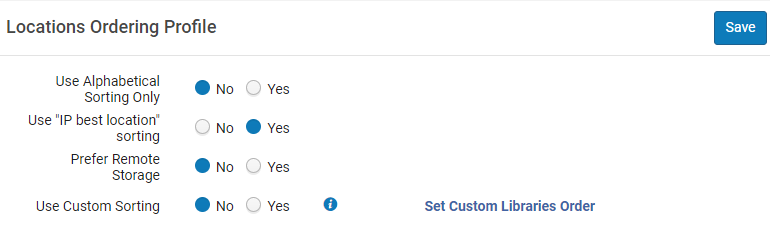
このオーダーは、機関レベルでのみ設定できます。フルフィルメント設定ページの設定フィルタから必要な機関を選択します。
-
In the Use Alphabetical Sorting Only field, select Yes if you want to sort the holdings in Primo Get It alphabetically by the external name of the location, which is passed to Primo in the AVA $$c subfield during RTA.アルファベット順のソートロジックはハードコーディングされています。
When this field is set to Yes, all other ordering fields on this page are disabled.
-
In the Use "IP best location” sorting field, select Yes to configure the display of holdings by best location, which is determined by the location's priority in the AVA $$p subfield during RTA.IP addresses must be defined for the libraries.No indicates that holdings are displayed by availability and that for the display of holdings locations, IP addresses do not need to be defined.
IPアドレスを設定できます。
- On the library level (see Managing IP Definitions for a Library)
- On the campus level (see Editing a Campus)
-
リモートストレージを優先フィールドで、はいを選択して、Primoの[取得する]、Primoへの発行、またはPrimo RTAで結果を表示するときにリモートストレージアイテムの優先度を上げます。
- カスタムソートを定義するには:
In the Use Custom Sorting field, select Yes and then select the Set Custom Libraries Order link.
When this field is set to Yes, all other location ordering fields are removed from this page.
On the Custom Libraries Order page that opens, select Add Library.
開いたダイアログで、目的の各図書館の順序を指定します。Enter numeric values, where 1 is the library that appears first in the list of locations in the Get It tab.
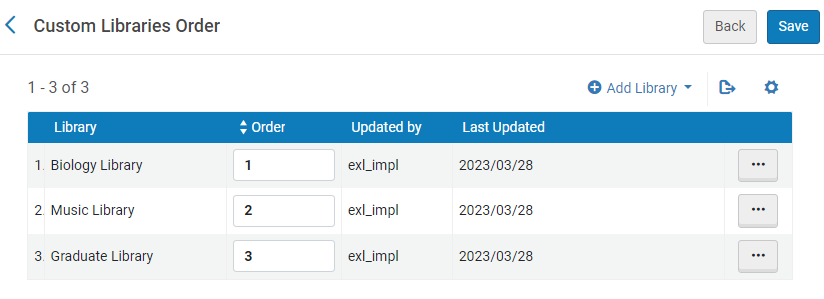 カスタム ライブラリの注文
The priority of each location within the library can also be determined by configuring the Discovery Priority attribute of a location (Configuration Menu > General > Locations > Physical Locations) when the selected configuration scope is a library.All Display first locations of the same library are sorted before other locations of the same library, and all Regular display locations of the same library are sorted before Display last locations of the same library.Locations within the same Discovery Priority are sorted by availability.For more details, see Configuring Physical Locations.
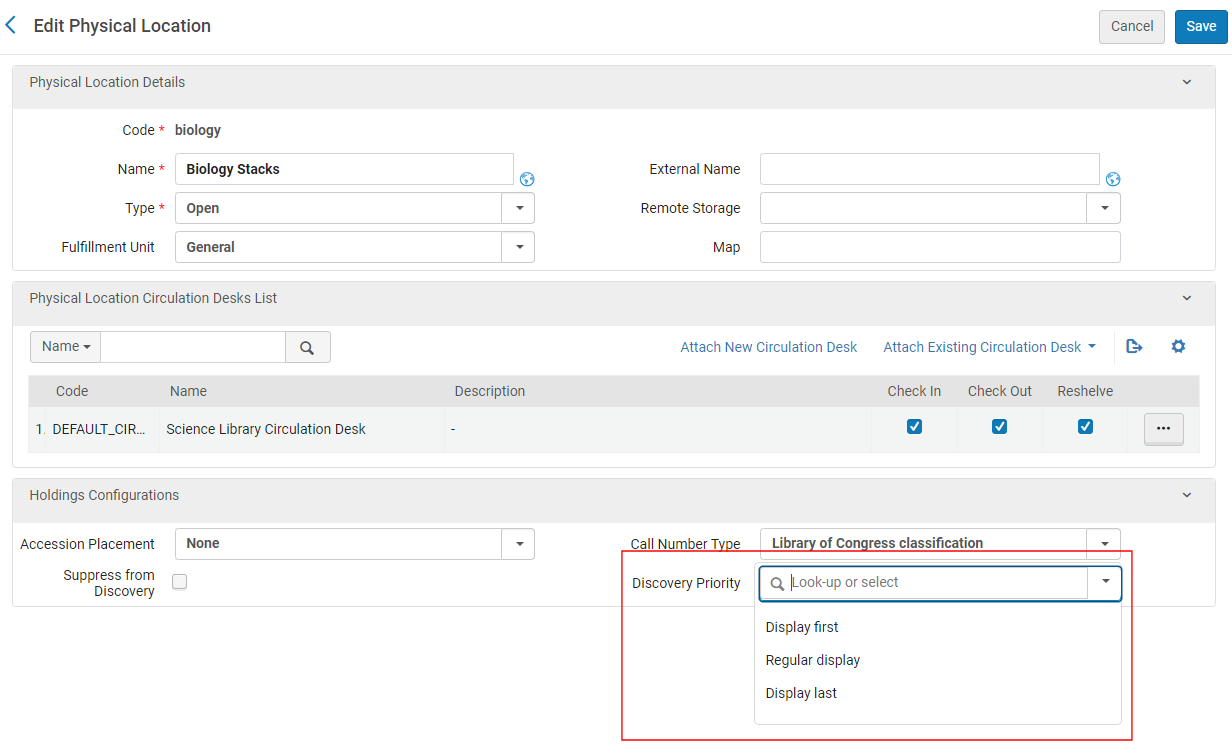 Edit Physical Location's Discovery Profile
-
[保存]を選択します。
Filtering the Library List for Availability in Primo
-
このセクションは、Alma-Primo環境にのみ適用されます。If you are working with Primo VE, see Configuring the Location Filter List for Get It.
-
この機能は、Alma-Summon環境には適用されません。
[Alma図書館にマップされたPrimo表示]ページでは、目録アイテムに関する利用可否情報を表示するときに、Primoの[Get It]に最初に表示される図書館のリストをフィルタ処理できます。図書館が設定されている場合、これらの図書館はアイテムに対して最初に表示されます。ユーザーは、フィルタを削除した後、すべての図書館を表示できます。図書館が設定されていない場合、すべての図書館がデフォルトで表示されます。
In the following example, the Main Library has available items, but it has been filtered from the list of locations because one or more libraries other than the Main Library were configured on the Primo View Mapped into Alma Libraries page.ユーザーは[フィルター解除]を選択すると、メイン図書館のアイテムを表示できます。
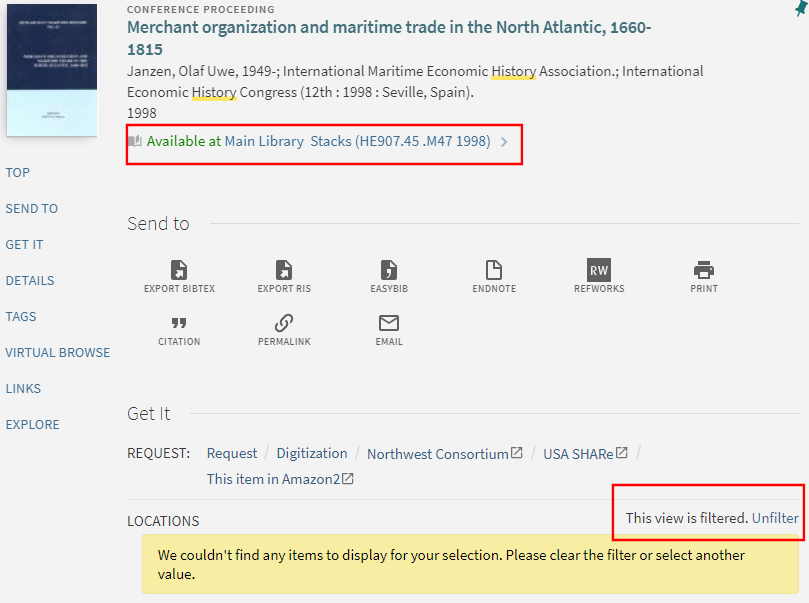
-
Open the Primo View Mapped into Alma Libraries page (Configuration Menu > Fulfillment > Discovery Interface Display Logic >Primo View to Libraries).
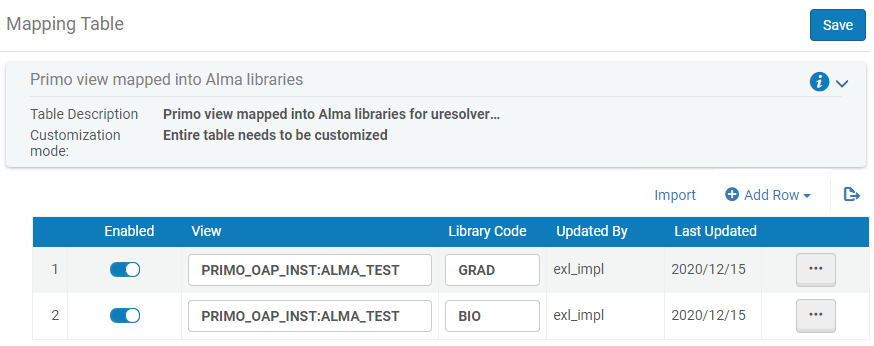 Alma図書館マッピングテーブルにマッピングされたPrimo VEビュー
-
図書館をリストに追加します。
-
Select Add Row to open the dialog box .
-
次のフィールドを指定します。
-
View – Specify the Primo/Primo VE view code.
-
Library Code – Specify an Alma library code.To find library names and codes, see Adding/Editing Institution Libraries.
-
-
ダイアログボックスで行の追加を選択して、図書館をデフォルトリストに保存します。
-
-
When you are done adding libraries, select Save or Customize(first time only) to save your changes to the list.
所蔵表示ラベルの設定
For Primo VE environments, see Configuring Holdings Display Fields for Primo VE.
- 一般システム管理者
- フルフィルメント アドミン
[所蔵表示ラベルとオーダー]コードテーブルは、レコードのフル表示の[Get It]セクションに表示される所蔵フィールドを設定し、次のアクションを実行できます。
- 所蔵フィールドの表示を有効/無効にします。
- [取得する]で所蔵フィールドが表示されるオーダーを指定します。
- 各所蔵フィールドの表示ラベルをカスタマイズおよび翻訳します。
- 新しい表示フィールドを追加します。
Access the Holdings Display Labels page (Configuration Menu > Discovery > GetIt Configuration >Holdings Display Labels).
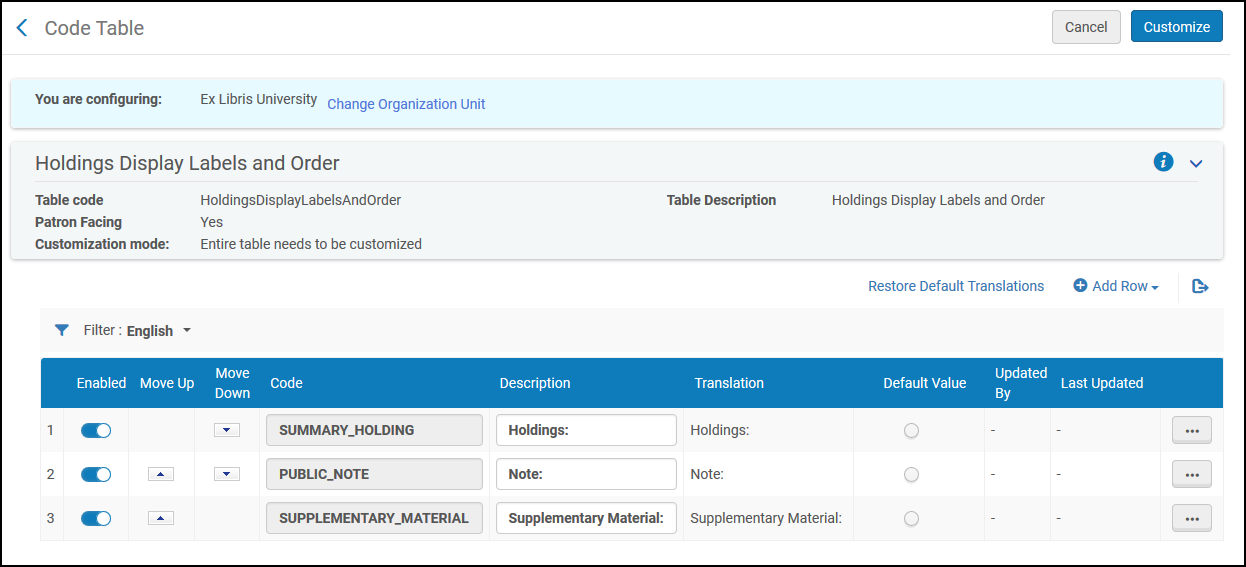
- コード、説明、コードがデフォルト値であるかなど、表示ラベルの行を追加します。行を追加を選択します。
- フィルタドロップダウンから、翻訳値を入力する言語を選択します。
- ラベルの翻訳フィールドに、翻訳に表示される値を入力します。
- 翻訳値を使用する追加の言語がある場合は、フィルタドロップダウンから次の言語を選択し、ステップ3を繰り返します。
- [保存]を選択します。
Primo所蔵表示の設定
For Primo VE environments, see Configuring Holdings Display Fields for Primo VE.
- 一般システム管理者
- フルフィルメント アドミン
The Primo Customized Holding mapping table (Configuration Menu > Fulfillment > Discovery Interface Display Logic >Holdings Display Customization) enables you to map information from the source's holdings record to Primo for display in the following fields in the Get It section of the record's full details: Holdings, Supplementary Material, Note, Binding, Source of Acquisition, Ownership of Custodial History, and Indexes.たとえば、MARC 866 a、zをHoldings表示フィールドにマッピングできます。
このページにアクセスするには、最初にuresolver_enable_getit_holding_configuration顧客パラメーターをtrueに設定する必要があります。
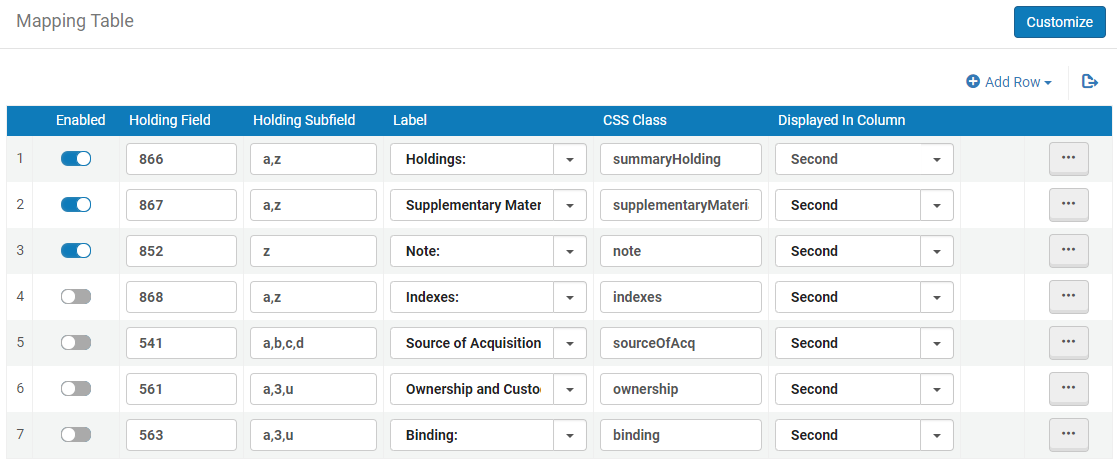
- Edit the Primo Customized Holding mapping table (Configuration Menu > Fulfillment > Discovery Interface Display Logic >Holdings Display Customization).
-
行を追加を選択します。
-
[行の追加]ダイアログボックスで次のフィールドを指定します。
-
Holding Field – The MARC holdings field that you want to map to Primo.
-
Holding Subfield – The specific subfields of the holdings field that you want to map.複数のサブフィールドを指定する場合は、それらをコンマで区切ります。
-
Label – Select the display field to which you want to map the holdings field/subfield.Primoでは、次の表示フィールドがサポートされています:所蔵、補足資料、メモ、索引、受入元、保管履歴の所有権、および製本。
-
CSS Class – The CSS class defined in the CSS for your Primo view's skin.For more information, see Branding the Delivery Tabs.
-
Displayed in Column – Specify the first or second display column.
-
-
Select Add Row to save the row and to return to the mapping table.
-
新しい行が有効になっていることを確認してください。
- If this is the first customization of this table, select Customize.Otherwise, select Save.
ロジックルールを表示する
Display Logic Rules can be used to configure Getit services such as Hold, Booking, and Resource Sharing.For more information, see Configuring Display Logic Rules.
Configuring Service Labels in the Discovery Interface
[取得]のサービスラベルを構成できます。For more information, see Configuring Service Labels in the Discovery Interface.
Using Standard Identifiers
With the Find GetIt services based on standard identifiers only parameter (Configuration Menu > Fulfillment > Discovery Interface Display Logic > Other Settings), the Primo/Primo VE Get It feature (that you select to request/discover local Alma physical holdings) uses the following strong standard identifiers:
- ISSN
- E-ISSN
- ISBN
- E-ISBN
- LCCN
- CODEN
- OCLCの一意の番号
- その他のシステム番号
一般的に、強力な識別子を使用するとより良い結果が得られます。For more details regarding the identifiers, see Commonly Used OpenURL Attributes for the URL Template.For the list of related MARC fields see MARC 21 Search Indexes.
By default, this option is not selected; the original logic for matching on title or title + author is used.この弱い一致条件では、[入手する]の結果が望ましいものでない場合があります。Note that some institutions would like to get more results, even at the cost of "noise".より多くのデータを提供することと、正しいデータのみを提供することの間には常にバランスが存在します。識別子なしのデータによるマッチングでは、より多くのデータが提供されますが、精度は低くなる可能性があります。一部のリソースには識別子がないことにご注意ください。
Note that when you select Get It from your Primo/Primo VE search results and the Find GetIt services based on standard identifiers only parameter is selected, holdings received from an OpenURL (in your Primo/Primo VE search results) are ignored when Alma processes the Get It request if those holdings do not include or match any of the strong standard identifiers shown above.
Page tags: article:topicproduct:almacontent:Documentationlang:englishgeneral electronic servicediscovery interface displaydisplay logic rulesdiscovery interface service labelscommonly used labelsrelated records for electronic servicesdirect linkingorder of online servicesorder of primo search resultsprimo request formsprimo resource sharing request formsprimo fines and fees currency symbols
