
ViewIt
-
このページでは、表示ロジック ルール、オンライン サービスの順序、直接リンクなど、ViewIt の構成について説明します。
-
For links to all the main fulfillment documentation pages, see Fulfillment.
「ViewIt」は、ユーザーが検索結果のデジタルインベントリまたは電子インベントリにアクセスできるようにするPrimoのフレームワークです。It enables full-text links to electronic resources or digital files and utilizes the configurations described below on this page.
表示ロジックルールの設定
- 一般システム管理者
- フルフィルメント アドミン
For a concise "How To" format of the topics covered on this page, see Defining Link Resolver Library Preferences.
Display logic rules are only applied when the Alma link resolver provides the links.CDI direct linking records are not generated by the Alma link resolver mechanism; therefore, Display logic rules are not applied for them.
表示ロジックルールは、次のフルフィルメントサービスがPrimoに表示されない場合を定義します。
-
予約リクエスト - 特定の時間にアイテムを予約するリクエスト。
-
DBサービス - サードパーティデータベースのネイティブインターフェイスへのリンク。
-
デジタル化 - アイテムまたはアイテムの一部をスキャンして、コンピューターで表示できるようにするリクエスト。
-
フルテキスト - アイテムのフルテキストをオンラインで表示します。
-
一般的な電子サービス - あらゆる目的のために機関が作成できるリンク。For information about general electronic services (GES), see General Electronic Services.
-
一般取り置きリクエスト - 所蔵レコードが空の場合にアイテムを貸出・返却受付で保留するようにリクエストするか、雑誌の発行が目録化されているかに関係なく雑誌の発行をリクエストします。For more information on general hold requests, see Creating a General Hold Request.
-
取り置きリクエスト - アイテムを貸出・返却受付で保留するリクエスト。
-
Open Access – View open access full text (for example, hide open access if full text exists or hide full text if open access exists).
-
購入リクエスト - 購入するアイテムをリクエストします。For more information, see Purchase Requests.
-
代表配送サービス - デジタルアイテムを表示します。
-
リソースシェアリクエスト - ユーザーの機関にアイテムがない場合に、別の機関からアイテムを取得するリクエスト。
-
選択したフルテキスト - フルテキストへのリンク(ジャーナル内のすべての記事でフルテキストが利用できない場合があります)。
-
For more information about requests, see Requests in Alma.
-
For information on how to customize the request forms, see the following pages:Customizing Primo Request Forms for Primo,Customizing Primo Resource Sharing Forms for Primo,Configuring Request Forms for Primo VE, and Configuring Resource Sharing Request Forms for Primo VE.
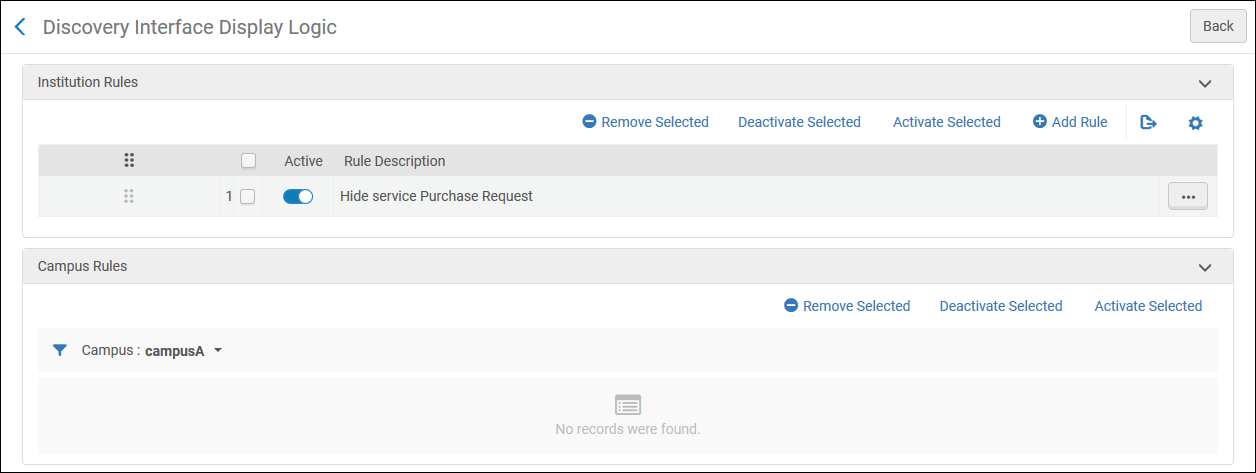
ディスカバリーインターフェイスの表示ロジックページで表示ロジックルールを設定します([設定メニュー]> [フルフィルメント]> [ディスカバリーインターフェイスの表示ロジック]> [ロジックルールの表示])。
-
Display logic rules can be configured at the network, institution, and campus levels (if campuses are defined in the system).For configuring campus-level display logic rules, see Defining Display Logic Rules at the Campus Level.
-
ネットワークゾーン(NZ)レベルで表示ロジックルールを設定するには、中央設定ダッシュボードからアクセスします。
-
If display logic rules are configured in the network, the behavior is impacted by the network_display_logic_distribution_members_behavior and network_display_logic_rules_precedence customer parameters.See Configuring Other Settings (Fulfillment).
-
関連するすべての適用可能なルールが適用されます。後続の(低い)ルールが前の(高い)ルールと競合する場合、Almaは最初のルールを適用します。
このページでは、次のアクションを実行できます。
-
Add a display logic rule (see Adding Display Logic Rules)
-
表示ロジックルールを編集します(行アクションリストから編集を選択します)
-
Duplicate a display logic rule (select Duplicate from the row actions list)
-
表示ロジックルールを有効または無効にします。アクティブなスライダーを使用して、各行を個別に有効または無効にできます。または、ルールのグループを選択して、アクションから選択の非アクティブ化または選択のアクティブ化を選択します。
-
表示ロジックルールを削除します(行アクションリストから削除を選択します)
既存の表示ロジックルールのパラメータを編集することはできません。ルールを削除してから、新しいルールを追加できます。
For examples of working with discovery display logic, see Display Logic Rules Examples.
次の表示ロジックルールは、すぐに使用できます。以下のルールはデフォルトでアクティブになっています:
-
サービス表現のクイックアクセスを非表示にする - Primo VEのクイックアクセスセクションを非表示にします
クイックアクセスを使用可能にするには、新しいデジタルビューアを有効にする必要があります。For more information, see To configure the Digital Viewer.
-
目立った著作権を持つサービス表現クイックアクセスを非表示にする(Alma表現のみ)= true – Primoのクイックアクセスセクションから著作権侵害のある表現を非表示にします
-
使用タイプ=補助のサービス表現配送サービスを非表示にする - 使用タイプが補助の表現をPrimoのクイックアクセスセクションから非表示にします。
表示ロジックルールの追加
新しい表示ロジックルールを追加できます。機関内のすべての図書館にルールが適用されます。デフォルトでは、新しいルールが有効になっています。
表現関連のサービス(表現クイックアクセス)は Alma-D レコードにのみ適用されます。
-
[ディスカバリーインターフェイスの表示ロジック]ページ([設定メニュー]> [フルフィルメント]> [ディスカバリーインターフェイスの表示ロジック]> [ロジックルールの表示])で、ルールの追加を選択します。[ルールを追加]ダイアログボックスが表示されます。
-
From the For user from groups drop-down list, select one or more groups to which to apply the rule.グループを選択しない場合、ルールはすべてのユーザーグループに適用されます。
-
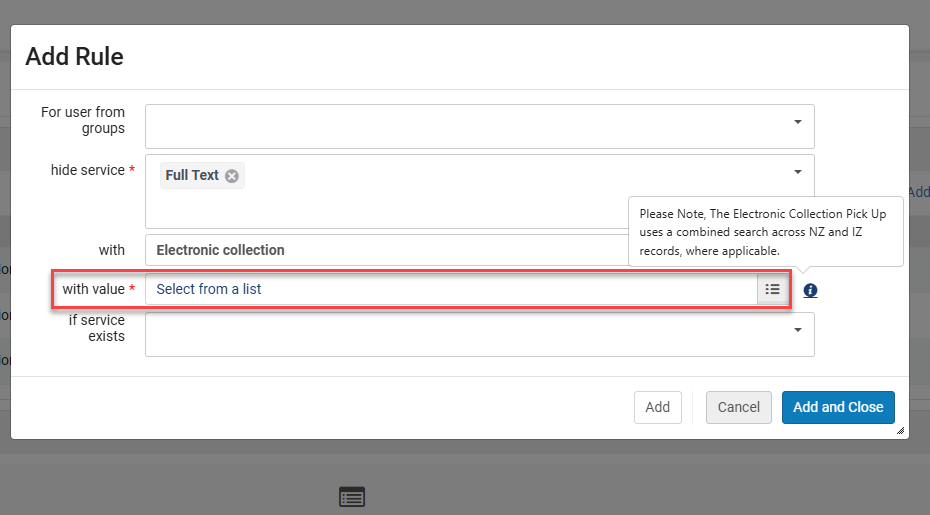
In the hide service drop-down list, select the service(s) that the rule should hide.一部のサービス (フルテキストなど) では、withおよびwith valueフィールドが表示され、このサービスの追加オプションを選択できます。表示されるフィールドは、選択内容によって異なります。次のテーブルを参照してください。
ルールフィールドを追加する サービスを非表示にする with with value 予約、デジタル化、一般取り置きリクエスト、取り置きリクエスト 該当なし 該当なし DBサービス 電子コレクション 1つ以上の電子コレクション名を選択します。 フルテキスト、選択されたフルテキスト、一般デジタル化リクエスト インターフェイス 1つ以上のインターフェイスまたは電子コレクション名を選択します。
For Consortia members, Alma searches for electronic collections from the Member and the Network Zone.
コミュニティゾーンとローカルインターフェイスの両方が利用可能です。電子コレクション 一般電子サービス サービス 一般電子サービスを選択します。
Since rft.genre=unknown is a very general genre, we do notrecommend creating GES rules based on rft.genre=unknown.その代わり、「論文」や「ジャーナル」など、特定のジャンルについてのルールを作成した方が良いでしょう。
オープンアクセス
Note that this service appears when the enable_open_access_services_from_unpaywall_api customer parameter is set to true.See Open Access for more information.
該当なし
該当なし
購入リクエスト キャンパスからの利用可否 物的リソースがキャンパスでの利用可否をリクエストできない場合、サービスを非表示にするにはtrueを選択します。それ以外の場合は、偽を選択します。 他機関からの利用可否 物的リソースが機関での利用可否をリクエストできない場合、サービスを非表示にするにはtrueを選択します。それ以外の場合は、偽を選択します。 キャンパスによる所有 リソースが機関による物的の所有によりリクエストできない場合、trueを選択してサービスを非表示にします。それ以外の場合は、偽を選択します。
To enable self-ownership checks to be performed for serial titles, make sure to set the parameter check_self_ownership_serial to true.See also Configuring Other Settings (Fulfillment).
機関が所有するリソースを非物的フォーマットでリクエストすることをブロックするには、存在するサービスフィールドを次のように設定します。- デジタルリソースの場合 – 表記配信サービス
- 電子リソースの場合 – フルテキスト
機関による所有 リソースが機関による物的の所有によりリクエストできない場合、trueを選択してサービスを非表示にします。それ以外の場合は、偽を選択します。
To enable self-ownership checks to be performed for serial titles, make sure to set the parameter check_self_ownership_serial to true.See also Configuring Other Settings (Fulfillment).
機関が所有するリソースを非物的フォーマットでリクエストすることをブロックするには、存在するサービスフィールドを次のように設定します。- デジタルリソースの場合 – 表記配信サービス
- 電子リソースの場合 – フルテキスト
代表配送サービス、代表のクイックアクセス アクセス権 Select true to hide the service if the resource has access rights configured.それ以外の場合は、偽を選択します。 公開メモ 代表の発行メモフィールドの値に応じて、Primoで代表を非表示にします。 以下は、式が発行メモフィールドにある場合に表示で代表を非表示にするように表示ロジックルールを設定できるレギュラー式の例です。フラグを使用して、式で大文字と小文字が区別されるかを判断できます。- /Restricted Access/ -Restricted Accessというフレーズを含む発行メモと一致します。大文字と小文字が区別されます。
- /Restricted Access/i -Restricted Accessというフレーズを含む発行メモと一致します。大文字と小文字が区別されます。
- /^(?!Open Access$)-Open Accessと等しくない発行メモと一致します。大文字と小文字が区別されます。
- /^((?!Open Access).)*$/i Open Accessというフレーズを含まない発行メモと一致します。大文字と小文字が区別されます。
使用タイプ Select primary (master) to hide the service for representations with the usage type of primary (master) and select derivative to hide the service for representations with the usage type of derivative. 代表タイプ リモートを選択するとリモート代表のサービスが非表示になり、非リモートを選択するとリモート代表が非表示になります。 ビューア Select a viewer to hide the service if the resource is configured to be displayed by that viewer.
クイックアクセスを使用可能にするには、新しいデジタルビューアを有効にする必要があります。For more information, see To configure the Digital Viewer.
邪魔な著作権(代表クイックアクセスのみ) リソースが邪魔な著作権を有効にして設定されている場合は、サービスを非表示にします。 リソース共有リクエスト キャンパスからの利用可否 リソースがキャンパスで使用可能な場合、サービスを非表示にするには真を選択します。それ以外の場合は、偽を選択します。 他機関からの利用可否 リソースが機関で利用可能な場合、サービスを非表示にするには真を選択します。それ以外の場合は、偽を選択します。 キャンパスによる所有 リソースがキャンパスによって所有されている場合、サービスを非表示にするには真を選択します。それ以外の場合は、偽を選択します。 機関による所有 リソースが機関によって所有されている場合、サービスを非表示にするには真を選択します。それ以外の場合は、偽を選択します。 リソースシェアシステム リソースシェアシステムを選択します。 リソースタイプリソース共有リンクを非表示にするリソースタイプを選択します。For information on how to add resource types, see Configuring Resource Types for Primo VE.The with valuekit, is only supported for Primo VE customers, not Primo customers. -
If you want hide a service, only in the case when another service already exists, in the If exists service multiple select drop-down list, select the other service(s).
一部のサービス (フルテキストなど) では、withおよびwith valueフィールドが表示され、このサービスの追加オプションを選択できます。フィールドについては、上の表を参照してください。
リソースシェアリクエストの場合、リソースにアイテムのない所蔵がある場合、それは自己所有とは見なされません。アイテムのない所蔵があるリソースを非表示にするには、一般取り置きリクエストサービスが存在する場合、リソースシェアリクエストサービスを非表示にします。
-
以下のうちの1つを入力してください:
-
追加 - ルールを追加しますが、ダイアログボックスを開いたままにして、追加のルールを追加できるようにします。
-
追加して閉じる - ルールを追加して、ダイアログボックスを閉じます。
-
-
複数のルールを定義する場合は、[ディスカバリーインターフェイスの表示ロジック]ページで、上へ移動および下へ移動矢印を使用してルールの順序を設定します。Almaは、設定された順序で有効なルールを適用します。
表示ロジックルールの例
次のルールは、サービスページにEBSCOhostのフルテキストが含まれているか表示されている場合、EBSCOhost Consumer Health Completeの表示を非表示にします。
この例では、EBSCOhostがインターフェイスとして識別されます。
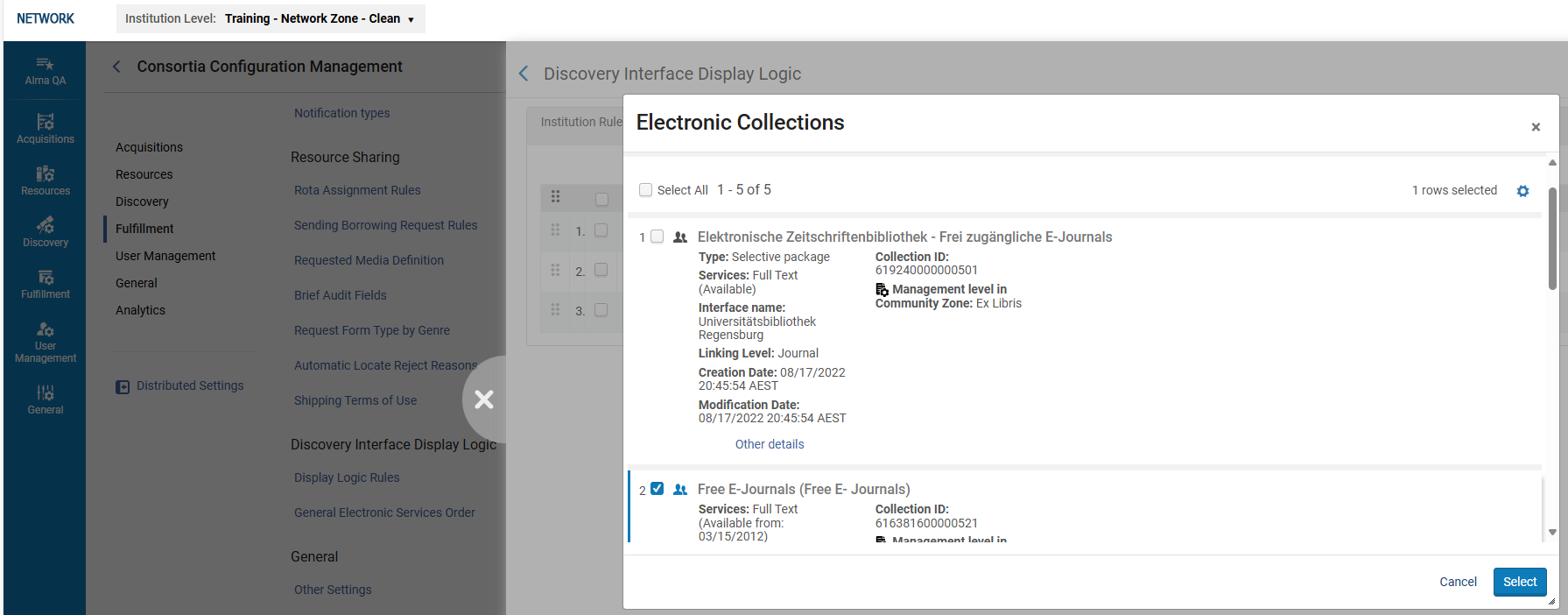
The following example shows the adding of a rule to a member configuration from the Network Zone.
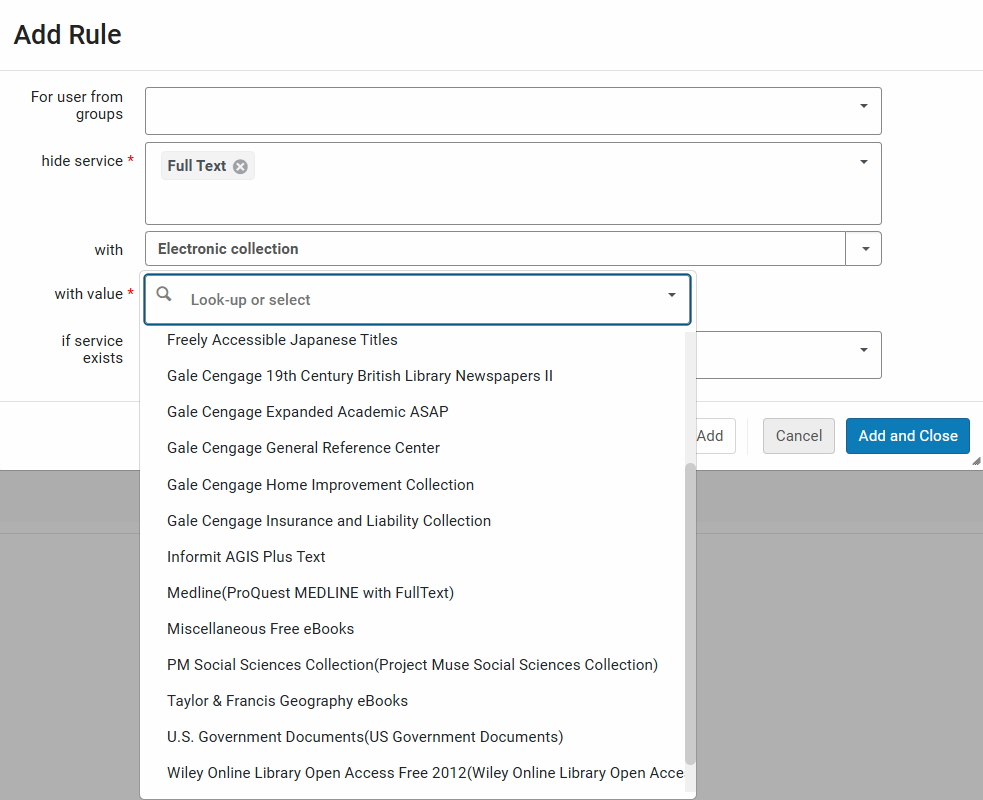
- ネットワーク設定では、フルテキストサービスはネットワークゾーンとローカル機関の両方から統合された電子リソースの一覧を提供します。
- NZ レベルでは、NZ リソースと IZ リソースを区別することはできません。したがって、メンバー構成を変更するために NZ レベルでドロップダウンを選択すると、リストはグローバル化されます。
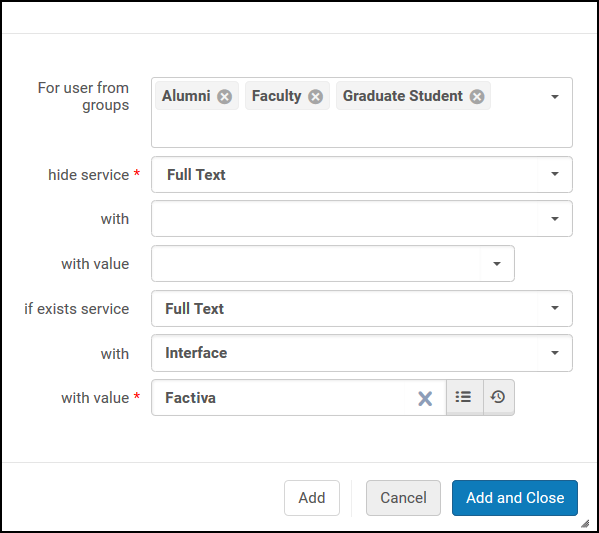
次のルールは、Factivaからフルテキストが利用可能な場合、他のすべてのパッケージおよびインターフェイスからフルテキストの表示を非表示にするよう指定します(これは、サービス非表示パラメータに関連付けられた空白オプションによって示されます)。
Configuring the Order of Online Services
- 一般システム管理者
- フルフィルメント管理者
[オンラインサービスのオーダー]ページ([設定メニュー] > [フルフィルメント] > [ディスカバリーインターフェイス表示ロジック] > [オンラインサービスのオーダー])で、[表示する]のサービス結果リストに表示されるサービスのオーダーを設定できます。(See also How to Use Online Services to Control the Order of the Services in Primo).
ネットワークゾーンを持つネットワークに参加している場合は、オンラインサービス順序設定の管理を中央構成ダッシュボードから行うことができます。
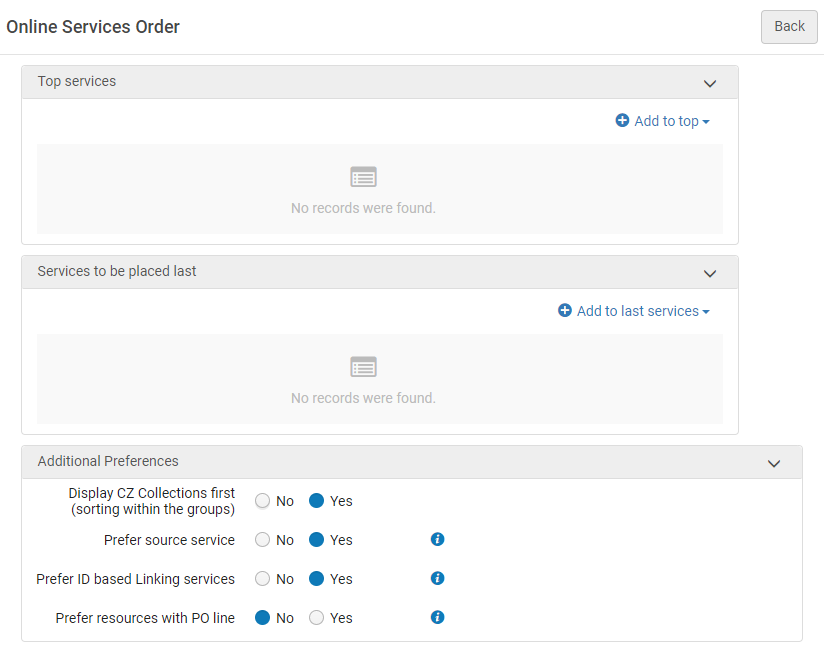
デフォルトでは (上位グループまたは下位グループにサービスが追加されていない場合)、すべてのサービスが Primo ビューのサービス結果リストにアルファベット順に表示されます。If services are added to the top group, they will always display at the top of the Primo view (before other services).Services added to the bottom group will always display at the bottom of the Primo view (after the other services).Within the top group and bottom groups, services display in the order in which they are configured in the Online Services Order page.
上位グループまたは下位グループに表示するように構成されていないサービスは、上位グループの後、下位グループの前に Primo ビューで表示されます。これらのサービス (上位グループまたは下位グループの一部ではない) 内では、表示順序はアルファベット順です。
The Display CZ Collections first,Prefer source service, and Prefer ID based Linking services(see Configuring Direct Linking and Direct Links) options also override both the default alphabetic sort order (for services that are not part of the top or bottom group) and override the order for the list of services in the Top services section.The top service defined can be used by Primo's direct linking option, from the search result record.
Alternatively, you can order the services in a specific sequence, using the Prefer resources with PO line option.
If all additional preferences are selected (set to Yes), then the services are displayed in View It in the order below:
- Services of collections/portfolios that have a linked PO Line (i.e., subscribed services or owned).
- IDベースのリンクされたサービス。
- ソースサービス
- コミュニティゾーンコレクション。
- トップサービス。
- ボトムサービス。
指定されていないレベルはアルファベット順に並べられています。For example if the first four options above were all set to No,and no items were added to the top or bottom list, then the sorting would be alphabetical.
-
このページには保存ボタンはありません。ここで行われたすべての選択は、Almaに自動的に保存されます。
-
電子コレクションの公開名(上書き)を変更するには、特定の電子コレクションのオンラインサービス注文設定を再設定する必要があります。
-
独立系機関では、オンラインサービスの順序は機関レベルでのみ設定できます。
-
ネットワークゾーンを持つネットワークに参加している場合は、オンラインサービス順序設定の管理を中央構成ダッシュボードから行うことができます。
-
(New for February 2026) The Member Administrator can select from a combined list of electronic resources activated at Network Zone and Institution Zone levels in the Online Services Order configuration.At the Network Zone level, the operator (from the dashboard) can update the order for these services for the Network (only local resources from the network) and for the Members (combined list of local and network resources).See also the note below.
-
Open the Online Services Order page (Configuration Menu > Fulfillment > Discovery Interface Display Logic > Online Services Order).
-
オンラインサービスのオーダーページで、先頭に追加を選択してサービスに高い優先度を割り当てるか、最後のサービスに追加を選択して低い優先度をサービスに割り当てます。未割り当てサービスは、リストの中央に表示されます。[サービスの追加]ダイアログボックスが開きます。
Selections made in the Additional Preferences section take precedence over the services selected as top services.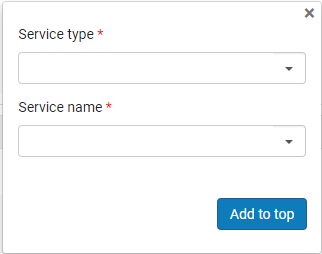
-
サービスタイプフィールドで、次のサービスタイプのいずれかを選択します。
The Service type "DB Service" is obsolete.Do not select it.-
フルテキスト
-
選択されたフルテキスト
-
-
サービス名フィールドで、選択したサービスタイプの名前を選択します。The Service value field appears.(New for February 2026) Search for and select a service value.
- 独立系機関は、機関ゾーンで有効化されているコレクション/インターフェースを選択できます。
- (2026年2月開始)所属機関がコンソーシアムのメンバーである場合、機関ゾーン管理者はネットワークゾーンで有効化されたコレクション(フルテキスト/選択されたフルテキスト)も確認できます。
-
サービスに割り当てる優先度のタイプに応じて、先頭に追加または最後のサービスに追加を選択して、選択した優先度リストにサービスを保存します。
-
上へ移動および下へ移動列の矢印を選択して、先頭のサービスおよび最後となるサービスをリスト表示します。
-
CZコレクションを最初に表示フィールドで、次のオプションのいずれかを選択します。
この優先順位は、顧客パラメータマッピングテーブルのuresolver_display_cz_records_firstパラメータでも設定できます。For more information, see Configuring Other Settings.-
Yes – The unspecified online resources that are not assigned to the top or bottom group are sorted alphabetically.さらに、コミュニティゾーンのリソースはアルファベット順に並べられ、各レベルの最初にリスト表示されています。
-
No – The unspecified online resources that are not assigned to the top or bottom group are sorted alphabetically.コミュニティゾーンリソースは優先されません。
-
-
Set Prefer source service to Yes to improve the sorting relevance of online resources offered by the Services Page for OpenURLs coming from CDI.このオプションは、OpenURLのソースに一致するサービスに最高の優先順位を付けます。たとえば、CDIを検索するユーザーがGaleの記事を発見し、AlmaリンクリゾルバーがGaleおよびEBSCOからサービスを提供できる場合、AlmaはGaleからのサービスを結果の一番上に配置し、次に このページのソート設定で定義される残りの電子サービスを配置します。これは推奨オプションです。
-
In the Prefer ID based Linking Services field, select one of the following options:
この優先順位は、顧客パラメータマッピングテーブルのuresolver_use_source_to_target_orderingパラメータでも設定できます。For more information, see Configuring Other Settings.静的URLが使用されている場合、どのオプションも適用されません!
表示ロジックルールを使用してサービスが非表示にされた場合、このオプションに選択された値に関係なく、サービスは表示されません。-
はい - 優先IDを持つコレクションが定義されている場合、他のソート条件に関係なく、常に最初に表示されます。If more than one preferred collection is defined, the display preference for those collections is then based on the sort configuration as defined on the Online Services Order page.現在、次のベンダーがリンクに優先IDを使用しています:Cambridge University Press、Elsevier ScienceDirect、Erudit、Gale、Ingenta、Institute of Physics、JSTOR、Nurimedia、Proquest、Sage、Springer、Taylor&Francis、Thieme。
-
いいえ - 優先IDを持つベンダーに優先順位は与えられません。
-
-
To prefer services of collections/portfolios that have a linked PO Line (i.e., subscribed services or owned), select Yes in the Prefer Resources with PO Line.Once enabled, services for portfolios that have a PO Line, either at the level of the collection or at the level of the portfolio itself, are displayed above all the other services.This preference overrides both the default alphabetic sorting order and the list of services listed in the Top Services section.
Configuring Direct Linking
- フルフィルメント管理者
- 統括システム管理者
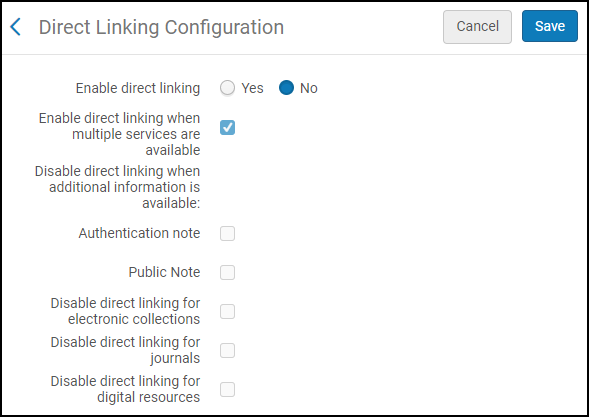
ダイレクトリンク設定により、AlmaはOpenURL対応のソースからのサービスページとメニューをスキップし、デジタルまたは電子サービス(フルテキストなど)にすぐにリンクできます。If the OpenURL context object contains multiple digital or electronic services, the OpenURL link resolver displays the first service in the list (if the Enable direct linking and Enable direct linking when multiple services are available options are enabled).You can configure the order of the services in the Online Services Order page (see Configuring Online Services Order).
[ダイレクトリンクの設定]ページ([設定メニュー]> [フルフィルメント]> [ディスカバリーインターフェイスの表示ロジック]> [ダイレクトリンク])でダイレクトリンクを設定します。このページでは、ダイレクトリンクを有効にして、ダイレクトリンクが上書きされるステータスを指定できます。
-
ダイレクトリンクは、機関レベルでのみ設定できます。フルフィルメント設定ページの設定フィルタから必要な機関を選択します。
- ダイレクトリンクが有効になっている場合、Almaからのアクセスをテストするときに既知の問題があります。For more details, see Test Access for a portfolio in Alma opens a blank tab.
-
[ダイレクトリンク設定]ページ([設定メニュー]> [フルフィルメント]> [ディスカバリーインターフェイス表示ロジック]> [ダイレクトリンク])で、ダイレクトリンクを有効にするパラメータからはいを選択してダイレクトリンクを有効にします。
いいえを選択すると、Primoの検索結果から電子サービスに直接アクセスせず、ユーザーはリンクリゾルバー(SFXまたはAlma)が提供するリストからサービスを選択する必要があります。
はいを選択すると、ダイレクトリンクおよびその他の設定パラメータが有効になります。
-
レコードに基づいてダイレクトリンクを制御できるようにする他のパラメータを設定します。オプションの説明については、以下の表を参照してください。
ダイレクトリンク設定 パラメータ 説明 複数のサービスが利用可の場合はダイレクトリンクを有効化する
レコードで複数のデジタルまたは電子サービスが利用できる場合でも、ダイレクトリンクを有効にします。
オープンアクセスサービスが利用可能な場合、ダイレクトリンクを無効にします
Select this option to disable direct linking when an Open Access Service is available.See Open Access for more information.
追加情報が利用可能な場合にはダイレクトリンクを無効にする:
-
認証メモ
-
発行メモ
レコードに追加情報がある場合でも、ダイレクトリンクを無効にします。
認証メモ
レコードのサービスに認証メモが含まれている場合、ダイレクトリンクを無効にします。
発行メモ
レコードのサービスに公開メモが含まれる場合、ダイレクトリンクを無効にします。
電子コレクションのダイレクトリンクを無効化
Select this option to disable direct linking when the first service (result) in the View It service list is a match between the search in the discovery systemand the electronic collection's bib record.The electronic collection's level URL will appear first in the View It service list in two cases:
-
[表示する]サービスリストで利用できる唯一のサービスです([表示する]での単一の結果)。
-
The electronic collection service result is configured to appear first in the View It service results list via the Online Services Order and Display Logic Rules configurations.See Configuring Online Services OrderandConfiguring Display Logic Rulesfor more information.
ジャーナルのダイレクトリンクを無効化
ダイレクトリンクを有効にするではいを選択し、ジャーナルのダイレクトリンクを無効にするを選択すると、次の条件でダイレクトリンクが無効になります。
-
ポートフォリオの電子資料タイプがジャーナルに設定されている場合。
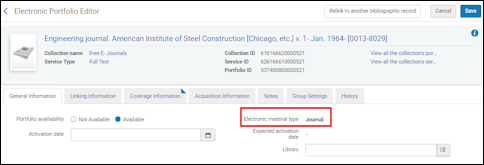 ジャーナルに設定された電子資料タイプその他の電子資料タイプの設定は、ジャーナルとは見なされず、取り扱われません。
-
AlmaがOpenURLから、次のような記事レベルの属性の表示がないと判断した場合:
-
ページ表示 (rft.spage, rft.epage, rft.pages)
-
Doi (rft_id" source1="(info:doi/.*)|(doi:.*))
-
Pmid (rft_id" source1="(info:pmid/.*)|(pmid:.*)
例:
…&rft_id=pmid:28274348&…)
-
Oaid (rft_id" source1="(info:oai/.*)|(oai:arXiv:.*))
-
電子サービスエディタのリンクレベルパラメータの設定は、ジャーナルに設定されている場合でも無視されます。ジャーナルへのダイレクトリンクの無効化に関連して、次のOpenURL属性がサポートされています。
-
Force_direct=true - これは、ダイレクトリンクに関するすべてのAlma設定と、ダイレクトリンクを使用する強制を上書きします。
-
Force_direct=false - これは、ダイレクトリンクに関するAlma設定を上書きし、ダイレクトリンクの使用を強制しません。
-
sfx.directlink=force - これはForce_direct=trueのように扱われます。
-
disable_directlink=true&sfx.directlink=off - これはForce_direct=falseのように扱われます。
OpenURLでダイレクトリンクの有効化とダイレクトリンクの無効化の両方が指定されている場合、ダイレクトリンクの無効化に関連する属性が優先されます。デジタルリソースのダイレクトリンクを無効化
機関が電子リソースのダイレクトリンクを有効にし、デジタルリソースのみを無効にすることを許可します。
-
-
[保存]を選択します。
ディスカバリーインターフェイスでのサービスラベルの設定
- 一般システム管理者
- フルフィルメント管理者
このセクションは、Primoにのみ適用されます。Primo VEおよびAlma-Summon環境に関する情報については、次のページを参照してください。
-
Configuring Display Labels for Alma-Summon
The Discovery Interface Labels Code Table page (Configuration Menu > Discovery > Display Configuration > Labels) contains predefined labels that appear in Primo.You cannot add or remove these labels, but you can edit the label's text to meet your requirements.For more information about code tables, see Code Tables.
予約のラベルはAlmaで行われます!
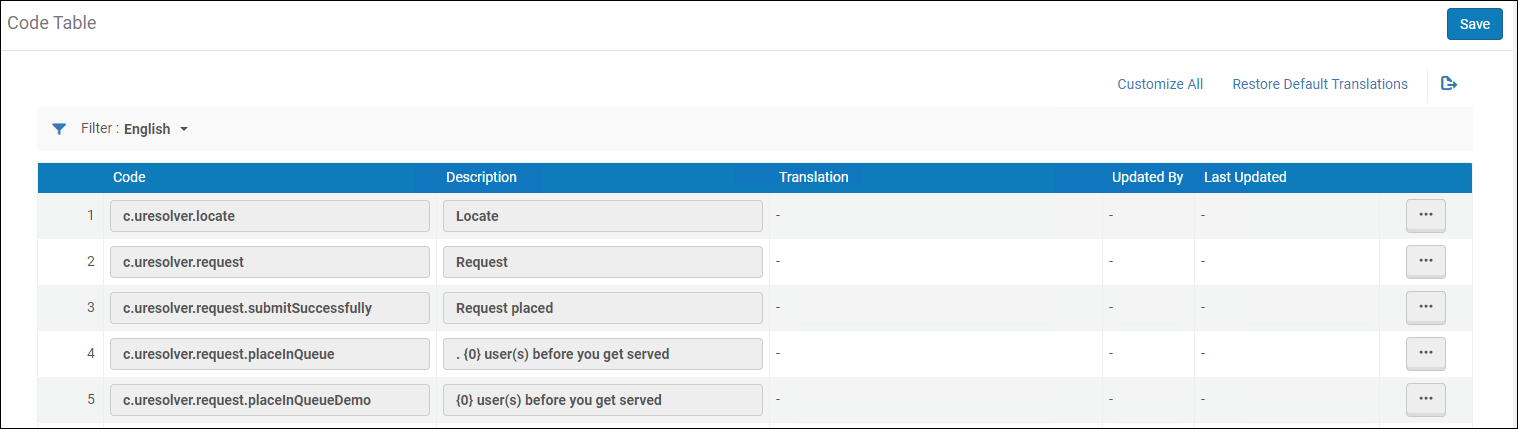
-
ラベルは、機関レベルでのみ設定できます。フルフィルメント設定ページの設定フィルタから必要な機関を選択します。
-
For user-created license terms that appear in Primo, see Viewing User-Created License Terms that Appear in Primo.
-
ラベルの設定に加えて、異なる発行をリクエストするや必要なものが見当たらない?など、特定のサービスを非表示にできます。一般取り置きリクエストサービスを非表示にするように表示ロジックルールを設定して、とりあえずリクエストを使用します。See Adding Display Logic Rules above.
In addition, you can add HTML code to these fields to change the display of labels.たとえば、示されているように次のフィールドを変更すると、次の図に示すように出力が表示されます。
-
c.uresolver.request.request_type=Request Type:<font color=red>ALL FIELDS REQUIRED!</font>
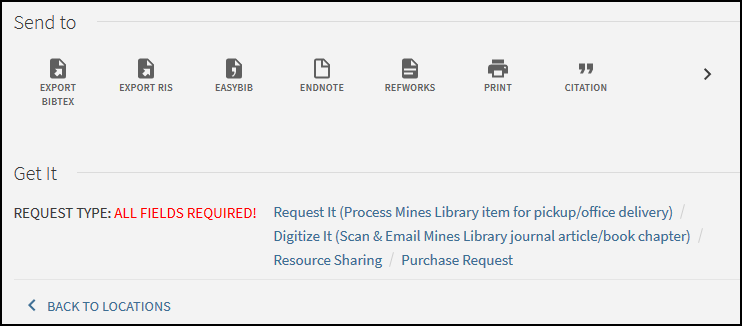
一般的に使用されるラベルのリスト
| ラベルコード | デフォルト値 | インターフェイス内のロケーション |
|---|---|---|
| c.search.htmlCreator.unifiedDisplay |
{0} copy, {0} available, {0} requests Formatted as:{{copies_labels}}, {{available_labels}}, {{requests_labels}}.中括弧内のコンテンツはすべて、他のラベルを表すために変更または翻訳できません。中括弧の各ペアの前、後、または間にテキストを追加できます。または、ラベルの1つを削除できます。 |
次の変数は、アイテムリストにカウントを表示します:
|
| c.uresolver.locate | 見つける | 図書館内のロケーションを見つけるためのリンク(ロケーションマップ)。アイテムリスト(1つだけの所蔵の場合)と所蔵リスト(複数の所蔵の場合)の両方に表示されます。 |
| c.uresolver.request | リクエスト | |
| c.uresolver.request.submitSuccessfully | リクエストされました | このラベルは、リクエストが送信された後に[取得する]に表示されます。 |
| c.uresolver.request.placeInQueue |
For customers that went live before the August 2019 release, the default value is:Place in queue is {0}. For customers going live in August 2019 or later, the default value is:{0} user(s) before you get served. |
このラベルは、リクエストが送信された後に[取得する]に表示されます。 |
| c.uresolver.request.placeInQueue | Place in queue: {0} | This label displays the tentative place in the queue of a hold request, before the request is placed.It is displayed in Get It when the user selects the Calculate Queue button in the request form before placing the request. |
| c.uresolver.request.submitFailed | 資料リクエストを送信できませんでした。図書館に連絡してください。 | このラベルは、リクエストの送信が失敗すると[取得する]に表示されます。 |
| c.uresolver.request.title | あなたがリクエストしたタイトルの詳細 | このラベルは、デジタル化フォームまたは取り置きリクエストフォームの上部に表示されます。 |
| c.uresolver.request.notNeededAfter | 依頼解除日: | このラベルは、取り置きリクエストフォームに表示されます。 |
| c.uresolver.request.Partial.madatoty_comment | デジタル化する部分を追加してください | 部分デジタル化の確認メッセージ |
| c.uresolver.request.institution_dropdown_my_institution | マイ機関 | フルフィルメントネットワーク設定では、リクエストフォームの受け取りロケーションを選択すると、[マイ機関]オプションが表示されます。 |
| c.uresolver.request.institution_dropdown_other_institutions | その他の機関 | フルフィルメントネットワーク設定では、リクエストフォームの受け取りロケーションを選択すると、追加オプションの上に[その他の機関]というラベルが表示されます。 |
| c.uresolver.request.comment | コメント: | このラベルは、リクエストフォームに表示されます。 |
| c.uresolver.request.manualDescription | 手動説明: | アイテムに説明がある場合、またはリソース所蔵に概要所蔵フィールドがある場合は、[取得する]に異なる発行をリクエストするリンクが表示されます。これにより、ユーザーは目録化されていないアイテムをリクエストできます。
異なる発行をリクエストするリンクを選択すると、このラベルがリクエストフォームに表示されます。 |
| c.uresolver.request.submitRequest | リクエスト | このラベルは、リクエストフォームの下部にあるリクエストボタンに表示されます。 |
| c.uresolver.request.refresh | サービスリストの更新 | リクエストを送信すると、[取得する]にサービスリストの更新リンクが表示されます。 |
| c.search.htmlCreator.copy | コピー | アイテムリストの合計コピー数と使用可能なコピー(Xコピー、Y使用可能)の数を表示します。 |
| c.search.htmlCreator.copies | コピー | 利用可否表示 |
| c.search.htmlCreator.request | リクエスト | 利用可否表示 |
| c.uresolver.ServicesForThisTitle | このタイトルのためのサービス | |
| c.uresolver.GeneralElectronicServices | 追加サービス | このラベルは、一般的な電子サービスが利用可能なときに[表示]に表示されます。 |
| c.uresolver.ServicesForRelatedTitles | 関連タイトルのサービス | 関連するレコードがある場合、このラベルは[表示]に表示されます。 |
| c.uresolver.availableOnline.full_text_prefix | フルテキストは以下にあります: | フルテキストサービスが利用可能な場合、ラベルは[表示]に表示されます。 |
| c.uresolver.availableOnline.selected_full_text_prefix | 選択されたフルテキストは以下にあります: | [表示]のフルテキストリンクのプレフィックス。 |
| c.uresolver.emptyList | フルテキストは利用できません | このラベルは、フルテキストサービスが利用できないときに[表示]に表示されます。 |
| c.uresolver.error | 申し訳ございません。このタイトルのサービスの取得中にエラーが発生しました。 | 処理エラーが発生した場合、このラベルは[取得する]および[表示]に表示されます。 |
| c.uresolver.request.ill | リソースシェアリクエスト: | このラベルは、リソースシェアリクエストフォームの上部に表示されます。 |
| c.uresolver.request.ill.citationType.book | 書籍 | このラベルは、リソースシェアリクエストフォームの引用タイプフィールドのオプションとして表示されます。 |
| c.uresolver.request.ill.citationType.article | 記事 | このラベルは、リソースシェアリクエストフォームの引用タイプフィールドのオプションとして表示されます。 |
| c.uresolver.request.ill.format.physical | 冊子 | このラベルは、[リソースシェアリクエスト]タブ> [配送情報]> [フォーマット]> [冊子]にあります。 |
| c.uresolver.request.ill.format.digital | デジタル | このラベルは、[リソースシェアリクエスト]タブ> [配送情報]> [フォーマット]> [デジタル]にあります。 |
| c.uresolver.request.ill.format.physicalNonReturnable | 冊子返却不可 | このラベルは、[リソースシェアリクエスト]タブ> [配送情報]> [フォーマット]> [返却不可の冊子]にあります。 |
| c.uresolver.request.ill.delivery.library | 図書館へ配送 | このラベルは、[リソースシェアリクエスト]タブ> [配送先]> [図書館への配送]にあります。 |
| c.uresolver.request.ill.delivery.alternative | 代替住所 | このラベルは、[リソースシェアリクエスト]タブ> [配送先]> [代替住所]にあります。 |
| c.uresolver.request.ill.volume | 巻: | このラベルは、記事と書籍の両方のリソースシェアリクエストフォームに表示されます。 |
| c.uresolver.request.ill.issue | 発行: |
このラベルは、記事のリソースシェアリクエストフォームに表示されます。 |
| c.uresolver.availableOnline.service_is_temporary_unavailable_due_to | 以下の理由で一時的にサービス利用不可 | This label appears in View It when the service is temporarily unavailable and a Service unavailability reason has been defined in the Electronic Service Editor (see Service Unavailability Reason). |
|
c.uresolver.availableOnline.service_is_temporary_unavailable |
サービスは一時的に使用できません |
This label appears in View It when the service is temporarily unavailable and there is no Service unavailability reason defined in the Electronic Service Editor (see Service Unavailability Reason). |
| c.uresolver.getit2.request.request_options |
各種リクエスト: |
このラベルは、[取得する]のリクエストオプションのリストの横に表示されます。 |
| c.uresolver.getit2.request.monograph | リクエスト | このラベルは、[取得する]のリクエストリンクに表示されます。すべてのアイテムがモノグラフの場合、リンクはタイトルレベルになります。 |
| c.uresolver.getit2.request.serial | リクエスト |
このラベルは、[取得する]のリクエストリンクに表示されます。逐次刊行物アイテムがある場合、リンクはアイテムレベルになります。 |
| c.uresolver.getit2.request.noItems | 必要なものが見当たらない?とりあえずリクエスト |
このリクエストオプションは、アイテムがこのロケーションで利用できない場合に表示されます。リンクを選択してリクエストを作成します。 The request that will be created is a General Request, see Creating a General Hold Request |
| c.uresolver.getit.related_title_display | "{0}" に関連するリストは以下の通りです | |
| c.uresolver.getit2.holding_list.location_map | ロケーションマップ | これは、所蔵リストの[検索]リンクの列タイトルです。 |
|
c.uresolver.getit2.holding_list.related_holdings |
関連する所蔵 |
これは、関連する所蔵品とともに表示されるラベルです。 See the Enabling the Display of Related Records in Primo section for more information. |
| c.uresolver.getit2.ill_request.monograph | リソースシェアリクエスト | すべてのアイテムがモノグラフ(説明なし)であるか、所蔵がない場合、タイトルレベルのリクエストオプションにリソースシェアリクエストリンクが表示されます。 |
| c.uresolver.getit2.ill_request.serial | リソースシェアリクエスト | アイテムの少なくとも1つが逐次刊行物(説明付き)であるか、アイテムが存在しない場合、タイトルレベルのリクエストオプションにリソースシェアリクエストリンクが表示されます。 |
| c.uresolver.getit2.digitization_request.monograph | デジタル化 | すべてのアイテムがモノグラフ(説明なし)であるか、所蔵がない場合、タイトルレベルのリクエストオプションにデジタル化リクエストリンクが表示されます。 |
| c.uresolver.getit2.digitization_request.serial | デジタル化 | ラベルは、Primoの[取得する]のアイテムデジタル化サービスに表示されます。 |
|
c.uresolver.getit2.display_related_holding_separately_from_original_record |
関連タイトルの場所 |
The label that appears above the list of related holdings if the Separately from the original record holdings option is selected.See the Enabling the Display of Related Records in Primo section for more information. |
|
c.uresolver.getit2.display_related_holding |
Alma-Primo:Related title:{0} ({1}) Primo VE:Related title:{0} |
[入手する]に表示され、物的タイトルがレコードに関連していることを示します。 Alma-Primo環境の場合のみ、関係タイプがタイトルの最後に追加されます。例: Related title:Art / (Contains)
|
| c.uresolver.getit2.item_list.pagination.records | レコード | |
| c.uresolver.getit2.item_list.type | タイプ | タイプ列は、Primoの[取得する]の保持アイテムにあります。 |
| c.uresolver.getit2.item_list.policy | ポリシー | ポリシー列は、Primoの[取得する]のアイテムリストにあります。 |
| c.uresolver.getit2.item_list.status | ステータス | ステータス列は、Primoの[取得する]の保持アイテムにあります。 |
| c.uresolver.getit2.item_list.empty | アイテムは存在しません。上記のリクエストオプションを参照してください | アイテムなしの取り置きがある場合、ラベルはアイテムリストにあります。 |
| c.uresolver.getit2.request_different | 異なる発行をリクエストする | アイテムに説明がある場合、またはリソース所蔵に概要所蔵フィールドがある場合、Primoの[取得する]に異なる発行をリクエストするリンクが表示されます。これにより、目録化されていない可能性のあるアイテムをリクエストできるようになります。 |
| c.uresolver.getit2.digitize_different | 別の発行をデジタル化する | 別の発行をデジタル化する列は、Primoの[取得する]の保持アイテムにあります。 |
| dlf.block.expiry | {0}で設定して、ユーザーのブロックの有効期限をマイアカウントページに表示します。たとえば、ラベルの説明にExpired on {0}と入力すると、Expired on 07/07/2017と表示されます。 | |
| dlf.onHoldShelf.until | until {0} | This label appears in the List of Requests in Primo's My Account.ステータスの最初の部分はステータスに基づいているため、設定できない場合があります。{0}までのテキストのみが設定可能です。 |
| c.uresolver.request.part_to_digitize | デジタル化する部分: | ラベルは、Primoの[取得する]のデジタル化リクエストに含まれています。 |
| c.uresolver.getit2.holding_list.empty.top | 検索は図書館内のどの冊子資料とも一致しませんでした | 所蔵がない場合、これは Primo Get It の最初の行です。 |
| c.uresolver.getit2.holding_list.empty.signed_in_user | 他の図書館からの資料をリクエストするには下記のリンクをご利用ください | 所蔵がない場合、これはPrimoの[取得する]の2行目です(ユーザーがサインインしている場合)。 |
| c.uresolver.getit2.holding_list.empty.signed_in_user.no_services | 利用可能なサービスはありません | 所蔵およびサービスがない場合、これはPrimoの[取得する]に表示されるメッセージです(ユーザーがサインインしている場合)。 |
| c.uresolver.getit2.holding_list.empty.bottom | 問題がありますか?ExLibrisスタッフにお問い合わせください | 所蔵がない場合、この説明は Primo Get It の下部に表示されます。 |
| c.uresolver.getit2.holding_list.empty.guest_user | 他の図書館から資料をリクエストするオプションを受け取るには、サインインしてください | 所蔵がなく、ユーザーがサインインしていない場合、Primoの[取得する]に表示されます。 |
| c.uresolver.getit2.item_list.non_circulating | 貸出不可 | アイテムが貸出可能でない場合(ポリシーに従って)、アイテムリストの下のポリシーは貸出不可になります。 |
| c.uresolver.getit2.item_list.circulating | 貸出可 | アイテムが(ポリシーに従って)貸付可能である場合、アイテムリストの下のポリシーは貸出可です。 |
| c.uresolver.getit2.item_list.alt_call_number_prefix | 追加ロケーション情報: | 代替請求番号のプレフィックスは、[取得する] アイテムページのアイテムの説明の横に表示されます。 |
| c.uresolver.getit2.item_list.status.ITEM_NOT_IN_PLACE | 配置済みでないアイテム | これは、アイテムリストでのステータスです。 |
| c.uresolver.getit2.item_list.status.ITEM_IN_PLACE | 配置済みのアイテム | これは、アイテムリストでのステータスです。 |
| c.uresolver.getit2.item_list.status.ACQ.with_expected_date | {0}までオーダー中 | これはアイテムリストのステータスです(有効期限を含む)。 |
| c.uresolver.getit2.item_list.status.TRANSIT.with_expected_date | {0}まで通過中 | これはアイテムリストのステータスです(到着予定時間は含まれています)。 |
| c.uresolver.getit2.item_list.status.NOPROCESS.with_no_expected_date | 棚にあり | これは、アイテムリストでのステータスです。 |
| c.uresolver.getit2.item_list.status.WORK_ORDER_DEPARTMENT. with_expected_date | \ {1 \}まで{0}の処理中 | これはアイテムリストのステータスです(有効期限を含む)。 |
| c.uresolver.getit2.item_list.status.WORK_ORDER_DEPARTMENT.with_no_expected_date | {0}の処理中 | これを表示するには、作業指示部門を作成し、「作業時間(日数)」の値を999999に設定する必要があります。 |
| c.uresolver.getit2.item_list.status.LOST_LOAN.with_expected_date | {0}以降に紛失しました | これは、アイテムリストでのステータスです。 |
| c.uresolver.getit2.item_list.status.CLAIM_RETURNED_LOAN. with_expected_date | 返却されました。{0}まで | これはアイテムリストのステータスです(期日が含まれています)。 |
| c.uresolver.getit2.item_list.status.LOAN.with_expected_date | {0}までの貸与 | これは、アイテムリストでのステータスです。 |
| c.uresolver.getit2.item_list.status.OVERDUE.with_expected_date | 貸与中 - {0}以降延滞 | これは、アイテムリストでのステータスです。 |
| c.uresolver.getit2.item_list.status.WORK_ORDER_DEPARTMENT. with_no_expected_date | {0}の処理中 | これは、アイテムリストでのステータスです。 |
| c.uresolver.getit2.item_list.status.ILL.with_expected_date | {0}までのILLプロセス | これは、アイテムリストのステータスです(リソースシェアリクエストに期日がある場合)。 |
| c.uresolver.getit2.item_list.status.ILL.with_no_expected_date | ILL処理中 | これは、アイテムリストのステータスです(リソースシェアリクエストに期日がない場合)。 |
| c.uresolver.getit2.item_list.status.TECHNICAL.with_no_expected_date | テクニカル | これは、アイテムリストでのステータスです。 |
|
c.uresolver.viewit.related_type_list.CONTAINS |
関連レコード |
This is the label for the relation type Contains.このラベルは、[表示する]関連のレコードとともに表示されます。 See the Enabling the Display of Related Records in Primo section for more information. |
| c.uresolver.viewit.relatedTemplate | @TITLE (@RelationType) | これは、[表示する]に表示されます。 |
| c.uresolver.missingProvider | フルテキスト表示 | これは、[表示する]のフルテキストへのリンクです。 |
ライセンス情報の表示を有効化
Alma enables you to display electronic resource license information in View It.表示されるライセンス条項は、[表示する]に表示されるライセンス関連のラベルと同様に、Almaで設定できます。
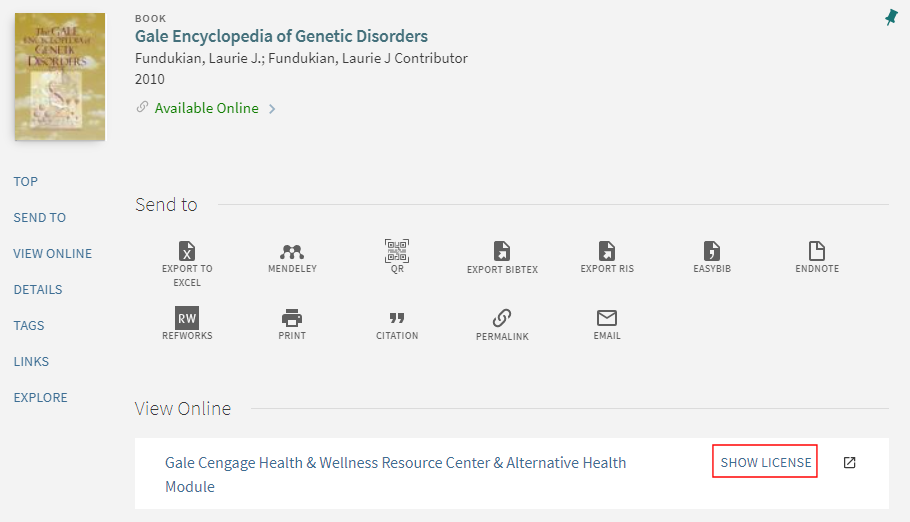
ユーザーがライセンスの表示リンクを選択すると、リンクの名前がライセンスを非表示に変わり、ライセンス情報がAlmaで設定されたとおりに表示されます。
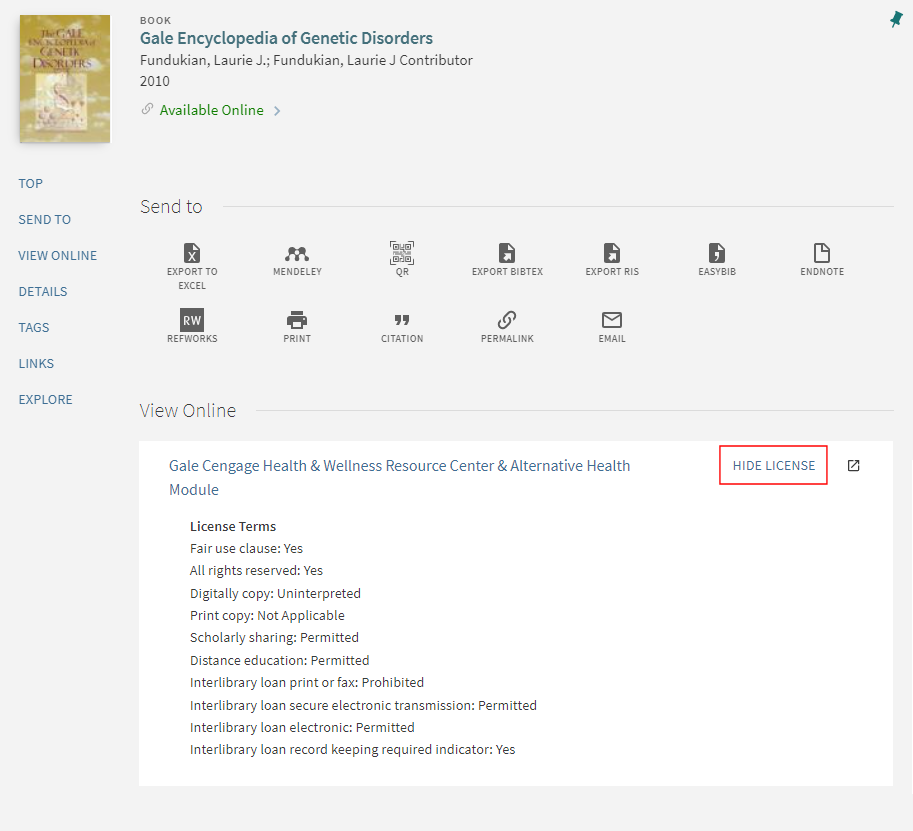
For more information, view the Display License Information in View It video (5:02 mins).
- 受入管理者
- フルフィルメント管理者
- 統括システム管理者
-
[表示する表示するライセンス条項を指定します。For information on the Display to Public field, see Adding a License Term.
-
必要に応じて、c.uresolver.viewit.licenseプレフィックスを含むコードで定義されているライセンス関連のラベルを変更します。For more information, see Configuring Labels for Primo or Configuring Labels for Primo VE.
-
[その他の設定]ページ([設定メニュー]> [フルフィルメント]> [ディスカバリーインターフェイスの表示ロジック]> [その他の設定])を開きます。
-
ライセンス情報の表示を有効にするチェックボックスをオンにしてください。
-
[保存]を選択します。
For more information on configuring the license terms in Alma, see Managing License Terms.
アクセスモデルの表示
To control the presentation of the access model to patrons in Primo, select the Enable Display of Access Model parameter (Configuration Menu > Fulfillment > Discovery Interface Display Logic > Other Settings).This displays the access model information in Primo, based on the access model indicated in the electronic portfolio (see Real-Time Ordering).
このオプションはデフォルトで無効になっています。
CDIリンキングのプロバイダー設定の構成
このセクションは、Primoにのみ適用されます。For related information regarding Primo VE, see Configuring Central Index and Proxy Settings for Primo VE.
To configure provider preferences, you must have one of the following roles:
-
一般システム管理者
-
フルフィルメント アドミン
The Central Index page allows you to configure which providers are given preference when displaying links from CDI in Primo's View It.
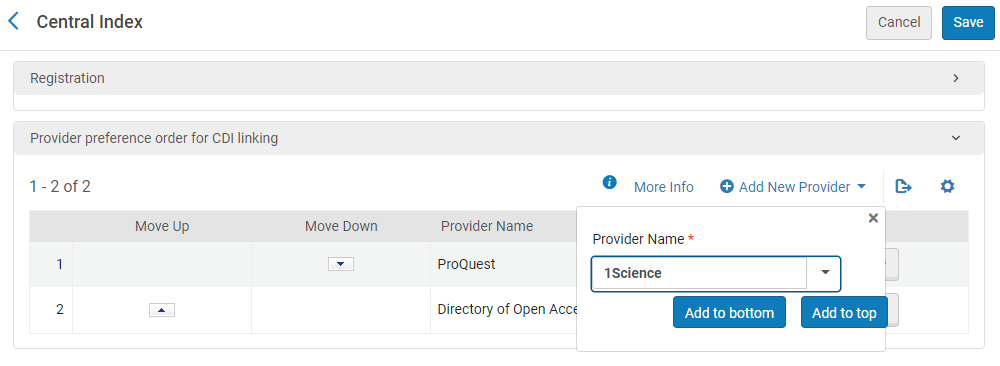
これらの設定は、次の状況で使用されます。
-
When only a single link is returned from CDI, regardless of the setting of the Display All Links from CDI option.
-
When the Display All Links from CDI option is enabled and multiple links are returned from CDI.
-
When Quicklinks are returned from CDI.
The linking preferences apply to both general Link in Record links and Quicklinks and All links.This configuration takes effect immediately and is used when returning search results from CDI.For more information regarding link priority, see CDI and Linking to Electronic Full Text.
すべてのプロバイダーに優先権を追加する必要はありませんが、このリスト内のプロバイダーは、このリストに含まれていないプロバイダーよりも優先されます。
-
Open the Central Index page (Configuration Menu > Fulfillment > Discovery Interface Display Logic > Central Index).
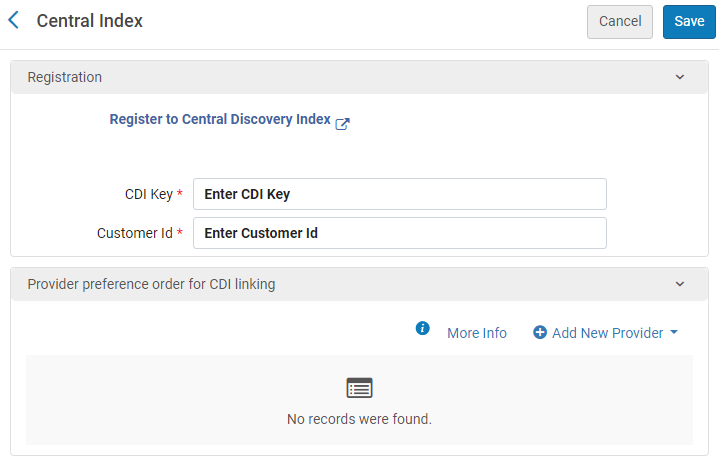 中央索引ページ
If instead you see a list of profiles from which to choose, see Configuring Provider Preferences for Multicampus Environments.
-
If you have not already done so, fill out the Registration section by entering the same CDI Key and Customer ID fields that you are using in Primo, which you can find in the PC Key and Customer ID fields in Primo's Institution Wizard (Primo Home > Ongoing Configuration Wizards > Institution Wizard).
After you save your CDI Key and Customer ID, the View my Profile link replaces the Registration link, enabling you to modify your customer and contact details, unsubscribe institutions, and configure your client applications.For more information, see My Profile for CDI.
-
CDIリンクのプロバイダー優先順位セクションで、次の手順を実行して、CDI検索から返されるプロバイダーのリンクを優先します。
-
[新しいプロバイダーを追加] を選択して、 [プロバイダー] ダイアログボックスを開きます。
-
In the Provider Name field, select the provider to which you want to give precedence.This drop-down includes all CDI providers that have Provider Coverage set to Yes in the CDI Collection List.
-
Select either Add to bottom or Add to top to indicate whether the selected provider has more or less precedence than other providers that you have added to the list.
-
[上に移動]/[下に移動]列の矢印を選択して、新しいプロバイダーの優先順位を調整します。
-
追加のプロバイダーに対して上記の手順を繰り返します。
-
-
保存を選択します。
-
Open the List of Electronic Profiles page (Configuration Menu > Fulfillment > Discovery Interface Display Logic > Central Index).
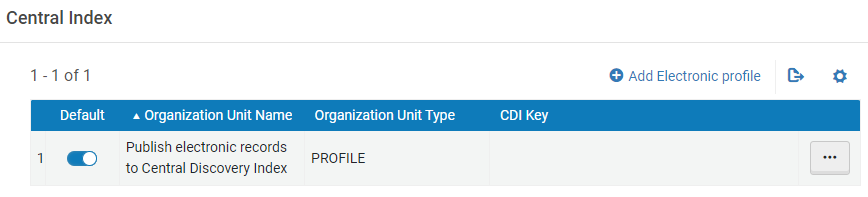 電子プロファイルの一覧ページ
-
Edit the profile for each campus/library that is configured as an institution in Primo.Initially, you must create a profile for each campus/library by selecting the Add Electronic profile option.
-
In the Registration section, enter the same CDI Key and Customer ID fields that you are using in Primo, which you can find in the PC Key and Customer ID fields in Primo's Institution Wizard (Primo Home > Ongoing Configuration Wizards > Institution Wizard).
中央索引ページAfter you save your CDI Key and Customer ID, the View my Profile link replaces the Registration link, enabling you to modify your customer and contact details, unsubscribe institutions, and configure your client applications.For more information, see My Profile for CDI.
-
CDIリンクのプロバイダー優先順位セクションで、次の手順を実行して、CDI検索から返されるプロバイダーのリンクを優先します。
-
[新しいプロバイダーを追加] を選択して、 [プロバイダー] ダイアログボックスを開きます。
-
In the Provider Name field, select the provider to which you want to give precedence.This drop-down includes all CDI providers that have Provider Coverage set to Yes in the CDI Collection List.
-
Select either Add to bottom or Add to top to indicate whether the selected provider has more or less precedence than other providers that you have added to the list.
-
[上に移動]/[下に移動]列の矢印を選択して、新しいプロバイダーの優先順位を調整します。
-
追加のプロバイダーに対して上記の手順を繰り返します。
-
-
-
保存を選択します。
