
Almaのクラシックリポジトリ検索
リポジトリ検索結果
検索結果はレコードリストに表示され、検索に選択されたリソースのタイプに従って表示されます。You can configure the fields and actions that appear for each result; for more information see Record Lists.
検索クエリを保存・再利用
多くの検索結果では、後で使用するために検索を保存できます。クエリの保存は、ロジカルセット作成の別の名前です。ロジカルセットは動的であり、アクセスされるたびに再計算されます。つまり、検索が再実行され、結果がセットになります。クエリ(セット)を保存すると、再利用できる検索条件のセットが保存されます。クエリを実行するたびに、前回の実行以降にレコードが変更された場合、結果が異なる場合があります。反対に、 アイテムセットは、手動で入力された、ファイルからアップロードされた、または以前の検索の結果である(ただし、クエリ用語に関連付けられていない)アイテムの固定コレクションです。ロジカルセットを項目化されたセットに変換できることに注意してください。
For more information about sets, see Managing Search Queries and Sets.
- After performing a search, select Save Query on the search results.詳細設定ページが表示されます。
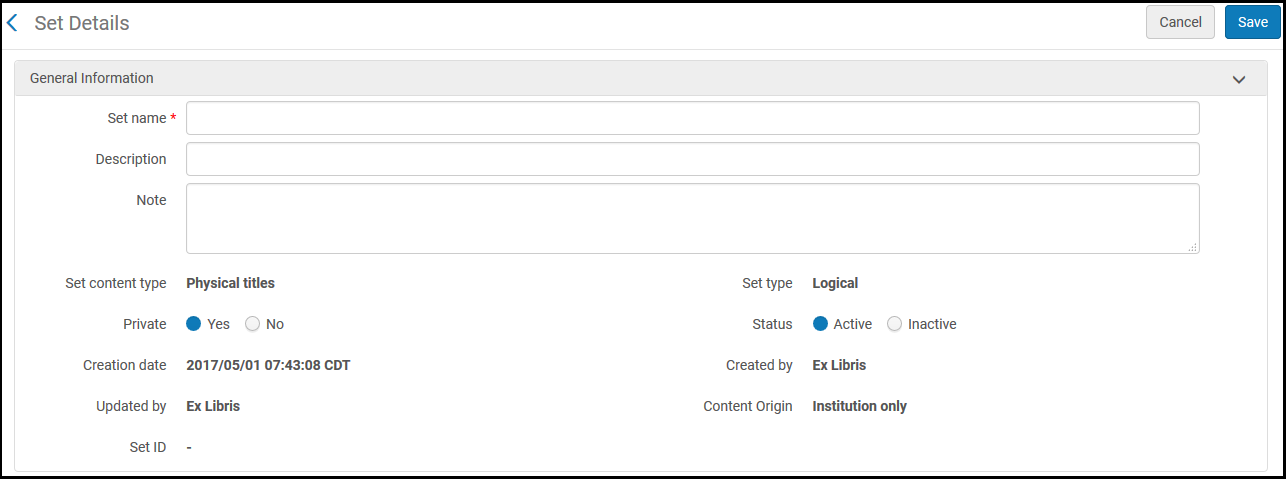
[詳細設定]ページ - Follow the procedure in Creating Logical Sets.
保存されたクエリを使用して検索を実行
To run a saved query; on the Manage Sets page (Administration > Manage Jobs and Sets > Manage Sets), locate the saved query (logical set) and select Results in the row actions list.See Managing Search Queries and Sets.
Sorting Search Results
By default, search results are sorted according to an internal ranking mechanism that is based on Apache Solr; for more information, see http://www.solrtutorial.com/solr-search-relevancy.html.ランキング要因には以下が含まれます:
- Term Frequency- The higher the term frequency in the document, the higher the document score.
- Inverse Document Frequency- The rarer a term is across all documents in the index, the higher its contribution to the score.
- Coordination Factor- The more query terms found in a document, the higher its score.
- Field Length- The more words a field contains, the lower its score.この要因は、より長いフィールド値を持つドキュメントにペナルティを科します。
一部の検索タイプについては、次のオプションを使用してソート順と第二ソート順ドロップダウンリストを使用して並べ替えを変更することができます(Asc=ascendingおよびDesc=descendingの場合)。
- ランク
- タイトル - 昇順
- タイトル - 降順
- 著者 - 昇順
- 著者 - 降順
- 発行日 - 昇順
- 発行日 - 降順
- 統一タイトル - 昇順
- Uniform Title – Desc
- Series – Asc
- Series – Desc
これらのオプションは、検索タイプに使用できます。
- 電子コレクション(ソート順のみ)
- 電子ポートフォリオ(タイトルにのみの並び替え)
- コレクション(ソート順のみ)
The sort order for holdings displayed within a single search result is configured by the sort_library_by_relevance customer parameter (see sort_library_by_relevance).
フィルタリングの検索結果
検索結果の左ペインにあるファセットを使用して、検索結果をフィルタリングできます。使用可能なファセットは、検索の種類と検索結果のアイテムによって異なります。
| 検索タイプ | 提供されるファセット |
|---|---|
| デジタルファイル | エンティティタイプ |
| ファイルMIMEタイプ | |
| ファイルサイズ バイト | |
| ファイル拡張子 | |
| 資料タイプ | |
| 物的アイテム | アイテムの資料タイプ |
| 図書館 | |
| プロセスタイプ | |
| 資料タイプ | |
| 電子ポートフォリオ | タイプ |
| インターフェース | |
| 電子コレクションタイプ | |
| サービス | |
| 電子版資料種別 | |
| 利用可否(電子ポートフォリオ) | |
|
Available For (For institutions configured for distributed access to electronic resources and for Network Zone member institutions) |
|
Library - displays portfolios with (For details, see Library set on electronic resource):
|
|
| コレクション | 図書館 |
| 電子コレクション | タイプ |
| インターフェース | |
| 電子コレクションタイプ | |
| 利用可否(電子コレクション)
This facet represents the collection's service availability, such that electronic collections without a service are not considered in the facet count. |
|
|
CDI検索有効化 (Available only when using the Fully Flexible CDI activation model) |
|
|
CDI Search Active For (Shows all campuses via Active for Search, for Electronic Collections but not for Group Settings) |
|
| 図書館 | |
| 典拠 |
見出しの使用法 - 次のように内容によって決定されます。
名前(LDR pos.の場合、9は「a」、「b」、または「e」に等しい) 主題(LDR pos.の場合9は「c」、「d」、または「j」に等しい)
名前(008pos.の場合14は「a」に等しい) 主題(008 pos.の場合15は「a」に等しい) シリーズ(008 pos.の場合16は「a」に等しい) 請求番号または分類(フィールド084が存在する場合) |
| Vocabulary - According to the Authority record's registryId in the "Vocabulary" database table; in Alma Configuration > Resources > Metadata Configuration > Authority Vocabularies > Code(see Configuring Controlled Vocabulary Registry). | |
- コミュニティゾーン (CZ) レコードは、ジャーナル、書籍などの正しい電子コレクションタイプでアップデートされます。
- ローカルに移行された電子コレクションは、すべての場合にジャーナルタイプで移行されます(タイプに関係なく)。
- 新しいローカル電子コレクションには、電子コレクションタイプがありません。
検索結果のカスタマイズ
After a search has been conducted in Alma, users can customize what is visible in the search results.
After searching in Alma, select the gear icon ( ) to customize the search results for the type of search performed.
たとえば、 検索結果に「フルフィルメントメモ」を含めたくない場合は、カスタマイズアイコンを使って削除することができます。
- After searching in Alma, select the gear icon ().The Customize view drop-down option menu is displayed.
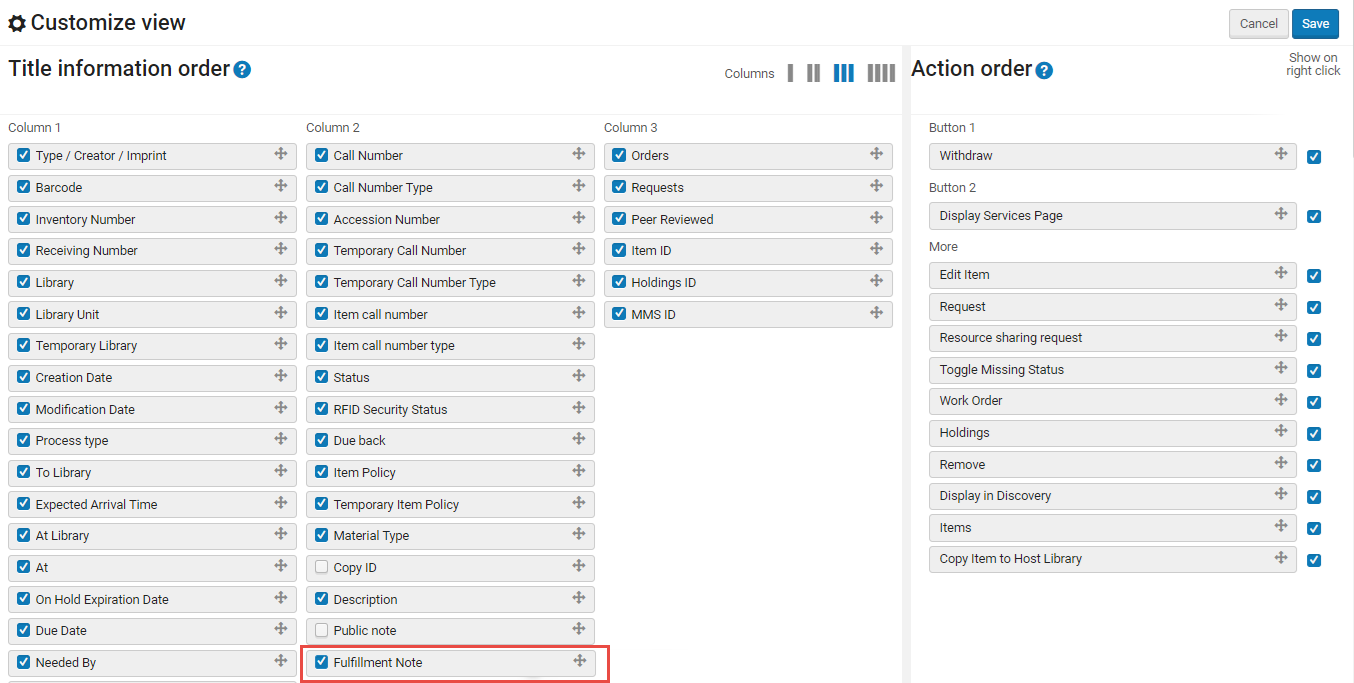 ビューのドロップメニューをカスタマイズ
- Select (
 ) the record field(s) you want to remove from appearing in the search results, for example,Fulfillment Note.
- [保存]を選択します。All the selected record fields are displayed in the search results (if they exist).
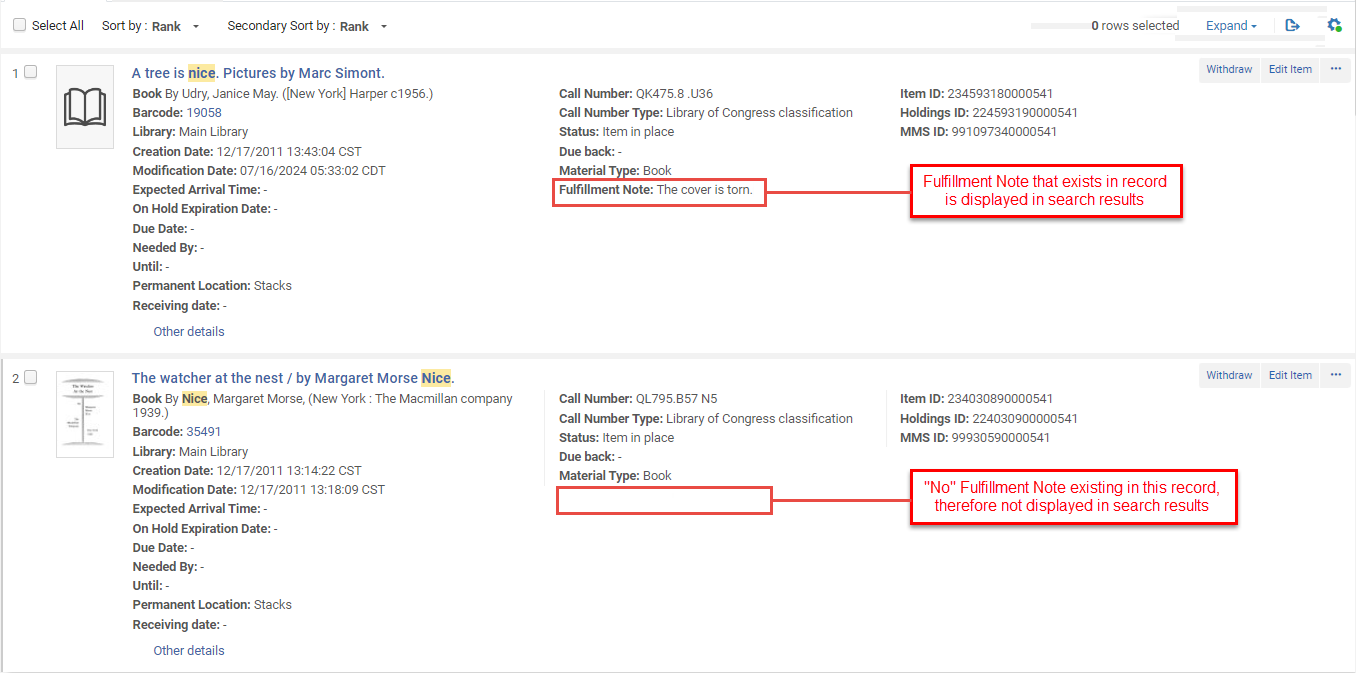 検索結果のレコード表示をカスタマイズする
Counts of Search Results
ファセットには、ファセットラベルの横の括弧内にカウントが含まれます。
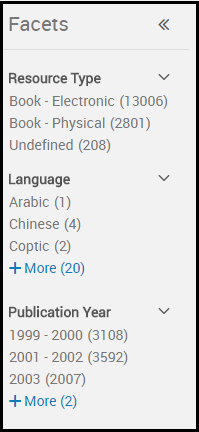
括弧内の数字は、検索結果で提供される合計数に直接関連しています。

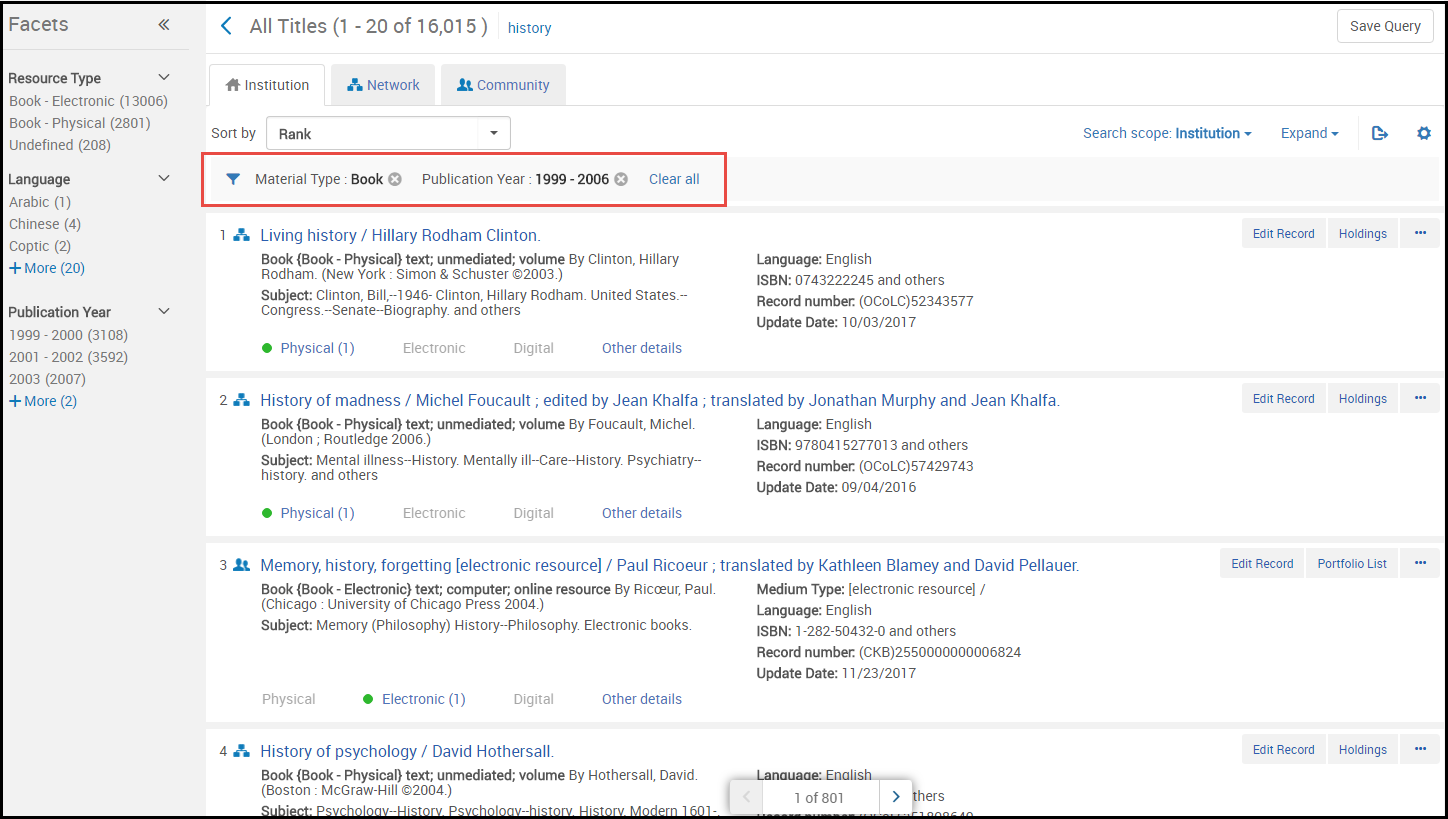
正確なカウントは、結果の総数でのみ提供されます。In all other counts, the count is approximate.多数の検索結果で適切な応答時間を提供するために、Almaは検索結果のおおよそのカウントとファセットカウントを提供します。多数の結果があることから、すべての結果を参照することを計画していないため、正確なカウントは不要であると想定されています。If necessary, you can determine the exact number of results by saving the results to a set and itemizing (see Converting Logical Sets to Itemized Sets).アイテムセットの表示(セットの作成時、セット作成ジョブレポートの表示時、アイテムセットの表示時)に表示されるアイテムの数は正確です。以下のスクリーンショットのように、指定されたカウントが概算として示されている場合もありますが、直接示されていない場合もありますが、どちらの場合も概算です。

ファセットを選択して、検索結果を絞り込みます。複数のファセットが使用可能な場合、複数のファセットを選択できます(以下を参照)。To clear your selection of facets that you previously selected, select beside the facet.全てクリアを選択して、すべてのファセットの選択をクリアします。
ISBN、ISSN、またはタイトルによる電子ポートフォリオのフィルタリング
[ポートフォリオリスト]ページで結果を表示するときに、特定のISBN、ISSN、またはタイトルをリスト内で検索することができます。

検索結果のサムネイル
Alma attempts to display a thumbnail image for titles (either for digital titles only, or for all title types - see Customizing the Thumbnail Display).タイトルにデジタルファイルがある場合、そのファイルのサムネイルが表示されます。If the title has no digital inventory, Alma attempts to acquire a thumbnail image of the cover using the title's ISSN/ISBN/LCCN.サムネイルが利用できない場合、資料タイプの一般的な画像(本、ビデオ、音楽など)が表示されます。
機関、コミュニティ、およびネットワークタブ
該当する機関からの結果は機関タブに表示されます。The Community tab includes results for records in the Community Zone; these are records that are available to all Alma institutions (see Introduction to Resource Management).
所属機関がネットワークゾーンで作業の共同ネットワークのメンバーである場合、ネットワークタブも利用可能です。ネットワークタブには、ネットワークゾーンからの結果が含まれています。For more information regarding the Network tab, see Repository Search in Collaborative Network.You can ask Ex Libris to enable a feature that allows you to display results from your Network Zone in the Institution tab; see Combining Institution and Network Zone Search Results.
検索結果アイコン
表示しているタブによっては、検索結果の横に次のアイコンが表示される場合があります。リンクされたレコードは、ターゲットレコード(コミュニティゾーンまたはネットワークゾーン)が更新されると更新されます。
| タブ | アイコン | 記録条件 | Select to Open the Item In |
|---|---|---|---|
| 機関 | 記録はありません | 機関で定義されていません | 該当なし |
| 目録管理グループによる制限 | 該当なし | ||
| アイコンなし | リンクされていない非電子リソース | 該当なし | |

|
レコードが抑制されているか、デジタル表現が非アクティブです。 When a record is suppressed, only the Library staff can see it.The record does not appears in the Primo search results, and students cannot see and cannot request it.For details, see Suppressing Alma Records from Primo. |
該当なし | |

|
査読済み
すべてのタイトル、電子タイトル、電子ポートフォリオ、電子コレクション、物的タイトル、物的アイテム、デジタルタイトル、デジタルファイル、またはコレクション検索を実行すると、次を含むMARC 21書誌レコードにこのアイコンが表示されます: 500 __ $ a査読/査読済み |
該当なし | |

|
オープンアクセス
[すべてのタイトル]、[電子タイトル]、[電子ポートフォリオ]、または[電子コレクション検索]を実行すると、次を含むMARC 21書誌レコードに対してこのアイコンが表示されます: 506 0_ $ f無制限のオンラインアクセス$ 2スター |
該当なし | |

|
リンクされていない、無効化された電子リソース。 このアイコンは、電子検索(電子タイトル/電子ポートフォリオ/電子コレクション)にのみ表示されます。全タイトル検索には適用されず、この検索タイプには表示されません。 |
該当なし | |

|
リンクされていない有効化された電子リソース
|
該当なし | |

|
コミュニティゾーンレコードにリンク済み | コミュニティタブ | |

|
コミュニティゾーンレコードにリンクされていますが、電子タイトル、コレクション、またはポートフォリオは非アクティブです。 This icon only appears in Electronic searches (Electronic Titles/ Electronic Portfolio/ Electronic Collection).全タイトル検索には適用されず、この検索タイプには表示されません。 |
コミュニティタブ | |

|
ネットワークゾーンレコードにリンクされています | ネットワークタブ | |
| コミュニティ | 記録はありません | コミュニティゾーンで定義されていません | 該当なし |
|
|
査読済み
すべてのタイトル、電子タイトル、電子ポートフォリオ、電子コレクション、物的タイトル、物的アイテム、デジタルタイトル、デジタルファイル、またはコレクション検索を実行すると、次を含むMARC 21書誌レコードにこのアイコンが表示されます: 500 __ $ a査読/査読済み |
該当なし | |
|
|
オープンアクセス
[すべてのタイトル]、[電子タイトル]、[電子ポートフォリオ]、または[電子コレクション検索]を実行すると、次を含むMARC 21書誌レコードに対してこのアイコンが表示されます: 506 0_ $ f無制限のオンラインアクセス$ 2スター |
該当なし | |
| アイコンなし | ネットワークゾーンのレコードにリンクされています
と 目録管理グループによる制限 |
該当なし | |
|
|
ネットワークゾーンのレコードにリンクされています
と 機関の記録にリンクされていません と 目録管理グループによる制限なし 注:このアイコンは、機関レコードが上記のネットワークゾーンレコードにリンクされている場合にも表示されます。 |
ネットワークタブ | |

|
機関の記録にリンク
The icon is black if the collection is active but the portfolios in the collection are not.For electronic collections of type 'Database', this icon always appears black in the Community tab, since a database does not have portfolios.The correct indication for electronic collections of type 'Database' is in the Institution tab. |
機関タブ | |
| ネットワークゾーンのレコードにリンクされています
と 機関の記録にリンク See notes above. |
最後に追加されたリンク。 | ||
| ネットワーク | 記録はありません | ネットワークゾーンで定義されていません | 該当なし |
|
|
査読済み
すべてのタイトル、電子タイトル、電子ポートフォリオ、電子コレクション、物的タイトル、物的アイテム、デジタルタイトル、デジタルファイル、またはコレクション検索を実行すると、次を含むMARC 21書誌レコードにこのアイコンが表示されます: 500 __ $ a査読/査読済み |
該当なし | |
|
|
オープンアクセス
[すべてのタイトル]、[電子タイトル]、[電子ポートフォリオ]、または[電子コレクション検索]を実行すると、次を含むMARC 21書誌レコードに対してこのアイコンが表示されます: 506 0_ $ f無制限のオンラインアクセス$ 2スター |
該当なし | |
| アイコンなし | コミュニティゾーンレコードにリンクされていません
と 機関の記録にリンクされていません |
該当なし | |
|
|
コミュニティゾーンレコードにリンク
と 機関の記録にリンクされていません(黒は無効な電子タイトル、コレクション、またはポートフォリオを示していることに注意してください) |
コミュニティタブ | |
|
|
機関の記録にリンク
The icon is black if the collection is active but the portfolios in the collection are not. |
機関タブ |
目録/その他の詳細を表示
For title search results, the inventory tabs (Physical,Electronic, and/or Digital),Available For information (see Search Results with Restricted Access), and the Other Details tab appear below each result (see Search Results Tabs for more information).The number of holdings/portfolios/representations appear in parentheses in the name of the tab.タブを選択して、結果に関する詳細情報を展開または折りたたみます。See Record Lists for more options.
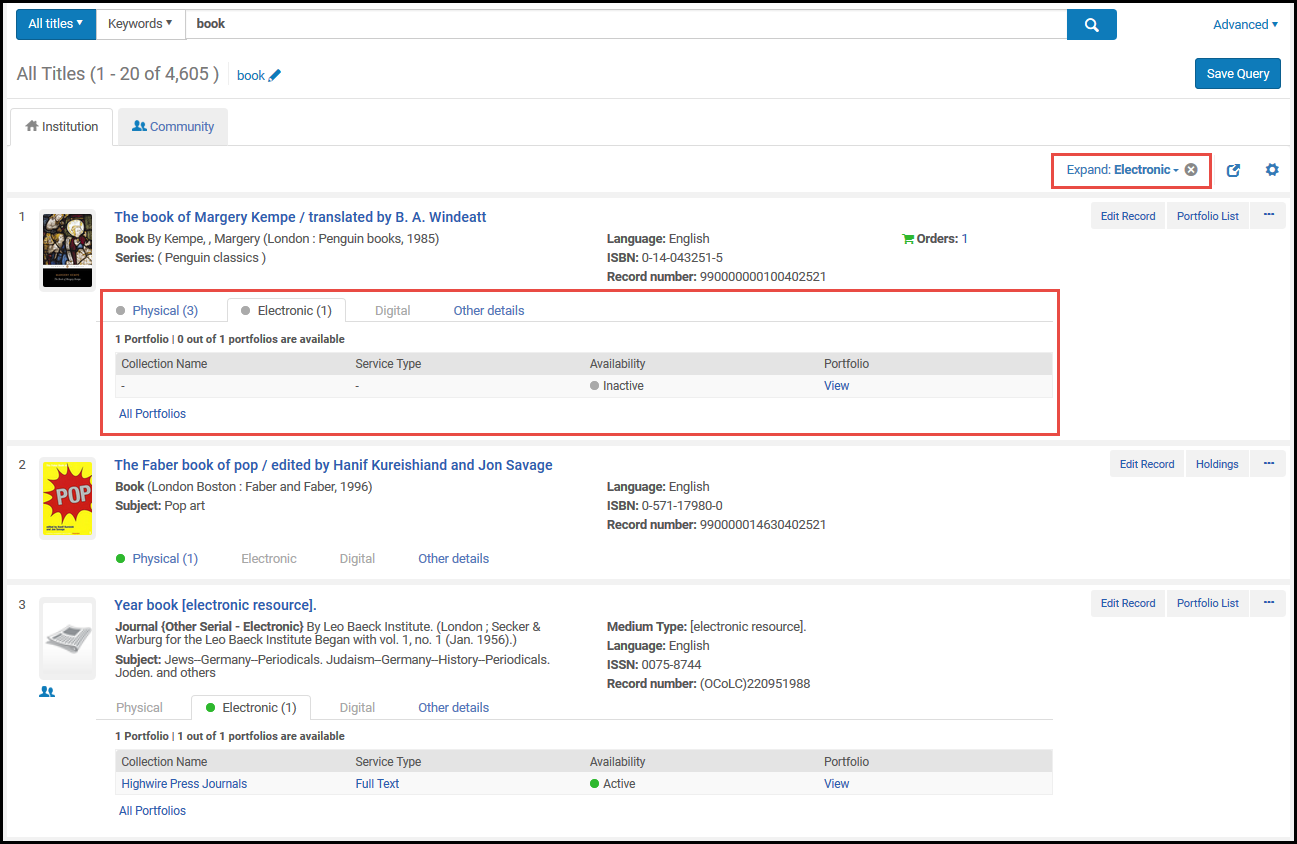
さらに、物的タイトルの検索結果では、特定のタイトルの関連アイテムに移動して、それらを物的アイテムの検索結果として表示できます。This allows the Inventory Operator would like to check possible availability in holdings and items in its hierarchy, and also in related holdings or items: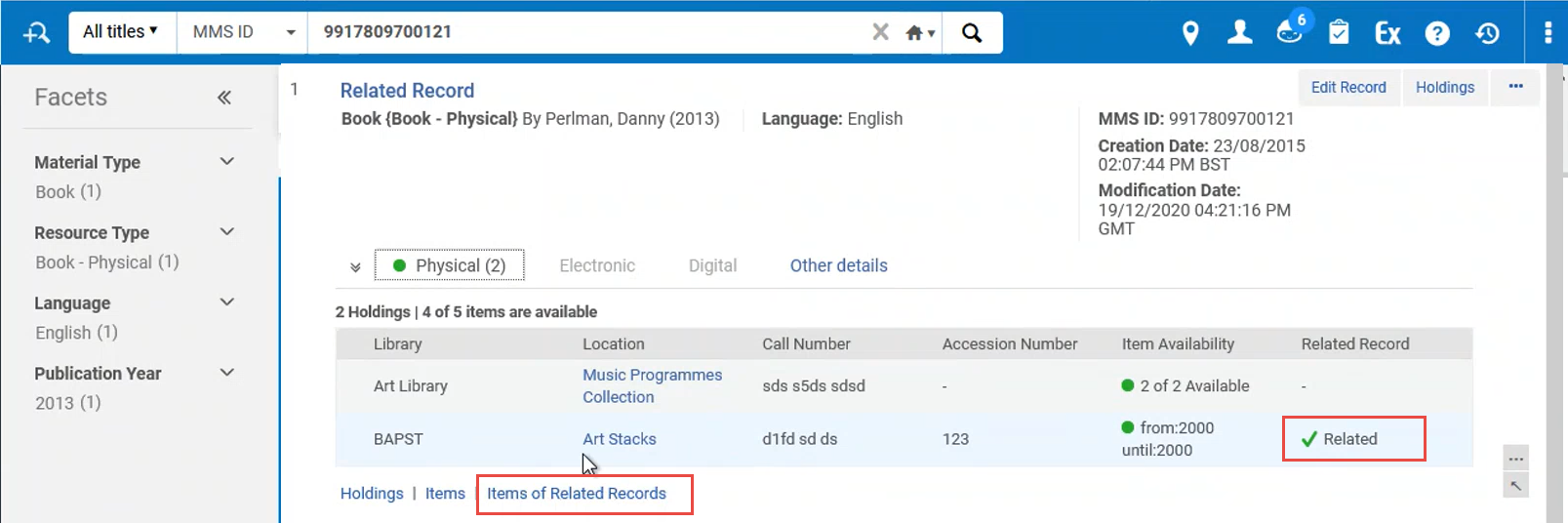
Note that when a specific item or volume or issue are being referenced in the related record (the 77X field contains a $g with specific item information, or even when $g is unspecified), only the relevant holding or item record is shown when using these new navigation links.
| タブ | 説明 |
|---|---|
|
物的 |
タイトル所蔵とアイテム情報を、所蔵リストのページおよびアイテムのリストページへのリンクとともに表示します。
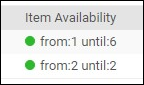
所蔵があり、少なくとも1つの所蔵にアイテムがある場合、タブヘッダーに緑色の点が表示されます。所蔵がある場合は灰色の点が表示されますが、いずれにもアイテムが配置されていません。物的タブのヘッダーの横に表示される数字は、そのタブの所蔵レコードの数を示します。表示される番号は、実際の所蔵と、一時的な場所にあるアイテムの集合を表す「仮想」所蔵の両方の組み合わせであることに注意してください。 [物的]タブには、次の情報の列が含まれています:図書館、場所、請求記号、アクセッション番号、アイテムの利用可否、および関連レコード。[アイテム利用可否]列に表示されるデータは、次の方法で決定されます:
これらの条件が存在しない場合、アイテムの可利用可否に灰色のドットが表示されます。
$zは検出ツールでのみ表示されます。
|
| 電子 | コレクション名、サービスタイプ、利用可否、および電子ポートフォリオエディタのポートフォリオへのリンク(表示)を含むタイトルの電子目録を表示します。Select Portfolio List to open the Portfolio List page (see Working with the Portfolio List).
目録があり、少なくとも1つのリソースが有効な場合、タブヘッダーに緑色のドットが表示されます。目録はあるが有効なリソースがない場合、灰色のドットが表示されます。 |
| デジタル | タイトルのデジタル目録を表示します。For each digital representations, this tab displays the label, usage type, repository, number of files, and (if configured for long term digital loans) digital loan availability; and provides a link to view the representation.
すべての代表を選択して、すべての代表の[デジタルリソースエディタ]ページを開きます。 |
| コレクション | コレクション名と各コレクションのコレクションリソースエディタへのリンクを含む、タイトルのデジタルコレクションを表示します。 |
| その他詳細 | 表示内容:
Select the number, name, or ID to access more details. ポートフォリオの場合、次の情報を表示します。
For information on displaying the courses associated with a title, see the View Courses Linked to a Title video (2:43 mins). |

Performing Actions on the Repository Search Results Page
リポジトリ検索結果の使用中に実行できるアクションの説明については、以下の表を参照してください。
| 検索タイプ | アクション | 説明 |
|---|---|---|
| 削除 | アイテムセットからアイテムを削除します。
This action is available only when managing an itemized set; see Viewing and Removing Members of Itemized Sets. |
|
| デジタルファイル | 見る | デジタルオブジェクトを表示します。オブジェクトを表示できるAlma Link Resolver Servicesページを開きます(オブジェクトへのアクセス権/アクセス権がある場合)。
For more information regarding the Alma Link Resolver Services page, see Using the Alma Link Resolver Electronic Services Page. |
| 配信 (新しいデジタルビューアのみ) | 新しいデジタルビューアにファイルを表示します。Only available when the New Digital Viewer is configured.For more information , see Configuring Viewer Services. | |
| 表現 | デジタル表現を編集します。デジタルリソースエディタを開きます。For more information, see Managing Digital Resources. | |
| ダウンロード | デジタルファイルをダウンロードします。 | |
| リソース共有リクエスト | タイトルでリソースシェア取寄せリクエストを開始します。Opens the Resource Sharing Borrowing Request page (see Adding a Resource Sharing Borrowing Task from a Search).このアクションは、リソース共有図書館の範囲内でフルフィルメントサービスオペレーターまたはフルフィルメントサービスマネージャーのいずれかの役職がある場合にのみ表示されます。 | |
| 物的アイテム | 編集 | アイテムを編集します。Opens the Physical Item Editor page (see Updating Item-Level Information). |
| 所蔵 | 所蔵情報を表示します。MARCシンプルレコードビューページ(単一レコード)または所蔵リストページ(複数レコード)を開きます。For more information, see Viewing Metadata Read-Only in the Simple Record View Page and Working with the List of Holdings. | |
| アイテム | アイテム情報を表示します。次のいずれかのページを開きます:
|
|
| リクエスト | Initiates a fulfillment request (see Creating a Request). | |
| リソース共有リクエスト | タイトルでリソースシェア取寄せリクエストを開始します。Opens the Resource Sharing Borrowing Request page (see Adding a Resource Sharing Borrowing Task from a Search).このアクションは、リソース共有図書館の範囲内でフルフィルメントサービスオペレーターまたはフルフィルメントサービスマネージャーのいずれかの役職がある場合にのみ表示されます。 | |
| ワークオーダー | Initiate a work order for the item, such as to request binding or process a withdrawal (see Creating a Request). | |
| その他の情報 | アイテムに関する詳細情報を表示します。次の情報を含む[詳細情報]ダイアログボックスを開きます。
For information on displaying the courses associated with a title, see the View Courses Linked to a Title video (2:43 mins). |
|
| ホスト図書館にアイテムをコピー |
以下の場合に選択してください。
This option appear only when the below takes place (for details, see Joint User of Inventory in Consortia):
|
|
| 電子ポートフォリオ(機関タブ) | 編集 | ポートフォリオを編集します。電子ポートフォリオエディタページが開きます。For more information, see Editing a Portfolio Using the Electronic Portfolio Editor. |
| 表示 | ポートフォリオを表示します。表示モードで[電子ポートフォリオエディター]ページを開きます。 | |
| 有効化/無効化 | ポートフォリオを有効化または無効化します。The resource's icon changes when the activation status changes.For example, when an unlinked portfolio is activated, the icon appears in color ( |
|
| 注文/追加注文 | 発注書を作成します。Opens the PO Line Owner and Type page (see Creating PO Lines). | |
| コミュニティにリンク | ローカルポートフォリオをコミュニティゾーンポートフォリオにリンクする処理を開始します。このオプションは、ローカルポートフォリオが電子コレクションの一部としてではなく、スタンドアロンポートフォリオとして作成された場合にのみ使用できます。
例えば、受入処理中にローカルポートフォリオを作成し、後でそのポートフォリオをコミュニティゾーンの電子コレクションにリンクする場合に、このオプションを使用できます。 When you select Link to Community, the Link Standalone Portfolio to Community Zone Collection wizard opens, in which you 1) select a matching Community Zone portfolio, 2) select a local electronic collection with which to associate the standalone portfolio, and 3) select to use the descriptive metadata from the Community Zone bibliographic record or retain the Institution Zone descriptive metadata. If you choose to retain the Institution Zone descriptive metadata, the portfolio's descriptive metadata will not be synchronized with updates from the Community Zone. After the local portfolio is linked to a Community Zone portfolio, the Link to Community search results action no longer appears and the icon changes from the Institution Zone icon to the Community Zone icon (see Search Result Icons). |
|
| 電子アクティベーションタスクを作成 | 電子アクティベーションタスクを作成し、成功すると確認メッセージが表示されます。 | |
| アクセスのテスト | Test access to the portfolio and display the results on the Alma Link Resolver Electronic Services page (see Using the Alma Link Resolver Electronic Services Page). | |
| 削除 | ローカルポートフォリオまたはコミュニティゾーンにリンクされているポートフォリオを削除します。 | |
| Ex Librisへレポート | Ex Librisにポートフォリオの更新、追加、削除、またはカバレッジリクエストを送信します。Ex Librisページへのレポートを開きます。The contact information provided on the Report to Ex Libris page is defined by an administrator; see Configuring CRM Contacts.
For information on using this option in the Institution tab, see the “Send to Ex Libris” for Local Collections video (3:03 mins). |
|
| リソース共有リクエスト | タイトルでリソースシェア取寄せリクエストを開始します。Opens the Resource Sharing Borrowing Request page (see Adding a Resource Sharing Borrowing Task from a Search).このアクションは、リソース共有図書館の範囲内でフルフィルメントサービスオペレーターまたはフルフィルメントサービスマネージャーのいずれかの役職がある場合にのみ表示されます。 | |
| 電子ポートフォリオ(コミュニティタブ) | 有効化 | 図書館のコミュニティゾーンからポートフォリオを追加および有効化するプロセスを開始します。 |
|
リンキング情報 |
コミュニティゾーンで利用可能なポートフォリオの基本リンク情報を表示するには、このアクションを選択します。 このアクションは、アクティブ化されたポートフォリオとアクティブ化されていないポートフォリオに対して選択できます。 このアクションを選択すると表示されるポップアップには、ポートフォリオをアクティブにすることを選択するオプションもあります。 コミュニティゾーンに存在する場合、静的URLと動的URLの情報がポップアップ表示に表示されます。 |
|
| オーダー | 発注書を作成します。Opens the PO Line Owner and Type page (see Creating PO Lines). | |
| Ex Librisへレポート | Ex Librisにポートフォリオの更新、追加、削除、またはカバレッジリクエストを送信します。Ex Librisページへのレポートを開きます。The contact information provided on the Report to Ex Libris page is defined by an administrator; see Configuring CRM Contacts. | |
| リソース共有リクエスト | タイトルでリソースシェア取寄せリクエストを開始します。Opens the Resource Sharing Borrowing Request page (see Adding a Resource Sharing Borrowing Task from a Search).このアクションは、リソース共有図書館の範囲内でフルフィルメントサービスオペレーターまたはフルフィルメントサービスマネージャーのいずれかの役職がある場合にのみ表示されます。 | |
| コレクション | レコードを編集 | コレクションの書誌レコード(タイトルレコード)を編集します。MDエディタを開きます。 |
| コレクション | コレクションを管理します。
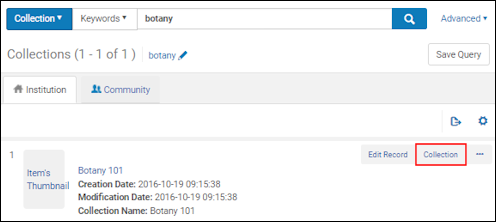 [コレクションリソースエディタ]ページを開きます。このページでは、コレクションの概要情報の表示、このコレクションに関連する履歴の検索、コレクション内のタイトルの表示、コレクションへのサブコレクションの追加ができます。 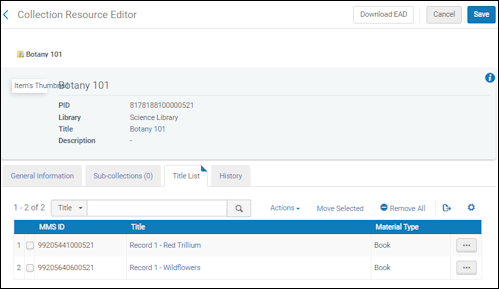 |
|
| タイトルリスト | コレクション内のタイトルのリストを表示します。
 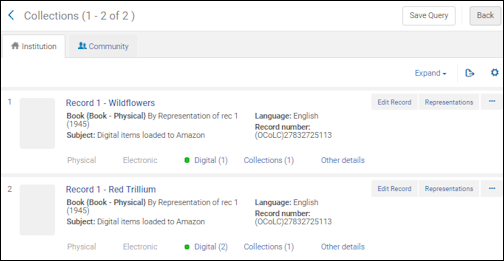 |
|
| コレクションリソースを表示 | データを変更または追加する機能なしで、コレクションのすべての関連サービスおよびコンポーネントを表示します。 | |
| 電子コレクション(機関タブ) | 編集 | 電子コレクションを編集します。電子コレクションエディタを開きます。 |
| CDIでの検索のアクティブ化または非アクティブ化 |
次の3つの条件が満たされている場合、コレクションをアクティブ化または非アクティブ化してCDIで検索できます。
|
|
| CDIのみのフルテキスト有効化を削除 | When the operator has the CDI Inventory Operator role and CDI is configured as Fully Flexible, this option removes the Active for full text in CDI only status from the collection and allows Primo users to access the collection's full text.ステータスが削除されると、元に戻すことはできません。
During CDI enablement, the Active for full text in CDI only status was applied to collections if the following was true prior to enablement:
For more details, see CDI FAQs. |
|
| 削除 | 電子コレクションを削除します。
A confirmation dialog box presents the option to delete the electronic collection (along with deleting associated electronic collection services, portfolios, and e-activation tasks, and unlinking PO lines) and a drop-down list of options (delete, suppress, or do nothing) for handling bibliographic records without inventory when deleting the electronic collection. 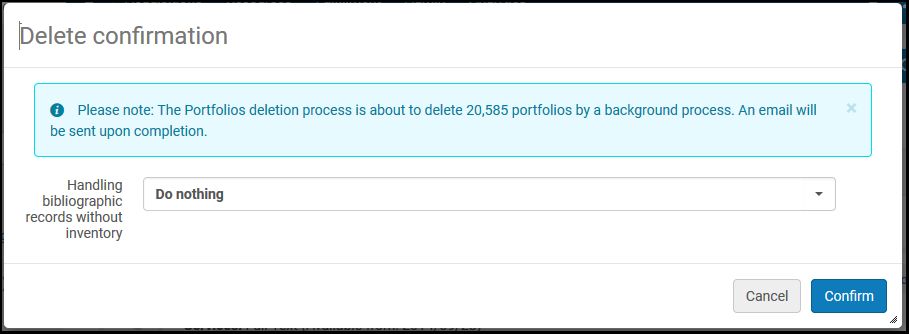 After you select Confirm, a background job runs, deleting the e-collection and its associated components. ジョブの実行中、レコードのアクションボタンは使用できません。ジョブIDはページの上部に表示されます。To monitor the job and view the job report, see Delete Electronic Collection Job Report. ジョブが長時間実行され、アクションがまだ無効になっている場合は、Ex Librisサポートにアクションボタンを復元するように依頼できます。 電子コレクションが空の場合、削除はオンラインで、つまりジョブを実行せずに処理されます。 |
|
| 表示 | 電子コレクションを表示します。表示モードで[電子コレクションエディタ]ページを開きます。 | |
| ポートフォリオリスト(数値) | ポートフォリオリストを表示します。ポートフォリオリストページを開きます。For more information see Working with the Portfolio List. | |
| 注文/追加注文 | 発注書を作成します。Opens the PO Line Owner and Type page (see Creating PO Lines). | |
| コミュニティにリンク | ローカル電子コレクションをコミュニティゾーンの電子コレクションにリンクする処理を開始します。ローカル電子コレクションをコミュニティゾーンにリンクすると、コミュニティゾーンにリンクする電子コレクションにコミュニティゾーン更新の利点があります。See Linking a Local Electronic Collection to the Community Zone for more information. | |
| 電子アクティベーションタスクを作成 | 電子アクティベーションタスクを作成し、成功すると確認メッセージが表示されます。 | |
| 情報を公開 | 電子コレクションに関する公開情報を表示します。次の情報を含む公開情報ページを開きます(一般システム、リポジトリ、カタログ管理者、およびデポジット管理者のみが利用できます):
Learn about debugging publishing information in the Debugging Publishing Information video (1:52 mins). |
|
| サービスを編集 | 電子サービスを編集します。電子サービスエディタが開きます。See Modifying an Electronic Service. | |
| Ex Librisへレポート | Ex Librisにポートフォリオの更新、追加、削除、またはカバレッジリクエストを送信します。Ex Librisページへのレポートを開きます。The contact information provided on the Report to Ex Libris page is defined by an administrator; see Configuring CRM Contacts. | |
| その他の情報 | 電子コレクションに関する詳細情報を表示します。次の情報を含む[詳細情報]ダイアログボックスを開きます。
For information on displaying the courses associated with a title, see the View Courses Linked to a Title video (2:43 mins). |
|
| 電子コレクション(コミュニティタブ) | ポートフォリオリスト(数値) | ポートフォリオリストを表示します。ポートフォリオリストページを開きます。For more information see Working with the Portfolio List. |
| CDIでの検索のアクティブ化または非アクティブ化 |
次の3つの条件が満たされている場合、コレクションをアクティブ化または非アクティブ化してCDIで検索できます。
|
|
| 記述レコード | 電子コレクションの簡易ビューを表示します。MARCレコード簡易ビューページの電子コレクションで利用可能なコミュニティゾーンレベルの書誌レコードを開きます。See Viewing Metadata Read-Only in the Simple Record View Page and Working with Electronic Collection Bibliographic Records and URLs Added to the Community Zone for more information. | |
| 有効化 | 電子コレクションを有効にします。Opens the Activation Wizard (refer to Activating an Electronic Collection Using the Activation Wizard).Where applicable, the collection can also be activated for CDI in the wizard (only when the CDI model is Fully Flexible). | |
| 発注 | 発注書を作成します。Opens the PO Line Owner and Type page (see Creating PO Lines). | |
| Ex Librisへレポート | Ex Librisにポートフォリオの更新、追加、削除、またはカバレッジリクエストを送信します。Ex Librisページへのレポートを開きます。The contact information provided on the Report to Ex Libris page is defined by an administrator; see Configuring CRM Contacts. | |
| 当局(機関タブ) | 利用可否に応じて、検索結果でから見た情報が提供されます。この情報は、4XXフィールドから取得されます。 | |
| こちらも参照 | 利用可能な場合は、検索結果にこちらも参照情報がこの情報へのリンクとともに提供されます。この情報は、5XXフィールドから取得されます。 | |
|
この値に合う書誌レコードを検索 |
このこの値に一致する書誌レコードを検索リンクを選択すると、Almaはこのリンクを選択した際の当局を使用した書誌レコードを検索します。 Note that the search results depend on your linking strategy.リンク戦略がIDに基づいている場合、IDが検索されます。それ以外の場合、テキスト文字列が検索に使用されます。検索結果に表示される値は、これらのレコードが関連機関レコードにリンクされているという事実ではなく、Solr検索に基づいています。 |
|
| 編集 | ローカル機関情報を編集します。 | |
| 権限(コミュニティタブ) | 利用可否に応じて、検索結果でから見た情報が提供されます。この情報は、4XXフィールドから取得されます。 | |
| こちらも参照 | 利用可能な場合は、検索結果にこちらも参照情報がこの情報へのリンクとともに提供されます。この情報は、5XXフィールドから取得されます。 | |
|
この値に合う書誌レコードを検索 |
このこの値に一致する書誌レコードを検索リンクを選択すると、Almaはこのリンクを選択した際の当局を使用した書誌レコードを検索します。 Note that the search results depend on your linking strategy.リンク戦略がIDに基づいている場合、IDが検索されます。それ以外の場合、テキスト文字列が検索に使用されます。検索結果に表示される値は、これらのレコードが関連機関レコードにリンクされているという事実ではなく、Solr検索に基づいています。 |
さらに、すべての検索タイプのページ上部に表示される[エクスポート]ボタンには、検索結果をExcelファイルにエクスポートするオプションがあります。Excelファイル内の情報列は、使用した検索タイプによって異なります。
コレクションと機関を除くすべての検索タイプのExcelファイルには、MMS ID列があります。
For more information, see Export to Excel.
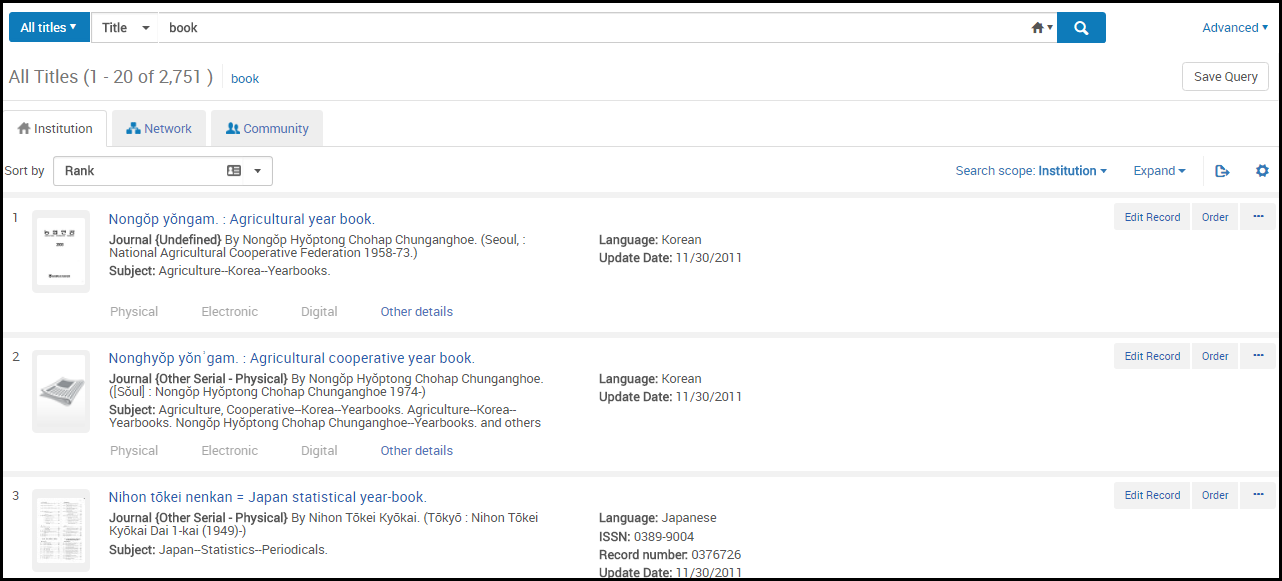
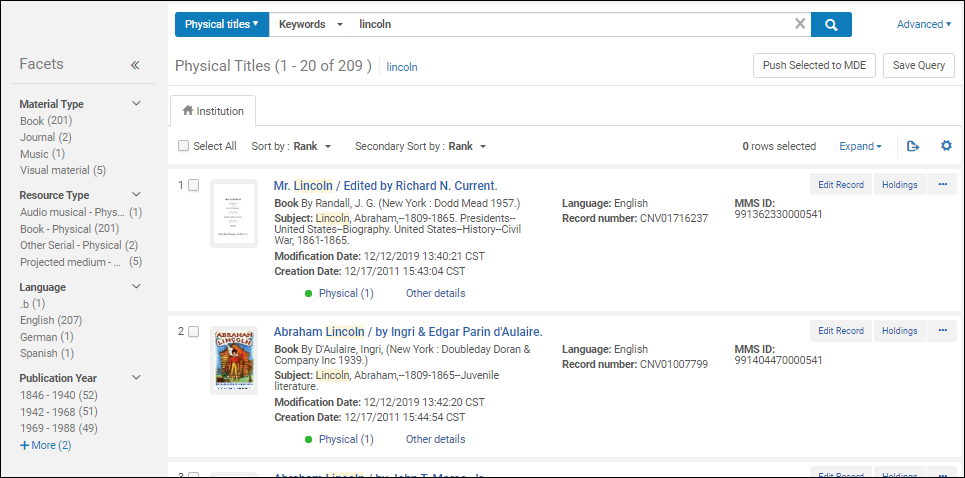
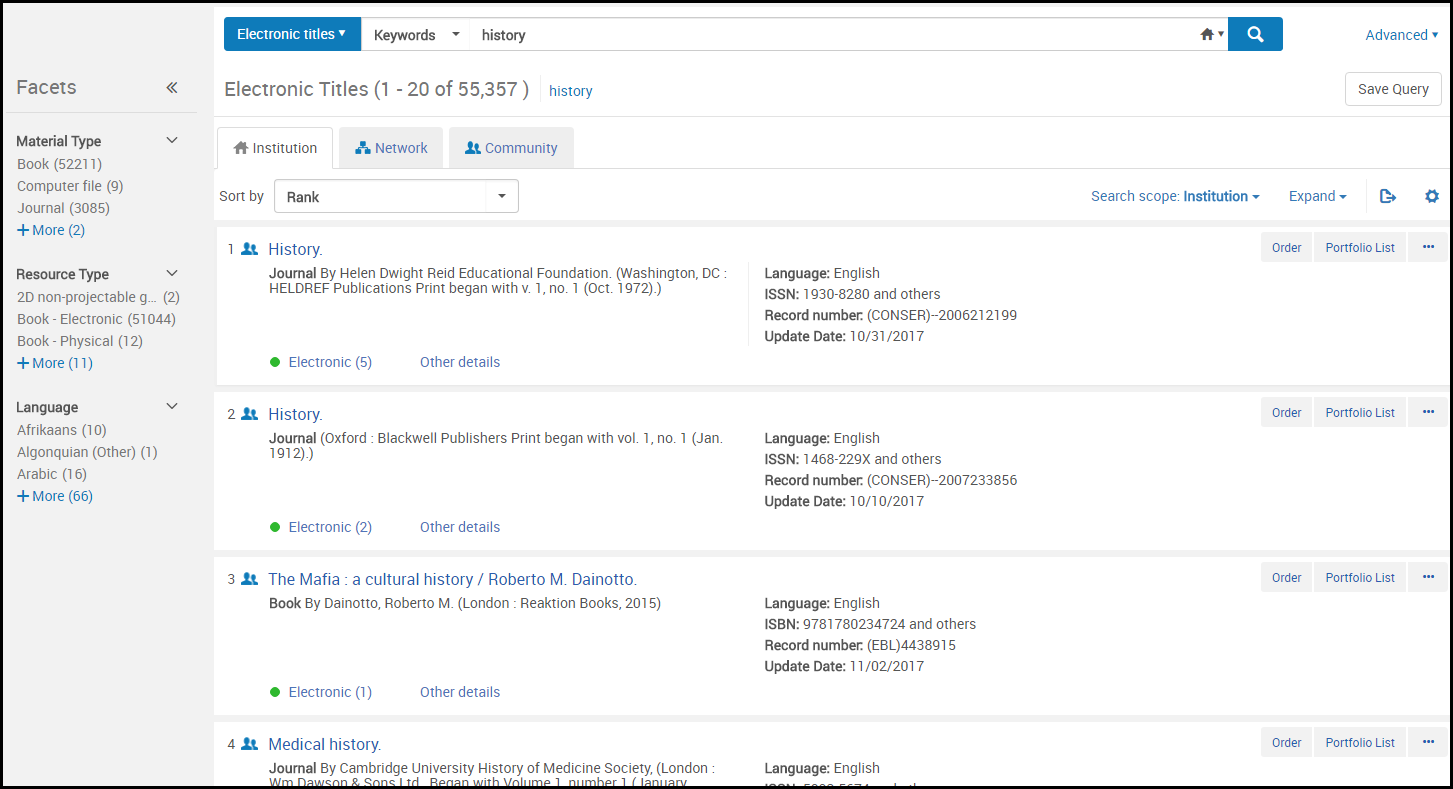
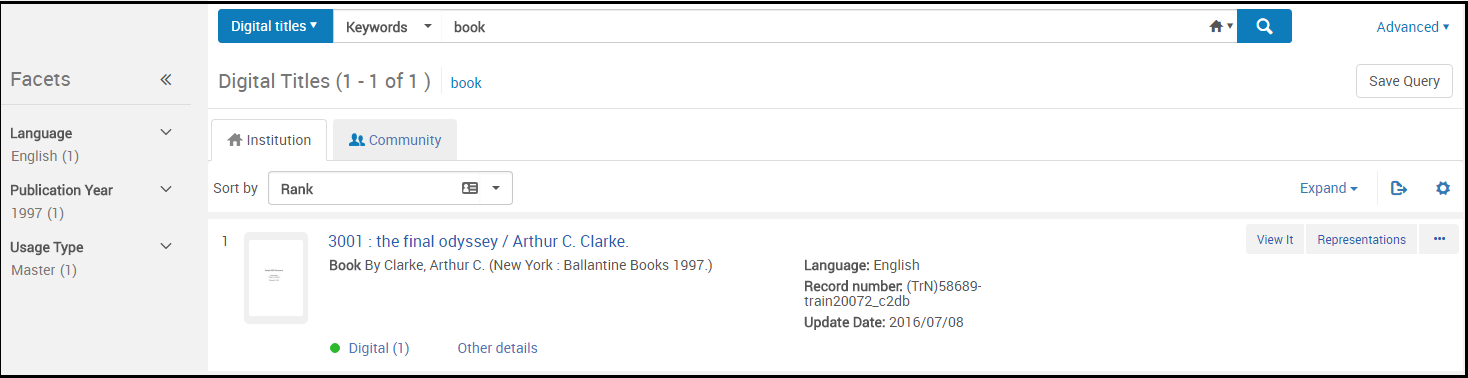
Example Repository Search Results
Almaのリポジトリ検索機能はさまざまな検索を柔軟に実行できるため、検索結果には物的、電子的、およびデジタルリソースに関連する情報が含まれます。その結果、検索結果の内容はさまざまであり、実施する検索のタイプに固有です。For example, the Titles (All, Physical, Electronic, and Digital) search results include bibliographic information (Note: For repeatable bibliographic fields, only one occurrence of the fields is displayed); and the inventory (such as Items, Portfolios, and Files) search results include details from imported data or data that you have entered using the Physical Item Editor (see Updating Item-Level Information) or the Electronic Portfolio Editor (see Editing a Portfolio Using the Electronic Portfolio Editor).
一般に、リポジトリの検索結果には次が含まれます:
- Material type - See Material Types in Search Results for more information regarding bibliographic material types.See Search Indexes for a list of the MARC tags associated with all the displayed fields.
- Process type - When loan text is displayed, it is a checkable link that displays the On Loan Item page with loan information.
- Resource type - See The Resource Type Field for more information.
- コンテンツタイプ
- メディアタイプ
- キャリアタイプ
- 作成者
- 出版地
- 出版日
- 出版者
- 件名
- Library - For portfolios, one of the two parameters "Library" or "Electronic Collection Library" is displayed (for details, see Library set on electronic resource):
- The "Library" parameter displays the portfolio-level parameter (if defined).
- 「電子コレクション図書館」パラメーターは、ポートフォリオのelectronic-collection-levelの値(定義されている場合)を表示します。
- 排架場所
- 資料
- バーコード
- アイテムポリシー
- Orders - The Orders link shows the number of orders placed for the title, item, portfolio, or collection.Select the number/link to view the PO lines related to the entry.This link connects you to the PO lines using the PO line ID.
- 識別番号:
- Almaレコード番号(035aの最初の番号、その他のシステム番号)
- ISSN、ISBN
- 請求番号
- アイテムID(物的アイテム)
- 所蔵ID(物的アイテム)
- (電子)コレクションID(電子コレクションおよび/または電子ポートフォリオ)
- ポートフォリオID(電子ポートフォリオ)
- サービスID(電子ポートフォリオ)
- ファイルID(デジタルファイル)
- 表現ID(デジタルファイル)
- コレクションID(コレクション)
- MMS ID(権限)
- Dates - Dates are formatted on the display according to your date configuration settings and are included as separate columns of information when you export search results to Excel.日付は次のとおりです。
- 作成日
- 修正日
- 利用可否 - 追加のレコード詳細にアクセスするためのリンクを提供します。
- 関連レコードの利用可否 - 書誌レコードが見つり、アイテムのある別の書誌レコードに情報をリンクする773フィールドが含まれている場合に、関連レコードの利用可否が検索結果に表示されます。電子アイテムの検索結果に2つの物的アイテムの関連レコードが表示されている以下の例を参照してください。

関連レコードの検索結果 利用可否行で場所と図書館の外観を設定できます。For more information, see Customizing How Library and Location Appear.For information about enhanced visibility of related records, see the Enhanced Visibility For Related Record Inventory video (1:42 mins). - サービス
- Icons - See Search Result Icons
以下の図は、次の検索結果の例を強調しています。For non-bibliographic/authority related searches, see the page referred to at the end of Performing a Simple Search.
すべてのタイトルの検索結果(機関タブ):
物的タイトル検索結果:
電子書籍の検索結果(機関タブ):
デジタルタイトルの検索結果(機関タブ):
デジタルファイルの検索結果(機関タブ):
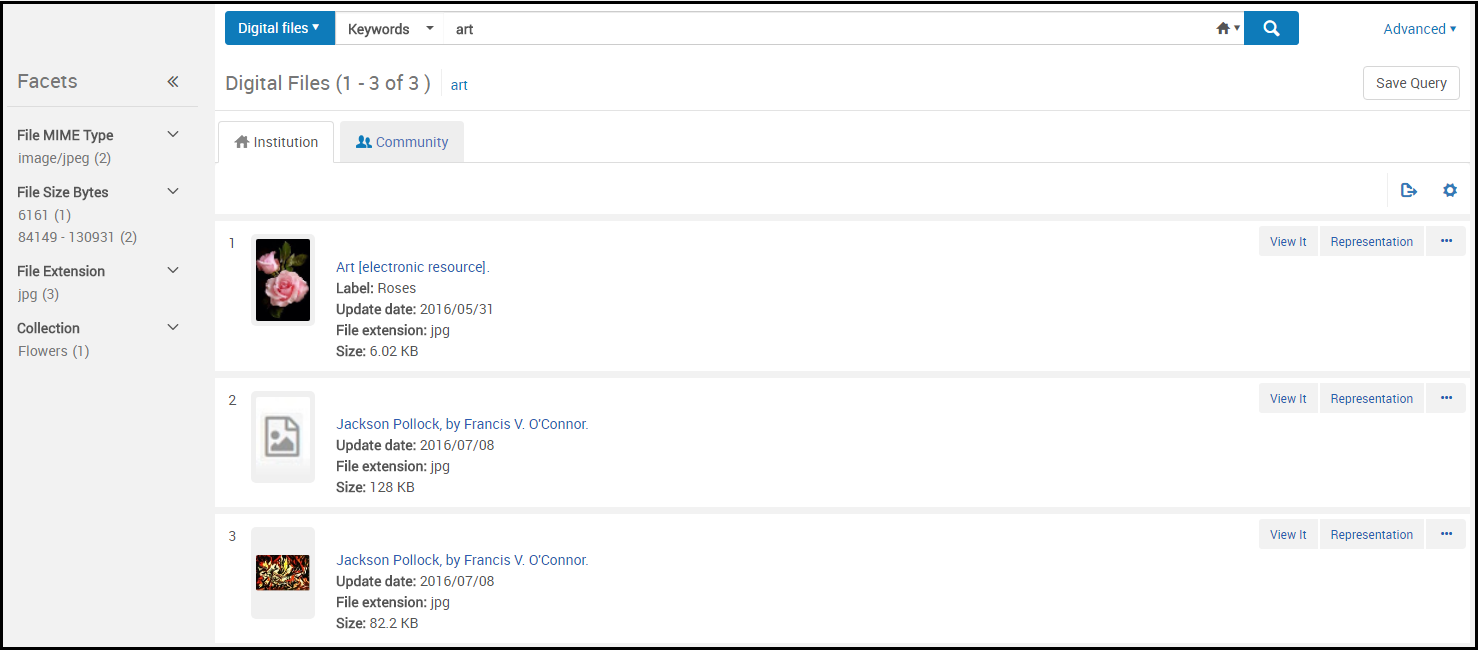
物的アイテムの検索結果:
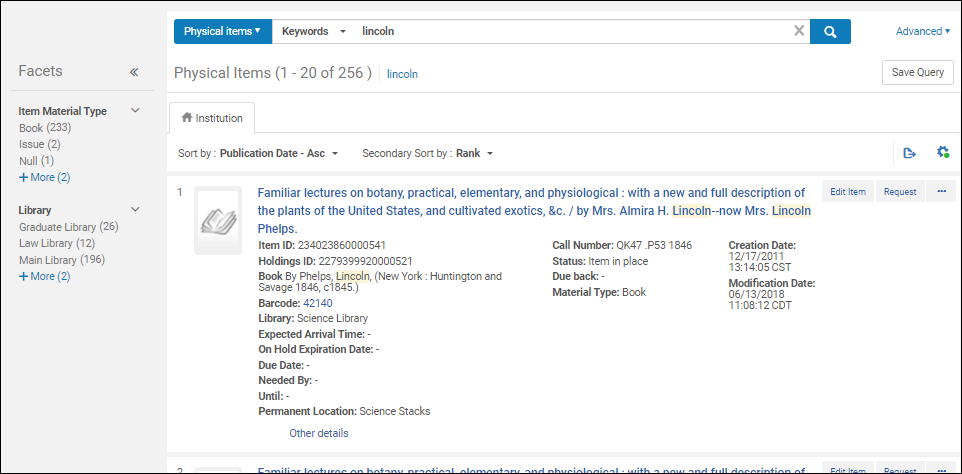
電子ポートフォリオ検索結果(機関タブ):
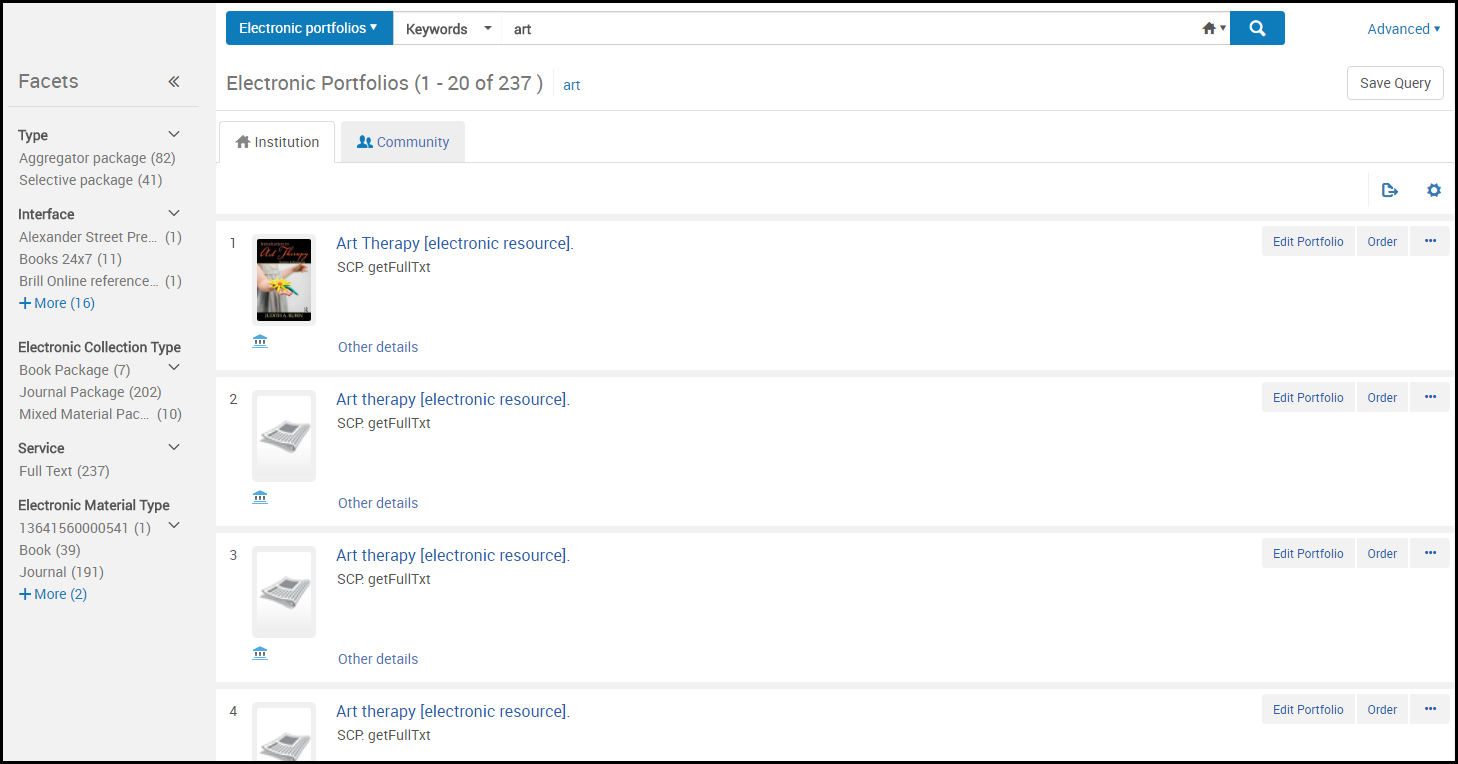
コレクションの検索結果(機関タブ):
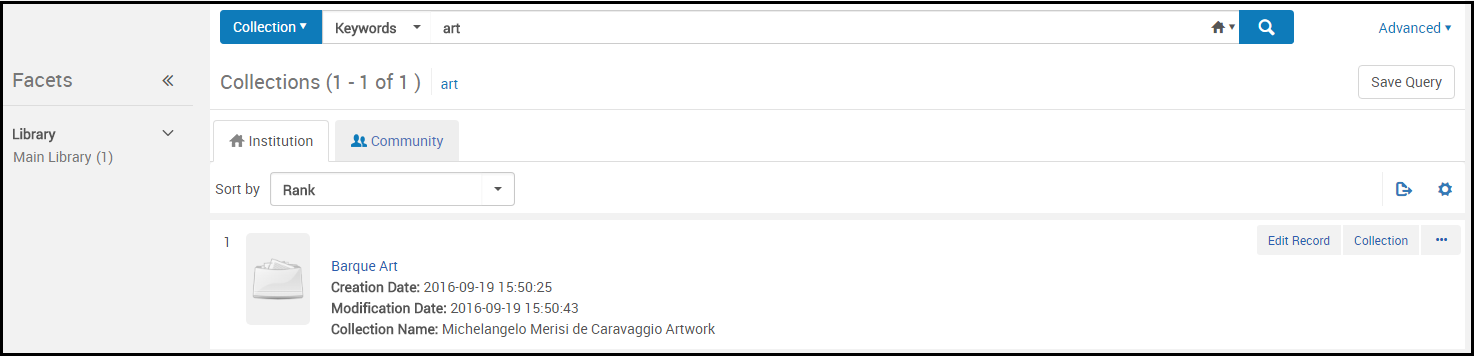
電子コレクションの検索結果(機関タブ):
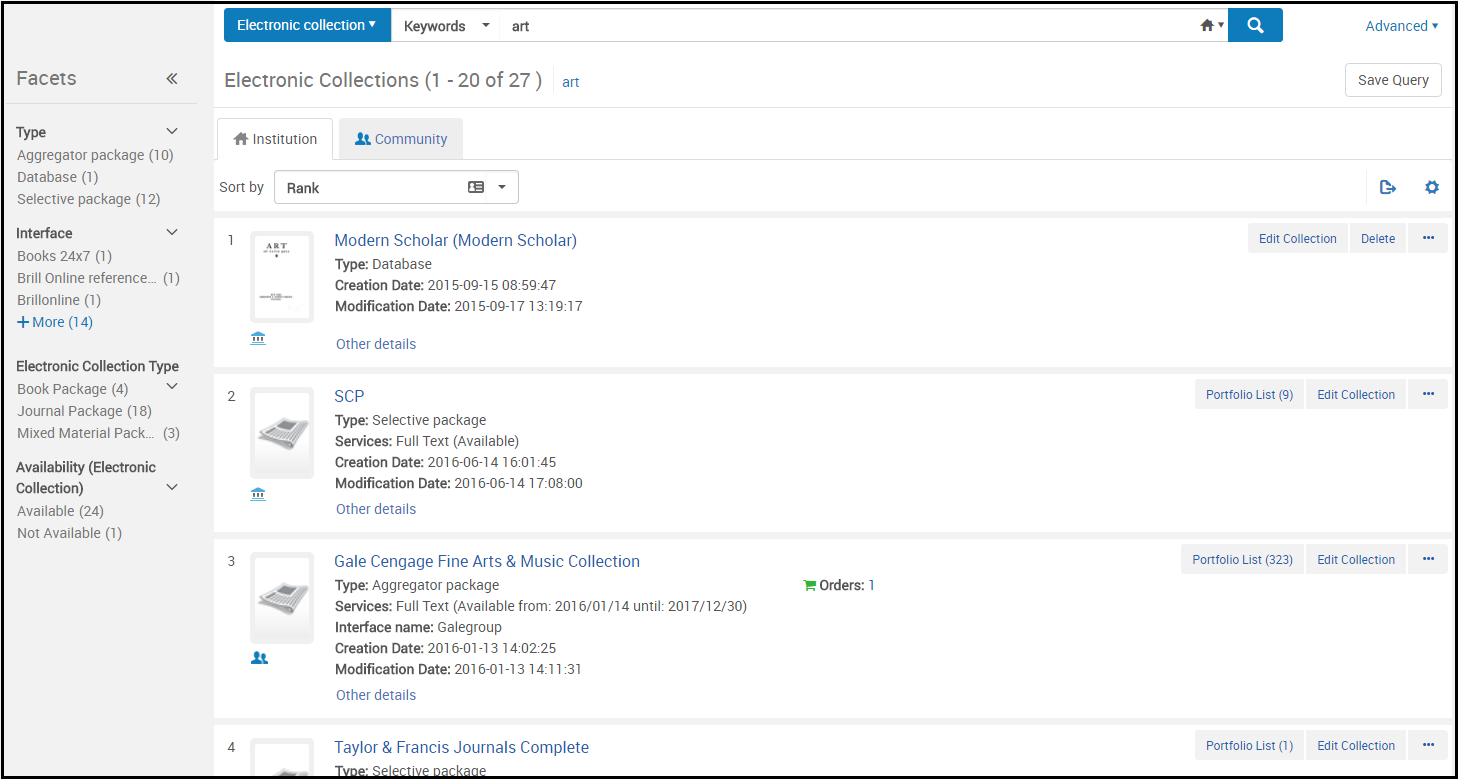
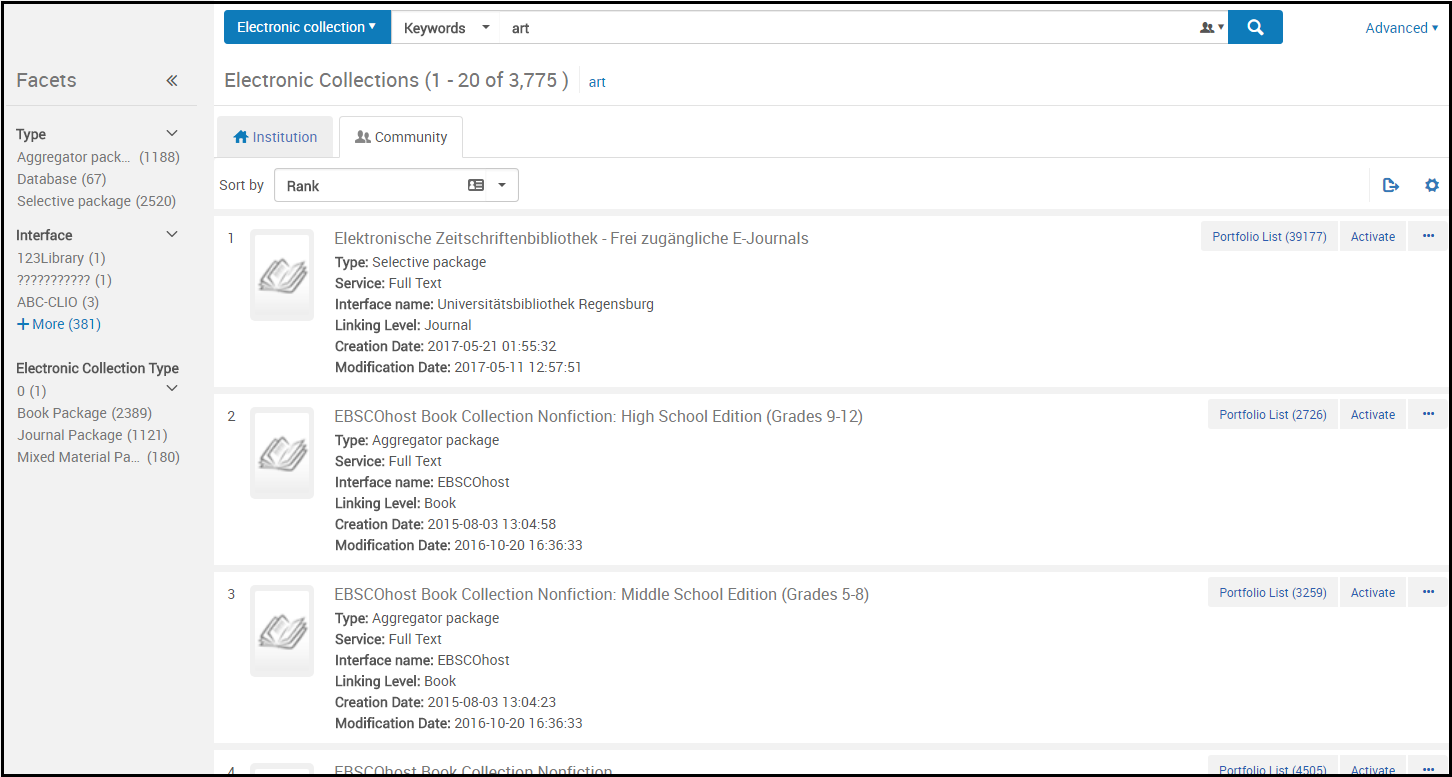
電子コレクションの検索結果(コミュニティタブ):
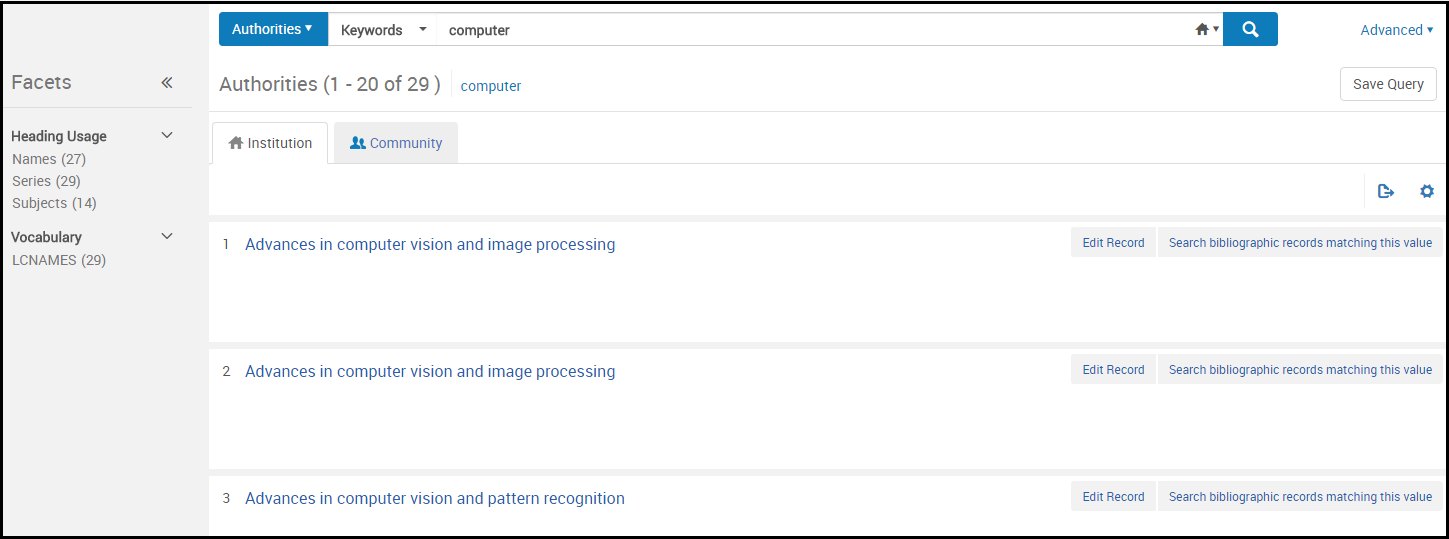
機関の検索結果(機関タブ):
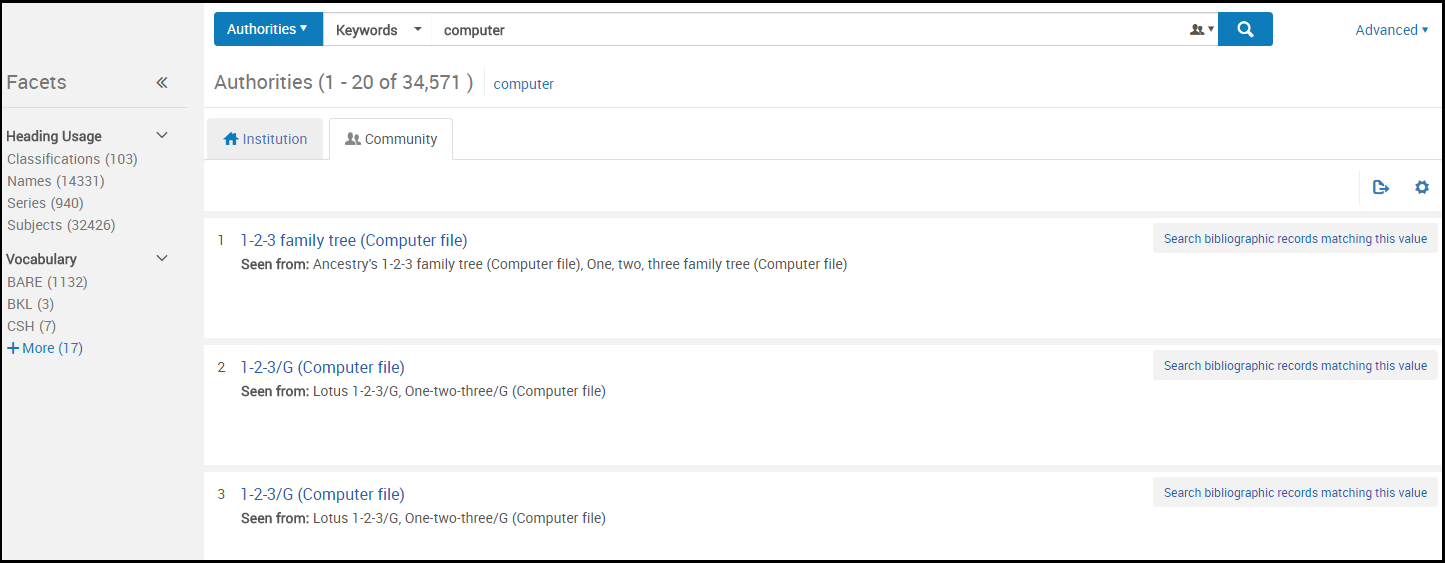
当局の検索結果(コミュニティタブ):
ザ・リソース・タイプのフィールド
ダブリンコアの場合、リソースタイプフィールドは、LDRおよび008またはdc:typeまたはdcterms:typeフィールドなどの既存の書誌フィールドに基づいて構築されます。[リソースタイプ]フィールドは、[資料タイプ]フィールドを補完します(置き換えはしません)。
[リソースタイプ]フィールドは検索可能で、ファセットとして使用でき、アナリティックスに抽出されます。資料タイプフィールドよりもはるかに詳細です。その結果、詳細なレポートを作成する便利な手段になります。
[リソースタイプ]フィールドとその作成基準の詳細については、次の表を参照してください。
- Rules Used to Create the Resource Type Field – MARC 21/KORMARC and UNIMARC
- Rules Used to Create the Resource Type Field – CNMARC
- Rules Used to Create the Resource Type Field – Dublin Core
これらのテーブルの順序は、リソースタイプフィールドを作成するためにルールが最初から最後までどのように処理されるかに固有です。条件が満たされるとすぐに、テーブルは参照されなくなります。その結果、書誌レコードが複数のリソースタイプの条件を満たしている場合、表に表示されている最初のリソースタイプが使用されます。
レコードが保存またはインデックス付けされると、リソースタイプフィールドの情報が検索結果に表示されます。
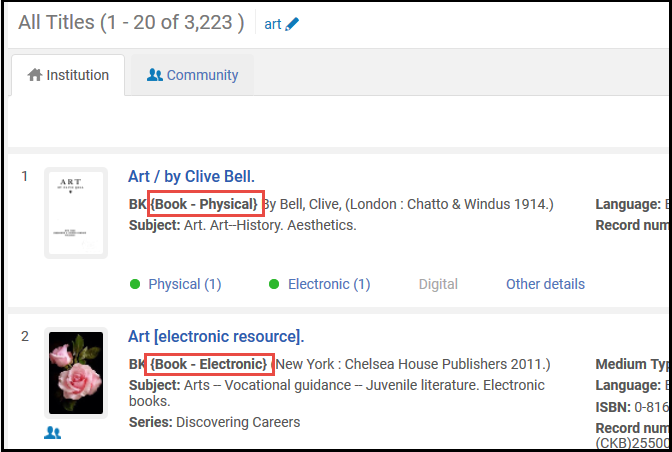
リソースタイプは、詳細検索のファセットおよびオプションとしても使用できます。
| 資料タイプ | MARC 21 / KORMARC | UNIMARC |
|---|---|---|
|
この表では、次の表記法が使用されます。
|
||
| 図書 - (物的) | LDR pos。06 = a AND LDR pos。7 = m AND 008 pos。23!= a、b、c、o、f、q、s | LDR pos。6 = a AND LDR pos。7 = m |
| 図書 (電子) | LDR pos。06 = a AND LDR pos。7 = m AND 008 pos。23 = o、q、s | LDR pos。6 = l AND LDR pos。7 = m |
| その他の資料 - 電子 | LDR pos。06 = m | LDR pos。6 = l |
|
地図 – マイクロフィルム |
LDR pos。06 = e AND LDR pos。7 = m、s AND 008 pos。29 = a AND 008 pos。25!= e |
|
|
地図 – マイクロフィッシュ |
LDR pos。06 = e AND LDR pos。7 = m、s AND 008 pos。29 = b AND 008 pos。25!= e |
|
| 地図 - 物的 | LDR pos。06 = e AND LDR pos。7 = m、s AND 008 pos。29!= a、b、c、o、f、q、s AND 008 pos。25!= e | LDR pos。6 = e、f AND LDR pos。7 = m |
|
地図 - ミクロオペーク |
LDR pos。06 = e AND LDR pos。7 = m、s AND 008 pos。29 = c AND 008 pos。25!= e |
|
| マイクロフォーム | LDR pos。06 = !e AND 008 pos.23 = a、b、c | LDR pos。6 = a AND 106 $ a = t |
| 混合資料 | LDR pos。06 = p AND LDR pos.7 = c | |
| 図書 (点字) - 物的 | LDR pos。06 = a AND LDR pos。7 = m AND 008 pos。23 = f | LDR pos。6 = a、b AND LDR pos。7 = m AND 106 $ a / 0 = f |
| 逐次刊行物 (点字) - 物的 | LDR pos。06 = a AND LDR pos。7 = i、s AND 008 pos。23 = f | LDR pos。6 = a、b AND LDR pos。7 = s AND 106 $ a / 0 = f |
| 地図 (点字) - 物的 | LDR pos。06 = e AND LDR pos。7 = m AND 008 pos。29 = f | LDR pos。6 = e、f AND LDR pos。7 = m AND 106 $ a / 0 = f |
| 音楽 (点字) - 物的 | LDR pos。06 = c AND LDR pos。7 = m AND 008 pos。23 = f | LDR pos。6 = c、dおよびLDR pos。7 = m AND 106 $ a / 0 = f |
| アトラス - 物的 | LDR pos。06 = e AND LDR pos。7 = m AND 008 pos。29!= a、b、c、o、f、q、s AND 008 pos。25 = e | LDR pos。6 = e、f AND 121 $ a / 8 = c |
| アトラス - 電子 | LDR pos。06 = e AND LDR pos。7 = m AND 008 pos。29 = o,s,q AND 008 pos.25 = e | LDR pos。6 = e, f AND 121 $a/8 = c AND 106 $a/0 = s |
| アトラス – マイクロフィルム | LDR pos。06 = e AND LDR pos。7 = m、s AND 008 pos。29 = a AND 008 pos。25 = e | |
| アトラス – マイクロフィッシュ | LDR pos。06 = e AND LDR pos。7 = m、s AND 008 pos。29 = b AND 008 pos.25 = e | |
| アトラス - ミクロオペーク | LDR pos。06 = e AND LDR pos。7 = m、s AND 008 pos。29 = c AND 008 pos.25 = e | |
| 地図 - 電子 | LDR pos。06 = e AND LDR pos。7 = m AND 008 pos。29 = o、s、q AND 008 pos。25!= e | (LDR pos。6 l AND 120 $ a / 0 = a、b)OR(LDR pos。6 = e、f AND 106 $ a / 0 = s) |
| 新聞 - 物的 | LDR pos。06 = a AND LDR pos。7 = i、s AND 008 pos。06!= d AND 008 pos。21 = n AND 008 pos。23!= a、b、c、o、f、q、s | LDR pos。6 = a AND LDR pos。7 = s AND 110 $ a / 0 = c |
| 新聞 (刊行終了) - 物的 | LDR pos。06 = a AND LDR pos.7 = i、s AND 008 pos。06 = d AND 008 pos。21 = n AND 008 pos。23!= a、b、c、f、o、q、s | |
| 新聞 - 電子 | LDR pos。06 = a AND LDR pos。7 = i、s AND 008 pos。06!= d AND 008 pos。21 = n AND 008 pos。23 = o、q、s | LDR pos。6 = l AND LDR pos。7 = s AND 110 $ a / 0 = c |
| 新聞 (刊行終了) - 電子 | LDR pos。06 = a AND LDR pos。7 = i、s AND 008 pos。06 = d AND 008 pos。21 = n AND 008 pos。23 = o、q、s | |
| ジャーナル - 物的 | LDR pos。06 = a AND LDR pos。7 = i、s AND 008 pos。06!= d AND 008 pos。21 = p AND 008 pos。23!= a、b、c、o、f、q、s | LDR pos。6 = a AND LDR pos。7 = s |
| ジャーナル (刊行終了) - 物的 | LDR pos。06 = a AND LDR pos。7 = i、s AND 008 pos。06 = d AND 008 pos。21 = p AND 008 pos。23!= a、b、c、o、f、q、s | |
| ジャーナル - 電子 | LDR pos。06 = a AND LDR pos。7 = i、s AND 008 pos。06!= d AND 008 pos。21 = p AND 008 pos。23 = o、q、s | LDR pos。6 = l AND LDR pos。7 = s |
| ジャーナル (刊行終了) - 電子 | LDR pos。06 = a AND LDR pos。7 = i、s AND 008 pos。06 = d AND 008 pos。21 = p AND 008 pos。23 = o、q、s | |
| その他の逐次刊行物 - 物的 | LDR pos。06 = a AND LDR pos。7 = i、s AND 008 pos。06!= d AND 008 pos。21!= n、p AND 008 pos。23!= a、b、c、o、f、q、s | LDR pos。6 = a AND LDR pos。7 = s AND 110 $ a / 0 = b、e |
| その他の逐次刊行物 (刊行終了) - 物的 | LDR pos。06 = a AND LDR pos。7 = i、s AND 008 pos。06 = d AND 008 pos。21 != n,p AND 008 pos.23!= a、b、c、o、f、q、s | |
| その他の逐次刊行物 - 電子 | LDR pos。06 = a AND LDR pos。7 = i、s AND 008 pos。06!= d AND 008 pos。21!= n、p AND 008 pos。23 = o、q、s | LDR pos。6 = l AND LDR pos。7 = s AND 110 $ a / 0 = b、e |
| その他の逐次刊行物 (刊行終了) - 電子 | LDR pos。06 = a AND LDR pos。7 = i、s AND 008 pos。06 = d AND 008 pos。21!= n、p AND 008 pos。23 = o、q、s | |
| Serial component part – Physical | LDR pos。06 = a AND LDR pos。7 = b AND 008 pos。23!= a、b、c、o、f、q、s | |
| 逐次刊行物の構成部分 - 電子 | LDR pos。06 = a AND LDR pos。7 = b AND 008 pos。23 = o,f,q,s | |
| 手稿 - 物的 | 音楽とテキストの原稿:
LDR pos。06 = d、t AND LDR pos。7 = m AND 008 pos。23!= a、b、c、o、f、q、s 地図原稿: LDR pos。06 = f AND LDR pos。7 = m AND 008 pos。29!= a、b、c、o、f、q、s |
音楽とテキストの原稿:
LDR pos。6 = b |
| 手稿 - 電子 | 音楽とテキストの原稿:
LDR pos。06 = d、t AND LDR pos。7 = m AND 008 pos。23 = o、s、q 地図原稿: LDR pos。06 = f AND LDR pos。7 = m AND 008 pos。29 = o、s、q |
音楽とテキストの原稿:
LDR pos。6 = b AND LDR pos。7 = m AND 106 $ a / 0 = s |
| 楽譜 - 物的 | LDR pos。06 = c AND LDR pos。7 = m AND 008 pos。23!= a、b、c、o、f、q、s | LDR pos。6 = c |
| 楽譜 - 電子 | LDR pos。06 = c AND LDR pos。7 = m AND 008 pos。23 = o、q、s | LDR pos。6 = c AND 106 $ a / 0 = s |
| オーディオ音楽 - 物的 | LDR pos。06 = j AND LDR pos。7 = m AND 008 pos。23!= a、b、c、o、f、q、s | LDR pos。6 = j |
| オーディオ資料 (音楽) - 電子 | LDR pos。06 = j AND LDR pos。7 = m AND 008 pos。23 = o、q、s | LDR pos。6 = j AND 106 $ a / 0 = s |
| オーディオ資料 (音楽以外) - 物的 | LDR pos。06 = i AND LDR pos。7 = m AND 008 pos。23!= a、b、c、o、f、q、s | LDR pos。6 = i |
| オーディオ資料 (非音楽) - 電子 | LDR pos。06 = i AND LDR pos。7 = m AND 008 pos。23 = o、q、s | LDR pos。6 = i AND 106 $ a / 0 = s |
| 投影メディア - 物的 | LDR pos。06 = g AND LDR pos。7 = m AND 008 pos。33 = d,f,i,m,p,s,t,v AND 008 pos.29!= a、b、c、o、f、q、s | LDR pos。6 = g |
| 投影メディア - 電子 | LDR pos。06 = g AND LDR pos。7 = m AND 008 pos。33 = d,f,i,m,p,s,t,v AND 008 pos.29 = o、s、q | LDR pos。6 = g AND 106 $ a / 0 = s |
| 静止画像 (非投影) - 物的 | LDR pos。06 = k AND LDR pos。7 = m AND 008 pos。33 = a、c、i、k、l、n、o AND 008 pos。29!= a、b、c、o、f、q、s | LDR pos。6 = k |
| 静止画像 (非投影) - 電子 | LDR pos。06 = k AND LDR pos。7 = m AND 008 pos。33 = a、c、i、k、l、n、o AND 008 pos。29 = o、q、s | LDR pos。6 = k AND 106 $ a / 0 = s |
| キット - 物的 | LDR pos。06 = o AND 008 pos。33 = b AND 008 pos。29!= a、b、c、o、f、q、s | LDR pos。6 = m |
| 3次元工芸品・実物 - 物的 | LDR pos。06 = r AND 008 pos。33 = r、w AND 008 pos。29!= o、q、s | LDR pos。6 = r |
| コレクション | LDR pos。06 = a AND LDR pos。7 = c | |
| 音楽 - コンポーネントパート | LDR pos。06 = c、d、j AND LDR pos。7 = a | |
| 地図 - コンポーネントパート | LDR pos。06 = e AND LDR pos。7 = a | |
|
手稿 - コンポーネントパート |
地図原稿:
LDR pos。06 = f AND LDR pos。7 = a
|
|
| 投影メディア - コンポーネントパート | LDR pos。06 = g AND LDR pos。7 = a | |
| オーディオ資料 (音楽以外) - コンポーネントパート | LDR pos。06 = i AND LDR pos。7 = a | |
| 静止画像 (非投影) - コンポーネントパート | LDR pos。06 = k AND LDR pos。7 = a | |
| キット - コンポーネントパート | LDR pos。06 = o AND LDR pos。7 = a | |
| モノグラフの構成部分 - 物的 | LDR pos。06 = a AND LDR pos。7 = a AND 008 pos。23!= a、b、c、o、f、q、s | |
| モノグラフの構成部分 - 電子 | LDR pos。06 = a AND LDR pos。7 = a AND 008 pos。23 = o、q、s | |
| 分析(コンポーネントパーツ) | LDR pos。7 = a | |
| 未定義 | 定義されたカテゴリにないすべてのもの。このカテゴリは、制御フィールドの間違いを見つけるためのチェックリストとして機能します。 | 定義されたカテゴリにないすべてのもの。このカテゴリは、制御フィールドの間違いを見つけるためのチェックリストとして機能します。 |
| 資料タイプ | CNMARC |
|---|---|
|
この表では、次の表記法が使用されます。
|
|
| マイクロフォーム | 130あります |
| 貴重 – 物的 | LDR pos。09 = r、# |
| 静止画像 (非投影) - 電子 | LDR pos。06 = k AND LDR pos。7 = m AND 135 |
| 静止画像 (非投影) - 物的 | LDR pos。06 = k AND LDR pos。7 = m |
| アトラス - 電子 | LDR pos。06 = e AND LDR pos。7 = m AND 124 $ b = a ANDは135 |
| アトラス - 物的 | LDR pos。06 = e AND LDR pos。7 = m AND 124 $ b = a AND 106 $ a = r |
| 地図 - 電子 | LDR pos。06 = e AND LDR pos。7 = m AND 135 |
| 地図 - 物的 | LDR pos。06 = e AND LDR pos。7 = m AND 106 $ a = d、r |
| オーディオ資料 (音楽) - 電子 | LDR pos。06 = j AND LDR pos。7 = m AND 135 |
| オーディオ音楽 - 物的 | LDR pos。06 = j AND LDR pos。7 = m AND 125 |
| オーディオ資料 (非音楽) - 電子 | LDR pos。06 = i AND LDR pos。7 = m AND 135 |
| オーディオ資料 (音楽以外) - 物的 | LDR pos。06 = i AND LDR pos。7 = m AND 125 |
| 手稿 - 電子 | 音楽とテキストの原稿:
LDR pos。06 = b、d AND LDR pos。7 = m AND 135 |
| 手稿 - 物的 | 音楽とテキストの原稿:
LDR pos。06 = b、d AND LDR pos。7 = m AND 106 $ a = h |
| 図書 (電子) | LDR pos。06 = a AND LDR pos。7 = m AND 135 |
| 図書 - (物的) | LDR pos。06 = a AND LDR pos。7 = m AND 106 $ a = d、g、j、r |
| 手稿 - 電子 | 地図原稿:
LDR pos。06 = f AND LDR pos。7 = m AND 135 |
| 手稿 - 物的 | 地図原稿:
LDR pos。06 = f AND LDR pos。7 = m |
| 楽譜 - 電子 | LDR pos。06 = c AND LDR pos。7 = m AND 125 pos。0 = a、b、c、d、e、g、m、u、x、z AND は135 |
| 楽譜 - 物的 | LDR pos。06 = c AND LDR pos。7 = m AND 125 pos。0 = a、b、c、d、e、g、m、u、x、z |
| 投影メディア - 電子 | LDR pos。06 = g AND LDR pos。7 = m AND 135 |
| 投影メディア - 物的 | LDR pos。06 = g AND LDR pos。7 = m |
| 貴重 – 物的 | LDR pos。06 = v AND LDR pos。7 = m |
| 摩擦 – 物的 | LDR pos。06 = u AND LDR pos。7 = m |
| ジャーナル - 電子 | LDR pos。06 = a AND LDR pos。7 = s AND 110 pos。0 = ANDは135 |
| ジャーナル - 物的 | LDR pos。06 = a AND LDR pos。7 = s AND 110 pos。0 = a |
| 新聞 - 電子 | LDR pos。06 = a AND LDR pos。7 = s AND 110 pos。0 = c AND 135 |
| 新聞 - 物的 | LDR pos。06 = a AND LDR pos。7 = s AND 106 $ a = e |
| その他の逐次刊行物 - 電子 | LDR pos。06 = a AND LDR pos。7 = s AND 110 pos。0 = z AND 135 |
| その他の逐次刊行物 - 物的 | LDR pos。06 = a AND LDR pos。7 = s AND 110 pos。0 = z AND 106 $ a = d、r |
| 3次元工芸品・実物 - 物的 | LDR pos。06 = r |
| その他の資料 - 電子 | LDR pos。06 = l |
| コレクション | LDR pos。06 = a AND LDR pos。7 = c |
| 分析(コンポーネントパーツ) | LDR pos。7 = a |
| 未定義 | 定義されたカテゴリにないすべてのもの。このカテゴリは、制御フィールドの間違いを見つけるためのチェックリストとして機能します。 |
|
資料タイプ |
Dublin Core |
|---|---|
| 図書 (デジタル) | テキスト |
| コンピュータファイル - デジタル
これは、dc:typeまたはdcterms:typeが存在するがマッピングと一致しない場合のデフォルトのリソースタイプです。 |
データセット/ソフトウェア |
| ジャーナル (デジタル) | |
| 地図 (デジタル) | |
| 混合資料 - デジタル | イベント/ InteractiveResource / インタラクティブリソース/サービス |
| 音楽 - デジタル | サウンド |
| 視覚資料 - デジタル | 画像/動画/動画/静止画/静止画 |
| 3次元工芸品・実物 - デジタル | PhysicalObject / 物的オブジェクト |
|
レコードにdc:typeまたはdcterms:typeが存在しない場合、リソースタイプまたはファセットは表示されません。
|
|
Material Types in Search Results
The following bibliographic material types are identified in Alma's search results:
- 書籍
- ジャーナル
- コンピュータファイル
- 地図
- 音楽レコード
- 視覚資料
- 混合資料
Bibliographic material types are identified using the MARC 21 format for bibliographic data (described in the Scope of the Bibliographic Format table and the Fields that Identify the Bibliographic Material Type table, both below).
| 書誌フォーマットの適用範囲 |
|---|
|
書誌データ用MARC 21フォーマットは、印刷物および原稿のテキスト資料、コンピューターファイル、地図、音楽、雑誌、視覚資料、混合資料に関する書誌情報のキャリアです。書誌データには通常、タイトル、名前、主題、注記、出版物データ、およびアイテムの物的な説明に関する情報が含まれます。 The Alma Bibliographic Formats described below are built according to the official Bibliographic Formats in MARC as described at:https://www.loc.gov/marc/bibliograph...e/bdintro.html 書誌フォーマットには、次のタイプの資料のデータ要素が含まれています。
|
これらの資料タイプは、下の書誌資料タイプを識別するフィールドで強調表示されている書誌フィールドから識別されます。
| LDR位置6 | LDR位置7 | Alma書誌資料 | Alma資料タイプ |
|---|---|---|---|
| a | a c d m | BK | 図書 |
| t | BK | 図書 | |
| a | b i s | CR | ジャーナル |
| c d i j | MU | 音楽 | |
| e f | MP | 地図 | |
| g k r o | VM | 視覚資料 | |
| m | CF | コンピュータファイル | |
| p | MX | 混合資料 | |
| <デフォルト> | BK | 書籍 |
アクセスが制限された検索結果
電子リソースの検索結果には、図書館、キャンパス、および/または機関のグループによるアクセス制限に関する詳細が含まれる場合があります。制限が有効になっている場合は、検索結果に利用可能ラベル/行が表示され、その後にアクセス可能なグループのリストが表示されます。リストの上にマウスを置くと、完全なリストが表示されます。
検索結果ファセットには、キャンパスまたは図書館に関連付けられているグループが含まれます。
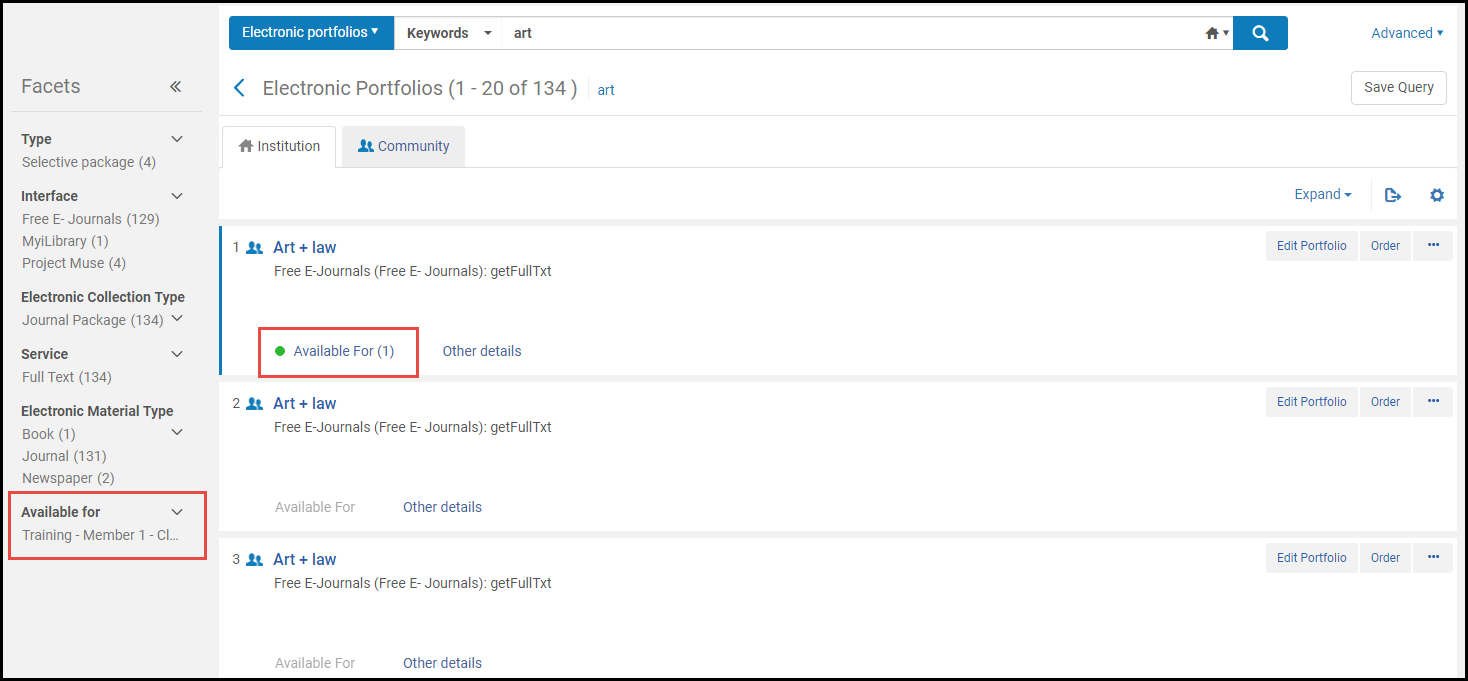
For information on restricting availability for electronic resources, see Configuring Distributed Access to Electronic Resources.
Linked Data in Repository Search Results
次のタイプの検索のリポジトリ検索結果でリンクされたデータを表示できます。
- 全タイトル
- 物的タイトル
- 電子タイトル
- デジタルタイトル
For more information about linked data, see https://developers.exlibrisgroup.com/alma/integrations/linked_data.
- リンクされたデータ要素にアクセスするリソースのタイトル検索を完了します。
- リンクされたデータアクションを選択します。リンクされたデータのリストが表示されます。

[リンク済みデータリスト]ページ リストには次の情報が表示されます:- 語彙フィールドコンテキストによります。デフォルトのコンテキストはhttps://open-na.hosted.exlibrisgroup.com/alma/contexts/bibです。If there is an active Linked Data integration profile (see Linked Data) with a path to a context, this context is used.検索結果のリンクデータにアクセスするために、リンクデータ統合プロファイルを定義する必要はありません。However, a Linked Data integration profile is required to expose linked data in JSON-LD format (see Linked Data for more information).
- リンク済みデータURI
- ラベルISBN、ISSN、およびOCLCの場合、フィールドの内容が表示されます。作成者と件名については、見出しの値が表示されます。
- 語彙フィールド
- リンクを選択して、リンク済みデータにアクセスします。
Also see Using Linked Data While Working with Bibliographic Records for information regarding linked data in the MD Editor.
リポジトリ検索結果のゴースト(削除済み)レコード
ゴーストレコードは存在するように見えますが、存在しないレコードです。削除されたレコードに関する残りの情報です。まれにゴーストレコードが検索結果に表示されることがありますが、Almaは積極的にレコードを自動的に識別して削除します。
ゴーストレコードは、索引付けの問題がレコードで特定されました。次回の検索で修正される予定ですというメッセージと共に表示されます。
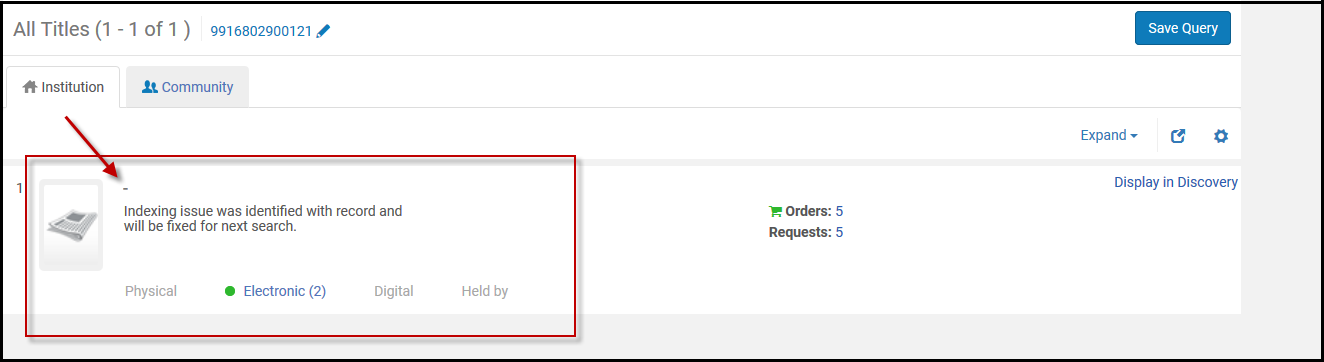
次回検索すると、メッセージとゴーストレコードはなくなります。レコードは実際には削除されたレコードであるため、アナリティックスのレポートには表示されません。
Page tags: article:topicproduct:almacontent:Documentationlang:englishleft anchored searchleft match search
