
Complete this procedure to configure econtent ingestion for consortium collection sites when Vega manages econtent subscriptions instead of your ILS.
Before you begin
Complete the following prerequisite:
About configuring Hoopla
To configure Hoopla econtent for consortia collection sites, you must ingest records at the Vega Discover main site level and then share them to participating collection sites. Because the Hoopla catalog has nearly 2 million titles, you may ingest those records only once into the Vega context engine. Hoopla records appear in the main Vega site and any collection sites that you share them with.
When configuring Hoopla, at the consortium's main site, enter valid subscription information. Your library should choose the Hoopla subscription collection that has been scoped in the most agreeable way to all members libraries in regard to price caps and other limits, as all active content from this collection will appear in all collection sites it is shared with.
At the collection site level for each Hoopla subscribing library, enter your subscription information for the purpose of circulation transactions by your patrons. The Hoopla collections ingested into Vega appear after the consortium shares the collection to your site.
After configuration, patrons who visit your collection site can check out and hold materials from Hoopla, and see the vendor logo for matching records. Note that if content has been shared from the main configuration that has been inactivated in your member library Hoopla subscription because of limits you have imposed, your patrons will see this content in search results but will not be able to check out these materials based on your collection site level Hoopla subscription settings that control circulation.
About configuring Dibiost
In consortia and multi-library systems, Dibiost can be configured at the main site level and shared to participating sites, or configured at the site level for each library that purchases an individual subscription to Dibiost.
To configure econtent for consortia collection sites
- In the upper-right corner, select Settings
 .
. - From the Settings menu, select Library defaults.
- Select Site Configuration.
- On the Sites page, from the Actions column, select Options
 > Edit for the collection site you want to edit.
 - Select eContent Management.
The eContent Management page opens. - For each vendor your consortia member library subscribes to, select the Gear icon
 .
. - Enter the following information:
- Library ID
- Username
- Password
- Advantage account ID (OverDrive only)
-
(All econtent providers except Hoopla) If you want to load econtent records directly into the Vega context engine, select Use API to provide records directly to Vega.
You must extract Hoopla records at the main site level, and share them to participating sites. You cannot load the Hoopla subscription directly into individual sites because the collection is too large.
- If you want to upload your library logo, select Upload Logo and select the file you want to use.
This is the image on the left side of the header. The file can be no more than 2 MB. If the image is larger than 240 pixels wide by 64 pixels tall, it is resized proportionally to fit in this space. - Select Save.
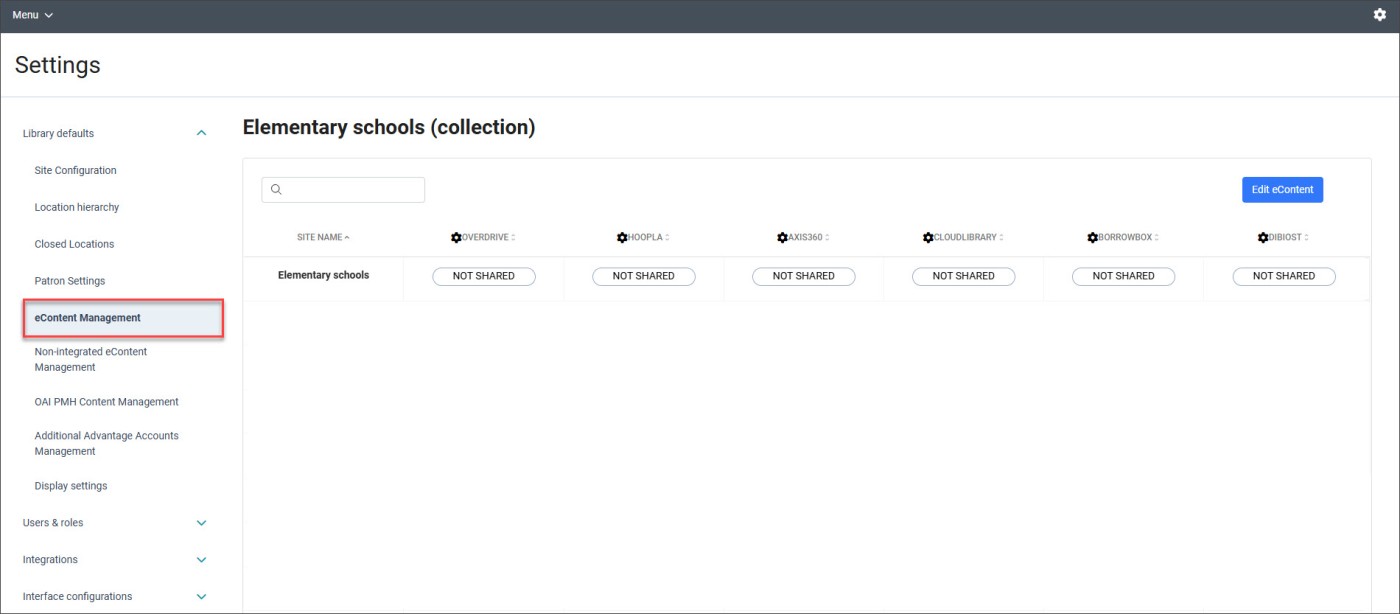
If your page doesn’t look like the image above, contact Customer Support for assistance.
