
API Usage
Using the API Usage subject area, the Design Analytics user may create reports and dashboards. The following are examples of business questions that can be answered with the API Usage subject area:
- How many APIs of type x were executed in the last year?
- What are the 10 most used APIs by API name?
- What types of APIs by month were used in the past 3 years?
- What APIs were used by module?
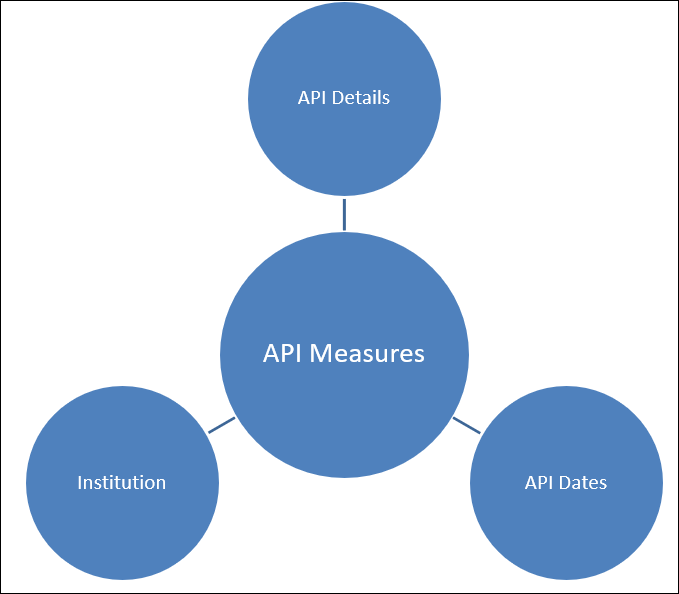
Field Descriptions
The following lists the fields available in API Usage.
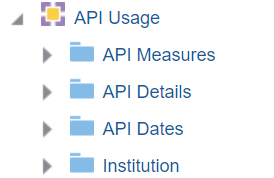
API Measures
The API Measures table is a fact table stores all the measures API usage.
| Field | Description | Additional Information | Data Type | Data Size |
|---|---|---|---|---|
| API Usage - Acquisitions | API usage for acquisitions. | DOUBLE | ||
| API Usage - Analytics | API usage for analytics. | DOUBLE | ||
| API Usage - Bibliographic | API usage for bibliographic. | DOUBLE | ||
| API Usage - Configurations | API usage for configurations. | DOUBLE | ||
| API Usage - Courses | API usage for courses. | DOUBLE | ||
| API Usage - Electronics | API usage for electronics. | DOUBLE | ||
| API Usage - Physical Items | API usage for physical items. | DOUBLE | ||
| API Usage - Resource Sharing Partners | API usage for resource sharing partners. | DOUBLE | ||
| API Usage - Tasks List | API usage for tasks list. | DOUBLE | ||
| API Usage - Users | API usage for users. | DOUBLE | ||
| API Usage - Other | API usage for other areas. | DOUBLE | ||
| API Usage - Total | Total API usage. | DOUBLE |
API Details
The API Details table is a dimension table that stores details regarding API usage.
| Field | Description | Additional Information | Data Type | Data Size |
|---|---|---|---|---|
| API Area | The API area, for example Acquisitions. | VARCHAR | 50 | |
| Application Name | The name assigned to the API key. | VARCHAR | 500 | |
| Application Key | The four last digits of the API key. | VARCHAR | 4 | |
| API Method | The API method. | Possible values: GET, POST, PUT, and DELETE | VARCHAR | 50 |
| API URL | The path of the specific API, for example: /almaws/v1/acq/funds | VARCHAR | 4000 | |
| Product | The product. | Possible values: Alma and Primo | VARCHAR | 20 |
API Dates
The API Dates table is a dimension table that stores details regarding API usage dates.
| Field | Description | Additional Information | Data Type | Data Size |
|---|---|---|---|---|
| Execution Date | The date on which the API was executed. | The date in the format DD/MM/YYYY | DATE | |
| Execution Date Filter | Used to filter report results by date. |
Possible values:
|
VARCHAR | 100 |
| Execution Quarter | The quarter in the year in which the API was executed. | The quarter of the date in a display format such as Q1 | VARCHAR | 20 |
| Execution Year | The year in which the API was executed. | The year of the date in the format YYYY. For example - 2025 | VARCHAR | 20 |
| Execution Fiscal Year | The fiscal year in which the API was executed. | The year is presented according to the description in the mapping table "Fund and Ledger Fiscal Period". For more information, see Configuring Fund and Ledger Fiscal Periods. | VARCHAR | 50 |
| Execution Month | The month in which the API was executed. | The month, for example, "February" | VARCHAR | 20 |
| Execution Month Key | The month of the execution date in number format. | For example - February will show the number 2 in this column. This field is useful when you want to sort by month. | INT | |
| Execution Fiscal Month | The fiscal month in which the API was executed. | The fiscal month of the date in month description format such as February. | INT | |
| Execution Full Month | The year and month in which the API was executed. | The month in text format and the year. For example - Feb 25 (for February 2025) | VARCHAR | 20 |
| Execution Start Of Week | The date of the first business day of the week. | The date in the format DD/MM/YYYY | DATE | |
| Execution Week Number | The number of the week of the year. | There are 52 weeks in a year. | VARCHAR | 2 |
| Execution Year-Month | The year and the month in which the API was executed. | The year and the month in the format YYYY-MM | VARCHAR | 250 |
| Execution Date | The execution date in a hierarchy format. | Enables the user to drill down from the year to the month to the specific date. Using this column provides the user with the option to view the accumulative measures in each level of the hierarchy. |
Institution
The shared Institution dimension allows the Network Zone to view reports according to institution. If an analytics report is run from the Network Zone in a collaborative network implementing a Network Zone, all member institutions are included in the report for Institution Code and Institution Name. If an analytics report is run from an institution that is not part of a collaborative network implementing a Network Zone, only the single institution from which the report is run is included in the report for Institution Code and Institution Name.
This dimension is available in every subject area. It contains the following fields:
| Field | Description | Additional Information | Data Type | Data Size |
|---|---|---|---|---|
| Institution Code | The code of the institution. |
Configured from: Configuration > General > Add a Library or Edit Library Information > Summary tab. The label in Alma is Code located on the right pane. |
VARCHAR | 50 |
| Institution Name | The name of the institution. |
Configured from: Configuration > General > Add a Library or Edit Library Information > Summary tab. The label in Alma is Organization unit name. |
VARCHAR | 255 |
| Institution Address Line 1 | The first line of the address of the institution. It usually includes the building number and the street name. |
Configured from: Configuration > General > Add a Library or Edit Library Information > Contact Information tab. This is taken from the address configured as the Preferred address. The label in Alma is Address Line 1. |
VARCHAR | 1000 |
| Institution City | The city of the institution. |
Configured from: Configuration > General > Add a Library or Edit Library Information > Contact Information tab. This is taken from the address configured as the Preferred address. The label in Alma is City. |
VARCHAR | 255 |
| Institution State Province | The state or province of the institution. |
Configured from: Configuration > General > Add a Library or Edit Library Information > Contact Information tab. This is taken from the address configured as the Preferred address. The label in Alma is State/Province. |
VARCHAR | 320 |
| Institution Country | The country of the institution. |
Configured from: Configuration > General > Add a Library or Edit Library Information > Contact Information tab. This is taken from the address configured as the Preferred address. The label in Alma is Country. |
VARCHAR | 320 |
| Institution Postal Code | The postal code of the institution. |
Configured from: Configuration > General > Add a Library or Edit Library Information > Contact Information tab. This is taken from the address configured as the Preferred address. The label in Alma is Postal code. |
VARCHAR | 200 |
| Institution Timezone | The timezone of the institution. | The timezone is set during implementation. | VARCHAR | 255 |
| Data Available As Of | When the institution data became available in analytics. | Displayed at the bottom of the main Analytics menu. | VARCHAR | 255 |
| Data Updated As Of | When the institution data was taken from the Alma database. | Displayed at the bottom of the main Analytics menu. | VARCHAR | 255 |
Page tags: article:topicproduct:almacontent:Documentationlang:english
