Purchase Requests (Analytics)
Purchase requests enable librarians using Alma and instructors or patrons using Primo or Leganto to request that a library purchase a resource. The requester, or a librarian on behalf of a requester, fills in the details of the item and then sends the request for review. A purchase request operator or manager reviews the request and can approve or reject it.
The analytics fields in this subject area relate primarily to the details of the resource requested and the status of the request.
Using the Purchase Requests subject area you can answer the following business questions:
- How many purchase requests were made in a time range?
- How many purchase requests were assigned to a user?
- How many purchase requests have a PO line?
- How many purchase requests were made per status?
Field Descriptions
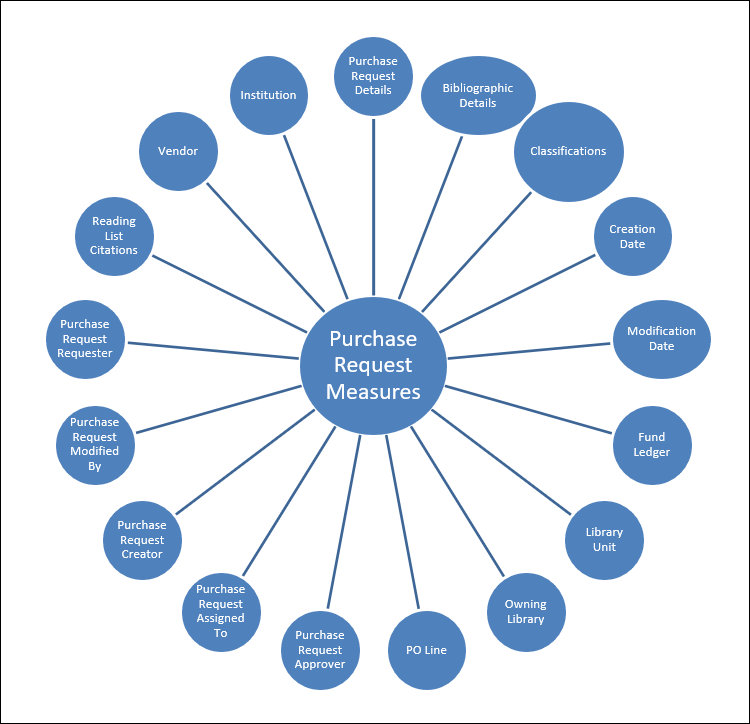
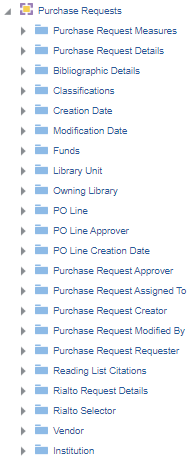
The following lists the fields available in Purchase Requests.
Purchase Request Measures
The Purchase Request Measures table is a fact table that stores the measures of purchase requests.
| Field | Description | Additional Information | Data Type |
|---|---|---|---|
| Number of Purchase Requests | The number of purchase requests | ||
| Number of Purchase Requests - Books | The number of purchase requests for books | ||
| Number of Purchase Requests - Electronic | The number of purchase requests for electronic material | ||
| Number of Purchase Requests - Electronic Books | The number of purchase requests for electronic books | ||
| Number of Purchase Requests - Electronic Journals | The number of purchase requests for electronic journals | ||
| Number of Purchase Requests - Journals | The number of purchase requests for journals | ||
| Number of Purchase Requests - Physical | The number of purchase requests for physical material | ||
| Number of Purchase Requests - Physical Books | The number of purchase requests for physical books | ||
| Number of Purchase Requests - Physical Journals | The number of purchase requests for physical journals | ||
| Number of Purchase Requests Approved | The number of purchase requests approved | ||
| Number of Purchase Requests In Review | The number of purchase requests in review | ||
| Number of Purchase Requests Rejected | The number of purchase requests rejected | ||
| Number of Purchase Requests With Funds | The number of purchase requests with funds | ||
| Number of Purchase Requests With PO Lines | The number of purchase requests with PO lines | ||
| Number of Purchase Requests With Reading Lists | The number of purchase requests with reading lists | ||
| Number of Unique Titles | The number of unique titles (mms ids) associated to a purchase request | INT | |
| Estimated Cost | The estimated cost |
Purchase Request Details
Purchase Request Details is a dimension table that contains fields relating to purchase request details, such as Currency, Purchase Request ID, and Request Status.
| Field | Description | Field Location in Alma | Additional Information | Data Type | Data Size |
|---|---|---|---|---|---|
|
Application |
The application that created the record |
__ |
VARCHAR |
255 |
|
|
Approved Format |
The approved format of the purchase request |
Acquisitions> Manage Purchase Requests > Approve and Order |
Possible values: 'E'-electronic 'P'- physical 'D'- digital |
VARCHAR |
1 |
|
Author |
The author that is recorded on the purchase request |
Acquisitions> Manage Purchase Requests > View [select one]> Resourse information section |
VARCHAR |
4000 |
|
|
Citation Type |
The citation type of the purchase request |
Acquisitions> Manage Purchase Requests > View [select one]> Resourse information section |
Possible values: Book Journal |
VARCHAR |
255 |
|
Creation Date and Time |
The creation date and time |
Acquisitions> Manage Purchase Requests > View [select one]> exclamation mark on the top of the page |
DATETIME |
||
|
Currency |
The currency of the purchase request |
Acquisitions> Manage Purchase Requests > PO Line Reference [select one] |
VARCHAR |
255 |
|
|
ISSN / ISBN |
The ISSN / ISBN that is recorded on the purchase request |
Acquisitions> Manage Purchase Requests > View [select one]> Resourse information section |
VARCHAR |
255 |
|
|
LCCN |
The LCCN that is recorded on the purchase request |
Acquisitions> Manage Purchase Requests > View [select one]> Resourse information section |
VARCHAR |
1000 |
|
|
Located Bibliographic Information |
Indicates (Yes/No) if the purchase request has a linked bibliographic record |
Acquisitions> Manage Purchase Requests > View [select one]> Resourse information section (all Bibliographic Information) |
VARCHAR |
3 |
|
|
Located Bibliographic Information Flag |
Indicates whether the purchase request has a linked bibliographic record |
Acquisitions>Manage Purchase Requests > View [select one]> Resourse information section The label in Alma is "Bibliographic information" |
Possible values: 0 (Create new record) 1 (Use existing record) |
NUMERIC |
1 |
|
Modification Date and Time |
The modification date and time |
Acquisitions> Manage Purchase Requests > View [select one]> exclamation mark on the top of the page |
DATETIME |
||
|
Modified By Job |
The job ID of the last job that updated the record |
Acquisitions> Manage Purchase Requests > View [select one]> exclamation mark on the top of the page The label in Alma is "Last Updated By" |
NUMERIC |
||
|
OCLC Number |
The OCLC number that is recorded on the purchase request |
Acquisitions> Manage Purchase Requests > View [select one]> Resourse information section The label in Alma is "Other System Number" |
VARCHAR |
255 |
|
|
Purchase Request ID |
The ID of the purchase request |
Acquisitions> Manage Purchase Requests > View [select one]> exclamation mark on the top of the page The label in Alma is "Alma ID" |
VARCHAR |
100 |
|
|
Rejection Reason |
The rejection reason of the purchase request |
Acquisitions> Manage Purchase Requests > View [select one]> Request Attributes section |
VARCHAR |
255 |
|
|
Request Status |
The request status of the purchase request |
Acquisitions> Manage Purchase Requests >Request status [select one] |
Possible values:
|
VARCHAR |
255 |
|
Requested Format |
The requested format of the purchase request |
Acquisitions> Manage Purchase Requests > View [select one]> Resourse information section The label in Alma is "Material Type" |
Possible values:
|
VARCHAR |
255 |
|
Requester Note |
The requester note of the purchase request |
Acquisitions> Manage Purchase Requests > View [select one]> Request Attributes section |
VARCHAR |
2000 |
|
|
Source Type |
The source type of the purchase request |
Acquisitions> Manage Purchase Requests > View [select one]> Request Attributes section The label in Alma is Created from. |
Possible values: Manually Citation External System API Outgoing Request |
VARCHAR |
255 |
|
Title |
The title of the purchase request |
Acquisitions> Manage Purchase Requests > View [select one]> Resourse information section |
VARCHAR |
4000 |
Bibliographic Details
Bibliographic details is a shared dimension that contains bibliographic information about the purchase request.
Ex Libris works with content providers worldwide to enrich the metadata available in the Alma Community Zone. To enrich the journal/serial content in the CZ, we work directly with the Library of Congress CONSER feed for electronic serials, which we match against our knowledge base to enrich with all of the relevant metadata fields that they supply (for more details, see Community Zone Serial Records Enrichment) and enrich the CZ records with all relevant metadata, including the 050 fields (when available). In the case of book content, we work with multiple providers who are willing to share their metadata with the Alma community globally (for more details, see Community Zone Monograph Records Enrichment). If you have local access to these classifications, you may want to consider working with the local extension for these records whenever an update is not available. (For more details, see Working with Local Extension Fields for Community Zone-linked Records.)
The Bibliographic Details table contains two kinds of fields, those derived from the MARC record and those that come from Alma. Although in analytics there is no distinction made between these fields, for explanatory purposes we have divided them into two tables below.
The Bibliographic Details table includes all bibliographic records in the catalog whether they have inventory or not.
| Field | Note | Mapping from MARC21 | Mapping from UNIMARC | Mapping from Dublin Core | Data Type | Data Size |
|---|---|---|---|---|---|---|
| Action Note | A note that contains information about the retention and the retention reason of the bibliographic record. | 583 | Not relevant | Not relevant | VARCHAR | VARCHAR |
| Author | The term Author refers to the individual or group of individuals responsible for creating or producing the work being documented. The author is the primary contributor to the work, and their name is typically listed prominently in the bibliographic record to identify the originator of the content. Depending on the type of work and the citation style, the author's name may be followed by additional information such as their credentials, institutional affiliation, and the date of publication. | 100,110,111 | 700,701,710,711 | Currently empty, planned to come from dc:creator, dcterms:creators | VARCHAR | 4000 |
| Author (Contributor) | The Author (Contributor) role refers to the specific role or function played by an individual or group in the creation or production of a work. This role is important for cataloging and documenting the contributions of different individuals or entities to a particular resource. The Author (Contributor) role is a way to categorize and describe the responsibilities of contributors beyond just being the primary author. |
711 a,c-e,i,j,n,q,u and its 880 700 a-e,j,q,u and its 880 710 a-e,i,n,u and its 880 |
700 a-d,f,p 701 a-d,f,p 710 a-h,p 711 a-h,p 720 a,f" 721 a,f 702 a-d,f,g 712 a-h,p 722 a,f |
Currently empty, planned to come from dc:contributor, dcterms:contributor | VARCHAR | VARCHAR |
| Begin Publication Date | The Begin Publication Date refers to the earliest date associated with the publication or release of a particular work. It is a critical piece of information that helps users understand when the work was first made available to the public. The publication date can be essential for citing the work correctly, tracking its historical context, and assessing its relevance to specific time periods. | 008 pos. 07-10 | 100.Date1 | Not relevant for Dublin Core | VARCHAR | 255 |
| BIB 008 MARC | The contents of the MARC 008 bibliographic field. The BIB 008 field in a MARC bibliographic record is a fixed-length data element used to provide additional information about the bibliographic record itself. It contains various control information that helps catalogers and library systems manage and process the record. | 008 | Not relevant for Dublin Core | VARCHAR | 50 | |
| BIB LDR MARC | The BIB LDR refers to the Leader field (LDR) within the bibliographic record. The Leader is a fixed-length data element that provides control information about the bibliographic record itself. It is a critical component of MARC records, and each position within the Leader serves a specific purpose. The Leader field is typically 24 characters in length. The Leader field is used to convey fundamental information about the structure, organization, and characteristics of the bibliographic record. | LDR | Not relevant for Dublin Core | VARCHAR | 50 | |
| Bibliographic Acquisition Accession Number Note | The identification code assigned to materials acquired in a single and separate transfer of custody. | 541 e | Not relevant for Dublin Core | VARCHAR | 255 | |
| Bibliographic ID | A Bibliographic ID is a unique identifier assigned to a specific bibliographic entry or resource. It serves as a way to distinguish and locate a particular work within a library's catalog or database. The purpose of a bibliographic ID is to facilitate efficient retrieval and management of bibliographic records and to ensure that each record is distinct. | 010 excluding numeric subfields | 020 a | dcterms:identifier dcterms:ISBN, dcterms:identifier dcterms:ISSN | VARCHAR | 255 |
| Bibliographic Level | The Bibliographic Level is a classification that describes the scope and content of a bibliographic record. It helps users understand the nature of the resource being described in the record. The bibliographic level is often indicated using a one-letter code or abbreviation. Common bibliographic levels include: Monograph (m), Serial (s), Collection (c), Integration (i), Monographic Series (a), and so forth. | Position 7 of the LDR field of the bibliographic record | Position 7 of the LDR field of the bibliographic record | Not relevant for Dublin Core | VARCHAR | 255 |
|
Bibliographic Lifecycle
|
The Lifecycle of the bibliographic record. Possible values are Deleted and In Repository. This allows you to filter reports and to remove Deleted records.
|
|
|
|
VARCHAR
|
50 |
|
Bibliographic Rank
|
Alma assesses the comprehensiveness and depth of MARC 21 bibliographic entries, considering various elements such as identifiers, names, subjects, informative LDR and 008 fields, publication details, among others. This evaluation is reflected in the Bibliographic Rank, designed as a useful aid for libraries in pinpointing records requiring further scrutiny. For more information, see here.
|
|
|
|
INT
|
|
| Bibliographic Record Label | Displays the labels associated with the bibliographic record. When multiple labels are assigned, the label values are concatenated together with a semicolon (;). | VARCHAR | 4000 | |||
| Bibliographic Source of Acquisition Note | The name of the people or organization that is the source of the material. | 541 a | Not relevant for Dublin Core | VARCHAR | 255 | |
| Category of Material | The Category of Material is a classification or designation that describes the format or physical nature of the material being cataloged. It helps users and catalogers understand the medium in which a resource is presented. | Position 0 of the 007 field | 200 b | Not relevant for Dublin Core | VARCHAR | 255 |
| DC Coverage | DC Coverage refers to an element used to provide information about the spatial or temporal topic of the resource, spatial applicability of the resource, or jurisdiction under which the resource is relevant. | Relevant only for Dublin Core | Relevant only for Dublin Core | dc:coverage dcterms:coverage dcterms:spatial dcterms:temporal | VARCHAR | |
| DC Description | DC Description refers to Dublin Core (DC) metadata elements used to describe resources in a standardized way, particularly in digital libraries and online cataloging systems. | Relevant only for Dublin Core | Relevant only for Dublin Core | dc:description dcterms:description dcterms:abstract | VARCHAR | 4000 |
| DC Format | The file format, physical medium, or dimensions of the resource. The information in this field is entered as free text. | Relevant only for Dublin Core | Relevant only for Dublin Core | dc:format dcterms:format | VARCHAR | 256 |
| DC License | DC License is a Dublin Core element used to specify the terms and conditions associated with the use of a resource. It provides information about the licensing or copyright status of a digital or physical resource, allowing users to understand how they can legally use, share, or redistribute the resource. The DC License element is particularly important in digital libraries, repositories, and online cataloging systems where access to digital content is provided. | Relevant only for Dublin Core | Relevant only for Dublin Core | It will be populated by dcterms:license | VARCHAR | 4000 |
| DC Provenance | DC Provenance refers to an element used to provide a statement of any changes in ownership and custody of the resource since its creation that are significant for its authenticity, integrity, and interpretation | Relevant only for Dublin Core | Relevant only for Dublin Core | dcterms:provenance | VARCHAR | 4000 |
| DC Relation | DC Relation refers to an element used to provide information about a related resource to the described resource. | Relevant only for Dublin Core | Relevant only for Dublin Core | dc:relation dcterms:relation dcterms:isVersionOf dcterms:hasVersion dcterms:isReplacedBy dcterms:replaces dcterms:isRequiredBy dcterms:requires dcterms:isPartOf dcterms:hasPart dcterms:isReferencedBy dcterms:references dcterms:isFormatOf dcterms:hasFormat dcterms:conformsTo | VARCHAR | 4000 |
| DC Rights | DC Rights refers to an element used to provide information about the intellectual property rights or copyright status of a resource. This element helps users understand the legal rights and permissions associated with the resource and whether there are any restrictions on its use. | Relevant only for Dublin Core | Relevant only for Dublin Core |
dc:rights and dcterms:rights |
VARCHAR | 4000 |
| DC Source | DC Source refers to an element used to provide information about a related resource from which the described resource is derived. | Relevant only for Dublin Core | Relevant only for Dublin Core |
dc:source dcterms:source |
VARCHAR | 4000 |
| DC Type | DC Type refers to an element used to provide information about the nature or genre of the resource. | Relevant only for Dublin Core | Relevant only for Dublin Core |
dc:type dcterms:type |
VARCHAR | 255 |
| Edition | Edition refers to a specific version or variation of a publication. The edition information provides details about changes, updates, or variations that have occurred since the original publication. Including the edition helps users and researchers identify the specific version of a book or other resource they are looking for. | 250 subfields a,b | 205 a,b,f,g | dcterms:isVersionOf | VARCHAR | 255 |
| Electronic location and access | The location and access URl for the electronic resource. | 856 all subfields | 856 all subfields | Not relevant for Dublin Core | VARCHAR | 4000 |
| End Publication Date | The End Publication Date is the second date available in the 008 field, and it is used to indicate "Date 2." It is described as "A date specified by the code in 008/06 (Type of date/Publication status)." | 008 pos. 11-14 | 100.Date2 | Not relevant for Dublin Core | VARCHAR | 255 |
| Enriched with AI | Indicates that the bibliographic record of the resource was enriched by the AI Asisstant. | VARCHAR | 4 | |||
| Form of Item | The Form of Item refers to a specific code or indicator that describes the physical format or medium of the resource being cataloged. This information helps library users understand the physical characteristics of the item and whether it is in a print or non-print format. | 008 pos. 29 (Maps and Visual Material) or 23 (other material configurations) | Not relevant for Dublin Core | VARCHAR | 1 | |
| General Note | A General Note is a field used to provide additional information or commentary about the resource being described. General notes can include various types of information that may not fit into specific structured fields within the bibliographic record. These notes are often used to convey contextual details, historical significance, or other relevant information about the resource. | 500 a, 5 | 300 a | Not relevant for Dublin Core | VARCHAR | 4000 |
| Government Publication | A Government Publication is a term used to identify materials that are published or produced by government entities at various levels of government, including federal, state, local, and international governments. For more information regarding the values of MARC 008 Pos. 28, see here. |
008 pos. 28 According to MARC21 Format for Bibliographic Data, 008 pos. 28 is Government Publication for the following material types: Books, Computer Files, Continuing Resources, Maps, and Visual Materials.For Music 008 pos. 28 is Accompanying matter. For Mixed material 008 pos. 28 is Undefined.Consequently, when using this field, you may want to filter out records with Material Type = Music and Material Type = Mixed material. |
Not relevant for Dublin Core | VARCHAR | 1 | |
| ISBN | ISBN is a unique identifier for books, and it is used to facilitate the identification and cataloging of books and related materials. Field in analytics includes also cancelled and invalid ISBNs. | 020 a, z 776 z | 010 a | dcterms:identifier dcterms:ISBN | VARCHAR | 255 |
| ISBN Valid | A unique identifier for books and related materials. To be considered valid, an ISBN must adhere to the established ISBN standards and conventions. Field in analytics does not include cancelled and invalid ISBNs. | 020 a | Not relevant for Dublin Core | VARCHAR | 255 | |
| ISSN | An ISSN (International Standard Serial Number) is a unique identifier for serial publications, which include periodicals, journals, magazines, and other recurring publications. Field in analytics includes also cancelled and invalid ISSNs. | 022 l,a 776 x (for non-physical records) | 011 a f | dcterms:identifier dcterms:ISSN | VARCHAR | 255 |
| ISSN Valid | A unique identifier for serial publications. To be considered valid for bibliographic records, an ISSN must adhere to the established standards and conventions for ISSN formatting and structure. Field in analytics does not include cancelled and invalid ISBNs. | 022 a | Not relevant for Dublin Core | VARCHAR | 255 | |
| Language Code | Language codes are used to indicate the language(s) in which a particular resource is written or presented. Language codes are typically standardized to ensure consistency in cataloging and bibliographic records. | 008 pos. 35-37 | 101 a | Currently comes from dc:language. Planned to come from dc:language and dcterms:language | VARCHAR | 255 |
| Language Of Cataloging | The Language of Cataloging refers to the language in which the cataloging or metadata for a particular resource is created. | 040 b | 100 a,22-24 | Not relevant for Dublin Core (Value None is displayed) | VARCHAR | 4000 |
| Local Note | A Local Note is a type of note that provides specific information or instructions related to a library's unique policies, holdings, or services. Local notes are typically used to convey information that is specific to the individual library or cataloging institution and may not be relevant to libraries elsewhere. For Borrowing Requests, the Source is stored in this field. | 590 a, 5 | Not relevant for Dublin Core | VARCHAR | 4000 | |
| Material Type | See the table, Fields that Identify the Bibliographic Material Type, in the Material Types in Search Results section for a description of material type. | MARC control LDR Material Type | Planned to be empty. Currently comes from dc:type This field holds a fixed set of values designated for all record formats. For DC, the mapping is controlled from Configuration Resources > Cataloging > DCMI Material Type Mapping page. Any dc:type value not defined on this pages gets by default the value Computer File. For more information, see DCMI Material Type Mapping. | VARCHAR | 4000 | |
| Material Type Code | Code of the material type described above (in Material Type). | MARC control LDR Material Type | Not relevant for Dublin Core | VARCHAR | 255 | |
| National Agricultural Library Call Number | The call number used by the American National Agricultural Library. | 070 a | Not relevant for Dublin Core | |||
| Network Number | A Network Number typically refers to a unique identifier assigned to a bibliographic record within a library network or consortium. | 035 a z | 053 a z |
dc:identifier , dcterms:identifier |
VARCHAR | 4000 |
| OCLC Control Number (019) | The OCLC Control Number (019 field) is used by OCLC to record and index OCLC control numbers of records that have been deleted or will be processed as duplicate records. For more information on the OCLC Control Number 019 and its subfields, see here. Leading zeros are not displayed. |
019 a When the subfield begins with one of the following prefixes:
|
Not relevant for Dublin Core | VARCHAR | 4000 | |
| OCLC Control Number (035a) | Subfield "a" in the 035 field is used to record the main OCLC Control Numbers. For more information on the OCLC Control Number 035 and its subfields, see here. Leading zeros are not displayed. |
035 a When the subfield begins with one of the following prefixes:
|
035 a | Not relevant for Dublin Core | VARCHAR | 4000 |
| OCLC Control Number (035a+z) | The OCLC Control Number can include both the main OCLC Control Number in subfield "a" and any related or canceled OCLC Control Numbers in subfield "z." This practice is useful for indicating changes or updates to cataloging records and for maintaining a historical record of previous control numbers associated with the same resource. For more information on the OCLC Control Number 035 and its subfields, see here. Leading zeros are not displayed. |
035a+z When the subfield begins with one of the following prefixes:
|
035a+z | Not relevant for Dublin Core | VARCHAR | 4000 |
| OCLC Control Number (035z) | Subfield "z" in the 035 field is used to record related or canceled OCLC Control Numbers, providing a historical record of control numbers associated with a specific resource. For more information on the OCLC Control Number 035 and its subfields, see here. Leading zeros are not displayed. |
035 z When the subfield begins with one of the following prefixes:
|
035 z | Not relevant for Dublin Core | VARCHAR | 4000 |
| Open Access | Open Access (OA) refers to a publishing model that provides unrestricted and free access to scholarly and research publications on the Internet. It signifies that the full text or content of the publication is freely available to anyone, without requiring payment or subscription. Values are Yes and No. | Based on 506 f 506 2 | Not relevant for Dublin Core | VARCHAR | 4 | |
| Original Cataloging Agency | The MARC code or the name of the organization that created the original record. | 040 a | 081 b | Not relevant for Dublin Core | VARCHAR | 255 |
| Place Code | The Place Code is a code that represents the place of publication for a printed or published resource. | 008 pos. 15-17 | 102$$a | dcterms:spatial | VARCHAR | 50 |
| Place of Publication - City | The city where a printed or published resource was published or produced. |
Derived from the place code in 008 pos. 15-17. If the value of this field in the bibliographic record does not exist in the official list of place codes, the value for this field in Alma Analytics will be "No place, unknown, or undetermined". |
Not relevant for UNIMARC | Not relevant for Dublin Core | VARCHAR | 200 |
| Place of Publication - Country | The country where a printed or published resource was published or produced. |
Derived from the place code in 008 pos. 15-17. For a list of country codes, see: MARC Code List for Countries If the value of this field in the bibliographic record does not exist in the official list of place codes, the value for this field in Alma Analytics will be "No place, unknown, or undetermined". |
Derived from the place code 102$$a. For a list of country codes, see: List of ISO 3166 Country Codes If the value of this field in the bibliographic record does not exist in the official list of place codes, the value for this field in Alma Analytics will be "No place, unknown, or undetermined". If there are multiple place codes in this field, only the first value is displayed. |
Not relevant for Dublin Core. Value No place, unknown, or undetermined is displayed) | VARCHAR | 200 |
| Place of Publication - State | The state where a printed or published resource was published or produced. | Derived from the place code in 008 pos. 15-17. If the value of this field in the bibliographic record does not exist in the official list of place codes, the value for this field in Alma Analytics will be "No place, unknown, or undetermined". | Not relevant for UNIMARC | Not relevant for Dublin Core | VARCHAR | 200 |
| Publication Date | The Publication Date refers to the date when a printed or published resource was officially issued, published, or made publicly available. |
The publication date is determined as follows:
|
The publication date is determined as follows:
|
dc:date, dcterms:date, dcterms:created, dcterms:available, dctrems:issued, dcterms:dateAccepted | VARCHAR | 255 |
| Publication Place | The Publication Place refers to the city or location where a printed or published resource was officially published, issued, or produced. | 260 a. When 260 a is empty, it is taken from 264 a | 210 a 214 a | Not relevant for Dublin Core (use Place Code) | VARCHAR | 255 |
| Publisher | The Publisher refers to the entity or organization responsible for producing, printing, and distributing a printed or published resource. |
260 b 264 b |
210 c 214 c |
dcterms:publisher, dc:publisher |
VARCHAR | 255 |
| Resource Type | Constructed based on existing bibliographic fields such as the LDR and 008. For more information, see The Resource Type Field. | Not relevant for Dublin Core | VARCHAR | 4000 | ||
| Series | A Series refers to a related group of publications or resources that share common characteristics, themes, or subjects and are published under a common title or series name. |
800 t,v 810 t,v 811 t,v 830 a,n,p,v |
410 a,h,i,o,t,x | dcterms:isPartOf | VARCHAR | 4000 |
| Series Statement | A Series Statement refers to the title or name of a series to which a printed or published resource belongs. | 490 a,v,x | 225 a,v,x | Not relevant for Dublin Core | VARCHAR | 4000 |
| Source of Description Note | A note used by the Community Zone with details on AI enrichment. | 588 $$a | Not relevant | Not relevant for Dublin Core | VARCHAR | 1000 |
| Subjects | Subjects refer to the specific topics, themes, or subjects covered by a printed or published resource. | 6XX excluding 69X, 630, 689 | 600 a,b 602 603-8 610 616 617 | dc:subject dcterms:LCSH,MESH,DDC,UDC,LCC | VARCHAR | 4000 |
| Subjects (Names) | Subjects (Names) refers to the specific individuals, organizations, or entities associated with a printed or published resource. |
600 a,b,c,d,e,l,t.u 610 a,b,c,d,e,l,n,t,u 611 a,b,c,d,e,j,l,n,q,t,u |
600 a,b,c,d,f,t (obsolete),p 601 a,b,c,d,e,f,t (obsolete) 601 a,b,c,d,e,f,t (obsolete) |
Not relevant for Dublin Core | VARCHAR | 4000 |
| Title | The Title refers to the name or title of a printed or published resource. The title is one of the most critical elements of bibliographic cataloging because it helps users identify and distinguish one resource from another. |
245 a,b 249 a,b,c,v |
200 a,c,d,e,h,i | dc:title | VARCHAR | 4000 |
| Title (Complete) | The information from MARC field 245, subfields $a, $n, $p, $h, $b, $c, $f, $g, $k, $s. | 245 a,n,p,h,b,c,f,g,k,s | 200 a-i | dc:title, dcterms:title, dc:alternative | VARCHAR | 4000 |
| Title (Filing) |
The title with common words such as "The" and "An" removed to help with sorting the title alphabetically. Any text between double arrows (<<>>) is removed. For a video describing the use of this field, see Sort Analytics Reports by Filing Title - Ignoring "The", "A", and "An". |
240 a,c,p 245 a,c,p |
200 a,e 500 |
Not relevant for Dublin Core | VARCHAR | 4000 |
| Title (Normalized) |
The normalized Title. This field is useful when you want to compare titles that may have been catalogued differently. This field is built in the following manner: Alma does the following to the 245 field (except subfields c,h,6 and 8) in the following order:
|
245 a,b,n,p 249 a,b,c,v |
200 a,c,d,e,h,i | dc:title | 4000 | |
| Title Author Combined and Normalized | 100 characters of the normalized title and the first four letters of the author in lowercase letters, with spaces removed. | See Author and Title Fields | See Author and Title Fields | See Author and Title Fields | VARCHAR | 110 |
| Title Committed to Retain |
Title Committed to Retain refers to a commitment made by a library to retain and preserve a specific resource. This commitment is important for ensuring the long-term availability and accessibility of important scholarly or historical materials. Indicates (Yes/No) if the bibliographic record is marked as Committed to Retain. |
Configurable from Configuration > Resources > Collection Retention > Bibliographic Collection Retention Definition. For more information, see Bibliographic Record Retention. | Not relevant for Dublin Core | VARCHAR | 4 | |
| Type of date | The Type of Date refers to the nature or purpose of a date included in the record. It specifies what the date represents or signifies within the bibliographic context. The type of date can provide important information to users and catalogers about the significance of the date included in the record. |
008 pos. 6 For more information on the options available for Type of date in 008 pos. 6, see here. |
100 pos 8 | Not relevant for Dublin Core | VARCHAR | 255 |
| Uniform Resource Identifier | A Uniform Resource Identifier (URI) is a string of characters used to identify a resource on the internet or within a particular system. URIs are often used to provide direct links or references to online resources related to the bibliographic entry, such as a digital version of a book, an electronic journal article, or additional related materials. | 856 u | 856 u |
dc:identifier (dcterms:URI) ,dcterms:identifier (dcterms:URI) |
VARCHAR | 4000 |
| Uniform Resource Identifier Field Exists |
Indicates whether a Uniform Resource Identifier (URI) Exists for the bibliographic record. Values are 0 or 1, where "0" means No and "1" means Yes. Indicates if 856 subfield u contains data. |
Not relevant for Dublin Core | INT | |||
| Uniform Title | A Uniform Title is a standardized title used to represent a specific work, especially when that work has been published under multiple titles or in various editions, languages, or formats. | 240 130 |
500 The Uniform Title is only mapped if the first indicator = 1. If the first indicator for UNIMARC 500 is empty or 0, the value is not mapped to Analytics. |
Not relevant for Dublin Core | VARCHAR | 4000 |
The following table describes other fields in the shared dimension (taken from Alma and not MARC):
| Field | Description | Data Type | Data Size |
|---|---|---|---|
| Active Course Code | Active Course Code is the code of the course in the Alma course reserves. For more information see here. | VARCHAR | 4000 |
| Active Course Name | Active Course Name is the name of the course in the Alma course reserves. For more information see here. | VARCHAR | 4000 |
| Bibliographic Lifecycle | The Lifecycle of the bibliographic record. Possible values are Deleted and In Repository. This allows you to filter reports and to remove Deleted records. | VARCHAR | 50 |
| Bibliographic Rank | Alma assesses the comprehensiveness and depth of MARC 21 bibliographic entries, considering various elements such as identifiers, names, subjects, informative LDR and 008 fields, publication details, among others. This evaluation is reflected in the Bibliographic Rank, designed as a useful aid for libraries in pinpointing records requiring further scrutiny. For more information, see here. | INT | |
| Brief Level | Brief Level refers to the level of detail provided in a bibliographic description. It indicates how much information is included in the bibliographic record, with brief descriptions containing less detailed information compared to full or comprehensive descriptions. In Alma, ten levels of brief records can be defined from 01 through 10, where 01 represents the most brief record and 10 represents a full record. For more information see here. | VARCHAR | 2 |
| Chinese Classification | The Chinese Classification of the bibliographic record. For more information, see here. | VARCHAR | 50 |
| Collection ID |
The ID of the collection or collections the bibliographic record is associated with as defined at Resources > Manage Inventory > Manage Collections. Relevant only for bibliographic records that are part of a collection. One MMS_ID can be attributed to multiple titles collections, therefore a delimited list of collections are defined for the MMS. |
VARCHAR | 4000 |
| Collection Name |
The Name of the collection or collections the bibliographic record is associated with as defined at Resources > Manage Inventory > Manage Collections. Relevant only for bibliographic records that are part of a collection. |
VARCHAR | 4000 |
| Created with AI | Indicates that the bibliographic record of the resource was created by the AI Assistant. | VARCHAR | 4 |
| Creation Date | The timestamp of the bibliographic record creation date. | DATETIME | |
| Creation Date (Calendar) | The creation date without a timestamp. This date format is useful when filtering the report by date. | DATE | |
| Creator | The name of the user that created the record | VARCHAR | 255 |
| Dewey Classification | The Dewey classification of the record. | VARCHAR | 255 |
| Dewey Classification Top Line | The first 3 digits of the Dewey Classification | VARCHAR | 15 |
| Earliest Possible Publication Year |
A normalized version of the publication date to the earliest possible value when the exact date is not known. It is taken from MARC21 008 pos. 07-10 or UNIMARC 100.Date1. This field is normalized with all non-numeric characters converted to 0s. Values below 1500 and over 6000 will have the value 1. |
VARCHAR | 255 |
| Edition Simplified (Combined) | The values of the Edition Simplified (Num) and Edition Simplified (Text) fields. | VARCHAR | 255 |
| Edition Simplified (Num) | The number of the edition found in the MARC 250 field, simplified. | VARCHAR | 255 |
| Edition Simplified (Text) | The text of the edition found in the MARC 250 field, simplified. | VARCHAR | 255 |
| Export to Libraries Australia |
Indicates whether the record is published to Libraries Australia. This field appears only when the Customer Parameter national_catalog is defined. The field name is as defined in the parameter. Possible values:
|
VARCHAR | 255 |
| Export to WorldCat |
Indicates that publication status is applied to a record. Possible values:
|
VARCHAR | 255 |
| Has Local Extensions | Indicates if the Community Zone-linked record has local extensions (Y/N). | VARCHAR | 3 |
| ISBN (Normalized) | An ISBN that has been formatted or standardized according to established rules or conventions. | VARCHAR | 255 |
| ISSN (Normalized) | An ISSN that has been formatted or standardized according to established rules or conventions. | VARCHAR | 255 |
| Language Description | The language name of the title, based on the Language Code field on the record. | VARCHAR | 255 |
| LC Classification Top Line |
The combined LC code and classification call numbers until the first period which is followed by a letter. If there are no periods then the entire string is taken until there is a space. The length is limited to 50 characters. For example:
The LC Classification Top Line will contain one value. For MARC21, if the bibliographic record has:
Recent data may not be available if it has not yet been received from CONSER. |
VARCHAR | 50 |
| Link ID | The link ID, if the record is linked to the Community Zone or Network Zone. For more information concerning this field and the next two, see Understanding the fields Link ID Linked to CZ and Linked to NZ in the Bibliographic Details folder. | VARCHAR | 50 |
| Linked to CZ | Indicates if the record is linked to the Community Zone. | VARCHAR | 3 |
| Linked to NZ | Indicates if the record is linked to the Network Zone. | VARCHAR | 3 |
| Local Param 1-30 |
These fields of information are from MARC fields in Alma, which were configured specifically for your institution. All MARC fields other than control fields can be added as local parameters. Accordingly, MARC fields from 010 to 999 can be mapped to local parameters, including indicators. It is possible to define and select specific subfields for export, rather than including all subfields by default. You can define:
To utilize these fields, it is necessary to contact Ex Libris Support and provide them with the three-digit MARC field codes, as well as any specific subfields or indicators you would like included. |
VARCHAR | 4000 |
| Managed by Provider |
Indicates if the electronic resource is managed by the provider. Possible values are Yes or No. Relevant only for electronic resources. |
VARCHAR | 3 |
| MMS ID | The MMS ID of the inventory item (physical, electronic, or digital). | VARCHAR | 255 |
| Modification Date | The latest (most recent) timestamp of the bibliographic record modification date. | DATETIME | |
| Modification Date (Calendar) | The latest (most recent) modification date without a timestamp. This date format is useful when filtering the report by date. | DATE | |
| Modified By | The name of the user that modified the record. | VARCHAR | 255 |
| Network ID | This field is used by institutions implementing a Network Zone. It is the same as the MMS ID of the bibliographic record in the Network Zone and can be used to create reports that show the MMS ID in the member institution (using the existing MMS ID), as well as the corresponding MMS ID in the Network Zone. | VARCHAR | 50 |
| Originating System |
The system where the bibliographic record originated. If Unknown is displayed in this field, see the following document: How to set up Alma so that the “Originating System” in Analytics will be properly populated. |
VARCHAR | 4000 |
| Originating System ID | The Originating System Version is the metadata record field that enables uploading records in the correct sequence by preventing the update of an existing record with an older version of the same record. This prevents older bibliographic records from overlaying or merging with newer records. The Originating System Version field is created from the record’s 005 control field the first time the record is imported. For information regarding normalizing the Originating System Version field, see the Update originating system information process and the procedure To configure normalization for managing the Originating System and Originating System Version information. | VARCHAR | 16 |
| Peer Reviewed | Indicates if the article was peer reviewed. | VARCHAR | 4 |
| Preservation Status |
The preservation status of the title in Rosetta Plus/Pro. Possible values:
|
VARCHAR | 255 |
| Provider Name | The name of the provider who manages the bibliographic record that is included in the CZ (Community Zone). Relevant only for electronic titles that are linked to the CZ and when an external provider manages the CZ record. | VARCHAR | 255 |
| Record Format |
The format of the bibliographic record. Examples:
|
VARCHAR | 4000 |
| Suppressed from Discovery | Indicates whether the record is suppressed from external discovery systems. | VARCHAR | 3 |
Classifications
Classifications contains the Dewey Classification, LC Classification, and Other Classifications shared dimensions.
Dewey Classifications
Users can view measures accumulated to the relevant group, including expenditures, encumbrances, and allocations grouped by classifications. The field descriptions can be found in the Dewey Classifications shared dimension.
The Dewey Classification is displayed in Analytics in the Dewey Classifications shared dimension, available in several subject areas. Dewey classification information is derived from the bibliographic record in most subject areas, except for the Physical Items subject area, where it can be derived from either the holdings record or the bibliographic record.
From the Bibliographic Record:
-
For MARC21
Take from field 082$$a
-
For UNIMARC
Taken from field 676$$
There are three levels of the Dewey Classification stored in Alma Analytics. Each level is referred to by a numbered group (Group1, Group2, and Group3).
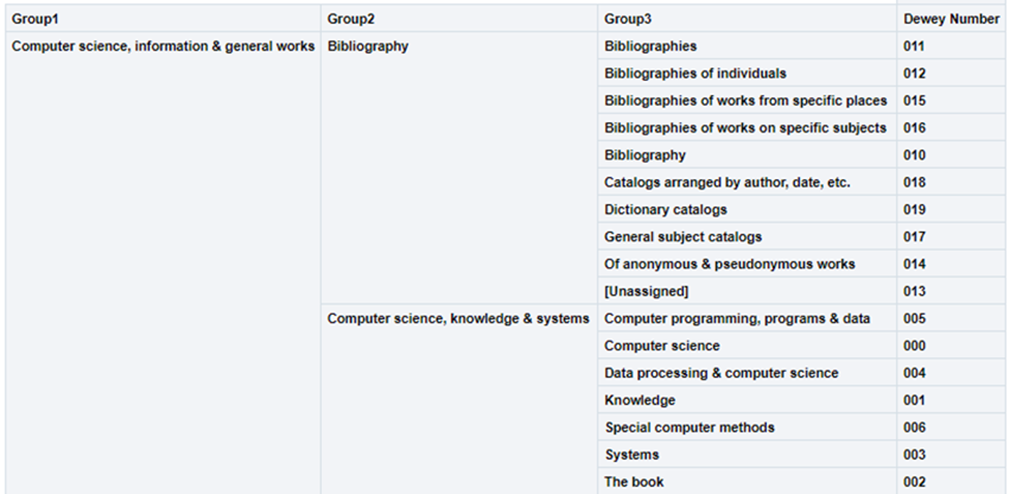
Using the hierarchy option in this dimension, the user can drill down from Group1 to Group3. In each level, the user can see measures accumulated to the relevant group.
For example:
-
000 Computer science, information & general works
-
010 Bibliography
-
000 Computer science, information & systems
-
005 Computer programming, programs & data
-
000 Computer science
-
004 Data processing & computer sciences
-
-
This is presented in Alma Analytics as follows:
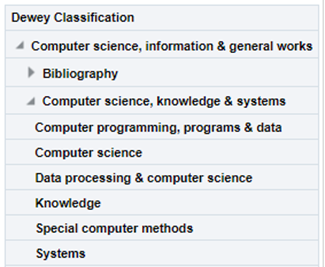
If there is more than one classification code, the last one appears.
| Field | Description | Data Type | Data Size |
|---|---|---|---|
| Group1 | The name (label) of the first Dewey classification level. | VARCHAR | 500 |
| Group2 | The name (label) of the second Dewey classification level. | VARCHAR | 500 |
| Group3 | The name (label) of the third Dewey classification level. | VARCHAR | 500 |
| Dewey Number |
The Dewey Number is a unique classification code assigned to a specific subject or topic category. The first 3 digits of the Dewey Classification. |
VARCHAR | 15 |
| Dewey Classifications | The hierarchy column that allows the user to drill down from the first level of the Dewey Classification to the third level. |
LC Classifications
Users may view measures accumulated to the relevant group, including expenditures, encumbrances, and allocations grouped by classifications.
The field descriptions can be found in the LC Classifications shared dimension.
The Library of Congress Classification (LCC) is displayed in Analytics in the LC Classification shared dimension, available in several subject areas. LC classification information is derived from the bibliographic record in most subject areas, except for the Physical Items subject area, where it can be derived from either the holdings record or the bibliographic record.
From the Bibliographic Record:
-
For MARC21
Taken from field 050$$a. If 050$a has no content, 090$a is used.
-
For UNIMARC
Taken from field 680$$a
There are five levels of the LC Classification stored in Alma Analytics. Each level is referred to by a numbered group (Group1, Group2, Group3, Group4 and Group5).
Using the hierarchy option in this dimension, the user can drill down from Group1 to Group4. In each level, the user can see measures accumulated to the relevant group.
For example:
-
SF1-1100 Animal culture
-
SF87 Acclimatization
-
... .
-
SF191-275 Cattle
-
SF250.5-275 Dairy processing. Dairy products
-
SF221-250 Dairying
-
-
This is presented in Alma Analytics as follows:
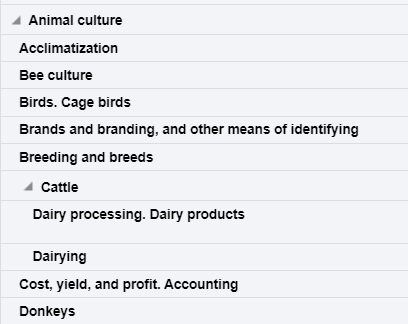
If there is more than one classification code, the last one appears.
Ex Libris works with content providers worldwide to enrich the metadata available in the Alma Community Zone. To enrich the journal/serial content in the CZ, we work directly with the Library of Congress CONSER feed for electronic serials, which we match against our knowledge base to enrich with all of the relevant metadata fields that they supply (for more details, see Community Zone Serial Records Enrichment). We receive weekly updates from CONSER and enrich the CZ records with all relevant metadata, including the 050 fields (when available). In the case of book content, we work with multiple providers who are willing to share their metadata with the Alma community globally (for more details, see Community Zone Monograph Records Enrichment). If you have local access to these classifications, you may want to consider working with the local extension for these records whenever an update is not available. (For more details, see Working with Local Extension Fields for Community Zone-linked Records)
| Field | Description | Data Type | Data Size |
|---|---|---|---|
| Group1 | Group1 is the name given for the first level of the LC Classification and is the primary division used to organize and group related topics, subjects, or materials. | VARCHAR | 500 |
| Group2 | Group2 is the name given for the second level of classification. | VARCHAR | 500 |
| Group3 | Group3 is the name given for the third level of classification. | VARCHAR | 500 |
| Group4 | Group4 is the name given for the fourth level of classification. | VARCHAR | 500 |
| Group5 | Group5 is the name given for the fifth level of classification. | VARCHAR | 500 |
| Start Range |
Start Range refers to the beginning point of a designated range within a classification system. The Start Range indicates the initial classification number or identifier within a specified range that encompasses a set of related subjects, topics, or materials. For example, in PS501-689 (Collections of American literature), the start range is PS501. Possible start range values are hard coded to the beginning of LC Classification groups. |
VARCHAR | 50 |
| End Range |
End Range refers to the concluding point of a designated range within a classification system. The End Range specifies the final classification number or identifier within a defined range that encompasses a set of related subjects, topics, or materials. For example, in PS501-689 (Collections of American literature), the end range is PS689. Possible end range values are hard coded to the end of LC Classification groups. |
VARCHAR | 50 |
| Classification Code |
Classification Code refers to a unique alphanumeric identifier assigned to a specific subject or topic category within the library's classification system. The Classification Code is composed of letters and numbers that represent various facets of a work, such as its subject, genre, or format. For example, in the LC classification "PN1997.2.D56," the "PN" portion represents the general subject area (Performing Arts), and the "1997.2.D56" further refines the classification to a specific work or aspect within that category. |
VARCHAR | 50 |
| Start Range Number | The numbers that come after the letter(s) in the start range. | DOUBLE | |
| End Range Number | The numbers that come after the letter(s) in the end range. | DOUBLE | |
| Classifications | The Hierarchy column that enables the user to drill down from the first level of the classification to the fourth level. Using this column provides the user with the option to view the accumulative measures. Note that the fifth level is not included in this field. | Hierarchy |
For a Knowledge Article related to LC Classifications, see Analytics LC Classification code shows Unknown even though a call number is present in Alma.
Other Classifications
The Other Classifications table is a dimension table that contains fields for classification systems other than LC and Dewey. Like LC and Dewey classifications, you can drill down to different levels, or groups. At each level, the measures associated with the selected group are displayed.
| Field | Description | Additional Information | Mapping from MARC 21 | Data Type | Data Size |
|---|---|---|---|---|---|
| Chinese Classifications | |||||
| Classification Code | The Chinese classification code. | If the code is not found or in an incorrect format Unknown is displayed. | The 090 $a and 093 $a fields in the MARC record. (For CNMARC, the 690 $a field.) | VARCHAR | 50 |
| Group 1-7 (Chinese) | The name of the levels of classification in Chinese. | The group name in Chinese as defined by the National Library of China. | VARCHAR | 500 | |
| Group 1-7 (English) | The names of the levels of classification in English. | The group name in English as defined by the National Library of China. | VARCHAR | 500 | |
| Chinese Classifications (Taiwan) | |||||
| Classification Code | The Chinese (Taiwan) classification code. | If the code is not found or in an incorrect format Unknown is displayed. | When the OTHER_CLASS_SCHEME value in the MARC 084 $2 field is ncsclt the classification code value is taken from the MARC 084 $a field. | VARCHAR | 10 |
| Group 1-3 (Chinese-Taiwan) | The name of the levels of classification in Chinese-Taiwan. | The group name in Chinese as defined by the National Central Library of Taiwan. | VARCHAR | 250 | |
| Group 1-3 (English) | The names of the levels of classification in English. | The group name in English as defined by the National Central Library of Taiwan. | VARCHAR | 250 | |
| NLM Classifications | |||||
| Has W1 | Indicates that the 060 field of the bibliographic record has a value containing the W1 code. This indicates that the item is a journal. A second value in the 060 field is the subject classification code that appears for the NLM Classification Code analytics field. | ||||
| NLM Classification Code | The letters at the beginning of the NLM classification code entered in the MARC field. |
|
Taken from the 060 $a field or, if empty, from the 096 $a field of the MARC record. | VARCHAR | 250 |
| NLM Classification Number | The numbers that come after the letters of the NLM classification code. | Taken from the 060 $a field or, if empty, from the 096 $a field of the MARC record. | VARCHAR | 50 | |
| NLM Group 1-5 | The names of the levels of classification. | The group name as defined by NLM. | VARCHAR | 4000 | |
| NLM Geographic Classifications | |||||
| NLM Geographic Code | The code of the geographic location, used for various purposes by NLM. | Taken from the 060 $a field . | VARCHAR | 50 | |
| NLM Geographic Name | The name of the geographic location, used for various purposes by NLM. | The Geographic Name from NLM that corresponds to the Geographic Code. | VARCHAR | 255 | |
| U.S. SuDoc Classifications | |||||
| U.S. SuDoc Classification Code | The letters at the beginning of the classification code entered in the MARC field. |
|
When the first indicator is 0, this is taken from the 086 $a field in the MARC record. | VARCHAR | 250 |
| U.S. SuDoc Classification Number | The characters (usually numbers) that come after the letters in the SuDoc Classification code entered in the MARC field. | When the first indicator is 0, this is taken from the 086 $a field in the MARC record. | VARCHAR | 50 | |
| U.S. SuDoc Agency | The name of the top level (parent) U.S. government agency. | Unlike other classification systems, the SuDoc system groups publications together by the publishing agency, that is, a U.S. government agency. | The agency name that matches the classification code, as defined by SuDoc. | VARCHAR | 4000 |
| U.S. SuDoc SubAgency | The name of subordinate bureau or division of the parent U.S. agency. |
A subagency is displayed if a publication is published by a subordinate bureau or division within a parent agency. If the top level agency is the publishing agency, then that agency is also listed as the subagency. |
The subagency name that matches the classification number, as defined by SuDoc. | VARCHAR | 4000 |
| U.S. SuDoc Title | Title designates either a specific publication title or category of the publication. | The title that matches the classification number, as defined by SuDoc. | VARCHAR | 4000 | |
Creation Date
The Creation Date dimension is a dimension table that stores details about the creation date of the purchase request.
| Field | Description | Additional Information | Data Type | Data Size |
|---|---|---|---|---|
| Creation Date | The creation date of the purchase request | The date in the format DD/MM/YYYY | DATE | |
| Creation Start of Week | The date of the first business day of the week | The date in the format DD/MM/YYYY | DATE | |
| Creation Week Number | The number of the week of the year | There are 52 weeks in a year. | VARCHAR | 2 |
| Creation Month Key | The month of the date in number format | For example - February will show the number 2 in this column. This field is useful when you want to sort by month. | INT | |
| Creation Month | The month of the date in text format | The month, for example, "February" | VARCHAR | 20 |
| Creation Full Month | The year and month that the purchase request was modified | The month in text format and the year. For example - Feb 25 (for February 2025) | VARCHAR | 20 |
| Creation Quarter | The quarter in the year in which the purchase request was modified | The quarter of the date in a display format such as Q1 | VARCHAR | 20 |
| Creation Year | The year in which the purchase request was modified | The year of the date in the format YYYY . For example - 2025 | VARCHAR | 20 |
| Creation Fiscal Month Key | The fiscal month of the date in number format | For example - If the fiscal year starts in June, this column will show the number 1 for June, the number 2 for July, and so on. | INT | |
| Creation Fiscal Year | The fiscal year of the date in string format | The year is presented according to the description in the mapping table "Fund and Ledger Fiscal Period". For more information, see Configuring Fund and Ledger Fiscal Periods | VARCHAR | 50 |
| Creation Date Filter | Used to filter report results by date | Possible values:
|
VARCHAR | 100 |
| Creation Year-Month | The year and the month in which the purchase request was modified | The year and the month in the format YYYY-MM | VARCHAR | 250 |
| Creation Date | The date in a hierarchy format | Enables the user to drill down from the year to the month to the specific date. Using this column provides the user with the option to view the accumulative measures in each level of the hierarchy. |
Modification Date
The Modification Date dimension is a dimension table that stores details about the modification date of the purchase request.
| Field | Description | Additional Information | Data Type | Data Size |
|---|---|---|---|---|
| Modification Date | The modification date of the purchase request | The date in the format DD/MM/YYYY | DATE | |
| Modification Start of Week | The date of the first business day of the week | The date in the format DD/MM/YYYY | DATE | |
| Modification Week Number | The number of the week of the year | There are 52 weeks in a year. | VARCHAR | 2 |
| Modification Month Key | The month of the date in number format | For example - February will show the number 2 in this column. This field is useful when you want to sort by month. | INT | |
| Modification Month | The month of the date in text format | The month, for example, "February" | VARCHAR | 20 |
| Modification Full Month | The year and month that the purchase request was modified | The month in text format and the year. For example - Feb 25 (for February 2025) | VARCHAR | 20 |
| Modification Quarter | The quarter in the year in which the purchase request was modified | The quarter of the date in a display format such as Q1 | VARCHAR | 20 |
| Modification Year | The year in which the purchase request was modified | The year of the date in the format YYYY . For example - 2025 | VARCHAR | 20 |
| Modification Fiscal Month Key | The fiscal month of the date in number format | For example - If the fiscal year starts in June, this column will show the number 1 for June, the number 2 for July, and so on. | INT | |
| Modification Fiscal Year | The fiscal year of the date in string format | The year is presented according to the description in the mapping table "Fund and Ledger Fiscal Period". For more information, see Configuring Fund and Ledger Fiscal Periods | VARCHAR | 50 |
| Modification Date Filter | Used to filter report results by date | Possible values:
|
VARCHAR | 100 |
| Modification Year-Month | The year and the month in which the purchase request was modified | The year and the month in the format YYYY-MM | VARCHAR | 250 |
| Modification Date | The date in a hierarchy format | Enables the user to drill down from the year to the month to the specific date. Using this column provides the user with the option to view the accumulative measures in each level of the hierarchy. |
Funds
The Funds table is a dimension table that displays the details about the fund with which the transaction is associated. The primary key of the table is FUND_LEDGER_ID.
There are the following types of funds:
- Ledger
- Summary
- Allocated Fund
Funds are kept in a parent-child relationship so that each fund has a connection to its parent.
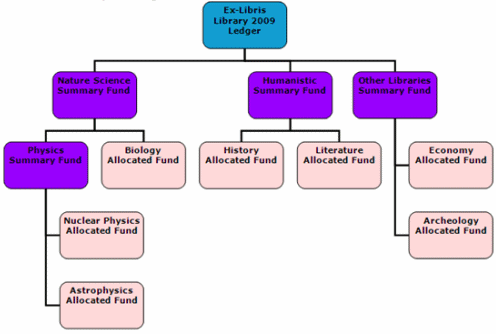
Creating Reports According to Fund Type
You can create reports according to fund type. If the procedures in this section are not implemented, the sums of all of the fund types may be added together in the transaction amount.
-
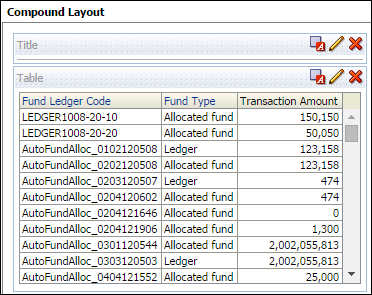
To create a report displaying funds of just one type, filter the Fund Type column according to Ledger, Allocated fund, or Summary fund:
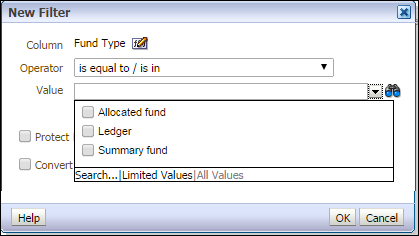
-
To create a report shoing all of the fund types, add a column that displays any unique identifier of the fund, such as Fund Ledger Code:
Basic Concepts for Funds in Alma
Allocated and Summary Funds
A fund represents money in an account. A fund can be summary or allocated.
- Summary — This fund is not used for ordering and invoicing, but provides aggregate reporting on subordinate funds. You can add other funds to this type of fund.
- Allocated —This fund contains money that has been paid out or has been reserved for an open purchase.
A Summary Fund can only be associated with an Allocated Fund. A specific Allocated Fund (i.e. Allocated Fund 101) can only be associated with only one Ledger or Summary Fund, but not both.
Fund Balance
Available Balance —The allocated balance, less (encumbrances minus disencumbrances) and less expenditures.
Cash Balance — The allocated balance less expenditures.
Allocated Balance —The total allocation, not counting any expenditures or encumbrances/disencumbrances.
Encumbered Balance — The sum of the fund's encumbrances minus disencumbrances.
Expenditure Balance — Also called expended balance , this is the sum of the fund's expenditures.
Ledger
A ledger is essentially a collection of funds. Ledgers are defined for a specific date range, such as September 1 of this year to August 31 of next year. A Ledger can be associated with a Summary or Allocated Fund.
Transactions
A transaction can be an allocation, encumbrance, disencumbrance, or expenditure. An allocation adds money to the fund, increasing its available balance. An encumbrance indicates money that is expected to be paid out, as the result of a PO line. A disencumbrance is added or increased when adding an expenditure linked to the same PO line as an encumbrance.
Managing and Configuring Funds in Alma
You can manage funds in Alma by navigating to Acquisitions > Funds and Ledgers.
You can configure fund types in Alma by navigating to Configuration > Acquisitions > Fund Types.
For more information on funds see Managing Funds and Ledgers.
The following table describes the fields in the Fund table.
| Field | Description | Field Location in Alma | Additional Information | Data Type | Data Size |
|---|---|---|---|---|---|
| Fund Area Code | The codes defined in the Fund Types table and attributed to funds, for example: Endowed, Gift, General, Grant, Income, and ResourceSharing. For more information, see Configuring Fund Types. | Does not appear in the UI. | Configured in the Code field in Configuration Menu > Acquisitions > General > Fund Types. | VARCHAR | 255 |
| Fund Area Description | The description defined in the Fund Types table for the Fund Area Code (Fund Type). | Fund type in the "General" section on the Summary Details page for Funds and Ledgers. | This description comes from the configuration page as described in Fund Area Code above. | VARCHAR | 255 |
| Fund Code | The fund or ledger code. | Code in the "General" section on the Summary Details page for Funds and Ledgers. |
The code is reused when you roll over the ledger to a new fiscal period. This is filled by the user after selecting Add Ledger. It is not editable once the user saves and then goes back to edit. |
VARCHAR | 255 |
| Fund Currency | The default unit of currency for the ledger. | Currency in the "General" section of the Summary Details page for Funds and Ledgers. | The values are configured in the Currency Subset table (Configuration Menu > Acquisitions > General > Currency Subset). | VARCHAR | 255 |
| Fund Description | The description of the fund. | Description in the "General" section on the Summary Details page for Funds and Ledgers. | VARCHAR | 4000 | |
| Fund External ID | The fund ID in external/legacy systems. | External ID in the "General" section on the Summary Details page for Funds and Ledgers. | This ID is used to link to other system keys. (See also Fund ID.) | VARCHAR | 255 |
| Fund Fiscal Period ID | The ID of the fiscal period to which this fund applies. | Does not appear in the UI. | Configured in the Fund And Ledger Fiscal Period table (Configuration > Acquisitions > Fund and Ledger Fiscal Period). | VARCHAR | 255 |
| Fund ID | The unique ID of the fund within Alma. |
Does not appear in the UI. |
(See also Fund External ID.) | VARCHAR | 255 |
| Fund Name | The fund name. | Name in the "General" section on the Summary Details page for Funds and Ledgers. | The name of the fund can be changed when it is rolled over to a new fiscal year. When working with accrual accounting (see Working With Accrual Accounting), the name of the fund in the new fiscal period should not be changed. | VARCHAR | 255 |
| Fund Note | Notes that are relevant to the fund. | The Notes tab in the Summary Details page for Funds and Ledgers. | If there are multiple notes, they are concatenated. Two notes are separated by a semicolon. | VARCHAR | 4000 |
| Fund Owner Code | The code of the owning institution or library (see also Fund Owner Name). | Does not appear in the UI. | VARCHAR | 50 | |
| Fund Owner Name | The name of the owning institution or library. | Owned by in the "General" section on the Summary Details page for Funds and Ledgers. | A ledger can only have one owner. The ownership from a library to the institution can be changed, but the ownership from a library to another library or from the institution to a library cannot be changed. | VARCHAR | 255 |
| Fund Status | Indicates if the fund is in status active, draft or inactive. It applies to Ledgers, Summary Fund and Allocated Fund. | Status in the "General" section on the Summary Details page for Funds and Ledgers. | The statuses are described below:
|
VARCHAR | 10 |
| Fund Type | One of the following fund types:
|
Type in the "Funds and Ledgers" page accessed from Acquisitions > Acquisitions Infrastructure > Funds and Ledgers. | Fund types are for informational purposes only. You can configure fund types on the Fund Type code table (Configuration Menu > Acquisitions > General > Fund Types). | VARCHAR | 4000 |
|
Parent Fund Code |
The code of the parent fund in the Path hierarchy. | Does not appear in the UI (see Parent Fund Name). | See also Fund Code. | VARCHAR | 255 |
| Parent Fund ID | The unique ID of the parent fund in the Path hierarchy, |
Does not appear in the UI (see Parent Fund Name). |
See also Fund ID. | VARCHAR | 255 |
| Parent Fund Name | The name of the parent fund in the Path hierarchy. | Funds and Ledgers > Summary > Path. | See also Fund Name. | VARCHAR | 255 |
Library Unit
The Library Unit table is a dimension table that stores details about the library where the PO Line was created.
| Field | Description | Field Location in Alma | Additional Information | Data Type | Data Size |
|---|---|---|---|---|---|
| Library Address Line 1 | The first line of the address of the institution. It usually includes the building number and the street name. |
Configuration > General > Add a Library or Edit Library Information > Contact Information tab. This is taken from the address configured as the Preferred address. The label in Alma is Address Line 1. |
VARCHAR | 1000 | |
| Library City | The city of the library. |
Configuration > General > Add a Library or Edit Library Information > Contact Information tab. This is taken from the address configured as the Preferred address. The label in Alma is City. |
VARCHAR | 255 | |
| Library Code | The library code | Configuration > General > Libraries > Add a Library or Edit Library Information > Libraries tab > Path [the text after the period] | VARCHAR | 50 | |
| Library Code (Active) | The code of active (not deleted) libraries | Configuration > General > Libraries > Add a Library or Edit Library Information > Libraries tab > Path [the text after the period] | The same as Library Code without deleted libraries. | VARCHAR | 50 |
| Library Country | The country of the library. |
Configuration > General > Add a Library or Edit Library Information > Contact Information tab. This is taken from the address configured as the Preferred address. The label in Alma is Country. |
VARCHAR | 320 | |
| Library Description | The library description |
Configuration > General > Libraries > Add a Library or Edit Library Information > Libraries tab The label in Alma is Description. |
VARCHAR | 100 | |
| Library Name | The library name |
Configuration > General > Libraries > Add a Library or Edit Library Information > Libraries tab The label in Alma is Organization Unit Name. |
VARCHAR | 255 | |
| Library Name (Active) | The library name of active (not deleted) libraries |
Configuration > General > Libraries > Add a Library or Edit Library Information > Libraries tab The label in Alma is Organization Unit Name. |
The same as Library Name without deleted libraries. | VARCHAR | 255 |
| Library Postal Code | The postal code of the library. |
Configuration > General > Add a Library or Edit Library Information > Contact Information tab. This is taken from the address configured as the Preferred address. The label in Alma is Postal code. |
VARCHAR | 200 | |
| Library State Province | The state or province of the library. |
Configuration > General > Add a Library or Edit Library Information > Contact Information tab. This is taken from the address configured as the Preferred address. The label in Alma is State/Province. |
VARCHAR | 320 | |
| Unit Type | The type of organization unit |
Configuration > General > Libraries > Add a Library or Edit Library Information > Libraries tab The label in Alma is Organization Unit Type. |
Values can be Institution/Library | VARCHAR | 20 |
Owning Library
The Owning Library table is a dimension table that stores details about the library/institution that created the purchase request. The fields are the same as the shared Librray Unit dimension. The primary key of the table is ORGANIZATION_ID.
| Field | Description | Field Location in Alma | Additional Information | Data Type | Data Size |
|---|---|---|---|---|---|
| Owning Library Address Line 1 | The first line of the address of the institution. It usually includes the building number and the street name. | Configuration > General > Add a Library or Edit Library Information > Contact Information tab. This is taken from the address configured as the Preferred address. The label in Alma is Address Line 1. |
VARCHAR | 1000 | |
| Owning Library City | The city of the library. | Configuration > General > Add a Library or Edit Library Information > Contact Information tab. This is taken from the address configured as the Preferred address. The label in Alma is City. |
VARCHAR | 255 | |
| Owning Library Code | The library code | Configuration > General > Libraries > Add a Library or Edit Library Information > Libraries tab > Path [the text after the period] |
VARCHAR |
50 |
|
| Owning Library Code (Active) | The code of active (not deleted) libraries | Configuration > General > Libraries > Add a Library or Edit Library Information > Libraries tab > Path [the text after the period] | The same as Library Code without deleted libraries. |
VARCHAR |
50 |
| Owning Library Country | The country of the library. | Configuration > General > Add a Library or Edit Library Information > Contact Information tab. This is taken from the address configured as the Preferred address. The label in Alma isCountry. |
VARCHAR | 320 | |
| Owning Library Description | The library description | Configuration > General > Libraries > Add a Library or Edit Library Information > Libraries tab The label in Alma is Description. |
VARCHAR |
100 |
|
| Owning Library Name | The library name | Configuration > General > Libraries > Add a Library or Edit Library Information > Libraries tab The label in Alma is Organization Unit Name. |
VARCHAR |
255 |
|
| Owning Library Name (Active) | The library name of active (not deleted) libraries | Configuration > General > Libraries > Add a Library or Edit Library Information > Libraries tab The label in Alma is Organization Unit Name. |
The same as Library Name without deleted libraries. |
VARCHAR |
255 |
| Owning Library Postal Code | The postal code of the library. | Configuration > General > Add a Library or Edit Library Information > Contact Information tab. This is taken from the address configured as the Preferred address. The label in Alma is Postal code. |
VARCHAR | 200 | |
| Owning Library State Province | The state or province of the library. | Configuration > General > Add a Library or Edit Library Information > Contact Information tab. This is taken from the address configured as the Preferred address. The label in Alma is State/Province. |
VARCHAR | 320 | |
| Owning Library Type | The type of organization unit | Configuration > General > Libraries > Add a Library or Edit Library Information > Libraries tab The label in Alma is Organization Unit Type. |
Values can be Institution/Library |
VARCHAR |
20 |
| Owning Location Code | The owning library location code | VARCHAR | 50 | ||
| Owning Location Name | The owning library location name | VARCHAR | 255 |
PO Line
The PO Line table is a dimension table that stores details about the PO and the PO Line that is associated with the fund transaction.
| Field | Description | Field Location in Alma | Additional Information | Data Type | Data Size |
|---|---|---|---|---|---|
| Access Model | The public access model for the electronic resource. | Acquisitions > All PO Lines > Activation Information section |
Available only for electronic resources. The values are configured in the Access Model code table. |
VARCHAR | 4000 |
| Acquisition Method |
The code of the method by which the PO Line is acquired, with the default value set as PURCHASE. This value may change when the PO Line is sent. |
See the Acquisition Method Code table. | VARCHAT | 255 | |
| Acquisition Method Description | The description (label) of the acquisition method. |
Acquisitions > All PO Lines > PO Line Information section The label in Alma is Acquisition method. |
VARCHAR | 4000 | |
| Additional Order Reference | An additional identifier for the PO line. |
Acquisitions > All PO Lines > PO Line Information section The label in Alma is Additional PO Line Reference Field. |
VARCHAR | 255 | |
| Application | Used for identifying migrated PO lines. | Data is stored in the DB and not exposed in the Alma UI. | VARCHAR | 255 | |
| Assigned To | The user to which the order is assigned. | Acquisitions > All PO Lines > Left pane | VARCHAR | 255 | |
| Associated PO Line | The PO line associated with the current one. | Acquisitions > All PO Lines > PO Line Information section | VARCHAR | 255 | |
| Association Type | The type of association between PO lines. Defined by a user, process, or job. | Acquisitions > All PO Lines > Associated PO Lines link | Available when there is an associated PO line | VARCHAR | 255 |
| Cancellation Reason | Code for the reason that a PO line is canceled. Displayed only for canceled PO lines. |
The cancellation reason label appears in the History link. To match the label from the PO line History page to the code in analytics, see the PO Line Cancellation Reasons Code table at Configuration > Purchase Orders > PO Line Cancellation Reasons. The cancellation reason is selected when cancelling a PO line. |
VARCHAR | 255 | |
| Cancellation Restriction | Indicates if the cancellation restriction note is displayed when cancelling of a PO line, which contains a warning about the cancellation. | Acquisitions > All PO Lines > PO Line Information section | Possible values are Yes/No. | VARCHAR | 4000 |
| Cancellation Restriction Note | The warning to be displayed when canceling a PO line when Cancellation Restriction is selected in Alma. | Acquisitions > All PO Lines > PO Line Information section | Displayed when Cancellation Restriction is selected. | VARCHAR | 4000 |
| CKB ID | When clicking Order from an Electronic Collections search, a CKB ID (Central Knowledgebase ID) is stored as a reference to the electronic collection ID, rather than an MMS ID. |
Acquisitions > All PO Lines > PO Line Information section The label in Alma is CKB ID. |
Not available when there is an MMS ID. | VARCHAR | 50 |
| Claiming Date | The date on which the PO line is sent to the claims task list. |
Determined by adding the number of days in the claiming grace period to the expected receipt/activation date. Calculated from the "Claiming grace period field (days)" field on the Acquisitions > All PO Lines > Vendor Information section. For more information, see Criteria for Marking PO Lines as In Claim. |
DATETIME | ||
| Claiming Date (Calendar) | Claiming Date without a timestamp | DATE | |||
| Currency | The currency of the transaction. | Acquisitions > All PO Lines > Pricing and Funding section > next to the List Price field | VARCHAR | 3 | |
| Discount | The discount amount. |
Acquisitions > All PO Lines > Pricing and Funding section The label in Alma is Discount (amount). |
DOUBLE | ||
| ERP Number | The Enterprise Resource Planning number of the purchase order. |
Used by customers that want the purchase order to be approved by an ERP system before it is sent to the vendor. For more information, see Orders Export in the Developers Network. |
VARCHAR | 255 | |
| Expected Activation Date | The expected date for the resource activation by vendor for electronic PO lines. | Acquisitions > All PO Lines > Vendor Information section | Only for electronic PO lines. | DATE | |
| Expected Activation Interval | For electronic PO Lines, the number of days after ordering that you expect electronic orders to be activated. |
Acquisitions > All PO Lines > Vendor Information section The label in Alma is Activation due after ordering (days). |
Only for electronic PO lines. | DOUBLE | |
| Expected Receipt after Ordering Interval | For physical PO Lines, the number of days after ordering that you expect physical orders to be received. |
Acquisitions > All PO Lines > Vendor Information section The label in Alma is Expected receipt after ordering (days). |
Only for physical PO lines. | DOUBLE | |
| Expected Receipt Date | For physical PO lines, the expected date for physical items to be received from the vendor. |
Acquisitions > All PO Lines > Vendor Information section The label in Alma is Expected receipt (date). |
Only for physical PO lines. | DATE | |
| Interested Users | Displays the interested users for the PO line. If more than one user is added to the PO line, values are concatenated. | Acquisitions > All PO Lines > Interested Users section | Note that to search for a specific user, you should use the contain filter to also find cases where more than one user was added to the PO. | VARCHAR | 4000 |
| Invoice Status | The status of the invoice. | Acquisitions > All PO Lines > PO Line Information section | VARCHAR | 4000 | |
| Is Claimed | Indicates if there is an open claim to the vendor. A PO line is claimed if the items were not received or if the receiving/activation date of the PO line passed. | Acquisitions > All PO Lines > Left pane, when marked In Claim | Possible values are Yes/No. | VARCHAR | 3 |
| Item Description | The description of the ordered physical item. | Acquisitions > All PO Lines > Ordered Items section | The description entered for the PO line. Note that this field is not taken from the bibliographic details. It is useful when no item is related to the PO line. Only for physical one-time PO lines. | VARCHAR | 4000 |
| License ID | The unique ID of the license of the PO line that is relevant for electronic PO lines. | Available only for electronic resources. Data is stored in the DB and not exposed in the Alma UI. | VARCHAR | 50 | |
| List Price | The list price for a single copy of the item. | Acquisitions > All PO Lines > Pricing and Funding section | DOUBLE | ||
| Manual Renewal | Indicates whether the PO line is renewed manually or automatically. | Acquisitions > All PO Lines > Renewal Information section |
Yes for manual and No for automatic. Relevant for standing orders and subscriptions. |
VARCHAR | 3 |
| Material Supplier | The vendor supplying the material being ordered. | Acquisitions > All PO Lines > Vendor Information section | This is a concatenation of: vendor name (name code)/account description (account code). | VARCHAR | 800 |
| Material Type | The material type of the PO line. | Acquisitions > All PO Lines > PO Line Information section | For example: Book. | VARCHAR | 4999 |
| Net Price | A calculation of the total price for the PO line based on the list price per copy, the discount, and the number of copies ordered. | Acquisitions > All PO Lines > Pricing and Funding section | DOUBLE | ||
| No Charge | Indicates if there is a charge for the PO line. | Acquisitions > All PO Lines > Pricing and Funding section | Yes / No | VARCHAR | 10 |
| Note To Vendor | Notes to the vendor. | Acquisitions > All PO Lines > Vendor Information section | VARCHAR | 2000 | |
| Order Line Type | The order line type as it appears in the order in Alma. |
Acquisitions > All PO Lines > PO Line Summary section Does not have a label in the Alma UI. |
See the PO Line Type Code table. | VARCHAR | 4000 |
| Order Line Type Code | The code for the Purchase Order line type. | See the PO Line Type Code table. | VARCHAR | 255 | |
| PDA Code | The patron driven acquisition code. |
Acquisitions > All PO Lines > (Electronic Resource) > Ordered Portfolios section> [Edit] >Acquisitions section> View PDA Details The label in Alma is Code. |
Only if the PO line was created by a PDA process. | VARCHAR | 4000 |
| PDA Name | The patron driven acquisition name |
Acquisitions > All PO Lines > (Electronic Resource) > Ordered Portfolios section> [Edit] > Acquisitions Tab The label in Alma is PDA. |
Only if the PO line was created by a PDA process. | VARCHAR | 4000 |
| PO Approval Date | The date the PO was approved. | Acquisitions > All PO Lines > Record View. | DATE | ||
| PO Approval Date and Time | The date and time that the PO was approved. | DATE | |||
| PO Creation Date | The timestamp of the PO creation date. |
Acquisitions > All PO Lines > PO Line Summary section> [PO link] > Information Icon The label in Alma is Created on. |
TIMESTAMP | ||
| PO Creation Date (Calendar) | PO creation date without a timestamp. | DATE | |||
| PO Creator | The user that created the PO (user name). |
Acquisitions > Review (PO) > Right Pane > Information Icon The label in Alma is Created by. |
VARCHAR | 255 | |
| PO Line Binding During Receiving | Indicates if the PO line is marked for binding during receiving (for physical items). |
Acquisitions > All PO Lines > Receiving Information section The label in Alma is Binding during receiving. |
Relevant only for physical items. Possible values are Yes/No. |
VARCHAR | 4000 |
| PO Line Creation Date | The timestamp of the PO line creation date. |
Acquisitions > All PO Lines > History link > Info icon The label in Alma is Created on. |
TIMESTAMP | ||
| PO Line Creation Date (Calendar) | PO line creation date without a timestamp. | DATE | |||
| PO Line Creator | The user that created the PO line (user name). |
Acquisitions > All PO Lines > History link > Info icon The label in Alma is Created by. |
VARCHAR | 255 | |
| PO Line Identifier |
The identifier of the ordered title. (ISSN or ISBN) |
Acquisitions > All PO Lines > PO Line Information section The label in Alma is Identifier. |
VARCHAR | 4000 | |
| PO Line Inventory Active Library Code | The code of the active (not deleted) library of the inventory (item). | PO Line Inventory Library Name, which matches the code, can be seen in the Ordered Items section. | Library codes are configured in Configuration > General > Add a Library or Edit Library Information | VARCHAR | 4000 |
| PO Line Inventory Library Code | The code of the library of the inventory (item). | PO Line Inventory Library Name, which matches the code, can be seen in the Ordered Items section. | Library codes are configured in Configuration > General > Add a Library or Edit Library Information | VARCHAR | 4000 |
| PO Line Label | The labels assigned to the PO line | Acquisitions > All PO Lines >PO Line Summary section | This is a repeatable field in Alma, which is concatenated in analytics. It is fee-text field, configured by the user. For more information, see New Layout. | VARCHAR | 4000 |
| PO Line Manual Packaging | Indicates if the PO line was manually packaged into a PO. |
Acquisitions > All PO Lines >PO Line Information section The label in Alma is Manual packaging. |
Possible values are Yes/No. | VARCHAR | 4000 |
| PO Line Modification Date | The timestamp of the PO line modification date. |
Acquisitions > All PO Lines > History link> Info icon The label in Alma is Last updated on. |
TIMESTAMP | ||
| PO Line Modification Date (Calendar) | PO line modification date without a timestamp. | DATE | |||
| PO Line Modified By | The user that modified the PO line (user name). |
Acquisitions > All PO Lines > History link > Info icon The label in Alma is Last updated by. |
VARCHAR | 255 | |
| PO Line Notes | The notes on the PO line. | Acquisitions > All PO Lines > Notes section | Multiple notes are separated by a semicolon. | VARCHAR | 4000 |
| PO Line Owner Library Code | The code of the PO line owner library. |
Configuration > General > Add a Library or Edit Library Information > Right Pane The label in Alma is Code. |
Library codes are configured in Configuration > General > Add a Library or Edit Library Information | VARCHAR | 4000 |
| PO Line Owner Library Name | The name of the PO line owner library. |
Acquisitions > All PO Lines > PO Line Summary section The label in Alma is PO Line Owner. |
VARCHAR | 4000 | |
| PO Line Reference | The business identifier of the PO line (PO Line number). |
Acquisitions > All PO Lines > PO Line Summary section The label in Alma is PO Line. |
This is the PO line number in Alma. | VARCHAR | 255 |
| PO Line Routing During Receiving | Indicates if the PO line is marked for routing during receiving. |
Acquisitions > All PO Lines > Receiving Information section The label in Alma is Routing during receiving. |
Relevant only for physical items. Possible values are Yes/No. |
VARCHAR | 4000 |
| PO Line Title | The title of the PO line. |
Acquisitions > All PO Lines > PO Line Summary section There is no label in Alma. |
VARCHAR | 4000 | |
| PO Line Vendor Title Number | A vendor-supplied number for the associated title on a PO line. | The MARC 035 field of the bibliographic record. | An identifier other than ISBN/ISSN for non-books inventory. | VARCHAR | 4000 |
| PO Modification Date | The timestamp of the PO modification date. |
Acquisitions > All PO Lines > Receiving Information section The label in Alma is Last updated on. |
TIMESTAMP | ||
| PO Modification Date (Calendar) | The PO modification date without the timestamp. | This date format is useful when filtering the report by date. | DATE | ||
| PO Modified By | The user that modified the PO (user name). |
Acquisitions > All PO Lines > Receiving Information section The label in Alma is Last updated by. |
VARCHAR | 255 | |
| PO Number | The business identifier of the PO related to the PO line. |
Acquisitions > All PO Lines > Left pane The label in Alma is PO. |
VARCHAR | 255 | |
| Quantity for Pricing | The number of items to be paid for. | Acquisitions > All PO Lines > Pricing and Funding section. | The quantity for pricing and the number of items to create may be different in a case of discounted pricing through a deal such as "buy two items and get a third item at no additional charge". | DOUBLE | |
| Receiving / Activation Note | Text with which the Purchasing Operator indicates to the Receiving Operator the intended location of serial order items in which no inventory items are created. | Acquisitions > All PO Lines > Activation Information section |
Activation information is only available for electronic resources. For physical resources, the section is Receiving Information. |
VARCHAR | 4000 |
| Receiving Date (Latest in POL) | This field allows you to retrieve the latest receiving date for an item in a PO line. | Acquisitions > All PO Lines > Ordered Items section> Receiving date (the most recent receiving date) | This is useful, since a PO line can have several items and each of the items may have a different receiving date. | DATE | |
| Receiving Status | An indication (Yes/No) of whether or not all physical items were received in the receiving workbench. | VARCHAR | 10 | ||
| Reclaim Interval (Days) | The interval number of days that Alma will send reclaim letters after the initial claim letter is sent. | Acquisitions > All PO Lines > Vendor Information section | Relevant only for physical PO lines. | NUMERIC | |
| Renewal Cycle | The cycle for the autorenewal job for continuous orders For example, if it is set to one year, the PO line is renewed in one year. | Acquisitions > All PO Lines > Renewal Information section |
Defined in the RenewalCycle code table. Relevant only for continuous orders. |
DOUBLE | |
| Renewal Date | The date of the PO line’s next renewal for continuous orders. | Acquisitions > All PO Lines > Renewal Information section | Relevant only for continuous orders. | DATE | |
| Renewal Note | The note of the PO line renewal for continuous orders. | Acquisitions > All PO Lines > Renewal Information section | Relevant only for continuous orders. | VARCHAR | 4000 |
| Renewal Reminder Period | Determines how many days before renewal an email regarding that renewal is sent. |
Acquisitions > All PO Lines > Renewal Information section The label in Alma is Renewal reminder period (days). |
Relevant only for manually renewed continuous orders. | DOUBLE | |
| Reporting Code - 1-5 | Five fields that store the reporting codes. | As defined in the Reporting Codes code tables. | VARCHAR | 255 | |
| Reporting Code Description - 1-5 | Five fields that store the description of the five reporting code fields. | Acquisitions > All PO Lines > Reporting Codes section | VARCHAR | 4000 | |
| Rush | Indicates if the PO line is to be rushed. | Acquisitions > All PO Lines > Receiving Information section |
Relevant only for Physical items Possible values are 0 or 1. 1 indicates a rush. |
VARCHAR | 4000 |
| Sent Date | The date that the PO/ PO line is sent to the vendor. |
Acquisitions > All PO Lines > PO Line Information section For PO line - in the history link. |
DATE | ||
| Ship To Address City | The city to which to ship the physical item. | From the shipping address configured for the relevant library. | VARCHAR | 176 | |
| Ship To Address Country | The country to which to ship the physical item. | From the shipping address configured for the relevant library. | VARCHAR | 320 | |
| Ship to Address ID | Internal ID of the library shipping address. | Data is stored in the DB and not exposed in the Alma UI. | DOUBLE | ||
| Ship To Address Line 1-5 | The address to which to ship the physical item. | From the shipping address configured for the relevant library. | VARCHAR | 784 | |
| Shipping Method | The code of the method for the vendor to ship the order. | Per the values in Shipping Method code table defined in the acquisition configuration menu. | VARCHAR | 255 | |
| Source ID | The source file ID used for the EOD lines. | Data is stored in the DB and not exposed in the Alma UI. | VARCHAR | 255 | |
| Source Type | The source from which the PO line originated, for example, EOD, Manual, and Migration. | Acquisitions > All PO Lines > PO Line Information section | VARCHAR | 255 | |
| Status |
The business status of the PO line as Active, Canceled, or Closed There are a number of sub-statuses included in the business status "Active". See the Status (Active) field. |
Acquisitions > All PO Lines > PO Line Summary section There is no label in Alma. (If Active, the sub-status is displayed. See the Status (Active) field). |
VARCHAR | 255 | |
| Status (Active) | Displays the sub-status of the "Status" field. For example: Waiting for Invoice, Waiting for Manual Renewal, Recurring Renewal, Under Evaluation, Sent, In Review, Ready to Be Sent, Waiting for Packaging, and Manual Packaging. | Acquisitions > All PO Lines > PO Line Summary section. There is no label in Alma. | When the status is active. | VARCHAR | 4000 |
| Subscription From Date | The date for the beginning of a subscription for continuous orders. | Acquisitions > All PO Lines > Renewal Information section | Relevant only for subscriptions. | DATE | |
| Subscription To Date | The date for the end of a subscription for continuous orders. | Acquisitions > All PO Lines > Renewal Information section | Relevant only for subscriptions. | DATE | |
| Vendor Access Provider | The vendor that provides access to electronic resources. |
Acquisitions > All PO Lines > Vendor Information section The label in Alma is Access provider. |
VARCHAR | 255 | |
| Vendor Account Code | The vendor account code as defined in the Alma vendor account definitions. | Acquisitions > All PO Lines > Vendor Information section> > Material Supplier field - the fourth element | All the vendors that have been on the order, not just the active vendor. | VARCHAR | 784 |
| Vendor Account Description | The vendor account description as defined in the Alma vendor account definitions. | Acquisitions > All PO Lines > Vendor Information section> Material Supplier field - the third element | All the vendors that have been on the order, not just the active vendor. | VARCHAR | 255 |
| Vendor Code | The vendor code as defined in the Alma vendor details definitions. | Acquisitions > All PO Lines > Vendor Information section> Material Supplier field - the second element | All the vendors that have been on the order, not just the active vendor. | VARCHAR | 255 |
| Vendor Contact Person ID | The related vendor contact person ID. | Can be accessed by clicking on the Material Supplier in the Vendor Information section. | VARCHAR | 50 | |
| Vendor Name | The vendor name as defined in the Alma vendor details definitions. | Acquisitions > All PO Lines > Vendor Information section> Material Supplier field - the first element | All the vendors that have been on the order, not just the active vendor. | VARCHAR | 255 |
| Vendor Reference Number | The reference number for the PO line in Alma, as provided by the vendor Serves as a matching point for identifying a PO line in Alma. | Acquisitions > All PO Lines > Vendor Information section | VARCHAR | 255 | |
| Vendor Reference Number Type | The type of the reference number. | Acquisitions > All PO Lines > Vendor Information section | VARCHAR | 255 |
PO Line Approver
The PO Line Approver table is a dimension table that stores details about the approver of the PO line.
The PO Line approver is the user that approves the purchase order (PO). Even though the name of the directory and fields is “PO Line Approver”, it refers to data of the “PO Approver” and pulls the user ID from the “PO” table. In general, PO lines are packaged into a PO and the PO is then reviewed and saved. If the PO requires manual approval, it is sent for approval. Approving the PO automatically approves the PO lines associated with that PO.
For POs sent automatically by Alma, the value in the PO Line Approver Primary Identifier field is System. In this case, all other fields in this dimension (such as Birth Date and Preferred Name) are empty.
For more information see Approving and Sending POs.
| Field | Description | Field Location in Alma | Additional Information | Data Type | Data Size |
|---|---|---|---|---|---|
| PO Line Approver Birth Date | The birth date in the PO Line approver's user record. |
Admin > Manage Users > Edit User > General Information Tab > User Information Section The Alma label is Birth date. |
DATE | ||
| PO Line Approver Campus Code | The campus code in the PO Line approver's user record. | Only campus name is displayed in the Users UI. | The full list of campus codes and names can be found in Configuration > General > Libraries > Define Campuses. | VARCHAR | 50 |
| PO Line Approver Cataloger Level | The cataloger level in the PO Line approver's user record. |
Admin > Manage Users > Edit User > General Information Tab > User Information Section The Alma label is Cataloger level. |
For this to display in the UI, the Cataloger Permission Levels must be defined (in addition to the default level). See Cataloging Privileges for more information. | VARCHAR | 255 |
| PO Line Approver Creation Date | The creation date of the record for the PO Line approver. |
Admin > Manage Users > Edit User > i icon (Right hand pane) The Alma label is Created on. |
DATE | ||
| PO Line Approver Creator | The user that created the PO Line approver's user record. |
Admin > Manage Users > Edit User > i icon (Right hand pane) The Alma label is Created by. |
VARCHAR | 255 | |
| PO Line Approver Disable All Login Restrictions | Indicates if the user has IP login restrictions disabled. This is recorded in the PO Line approver's user record. |
Admin > Manage Users > Edit User > General Information Tab > User Management Information Section The Alma label is Disable all login restrictions. |
This is a checkbox. | VARCHAR | 3 |
| PO Line Approver Expiry Date | The expiration date in the PO Line approver's user record. |
Admin > Manage Users > Edit User > General Information Tab > User Information Section The Alma label is Expiration date. |
After expiration, the user cannot login. | DATE | |
| PO Line Approver External ID | The external ID in the PO line approver's user record (in the case where the record was created by an external system). | Not displayed in the UI. | For more information see Managing User Identifiers. | VARCHAR | 255 |
| PO Line Approver First Name | The first name in the PO Line approver's user record. |
Admin > Manage Users > Edit User > General Information Tab > User Information Section The Alma label is First name. |
VARCHAR | 255 | |
| PO Line Approver Full Name | The full name in the PO Line approver's user record. | Not displayed in the UI | Concatenation of the last name + first name. | VARCHAR | 511 |
| PO Line Approver Gender (Not in Use) | The gender in the PO Line approver's user record. |
Admin > Manage Users > Edit User > General Information Tab > User Information Section The Alma label is Gender. |
Can be configured in Configuration > User Management > User Details > Genders. | VARCHAR | 4000 |
| PO Line Approver Has Role Other Than Patron | Indicates if the PO Line approver has a role in addition to Patron. | Does not display in the UI. | The roles for the user can be viewed at Admin > Manage Users > Edit User > General Information Tab > User Roles section. This field checks whether there are any roles in addition to the Patron role that is added by default. | VARCHAR | 3 |
| PO Line Approver Has Role Other Than Patron and Instructor | Indicates if the PO Line approver has a role other than Patron and Instructor. | Does not display in the UI. | The roles for the user can be viewed at Admin > Manage Users > Edit User > General Information Tab > User Roles section. This field checks whether there are any roles in addition to the Patron and Instructor role. | VARCHAR | 3 |
| PO Line Approver Identifier 1-2 | Two pre-configured user identifiers for the PO line approver. | Does not appear for users in the UI. | Choosing a specific identifier to be included in the user details is done in Alma (in an internal table that is not exposed to the users). Users who need assistance in defining this field do so by contacting Ex Libris Support. Note that only only one value per identifier is supported. | VARCHAR | 4000 |
| PO Line Approver Is Blocked | Indicates if the PO Line approver is blocked. This is recorded in the PO Line approver's user record. | Does not display in the UI. |
See Configuring User Blocks for more information. User blocks can be viewed in Admin > Manage Users > Edit User > Blocks Tab. |
VARCHAR | 3 |
| PO Line Approver Job Category | The job category in the PO Line approver's user record. |
Admin > Manage Users > Edit User > General Information Tab > User Information Section The Alma label is Job Category. |
Can be configured in Configuration Menu > User Management > User Details > Job Categories. | VARCHAR | 255 |
| PO Line Approver Job Description | The job description in the PO Line approver's user record. |
Admin > Manage Users > Edit User > General Information Tab > User Information Section The Alma label is Job description. |
VARCHAR | 255 | |
| PO Line Approver Last Activity Date | The last activity date in the PO Line approver's user record. This refers to the last date that the approver made a request or borrowed or returned an item. |
Admin > Manage Users > Edit User > General Information Tab > User Information Section The Alma label is Last Patron Activity Date. |
This only displays if enabled at Configuration Menu > User Management > General > Record Last Patron Activity Date. For more information see Configuring Last Patron Activity Date. |
DATE | |
| PO Line Approver Last Name | The last name in the PO Line approver's user record. |
Admin > Manage Users > Edit User > General Information Tab > User Information Section The Alma label is Last name. |
VARCHAR | 255 | |
| PO Line Approver Linked from Institution Code | In a fulfillment network, this is the ID of the external institution from which the user was copied. |
Admin > Manage Users > Edit User > Right hand pane The Alma label is Owner. |
Applies to linked user in a fulfillment network. See Managing Users for more information. |
VARCHAR | 255 |
| PO Line Approver Linked from Institution Name | In a fulfillment network, this is the name of the external institution from which the user was copied. |
Admin > Manage Users > Edit User > General Information Tab. It displays in the Not local section. The Alma label is Institution. |
Appears only in very specific cases. Applies to linked user in a fulfillment network. See Managing Users for more information. |
VARCHAR | 255 |
| PO Line Approver Linked From Other Institution | Indicates if the PO Line approver is linked from another institution. | Doesn't display in the UI |
Applies to the linked user (the user in the secondary institution - copied from the user in the source institution). Populated only if the user created a link from their institution to another institution via a fulfillment network. Possible values:
|
DOUBLE | |
| PO Line Approver Linked to Other Institution | Indicates if the PO Line approver accessed Primo/Alma for services in another institution. Note that this does not necessarily indicate that the services were actually supplied or that a linked account was created. | Doesn't display in the UI. |
Applies to the user in the source institution. Populated only if the user created a link from their institution to another institution via a fulfillment network. See Linking Users in Collaboration Networks for more information. Possible values:
|
VARCHAR | 10 |
| PO Line Approver Middle Name | The middle name in the PO Line approver's user record. |
Admin > Manage Users > Edit User > General Information Tab > User Information Section The Alma label is Middle Name. |
VARCHAR | 255 | |
| PO Line Approver Modification Date | The date of the last modification in the PO Line approver's user record. |
Admin > Manage Users > Edit User > i icon (Right hand pane) The Alma label is Last updated on. |
DATE | ||
| PO Line Approver Modified By | The last person/system that modified the PO Line approver's user record. |
Admin > Manage Users > Edit User > i icon (Right hand pane) The Alma label is Last updated by. |
VARCHAR | 255 | |
| PO Line Approver Patron Letters Opt In | The letters for which the PO Line approver has opted in. This is recorded in the PO Line approver's user record. | Does not display in the UI. |
The user can view the list of letters that are selected (opt-in) at Admin > Manage Users > Edit User > General Information Tab > User Information Section > Selected Patron Letters. The Alma label is Selected Patron Letters. |
VARCHAR | 2000 |
| PO Line Approver Patron Letters Opt Out | The letters for which the PO Line approver has opted out. This is recorded in the PO Line approver's user record. | Does not display in the UI. |
The user can view the list of letters that are deselected (opt-out) at Admin > Manage Users > Edit User > General Information Tab > User Information Section > Selected Patron Letters. The Alma label is Selected Patron Letters. |
VARCHAR | 2000 |
| PO Line Approver Preferred First Name | The preferred first name in the PO Line approver's user record. |
Admin > Manage Users > Edit User > General Information Tab > User Information Section The Alma label is Preferred first name. |
VARCHAR | 255 | |
| PO Line Approver Preferred Language | The preferred language in the PO Line approver's user record. |
Admin > Manage Users > Edit User > General Information Tab > User Information Section The Alma label is Preferred language. |
VARCHAR | 4000 | |
| PO Line Approver Preferred Last Name | The preferred last name in the PO Line approver's user record. |
Admin > Manage Users > Edit User > General Information Tab > User Information Section The Alma label is Preferred last name. |
VARCHAR | 255 | |
| PO Line Approver Preferred Middle Name | The preferred middle name in the PO Line approver's user record. |
Admin > Manage Users > Edit User > General Information Tab > User Information Section The Alma label is Preferred middle name. |
VARCHAR | 255 | |
| PO Line Approver Primary Identifier | The primary identifier in the PO Line approver's user record. |
Admin > Manage Users > Edit User > General Information Tab > User Information Section The Alma label is Primary identifier. |
VARCHAR | 255 | |
| PO Line Approver Purge Date | The purge date in the PO Line approver's user record. |
Admin > Manage Users > Edit User > General Information Tab > User Information Section The Alma label is Purge date. |
For more information see Purging Users. | DATE | |
| PO Line Approver Resource Sharing Library Code | The code associated with the resource sharing library in the PO Line approver's user record. |
Library codes can be viewed in the library configuration screen. Configuration > General > Add or Edit Library Information > Edit a library > Right hand information window. The Alma label is Code. |
VARCHAR | 4000 | |
| PO Line Approver Resource Sharing Library Name | The resource sharing library name in the PO Line approver's user record. This is the name of the library associated with the PO Line approver. |
Admin > Manage Users > Edit User > General Information Tab > User Information Section > Resource Sharing Library The Alma label is Resource sharing library. |
VARCHAR | 4000 | |
| PO Line Approver Statistical Category 1-10 | Statistical categories (1-10) that are recorded in the PO Line approver's user record. | Admin > Manage Users > Edit User > Statistics > Add Statistic | These fields, which must be configured, allow you to map add up to ten statistical categories to your user record. This allows you to filter reports based on advanced user information typically stored in the statistical category fields. For more information, see Configuring Statistical Categories for Analytics. | VARCHAR | 4000 |
| PO Line Approver Status | The status in the PO Line approver's user record. |
Admin > Manage Users > Edit User > General Information Tab > User Information Section The Alma label is Status. |
The possible values are:
For more information see the Find and Manage Users Page - Column Descriptions table in Managing Users. |
VARCHAR | 8 |
| PO Line Approver Status Date | This is the last date when the Status field of the PO Line approver's user record was modified. |
Admin > Manage Users > Edit User > General Information Tab > User Information Section The Alma label is Status Date. |
DATE | ||
| PO Line Approver User Email | The preferred email for correspondence in the PO Line approver's user record. |
Admin > Manage Users > Edit User > General Information Tab > Contact Information Tab > Email Addresses section > Edit an email The Alma label is Email Address. |
Note that even if there are multiple emails for the user, only the email marked as preferred will display in analytics. | VARCHAR | 255 |
| PO Line Approver User Group | The user group in the PO Line approver's user record. |
Admin > Manage Users > Edit User > General Information Tab > User Information Section The Alma label is User group. |
User groups assigned to users can be configured by the institution. For more information see Configuring User Groups. | VARCHAR | 4000 |
| PO Line Approver User Group Code | The user group code associated with the user group name in the PO Line approver's user record. | For the full list of user groups codes and names see Configuration > Fulfillment > Patron Configuration > User Groups. | VARCHAR | 255 | |
| PO Line Approver User ID | The Alma internal user ID in the PO Line approver's user record. | Not displayed in the UI. | VARCHAR | 50 | |
| PO Line Approver User Record Type | The user record type in the PO Line approver's user record. |
Admin > Manage Users > Edit User > Right hand pane The Alma label is Record type. |
The possible values are:
See Managing Users for more information |
VARCHAR | 4000 |
| PO Line Approver User Title | The user title in the PO Line approver's user record. |
Admin > Manage Users > Edit User > General Information Tab > User Information Section The Alma label is Title. |
For more information see Configuring User Titles. | VARCHAR | 50 |
| PO Line Approver User Type | The user type in the PO Line approver's user record. |
Admin > Manage Users > Edit User > Right hand pane The Alma label is Account type. |
The possible values are:
For more information see User Management. |
CHAR | 20 |
PO Line Creation Date
The PO Line Creation Date table is a dimension table that displays details about the date that the PO line was created, including the fiscal date. The PO Line Creation Date field displays the normalized date, while the other fields are various calculated date formats that you may find useful when creating reports.
The date calculations for this table are according to the ISO 8601 standard. Week number is calculated as explained at The ISO week date system. The week starts on Monday, according to the standard.
| Field | Description | Additional Information | Data Type | Data Size |
|---|---|---|---|---|
| PO Line Creation Date | The creation date of the purchase order line | The date in the format DD/MM/YYYY | DATE | |
| PO Line Creation Start of Week | The date of the first business day of the week | The date in the format DD/MM/YYYY | DATE | |
| PO Line Creation Week Number | The number of the week of the year | There are 52 weeks in a year. | VARCHAR | 2 |
| PO Line Creation Month Key | The month of the date in number format | For example - February will show the number 2 in this column. This field is useful when you want to sort by month. | INT | |
| PO Line Creation Month | The month of the date in text format | The month, for example, "February" | VARCHAR | 20 |
| PO Line Creation Full Month | The year and month that the purchase request was modified | The month in text format and the year. For example - Feb 25 (for February 2025) | VARCHAR | 20 |
| PO Line Creation Quarter | The quarter in the year in which the purchase request was modified | The quarter of the date in a display format such as Q1 | VARCHAR | 20 |
| PO Line Creation Year | The year in which the purchase request was modified | The year of the date in the format YYYY . For example - 2025 | VARCHAR | 20 |
| PO Line Creation Year-Month | The year and the month in which the purchase request was modified | The year and the month in the format YYYY-MM | VARCHAR | 250 |
| PO Line Creation Fiscal Month Key | The fiscal month of the date in number format | For example - If the fiscal year starts in June, this column will show the number 1 for June, the number 2 for July, and so on. | INT | |
| PO Line Creation Fiscal Year | The fiscal year of the date in string format | The year is presented according to the description in the mapping table "Fund and Ledger Fiscal Period". For more information, see Configuring Fund and Ledger Fiscal Periods | VARCHAR | 50 |
| PO Line Creation Date Filter | Used to filter report results by date |
Possible values:
|
VARCHAR | 100 |
Purchase Request Approver
The Purchase Request Approver table is a dimension table that contains fields relating to details of the user that approved the purchase request. Approving a purchase request creates a purchase order line. Whether the user approves or rejects the request, Alma sends an email to the requester. For more information see Approving or Rejecting a Purchase Request.
Most of the information for the purchase request approver is taken from the user record (Admin > Manage Users).
| Field | Description | Field Location in Alma | Additional Information | Data Type | Data Size |
|---|---|---|---|---|---|
| Approver Birth Date | The birth date in the purchase request approver's user record. |
Admin > Manage Users > Edit User > General Information Tab > User Information Section The Alma label is Birth date. |
DATE | ||
| Approver Campus Code | The campus code in the purchase request approver's user record. | Only campus name is displayed in the Users UI. | The full list of campus codes and names can be found in Configuration > General > Libraries > Define Campuses. | VARCHAR | 50 |
| Approver Cataloger Level | The cataloger level in the purchase request approver's user record. |
Admin > Manage Users > Edit User > General Information Tab > User Information Section The Alma label is Cataloger level. |
For this to display in the UI, the Cataloger Permission Levels must be defined (in addition to the default level). See Cataloging Privileges for more information. | VARCHAR | 255 |
| Approver Creation Date |
The creation date of the record for the user that approved the purchase request. |
Admin > Manage Users > Edit User >i icon (Right hand pane) The Alma label is Created on. |
DATE | ||
| Approver Creator | The user that created the purchase request approver's user record. |
Admin > Manage Users > Edit User >i icon (Right hand pane) The Alma label is Created by. |
VARCHAR | 255 | |
| Approver Disable All Login Restrictions | Indicates if the user has IP login restrictions disabled. This is recorded in the purchase request approver's user record. |
Admin > Manage Users > Edit User > General Information Tab > User Management Information Section The Alma label is Disable all login restrictions. |
This is a checkbox. | VARCHAR | 3 |
| Approver Expiry Date | The expiration date in the purchase request approver's user record. |
Admin > Manage Users > Edit User > General Information Tab > User Information Section The Alma label is Expiration date. |
After expiration, the user cannot login. | DATE | |
| Approver External ID | The external ID in the purchase request approver's user record (in the case where the record was created by an external system). | Not displayed in the UI. | For more information see Managing User Identifiers. | VARCHAR | 255 |
| Approver First Name | The first name in the purchase request approver's user record. |
Admin > Manage Users > Edit User > General Information Tab > User Information Section The Alma label is First name. |
VARCHAR | 255 | |
| Approver Full Name | The full name in the purchase request approver's user record. | Not displayed in the UI. | Concatenation of the last name + first name. | VARCHAR | 511 |
| Approver Gender (Not in Use) | The gender in the purchase request approver's user record. |
Admin > Manage Users > Edit User > General Information Tab > User Information Section The Alma label is Gender. |
Can be configured in Configuration > User Management > User Details > Genders. | VARCHAR | 4000 |
| Approver Has Role other than Patron | Indicates if the purchase request approver has a role in addition to Patron. | Does not display in the UI. | The roles for the user can be viewed at Admin > Manage Users > Edit User > General Information Tab > User Roles section. This field checks whether there are any roles in addition to the Patron role that is added by default. | VARCHAR | 3 |
| Approver Has Role other than Patron and Instructor | Indicates if the purchase request approver has a role other than Patron and Instructor. | Does not display in the UI. | The roles for the user can be viewed at Admin > Manage Users > Edit User > General Information Tab > User Roles section. This field checks whether there are any roles in addition to the Patron and Instructor role. | VARCHAR | 3 |
| Approver Identifier 1-2 | Two pre-configured user identifiers for the purchase request approver. | Does not appear for users in the UI. | Choosing a specific identifier to be included in the user details is done in Alma (in an internal table that is not exposed to the users). Users who need assistance in defining this field do so by contacting Ex Libris Support. Note that only only one value per identifier is supported. | VARCHAR | 1000 |
| Approver Is Blocked | Indicates if the purchase request approver is blocked. This is recorded in the purchase request approver's user record. |
Does not display in the UI. |
See Configuring User Blocks for more information. User blocks can be viewed in Admin > Manage Users > Edit User > Blocks Tab. |
VARCHAR | 3 |
| Approver Job Category | The job category in the purchase request approver's user record. |
Admin > Manage Users > Edit User > General Information Tab > User Information Section The Alma label is Job Category. |
Can be configured in Configuration Menu > User Management > User Details > Job Categories. | VARCHAR | 255 |
| Approver Job Description | The job description in the purchase request approver's user record. |
Admin > Manage Users > Edit User > General Information Tab > User Information Section The Alma label is Job description. |
VARCHAR | 255 | |
| Approver Last Activity Date | The last activity date in the purchase request approver's user record. This refers to the last date that the approver made a request or borrowed or returned an item. |
Admin > Manage Users > Edit User > General Information Tab > User Information Section The Alma label is Last Patron Activity Date. |
This only displays if enabled at Configuration Menu > User Management > General > Record Last Patron Activity Date. For more information see Configuring Last Patron Activity Date. | DATE | |
| Approver Last Name | The last name in the purchase request approver's user record. |
Admin > Manage Users > Edit User > General Information Tab > User Information Section The Alma label is Last name. |
VARCHAR | 255 | |
| Approver Linked From Institution Code | In a fulfillment network, this is the ID of the external institution from which the user was copied. |
Admin > Manage Users > Edit User > Right hand pane The Alma label is Owner. |
Applies to linked user in a fulfillment network. See Managing Users for more information. | DOUBLE | |
| Approver Linked From Institution Name | In a fulfillment network, this is the name of the external institution from which the user was copied. |
Admin > Manage Users > Edit User > General Information Tab. It displays in the Not local section. The Alma label is Institution. |
Appears only in very specific cases. Applies to linked user in a fulfillment network. See Managing Users for more information. | VARCHAR | 255 |
| Approver Linked From Other Institution | Indicates if the purchase request approver is linked from another institution. | Doesn't display in the UI. |
Applies to the linked user (the user in the secondary institution - copied from the user in the source institution). Populated only if the user created a link from their institution to another institution via a fulfillment network. Possible values:
|
DOUBLE | |
| Approver Linked To Other Institution | Indicates if the purchase request approver accessed Primo/Alma for services in another institution. Note that this does not necessarily indicate that the services were actually supplied or that a linked account was created. |
Applies to the user in the source institution. Populated only if the user created a link from their institution to another institution via a fulfillment network. See Linking Users in Collaboration Networks for more information. Possible values:
|
VARCHAR | 10 | |
| Approver Middle Name | The middle name in the purchase request approver's user record. |
Admin > Manage Users > Edit User > General Information Tab > User Information Section The Alma label is Middle Name. |
VARCHAR | 255 | |
| Approver Modification Date | The date of the last modification in the purchase request approver's user record. |
Admin > Manage Users > Edit User >i icon (Right hand pane) The Alma label is Last updated on. |
DATE | ||
| Approver Modified By | The last person/system that modified the purchase request approver's user record. |
Admin > Manage Users > Edit User >i icon (Right hand pane) The Alma label is Last updated by. |
VARCHAR | 255 | |
| Approver Patron Letters Opt In | The letters for which the purchase request approver has opted in. This is recorded in the purchase request approver's user record. | Does not display in the UI. |
The user can view the list of letters that are selected (opt-in) at Admin > Manage Users > Edit User > General Information Tab > User Information Section > Selected Patron Letters. The Alma label is Selected Patron Letters. |
VARCHAR | 2000 |
| Approver Patron Letters Opt Out | The letters for which the purchase request approver has opted out. This is recorded in the purchase request approver's user record. | Does not display in the UI. |
The user can view the list of letters that are deselected (opt-out) at Admin > Manage Users > Edit User > General Information Tab > User Information Section > Selected Patron Letters. The Alma label is Selected Patron Letters. |
VARCHAR | 2000 |
| Approver Preferred First Name | The preferred first name in the purchase request approver's user record. |
Admin > Manage Users > Edit User > General Information Tab > User Information Section The Alma label is Preferred first name. |
VARCHAR | 255 | |
| Approver Preferred Language | The preferred language in the purchase request approver's user record. |
Admin > Manage Users > Edit User > General Information Tab > User Information Section The Alma label is Preferred language. |
VARCHAR | 4000 | |
| Approver Preferred Last Name | The preferred last name in the purchase request approver's user record. |
Admin > Manage Users > Edit User > General Information Tab > User Information Section The Alma label is Preferred last name. |
VARCHAR | 255 | |
| Approver Preferred Middle Name | The preferred middle name in the purchase request approver's user record. |
Admin > Manage Users > Edit User > General Information Tab > User Information Section The Alma label is Preferred middle name. |
VARCHAR | 255 | |
| Approver Primary Identifier | The primary identifier in the purchase request approver's user record. |
Admin > Manage Users > Edit User > General Information Tab > User Information Section The Alma label is Primary identifier. |
VARCHAR | 4000 | |
| Approver Purge Date | The purge date in the purchase request approver's user record. |
Admin > Manage Users > Edit User > General Information Tab > User Information Section The Alma label is Purge date. |
For more information see Purging Users. | DATE | |
| Approver Resource Sharing Library | The name of the resource sharing library recorded in the purchase request approver's user record. This is the name of the library associated with the purchase request approver. |
Admin > Manage Users > Edit User > General Information Tab > User Information Section > Resource Sharing Library The Alma label is Resource sharing library. |
VARCHAR | 4000 | |
| Approver Resource Sharing Library Code | The code associated with the resource sharing library that is recorded in the purchase request approver's user record. |
Library codes can be viewed in the library configuration screen. Configuration > General > Add or Edit Library Information > Edit a library > Right hand information window. The Alma label is Code. |
VARCHAR | 4000 | |
| Statistical Category 01-10 | Statistical categories (01-10) that are recorded in the purchase request approver's user record. | Admin > Manage Users > Edit User > Statistics > Add Statistic | These fields, which must be configured, allow you to map add up to ten statistical categories to your user record. This allows you to filter reports based on advanced user information typically stored in the statistical category fields. For more information, see Configuring Statistical Categories for Analytics. | VARCHAR | 4000 |
| Approver Status | The status recorded in the purchase request approver's user record. |
Admin > Manage Users > Edit User > General Information Tab > User Information Section The Alma label is Status. |
The possible values are:
For more information see the Find and Manage Users Page - Column Descriptions table in Managing Users. |
VARCHAR | 8 |
| Approver Status Date | The last date when the Status field of the purchase request approver's user record was modified. |
Admin > Manage Users > Edit User > General Information Tab > User Information Section The Alma label is Status Date. |
DATE | ||
| Approver User Group | The user group in the purchase request approver's user record. |
Admin > Manage Users > Edit User > General Information Tab > User Information Section The Alma label is User group. |
User groups assigned to users can be configured by the institution. For more information see Configuring User Groups. | VARCHAR | 4000 |
| Approver User Group Code | The user group code associated with the user group name in the purchase request approver's user record. | For the full list of user groups codes and names see Configuration > Fulfillment > Patron Configuration > User Groups. | VARCHAR | 255 | |
| Approver User ID | The Alma internal user ID in the purchase request approver's user record. | Not displayed in the UI. | VARCHAR | 50 | |
| Approver User Record Type | The user record type in the purchase request approver's user record. |
Admin > Manage Users > Edit User > Right hand pane The Alma label is Record type. |
The possible values are:
See Managing Users for more information |
VARCHAR | 4000 |
| Approver User Title | The user title in the purchase request approver's user record. |
Admin > Manage Users > Edit User > General Information Tab > User Information Section The Alma label is Title. |
For more information see Configuring User Titles. | VARCHAR | 50 |
| Approver User Type | The user type in the purchase request approver's user record. |
Admin > Manage Users > Edit User > Right hand pane The Alma label is Account type. |
The possible values are:
For more information see Managing Users. |
CHAR | 20 |
Purchase Request Assigned To
The Purchase Request Assigned To table is a dimension table that contains fields relating to details of the user to whom the purchase request is assigned. It only includes purchase requests in the in review or in cart status. Approved or rejected purchase requests are not included in the table since they are not assigned to anyone.
Most of the information for the user to which the purchase request is assigned to, is taken from the user record (Admin > Manage Users).
For more information see Assigning a Purchase Request.
| Field | Description | Field Location in Alma | Additional Information | Data Type | Data Size |
|---|---|---|---|---|---|
| Assigned To Birth Date | The birth date of the user to which the purchase request is assigned. |
Admin > Manage Users > Edit User > General Information Tab > User Information Section The Alma label is Birth date. |
DATE | ||
| Assigned To Campus Code | The campus code of the user to which the purchase request is assigned. | Only campus name is displayed in the Users UI. | The full list of campus codes and names can be found in Configuration > General > Libraries > Define Campuses. | VARCHAR | 50 |
| Assigned To Cataloger Level | The cataloger level of the user to which the purchase request is assigned. |
Admin > Manage Users > Edit User > General Information Tab > User Information Section The Alma label is Cataloger level. |
For this to display in the UI, the Cataloger Permission Levels must be defined (in addition to the default level). See Cataloging Privileges for more information. | VARCHAR | 255 |
| Assigned To Creation Date | The creation date of the record for the user to which the purchase request is assigned. |
Admin > Manage Users > Edit User >i icon (Right hand pane) The Alma label is Created on. |
DATE | ||
| Assigned To Creator | The creator of the record for the user to which the purchase request is assigned. |
Admin > Manage Users > Edit User >i icon (Right hand pane) The Alma label is Created by. |
VARCHAR | 255 | |
| Assigned To Disable All Login Restrictions | Indicates if the user has IP login restrictions disabled. This is recorded in the record for the user to which the purchase request is assigned. |
Admin > Manage Users > Edit User > General Information Tab > User Management Information Section The Alma label is Disable all login restrictions. |
This is a checkbox. | VARCHAR | 3 |
| Assigned To Expiry Date | The expiration date of the user to which the purchase request is assigned. |
Admin > Manage Users > Edit User > General Information Tab > User Information Section The Alma label is Expiration date. |
After expiration, the user cannot login. | DATE | |
| Assigned To External ID | The external ID of the user to which the purchase request is assigned. | Not displayed in the UI. | For more information see Managing User Identifiers. | VARCHAR | 255 |
| First Name | The first name of the user to which the purchase request is assigned. |
Admin > Manage Users > Edit User > General Information Tab > User Information Section The Alma label is First name. |
VARCHAR | 255 | |
| Assigned To Full Name | The full name of the user to which the purchase request is assigned. | Not displayed in the UI. | Concatenation of the last name + first name. | VARCHAR | 511 |
| Assigned To Gender (Not in Use) | The gender of the user to which the purchase request is assigned. |
Admin > Manage Users > Edit User > General Information Tab > User Information Section The Alma label is Gender. |
Can be configured in Configuration > User Management > User Details > Genders. | VARCHAR | 4000 |
| Assigned to Has Role Other than Patron | Indicates if the user to which the purchase request is assigned has a role in addition to Patron. | Does not display in the UI. | The roles for the user can be viewed at Admin > Manage Users > Edit User > General Information Tab > User Roles section. This field checks whether there are any roles in addition to the Patron role that is added by default. | VARCHAR | 3 |
| Assigned to Has Role Other than Patron and Instructor | Indicates if the user to which the purchase request is assigned has a role in addition to Patron and Instructor. | Does not display in the UI. | The roles for the user can be viewed at Admin > Manage Users > Edit User > General Information Tab > User Roles section. This field checks whether there are any roles in addition to the Patron and Instructor role. | VARCHAR | 3 |
| Assigned To Identifier 1-2 | Two pre-configured user identifiers for the user to which the purchase request is assigned. | Does not appear for users in the UI. | Choosing a specific identifier to be included in the user details is done in Alma (in an internal table that is not exposed to the users). Users who need assistance in defining this field do so by contacting Ex Libris Support. Note that only one value per identifier is supported. | VARCHAR | 4000 |
| Assigned To Is Blocked | Indicates if the user to which the purchase request is assigned, is blocked. This is recorded in the record for the user to which the purchase request is assigned. |
Does not display in the UI. |
See Configuring User Blocks for more information. User blocks can be viewed in Admin > Manage Users > Edit User > Blocks Tab. |
VARCHAR | 3 |
| Assigned To Job Category | The job category of the user to which the purchase request is assigned. |
Admin > Manage Users > Edit User > General Information Tab > User Information Section The Alma label is Job Category. |
Can be configured in Configuration Menu > User Management > User Details > Job Categories. | VARCHAR | 255 |
| Assigned To Job Description | The job description of the user to which the purchase request is assigned. |
Admin > Manage Users > Edit User > General Information Tab > User Information Section The Alma label is Job description. |
VARCHAR | 255 | |
| Assigned To Last Activity Date | The last activity date of the user to which the purchase request is assigned. This refers to the last date that the user made a request or borrowed or returned an item. |
Admin > Manage Users > Edit User > General Information Tab > User Information Section The Alma label is Last Patron Activity Date. |
This only displays if enabled at Configuration Menu > User Management > General > Record Last Patron Activity Date. For more information see Configuring Last Patron Activity Date. | DATE | |
| Assigned To Last Name | The last name of the user to which the purchase request is assigned. |
Admin > Manage Users > Edit User > General Information Tab > User Information Section The Alma label is Last name. |
VARCHAR | 255 | |
| Assigned To Linked From Institution Code | In a fulfillment network, this is the ID of the external institution from which the user was copied. |
Admin > Manage Users > Edit User > Right hand pane The Alma label is Owner. |
Applies to linked user in a fulfillment network. See Managing Users for more information. | DOUBLE | |
| Assigned To Linked From Institution Name | In a fulfillment network, this is the name of the external institution from which the user was copied. |
Admin > Manage Users > Edit User > General Information Tab. It displays in the Not local section. The Alma label is Institution. |
Appears only in very specific cases. Applies to linked user in a fulfillment network. See Managing Users for more information. | VARCHAR | 255 |
| Assigned To Linked From Other Institution |
Indicates if the user to which the purchase request is assigned is linked from another institution. |
Doesn't display in the UI. |
Applies to the linked user (the user in the secondary institution - copied from the user in the source institution). Populated only if the user created a link from their institution to another institution via a fulfillment network. Possible values:
|
DOUBLE | |
| Assigned To Linked to Other Institution | Indicates if the user to which the purchase request is assigned accessed Primo/Alma for services in another institution. Note that this does not necessarily indicate that the services were actually supplied or that a linked account was created. |
Applies to the user in the source institution. Populated only if the user created a link from their institution to another institution via a fulfillment network. See Linking Users in Collaboration Networks for more information. Possible values:
|
VARCHAR | 10 | |
| Assigned To Middle Name | The middle name of the user to which the purchase request is assigned. |
Admin > Manage Users > Edit User > General Information Tab > User Information Section The Alma label is Middle Name. |
VARCHAR | 255 | |
| Assigned To Modification Date | The date of the last modification of the record for the user to which the purchase request is assigned. |
Admin > Manage Users > Edit User >i icon (Right hand pane) The Alma label is Last updated on. |
DATE | ||
| Assigned To Modified By | The last person/system that modified the record for the user to which the purchase request is assigned. |
Admin > Manage Users > Edit User >i icon (Right hand pane) The Alma label is Last updated by. |
VARCHAR | 255 | |
| Assigned To Patron Letters Opt In | The letters for which the user to which the purchase request is assigned has opted in. This is recorded in the record for the user to which the purchase request is assigned. | Does not display in the UI. |
The user can view the list of letters that are selected (opt-in) at Admin > Manage Users > Edit User > General Information Tab > User Information Section > Selected Patron Letters. The Alma label is Selected Patron Letters. |
VARCHAR | 2000 |
| Assigned To Patron Letters Opt Out | The letters for which the user to which the purchase request is assigned has opted out. This is recorded in the record for the user to which the purchase request is assigned. | Does not display in the UI. |
The user can view the list of letters that are deselected (opt-out) at Admin > Manage Users > Edit User > General Information Tab > User Information Section > Selected Patron Letters. The Alma label is Selected Patron Letters. |
VARCHAR | 2000 |
| Assigned To Preferred First Name | The preferred first name of the user to which the purchase request is assigned. |
Admin > Manage Users > Edit User > General Information Tab > User Information Section The Alma label is Preferred first name. |
VARCHAR | 255 | |
| Assigned To Preferred Language | The preferred language of the user to which the purchase request is assigned. |
Admin > Manage Users > Edit User > General Information Tab > User Information Section The Alma label is Preferred language. |
VARCHAR | 4000 | |
| Assigned To Preferred Last Name | The preferred last name of the user to which the purchase request is assigned. |
Admin > Manage Users > Edit User > General Information Tab > User Information Section The Alma label is Preferred last name. |
VARCHAR | 255 | |
| Assigned To Preferred Middle Name | The preferred middle name of the user to which the purchase request is assigned. |
Admin > Manage Users > Edit User > General Information Tab > User Information Section The Alma label is Preferred middle name. |
VARCHAR | 255 | |
| Assigned To Primary Identifier | The primary identifier of the user to which the purchase request is assigned. |
Admin > Manage Users > Edit User > General Information Tab > User Information Section The Alma label is Primary identifier. |
VARCHAR | 255 | |
| Assigned To Purge Date | The purge date of the user to which the purchase request is assigned. |
Admin > Manage Users > Edit User > General Information Tab > User Information Section The Alma label is Purge date. |
For more information see Purging Users. | DATE | |
| Assigned To Resource Sharing Library | The name of the resource sharing library in the record for the user to which the purchase request is assigned. This is the name of the library associated with the user to which the purchase request is assigned. |
Admin > Manage Users > Edit User > General Information Tab > User Information Section > Resource Sharing Library The Alma label is Resource sharing library. |
VARCHAR | 4000 | |
| Assigned To Resource Sharing Library Code | The code associated with the resource sharing library. This is recorded in the record for the user to which the purchase request is assigned. |
Library codes can be viewed in the library configuration screen. Configuration > General > Add or Edit Library Information > Edit a library > Right hand information window. The Alma label is Code. |
VARCHAR | 4000 | |
| Assigned To Statistical Category 01-10 | Statistical categories (01-10) that are recorded in the record for the user to which the purchase request is assigned. | Admin > Manage Users > Edit User > Statistics > Add Statistic | These fields, which must be configured, allow you to map add up to ten statistical categories to your user record. This allows you to filter reports based on advanced user information typically stored in the statistical category fields. For more information, see Configuring Statistical Categories for Analytics. | VARCHAR | 4000 |
| Assigned To Status | The status recorded of the record for the user to which the purchase request is assigned. |
Admin > Manage Users > Edit User > General Information Tab > User Information Section The Alma label is Status. |
The possible values are:
For more information see the Find and Manage Users Page - Column Descriptions table in Managing Users. |
VARCHAR | 8 |
| Assigned To Status Date | The last date when the status of the record for the user to which the purchase request is assigned to, was modified. |
Admin > Manage Users > Edit User > General Information Tab > User Information Section The Alma label is Status Date. |
DATE | ||
| Assigned To User Group | The user group of the user to which the the purchase request is assigned. |
Admin > Manage Users > Edit User > General Information Tab > User Information Section The Alma label is User group. |
User groups assigned to users can be configured by the institution. For more information see Configuring User Groups. | VARCHAR | 4000 |
| Assigned To User Group Code | The user group code associated with the user group. This is recorded in the record for the user to which the purchase request is assigned. | For the full list of user groups codes and names see Configuration > Fulfillment > Patron Configuration > User Groups. | VARCHAR | 255 | |
| Assigned To User ID | The Alma internal user ID in the record for the user to which the purchase request is assigned. | Not displayed in the UI. | VARCHAR | 50 | |
| Assigned To User Record Type | The record type for the user to which the purchase request is assigned. |
Admin > Manage Users > Edit User > Right hand pane The Alma label is Record type. |
The possible values are:
See Managing Users for more information |
VARCHAR | 4000 |
| Assigned To User Title | The title of the user to which the purchase request is assigned. |
Admin > Manage Users > Edit User > General Information Tab > User Information Section The Alma label is Title. |
For more information see Configuring User Titles. | VARCHAR | 50 |
| Assigned To User Type | The user type in the record for the user to which the purchase request is assigned. |
Admin > Manage Users > Edit User > Right hand pane The Alma label is Account type. |
The possible values are:
For more information see Managing Users. |
CHAR | 20 |
Purchase Request Creator
The Purchase Request Creator table is a dimension table that contains fields relating to details of the creator of the purchase request record in Alma. This can be a system creator.
Most of the information for the purchase request creator is taken from the user record (Admin > Manage Users).
For more information see Creating a Purchase Request.
| Field | Description | Field Location in Alma | Additional Information | Data Type | Data Size |
|---|---|---|---|---|---|
| Creator Birth Date | The birth date in the purchase request creator's user record. |
Admin > Manage Users > Edit User > General Information Tab > User Information Section The Alma label is Birth date. |
DATE | ||
| Creator Campus Code | The campus code in the purchase request creator's user record. | Only campus name is displayed in the Users UI. | The full list of campus codes and names can be found in Configuration > General > Libraries > Define Campuses. | VARCHAR | 50 |
| Creator Cataloger Level | The cataloger level in the purchase request creator's user record. |
Admin > Manage Users > Edit User > General Information Tab > User Information Section The Alma label is Cataloger level. |
For this to display in the UI, the Cataloger Permission Levels must be defined (in addition to the default level). See Cataloging Privileges for more information. | VARCHAR | 255 |
| Creator Creation Date | The creation date of the purchase request creator's user record. |
Admin > Manage Users > Edit User >i icon (Right hand pane) The Alma label is Created on. |
DATE | ||
| Creator Creator | The user that created the purchase request creator's user record. |
Admin > Manage Users > Edit User >i icon (Right hand pane) The Alma label is Created by. |
VARCHAR | 255 | |
| Creator Disable All Login Restrictions | Indicates if the user has IP login restrictions disabled. This is recorded in the purchase request creator's user record. |
Admin > Manage Users > Edit User > General Information Tab > User Management Information Section The Alma label is Disable all login restrictions. |
This is a checkbox. | VARCHAR | 3 |
| Creator Expiry Date | The expiration date recorded in the purchase request creator's user record. |
Admin > Manage Users > Edit User > General Information Tab > User Information Section The Alma label is Expiration date. |
After expiration, the user cannot login. | DATE | |
| Creator External ID | The external ID in the purchase request creator's user record (in the case where the record was created by an external system). | Not displayed in the UI. | For more information see Managing User Identifiers. | VARCHAR | 255 |
| Creator First Name | The first name in the purchase request creator's user record. |
Admin > Manage Users > Edit User > General Information Tab > User Information Section The Alma label is First name. |
VARCHAR | 255 | |
| Creator Full Name | The full name in the purchase request creator's user record. | Not displayed in the UI. | Concatenation of the last name + first name. | VARCHAR | 511 |
| Creator Gender (Not in Use) | The gender in the purchase request creator's user record. |
Admin > Manage Users > Edit User > General Information Tab > User Information Section The Alma label is Gender. |
Can be configured in Configuration > User Management > User Details > Genders. | VARCHAR | 4000 |
| Creator Has Role Other Than Patron | Indicates if the purchase request creator has a role in addition to Patron. | Does not display in the UI. | The roles for the user can be viewed at Admin > Manage Users > Edit User > General Information Tab > User Roles section. This field checks whether there are any roles in addition to the Patron role that is added by default. | VARCHAR | 3 |
| Creator Has Role Other Than Patron and Instructor | Indicates if the purchase request creator has a role other than Patron and Instructor. | Does not display in the UI. | The roles for the user can be viewed at Admin > Manage Users > Edit User > General Information Tab > User Roles section. This field checks whether there are any roles in addition to the Patron and Instructor role. | VARCHAR | 3 |
| Creator Identifier 1-2 | Two pre-configured user identifiers for the purchase request creator. | Does not appear for users in the UI. | Choosing a specific identifier to be included in the user details is done in Alma (in an internal table that is not exposed to the users). Users who need assistance in defining this field do so by contacting Ex Libris Support. Note that only only one value per identifier is supported. | VARCHAR | 4000 |
| Creator Is Blocked | Indicates if the purchase request creator is blocked. This is recorded in the purchase request creator's user record. |
Does not display in the UI. |
See Configuring User Blocks for more information. User blocks can be viewed in Admin > Manage Users > Edit User > Blocks Tab. |
VARCHAR | 3 |
| Creator Job Category | The job category recorded in the purchase request creator's user record. |
Admin > Manage Users > Edit User > General Information Tab > User Information Section The Alma label is Job Category. |
Can be configured in Configuration Menu > User Management > User Details > Job Categories. | VARCHAR | 255 |
| Creator Job Description | The job description in the purchase request creator's user record. |
Admin > Manage Users > Edit User > General Information Tab > User Information Section The Alma label is Job description. |
VARCHAR | 255 | |
| Creator Last Activity Date | The last activity date in the purchase request creator's user record. This refers to the last date that the creator made a request or borrowed or returned an item. |
Admin > Manage Users > Edit User > General Information Tab > User Information Section The Alma label is Last Patron Activity Date. |
This only displays if enabled at Configuration Menu > User Management > General > Record Last Patron Activity Date. For more information see Configuring Last Patron Activity Date. | DATE | |
| Creator Last Name | The last name in the purchase request creator's user record. |
Admin > Manage Users > Edit User > General Information Tab > User Information Section The Alma label is Last name. |
VARCHAR | 255 | |
| Creator Linked From Institution Code | In a fulfillment network, this is the ID of the external institution from which the user was copied. |
Admin > Manage Users > Edit User > Right hand pane The Alma label is Owner. |
Applies to linked user in a fulfillment network. See Managing Users for more information. | DOUBLE | |
| Creator Linked From Institution Name | In a fulfillment network, this is the name of the external institution from which the user was copied. |
Admin > Manage Users > Edit User > General Information Tab. It displays in the Not local section. The Alma label is Institution. |
Appears only in very specific cases. Applies to linked user in a fulfillment network. See Managing Users for more information. | VARCHAR | 255 |
| Creator Linked From Other Institution | Indicates if the purchase request creator is linked from another institution. | Doesn't display in the UI. |
Applies to the linked user (the user in the secondary institution - copied from the user in the source institution). Populated only if the user created a link from their institution to another institution via a fulfillment network. Possible values:
|
DOUBLE | |
| Creator Linked To Other Institution | Indicates if the user accessed Primo/Alma for services in another institution. Note that this does not necessarily indicate that the services were actually supplied or that a linked account was created. |
Applies to the user in the source institution. Populated only if the user created a link from their institution to another institution via a fulfillment network. See Linking Users in Collaboration Networks for more information. Possible values:
|
VARCHAR | 10 | |
| Creator Middle Name | The middle name in the purchase request creator's user record. |
Admin > Manage Users > Edit User > General Information Tab > User Information Section The Alma label is Middle Name. |
VARCHAR | 255 | |
| Creator Modification Date | The date of the last modification that is recorded in the purchase request creator's user record. |
Admin > Manage Users > Edit User >i icon (Right hand pane) The Alma label is Last updated on. |
DATE | ||
| Creator Modified By | The last person/system that modified the purchase request creator's user record. |
Admin > Manage Users > Edit User >i icon (Right hand pane) The Alma label is Last updated by. |
VARCHAR | 255 | |
| Creator Patron Letters Opt In | The letters for which the purchase request creator has opted in. This is recorded in the purchase request creator's user record. | Does not display in the UI. |
The user can view the list of letters that are selected (opt-in) at Admin > Manage Users > Edit User > General Information Tab > User Information Section > Selected Patron Letters. The Alma label is Selected Patron Letters. |
VARCHAR | 2000 |
| Creator Patron Letters Opt Out | The letters for which the purchase request creator has opted out. This is recorded in the purchase request creator's user record. | Does not display in the UI. |
The user can view the list of letters that are deselected (opt-out) at Admin > Manage Users > Edit User > General Information Tab > User Information Section > Selected Patron Letters. The Alma label is Selected Patron Letters. |
VARCHAR | 2000 |
| Creator Preferred First Name | The preferred first name that is recorded in the purchase request creator's user record. |
Admin > Manage Users > Edit User > General Information Tab > User Information Section The Alma label is Preferred first name. |
VARCHAR | 255 | |
| Creator Preferred Language | The preferred language that is recorded in the purchase request creator's user record. |
Admin > Manage Users > Edit User > General Information Tab > User Information Section The Alma label is Preferred language. |
VARCHAR | 4000 | |
| Creator Preferred Last Name | The preferred last name in the purchase request creator's user record. |
Admin > Manage Users > Edit User > General Information Tab > User Information Section The Alma label is Preferred last name. |
VARCHAR | 255 | |
| Creator Preferred Middle Name | The preferred middle name in the purchase request creator's user record. |
Admin > Manage Users > Edit User > General Information Tab > User Information Section The Alma label is Preferred middle name. |
VARCHAR | 255 | |
| Creator Primary Identifier | The primary identifier in the purchase request creator's user record. |
Admin > Manage Users > Edit User > General Information Tab > User Information Section The Alma label is Primary identifier. |
VARCHAR | 255 | |
| Creator Purge Date | The purge date recorded in the purchase request creator's user record. |
Admin > Manage Users > Edit User > General Information Tab > User Information Section The Alma label is Purge date. |
For more information see Purging Users. | DATE | |
| Creator Resource Sharing Library |
The name of the resource sharing library recorded in the purchase request creator's user record. This is the name of the library associated with the purchase request creator. |
Admin > Manage Users > Edit User > General Information Tab > User Information Section > Resource Sharing Library The Alma label is Resource sharing library. |
VARCHAR | 4000 | |
| Creator Resource Sharing Library Code | The code associated with the resource sharing library recorded in the purchase request creator's user record. |
Library codes can be viewed in the library configuration screen. Configuration > General > Add or Edit Library Information > Edit a library > Right hand information window. The Alma label is Code. |
VARCHAR | 4000 | |
| Creator Statistical Category 01-10 | Statistical categories (01-10) that are recorded in the purchase request creator's user record. | Admin > Manage Users > Edit User > Statistics > Add Statistic | These fields, which must be configured, allow you to map add up to ten statistical categories to your user record. This allows you to filter reports based on advanced user information typically stored in the statistical category fields. For more information, see Configuring Statistical Categories for Analytics. | VARCHAR | 4000 |
| Creator Status | The status recorded in the purchase request creator's user record. |
Admin > Manage Users > Edit User > General Information Tab > User Information Section The Alma label is Status. |
The possible values are:
For more information see the Find and Manage Users Page - Column Descriptions table in Managing Users. |
VARCHAR | 8 |
| Creator Status Date | The last date when the Status field of the purchase request creator's user record was modified. |
Admin > Manage Users > Edit User > General Information Tab > User Information Section The Alma label is Status Date. |
DATE | ||
| Creator User Group | The user group in the purchase request creator's user record. |
Admin > Manage Users > Edit User > General Information Tab > User Information Section The Alma label is User group. |
User groups assigned to users can be configured by the institution. For more information see Configuring User Groups. | VARCHAR | 4000 |
| Creator User Group Code | The user group code associated with the user group name in the purchase request creator's user record. | For the full list of user groups codes and names see Configuration > Fulfillment > Patron Configuration > User Groups. | VARCHAR | 255 | |
| Creator User ID | The Alma internal user ID in the purchase request creator's user record. | Not displayed in the UI. | VARCHAR | 50 | |
| Creator User Record Type | The user record type in the purchase request creator's user record. |
Admin > Manage Users > Edit User > Right hand pane The Alma label is Record type. |
The possible values are:
See Managing Users for more information |
VARCHAR | 4000 |
| Creator User Title | The user title in the purchase request creator's user record. |
Admin > Manage Users > Edit User > General Information Tab > User Information Section The Alma label is Title. |
For more information see Configuring User Titles | VARCHAR | 50 |
| Creator User Type | The user type recorded in the purchase request creator's user record. |
Admin > Manage Users > Edit User > Right hand pane The Alma label is Account type. |
The possible values are:
For more information see Managing Users. |
CHAR | 20 |
Purchase Request Modified By
The Purchase Request Modified By table is a dimension table that contains fields relating to details of the user that last modified the request record.
Most of the information for the user that modified the purchase request is taken from the user record (Admin > Manage Users).
For more information see Editing a Purchase Request.
| Field | Description | Field Location in Alma | Additional Information | Data Type | Data Size |
|---|---|---|---|---|---|
| Modified By Birth Date | The birth date of the user that modified the purchase request. |
Admin > Manage Users > Edit User > General Information Tab > User Information Section The Alma label is Birth date. |
DATE | ||
| Modified By Campus Code | The campus code of the user that modified the purchase request. | Only campus name is displayed in the Users UI. | The full list of campus codes and names can be found in Configuration > General > Libraries > Define Campuses. | VARCHAR | 50 |
| Modified By Cataloger Level | The cataloger level of the user that modified the purchase request. |
Admin > Manage Users > Edit User > General Information Tab > User Information Section The Alma label is Cataloger level. |
For this to display in the UI, the Cataloger Permission Levels must be defined (in addition to the default level). See Cataloging Privileges for more information. | VARCHAR | 255 |
| Modified By Creation Date | The creation date of the record for the user that modified the purchase request. |
Admin > Manage Users > Edit User >i icon (Right hand pane) The Alma label is Created on. |
DATE | ||
| Modified By Creator | The creator of the record for the user that modified the purchase request. |
Admin > Manage Users > Edit User >i icon (Right hand pane) The Alma label is Created by. |
VARCHAR | 255 | |
| Modified By Disable All Login Restrictions | Indicates if the user has IP login restrictions disabled. This is recorded in the record for the user that modified the purchase request. |
Admin > Manage Users > Edit User > General Information Tab > User Management Information Section The Alma label is Disable all login restrictions. |
This is a checkbox. | VARCHAR | 3 |
| Modified By Expiry Date | The expiration date of the user that modified the purchase request. |
Admin > Manage Users > Edit User > General Information Tab > User Information Section The Alma label is Expiration date. |
After expiration, the user cannot login. | DATE | |
| Modified By External ID | The external ID of the user that modified the purchase request. | Not displayed in the UI. | For more information see Managing User Identifiers. | VARCHAR | 255 |
| Modified By First Name | The first name of the user that modified the purchase request. |
Admin > Manage Users > Edit User > General Information Tab > User Information Section The Alma label is First name. |
VARCHAR | 255 | |
| Modified By Full Name | The full name of the user that modified the purchase request. | Not displayed in the UI. | Concatenation of the last name + first name. | VARCHAR | 511 |
| Modified By Gender (Not in Use) | The gender of the user that modified the purchase request. |
Admin > Manage Users > Edit User > General Information Tab > User Information Section The Alma label is Gender. |
Can be configured in Configuration > User Management > User Details > Genders. | VARCHAR | 4000 |
| Modified By Has Role other than Patron | Indicates if the user that modified the purchase request has a role in addition to Patron. | Does not display in the UI. | The roles for the user can be viewed at Admin > Manage Users > Edit User > General Information Tab > User Roles section. This field checks whether there are any roles in addition to the Patron role that is added by default. | VARCHAR | 3 |
| Modified By Has Role other than Patron and Instructor | Indicates if the user that modified the purchase request has a role in addition to Patron and Instructor. | Does not display in the UI. | The roles for the user can be viewed at Admin > Manage Users > Edit User > General Information Tab > User Roles section. This field checks whether there are any roles in addition to the Patron and Instructor role. | VARCHAR | 3 |
| Modified By Identifier 1-2 | Two pre-configured user identifiers for the user that modified the purchase request. | Does not appear for users in the UI. | Choosing a specific identifier to be included in the user details is done in Alma (in an internal table that is not exposed to the users). Users who need assistance in defining this field do so by contacting Ex Libris Support. Note that only one value per identifier is supported. | VARCHAR | 4000 |
| Modified By Is Blocked | Indicates if the user that modified the purchase request, is blocked. This is recorded in the record for the user that modified the purchase request. |
Does not display in the UI. |
See Configuring User Blocks for more information. User blocks can be viewed in Admin > Manage Users > Edit User > Blocks Tab. |
VARCHAR | 3 |
| Modified By Job Category | The job category of the userthat modified the purchase request. |
Admin > Manage Users > Edit User > General Information Tab > User Information Section The Alma label is Job Category. |
Can be configured in Configuration Menu > User Management > User Details > Job Categories. | VARCHAR | 255 |
| Modified By Job Description | The job description of the user that modified the purchase request. |
Admin > Manage Users > Edit User > General Information Tab > User Information Section The Alma label is Job description. |
VARCHAR | 255 | |
| Modified By Last Activity Date | The last activity date of the user that modified the purchase request. This refers to the last date that the user made a request or borrowed or returned an item. |
Admin > Manage Users > Edit User > General Information Tab > User Information Section The Alma label is Last Patron Activity Date. |
This only displays if enabled at Configuration Menu > User Management > General > Record Last Patron Activity Date. For more information see Configuring Last Patron Activity Date. | DATE | |
| Modified By Last Name | The last name of the user that modified the purchase request. |
Admin > Manage Users > Edit User > General Information Tab > User Information Section The Alma label is Last name. |
VARCHAR | 255 | |
| Modified By Linked from Institution Code | In a fulfillment network, this is the ID of the external institution from which the user was copied. |
Admin > Manage Users > Edit User > Right hand pane The Alma label is Owner. |
Applies to linked user in a fulfillment network. See Managing Users for more information. | DOUBLE | |
| Modified By Linked from Institution Name | In a fulfillment network, this is the name of the external institution from which the user was copied. |
Admin > Manage Users > Edit User > General Information Tab. It displays in the Not local section. The Alma label is Institution. |
Appears only in very specific cases. Applies to linked user in a fulfillment network. See Managing Users for more information. | VARCHAR | 255 |
| Modified By Linked From Other Institution |
Indicates if the user that modified the purchase request is linked from another institution. |
Doesn't display in the UI. |
Applies to the linked user (the user in the secondary institution - copied from the user in the source institution). Populated only if the user created a link from their institution to another institution via a fulfillment network. Possible values:
|
DOUBLE | |
| Modified By Linked To Other Institution | Indicates if the user that modified the purchase request accessed Primo/Alma for services in another institution. Note that this does not necessarily indicate that the services were actually supplied or that a linked account was created. |
Applies to the user in the source institution. Populated only if the user created a link from their institution to another institution via a fulfillment network. See Linking Users in Collaboration Networks for more information. Possible values:
|
VARCHAR | 10 | |
| Modified By Middle Name | The middle name of the user that modified the purchase request. |
Admin > Manage Users > Edit User > General Information Tab > User Information Section The Alma label is Middle Name. |
VARCHAR | 255 | |
| Modified By Modification Date | The date of the last modification of the record for the user that modified the purchase request. |
Admin > Manage Users > Edit User >i icon (Right hand pane) The Alma label is Last updated on. |
DATE | ||
| Modified By Modified By | The last person/system that modified the record for the user that modified the purchase request. |
Admin > Manage Users > Edit User >i icon (Right hand pane) The Alma label is Last updated by. |
VARCHAR | 255 | |
| Modified By Patron Letter Opt In | The letters for which the user that modified the purchase request has opted in. This is recorded in the record for the user that modified the purchase request. | Does not display in the UI. |
The user can view the list of letters that are selected (opt-in) at Admin > Manage Users > Edit User > General Information Tab > User Information Section > Selected Patron Letters. The Alma label is Selected Patron Letters. |
VARCHAR | 2000 |
| Modified By Patron Letter Opt Out | The letters for which the user that modified the purchase request has opted out. This is recorded in the record for the user that modified the purchase request. | Does not display in the UI. |
The user can view the list of letters that are deselected (opt-out) at Admin > Manage Users > Edit User > General Information Tab > User Information Section > Selected Patron Letters. The Alma label is Selected Patron Letters. |
VARCHAR | 2000 |
| Modified By Preferred First Name | The preferred first name of the user that modified the purchase request. |
Admin > Manage Users > Edit User > General Information Tab > User Information Section The Alma label is Preferred first name. |
VARCHAR | 255 | |
| Modified By Preferred Language | The preferred language of the user that modified the purchase request. |
Admin > Manage Users > Edit User > General Information Tab > User Information Section The Alma label is Preferred language. |
VARCHAR | 4000 | |
| Modified By Preferred Last Name | The preferred last name of the user that modified the purchase request. |
Admin > Manage Users > Edit User > General Information Tab > User Information Section The Alma label is Preferred last name. |
VARCHAR | 255 | |
| Modified By Preferred Middle Name | The preferred middle name of the user that modified the purchase request. |
Admin > Manage Users > Edit User > General Information Tab > User Information Section The Alma label is Preferred middle name. |
VARCHAR | 255 | |
| Modified By Primary Identifier | The primary identifier of the user that modified the purchase request. |
Admin > Manage Users > Edit User > General Information Tab > User Information Section The Alma label is Primary identifier. |
VARCHAR | 255 | |
| Modified By Purge Date | The purge date of the user that modified the purchase request. |
Admin > Manage Users > Edit User > General Information Tab > User Information Section The Alma label is Purge date. |
For more information see Purging Users. | DATE | |
| Modified By Resource Sharing Library | The name of the resource sharing library in the record for the user that modified the purchase request. This is the name of the library associated with the user that modified the purchase request. |
Admin > Manage Users > Edit User > General Information Tab > User Information Section > Resource Sharing Library The Alma label is Resource sharing library. |
VARCHAR | 4000 | |
| Modified By Resource Sharing Library Code | The code associated with the resource sharing library. This is recorded in the record for the user that modified the purchase request. |
Library codes can be viewed in the library configuration screen. Configuration > General > Add or Edit Library Information > Edit a library > Right hand information window. The Alma label is Code. |
VARCHAR | 4000 | |
| Modified By Statistical Category 01-10 | Statistical categories (01-10) that are recorded in the record for the user that modified the purchase request. | Admin > Manage Users > Edit User > Statistics > Add Statistic | These fields, which must be configured, allow you to map add up to ten statistical categories to your user record. This allows you to filter reports based on advanced user information typically stored in the statistical category fields. For more information, see Configuring Statistical Categories for Analytics. | VARCHAR | 4000 |
| Modified By Status | The status recorded for the record of the user that modified the purchase request. |
Admin > Manage Users > Edit User > General Information Tab > User Information Section The Alma label is Status. |
The possible values are:
For more information see the Find and Manage Users Page - Column Descriptions table in Managing Users. |
VARCHAR | 8 |
| Modified By Status Date | The last date when the status of the record for the user that modified the purchase request was modified. |
Admin > Manage Users > Edit User > General Information Tab > User Information Section The Alma label is Status Date. |
DATE | ||
| Modified By User Group | The user group of the user that modified the purchase request. |
Admin > Manage Users > Edit User > General Information Tab > User Information Section The Alma label is User group. |
User groups assigned to users can be configured by the institution. For more information see Configuring User Groups. | VARCHAR | 4000 |
| Modified By User Group Code | The user group code associated with the user group. This is recorded in the record for the user that modified the purchase request. | For the full list of user groups codes and names see Configuration > Fulfillment > Patron Configuration > User Groups. | VARCHAR | 255 | |
| Modified By User ID | The Alma internal user ID in the record for the user that modified the purchase request. | Not displayed in the UI. | VARCHAR | 50 | |
| Modified By User Record Type | The record type for the user that modified the purchase request. |
Admin > Manage Users > Edit User > Right hand pane The Alma label is Record type. |
The possible values are:
See Managing Users for more information |
VARCHAR | 4000 |
| Modified By User Title | The title of the user that modified the purchase request. |
Admin > Manage Users > Edit User > General Information Tab > User Information Section The Alma label is Title. |
For more information see Configuring User Titles. | VARCHAR | 50 |
| Modified By User Type | The user type in the record for the user that modified the purchase request. |
Admin > Manage Users > Edit User > Right hand pane The Alma label is Account type. |
The possible values are:
For more information see Managing Users. |
CHAR | 20 |
Purchase Request Requester
The Purchase Request Requester table is a dimension table that contains fields relating to details of the patron who made the request for the purchase. The requestor refers to the user who makes the request. Once the request is approved, the requester becomes an interested user on the PO line that is created following the approval of the purchase request.
Most of the information for the purchase request requester is taken from the user record (Admin > Manage User).
| Field | Description | Field Location in Alma | Additional Information | Data Type | Data Size |
|---|---|---|---|---|---|
| Requester Birth Date | The birth date in the purchase request requester's user record. |
Admin > Manage Users > Edit User > General Information Tab > User Information Section The Alma label is Birth date. |
DATE | ||
| Requester Campus Code | The campus code in the purchase request requester's user record. | Only campus name is displayed in the Users UI. | The full list of campus codes and names can be found in Configuration > General > Libraries > Define Campuses. | VARCHAR | 50 |
| Requester Cataloger Level | The cataloger level in the purchase request requester's user record. |
Admin > Manage Users > Edit User > General Information Tab > User Information Section The Alma label is Cataloger level. |
For this to display in the UI, the Cataloger Permission Levels must be defined (in addition to the default level). See Cataloging Privileges for more information. | VARCHAR | 255 |
| Requester Creation Date | The creation date of the purchase request requester's user record. |
Admin > Manage Users > Edit User >i icon (Right hand pane) The Alma label is Created on. |
DATE | ||
| Requester Creator | The user that created the purchase request requester's user record. |
Admin > Manage Users > Edit User >i icon (Right hand pane) The Alma label is Created by. |
VARCHAR | 255 | |
| Requester Disable All Login Restrictions | Indicates if the user has IP login restrictions disabled. This is recorded in the purchase request creator's user record. |
Admin > Manage Users > Edit User > General Information Tab > User Management Information Section The Alma label is Disable all login restrictions. |
This is a checkbox. | VARCHAR | 3 |
| Requester Expiry Date | The expiration date recorded in the purchase request requester's user record. |
Admin > Manage Users > Edit User > General Information Tab > User Information Section The Alma label is Expiration date. |
After expiration, the user cannot login. | DATE | |
| Requester External ID | The external ID in the purchase request requester's user record (in the case where the record was created by an external system). | Not displayed in the UI. | For more information see Managing User Identifiers. | VARCHAR | 255 |
| Requester First Name | The first name in the purchase request requester's user record. |
Admin > Manage Users > Edit User > General Information Tab > User Information Section The Alma label is First name. |
VARCHAR | 255 | |
| Requester Full Name | The full name in the purchase request requester's user record. | Not displayed in the UI. | Concatenation of the last name + first name. | VARCHAR | 511 |
| Requester Gender (Not in Use) | The gender in the purchase request requester's user record. |
Admin > Manage Users > Edit User > General Information Tab > User Information Section The Alma label is Gender. |
Can be configured in Configuration > User Management > User Details > Genders. | VARCHAR | 4000 |
| Requester Has Role other than Patron | Indicates if the purchase request requester has a role in addition to Patron. | Does not display in the UI. | The roles for the user can be viewed at Admin > Manage Users > Edit User > General Information Tab > User Roles section. This field checks whether there are any roles in addition to the Patron role that is added by default. | VARCHAR | 3 |
| Requester Has Role other than Patron and Instructor | Indicates if the purchase request requester has a role other than Patron and Instructor. | Does not display in the UI. | The roles for the user can be viewed at Admin > Manage Users > Edit User > General Information Tab > User Roles section. This field checks whether there are any roles in addition to the Patron and Instructor role. | VARCHAR | 3 |
| Requester Identifier 1-2 | Two pre-configured user identifiers for the purchase request requester. | Does not appear for users in the UI. | Choosing a specific identifier to be included in the user details is done in Alma (in an internal table that is not exposed to the users). Users who need assistance in defining this field do so by contacting Ex Libris Support. Note that only only one value per identifier is supported. | VARCHAR | 4000 |
| Requester Is Blocked | Indicates if the purchase request requester is blocked. This is recorded in the purchase request requester's user record. |
Does not display in the UI. |
See Configuring User Blocks for more information. User blocks can be viewed in Admin > Manage Users > Edit User > Blocks Tab. |
VARCHAR | 3 |
| Requester Job Category | The job category recorded in the purchase request requester's user record. |
Admin > Manage Users > Edit User > General Information Tab > User Information Section The Alma label is Job Category. |
Can be configured in Configuration Menu > User Management > User Details > Job Categories. | VARCHAR | 255 |
| Requester Job Description | The job description in the purchase request requester's user record. |
Admin > Manage Users > Edit User > General Information Tab > User Information Section The Alma label is Job description. |
VARCHAR | 255 | |
| Requester Last Activity Date | The last activity date in the purchase request requester's user record. This refers to the last date that the requester made a request or borrowed or returned an item. |
Admin > Manage Users > Edit User > General Information Tab > User Information Section The Alma label is Last Patron Activity Date. |
This only displays if enabled at Configuration Menu > User Management > General > Record Last Patron Activity Date. For more information see Configuring Last Patron Activity Date. | DATE | |
| Requester Last Name | The last name in the purchase request requester's user record. |
Admin > Manage Users > Edit User > General Information Tab > User Information Section The Alma label is Last name. |
VARCHAR | 255 | |
| Requester Linked from Institution Code | In a fulfillment network, this is the ID of the external institution from which the user was copied. |
Admin > Manage Users > Edit User > Right hand pane The Alma label is Owner. |
Applies to linked user in a fulfillment network. See Managing Users for more information. | DOUBLE | |
| Requester Linked from Institution Name | In a fulfillment network, this is the name of the external institution from which the user was copied. |
Admin > Manage Users > Edit User > General Information Tab. It displays in the Not local section. The Alma label is Institution. |
Appears only in very specific cases. Applies to linked user in a fulfillment network. See Managing Users for more information. | VARCHAR | 255 |
| Requester Linked From Other Institution | Indicates if the purchase request requester is linked from another institution. | Doesn't display in the UI. |
Applies to the linked user (the user in the secondary institution - copied from the user in the source institution). Populated only if the user created a link from their institution to another institution via a fulfillment network. Possible values:
|
DOUBLE | |
| Requester Linked To Other Institution | Indicates if the user accessed Primo/Alma for services in another institution. Note that this does not necessarily indicate that the services were actually supplied or that a linked account was created. |
Applies to the user in the source institution. Populated only if the user created a link from their institution to another institution via a fulfillment network. See Linking Users in Collaboration Networks for more information. Possible values:
|
VARCHAR | 10 | |
| Requester Middle Name | The middle name in the purchase request requester's user record. |
Admin > Manage Users > Edit User > General Information Tab > User Information Section The Alma label is Middle Name. |
VARCHAR | 255 | |
| Requester Modification Date | The date of the last modification that is recorded in the purchase request requester's user record. |
Admin > Manage Users > Edit User >i icon (Right hand pane) The Alma label is Last updated on. |
DATE | ||
| Requester Modified By | The last person/system that modified the purchase request requester's user record. |
Admin > Manage Users > Edit User >i icon (Right hand pane) The Alma label is Last updated by. |
VARCHAR | 255 | |
| Requester Patron Letters Opt In | The letters for which the purchase request requester has opted in. This is recorded in the purchase request requester's user record. | Does not display in the UI. |
The user can view the list of letters that are selected (opt-in) at Admin > Manage Users > Edit User > General Information Tab > User Information Section > Selected Patron Letters. The Alma label is Selected Patron Letters. |
VARCHAR | 2000 |
| Requester Patron Letters Opt Out | The letters for which the purchase request requester has opted out. This is recorded in the purchase request requester's user record. | Does not display in the UI. |
The user can view the list of letters that are deselected (opt-out) at Admin > Manage Users > Edit User > General Information Tab > User Information Section > Selected Patron Letters. The Alma label is Selected Patron Letters. |
VARCHAR | 2000 |
| Requester Preferred First Name | The preferred first name that is recorded in the purchase request requester's user record. |
Admin > Manage Users > Edit User > General Information Tab > User Information Section The Alma label is Preferred first name. |
VARCHAR | 255 | |
| Requester Preferred Language | The preferred language that is recorded in the purchase request requester's user record. |
Admin > Manage Users > Edit User > General Information Tab > User Information Section The Alma label is Preferred language. |
VARCHAR | 4000 | |
| Requester Preferred Last Name | The preferred last name in the purchase request requester's user record. |
Admin > Manage Users > Edit User > General Information Tab > User Information Section The Alma label is Preferred last name. |
VARCHAR | 255 | |
| Requester Preferred Middle Name | The preferred middle name in the purchase request requester's user record. |
Admin > Manage Users > Edit User > General Information Tab > User Information Section The Alma label is Preferred middle name. |
VARCHAR | 255 | |
| Requester Primary Identifier | The primary identifier in the purchase request requester's user record. |
Admin > Manage Users > Edit User > General Information Tab > User Information Section The Alma label is Primary identifier. |
VARCHAR | 255 | |
| Requester Purge Date | The purge date recorded in the purchase request requester's user record. |
Admin > Manage Users > Edit User > General Information Tab > User Information Section The Alma label is Purge date. |
For more information see Purging Users. | DATE | |
| Requester Resource Sharing Library |
The name of the resource sharing library recorded in the purchase request requester's user record. This is the name of the library associated with the purchase request requester. |
Admin > Manage Users > Edit User > General Information Tab > User Information Section > Resource Sharing Library The Alma label is Resource sharing library. |
VARCHAR | 4000 | |
| Requester Resource Sharing Library Code | The code associated with the resource sharing library recorded in the purchase request requester's user record. |
Library codes can be viewed in the library configuration screen. Configuration > General > Add or Edit Library Information > Edit a library > Right hand information window. The Alma label is Code. |
VARCHAR | 4000 | |
| Requester Statistical Category 01-10 | Statistical categories (01-10) that are recorded in the purchase request requester's user record. | Admin > Manage Users > Edit User > Statistics > Add Statistic | These fields, which must be configured, allow you to map add up to ten statistical categories to your user record. This allows you to filter reports based on advanced user information typically stored in the statistical category fields. For more information, see Configuring Statistical Categories for Analytics. | VARCHAR | 4000 |
| Requester Status | The status recorded in the purchase request requester's user record. |
Admin > Manage Users > Edit User > General Information Tab > User Information Section The Alma label is Status. |
The possible values are:
For more information see the Find and Manage Users Page - Column Descriptions table in Managing Users. |
VARCHAR | 8 |
| Requester Status Date | The last date when the Status field of the purchase request requester's user record was modified. |
Admin > Manage Users > Edit User > General Information Tab > User Information Section The Alma label is Status Date. |
DATE | ||
| Requester User Group | The user group in the purchase request requester's user record. |
Admin > Manage Users > Edit User > General Information Tab > User Information Section The Alma label is User group. |
User groups assigned to users can be configured by the institution. For more information see Configuring User Groups. | VARCHAR | 4000 |
| Requester User Group Code | The user group code associated with the user group name in the purchase request requester's user record. | For the full list of user groups codes and names see Configuration > Fulfillment > Patron Configuration > User Groups. | VARCHAR | 255 | |
| Requester User ID | The Alma internal user ID in the purchase request requester's user record. | Not displayed in the UI. | VARCHAR | 50 | |
| Requester User Record Type | The user record type in the purchase request requester's user record. |
Admin > Manage Users > Edit User > Right hand pane The Alma label is Record type. |
The possible values are:
See Managing Users for more information |
VARCHAR | 4000 |
| Requester User Title | The user title in the purchase request requester's user record. |
Admin > Manage Users > Edit User > General Information Tab > User Information Section The Alma label is Title. |
For more information see Configuring User Titles. | VARCHAR | 50 |
| Requester User Type | The user type recorded in the purchase request requester's user record. |
Admin > Manage Users > Edit User > Right hand pane The Alma label is Account type. |
The possible values are:
For more information see Managing Users. |
CHAR | 20 |
Reading List Citations
The Reading List Citations table is a dimension table that contains fields relating to reading list citations.
| Field | Description | Additional Information | Data Type | Data Size |
|---|---|---|---|---|
|
Access Type
|
Access Type of the citation
|
Possible values:
|
VARCHAR2
|
50
|
| Additional Person Name | The additional person name | |||
| Article End Page | The end page of the article | |||
| Article Number of Pages | The number of pages in the article | |||
| Article Start Page | The start page of the article | |||
| Assign to ID | The assign to ID | |||
| Author | The author of the article | |||
| Barcode | The barcode | |||
| Book Call Number | The call number of the book | |||
| Book Chapter Author | The author of the book chapter | This field is relevant only for citations created after March 2018. | ||
| Book Chapter Editor | The editor of the book chapter | This field is relevant only for citations created after March 2018. | ||
| Book Chapter Number | The chapter number of the book | |||
| Book Chapter Title | The title of the book chapter | This field is relevant only for citations created after March 2018. | ||
| Book Edition | The edition of the book | |||
| Citation Alerts | The alerts of the citation | |||
| Citation Attribute (1-5) | The citation attributes. | For information on configuring the citation attribute fields, see Displaying Citation Attributes in Analytics Reports. | ||
| Citation Copyright ID | The citation copyright ID | |||
| Citation Copyright Status | The citation copyright status | |||
| Citation Creation Date | The date the citation was created | |||
| Citation Created By | The creator of the citation | |||
| Citation Due Date | The due date of the citation | |||
| Citation Has Public Note | Indicates if the citation has a public note | |||
| Citation ID | The ID of the citation | |||
| Citation Public Tags Code | The code of the public tags of the citation | Includes tags of type "Public". | ||
| Citation Public Tags Description | The description of the public tags of the citation | Includes tags of type "Public". | ||
| Citation Instructor Library Tags Code | The code of the library tags of the citation | Includes tags of type "Instructor-Library" | ||
| Citation Instructor Library Tags Description | The description of the library tags of the citation | Includes tags of type "Instructor-Library". | ||
| Citation Library External Tags Code | The code of the library external tags of the citation | Includes tags of type "Library-External". | ||
| Citation Library External Tags Description | The description of the library external tags of the citation | Includes tags of type "Library-External". | ||
| Citation Library Internal Tags Code | The code of the library internal tags of the citation | Includes tags of type "Library-Internal". | ||
| Citation Library Internal Tags Description | The description of the library internal tags of the citation | Includes tags of type "Library-Internal". | ||
| Citation License Type | Indicates the type of the citation license, for example: Creative commons and DCS. | |||
| Citation License Type Code | Indicates the code of the license type of the citation | |||
| Citation Locate Status | Indicates if the resource is located. | Possible values are:
|
||
| Citation Material Type | The citation material type. | |||
| Citation Material Type Code | The citation material type code. | |||
| Citation Modification Date | The citation modification date | |||
| Citation Modified By | The person who modified the citation | |||
| Citation Order | A number indicating the place of the citation in order | |||
| Citation Origin | Where the citation originated. | Possible values are the following. Values such as Digital/Physical/Electronic indicate that the citation's origin is the Alma repository and the available formats of the resource:
|
||
| Citation Public Note | The public note of the citation | |||
| Citation Public Tags | The public tags of the citation | The label of the tags are displayed. | ||
| Citation Source | The source of the citation | |||
| Citation Source 1-10 | The sources of the citation | |||
| Citation Status | The status of the citation | |||
| Citation System Tags Code | Displays the code of all tags not mapped to a tag type, including tags added from the integration with the UK Digital Content Store and possibly tags added from the Leganto Questions feature. | |||
| Citation System Tags Description | Displays the description of all tags not mapped to a tag type, including tags added from the integration with the UK Digital Content Store and possibly tags added from the Leganto Questions feature. | |||
| Citation Type | The citation type. | Possible values are:
|
||
| Citation Uploaded File | The file name that was uploaded to the citation | |||
| CLA/DCS Link | The CLA/DCS link | |||
| Course End date | The course end date | |||
| Course ID | The course ID | |||
| Course Start Date | The course start date | |||
| Digital File Date Added | The date that the digital file was added | |||
| Digital File Name | The name of the digital file | |||
| DOI | The digital object identifier | |||
| ISBN | The ISBN of the book | |||
| ISSN | The ISSN of the journal | |||
| Issue | The issue of the journal | |||
| Journal Title | The title of the journal | |||
| Leganto Citation Hidden Links | Indicates if there are hidden links in the citation | Possible values:
|
||
| Leganto Citation Library Discussion Last Update | The last day the citation was discussed | |||
| Leganto Citation Link Set First | Indicates (Yes/No) if a link is set first in the citation | |||
| Library ID | The library ID | |||
| Link to PDF | The URL of the PDF of the citation | The URL of the Link in Record. See Link in Record for more information. This link displays in Leganto as GetPDF. For this field to display data, you must activate Quicklinks in Primo. For more information, see Default Settings. |
||
| Locate Status | The locate status | |||
| MMS ID | The MMS ID | |||
| Note | The note | |||
| Number of Citations | The number of citations | |||
| Number of Library Discussions | The number of library discussions of the citation | |||
| Number of Likes | The number of likes of the citation | |||
| Number of Read It | The number of Read Its of the citation | |||
| Number of Student Comments | The number of student comments of the citation | |||
| OCLC Number | The OCLC number | |||
| Owner ID | The owner ID | |||
| Pages | The pages of the citation | |||
| Part | The part | |||
| Portfolio IDs | The ID of the portfolio that is linked to the citation. | VARCHAR2 | 255 | |
| Publication Date | The date of publication | |||
| Publication Place | The place of publication | |||
| Publish Citation End Date | The publish citation end date | |||
| Publish Citation Start Date | The publish citation start date | |||
| Publish Materials End Date | The publish materials end date | |||
| Publish Materials Start Date | The publish materials start date | |||
| Publish Section Visible | Indicates whether the section is hidden from students outside of the section dates | |||
| Publisher | The publisher | |||
| Reading List ID | The reading list ID | |||
| Representation URL | The representation URL | |||
| Section ID | The section ID | |||
| Section Library Internal Tags Code | The code of the library internal tags of the section | Includes tags of type "Library-Internal" | ||
| Section Library Internal Tags Description | The description of the library internal tags of the section | Includes tags of type "Librray-Internal" | ||
| Section Library Tags Code | The code of the library tags of the section | Includes tags of type "Instructor-Library" | ||
| Section Library Tags Description | The description of the library tags of the section | Includes tags of type "Instructor-Library" | ||
| Section Public Tags Code | The code of the public tags of the section | Include tags of type "Public" | ||
| Section Public Tags Description | The description of the public tags of the section | Include tags of type "Public" | ||
| Title | The title of the citation | |||
| Volume | The volume of the citation |
Rialto Request Details
The Rialto Request Details table is a dimension table that contains fields relating to Rialto.
| Field | Description | Additional Information |
|---|---|---|
|
Fulfilled by Rialto |
Orders that were placed with Rialto and were received/activated. |
|
|
Rialto Cart Origin |
The last touch point of an order before it was placed. This can indicate if it was found through search, selection plan, sent to a list, etc. |
This field can be helpful if end users want to get a feel for how their staff are finding titles. However, since it is the last touch point, it is limited in scope. When the Rialto Cart Origin value is set to Market, it indicates that the purchase was created from a Market offering using the Create Purchase Request action. |
|
Rialto EBA ID |
A unique identifier for an EBA plan managed in Rialto. |
This allows end users to focus on a specific EBA plan. |
|
Rialto Fail Code |
The code of a failed purchase. | |
|
Rialto License |
The license selected by the user for an electronic purchase:
|
|
|
Rialto List ID |
A unique identifier for user created offer lists within Rialto. |
|
|
Rialto Order Status |
The most recent order status sent from the Rialto order processing system. |
|
|
Rialto Origin ID |
The ID of the order origin if it is a list, feed, or selection plan. | |
|
Rialto Request Cancellation By |
The user who requested to cancel an order. |
|
|
Rialto SP ID |
A unique identifier for selection plans in Rialto. |
This allows end users to focus on a specific selection plan. |
|
Rialto Template ID |
A unique identifier for cart templates that were created in Rialto. |
|
|
Rialto Transaction Type |
The transaction type. | Possible values:
|
Rialto Selector
The Rialto Selector table is a dimension table that contains fields relating to Rialto selectors, who can browse for and purchase titles in the Rialto marketplace. For more information about Rialto selectors, see Rialto Selector Guide.
| Field | Description | Field Location in Alma | Additional Information | Data Type | Data Size | |
|---|---|---|---|---|---|---|
| Rialto Selector Birth Date | The birth date in the Rialto Selector's user record. |
Admin > Manage Users > Edit User > General Information Tab > User Information section The Alma label is Birth date. |
DATE |
|
||
| Rialto Selector Campus Code | The campus code in the Rialto Selector's user record. | Only Campus name is displayed in Alma. | The full list of campus codes and names can be found in Configuration > General > Libraries > Define Campuses. | VARCHAR | 50 | |
| Rialto Selector Cataloger Level | The cataloger level in the Rialto Selector's user record. |
Admin > Manage Users > Edit User > General Information Tab > User Information section The Alma label is Cataloger level. |
For this to display in the UI, the Cataloger Permission Levels must be defined (in addition to the default level). See Cataloging Privileges for more information. | VARCHAR | 255 | |
| Rialto Selector Creation Date | The creation date in the Rialto Selector's user record. |
Admin > Manage Users > Edit User > i icon (Right hand pane) The Alma label is Created on. |
DATE | |||
| Rialto Selector Creator | The user that created the Rialto Selector's user record. |
Admin > Manage Users > Edit User > i icon (Right hand pane) The Alma label is Created by. |
VARCHAR | 255 | ||
| Rialto Selector Disable All Login Restrictions | Indicates if the user has IP login restrictions disabled. This is recorded in the Rialto Selector's user record. |
Admin > Manage Users > Edit User > General Information Tab > User Management Information section The Alma label is Disable all login restrictions. |
This is a checkbox. | VARCHAR | 3 | |
| Rialto Selector Expiry Date | The expiration date recorded in the Rialto Selector's user record. |
Admin > Manage Users > Edit User > General Information Tab > User Information section The Alma label is Expiration date. |
After expiration, the user cannot login. | DATE | ||
| Rialto Selector External ID | The external ID in the Rialto Selector's user record (in the case where the record was created by an external system). | -- | For more information see Managing User Identifiers. | VARCHAR | 255 | |
| Rialto Selector First Name | The first name in the Rialto Selector's user record. |
Admin > Manage Users > Edit User > General Information Tab > User Information Section. The Alma label is First name. |
VARCHAR | 255 | ||
| Rialto Selector Full Name | The full name in the Rialto Selector's user record. | -- | Concatenation of the last name + first name. | VARCHAR | 511 | |
| Rialto Selector Gender (Not in Use) | The gender in the Rialto Selector's user record. |
Admin > Manage Users > Edit User > General Information Tab > User Information Section. The Alma label is Gender. |
Can be configured in Configuration > User Management > User Details > Genders. | VARCHAR | 4000 | |
| Rialto Selector Has Role Other Than Patron | Indicates if the Rialto Selector has a role in addition to Patron. | The roles for the user can be viewed at Admin > Manage Users > Edit User > General Information Tab > User Roles section. This field checks whether there are any roles in addition to the Patron role that is added by default. | VARCHAR | 3 | ||
| Rialto Selector Has Role Other Than Patron and Instructor | Indicates if the Rialto Selector has a role in addition to Patron and Instructor. | The roles for the user can be viewed at Admin > Manage Users > Edit User > General Information Tab > User Roles section. This field checks whether there are any roles in addition to the Patron role that is added by default. | VARCHAR | 3 | ||
| Rialto Selector Identifier 1-2 | Two pre-configured user identifiers for the Rialto Selector. | Choosing a specific identifier to be included in the user details is done in Alma (in an internal table that is not exposed to the users). Users who need assistance in defining this field do so by contacting Ex Libris Support. Note that only only one value per identifier is supported. | VARCHAR | 1000 | ||
| Rialto Selector Is Blocked | Indicates if the Rialto Selector is blocked. This is recorded in the Rialto Selector's user record. |
See Configuring User Blocks for more information. User blocks can be viewed in Admin > Manage Users > Edit User > Blocks Tab. |
VARCHAR | 3 | ||
| Rialto Selector Job Category | The job category recorded in the Rialto Selector's user record. |
Admin > Manage Users > Edit User > General Information Tab > User Information Section. The Alma label is Job Category. |
Can be configured in Configuration Menu > User Management > User Details > Job Categories. | VARCHAR | 255 | |
| Rialto Selector Job Description | The job description in the Rialto Selector's user record. |
Admin > Manage Users > Edit User > General Information Tab > User Information Section. The Alma label is Job description. |
VARCHAR | 255 | ||
| Rialto Selector Last Activity Date | The last activity date in the Rialto Selector's user record. This refers to the last date that the approver made a request or borrowed or returned an item. |
Admin > Manage Users > Edit User > General Information Tab > User Information Section. The Alma label is Last Patron Activity Date. |
This only displays if enabled at Configuration Menu > User Management > General > Record Last Patron Activity Date. For more information see, Configuring Last Patron Activity Date. |
DATE | ||
| Rialto Selector Last Name | The last name in the Rialto Selector's user record. |
Admin > Manage Users > Edit User > General Information Tab > User Information Section. The Alma label is Last name. |
VARCHAR | 255 | ||
| Rialto Selector Line 1-5 | Lines 1-5 of the user's address | |||||
| Rialto Selector Linked From Institution Code | In a fulfillment network, this is the ID of the external institution from which the user was copied. |
Admin > Manage Users > Edit User > Right hand pane. The Alma label is Owner. |
||||
| Rialto Selector Linked From Institution Name | In a fulfillment network, this is the name of the external institution from which the user was copied |
Admin > Manage Users > Edit User > General Information Tab. It displays in the Not local section. The Alma label is Institution. |
||||
| Rialto Selector Linked to Other Institution | Indicates if the Rialto Selector accessed Primo/Alma for services in another institution. Note that this does not necessarily indicate that the services were actually supplied or that a linked account was created. | Applies to the user in the source institution. Populated only if the user created a link from their institution to another institution via a fulfillment network. See for more information. Possible Values: | VARCHAR | 10 | ||
| Rialto Selector Middle Name | The middle name in the Rialto Selector's user record. |
Admin > Manage Users > Edit User > General Information Tab > User Information Section. The Alma label is Middle Name. |
VARCHAR | 255 | ||
| Rialto Selector Modification Date | The date of the last modification that is recorded in the Rialto Selector's user record. |
Admin > Manage Users > Edit User > i icon (Right hand pane) . The Alma label is Last updated on. |
DATE | |||
| Rialto Selector Modified By | The last person/system that modified the Rialto Selector's user record. |
Admin > Manage Users > Edit User > i icon (Right hand pane) . The Alma label is Last updated by. |
VARCHAR | 255 | ||
| Rialto Selector Patron Letters Opt In | The letters for which the Rialto Selector has opted in. This is recorded in the Rialto Selector's user record. | The user can view the list of letters that are selected (opt-in) at Admin > Manage Users > Edit User > General Information Tab > User Information Section > Selected Patron Letters. | VARCHAR | 2000 | ||
| Rialto Selector Patron Letters Opt Out | The letters for which the Rialto Selector has opted out. This is recorded in the Rialto Selector's user record. | The user can view the list of letters that are deselected (opt-out) at Admin > Manage Users > Edit User > General Information Tab > User Information Section > Selected Patron Letters. The Alma label is Selected Patron Letters. | VARCHAR | 2000 | ||
| Rialto Selector Preferred First Name | The preferred first name that is recorded in the Rialto Selector's user record. |
Admin > Manage Users > Edit User > General Information Tab > User Information Section , The Alma label is Preferred first name. |
VARCHAR | 255 | ||
| Rialto Selector Preferred Language | The preferred language that is recorded in the Rialto Selector's user record. |
Admin > Manage Users > Edit User > General Information Tab > User Information Section. The Alma label is Preferred language. |
VARCHAR | 4000 | ||
| Rialto Selector Preferred Last Name | The preferred last name in the Rialto Selector's user record. |
Admin > Manage Users > Edit User > General Information Tab > User Information Section . The Alma label is Preferred last name. |
VARCHAR | 255 | ||
| Rialto Selector Preferred Middle Name | The preferred middle name in the Rialto Selector's user record. |
Admin > Manage Users > Edit User > General Information Tab > User Information Section . The Alma label is Preferred middle name. |
VARCHAR | 255 | ||
| Rialto Selector Primary Identifier | The primary identifier in the Rialto Selector's user record. |
Admin > Manage Users > Edit User > General Information Tab > User Information Section . The Alma label is Primary identifier. |
VARCHAR | 4000 | ||
| Rialto Selector Purge Date | The purge date recorded in the Rialto Selector's user record. | Admin > Manage Users > Edit User > General Information Tab > User Information Section The Alma label is Purge Date. | For more information see Purging Users. | DATE | ||
| Rialto Selector Resource Sharing Library Code | The code associated with the resource sharing library recorded in the Rialto Selector's user record. | -- | Library codes can be viewed in the library configuration screen. Configuration > General > Add or Edit Library Information > Edit a library > Right hand information window. The Alma label is Code. | VARCHAR | 4000 | |
| Rialto Selector Resource Sharing Library Name | The resource sharing library name recorded in the Rialto Selector's user record. This is the name of the library associated with the Rialto Selector. |
Admin > Manage Users > Edit User > General Information Tab > User Information Section > Resource Sharing Library. The Alma label is Resource sharing library. |
VARCHAR | 4000 | ||
| Rialto Selector Statistical Category 01-10 | Statistical categories (1-10) that are recorded in the Rialto Selector's user record. | Admin > Manage Users > Edit User > Statistics > Add Statistic | These fields, which must be configured, allow you to map add up to ten statistical categories to your user record. This allows you to filter reports based on advanced user information typically stored in the statistical category fields. For more information, see User_Details_Configuration.html | VARCHAR | 4000 | |
| Rialto Selector Status | The status recorded in the Rialto Selector's user record. |
Admin > Manage Users > Edit User > General Information Tab > User Information Section. The Alma label is Status. |
The possible values are: The possible values are: Active/Inactive
|
VARCHAR | 8 | |
| Rialto Selector Status Date | This is the last date when the Status field of the Rialto Selector's user record was modified. |
Admin > Manage Users > Edit User > General Information Tab > User Information Section. The Alma label is Status Date. |
DATE | |||
| Rialto Selector User Email | The preferred email for correspondence that is recorded in the Rialto Selector's user record. |
Admin > Manage Users > Edit User > General Information Tab > Contact Information Tab > Email Addresses section > Edit an email . The Alma label is Email Address. |
Note that even if there are multiple emails for the user, only the email marked as preferred will display in analytics. | VARCHAR | 255 | |
| Rialto Selector User Group | The user group in the Rialto Selector's user record. |
Admin > Manage Users > Edit User > General Information Tab > User Information Section . The Alma label is User group. |
User groups assigned to users can be configured by the institution. For more information see Configuring User Groups. | VARCHAR | 4000 | |
| Rialto Selector User Group Code | The user group code associated with the user group name in the Rialto Selector's user record. | -- | For the full list of user groups codes and names see Configuration > Fulfillment > Patron Configuration > User Groups. | VARCHAR | 255 | |
| Rialto Selector User ID | The Alma internal user ID in the Rialto Selector's user record. | -- | VARCHAR | 50 | ||
| Rialto Selector User Record Type | The user record type in the Rialto Selector's user record. |
Admin > Manage Users > Edit User > Right hand pane. The Alma label is Record type. |
The possible values are: Staff/Public
|
VARCHAR | 4000 | |
| Rialto Selector User Title | The user title in the Rialto Selector's user record. |
Admin > Manage Users > Edit User > General Information Tab > User Information Section . The Alma label is Title. |
For more information see, Configuring User Titles. | VARCHAR | 50 | |
| Rialto Selector User Type | The user type recorded in the Rialto Selector's user record. |
Admin > Manage Users > Edit User > Right hand pane . The Alma label is Account type. |
The possible values are: External/Internal
|
CHAR | 20 |
Vendor
For a purchase request to be filled, a purchase order is sent to a vendor to supply the material being ordered. The Vendor table contains fields relating to the vendors from which the material is purchased.
The primary key of the table is VENDOR_ID.
The access path in the UI is Acquisitions > Acquisitions Infrastructure > Vendors > Add/Edit Vendor.
See Adding a Vendor and Vendor Account for more information.
| Field | Description | Field Location in Alma | Additional Information | Data Type | Data Size |
|---|---|---|---|---|---|
| Additional Code | A code in addition to the vendor code. | Summary tab on Vendor Details. | VARCHAR | 255 | |
| Creation Date | The date the vendor was created. |
Right information pane for Vendor Details page. Label in Alma is Created on. |
DATE | ||
| Creator | The user who created the vendor |
Right information pane for Vendor Details page. Label in Alma is Created by. |
VARCHAR | 255 | |
| ERP Code | A code used by an institution's financial system, such as the Enterprise Resource Planning (ERP) system |
Summary tab on Vendor Details. Label in Alma is Financial Sys. code. |
VARCHAR | 255 | |
| Modification Date | The date the vendor was modified |
Right information pane for Vendor Details page. Label in Alma is Last updated on. |
DATE | ||
| Modified By | The user who modified the vendor |
Right information pane for Vendor Details page. Label in Alma is Last updated by. |
VARCHAR | 255 | |
| Preferred Address | The address of the vendor marked as the preferred address. It is used as the default address for the vendor. | Contact Information tab on Vendor Details – Web Addresses section. | VARCHAR | 3366 | |
| Preferred Address Note | The note of the preferred address. | Contact Information tab on Vendor Details – Web Addresses section. | VARCHAR | 1000 | |
| Preferred Email | The email address of the vendor marked as the preferred email address. It is used as the default email address for the vendor. | Contact Information tab on Vendor Details – Email section. | VARCHAR | 784 | |
| Preferred Phone Number | The phone number of the vendor marked as the preferred phone number. It is used as the default phone number for the vendor. | Contact Information tab on Vendor Details – Phone Numbers section. | VARCHAR | 176 | |
| Primary Product URL | The URL with URL type Primary Product. | Contact Information tab on Vendor Details – Web Addresses section. | If there are several primary product URLs, only one is displayed. | VARCHAR | 256 |
| Vendor Code | The vendor code unique to the institution |
Summary tab on Vendor Details. Label in Alma is Code. |
All the vendors that have been on the order, not just the active vendor. The code must be unique across all vendors. Note that the PO Lines tab displays all PO lines whose vendor code is the current vendor. |
VARCHAR | 255 |
| Vendor Name | The vendor name |
Summary tab on Vendor Details. Label in Alma is Name. |
It is a required field. | VARCHAR | 255 |
| Vendor Status | The status of the vendor |
Summary tab on Vendor Details. Label in Alma is Status. |
Possible values:
|
VARCHAR | 255 |
Institution
The shared Institution dimension allows the Network Zone to view reports according to institution. If an analytics report is run from the Network Zone in a collaborative network implementing a Network Zone, all member institutions are included in the report for Institution Code and Institution Name. If an analytics report is run from an institution that is not part of a collaborative network implementing a Network Zone, only the single institution from which the report is run is included in the report for Institution Code and Institution Name.
This dimension is available in every subject area. It contains the following fields:
| Field | Description | Additional Information | Data Type | Data Size |
|---|---|---|---|---|
| Institution Code | The code of the institution. |
Configured from: Configuration > General > Add a Library or Edit Library Information > Summary tab. The label in Alma is Code located on the right pane. |
VARCHAR | 50 |
| Institution Name | The name of the institution. |
Configured from: Configuration > General > Add a Library or Edit Library Information > Summary tab. The label in Alma is Organization unit name. |
VARCHAR | 255 |
| Institution Address Line 1 | The first line of the address of the institution. It usually includes the building number and the street name. |
Configured from: Configuration > General > Add a Library or Edit Library Information > Contact Information tab. This is taken from the address configured as the Preferred address. The label in Alma is Address Line 1. |
VARCHAR | 1000 |
| Institution City | The city of the institution. |
Configured from: Configuration > General > Add a Library or Edit Library Information > Contact Information tab. This is taken from the address configured as the Preferred address. The label in Alma is City. |
VARCHAR | 255 |
| Institution State Province | The state or province of the institution. |
Configured from: Configuration > General > Add a Library or Edit Library Information > Contact Information tab. This is taken from the address configured as the Preferred address. The label in Alma is State/Province. |
VARCHAR | 320 |
| Institution Country | The country of the institution. |
Configured from: Configuration > General > Add a Library or Edit Library Information > Contact Information tab. This is taken from the address configured as the Preferred address. The label in Alma is Country. |
VARCHAR | 320 |
| Institution Postal Code | The postal code of the institution. |
Configured from: Configuration > General > Add a Library or Edit Library Information > Contact Information tab. This is taken from the address configured as the Preferred address. The label in Alma is Postal code. |
VARCHAR | 200 |
| Institution Timezone | The timezone of the institution. | The timezone is set during implementation. | VARCHAR | 255 |
| Data Available As Of | When the institution data became available in analytics. | Displayed at the bottom of the main Analytics menu. | VARCHAR | 255 |
| Data Updated As Of | When the institution data was taken from the Alma database. | Displayed at the bottom of the main Analytics menu. | VARCHAR | 255 |
Page tags: article:topicproduct:almacontent:Documentationlang:english
