
Licenses
Create reports/dashboards relating to licenses.
Using the Licenses subject area, you can create reports/dashboards relating to licenses and answer the following types of business questions:
- What is the number of portfolios per license?
- What is the number of electronic collections per license?
- What are the total expenditures for PO lines with specific licenses for specific fiscal years?For more information, see Licenses. (3:43 min)
Field Descriptions
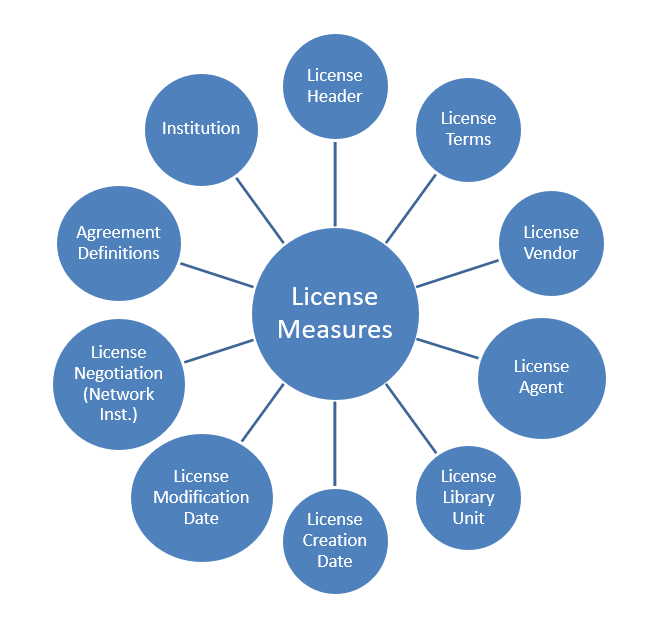
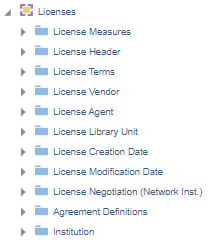
The following fields are available in Licenses.
License Measures
The License Measures table is a fact table that stores all measures relating to licenses, such as number of licenses and number of license terms.
| Field | Description | Additional Information |
|---|---|---|
| Number of Licenses | The number of licenses | |
| Number of License Terms | The number of license terms | This number includes both local and out-of-the-box terms. |
License Header
The License Header table is a dimension table that stores information about the license such as the license ID, the license name, and the license creator.
| Field | Description | Additional Information |
|---|---|---|
| License ID | The ID of the license | |
| License Code | The code of the license | |
| License Creator | The creator of the license | |
| License Modified By | The user who modified the license | |
| License Name | The name of the license | |
| License Begins | The date the license begins | |
| License Ends | The date the license ends | |
| License Note | The note of the license | |
| License Originating Licensor Key | The licensor key of the license | |
| License Originating Parent Code | The originating parent code of the license | |
| License Parent ID | The parent ID of the license | |
| License Review Status | The review status of the license | |
| License Signed By | The user who signed the license | |
| License Signed On | The date the license was signed on | |
| License Second Party Signed By | The second party who signed on the license | |
| License Second Party Signed On | The date the second party signed on the license | |
| License Status | The status of the license | Possible values:
|
| License Storage Location | The storage location of the license | |
| License Type | The type of the license | |
| License URI | The URI of the license | |
| Tokens Total | Indicates if the transformative agreement has a limited or unlimited number of articles that can be published in a year | |
| Unlimited | The number of articles that can be published in the agreement period |
License Terms
The License Terms table is a dimension table that stores information about the license terms such as the license term section, the license term creation date, and the license term modification date.
| Field | Description | Additional Information |
|---|---|---|
| License Term | The license term | |
| License Term Section | The license term section | |
| License Term Creation Date | The creation date of the license term | |
| License Term Modification Date | The modification date of the license term | |
| License Term Value | The value of the license term |
License Vendor
The License Vendor table is a dimension table that stores information about the license vendor such as the Vendor code and the Vendor name.
The primary key of the table is VENDOR_ID.
The access path in the UI is Acquisitions > Acquisitions Infrastructure > Vendors > Add/Edit Vendor.
See Adding a Vendor and Vendor Account for more information.
| Field | Description | Field Location in Alma | Additional Information | Data Type | Data Size |
|---|---|---|---|---|---|
| Additional Code | A code in addition to the vendor code. | Summary tab on Vendor Details. | VARCHAR | 255 | |
| Creation Date | The date the vendor was created. |
Right information pane for Vendor Details page. Label in Alma is Created on. |
DATE | ||
| Creator | The user who created the vendor |
Right information pane for Vendor Details page. Label in Alma is Created by. |
VARCHAR | 255 | |
| ERP Code | A code used by an institution's financial system, such as the Enterprise Resource Planning (ERP) system |
Summary tab on Vendor Details. Label in Alma is Financial Sys. code. |
VARCHAR | 255 | |
| Modification Date | The date the vendor was modified |
Right information pane for Vendor Details page. Label in Alma is Last updated on. |
DATE | ||
| Modified By | The user who modified the vendor |
Right information pane for Vendor Details page. Label in Alma is Last updated by. |
VARCHAR | 255 | |
| Preferred Address | The address of the vendor marked as the preferred address. It is used as the default address for the vendor. | Contact Information tab on Vendor Details – Web Addresses section. | VARCHAR | 3366 | |
| Preferred Address Note | The note of the preferred address. | Contact Information tab on Vendor Details – Web Addresses section. | VARCHAR | 1000 | |
| Preferred Email | The email address of the vendor marked as the preferred email address. It is used as the default email address for the vendor. | Contact Information tab on Vendor Details – Email section. | VARCHAR | 784 | |
| Preferred Phone Number | The phone number of the vendor marked as the preferred phone number. It is used as the default phone number for the vendor. | Contact Information tab on Vendor Details – Phone Numbers section. | VARCHAR | 176 | |
| Primary Product URL | The URL with URL type Primary Product. | Contact Information tab on Vendor Details – Web Addresses section. | If there are several primary product URLs, only one is displayed. | VARCHAR | 256 |
| Vendor Code | The vendor code unique to the institution |
Summary tab on Vendor Details. Label in Alma is Code. |
All the vendors that have been on the order, not just the active vendor. The code must be unique across all vendors. Note that the PO Lines tab displays all PO lines whose vendor code is the current vendor. |
VARCHAR | 255 |
| Vendor Name | The vendor name |
Summary tab on Vendor Details. Label in Alma is Name. |
It is a required field. | VARCHAR | 255 |
| Vendor Status | The status of the vendor |
Summary tab on Vendor Details. Label in Alma is Status. |
Possible values:
|
VARCHAR | 255 |
License Agent
The License Agent table is a dimension table that stores information about the license agent such as the agent code and agent name.
| Field | Description | Additional Information |
|---|---|---|
| Agent Code | The agent code | |
| Agent Name | The agent name | |
| Additional Code | The additional code | |
| ERP Code | The ERP code | |
| Vendor Status | The status of the vendor | Possible values:
|
License Library Unit
The License Library Unit table is a dimension table that stores information about the license library unit such as the Library Code and Library Description.
| Field | Description | Field Location in Alma | Additional Information | Data Type | Data Size |
|---|---|---|---|---|---|
| Library Address Line 1 | The first line of the address of the institution. It usually includes the building number and the street name. |
Configuration > General > Add a Library or Edit Library Information > Contact Information tab. This is taken from the address configured as the Preferred address. The label in Alma is Address Line 1. |
VARCHAR | 1000 | |
| Library City | The city of the library. |
Configuration > General > Add a Library or Edit Library Information > Contact Information tab. This is taken from the address configured as the Preferred address. The label in Alma is City. |
VARCHAR | 255 | |
| Library Code | The library code | Configuration > General > Libraries > Add a Library or Edit Library Information > Libraries tab > Path [the text after the period] | VARCHAR | 50 | |
| Library Code (Active) | The code of active (not deleted) libraries | Configuration > General > Libraries > Add a Library or Edit Library Information > Libraries tab > Path [the text after the period] | The same as Library Code without deleted libraries. | VARCHAR | 50 |
| Library Country | The country of the library. |
Configuration > General > Add a Library or Edit Library Information > Contact Information tab. This is taken from the address configured as the Preferred address. The label in Alma is Country. |
VARCHAR | 320 | |
| Library Description | The library description |
Configuration > General > Libraries > Add a Library or Edit Library Information > Libraries tab The label in Alma is Description. |
VARCHAR | 100 | |
| Library Name | The library name |
Configuration > General > Libraries > Add a Library or Edit Library Information > Libraries tab The label in Alma is Organization Unit Name. |
VARCHAR | 255 | |
| Library Name (Active) | The library name of active (not deleted) libraries |
Configuration > General > Libraries > Add a Library or Edit Library Information > Libraries tab The label in Alma is Organization Unit Name. |
The same as Library Name without deleted libraries. | VARCHAR | 255 |
| Library Postal Code | The postal code of the library. |
Configuration > General > Add a Library or Edit Library Information > Contact Information tab. This is taken from the address configured as the Preferred address. The label in Alma is Postal code. |
VARCHAR | 200 | |
| Library State Province | The state or province of the library. |
Configuration > General > Add a Library or Edit Library Information > Contact Information tab. This is taken from the address configured as the Preferred address. The label in Alma is State/Province. |
VARCHAR | 320 | |
| Unit Type | The type of organization unit |
Configuration > General > Libraries > Add a Library or Edit Library Information > Libraries tab The label in Alma is Organization Unit Type. |
Values can be Institution/Library | VARCHAR | 20 |
License Creation Date
The License Creation Date table is a dimension table that stores details about the license creation date. Key fields are used whenever calculations are required. Description fields may be used for formatting the display of the report. Alma stores the following types of fields:
- Calendar Fields – These are date fields as they display in the calendar.
- Fiscal Date Fields – These are date fields that match the institution's fiscal period. In the examples below, the fiscal period of the institution is for fiscal year 2012 that starts June 1, 2011 and ends May 31, 2012.
Using this dimension, the user may drill down from year to month to the specific date on which the license was created. The number of the license is accumulated to the relevant level in the hierarchy.
| Field | Description | Additional Information | Data Type | Data Size |
|---|---|---|---|---|
| License Creation Date | The creation date of the license. | The date in the format DD/MM/YYYY | DATE | |
| License Creation Start of Week | The date of the first business day of the week. | The date in the format DD/MM/YYYY | DATE | |
| License Creation Week Number | The number of the week of the year. | There are 52 weeks in a year. | VARCHAR | 2 |
| License Creation Month Key | The month of the date in number format. | E.g. February shows the number 2 in this column. This field is useful when you want to sort by month. | INT | |
| License Creation Month | The month of the date in text format. | The month, e.g. February | VARCHAR | 20 |
| License Creation Full Month | The year and month that the license was modified. | The month in text format and the year. E.g. Feb 25 (for February 2025) | VARCHAR | 20 |
| License Creation Quarter | The quarter in the year in which the license was modified. | The quarter of the date in a display format such as Q1 | VARCHAR | 20 |
| License Creation Year | The year in which the license was modified. | The year of the date in the format YYYY . E.g. 2025 | VARCHAR | 20 |
| License Creation Fiscal Month Key | The fiscal month of the date in number format. | E.g. If the fiscal year starts in June, this column shows the number 1 for June, the number 2 for July, and so on. | INT | |
| License Creation Fiscal Year | The fiscal year of the date in string format. | The year is presented according to the description in the mapping table Fund and Ledger Fiscal Period. For more information, see Configuring Fund and Ledger Fiscal Periods. | VARCHAR | 50 |
| License Creation Date Filter | Used to filter report results by date. |
Possible values:
|
VARCHAR | 100 |
| License Creation Year-Month | The year and the month in which the license was modified. | Stores the year and the month in a display format such as 2023-1 | VARCHAR | 250 |
License Modification Date
The Modification Date table is a dimension table that stores details about modification of licenses.
Key fields are used whenever calculations are required. Description fields may be used for formatting the display of the report. Alma stores the following types of fields:
- Calendar Fields – These are date fields as they display in the calendar.
- Fiscal Date Fields – These are date fields that match the institution's fiscal period. For the examples below, the fiscal period of the institution is for fiscal year 2012 that starts June 1, 2011 and ends May 31, 2012.
Using this dimension, the user can drill down from year to month to the specific date on which the license was created.
| Field | Description | Additional Information | Data Type | Data Size |
|---|---|---|---|---|
| License Modification Date | The creation date of the license. | The date in the format DD/MM/YYYY | DATE | |
| License Modification Start of Week | The date of the first business day of the week. | The date in the format DD/MM/YYYY | DATE | |
| License Modification Week Number | The number of the week of the year. | There are 52 weeks in a year. | VARCHAR | 2 |
| License Modification Month Key | The month of the date in number format. | E.g. February shows the number 2 in this column. This field is useful when you want to sort by month. | INT | |
| License Modification Month | The month of the date in text format. | The month, e.g. February | VARCHAR | 20 |
| License Modification Full Month | The year and month that the license was modified. | The month in text format and the year. E.g. Feb 25 (for February 2025) | VARCHAR | 20 |
| License Modification Quarter | The quarter in the year in which the license was modified. | The quarter of the date in a display format such as Q1 | VARCHAR | 20 |
| License Modification Year | The year in which the license was modified. | The year of the date in the format YYYY . E.g. 2025 | VARCHAR | 20 |
| License Modification Fiscal Month Key | The fiscal month of the date in number format. | E.g. If the fiscal year starts in June, this column shows the number 1 for June, the number 2 for July, and so on. | INT | |
| License Modification Fiscal Year | The fiscal year of the date in string format. | The year is presented according to the description in the mapping table Fund and Ledger Fiscal Period. For more information, see Configuring Fund and Ledger Fiscal Periods. | VARCHAR | 50 |
| License Creation Date Filter | Used to filter report results by date. |
Possible values:
|
VARCHAR | 100 |
| License Creation Year-Month | The year and the month in which the license was modified. | Stores the year and the month in a display format such as 2023-1 | VARCHAR | 250 |
License Negotiation (Network Inst.)
The License Negotiation table is a dimension table that stores information about the license negotiation such as the License Negotiation Member and License negotiation Start Date.
| Field | Description | Additional Information |
|---|---|---|
| License Negotiation Contact Email | The license negotiation contact email | |
| License Negotiation Currency | The license negotiation currency | |
| License Negotiation End Date | The license negotiation end date | |
| License Negotiation ID | The llicense negotiation ID | |
| License Negotiation Member | The license negotiation member | |
| License Negotiation Price | The license negotiation price | |
| License Negotiation Renewal Cycle | The license negotiation renewal cycle | |
| License Negotiation Start Date | The license negotiation start date |
Agreement Definitions
The Agreement Definitions table is a dimension table that stores information about agreements.
| Field | Description | Additional Information |
|---|---|---|
| Transformative Agreement Tokens Total | The number of articles that can be published in the agreement period | |
| Transformative Agreement Unlimited | Indicates if the transformative agreement has a limited or unlimited number of articles that can be published in a year |
Institution
The shared Institution dimension allows the Network Zone to view reports according to institution. If an analytics report is run from the Network Zone in a collaborative network implementing a Network Zone, all member institutions are included in the report for Institution Code and Institution Name. If an analytics report is run from an institution that is not part of a collaborative network implementing a Network Zone, only the single institution from which the report is run is included in the report for Institution Code and Institution Name.
This dimension is available in every subject area. It contains the following fields:
| Field | Description | Additional Information | Data Type | Data Size |
|---|---|---|---|---|
| Institution Code | The code of the institution. |
Configured from: Configuration > General > Add a Library or Edit Library Information > Summary tab. The label in Alma is Code located on the right pane. |
VARCHAR | 50 |
| Institution Name | The name of the institution. |
Configured from: Configuration > General > Add a Library or Edit Library Information > Summary tab. The label in Alma is Organization unit name. |
VARCHAR | 255 |
| Institution Address Line 1 | The first line of the address of the institution. It usually includes the building number and the street name. |
Configured from: Configuration > General > Add a Library or Edit Library Information > Contact Information tab. This is taken from the address configured as the Preferred address. The label in Alma is Address Line 1. |
VARCHAR | 1000 |
| Institution City | The city of the institution. |
Configured from: Configuration > General > Add a Library or Edit Library Information > Contact Information tab. This is taken from the address configured as the Preferred address. The label in Alma is City. |
VARCHAR | 255 |
| Institution State Province | The state or province of the institution. |
Configured from: Configuration > General > Add a Library or Edit Library Information > Contact Information tab. This is taken from the address configured as the Preferred address. The label in Alma is State/Province. |
VARCHAR | 320 |
| Institution Country | The country of the institution. |
Configured from: Configuration > General > Add a Library or Edit Library Information > Contact Information tab. This is taken from the address configured as the Preferred address. The label in Alma is Country. |
VARCHAR | 320 |
| Institution Postal Code | The postal code of the institution. |
Configured from: Configuration > General > Add a Library or Edit Library Information > Contact Information tab. This is taken from the address configured as the Preferred address. The label in Alma is Postal code. |
VARCHAR | 200 |
| Institution Timezone | The timezone of the institution. | The timezone is set during implementation. | VARCHAR | 255 |
| Data Available As Of | When the institution data became available in analytics. | Displayed at the bottom of the main Analytics menu. | VARCHAR | 255 |
| Data Updated As Of | When the institution data was taken from the Alma database. | Displayed at the bottom of the main Analytics menu. | VARCHAR | 255 |
Page tags: article:topicInstitutionproduct:almacontent:Documentationlang:englishLicense MeasuresLicense HeaderLicense TermsLicense VendorLicense AgentLicense Library UnitLicense Creation DateLicense Modification DateLicense Negotiation (Network Inst.)
