
Pestañas múltiples del entorno de Alma
Introducción
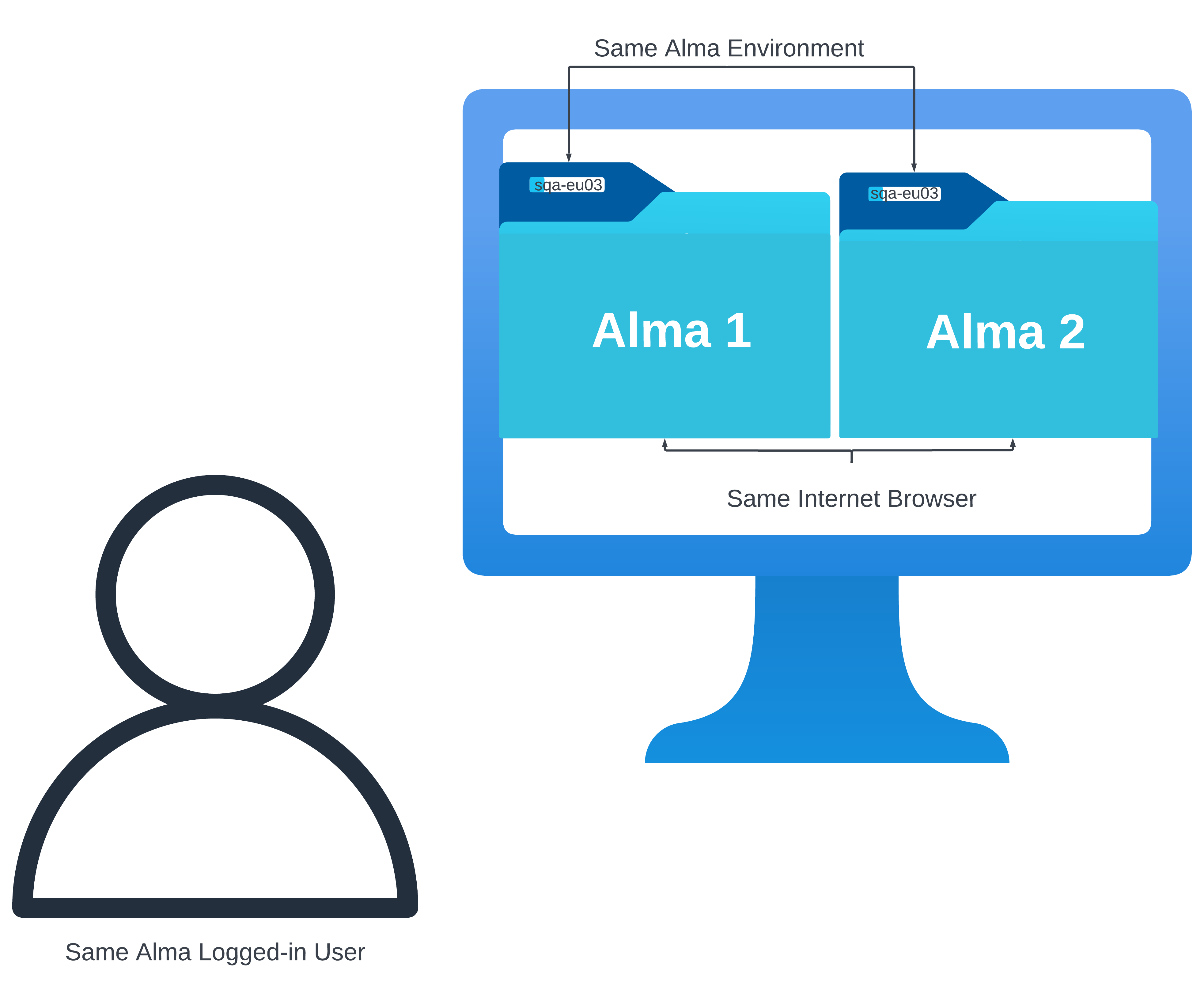
Alma introduces a new feature that enables users to open multiple tabs within the same Alma environment for a logged-in user. Esta mejora aumenta la productividad y la eficacia al permitir a los usuarios abrir registros simultáneamente en distintas pestañas del navegador de Internet. Esto facilita la copia fluida de información entre pestañas y la ejecución simultánea de varias tareas o flujos de trabajo. For instance, the same Alma environment logged-in by the same user and in the same internet browser (e.g. Chrome) and has opened two separate Alma sessions in two individual tabs (side-by-side) can continue operating two workflows (e.g. Purchase Orders and Bib records in the Metadata Editor) in each session at the same time.
Some workflows, such as work with records in the Metadata Editor, are only synchronized in both Alma sessions if the tab (session) is refreshed ( )!
Con la funcionalidad de pestañas múltiples, a cada pestaña del navegador se le asigna un ID aleatorio, que sirve como sufijo único para las entradas de sesión correspondientes. Este avance facilita el funcionamiento simultáneo de la misma sesión de Alma a través de múltiples pestañas del navegador de Internet. Ahora los usuarios pueden abrir Alma en dos o más pestañas y trabajar simultáneamente sin que una pestaña afecte a las demás.
Menciones/limitaciones notables
Al navegar por las complejidades de cualquier sistema, es fundamental reconocer y comprender las limitaciones inherentes que pueden influir en su funcionamiento. A continuación, se exponen las limitaciones funcionales que conllevan las pestañas múltiples de Alma:
- Multiple tabs functionality ONLY works if multiple browser tabs are opened for the same:
- Entorno de Alma
- Cuenta de usuario conectada
Algunas cosas se comparten/sincronizan entre las pestañas del navegador, como la impresora, la ubicación, el idioma y las preferencias de interfaz de usuario.
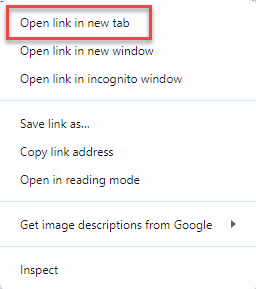
- Tenga en cuenta que, si inicia sesión en una nueva pestaña, se cancelará la sesión anterior. Instead, open the same session in a new tab by selecting for example Open link in new tab for Chrome.
- Trying to sign in as different users of the same institution simultaneously from the same internet browser (through different tabs of the internet browser on the same computer) – will not work (the last signed-in user will override the user in the other tab(s)).
Trabajar con múltiples pestañas
Assuming you are logged in to Alma, there are three main ways to open a new tab.
To open a new tab when logged in to Alma:
- Open a new browser tab and navigate to /ng in the same logged-in environment, for example https://abc.alma.exlibrisgroup.com/ng).
- Right-click the logo within an open tab in Alma and then select Open in new tab.
- Clone an already open tab or copy the link in the browser navigation bar of an existing tab to a new one. Note that this may not work in rare cases where a tab ID is already part of a link.
Any other method will not work and will impact previous sessions.
If you have a bookmarked Alma link that takes you through the IdP and initiates a login process, you should not use that to open a new tab after the first login.
