
Security
Restricting Alma Logins by IP Range
- Administrador general del sistema
Se puede restringir a usuarios para que no inicien sesión en Alma según la dirección IP. Hay dos pasos para configurar esta característica. Primero se crean grupos de IP y luego se configura el acceso al inicio de sesión para estos grupos. Solo estos grupos de IP están autorizados para iniciar sesión en Alma.
To restrict login by IP groups:
- From the IP Group Configuration page (Configuration Menu > General > Security > IP Group Configuration), select Add IP Group. The Add IP Group pane appears.
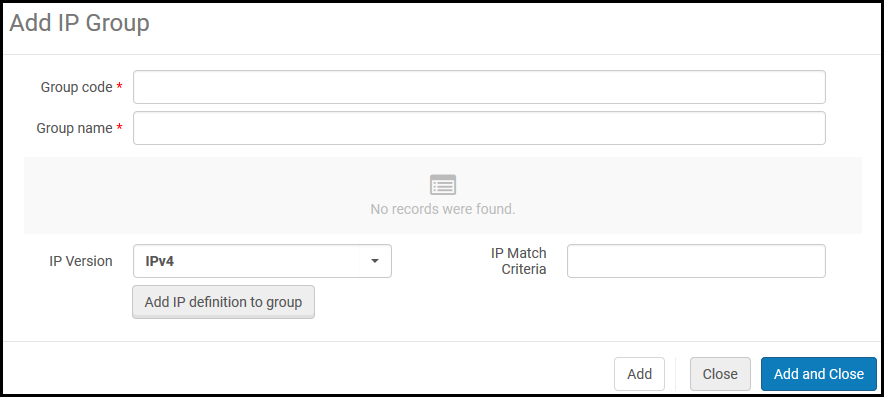
- Introducir lo siguiente:
- Código del grupo - Es un código para el grupo de IP
- Nombre del grupo - Es un nombre para el grupo de IP que se puede cambiar después
- Versión de IP - IPv4 o IPV6
- Criterios de coincidencias de IP - Una dirección IP o un rango de IP específico (dos direcciones IP válidas separadas por un guión)
- Select Add IP definition to Group. Se añade el rango al grupo y aparece en la tabla.
- Se pueden definir múltiples rangos de IP para cada grupo. Repetir los pasos 2 y 3 según sea necesario. To remove a range, select Delete in the row actions list.
- When you have finished adding IP ranges, select Add and Close. Se añade el grupo de IP.
To edit the group, select Edit in the row actions list. To delete the group, select Delete in the row actions list.
- Open the Login Restriction Configuration page (Configuration Menu > General > Security > Login Restriction Configuration). Note that login restrictions are disabled until you enable them on this page.

- The login restrictions can be overridden for a particular user by selecting Disable all login restrictions when editing the user (see Editing Users). Selecting the Apply restrictions for all users checkbox cancels the user-level override and also applies the login restrictions for users with the General System Administrator role. Tenga en cuenta que la configuración anterior no se elimina y volverá una vez que se desmarque la casilla.
- Select the IP groups from IP Group whose IP addresses you want to allow login access, and select Add. You can select Add all groups to add all IP groups.Una vez que se selecciona un grupo IP, todas las demás direcciones IP están restringidas desde el inicio de sesión.
- Select a manager from the IP restrictions manager box (mandatory). Este administrador recibe cualquier mensaje enviado por los usuarios cuando hay un intento de inicio de sesión desde una dirección IP restringida.
- Select Enable login restrictions. To save your changes without enabling or disabling login restrictions, select Save.
- You must select Enable login restrictions for the IP login restrictions to take effect.
- Users with the General System Administrator role are not restricted.
- To disable login restrictions at a later time, select Disable login restrictions.
Si un usuario con una dirección IP restringida intenta iniciar sesión en Alma, aparece el siguiente mensaje:
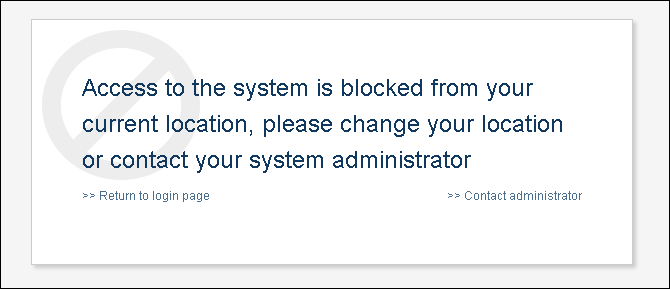
The user can select Contact Administrator to contact the IP restrictions manager configured above.
CSP (Content Security Policy) Header Configuration
Puede habilitar y configurar las directivas del encabezado CSP para refinar la política de seguridad de sus aplicaciones Web. To access this configuration go to Configuration > General > CSP Header Configuration.
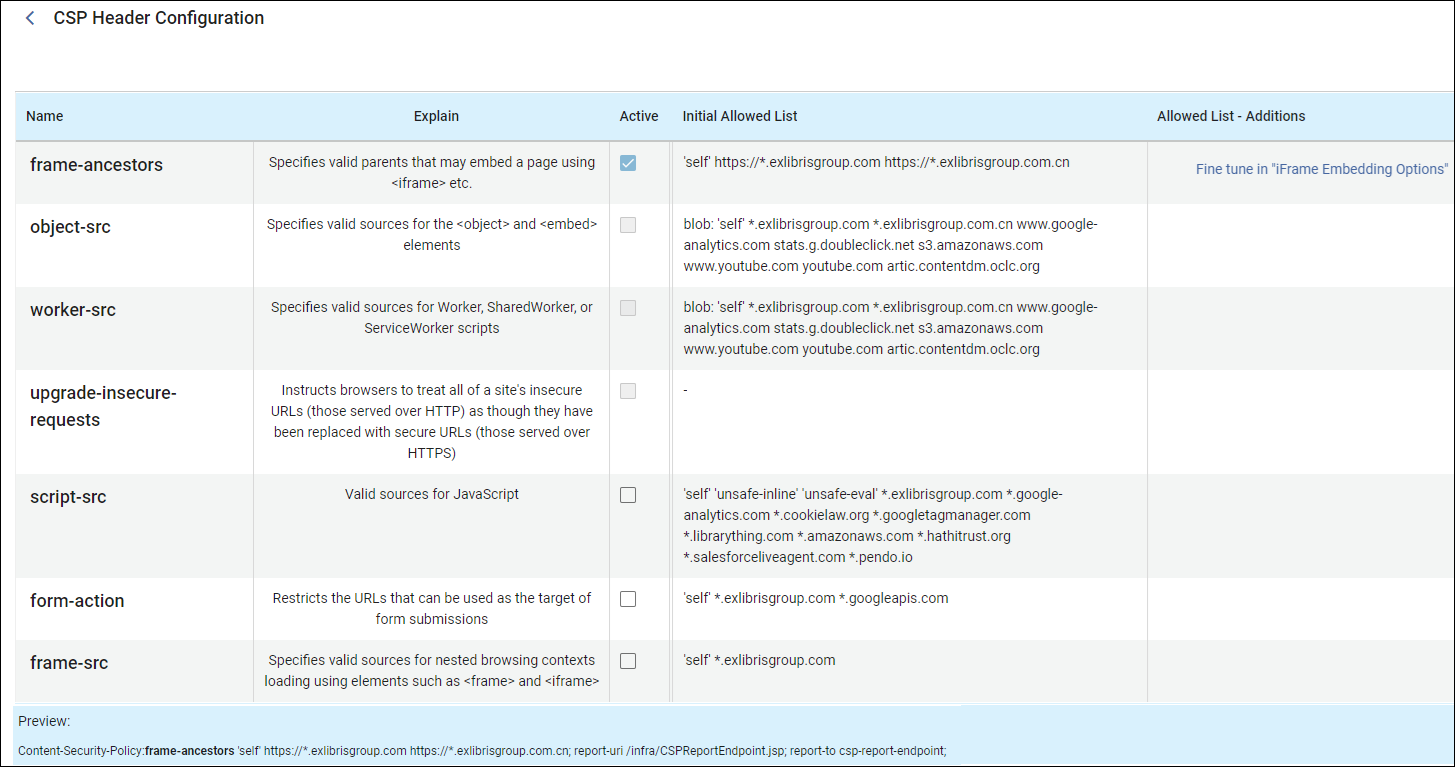
El panel de vista previa en la parte inferior muestra los encabezados y se actualiza automáticamente cuando se cambian los ajustes.
Las cuatro primeras directivas (frame-ancestors, object-src, worker-src, upgrade-insecure-requests) están activas por defecto y no se pueden deshabilitar. You can however add additional domains to the allowed list in the Allowed Lis - Additions column, by hovering over the column to locate the edit icon and then adding the domain.
Las últimas directivas (descritas abajo) están desactivadas por defecto, pero, a diferencia de las cuatro primeras directivas, se pueden activar. You can add additional domains to the allowed list in the Allowed List - Additions column.
-
form-action:
- This directive restricts the URLs that can be used as the target of form submissions (
<form action="..." />). Ayuda a evitar que los formularios se envíen a sitios maliciosos.
- This directive restricts the URLs that can be used as the target of form submissions (
-
base-uri:
- This directive restricts the URLs that can be used in a document's
<base>element. The<base>element specifies the base URL to use for all relative URLs in a document, so controlling this can prevent attackers from changing the base URL and redirecting links to malicious sites.
- This directive restricts the URLs that can be used in a document's
-
script-src:
- Esta directiva especifica fuentes válidas para JavaScript. Ayuda a mitigar los ataques XSS al permitir únicamente que los scripts de fuentes de confianza se ejecuten en la página. Por ejemplo, puede especificar que los scripts solo se carguen desde su propio dominio o de un CDN de confianza.
-
frame-src:
- This directive specifies valid sources for embedding content using
<frame>,<iframe>,<object>,<embed>, and<applet>. Ayuda a controlar cuáles fuentes se pueden incrustar en el marco, por lo que evita el "clickjacking" y otros tipos de ataques basados en el marco.
- This directive specifies valid sources for embedding content using
-
connect-src:
- This directive restricts the URLs that the document can fetch using mechanisms like
XMLHttpRequest,Fetch,WebSocket, and EventSource. Ayuda a controlar a dónde pueden enviar datos los scripts, lo que reduce el riesgo de datos exfiltrados.
- This directive restricts the URLs that the document can fetch using mechanisms like
-
style-src:
- The HTTP
Content-Security-Policy(CSP)style-srcdirective specifies valid sources for stylesheets.
- The HTTP
-
img-src:
- The HTTP
Content-Security-Policyimg-srcdirective specifies valid sources of images and favicons.
- The HTTP
-
font-src:
- The HTTP
Content-Security-Policy(CSP)font-srcdirective specifies valid sources for fonts loaded using@font-face.
- The HTTP
-
child-src:
- The HTTP
Content-Security-Policy(CSP)child-srcdirective defines the valid sources forweb workersand nested browsing contexts loaded using elements such as<frame>and<iframe>. En el caso de los trabajadores, las solicitudes no conformes son tratadas como errores de red fatales por el agente de usuario.
- The HTTP
-
default-src:
- The HTTP
Content-Security-Policy(CSP)default-srcdirective serves as a fallback for the other CSPfetch directives. For each directive that is absent, the user agent looks for thedefault-srcdirective and uses this value for it.
- The HTTP
Login Redirection Allowed List
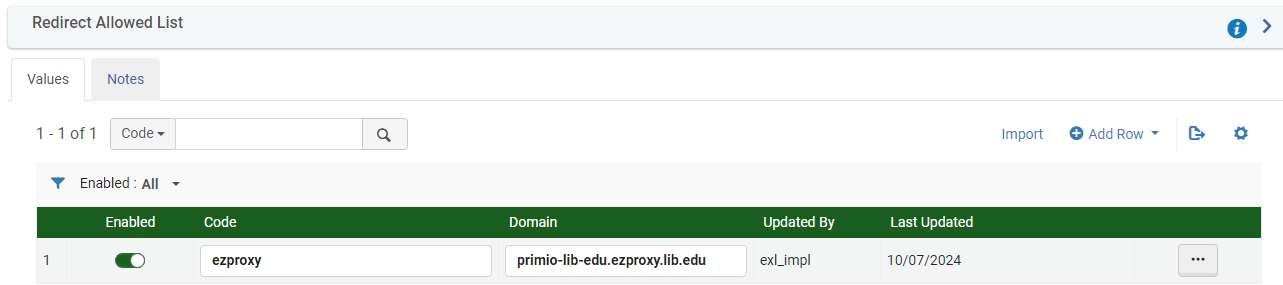
Para evitar problemas potenciales de seguridad (vulnerabilidad por redirecciones abiertas), puede crear una lista de sitios de confianza.
To create a list of trusted sites:
-
Ensure that the limit_login_redirects (Configuration > General > Other Settings) parameter is set to true.
-
Navigate to Configuration > General > Redirection Allowed List.
-
Agregue una nueva fila por cada dominio de confianza. El código es únicamente descriptivo y Alma no lo usa.
Los dominios que pertenecen a Ex Libris (*.exlibrisgroup.com) no necesitan estar en la lista.
Preventing Clickjacking
- Administrador general del sistema
Clickjacking is an attack that tricks users by showing them an innocuous page that includes real controls from sensitive pages. Estos controles se ocultan tras el uso de marcos de fondo que ocultan todo menos el control, y el usuario no puede darse cuenta de que está clicando en una función sensible en otro sitio web. Esto puede dar lugar a que los usuarios, sin saberlo, descarguen malware, proporcionen credenciales o información confidencial, transfieran dinero o compren productos en línea.
To prevent clickjacking from ExLibris products, ExLibirs has adopted a policy-based mitigation technique. Now institutions can instruct the browser about appropriate actions to perform if their site is included inside an iframe.
Modifying this page may break UI integrations from other products. In case of any doubts as to how to use this page, consult Ex Libris Customer Support.
To set the actions to perform if your site is included inside an iframe:
- Open the iFrame Embedding Options table (Configuration > General > Security > iFrame Embedding Options).
- For the desired product and component, select Customize in the row actions.
Alma Management and Esploro Management cannot be framed. Esta configuración no se puede editar.
La integración de IFrame no es compatible si se utiliza un Azure IDP.
- In the Action column, select the appropriate action to perform if your site is included inside an iFrame:
- Allow all(default option) — Allow all pages to load this page inside an iFrame.
- Allow protected— Only trusted pages are permitted to load this page inside an iFrame. If you selected this option, in the Safe Domain column indicate the trusted URLs (no limit on the number of URLs you can specify, list multiple URLs with a blank space between them).
We recommend adding https://*.WEBSITEHERE.com, for example,"https://*.amazon.com".
- Block All— Deny all attempts to frame the page.
- Select Save.
