
Configuring and Working with Cloud Apps
Para configurar las Aplicaciones en la nube, debe tener el siguiente rol:
- Administrador general del sistema
Aplicaciones en la Nube es un marco abierto que permite a los desarrolladores elaborar aplicaciones que se ejecutan dentro de productos de educación superior de Ex Libris como Alma, trastienda de Primo VE, Esploro, Leganto y Rapido. Agrega nuevas características más allá de la funcionalidad principal de Ex Libris, que pueden integrarse con otros sistemas o proporcionar atajos y eficiencias para flujos de trabajo específicos de la institución.
Enabling Cloud Apps
Una vez habilitadas por una institución, los usuarios finales pueden buscar e instalar Aplicaciones en la Nube. Las Aplicaciones en la Nube pueden responder al contexto de la sesión del usuario y ofrecer funcionalidades adicionales dependiendo de la página actual.
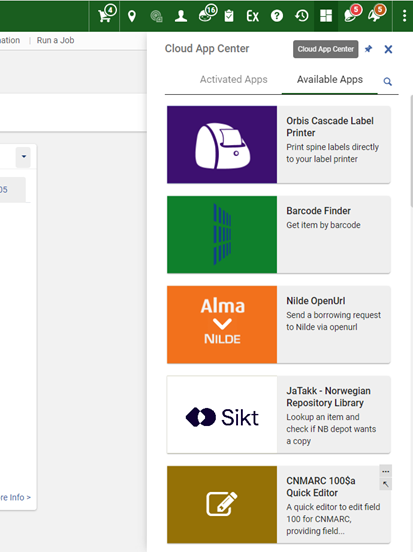
The Cloud Apps icon  appears in the top toolbar.
To enable Cloud Apps:
- Select the Cloud Apps Configuration page from the Alma General Configuration menu (Configuration Menu > General > General Configuration).
- Select Enable Cloud Apps. De esta manera, se abre una página en la Red de Desarrolladores.
- Lea el contrato de Aplicaciones en la Nube y seleccione la casilla de verificación de confirmación.
- Select Activate Cloud Apps for [Institution_Code].
- Cierre sesión en Alma y luego vuelva a iniciar sesión. If you have performed the above steps, logged in and out of your Alma account, and you still do not see the Cloud Apps icon in the top toolbar, open a case with Customer Support to enable it.
To limit which Cloud Apps can be installed by users in your institution:
- Select the Cloud Apps Configuration page from the Alma General Configuration menu (Configuration Menu > General > General Configuration).
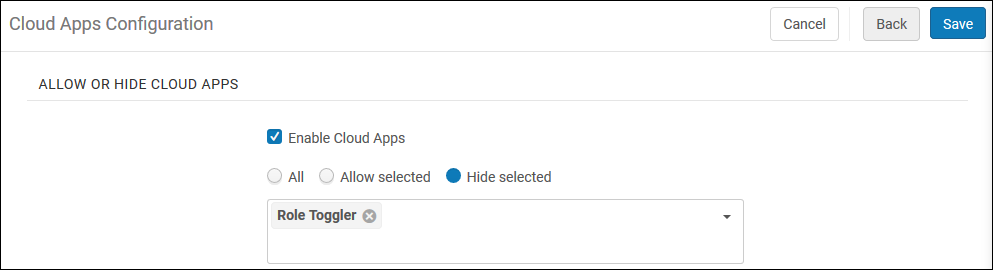
- In the Allow or Hide Cloud Apps section, choose All,Allow Selected, or Hide Selected to define which Apps the users will see.
-
When choosing Allow Selected or Hide Selected, select the down arrow and choose which Apps to hide or allow.
- Select Save.
Los cambios realizados en la lista de Aplicaciones en la Nube permitidas surtirán efecto la próxima vez que inicie sesión.
Allow users to activate only those cloud apps for which they have the required roles/privileges to operate:
- Select the Cloud Apps Configuration page from the Alma General Configuration menu (Configuration Menu > General > General Configuration).
- Check the Hide cloud apps for users who are missing roles for the relevant APIs used by the cloud app checkbox.
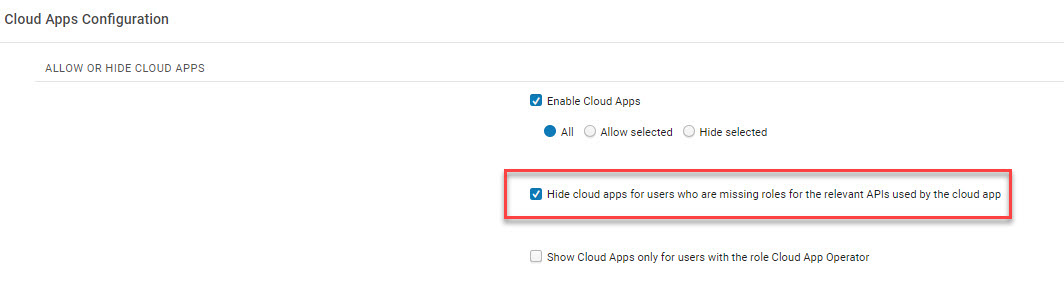
After selecting this option, Cloud Apps that have previously been activated by users that are missing roles for the relevant APIs used by that cloud app, will be hidden from the Activated Apps tab.
To allow only users with the Cloud App Operator role to activate and use cloud apps:
-
Select the Cloud Apps Configuration page from the Alma General Configuration menu (Configuration Menu > General > General Configuration).
-
Check the Show cloud apps only for users with the Cloud App Operator checkbox.
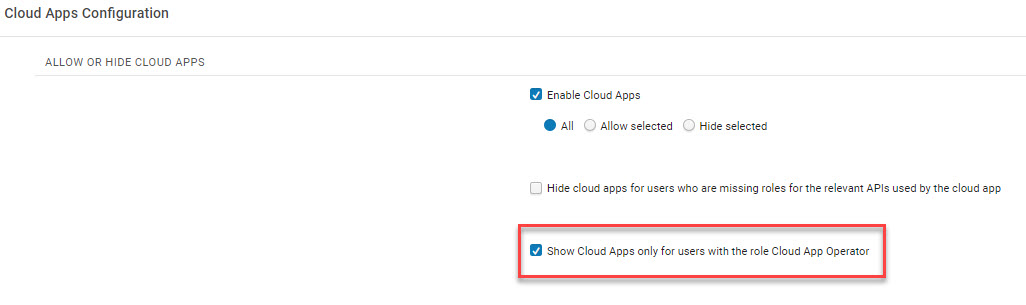
After selecting this option, no users will be able access Cloud Apps until they are assigned the Cloud App Operator role.
Using Cloud Apps
Para usar Aplicaciones en la Nube, seleccione el ícono de Aplicaciones en la Nube que aparece en la esquina superior derecha del nuevo diseño de Alma. This opens the Cloud App Center, which contains two tabs,Activated Apps, which shows those apps that have been installed and are available to run, and Available Apps, which shows all the apps that can be used. Puede navegar o buscar en cualquiera de las dos pestañas.
To use Cloud Apps in a sliding panel, such as in the All Titles search and resource sharing (see New Layout), first open the Cloud App and pin it. A continuación, puede abrir el panel deslizante.
To find and install Cloud Apps:
- Select the Cloud Apps Center.
If the Show Cloud Apps checkbox was marked, then only users with the Cloud App Operator role will be see the Cloud Apps Center icon
. - Select Available Apps and browse the list of Apps, or select the Search icon to search for a specific App. Cada aplicación incluye la siguiente información:
- Descripción
- Desarrollador de aplicaciones
- Enlace al código en Github
- Enlace a la aplicación en Ex Libris App Center
- App's license
- Cualquier sitio externo que use la aplicación
- Required privileges - only visible if the Hide cloud apps checkbox was marked (see Limit Cloud Apps Activation).
- Select Activate. Note that if the Hide cloud apps checkbox was marked and the user does not have the relevant privileges, a tool tip with the missing privileges displays when hovering over the Activate button.
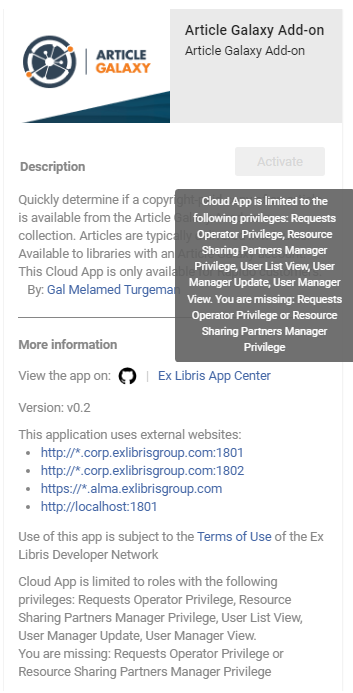
To use Cloud Apps:
-
Select the Cloud Apps Center.
If the Show Cloud Apps checkbox was marked, then only users with the Cloud App Operator role will be see the Cloud Apps Center icon
. - Select Activated Apps and browse the list of Apps, or select the Search icon to search for a specific App.
- Seleccione la aplicación deseada y siga los pasos indicados en el listado de la aplicación.
Cuando se instala una aplicación, están disponibles las siguientes acciones:
- Uninstall the app

- Change settings

- Configure the app (for administrators only)

- View help for the app

Watch the Cloud Apps in Alma video (4:22 minutes).
Developing Cloud Apps
To get started developing Cloud Apps for use by your and other institutions, see the Ex Libris Cloud Apps on the Developer Network.
FAQ
- Q: When will we see cloud apps for Leganto, Esploro and the other Ex Libris cloud software?
A: Currently there are Cloud Apps that are relevant for Alma. Se pueden crear Aplicaciones en la Nube para todos los productos de la plataforma Ex Libris que incluyen Leganto y Esploro. Los usuarios pueden crear aplicaciones con el CLI de Aplicaciones en la Nube. Estas aplicaciones se pueden agregar al Centro de Aplicaciones donde pueden ser descubiertas por la comunidad. - Q: Where can I learn about all the available Cloud Apps?
A: All Cloud Apps will be in the developer network in the App Center. - Q: When I install an app, will it be installed only for myself or for my entire institution? A: Installing an app installs it only for the user. Observe que los Administradores pueden configurar las Aplicaciones en la Nube que estarán disponibles para su instalación por parte de los usuarios.
- Q: I have an idea for an app, what should I do?
A: Institutions that have developer knowledge and skills, can create Cloud Apps for themselves. On the main Cloud Apps page you will be able to find links to Getting Started,Documentation and Tutorials on how to create a Cloud App. De forma alternativa, puede sugerir la idea a la comunidad y ver si alguien la crea en su lugar. - Q: I need support for a Cloud App I'm using. Who should I contact?
A: The Cloud App framework supports a help link in the App details. Animamos a todos los desarrolladores de aplicaciones a incluir dicho enlace de Ayuda en la documentación sobre cómo usar la aplicación y cómo recibir más ayuda si es necesario. You can access the Help link in the App details (by clicking on the 3 ellipses …). Las aplicaciones en nube desarrolladas por Ex Libris están cubiertas por procedimietos de soporte estándar. That means a SalesForce case can be opened for apps identified with the "Ex Libris" tag in the App Center. - Q: Can I test a Cloud App in our sandbox?
A: Activation and configuration of Cloud Apps are done separately in your sandbox and production environments. Si quiere probar una Aplicación en la Nube particular en su sandbox antes de hacerla disponible a sus usuarios en producción, puede usar listas de permitidas y no permitidas en el sandbox y en producción para controlar en dónde se puede instalar la aplicación. - Q: How do we receive updates to installed Cloud Apps?
A: Updates to individual Cloud Apps are made by the app's developer and deployed to the Ex Libris cloud by the developer. Los usuarios no necesitan ejecutar ninguna acción. Utilizarán automáticamente la aplicación actualizada después del siguiente inicio de sesión. - P: ¿Cómo se determinan los privilegios en Aplicaciones en la Nube? Does a Cloud App have access to any data in Alma?
A: One of the main benefits of Cloud Apps is that they use the context of the logged-in user. Si una Aplicación en la Nube intenta acceder a datos para los que el usuario actual que haya iniciado sesión no tenga el rol apropiado, la aplicación recibe un error de no autorizado de Alma. - Q: Can Cloud Apps send my data to other systems?
A: Cloud Apps can interact with external systems to improve the productivity of your staff. Para ser completamente transparentes, las Aplicaciones en la Nube deben manifestar a que sistemas se pueden conectar. Esta información se muestra en el panel de información antes que se instale una aplicación. - Q: Are Cloud Apps checked for security issues before they are deployed to the Ex Libris cloud?
A: A new Cloud App undergoes a security audit as part of the deployment to ensure it is not using any code libraries with known security issues. Ex Libris también revisa de forma manual las Aplicaciones en la Nube antes de su implementación. - Q: Are API requests made from Cloud Apps counted against our daily institutional API governance threshold?
A: API requests from Cloud Apps are not counted in the institutional governance thresholds. Cloud App API calls are subject to their own thresholds, the technical details of which are described in the Cloud App documentation for developers.
