
General Electronic Services
This page describes how to configure general electronic (HTTP) services including the URL template, sharing general electronic services in the community zone, configuring the order of electronic services, etc. For links to all the main fulfillment documentation pages see Fulfillment.
Configuring General Electronic Services
Para configurar servicios electrónicos generales se debe tener uno de los siguientes roles:
- Administrador general del sistema
- Administrador de servicios al usuario
Además de los servicios encontrados en su propia colección (como texto completo, solicitudes, etc.), Alma le permite definir servicios de HTTP generales (como búsquedas en disertaciones de ProQuest y Amazon.com, Ask a Librarian, etc.) a fin de presentarlos a los usuarios en las secciones de View It, Get It y How to Get It en la página de despliegue completo del registro. Los servicios que permiten a los usuarios acceder o comprar los materiales se consideran relacionados con una entrega y aparecen en las secciones View It, Get It y How to Get It en la página de despliegue completo del registro.
To have these services appear in Leganto, see Enabling General Electronic Services in Leganto.
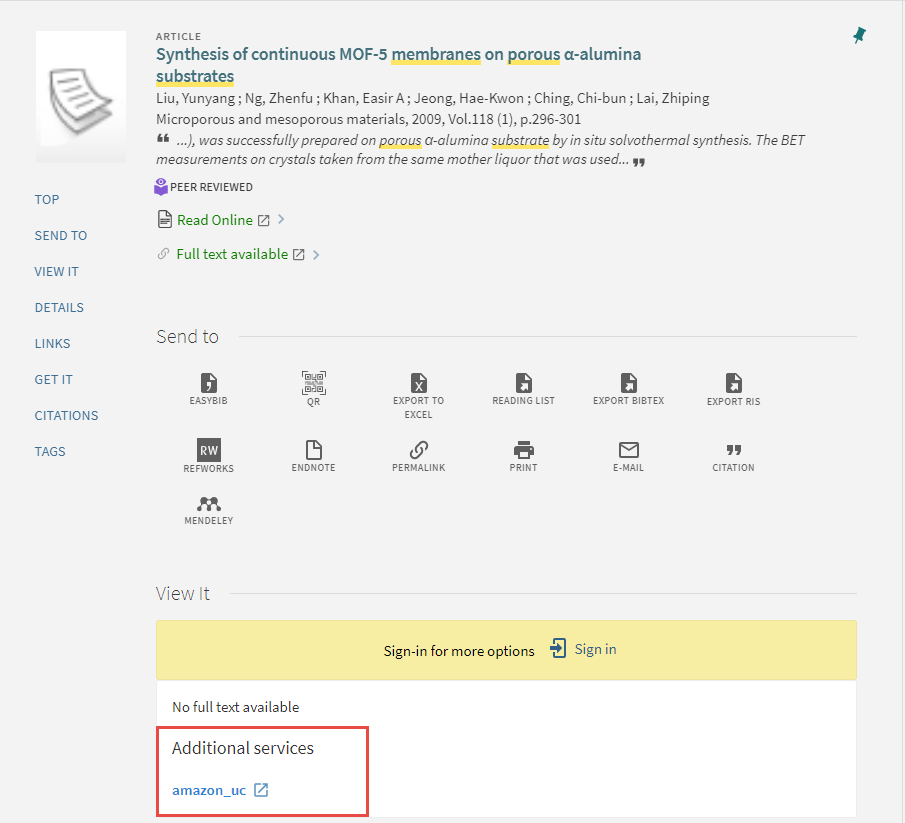
In order to create a general electronic service, you must be familiar with the syntax of the service's URL, which includes any parameters that are required to query or access specific information from the service. The service's URL along with OpenURL context object attributes returned from Alma's link resolver are used to define the URL template, which Alma uses to create the service link that appears in View It and/or Get It.
Además, se pueden configurar los siguientes ajustes de visualización para servicios electrónicos generales:
- Specify service order – see Configuring General Electronic Services Order
-
Define display logic rules – see Configuring Display Logic Rules
You can also share your general electronic services in the Community Zone, and use general electronic services defined by other institutions. See Sharing General Electronic Services in the Community Zone.
It is recommended to use ExLibris' Unpaywall service in View It and not an externally used customer Unpaywall GES. This is because the open access in ExLibris' Unpaywall service is 100% available.
-
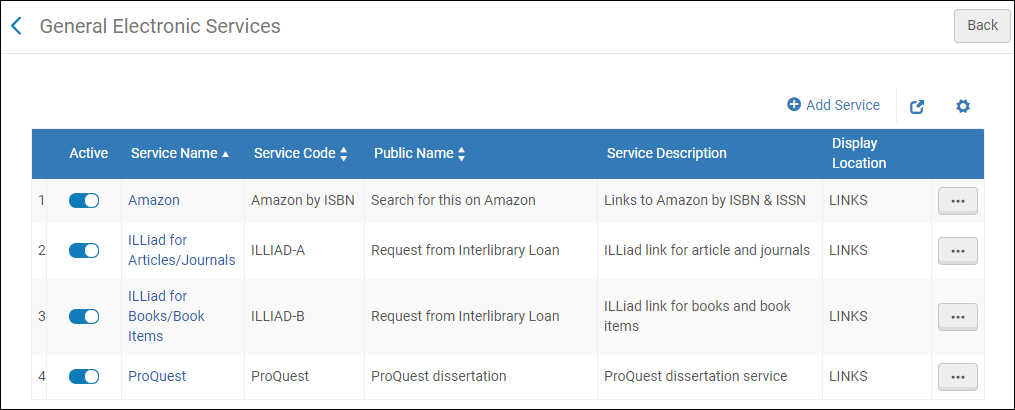
Open the General Electronic Services Configuration page (Configuration Menu > Fulfillment > Discovery Interface Display Logic > General Electronic Services).
-
The Item Level column is hidden by default; you can add it to the table by selecting the Manage Column Display icon above the table.
-
The Is this a Document Delivery/ILL Service column is available only with Primo VE and Alma-Summon environments.
-
-
Select Add Service. The Add Service dialog box opens.
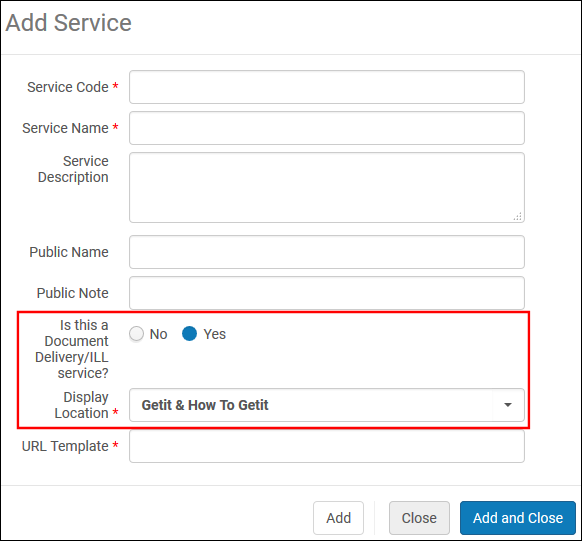
Unless otherwise noted, all fields are supported in the following environments: Alma-Primo, Primo VE, and Alma-Summon.
-
Introducir la siguiente información de servicio:
- Service Code – The internal code for the service.
- Service Name – The internal name used for the service.
- Service Description – The description of the service.
- Public Name – The label for the link that displays in View It and/or Get It.
- Public Note – The note or description of the service that is displayed below the link in the View It, How To GetIt and Links sections.
-
Is this a Document Delivery/ILL service – Select Yes to indicate that this service is delivery-related and provides access to the resource. Select No to indicate that this service is not delivery-related and will appear only in the Links section.
Este campo no está disponible en entornos de Alma-Primo.
-
Display Location – Specify the section on a record's full display to which you want to display the GES link. La siguiente tabla enumera las opciones disponibles por entorno de cliente:
The Display Location is only displayed if Is this a Document Delivery/ILL service is selected Yes. The Display Location is not displayed if Is this a Document Delivery/ILL service is selected No.
Alma-Primo Primo VE and Alma-Summon - Getit
- Viewit
- Getit & Viewit
- None – Services appear in the record's full display under the Links section.
- Getit & How to Getit
- Viewit & How to Getit
- Getit, viewit, and How to Getit
- None – No services appear in the record's full display, including the Links section.
La sección How to Get It muestra solo cuando un registro no tiene inventario. En general, la sección How to Get It se utiliza para recursos compartidos y enlaces del servicio ILL.
-
For Primo VE and Alma-Summon only, this field appears only when the Is this a Document Delivery/ILL Service field is set to Yes.
-
La visualización de servicios electrónicos generales se basa en las reglas de disponibilidad del servicio definidas con la pestaña Reglas de disponibilidad del servicio, que aparece mientras se edita un servicio electrónico general. For more details, see step 5. See Configuring Display Logic Rules if you want to hide the general electronic service based on additional criteria (such as the existence of another type of service or the type of user).
-
URL Template – The URL where the patron is redirected when the external service link is selected. El enlace del servicio externo está compuesto de la URL base del servicio y de cualquier parámetro que sea necesario para consultar o acceder a información específica del servicio. Está formateado de acuerdo a la sintaxis de la URL del servicio. For more information, see URL Template.
-
Item Level – Select Yes to show the link next to each item that matches the input rules. Select No to show the link at the holding level.
- This option displays only when the value of the Display Location field includes GetIt.
- To prevent potential performance issues, item level General Electronic Services cannot be used for the If Exists portion of Display Logic Rules.
- Si actualiza un Servicio electrónico general y cambia el ajuste de Nivel de ejemplar de No a Sí, las Reglas de lógica de despliegue que fueron creadas con este servicio ya no funcionarán y la etiqueta para el servicio cambia y muestra el sufijo (no está en la lista). Necesita eliminar la Regla de lógica de despliegue creada anteriormente para eliminar el servicio de la lista de desplegable.
For more information, see Item Level General Electronic Services.
-
Select Add and Close. The new service appears on the General Electronic Service page with the following row actions:Remove and Edit.
-
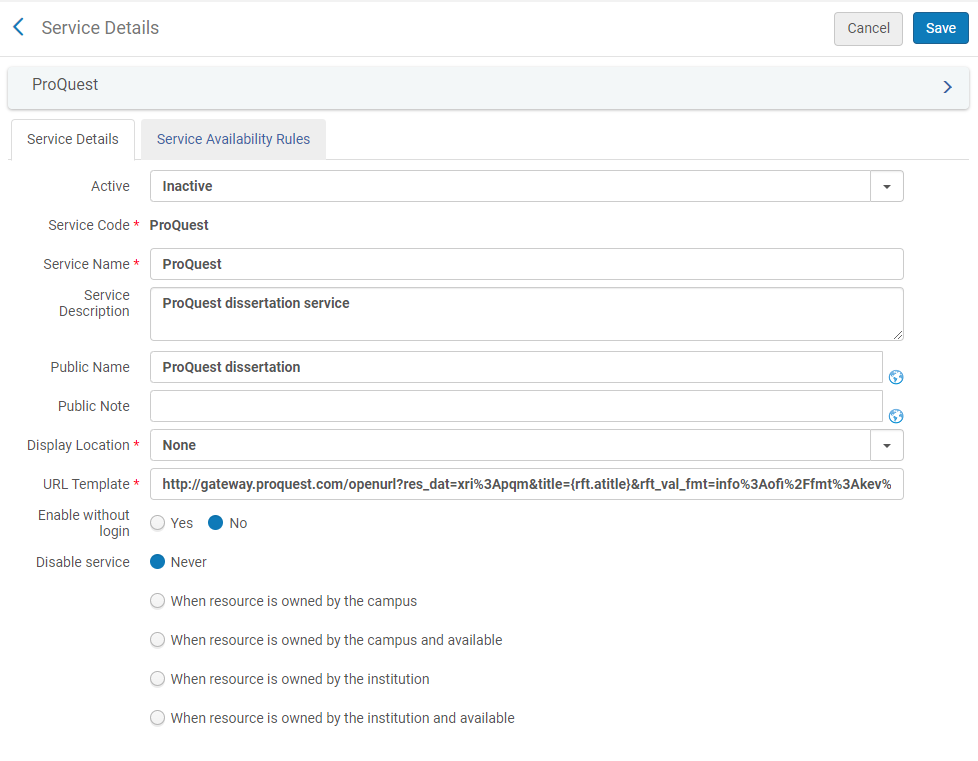
Edit the new row to configure additional service details.
Aparece la página Detalles del servicio.
-
To display this service to signed-in users only, select No in the Enable without login field.
-
To hide this service based on the availability of the physical resource in the institutional repository (does not apply to electronic collections or portfolios), select one of the following options for Disable Service:
Cuando un usuario invitado o un usuario sin un campus configurado realiza cualquier actividad deshabilitada a nivel del campus, Alma deshabilita/oculta el servicio basándose en una comprobación de propiedad propia realizada a nivel de la institución.
-
Never – The service is never disabled.
-
When resource is owned by the campus – The service is disabled when physical items for the resource are owned by the campus.
-
When resource is owned by the campus and available – The service is disabled when physical items for the resource are owned by the campus and are available (that is, they are not involved in a process).
-
When resource is owned by the institution – The service is disabled when there are physical items for the resource that are owned by the institution.
-
When resource is owned by the institution and available – The service is disabled when there are physical items for the resource that are owned by the institution, are in place, and are in an open location. Note that if a physical location is set to Unavailable (see Adding a Physical Location) and this option is selected, the service is enabled. Es recomendable emplear esta opción cuando no se puedan solicitar ejemplares en una cierta ubicación (como una sala de lectura). Setting this location to Unavailable will enable the display of the service.
-
-
Select the Service Availability Rules tab.
La pestaña Reglas de disponibilidad del servicio muestra las reglas que el sistema utiliza para determinar si un servicio se debe ocultar para un usuario. Cada servicio tiene una regla por defecto que se aplica cuando ninguna otra regla aplica. The Default general electronic service rule hides the service by default (IsDisplay=False). Se puede editar la regla por defecto y añadir reglas según sus necesidades.
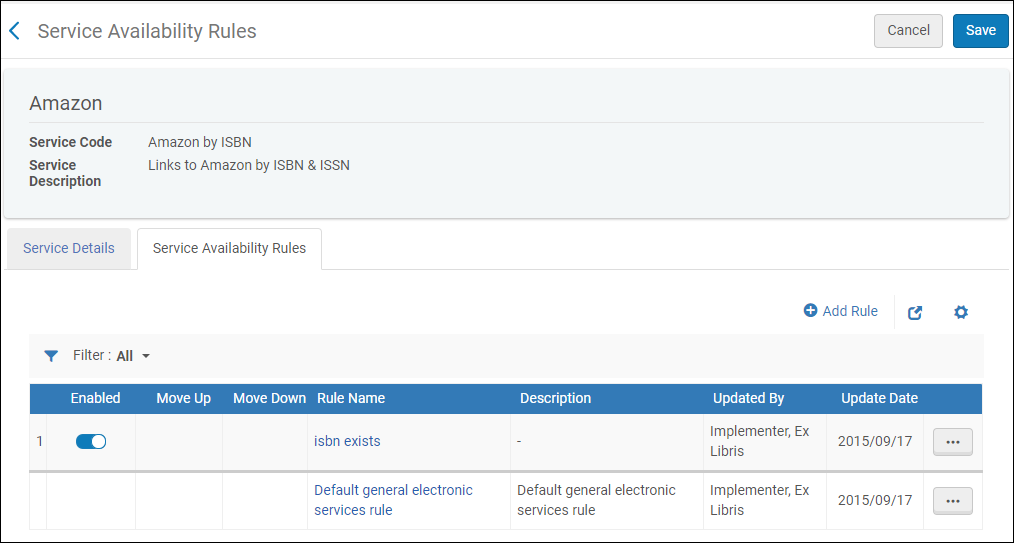
-
Add rules regarding the OpenURL context object attributes (which may be returned by Alma's link resolver during the user's search) to ensure that Alma has the necessary information to display the service.
-
Los atributos disponibles son atributos OpenURL estándar. For more information, see Commonly Used OpenURL Attributes for the URL Template.
-
Los siguientes atributos a nivel de ejemplar pueden usarse cuando los servicios a nivel de ejemplar están configurados:
- material_type
- item_policy - Los valores se completan desde la tabla de Política de ejemplar de la institución. See Configuring Item Policies.
- process_type
- base_status - values are Item not in place and Item in place.
- Añadir parámetros en una regla provocará que los parámetros tengan una relación Y mutua, lo que significa que todos los valores deben ser verdaderos antes de que la regla sea considerada verdadera. For OR conditions, where only one value must be true, parameters should be entered separately in a new rule.
- Si múltiples reglas se evalúan como verdaderas, el parámetro de salida será aplicado en base a la primera regla que sea verdadera.
- It isnot recommended to create GES rules based on rft.genre=unknown. En su lugar, puede crear reglas para géneros específicos, como Artículo o Revista.
-
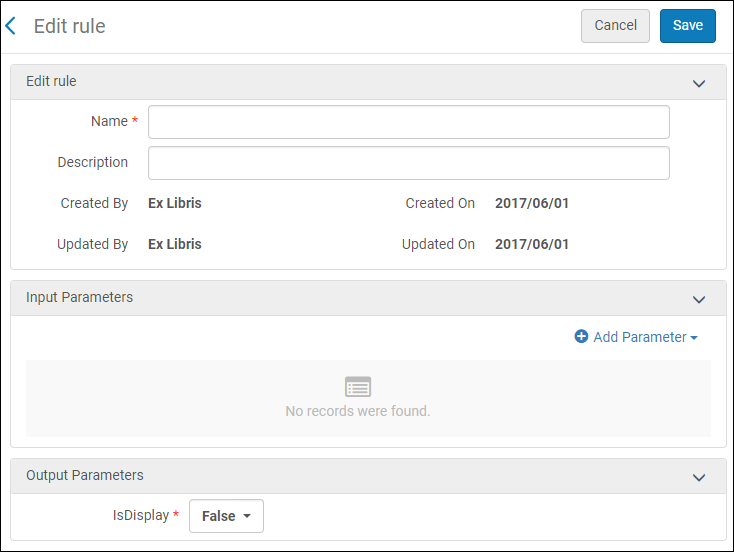
To add a new rule, select Add Rule. Se abre la página Editar regla.
-
In the Edit Rule section, enter the rule name (required) and description (optional).
-
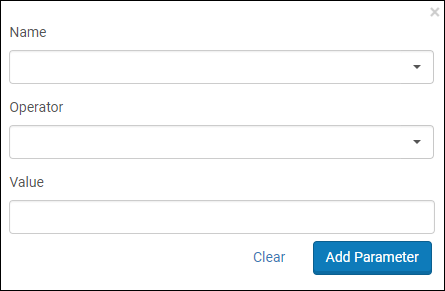
In the Input Parameters section, select Add Parameter. Se abre la caja de diálogo Añadir parámetro.
-
Introducir los siguientes campos:
- Name – The name of the attribute in the OpenURL context object. For more information about these attributes, see Commonly Used OpenURL Attributes for the URL Template.
- Operator – The comparison operator to use with this context object attribute.
- Value – An accepted value for this parameter. Para igualar múltiples valores, crear una regla separada para cada valor. Nota: no todos los operadores requieren un valor.
- Select Add Parameter. El parámetro se añade a la lista de parámetros de entrada.
- In the Output Parameters section, set IsDisplay to true.
- Select Save. La página Reglas de disponibilidad del servicio muestra la nueva regla.
-
-
Select Save. La página Servicios electrónicos generales muestra el nuevo servicio.
En una red colaborativa, se puede crear servicios electrónicos generales en la Zona de red y después distribuirlos a las instituciones miembro. Las instituciones miembro tienen permiso para ver los registros distribuidos, pero no pueden editarlos ni borrarlos. When the Network Zone general electronic service has been distributed, the local list will show either the distributed records only or both the distributed records and the previous local general electronic service records, depending on the configuration in the customer parameter,network_ges_distribution_members_behavior.
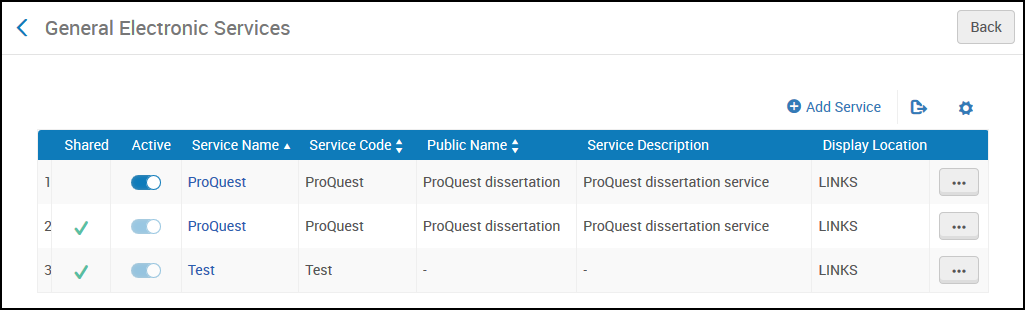
For more information, see Configuring Fulfillment Information in the Network Zone.
URL Template
La URL sustituye los campos OpenURL que se encuentran entre corchetes ( "{" y "}") con los valores relevantes. For example, the referring URL's ISBN is substituted into a URL containing: ...&isbn={rft.isbn}&...
Por ejemplo, la URL para una búsqueda de Amazon para un ISBN específico:
http://www.amazon.com/s/ref=nb_sb_ss_c_0_12?url=search-alias%3Dstripbooks&field-keywords={rft.isbn}
Al conectar con un agente de recursos compartidos, comprobar que este campo contiene un atributo correspondiente al agente en uso. Por ejemplo, al usar el agente OCLC:
http://xxx.worldcat.org/oclc/{rft.oclcnum}
ILLiad - Books/Book Items (based on your institution's base URL). Por ejemplo:
http://libill.XXX.edu/illiad/illiad.dll?Action=10&Form=30&rft.genre={rft.genre}&rft.title={rft.btitle}&rft.stitle={rft.stitle}&rft.atitle={rft.atitle}&rft.date={rft.pubdate}&rft.month={rft.month}&rft.volume={rft.volume}&rft.issue={rft.issue}&rft.number={rft.number}&rft.epage={rft.epage}&rft.spage={rft.spage}&rft.edition={rft.edition}&rft.isbn={rft.isbn}&rft.eisbn={rft.eisbn}&rft.au={rft.aulast},{rft.aufirst}&rft.auinit={rft.auinit}&rft.pub={rft.pub}&rft.publisher={rft.publisher}&rft.place={rft.place}&rft.doi={rft.doi}&rfe_dat={rft.oclcnum}&rfr_id={rfr_id}
ILLiad - Articles/Journals (based on your institution's base URL). Por ejemplo:
http://libill.XXX.edu/illiad/illiad.dll?Action=10&Form=30&rft.genre={rft.genre}&rft.title={rft.title}&rft.stitle={rft.stitle}&rft.atitle={rft.atitle}&rft.jtitle={rft.jtitle}&rft.au={rft.au}&rft.date={rft.year}&rft.month={rft.month}&rft.volume={rft.volume}&rft.issue={rft.issue}&rft.number={rft.number}&rft.spage={rft.spage}&rft.epage={rft.epage}&rft.edition={rft.edition}&rft.issn={rft.issn}&rft.eissn={rft.eissn}&rft.aulast={rft.aulast}&rft.aufirst={rft.aufirst}&rft.auinit={rft.auinit}&rft.pub={rft.pub}&rft.pubdate={rft.pubdate}&rft.pubyear={rft.pubyear}&rft.publisher={rft.publisher}&rft.place={rft.place}&rft.doi={rft.doi}&rfe_dat={rft.oclcnum}&rfr_id={rfr_id}
ProQuest - Servicio de disertación. Por ejemplo:
http://gateway.proquest.com/openurl?res_dat=xri%3Apqm&title={rft.btitle}&rft_val_fmt=info%3Aofi%2Ffmt%3Akev%3Amtx%3Adissertation&url_ver=Z39.88-2004&genre=dissertation
Se pueden especificar los siguientes valores en el parámetro Plantilla URL entre las llaves utilizadas para normalizar el ISBN, ISSN, ISBN electrónico, o ISSN electrónico:
-
rft.normalized_isbn
Esta normalización elimina el texto después de los dígitos y el guion (-) y convierte el ISBN 10 a ISBN 13
-
rft.normalized_issn
Esta normalización elimina el texto después de los dígitos y cambia el texto a minúsculas.
-
rft.normalized_Eisbn
Esta normalización elimina el texto después de los dígitos y el guion (-), y convierte el ISBN 10 a ISBN 13.
-
rft.normalized_Eissn
Esta normalización elimina el texto después de los dígitos y cambia el texto a minúsculas.
Para más información en relación a OpenURL, consultar lo siguiente:
- Commonly Used OpenURL Attributes for the URL Template
- http://en.wikipedia.org/wiki/OpenURL
- Sitios web específicos del proveedor para detalles OpenURL
Commonly Used OpenURL Attributes for the URL Template
The following table describes general categories by which the OpenURL attributes returned from Alma's link resolver are grouped.
| Pedidos | Clasificación de Cutter | Descripción |
|---|---|---|
| Solicitante | req. | Información sobre la entidad solicitante, es decir, el usuario. No se utiliza al crear las reglas de disponibilidad del servicio para servicios electrónicos generales |
| ReferringEntity | rfe. | Information about the referring entity, i.e. Primo. No se utiliza al crear las reglas de disponibilidad del servicio para servicios electrónicos generales |
| Referente | rft. | Información sobre el ejemplar solicitado. |
| ServiceType | svc. | Whether a particular format of the Referent is available: "yes" or "no". Por ejemplo, si el destino solicitado está disponible como un abstract o como un texto completo. Múltiples tipos de servicio pueden estar disponibles. |
| Otro | varios | Otros valores devueltos no están en uso, a menos que se anote a continuación. |
Any attributes returned by the link resolver, that do not belong to any of the categories above (such as DC attributes), are unused and will not appear in the URL template. No deben seleccionarse al crear un parámetro de entrada para una regla de disponibilidad de servicio. For additional information about OpenURL attribute categories see the related knowledge article.
Los siguientes son atributos comúnmente devueltos que se pueden utilizar para crear reglas de disponibilidad del servicio. Some of these attributes are taken from the MARC 21 fields of the relevant records. For these attributes, the MARC 21 sources appear in the MARC 21 Fields column. Attributes that are not taken from MARC 21 fields are retrieved from various other sources, including CDI records, Primo, OpenURL, and other external sources.
| Atributo | Mapeo PNX | Campos MARC 21 | Descripción |
|---|---|---|---|
| req_id | The PDS handle (see Identify Patrons to Provide Relevant Services) | ||
| rft.advisor | Asesor, para una disertación | ||
| rft.applcc | Código del país de solicitud en formato ISO de dos caracteres, para una patente. El país en el que se encontraba la solicitud de patente principal. | ||
| rft.appldate | Date of application for a patent | ||
| rft.applyear | Year of application for a patent | ||
| rft.artnum | addata/artnum | Número de artículo. Asignado por el editor. Una URL puede ser el único ID utilizable para un artículo online. | |
| rft.assignee | Assignee, for a patent: "Smith, John J.", "IBM" | ||
| rft.atitle | addata/atitle | Título del artículo o capítulo | |
| rft.au | addata/au | 100 o 110 o 111 | One author's full name: "Smith, Fred James Jr." |
| rft.aucorp | addata/aucorp | Organization or corporation that created document: "Mellon Foundation" | |
| rft.aufirst | First author's given name: "Fred James" May have spaces and punctuation. | ||
| rft.auinit | addata/auinit | Iniciales primeras e intermedias del primer autor | |
| rft.auinit1 | addata/auinit1 | Primera inicial del primer autor | |
| rft.auinitm | addata/auinitm | Inicial intermedia del primer autor | |
| rft.aulast | addata/aulast | First author's last name: "Smith" May have spaces and punctuation. | |
| rft.ausuffix | addata/ausuffix | First author's name suffix: "Jr." etc. | |
| rft.bici | addata/bici | Identificador del componente y ejemplar del libro (código BICI) | |
| rft.btitle | addata/btitle | For the LDR positions, see Fields that Identify the Bibliographic Material Type. | Título del libro, si el tipo_de_material LDR = BK. Véase rft.jtitle. |
| rft.cc | Publication country code, in ISO two-character format: "US". Véase co. | ||
| rft.chron | Enumeration or chronology not in standard format: "1st quarter". Cuando sea posible, utilizar fecha. Véase ssn y trimestre. | ||
| rft.co | Publication country: "United States". Véase cc. | ||
| rft.coden | addata/coden | 030 a | CODEN (código alfanumérico) |
| rft.date | addata/date | Fecha de publicación. Para una patente, esta es la fecha en que la patente fue concedida. Format is YYYY, YYYY-MM, or YYYY-MM-DD. |
|
| rft.day | Día de publicación | ||
| rft.dcContributor | Colaborador Dublin Core: personal, organización o servicio | ||
| rft.dcCreator | Creador Dublin Core: personal, organización o servicio | ||
| rft.dcDescription | Dublin Core description: abstract, table of contents, graphical representation, or free text | ||
| rft.dcFormat | Dublin Core format: File format, physical medium, or dimensions, such as MIME type | ||
| rft.dcIdentifier | Identificador Dublin Core: identificador de recurso inequívoco | ||
| rft.dcLanguage | Idioma Dublin Core: idioma del recurso | ||
| rft.dcPublisher | Editor Dublin Core: personal, organización o servicio | ||
| rft.dcRelation | Relación Dublin Core: un recurso relacionado | ||
| rft.dcRights | Dublin Core rights: Terms rights and access rights information | ||
| rft.dcSource | Dublin Core source: A related resource from which this resource was taken | ||
| rft.dcSubject | Asunto Dublin Core: códigos de clasificación y palabras clave | ||
| rft.dcTitle | Título Dublin Core: título del recurso | ||
| rft.dcType | Dublin Core type: nature and genre, such as described by DCMITYPE. Para formato, véase dcFormat. | ||
| rft.degree | Título concedido, para una disertación | ||
| rft.doi | addata/doi | Campo DOI (identificador de objeto digital) | |
| rft.edition | muestra/edición | 250 a | Book edition, typically a phrase, with or without numbers: "First edition", "4th ed.". |
| rft.eisbn | addata/eisbn | 020 a si no hay 020 e y el registro no es físico; de lo contrario, 020 e | International Standard Book Number para versiones electrónicas. Pueden ser múltiples ISBN, separados por comas. Puede contener un guion. Puede o no ser distinto de rft.isbn. |
| rft.eissn | addata/eissn | 022 a si no hay 022 e y el registro no es físico; de lo contrario, 022 e | International Standard Serial Number para versiones electrónicas. Pueden ser múltiples ISSN, separados por comas. Puede contener un guion. Puede o no ser distinto de rft.issn. |
| rft.epage | addata/epage | Página final del capítulo/artículo en el volumen/fascículo. | |
| rft.format | addata/format | Tipo de formato MIME | |
| rft.genre | addata/genre |
It is not recommended to create GES rules based on rft.genre=unknown. En su lugar, puede crear reglas para géneros específicos. Uno de:
|
|
| rft.inst | Institución emisora, para una disertación | ||
| rft.Inventor | Inventor's full name: "Smith, John J.". Para una patente. | ||
| rft.invfirst | Inventor's given names: "John J.". Para una patente. | ||
| rft.invlast | Inventor's last name: "Smith". Para una patente. | ||
| rft.isbn | addata/isbn | 020 a si hay un 020 e; de lo contrario, 776 z si el registro no es físico o 020 a si no hay 020 e y el registro es físico | International Standard Book Number. Nueve dígitos más un dígito de control. Puede contener guiones. |
| rft.issn | addata/issn | 022 a si no hay 022 e y el registro es físico; de lo contrario, 022 a si hay 022 e o 776 x si el registro no es físico | International Standard Serial Number. Puede contener un guion. También puede haber un ISSN para un libro asociado con la serie. |
| rft.issue | addata/issue | Fascículo de revista: "Primavera 1998". Normalmente numérico. | |
| rft.jtitle | addata/btitle | For the LDR positions, see Fields that Identify the Bibliographic Material Type. | Título del diario completo, si el tipo_material LDR = CR. Véase rft.btitle. Por ejemplo: "Revista de la Asociación Médica Estadounidense". Para título abreviado, use stitle. |
| rft.kind | Patent kind code, for a patent: "AU A1". Los códigos tipo son importantes en el país de origen. | ||
| rft.lccn | addata/lccn | 010 a,z | Número de control de Library of Congress |
| rft.mms_id | ID MMS del ejemplar | ||
| rft.month | Mes de publicación | ||
| rft.number | Número de aplicación, para una patente | ||
| rft.object_type | For the LDR positions, see Fields that Identify the Bibliographic Material Type. | El tipo_de_material LDR. Por defecto es LIBRO. | |
| rft.oclcnum | addata/oclcid | 035 a,z | Número de control OCLC o número OCLC de nivel de diario. Pueden ser múltiples números de control OCLC, separados por comas. |
| rft.pages | addata/pages | Start and end pages of article/chapter within volume/issue: "53-58". Can also contain pages not in sequence, e.g. "12-6,64-67". Véase spage y epage. | |
| rft.part | addata/part | Ingrese una subdivisión del volumen o en lugar del volumen. Ejemplos: "B", "Suplemento". | |
| rft.place | addata/cop | 260 a o 264 a | Publication place: "New York". |
| rft.prioritydate | Fecha de prioridad de una patente | ||
| rft.pub | addata/pub | 502 a,c o 260 b o 264 b | Nombre del editor: "Harper and Row". |
| rft.pubdate | 260 c o 260 g o 264 c o 362 a o 008 (date1) | Fecha de publicación, para una patente | |
| rft.publisher | 502 a,c o 260 b o 264 b | Nombre del editor | |
| rft.pubyear | Año de publicación | ||
| rft.quarter | addata/quarter | Cronología: "1", "2", "3" o "4". Para cronología no estándar, usar chron. | |
| rft.series | addata/seriestitle | Título de la serie que contiene este libro. También puede haber un ISSN asociado con la serie. | |
| rft.sici | addata/sici | Identificador de contribución y número de publicación seriada (código SICI) | |
| rft.spage | addata/spage | Página inicial de capítulo/artículo en un volumen/fascículo | |
| rft.ssn | addata/issn | Temporada: "invierno", "primavera", "verano" u "otoño". Para temporada no estándar, usar chron. | |
| rft.stitle | addata/stitle | 245 a | Short journal title: "J Am Med Assn". Para título completo, utilizar jtitle. |
| rft.title | 245 a,b | Título del libro (obsoleto: utilizar btitle), título de diario (obsoleto: utilizar jtitle), título de disertación, título de patente | |
| rft.tpages | Páginas totales: "392". Normalmente solo para monográficos (libros e informes impresos). May not be numeric: "F96". | ||
| rft.volumen | addata/volume | Revista volumen: "124". Normalmente numérico, pero pueden ser numerales romanos, etc. | |
| svc.abstract | Abstracto | ||
| svc.cualquiera | Cualquier formato | ||
| svc.cita | Cita | ||
| svc.textocompleto | Texto completo | ||
| svc.existencias | Información de existencias. Este campo no se utiliza para ocultar servicios en función de si el registro tiene existencias. If it is included in the OpenURL, it will be saved in the Context Object for use in the GES. | ||
| svc.ill | Préstamo interbibliotecario |
Item Level General Electronic Services
Cuando el Servicio electrónico general se añade como un servicio a nivel de ejemplar, puede configurar la plantilla de URL para que incluya las siguientes existencias e información a nivel de ejemplar:
| Existencias Elemento ejemplar | Nombre del marcador de posición |
|---|---|
| Biblioteca Actual (Código) | Biblioteca |
| Ubicación Actual (Código) | ubicación |
| Clasificación actual | call_number |
| Código de barras | código de barras |
| Tipo de Material (Código) | material_type |
| Política del Ejemplar Actual (Código) | item_policy |
| MMS ID | mms_id |
| Tipo de proceso(Código) | process_type |
| Descripción del ejemplar | descripción |
| Identificación de la ubicación de almacenamiento | storage_location_id |
| Clasificación del ejemplar | item_call_number |
Además, es posible añadir campos desde el registro de existencias a la plantilla URL. La sintaxis del marcador de posición es HOL_{field}_{indicators}_{subfields}. El uso de indicadores es opcional. Por ejemplo:
- HOL_506_ab - Alma extraerá subcampos a y b del campo 506. Cada subcampo será delimitado por el siguiente con un espacio. No se tienen en cuenta los indicadores.
- HOL_506_12_df - Alma extraerá subcampos d y f del campo 506 solo cuando existan los indicadores 1 y 2. Cada subcampo será delimitado por el siguiente con un espacio.
- HOL_506_1#_g - En este escenario, Alma extraerá subcampos g desde el campo 506 solo cuando el primer valor del indicador sea 1 sin dependencia del segundo indicador.
A sample URL template may be : <baseURL>?LIB={library}&BARCODE={barcode}&FIELD1={HOL_506_ab}.
Allow any Field from the Bibliographic Record to be Used when Defining a General Electronic Service
The General Electronic Services Bib Fields Enrichment configuration screen (Configuration > Fulfillment > Discovery Interface Display Logic > General Electronic Services Bib Fields Enrichment) enables institutions to define which field are extracted from the record's metadata and be available for use when defining an Availability Rule or enhancing the URL template field upon definition of a General Electronic Service(Configuration > Fulfillment > Discovery Interface Display Logic > General Electronic Services).
- Cada plantilla de Servicio Electrónico General (GES) genera un único enlace GES por registro. Si el campo bibliográfico especificado en la plantilla aparece varias veces en el registro, solo se utiliza la primera instancia del campo (por ejemplo, la primera que aparece en el registro bibliográfico).
- Columns Indicator 1 and Indicator 2 are not mandatory. Todas las demás columnas son obligatorias. Only Enabled rows are considered.
- If you choose to export the table and use the file to import it again, you need to add the Enabled and Target Code columns to the file.
A continuación, se muestra un ejemplo del flujo de trabajo:
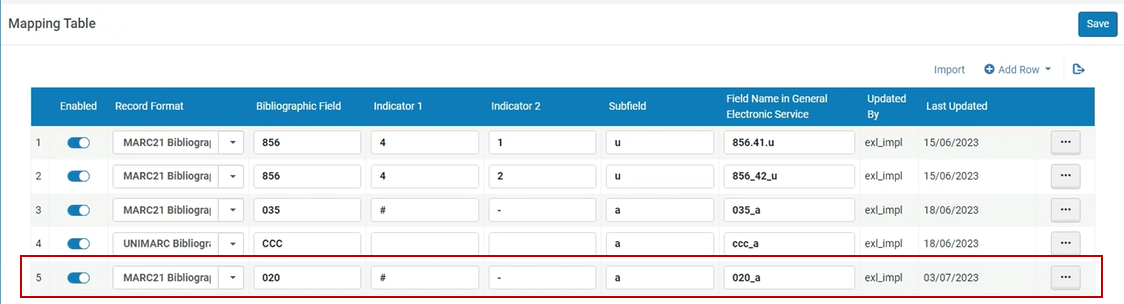
- Acceda a la pantalla de configuración y añada una nueva fila que apunte al campo bibliográfico específico (020_a en el ejemplo).
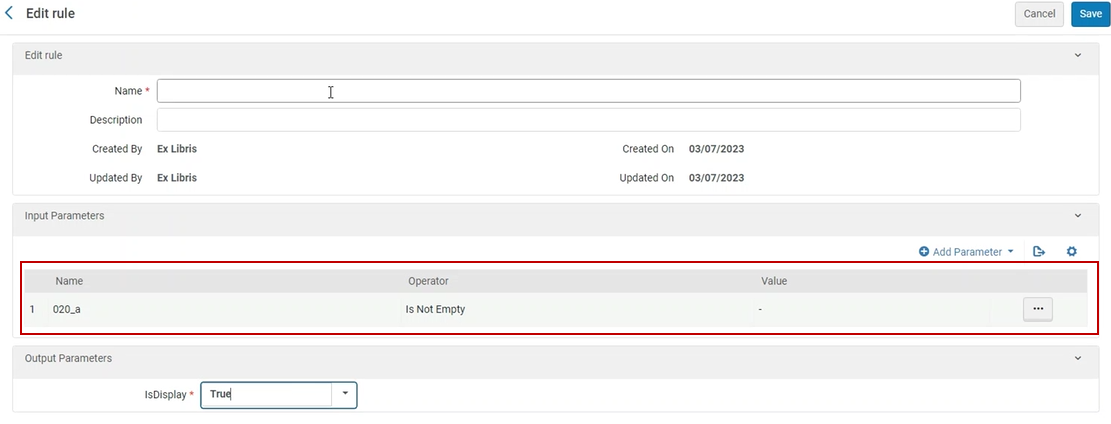
- Puede encontrar el campo bibliográfico recién definido en la sección de parámetros de entrada de una regla.
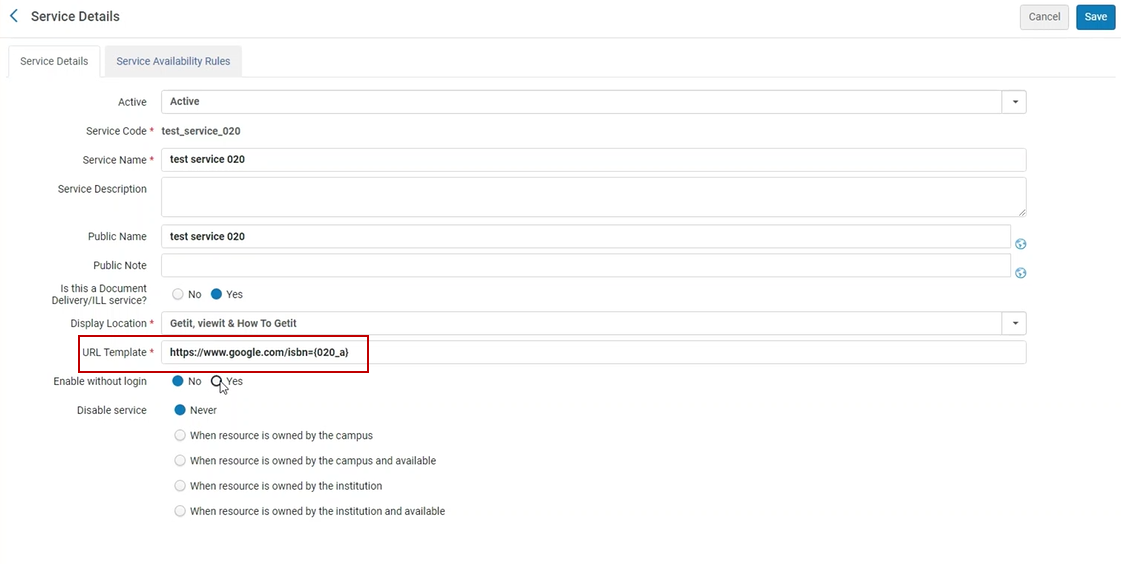
- También puede utilizar el campo recién definido en el campo Plantilla URL del servicio electrónico general.
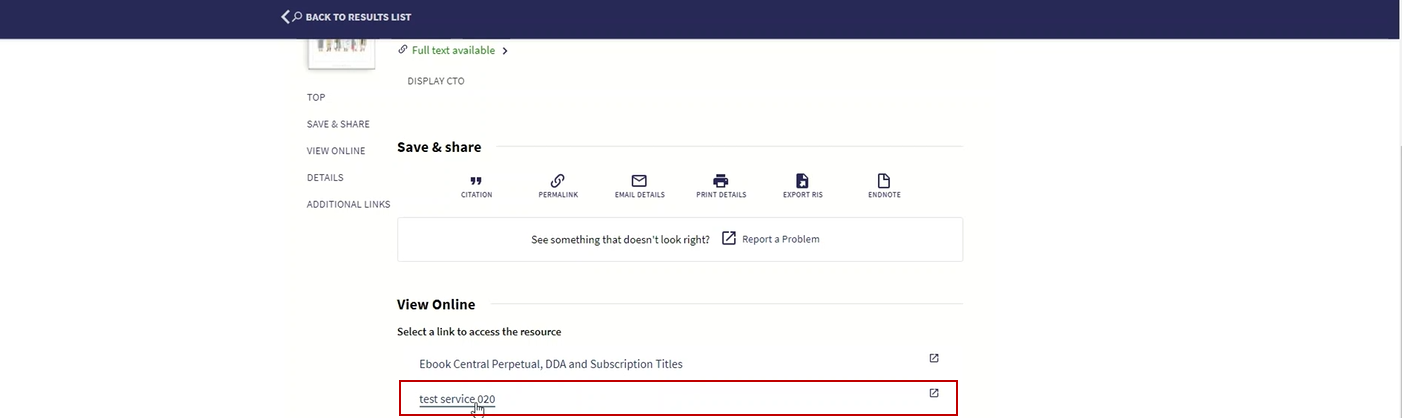
- Below is an example of how this will appear to patrons in the Discovery (Primo) system, as well as how the actual URL is constructed. (Constructed URL example: https://www.google.com/isbn=0491001304)
When adding a row to the "General Electronic Service Bib Fields Enrichment" configuration screen, you need to define the Record format, Bibliographic field and subfield. El valor definido dentro del "Nombre de campo en el servicio electrónico general" será el que aparezca al definir la plantilla de regla/URL electrónica general.
1. When two bibliographic records are matched, the logic only applies to the Selected bibliographic record.
2. If the URL template field starts with a parameter placeholder with no text or URL before it (and regardless of what comes after it), no decoding is applied to the first parameter's information.
3. For Network Zone members whose General Electronic Services derive values from the General Electronic Service Bib Fields Enrichment page, we recommend using the same names as in the network zone. This is in order to display the General Electronic Service for institution or network zone resources.
Sharing General Electronic Services in the Community Zone
Para compartir y copiar Servicios Electrónicos Generales compartidos, se debe tener uno de los siguientes roles:
- Administrador de servicios al usuario
- Administrador general del sistema
Las instituciones dedican una enorme cantidad de horas a la creación de servicios electrónicos generales. In order for these institutions to save time and effort, librarians can contribute their general electronic services to the Community Zone and copy and use the general electronic services that other institutions contributed to the Community Zone. Cuando los servicios electrónicos generales se hayan copiado en la institución, esta puede realizar cambios para personalizarlos según sus necesidades.
When a general electronic service is contributed, all its related rules are contributed as well.
Contributed general electronic services appear in the Community tab on the General Electronic Services page (Configuration Menu > Fulfillment > Discovery Interface Display Logic > General Electronic Services). Los servicios electrónicos generales copiados aparecen en la pestaña Institución.
The general electronic services set by the network institution also appear in the Institution tab. To distribute the general electronic service to consortia members, the Distribute Fulfillment Network Configuration job is used (see Configuring Fulfillment Information in the Network Zone). This is since these general electronic services are managed by the network institution and therefore, cannot be edited or contributed by the member institution.
-
From the row actions, select Contribute for a general electronic service on the Institution tab of the General Electronic Services page (Configuration Menu > Fulfillment > Discovery Interface Display Logic > General Electronic Services).
Aparecerá un mensaje de confirmación.
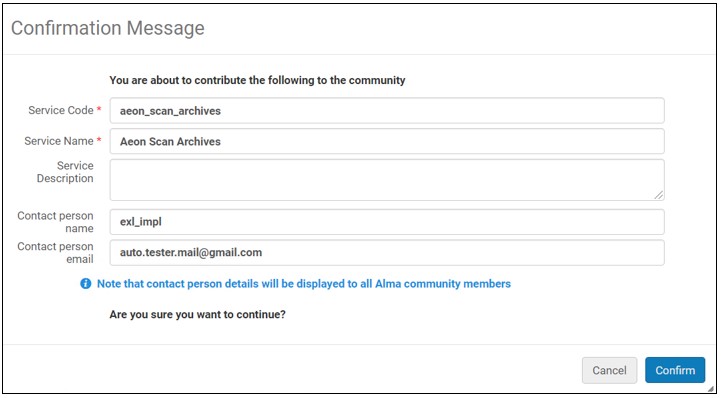
- You can optionally change the Service Code and Service Name.
- We recommend changing the Description to include detailed information for institutions that copy the GES.
- You can optionally enter or change the name and email address for the Contact person.
- Select Confirm. The service appears in the Community tab and can be copied by any institution.
If the general electronic service has already been contributed by the institution to the CZ, you may also edit and re-contribute an edited general electronic service. El último servicio electrónico general sobrescribe el servicio electrónico general previo. This action has no effect on local copies of the general electronic services used by other institutions.
-
Open the Community tab on the General Electronic Services page (Configuration Menu > Fulfillment > Discovery Interface Display Logic > General Electronic Services).
To view more information about the general electronic services, from the row actions, select View. Aparecen los detalles del perfil.
- Select Copy in the row actions list of the general electronic service. El servicio electrónico general se copia en su institución y se abre el nuevo para su edición. The general electronic service is copied, and its status is Inactive by default.
- Edite los detalles de los servicios electrónicos generales para que coincidan con sus requisitos.
- When you are done, select Save.
- Select the Institution tab to view the general electronic service that you copied.
- Select Delete in the row actions list of the general electronic service and select Confirm in the confirmation dialog box. El servicio electrónico general ya no estará disponible para otras instituciones. However, it is not deleted; you can continue using it in the Institution tab. Also, if another institution has already copied this general electronic service, the deletion of your general electronic service has no effect on their local copy.
Configuring the Order of General Electronic Services
Para configurar el orden de los servicios electrónicos generales, se debe tener uno de los siguientes roles:
- Administrador general del sistema
- Administrador de servicios al usuario
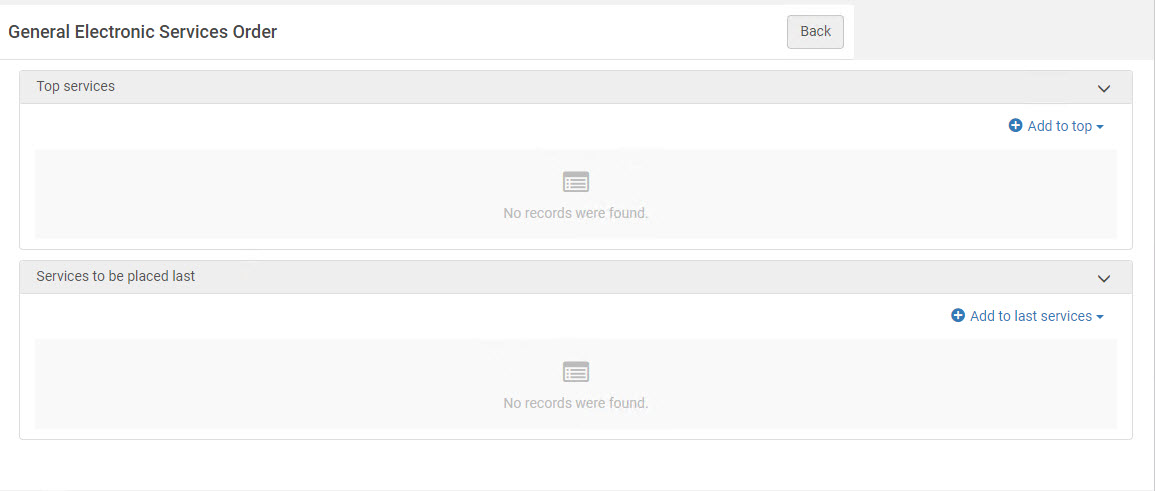
With the General Electronic Services Order page, you can configure the order in which general electronic services appear in Primo. Como otros servicios, también se pueden asignar servicios para que aparezcan en el primer o último grupo de la lista.
Solo se puede configurar el orden de los servicios electrónicos generales a nivel de la institución. Select the required institution from the Configuring filter on the Fulfillment Configuration page.
This page does not have a Save button. Cada selección que se hace aquí se guarda automáticamente en Alma.
- Open the General Electronic Services Order page (Configuration Menu > Fulfillment > Discovery Interface Display Logic > General Electronic Services Order).
-
Select Add to top or Add to last services to configure the order of services at the top and bottom of the list of results, respectively.
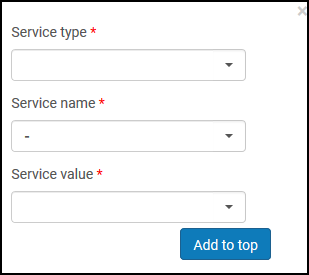
- In the Service type field, select General Electronic Service.
- In the Service name field, select Service.
- In the Service value field, select a service value.
- Depending on which list you are defining, select either Add to top/Add to last services. El servicio aparece en la lista que se esté definiendo.
- For each list, select the arrows in the Move Up and Move Down columns to order the services.
