
統合XSLコンバーター
XSLコンバーターを定義するには、以下の役職が必要です:
- 一般システム管理者
When importing users to Alma from SIS systems that use other data formats than Alma, you can convert data from the source system formats to the format required by Alma.
Currently, this is possible for the following integrations (see Student Information Systems):
- SISインポート
- SIS同期
You can upload and manage XSLT converters from the Integration XSL Converters page (Configuration Menu > General > External Systems), as well as share converters in the Community Zone.
- XSL ファイルをアップロードする場合、厳密な文字制限はなく、コンテンツ全体が処理されます。
- XSL ファイルを編集する場合、サポートされるには XSL が 4096 文字以下である必要があります。
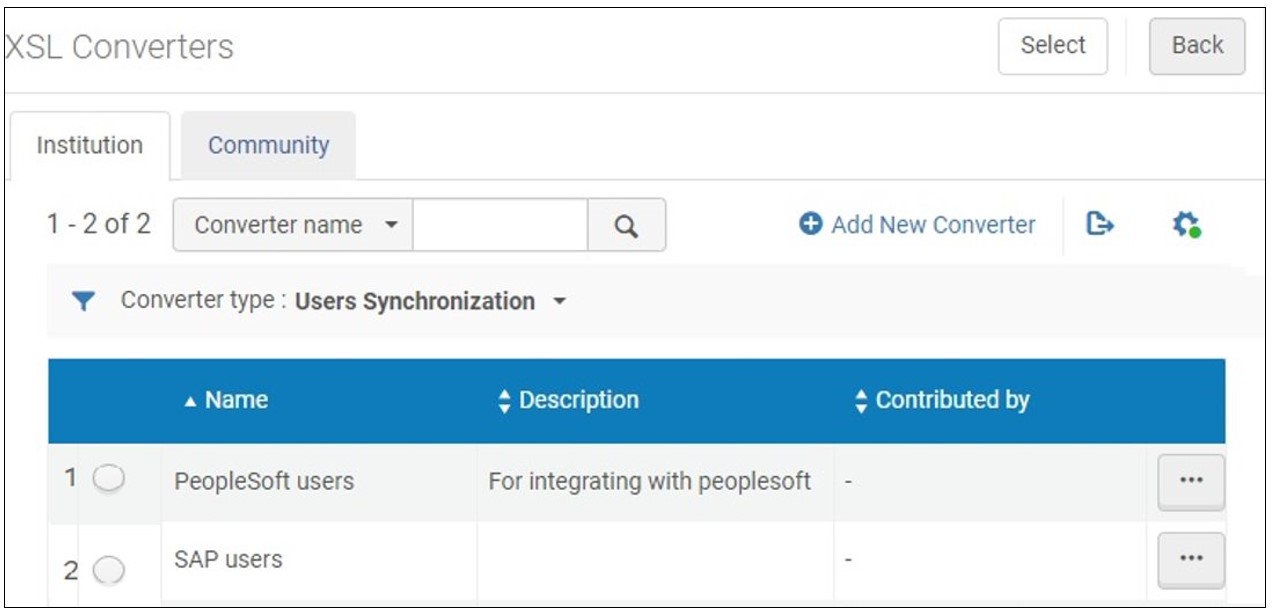
このページでは次のアクションを実行できます:
- Upload XSLT converters
- XSLTコンバーターを編集する
- XSLTコンバーターを検証し、デモファイルで結果をプレビューする
- XSLTコンバーターを機関間で共有する
Once the XSLT converter has been defined and validated, you can apply it to Integration Profiles, see Student Information Systems.
Uploading XSLT Converters
- Open the Integration XSL Converters page (Configuration Menu > General > External Systems).
- Select Add New Converter.A dialog box opens.
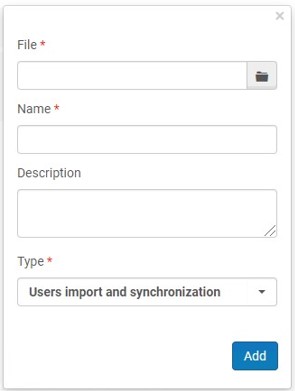
- 参照してファイルをアップロードします。
- ファイル名を入力してください。The file must have the *xsl suffix and must have a valid XML structure.
- タイプを選択します。Currently, the only type that is enabled is Users import and synchronization.
XSLTコンバーターの編集
- Open the Integration XSL Converters page (Alma Configuration > General > External Systems).
- Select a converter and click Edit in the row actions list.A screen opens where you can edit the converter.
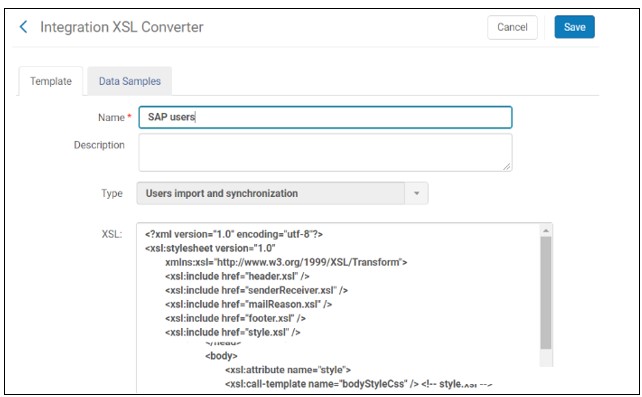
- On the Template tab, you can edit the name and description, and the raw XSL text.
- Select Save to save your changes.
XSLTコンバーターの検証
コンバータータイプに従って、関連するXSDに対してコンバーターを検証するには、サンプルファイルをアップロードします。
You can open the XML file to modify and download it.
- Open the Integration XSL Converters page (Configuration Menu > General > External Systems).
- Select a converter and select Edit in the row actions list.
- [データサンプル]タブを開きます。
- Click Upload sample (XML), then browse for the data sample file and upload it.

- To modify the XML file and download it, select Edit in the row actions list, edit the file and select Download XML.
- To preview the resulting XML file, select Preview in the row actions list, select the particular converter type
- To delete the data sample file from the list, select Delete in the row actions list.
コミュニティゾーンへのXSLTコンバーターの提供
機関はXSLTコンバーターの作成に何時間も費やしています。時間と労力を節約するために、図書館員はこれらのコンバーターをコミュニティゾーンに提供したり、他の機関がコミュニティゾーンに提供したコンバーターをコピーして使用したりすることができます。コンバーターが機関にコピーされると、機関はニーズに合わせてカスタマイズするために、それを変更することができます。
Contributed XSLT converters appear in the Community tab on the Integration XSL Converters page.Copied converters appear in the Institution tab.
The Aleph to Alma converter of integration type 'Users import and synchronization' was contributed to the Community Zone by Ex Libris.
- From the row actions, select Contribute for an XSLT converter on the Institution tab of the Integration XSL Converters page (Configuration Menu > General > External Systems).確認メッセージが開きます。
- メッセージの名前と説明を編集し、必要に応じて連絡先を追加します。Then select Yes in the confirmation message.Upon confirmation, the converter is copied to the list of converters in the Community tab and can be copied by any institution.
- Open the Community tab on the Integration XSL Converters page (Configuration Menu > General > External Systems).
To view the XSLT converter, select View from the row actions.プロファイルの詳細が表示されます。
- Select Copy in the row actions list of the converter.コンバーターが機関にコピーされ、新しいコンバーターが編集用に開かれます。The converter is copied and its status is Inactive by default.
- 要件に合わせてコンバーターの詳細を編集します。
- When you are done, select Save.
- Select the Institution tab to view the converter that you copied.
- Select Delete in the row actions list of the converter and select Confirm in the confirmation dialog box.
これで、このコンバーターは他の機関では使用できなくなります。However, it is not deleted; you can continue using it in the Institution tab.また、すでに別の機関がこのコンバーターをコピーしている場合、コンバーターを削除してもローカルコピーには影響しません。
Page tags: article:topicproduct:almacontent:Documentationlang:english
