
RSS公開
- 統括システム管理者
- リポジトリ管理者
- 目録管理者
An RSS (Rich Site Summary) feed pushes records to the discovery interface (Primo), identifying new items published or added to the inventory.これを使用して、新しい書籍リストを作成できます。
RSSフィードに含まれる図書館アイテムは、設定のセッティングとRSS公開プロファイルの相対的な日付範囲によって決まります。
新しいRSSフィードワークフロー
新しいRSSフィードを作成するには、次の手順を実行します:
- Create a physical items set (see Saving and Reusing Search Queries) to identify the set of records within which you expect to locate your list of new books.RSS公開プロファイルを構成するときに、このセット名が必要になります。
Only logical sets can be used with the RSS Profile.アイテムセットは、プロファイルの実行時にリストされません。
- Create the RSS discovery URL (see Creating the RSS Discovery URL).
- After you have identified all the parts and created the RSS discovery URL that you need to use for your new book list process, enter the URL in rss_discovery_url(see Configuring Other Settings).
- Create an RSS publishing profile that includes a definition of new that is between 90 and 2 days ago (see the Max number of days ago and Min number of days ago settings described in Configuring an RSS Publishing Profile below).
- Create the RSS feed URL (see Creating the RSS Feed URL)
- 必要に応じて、データベースに(上記で保存したセット内で)新しい書籍が追加/受入されたことを確認します。
- Confirm that the RSS publishing profile successfully completed processing on the Monitor Jobs page (see Viewing Completed Jobs).
- RSSフィードURLを使用して、ブラウザーにURLを入力し、Primoで結果を表示することにより、新しい書籍リストを表示します。See Viewing Scheduled Jobs.
RSS公開プロファイルの設定
- リソース > 公開> 公開プロファイルの順に開きます。
- プロファイルの追加を選択し、RSSオプションを選択します。空のRSSプロファイルに対して、公開プロファイルの詳細ページが表示されます。
- 以下の表を使用して、RSS公開プロファイルを設定します。
RSS公開プロファイル フィールド 説明 プロファイル詳細 プロファイル名 このRSSフィード公開プロファイルの一意の名前。公開プロファイルページのリストでプロファイルを識別するために使用されます。 プロファイル説明 公開プロファイルページに表示されるプロファイルの詳細。 ステータス - アクティブ(黄色のチェックマーク)。使用中または使用可能であることを意味します。または
- 非アクティブ(チェックマークをオフ)。現在使用できないことを意味します。
スケジューリング この公開プロファイルを実行するタイミング。 Eメール通知 RSSジョブが完了したときにEメール通知を受信するユーザーとEメールアドレス。スケジュールされたジョブのEメール通知ページを開く場合に選択します。成功したジョブおよび/またはエラーを含むジョブについて通知を送信するかどうかを選択します。 RSSフィードパラメータ RSSフィード名 フィードへのリンクを生成するために使用される名前。名前にスペースを使用しないでください。 言語 言語コードテーブルのドロップダウンリスト。デフォルトは空です。値が選択されると、それ以降のプロファイル使用時のデフォルトになります。 RSSフィードタイトル 公開プロファイルリスト内のプロファイルの名前。 これは、RSSフィードの結果にも表示されます。RSSフィード説明 公開プロファイルリストに表示されるプロファイルの説明。 これは、RSSフィードの結果にも表示されます。配架ロケーション名を表示する 出力に完全なロケーション名を含めるか、ロケーションコードのみを含めるか。 RSS バージョン 2.0
RSS 2.0 XMLを使用してRSSフィードを公開するには、このチェックボックスを選択します。
人口を選択 セット名 RSSアクションが適用される冊子アイテムのセット。 過去の最大限度日数 フィードの新しいアイテムを検索する過去の最大日数。New is determined by the item's Receiving date identified on the Physical Item Editor page. デフォルトの日数は60です。この数は90を超えることはできません。過去の最小限度日数 新しいアイテムを検索する過去の最小日数。デフォルトは2で、2日はPrimoとの同期を保証するために必要な最小日数です。この数は、 過去の最大限度日数を超えることはできません。 - 保存を選択します。公開プロファイリストページが表示され、新しいRSSフィード公開プロファイルがリストされます。
RSSディスカバリーURLの作成
RSSディスカバリーURLは、すべてのRSS公開フィードにリストされているアイテムへのディープリンクを生成するためにAlmaが使用するベースURLを定義します。
For {{suprima}}, use the following template to define your RSS discovery URL:
- Primo_domain - PrimoのUIで使用するドメインを指定します。
- view_code – Specify your view's code in {{suprima}}.For more details, see Configuring Discovery Views for Primo VE.
- search_slot -ビュー内の検索プロファイルスロットのコードを指定します。For more details, see Configuring Search Profile Slots.
- scope_code -検索先のスコープのコードを指定します。For more details, see Configuring Search Profiles for Primo VE.
An example of a functional RSS discovery URL may look something like the following for {{suprima}}:
Primoの場合、次のテンプレートを使用してRSSディスカバリーURLを定義します:
- Primo_domain - PrimoのUIで使用するドメインを指定します。
- institution_code -Primoバックオフィスの機関ウィザードで定義されたPrimoの機関コードを指定します。For more details, see Institution Wizard.
- view_code - Primoバックオフィスのビューウィザードで定義されたPrimoのビューコードを指定します。For more details, see Configuring Primo Views.
- tab_code - Primoバックオフィスのビューウィザードで定義されたビューのタブコードを指定します。For more details, see Configuring View Tabs.指定しない場合、システムはビューのデフォルトを使用します。
- scope_name - Primoバックオフィスのビューウィザードに定義された、検索したいスコープの名前を指定します。For more details, see Configuring Search Scopes.指定しない場合、システムはビューのデフォルトを使用します。
- source_code – Specify the source code, which is defined with the Data Sources page in the Primo Back Office (see Configuring the Data Source).所属機関が共同ネットワークのメンバーである場合、この値は空白のままにします。
For more information on using the parameters for the Brief Search deep link, see Brief Search Deep Link in the Developer Network.
Primo用の機能的RSSディスカバリーURLの例は、次のようになります:
Once you have defined your RSS discovery URL, you can enter it in the rss_discovery_url parameter that is located on the Mapping Table page of Other Settings(Administration > General Configuration > Configuration Menu > General Configuration section).
RSSフィードURLの作成
RSSフィードURLは、RSSフィード内のレコードを取得します。After each run of the RSS publishing job, the RSS feed includes records in the results with items whose receiving date is within the minimum/maximum number of days ago range that you set in the RSS publishing profile.これらのレコードは、新しい書籍リストの新しい書籍のリストになります。ユーザーは、Primoまたは別の図書館Webページに配置されているRSSフィードURLへのリンクを選択することにより、RSSフィードにサインアップできます。次のテンプレートを使用してRSSフィードURLを作成します。これは、RSS公開プロファイルの完成したジョブリポートを表示することで確認できます:
- Alma_domain – Specify your Alma domain (see Your Alma Domain Names).
- institution_code -Almaで所属機関に割り当てられているコードを指定します。
- RSS_feed_name - RSS公開プロファイルで定義されたRSSフィードの名前を指定します:
以下は、RSSフィードURLの例です:
公開RSSフィードジョブ
RSSフィード公開プロファイルを完了すると、プロファイルで定義されたスケジュールに従ってRSSフィード公開ジョブが実行されます。
ジョブの進行状況を表示するには、次のいずれかを使用してジョブを見つけます。
- The Publishing filter on the Monitor Jobs page (see Viewing Running Jobs and Viewing Completed Jobs)
- または[プロファイルの公開]ページのRSSプロファイルの行アクションリストから[履歴]を選択します。
完了したジョブについては、行アクションリストからリポートを選択して、ジョブリポートページを開きます。
The job report looks as the below: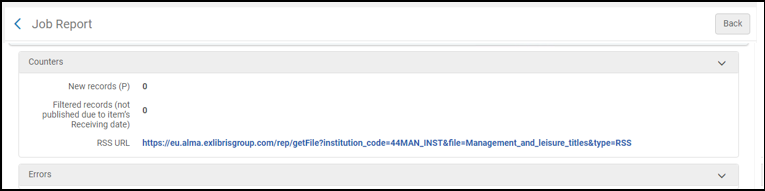
ジョブリポートに表示されるカウンター:
- New records (P)- Number of records that actually published with the logical set criteria (Receiving date).
- Filtered records- Not relevant here, ignore this counter.
In addition to the files created as a result of the Publishing RSS Feed job, Alma generates a summary link (displayed on the Job Report page) for each RSS job in the following format:http://<Alma domain>/rep/getFile?institution_code=<Alma Institution Code>&file=<RSS feed name>&type=RSS.This is the same URL format described in Creating the RSS Feed URL.
RSSフィードの結果を表示して購読するには
The examples below were taken using Internet Explorer.In other browsers the results look slightly different.Ex Libris is not responsible for various browsers capabilities to subscribe to a RSS feed.
- Select the link provided on the Job Report page, or copy/paste the RSS feed URL that you created in the section Creating the RSS Feed URL into a browser.Either method opens a page similar in format to the below that contains a list of items matching the date span criteria that you provided in the publishing profile.This is your new books list.

- Select "Subscribe to this feed" and fill in the details.
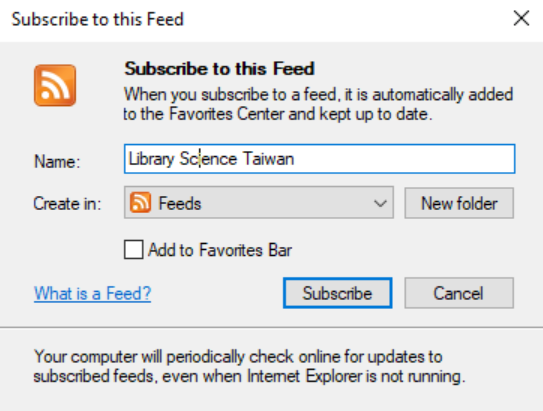 A message opens the confirms that you have successfully subscribed.

- 結果を表示するには、[フィードを表示]を選択します。Your new RSS feed results list opens.
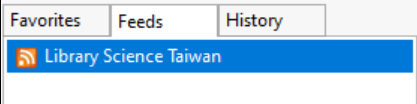
- To view an item that is on your RSS feed results list, select the link for one of the records in the list.The item opens in your discovery tool/Primo.
公開データのフォーマット
これは、XMLファイル構造の例です。
<rss xmlns:atom="http://www.w3.org/2005/Atom" version="2.0"> <rss> <channel> <link></link> <description></description> <language></language> <item> <title></title> <link></link> <author></author> <description> <language></language> <format></format> <mattype></mattype> <pubDate></pubDate> <arrivalDate></arrivalDate> </item> </channel> </rss>
公開基準を満たす冊子アイテムがない場合(論理セットの定義に従って、または公開プロファイルで定義されている「最大日数前」と「最小日数前」に従って)、公開の結果として作成されたXMLページは空になります。This is an example of such an empty page:
Page tags: article:topicproduct:almacontent:Documentationlang:english
