
Using Encore Suites
Encore Suites allows multiple institutions on a shared Sierra and Encore system to customize each Encore instance individually. For example, each institution can:
- Brand their suite by using a logo and controlling the colors of fonts and labels.
- Configure Encore's tabs and facets specifically for their users.
- Offer to their users only those digital resources available to them, such as subscriptions to EBSCO, OverDrive, cloudLibrary, and Axis360 digital content.
- Display OAI-PMH compliant repositories specific to their institution.
Suites functionality has also been developed in Encore Mobile. Encore can accommodate up to 140 suites.
For more information on Encore Suites, see the sections below:
Customizing Encore with Encore Suites
Requirements
Encore Suites requires the following:
- Scoping must be enabled. See Scoping Overview in the Sierra documentation for more information.
- Each suite must be associated with a scope. Note that only one scope can be associated with a specific suite.
- Encore 4.7 and Sierra 3.4 are required for full integration.
How Encore Suites Works
Each suite is tied to a specific scope, which is defined when the suite is created. After your suite is set up, the content within that Encore instance is limited to only records associated with that scope. Encore specifies the suite in the URL. For example:
https:/encore.library.edu/iii/encore/lang=eng&suite=central
In the example above, the string "&suite=central" in the URL directs Encore to display the "central" suite and use the settings associated with that suite. Encore displays search results only for items contained within the scope associated with the suite. When a suite is not indicated, Encore displays the default suite (which is not associated with a specific scope). A common use for the default suite is a consortia-wide search platform in which all scoped content appears.
Users can change the suite from the Search consortia drop-down box on the Browse Results pages of the Catalog, Catalog Plus, Image, and EDS tabs. For example:
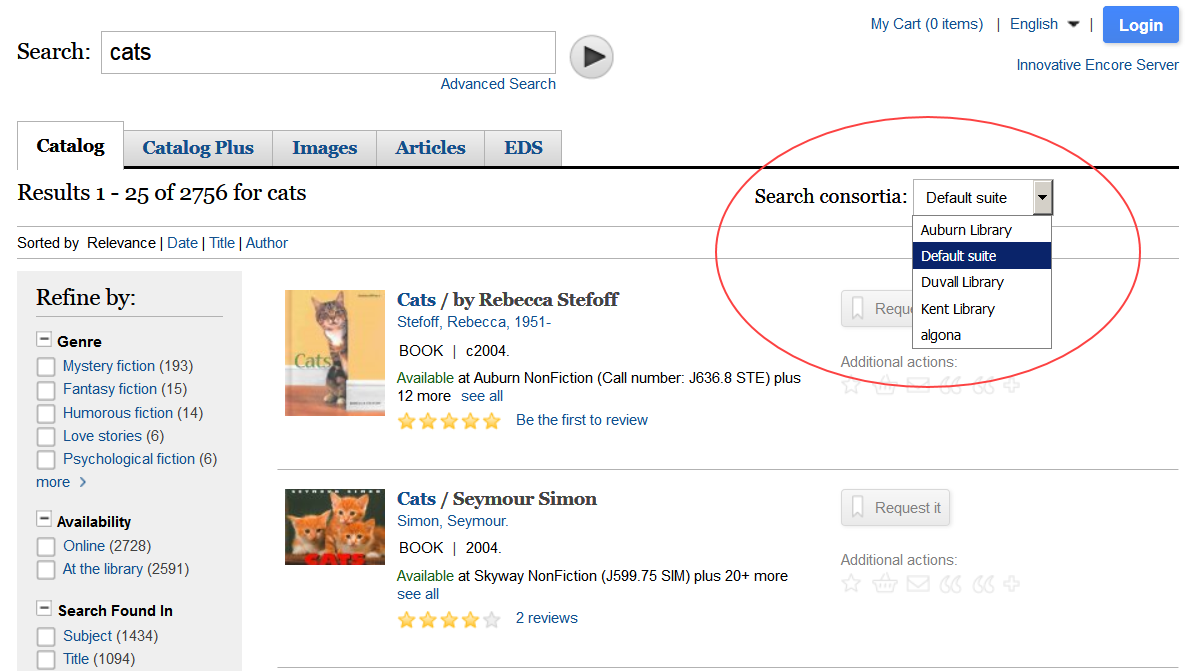
When a suite is changed, Encore automatically reinitiates the search in the new suite.
Customizing Encore with Encore Suites
During the installation process, Innovative staff works with your institution to gather the information required to configure Encore Suites based on your needs. Once Encore Suites is set up, your library can customize additional aspects of each suite.
The following table shows which aspects of Encore can be customized per suite, who performs the customization work, and details of the customization possible.
| Encore Functionality | Customized by: | Customization Details |
|---|---|---|
| Behaviors | Library / Innovative | Each suite can define their own behavior settings. These settings allow you to customize aspects of Encore such as library logos, headers, footers, icons, and so on. For more information on which aspects of Encore you can customize, see Customizing Encore. |
| Book Covers | Innovative | Each suite can define a source for book cover images. |
| Ebook Integrations | Library | Each suite can have its own account with ebook vendors. See Configuring eBook Accounts Access for more information. |
| EDS Accounts | Innovative | Each suite can be associated with a different EDS account and customized to display only the subscriptions and records associated with their institution. |
| Facets | Innovative | Each suite can define which facets to display, the order in which they display, and whether each facet appears opened or closed by default. For more information on facets, see Refining Search Results with Facets. |
| Harvesting | Library | Harvested collections can be associated with a specific scope (and therefore a suite). See Administering Encore Harvester in the Sierra documentation for more information. |
| Messages | Library | Each suite can customize its own public-facing messages. See Customizing Encore Messages for more information. |
| Search Tabs | Innovative | Each suite can define which search tabs display on the landing page for that suite and the order in which the tabs appear. These tabs allow patrons to search the following:
See Tabs in Encore with EDS for more information. |
| Talis Aspire Integration | Innovative / Library | Each suite can have its own integration with Talis Aspire. For more information, see Enabling Talis Aspire. |
| Timeout Redirects | Innovative | Each suite can provide a URL which Encore uses to redirect patrons when they are timed out or they log out. This URL is generally the base Encore URL. When a patron logs out with Encore Suites enabled, Encore can append the suite to the logout / timeout redirect URL to keep the user within the same suite. If a different page is used for the logout / timeout, your institution must consider the ability to return the user to the correct suite. |
| webpub*.def Files | Innovative | Each suite can control which record fields appear on the browse results and record detail pages. |
