
Refining Search Results with Facets
Encore's facets help you refine your search by limiting the results according to the limits you select. Most facets show the number of corresponding resources in the current result set to the right of each facet value.
For more information on facets, see the following sections.
Using Facets to Refine Search Results
Using Facets to Refine Search Results
To refine your search results using facets, do the following.
- Click the box next to the facet value to limit the search results. Note that you might need to do the following in order to view all the values for a specific facet.
- If the facet does not appear in the expanded format (as chosen by your library), click the '+' in front of the facet name to view available values.
- Encore displays up to five values for each facet. If your results set includes hits for more than five values for a specific facet, click more to view all the facet values. For example:
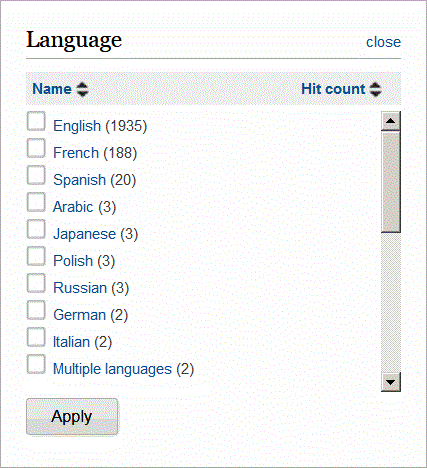
You can sort the facet values in ascending or descending order by clicking the arrows next to Name and Hit count. You can select one or more facet values by clicking the box next to each facet. When you are finished, click Apply.
When you limit your search using a facet, Encore displays the facet value(s) in the Current refinements area above the facet list. For example:
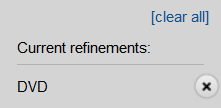
- (Optional) Select additional facet values to further limit your results set, if necessary.
When you select additional facets, Encore updates the Current refinements area with your selections and displays the Boolean operator used to combine your selections. For example:
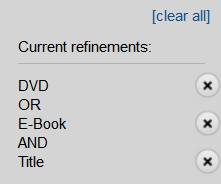
Encore uses Boolean operators in the following ways.
- If you select two or more values from the same facet group, Encore applies the OR Boolean operator. In the previous example, the user selected "DVD" and "E-book" from the Format facet group, and Encore used the OR operator.
- If you select a facet value from a different facet group, Encore uses the AND Boolean operator. In the previous example, the user selected "Title" from the Search Found In facet, and Encore used the AND operator to join this selection with the Format facet selections already made.
- (Optional) To remove a facet selection from your search, do one of the following in the Current refinements area.
- To remove one facet selection, click the 'X' that appears next to its name.
- To remove all facet selections, click clear all.
Facets Available in Encore
Depending on the results of your search and your library's system configuration, you can limit your search results using some or all of the facet types below.
Availability
Limits the search results to resources that are currently available. Results can be further limited as follows:
At The Library
Limits the search results to on-site available items. Excludes EDS results for libraries with Encore with EDS.
Online
Limits the search results to electronic resources, including EDS and eBooks results.
Determining Availability
Encore includes bibliographic entries in the Availability facet if the bibliographic record associated with the result entry:
- is not suppressed
- does not have attached items or holdings that are suppressed
- has associated items that are not checked out
- the attached item does not have a hold
In addition, Encore has internal configurations to specify the status codes to define an "available" item. Contact support to request changes to these status codes.
Online Availability
Encore includes entries in the Online facet if the bibliographic record associated with the result entry contains:
- associated resource records
- 856 links
- material types defined as "online" through internal configurations. Contact support to request changes to these material type codes
Classification
Limits the search results to resources with a specific call number prefix.
Collection
Limits the search results to resources from a specific collection of materials. Collections can include physical locations as well as digital collections of harvested records. The collections available depend on your library's system configuration.
Content Provider
Limits the search results to materials from a specific content provider.
Course
Limits the search results to resources on reserve for a specific course. (Appears only if your library has the Course Reserves product.)
Format
Limits the search results to resources of a specific material type. For example, select the Book facet value to remove music, videos, and so on, from the results and see only the books that matched your search.
Genre
Limits the search results to resources belonging to a specific genre (for example, science fiction). By default, Encore uses subfield a from the MARC 655 field of the bibliographic record to populate the genre facet. However, your library can request that a different field is used during setup.
Journal
Limits the search results to materials from a specific journal.
Language
Limits the search results to resources in a specific language. The languages available depend on your library's collection of materials. Encore uses subfield a from the MARC 041 field of the bibliographic record to populate the language facet.
Location
Limits the search results to resources from a specific location. The locations available depend on your library's system configuration.
Place (or Topic Place)
Limits the search results to resources about a specific geographical location.
Professor
Limits the search results to resources on reserve for a specific professor. (Appears only if your library has the Course Reserves product.)
Publish Date
Limit the search results to resources published in a specific year or within a range of years. Encore uses the following criteria to identify publication dates when applying the Publish Date facet:
- If your library has specified a MARC field and subfield for the publication date, Encore uses that value.
-
If there are no specified MARC fields and subfields for the publication date, Encore searches for a date in the first p-tagged field in the bibliographic record.
- If a publication date cannot be determined from a p-tagged bibliographic record field, Encore uses the date specified in the 008 field (if any).
To limit by a range of years, use the Date Range function to specify the start year and end year, then click Apply to limit your search results.
Publisher
Limits the search results to materials from a specific publisher.
Search Found In
Limits where Encore searches for your search term. For example, if you searched for Jane Austen, select the Author facet value to limit the results to items authored by Jane Austen. Books about Jane Austen (by other authors) no longer appear in the list.
Subject
Limits the search results to resources associated with the chosen term. Depending on your library's configuration, the terms are drawn from record subject fields (6XX |a) and community tags. In a tag list, tags associated with a greater number of resources appear closer to the top of the list.
Topic Place
Limits the search results to resources about a specific geographical location.
Additional Facets
Encore with EDS offers additional facets for refining search results. For more information, see Refining Search Results with EDS Facets.
Custom Facets
If your library has custom keyword indexes on your system, Encore can display customized facets for up to five custom keyword indexes.
- Custom Facets require Innovative setup.
- Custom Facets display indexed fields from a custom keyword index. Encore cannot use mapped data for custom facets.
- If you require a Custom Facet and do not have an associated keyword index on your system, please contact Sales to acquire the new custom keyword index.
How to View Existing Keyword Indexes
To view your existing keyword indexes:
- In the Admin App, click AWS. (Requires permission 1009 (View AwsConfig) in your Sierra or Millennium system).
- Click SuperSlices.
- Click the keyword slice. The system displays your current and available keyword indexes.
