
Digitization Processing
Approving/Rejecting a Request for Digitization
Per Approva richieste di digitalizzazione, devi avere il seguente Ruolo:
- Gestore attività Servizi
This page describes how to work with digital files including the basic workflow, delivering digitized items to patrons, attaching digitized items to send to a patron, etc. It also describes the managing of digitization using the Actions menu for cancelling requests, changing physical requests to electronic and vice versa, using View it for the Alma Link Resolver, etc. For a full overview of the requests workflow starting from the different ways a request can enter into the Alma system through to scanning and final processing, see Resource Requests Workflow.
For links to all the main fulfillment documentation pages see Fulfillment.
Per gestire la digitalizzazione di una copia, è necessario avere il seguente Ruolo:
- Operatore ordine lavoro
- Gestore attività Servizi
A patron or staff member can request the creation of a digital file for any physical or electronic item (see Creating a Request).
Physical items are transferred from their library location to the digitization department (see Configuring Digitization Departments), where they are scanned and digital files are created. Le copie elettroniche vengono digitalizzate localizzandole nell'Archivio e salvandole in Formato digitale.
Il file digitale viene consegnato a uno dei seguenti:
- Istituzione: il file digitale è di proprietà e gestito dall'istituzione come parte dell’Archivio. L'accesso al file è regolato dai diritti di accesso.
- Utente – L'utente riceve il file digitale o un link al file digitale tramite email.
È possibile richiedere la digitalizzazione per l'intera copia o per un capitolo, un intervallo di pagine o un articolo all'interno di una copia.
For more information, see Digitization Request (2:13 min.).
Digitization Department Workflow for a Physical Item
Di seguito è riportata un'illustrazione di un tipico flusso di un Servizio di digitalizzazione, dopo che la copia è stata richiesto per la digitalizzazione. Il processo inizia con l’arrivo della copia al Servizio di digitalizzazione, prosegue con la creazione del file digitale e si conclude con l’accesso del file digitale.
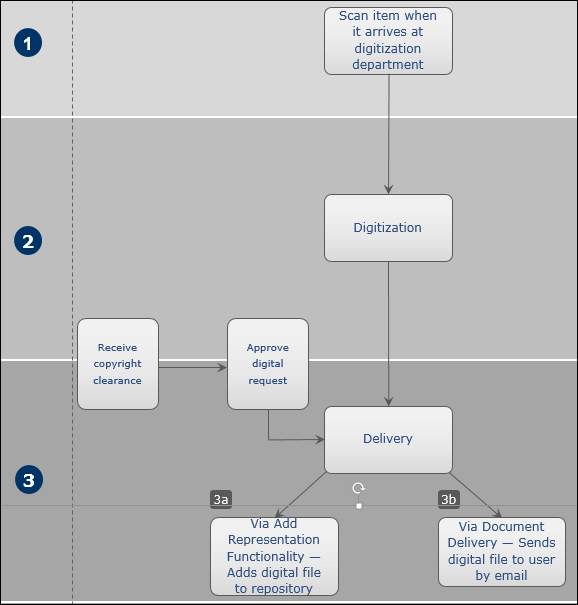
Di seguito è una descrizione dettagliata dei passaggi di questo flusso di lavoro (i numeri corrispondono a quelli nel diagramma):
-
The workflow commences when the requested physical item arrives at the digitization department and its barcode is scanned (see Scanning Items). The item acquires the status Digitization. For information on requests to digitize physical items, see Creating a Request.
Upon arrival of the physical item, the digitization request is sent for review to determine whether there are elements that require special attention based on the review rules preconfigured by an administrator (see Configuring Digitization and Copyright Rules). Questi includono:
- Copyright clearance – Se necessario, la biblioteca Riceve una licenza di copyright (ad esempio, dai Servizi del Copyright Clearance Center) per riutilizzare contenuti protetti da copyright.
- Approvare: la richiesta è approvata e il processo di digitalizzazione continua.
- Rifiutare – La richiesta è stata respinta. Viene specificato il motivo del rifiuto.
- L'approvazione di una richiesta di digitalizzazione può avvenire in qualsiasi momento del flusso di lavoro di digitalizzazione, ma deve avvenire prima della fase di accesso. For details on approving/rejecting a request, see Approving/Rejecting a Request for Digitization.
- La notifica al richiedente viene trattenuta fino a quando la richiesta non viene approvata.
- The item is digitized (see Digitizing Items).
- The request proceeds to the delivery stage (see Delivery of Digitized Items). L'accesso viene gestito in uno dei seguenti modi:
- By the Add Digital Representation functionality (see Adding a Representation). Il file digitale può essere cercato nell'applicazione Primo.
- By the Document Delivery – Attachment – An email is sent to the requesting patron with the digital file as an attachment (see Attaching Digitized Items to Be Sent to a Patron).
- By the Document Delivery – Link – An email is sent to the requesting patron with a link to download the digital file (see Attaching Digitized Items to Be Sent to a Patron).
The delivery method is defined by preset rules (see Configuring Digitization and Copyright Rules).
For more information, see Digitization Requests Flow.
Approving/Rejecting a Request for Digitization
Per Approva richieste di digitalizzazione, devi avere il seguente Ruolo:
- Gestore attività Servizi
You must approve or reject digitization requests when digitization and copyright rules determine that approval is required (see Configuring Digitization and Copyright Rules) or when a copyright approval task is specifically requested, such as for a citation (see Adding Citations to a Reading List).
La richiesta di digitalizzazione può essere approvata in qualsiasi momento del flusso di digitalizzazione, ma l'accesso non può essere completato finché non viene concessa l'approvazione.
You approve or reject digitization requests on the Approval Requests List page (Fulfillment > Resource Requests > Approval Requests List). You can also view this page by selecting the task Requests - Digitization - need approval in the Tasks List in the persistent menu ( see Tasks in the Tasks List) or after selecting Save and Manage Approval on the Edit Reading List Citation page (see Managing Citations).
To filter citations by relevance, use the Creation date filter. L'intervallo default visualizzato è costituito dalle richieste dell'anno più recente.
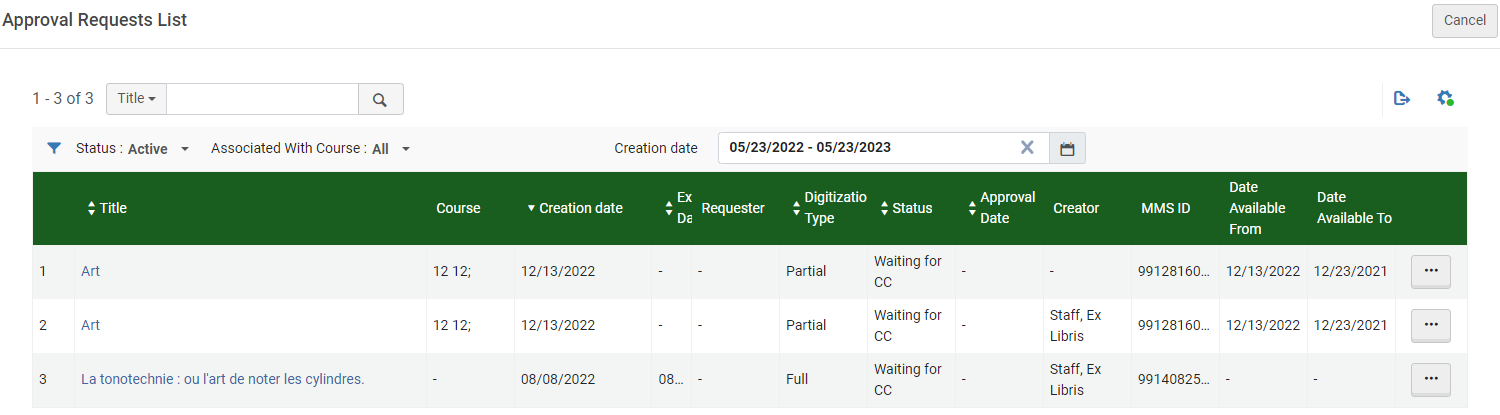
In questa pagina può eseguire le seguenti azioni:
-
Filter the requests- In addition to the Status and Associated With Course filters, you can select Filter by this Record from the row actions list in a request row to view only requests for that record, including all other requests for the same MMS ID, ISBN (ISBN/10 or ISBN/13 are both returned), or ISSN/Volume/Issue. In quest'ultimo caso, vengono restituite anche le copie senza fascicolo ma con lo stesso ISSN e volume, oppure senza volume e senza fascicolo ma con lo stesso ISSN.
When entering this page after selecting Save and Manage Approval on the Edit Reading List Citation page,Filter by this Record is selected by default.
- Update the request's expiration date - Select Update Expiry from the row actions list to open the Update Expiration Date dialog box. Change the request expiration date and select Save. Questa azione è possibile solo se la richiesta ha già una data di scadenza.
- Approve or reject the request - See below.
-
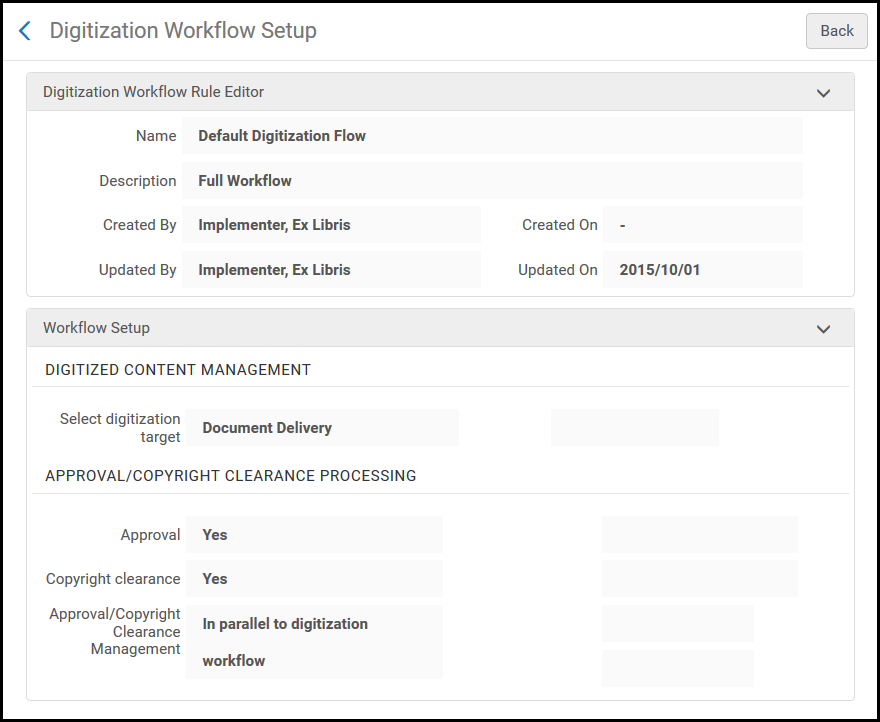
View relevant digitization and copyright rule - To view the digitization and copyright rule that resulted in this request requiring manual approval (instead of being automatically approved or rejected), select View Rule from the row actions list. Viene visualizzata una versione di sola lettura della pagina di configurazione del flusso di lavoro di digitalizzazione, contenente informazioni sulla regola che ha attivato l'approvazione manuale per questa richiesta.
For a video on how to find and monitor requests, as well as how to fulfill them, see Digitization Request Management (4:24 min.).
To approve/reject a request for digitization:
- On the Approval Requests List page, select View or Work on from the row actions list of the item you want to approve. The Approval Requests List page appears, displaying details of the item.
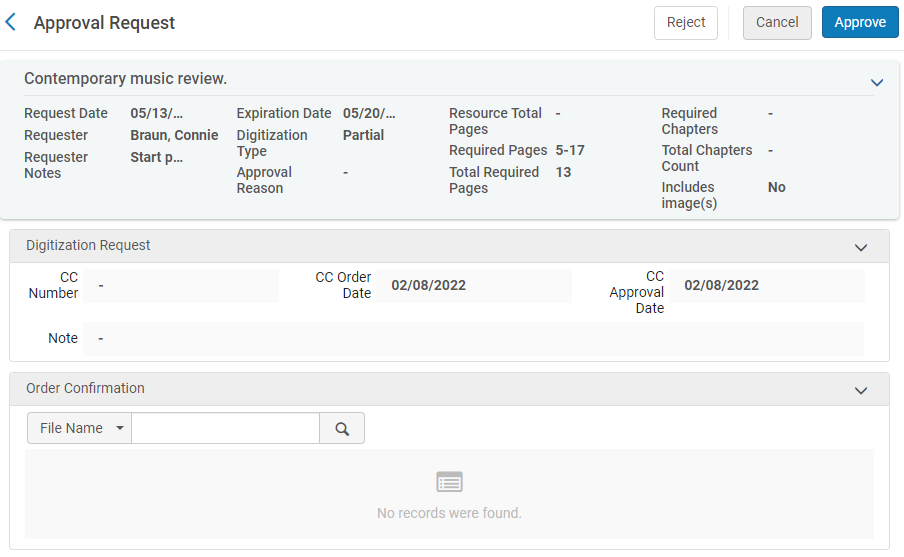
- If you selected Work On, you can modify the necessary fields, as described in the following table:
Campi Richiesta di approvazione
Sezione Nome Descrizione Richiesta di Digitalizzazione
These fields are mandatory if the request requires copyright clearance.
Numero CC Il numero del Copyright Clearance Center. Il numero indica che la biblioteca ha una licenza per utilizzare contenuti protetti da copyright. CC Ordine date La data in cui è stata ordinata l'autorizzazione del copyright Data di approvazione CC La data in cui è stata approvata l'autorizzazione al copyright nota Note utente Order Confirmation
(not mandatory)Facoltativamente, la biblioteca può allegare una conferma di copyright (ad esempio Conferma CCC) nella sezione Conferma Ordine. Note that if you select Cancel after adding an attachment, the attachment remains and can be worked on later. Dopo che l'allegato è stato caricato, puoi selezionare Azioni nella riga di un allegato per:
- Modifica – Modifica l'allegato, incluso il caricamento di un file diverso
- Elimina – elimina l'allegato
- Scarica – Scarichi il file
- Approva o rifiuta la richiesta di digitalizzazione:
- Seleziona Approva per approvare la richiesta di digitalizzazione. Nella pagina Approva la richiesta, seleziona un motivo dall'elenco a discesa Motivo, inserisci eventuali note nel campo nota e seleziona Sottomettere. La Lista dei motivi è:
- Automatico
- Coperto da Licenza
- Creative Commons
- Permesso Diretto Ottenuto
- Eccezione Legale
- Open Access
- Other
- Fuori stampa
- Preprint
- Licenza Primaria
- Auto-Dichiarato
- Seleziona Rifiuta per rifiutare la richiesta. Nella pagina Richiesta di rifiuto, selezionare un motivo dall'elenco a discesa Motivo, immettere eventuali note nel campo nota e selezionare Sottomettere. The approver's decisions are saved for the digital file. La Lista dei motivi è:
- Other
- Respinto dal responsabile
- Rifiutato da CCC
Se la richiesta viene respinta, il file digitale non viene creato e il richiedente viene notificato che la richiesta è stata respinta. The rejection email only sends 254 characters in the body of the email, but you can manually enter more.
- Seleziona Approva per approvare la richiesta di digitalizzazione. Nella pagina Approva la richiesta, seleziona un motivo dall'elenco a discesa Motivo, inserisci eventuali note nel campo nota e seleziona Sottomettere. La Lista dei motivi è:
Digitizing Items
To start the digitization process, ensure that you are at the digitization department that currently holds the item; see Library/Desk Selector in The Persistent Menu.
Digitization is configured on the In Process Items page (Fulfillment > Resource Requests > Manage In Process Items). You can also view this page by selecting one of the following tasks the Tasks List in the persistent menu ( see Tasks in the Tasks List):
- Copie - deposito
- Copie - digitalizzazione
- Copie - document delivery
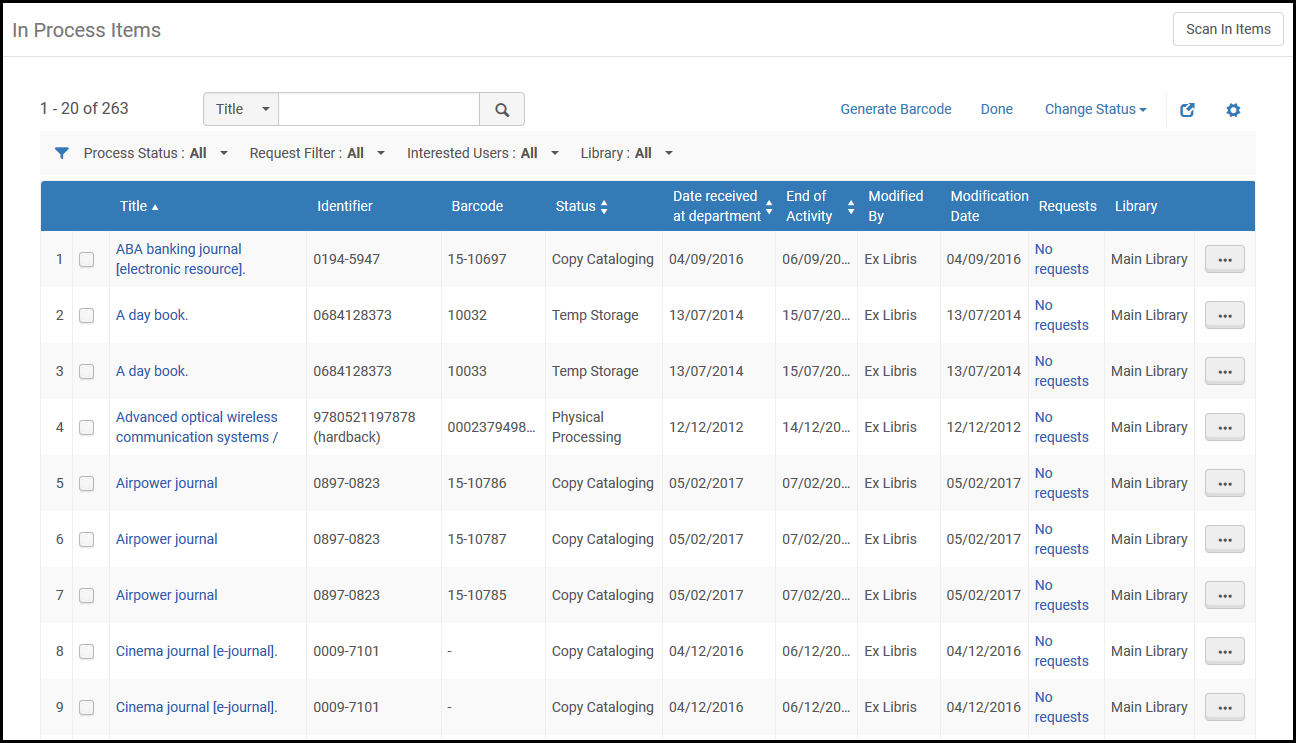
The In Process Items page can also be accessed on the Scan In Items page (Fulfillment > Resource Requests > Scan In Items) by selecting Manage In Process Items. For details on the Scan In Items page, see Scanning Items.
La pagina delle copie in processo mostra le richieste di digitalizzazione degli utenti e/o del personale. Il tipo di richiesta appare nella colonna Stato.
To digitize physical items:
-
Dalla pagina Articoli in corso di processo, localizza una copia con lo stato digitalizzazione.
An item has this status after: a) it has a digitization request attached to it and b) it is then scanned in at the digitization department.
- Seleziona Passaggio successivo dalle azioni di riga per la copia. The status changes to Digital Inventory or Document Delivery depending on the digitization configuration (see Configuring Digitization and Copyright Rules).
Passaggio successivo appare solo quando lo stato attuale è Digitalizzazione.
For details on delivery of digitized items, see Delivery of Digitized Items.
Non è necessario creare una copia quando si gestisce una digitalizzazione o si digitalizza un altro fascicolo di richiesta. Tuttavia, se una copia non viene creata e allegata alla richiesta, i termini di utilizzo, come le tariffe di digitalizzazione (che vengono applicate in base alla copia), non si applicheranno.
Le commissioni vengono applicate come segue:
- If the request is attached to an item, use the item's terms of use, as is currently done in the digitization task list.
- If the request is attached to a holding with items, use the first item that has an is digitizable = true policy. Se non è possibile digitalizzare alcuna copia, i Termini d'uso della digitalizzazione, inclusa la tariffa, sono irrilevanti.
- Per le richieste di digitalizzazione generali in cui non esistono copie, le tariffe di digitalizzazione non vengono applicate a meno che l'operatore non crei una copia e la associ alla richiesta.
Delivering Digitized Items to the Patron
After digitizing items (see Digitizing Items), you send the digital file to the requester or add it to the inventory of the institution. Before performing digitization delivery, ensure that you are at a digitization department; see Library/Desk Selector in The Persistent Menu.
Se non sta consegnando il file tramite Alma, ma lo sta consegnando esternamente, può rimuovere la richiesta dalla lista delle attività annullando la richiesta. In questo caso, deselezioni la casella di controllo Notifica Utente.
Delivery of digitized items is configured on the In Process Items page (Fulfillment > Resource Requests > Manage In Process Items).
The In Process Items page can also be accessed on the Scan In Items page (Fulfillment > Resource Requests > Scan In Items) by selecting Go To Manage Department Items. For details on the Scan In Items page, see Scanning Items.
Ci sono due modi per consegnare gli articoli digitalizzati all'utente, come descritto di seguito. Nota che il secondo modo di utilizzare la pagina di fornitura documenti è un flusso alternativo semplificato.
Delivering Digitized Items Using the Task List
Delivery of digitized items is configured on the In Process Items page (Fulfillment > Resource Requests > Manage In Process Items).
For items with a status of Digital Inventory, select Add digital inventory from the row actions list to open the Representation Details page (see Adding a Representation).
Una copia con stato di accesso al documento può essere inviata come allegato email o come link, a seconda di come sono state configurate le regole di digitalizzazione e di copyright.
-
For items waiting for an attachment-based document delivery, select Attach documents from the row actions list to open the Attachments page and attach digitized items to be sent as attachments to the requesting patron (see Attaching Digitized Items To Be Sent To a Patron).
-
For items waiting for a link-based document delivery, select Upload documents from the row actions list to upload digitized items to be sent as links to the requesting patron (see Attaching Digitized Items To Be Sent To a Patron).
For more information on links in Alma document delivery, see the More Information About Digitization Requests - Document Delivery Using Links video (12:23 min.).
Allega i documenti da inviare all'utente richiedente nella pagina Allegati. La pagina Allegati è visibile quando si seleziona Allega Documenti dalle azioni di riga per una copia nella pagina Copie in processo.
- Per aggiungere un allegato, seleziona Sfoglia nel campo Nome file e seleziona un file. Add a URL and/or note, if required, and select AddAttachment. L'allegato appare nell'elenco degli allegati nella tab Allegati.
- To edit an attachment, select Edit from the row actions list for the attachment that you want to update, modify the File name,URL, and Notes fields as required, and select Save Attachment.
- Per eliminare un allegato, seleziona Elimina dalla Lista delle azioni di riga per l'allegato che desideri eliminare e seleziona Conferma nella finestra popup del messaggio di conferma.
- Per scaricare un file, seleziona Scarica dalla Lista delle azioni di riga per il file che desideri scaricare, specifica la cartella in cui vuoi salvare il file e seleziona OK.
- Click Refresh to see the upload status of your file.
- Click Done to complete the digitization process.
Se la richiesta di digitalizzazione richiede l'approvazione, l'e-mail di notifica descritta di seguito verrà inviata solo una volta che la richiesta è stata approvata.
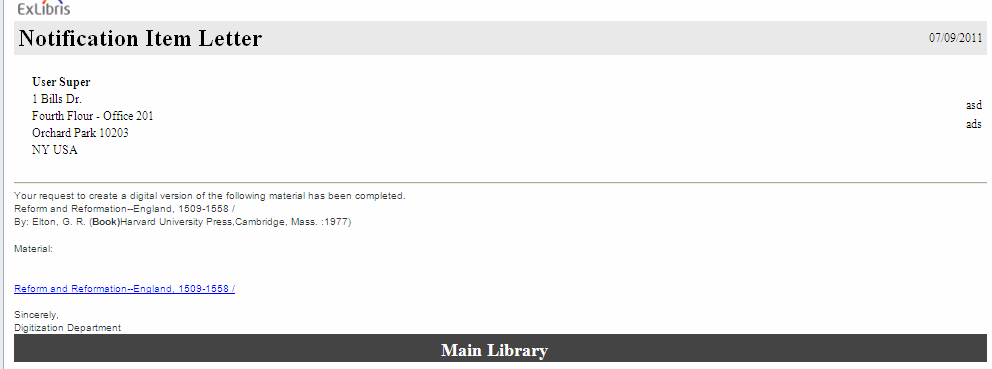
- Se il metodo di accesso è Allega documenti - Allegato, l'utente riceve il file digitale come allegato email. An example of the Ful Digitization Notification Item letter follows.
-
Se il metodo di accesso è Allega documenti - Link, l'utente Riceve un link per scaricare il file tramite email. Utilizzando questo metodo, si ridurranno le dimensioni dell'email e si Abilita la gestione di più Risorse digitali in un'unica richiesta. An example of the Document Delivery Notification Letter follows.
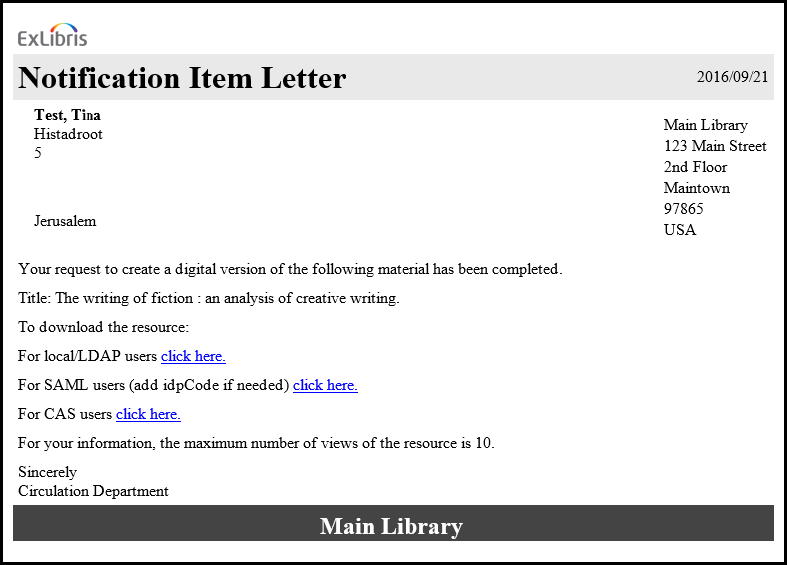
L'amministratore della biblioteca deve configurare l'email per includere solo l'opzione di accesso pertinente per la tua istituzione (locale/LDAP, SAML o CAS). Quando si seleziona il relativo link seleziona qui, all'utente verrà richiesto di effettuare l'accesso utilizzando le credenziali standard di Alma/Primo. Dopo un accesso riuscito, l'utente avrà accesso ai file digitalizzati archiviati nella cartella di storage dei documenti. Nota che l'accesso sarà limitato al numero di volte configurato nella regola di digitalizzazione e copyright, e i file verranno automaticamente rimossi dallo storage dopo il numero di giorni configurato. Questo valore è definito nel parametro document_delivery_cleanup_days. See Configuring Other Settings.
-
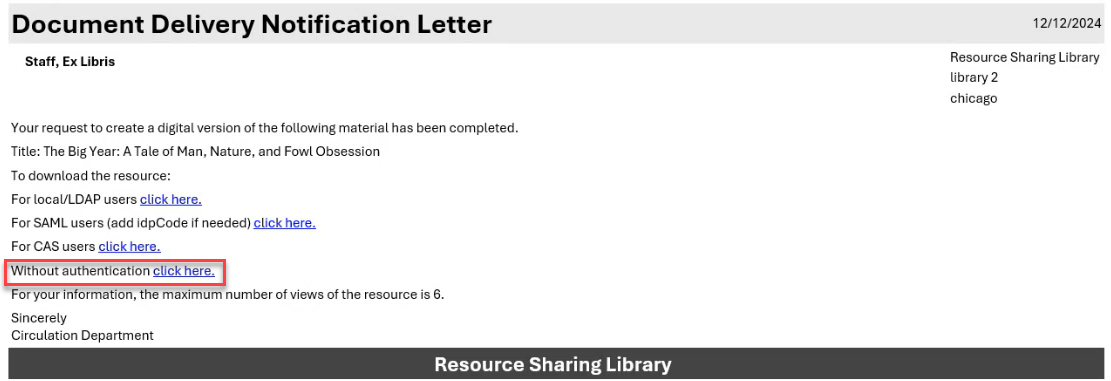
Le biblioteche possono includere un link nell'email di comunicazione di fornitura documenti che non richiede autenticazione. Digital requests that are not subject to copyright restrictions can be accessed without first authenticating. Questo collegamento può fornire accesso sia alle risorse gestite localmente (lato mutuatario) sia a quelle gestite da remoto (lato prestatore).
When the parameter rs_no_authentication_document_delivery(Configuration > Fulfillment > General > Other Settings) is set to true(default false), and the label without_authentication(Configuration > General > Letters > Letters Configuration > Document Delivery Notification Letter) is enabled, the Without authentication link is included in the Document Delivery Notification Letter and does not require user authentication when opening the link.
- Se il metodo di accesso è Inventory Digitale Inventory (rappresentazione), il file digitale viene reso disponibile nell'Archivio con lo stesso Titolo (copia allegata allo stesso BIB (recordrecord bibliografico)) della copia fisica e può quindi essere richiesto da un utente.
The file size limit is 25 MB for both link and attachment digitization requests. Se è stato raggiunto il limite massimo delle dimensioni totali del file digitale, viene visualizzato un messaggio. Ulteriori vincoli relativi all'emailpotrebbero essere rilevanti se il materiale digitalizzato viene inviato come allegato email.
Delivering Digitized Items Using the Document Delivery Page
An alternative, streamlined flow allows you to upload and deliver from anywhere. A questo processo può accedere l'Utente con il seguente Ruolo:
- Servizi dell'operatore
- Gestore attività Servizi
- Operatore richieste
- Responsabile del banco di circolazione
- Operatore banco circolazione
- Banco di circolazione operatore – limited
- Operatore ordine lavoro
All digital documents can be delivered on the Document Delivery page (Fulfillment > Resource Requests > Deliver Digital Documents) without needing to work through the complete Pick from Shelf workflow. Questo processo non si applica all'aggiunta di rappresentazioni. After entering the request ID, you can view the item's information (in the summary tab), and add as many files as necessary and up to one URL. Once the files are added and you select Done, Alma verifies the sending parameters based on the digitization rules in Digitization and Copyright Rules, and sends an email to the patron. If there is an attachment and you have selected a file over 25MB, a warning is displayed. If the files are supplied to the patron using a link, there is not a file size limit. I file di sistema temporanei non possono essere aggiunti come allegati. If Shipping Terms of Use were configured for the library, then you can select the relevant option from the Shipping Terms of Use drop down list (see Configuring Shipping Terms of Use). I termini di utilizzo saranno inclusi nel messaggio Invia se si utilizza la comunicazione peer-to-peer basata su ISO, oppure nell'email se il tipo di partner è email.
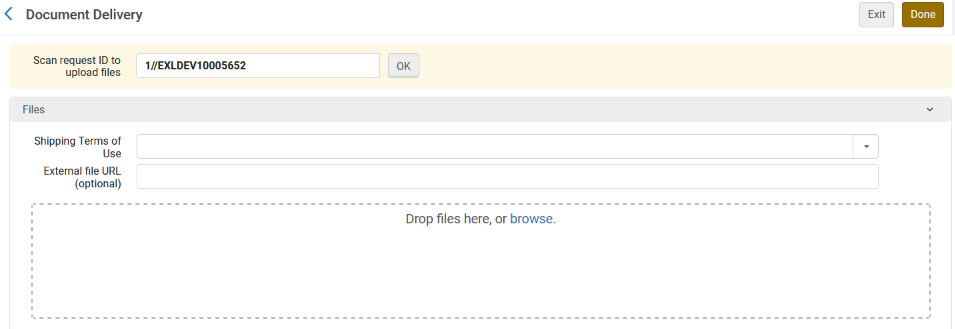
An Alma borrower that receives the Shipped message with a communicated terms of use will notice a note about the terms of use attached to the borrower request. I contenuti digitali, anche se condivisi tramite Rapid ILL o come link tramite Alma, non verranno automaticamente inoltrati all'utente. Anzi, sarà necessaria la mediazione del personale per rendere il file accessibile all'utente.
To configure the digital shipping terms of use see Configuring Digital Shipping Terms of Use. For receiving of digitally sent requests in peer to peer resource sharing see Peer to Peer Resource Sharing.
Managing the Digitization Requests for Actions
Può anche scegliere tra le seguenti opzioni nel menu Azioni:
- Edit – The In Process Items: Request Management page appears.
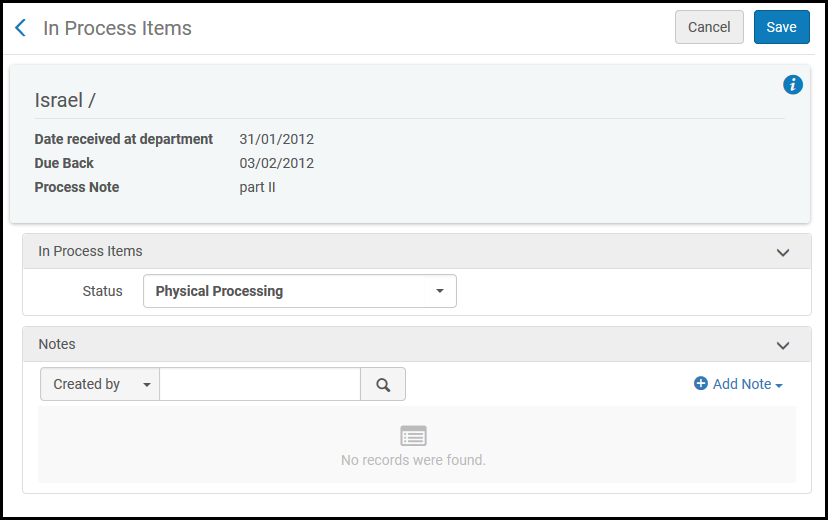 Copia in processo: pagina Gestione richiesta
- Facoltativamente, nel campo Stato, selezioni uno stato dal menu a discesa. Può anche visualizzare o aggiungere una nota.
- Per aggiungere una nota, selezioni Aggiungi nota e digiti la Sua nota. La nota è visualizzata nell'Elenco delle note sulla pagina.
- Per modificare una nota, selezioni Modifica dall'elenco delle azioni di riga per la nota che desidera aggiornare, modifichi la nota nella pagina Modifica nota e selezioni Salva.
- Per eliminare una nota, selezioni Elimina dalla lista delle azioni di riga per la nota che desidera eliminare e selezioni Conferma nella finestra pop-up del messaggio di conferma.
- To locate a note in the list of notes, enter the text for which you want to search in the Find box and select the field –Created by,Updated by, or Note – in which you want to search for this text.
- Cancel request – The Confirm Request Cancellation page appears.
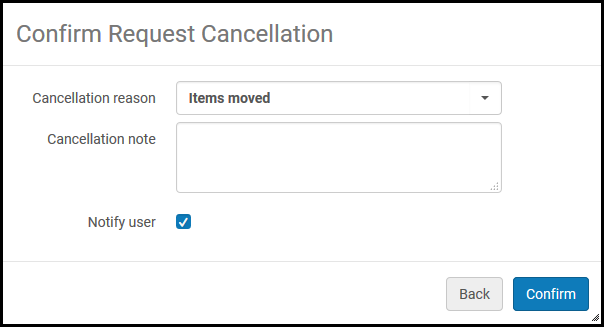 Pagina di conferma della richiesta di annullamento
- Nel campo Motivo dell'annullamento, selezioni un motivo per l'annullamento dal menu a discesa. Per personalizzare i motivi di cancellazione, contattare il Supporto Ex Libris.
- Nel campo Nota di annullamento, aggiungi una nota sull'annullamento secondo necessità.
- Selezionare la casella di controllo Notifica Utente per ricevere una notifica dell'annullamento inviata all'Utente.
- Selezionare Conferma.
- Passa alla digitalizzazione elettronica – Modifica la richiesta da una richiesta di digitalizzazione di una Risorse (bibliografiche) Fisico a una richiesta di digitalizzazione di una risorsa elettronica. Può essere modificato solo quando nell'inventario è presente una copia elettronica che possa soddisfare la richiesta.
- Modifica a digitalizzazione fisica : cambia la richiesta da una di digitalizzazione di una risorsa elettronica a una di digitalizzazione di una risorsa fisica. Può essere modificato solo quando c'è una copia fisica nell'Inventory che può soddisfare la richiesta.
- View It – viene visualizzata la pagina UResolver Screen (Alma Link Resolver), che mostra le Risorse (bibliografiche) per la copia. Questa opzione appare solo se la copia è configurata per la digitalizzazione elettronica.
Attaching Digitized Items to Be Sent to a Patron
Allega i documenti da inviare all'utente richiedente nella pagina Allegati. The Attachments page is visible when you select Attach Documents from the row actions for an item on the In Process Items page.
- To add an attachment, select Browse in the File name field and select a file. Add a URL and/or note, if required, and select AddAttachment. L'allegato appare nell'elenco degli allegati nella tab Allegati.
- To edit an attachment, select Edit from the row actions list for the attachment that you want to update, modify the File name,URL, and Notes fields as required, and select Save Attachment.
- To delete an attachment, select Delete from the row actions list for the attachment that you want to delete and select Confirm in the Confirmation Message pop-up window.
- To download a file, select Download from the row actions list for the file that you want to download, specify the folder to which you want to save the file, and select OK.
- Click Refresh to see the upload status of your file.
- Click Done to complete the digitization process.
Se la richiesta di digitalizzazione richiede l'approvazione, l'e-mail di notifica descritta di seguito verrà inviata solo una volta che la richiesta è stata approvata.
-
If the delivery method is Attach Documents - Attachment, the patron receives the digital file as an email attachment. An example of the Ful Digitization Notification Item letter follows.
- If the delivery method is Attach Documents - Link, the patron receives a link to download the file in an email. Utilizzando questo metodo, si ridurranno le dimensioni dell'email e si Abilita la gestione di più Risorse digitali in un'unica richiesta. An example of the Document Delivery Notification Letter follows.Notifica di comunicazione - Link al documento
L'amministratore della biblioteca deve configurare l'email per includere solo l'opzione di accesso pertinente per la tua istituzione (locale/LDAP, SAML o CAS).
When selecting in the relevant select here link, the patron will first be required to log in using the standard Alma/Primo credentials. After a successful login, the patron will gain access to the digitized files that are stored in the document storage folder. Nota che l'accesso sarà limitato al numero di volte configurato nella regola di digitalizzazione e copyright, e i file verranno automaticamente rimossi dallo storage dopo il numero di giorni configurato. This value is defined in the document_delivery_cleanup_days parameter. See Configuring Other Settings.
- If the delivery method is Digital Inventory (representation), the digital file is made available in the repository under the same title (items attached to the same bib record) as the physical item, and can then be requested by a patron.
For both link digitization requests and attachment digitization requests, the file size limit is 25 MB. Se è stato raggiunto il limite della dimensione totale del file digitale, viene visualizzato un messaggio. Ulteriori vincoli relativi all'email potrebbero essere rilevanti se il materiale digitalizzato viene inviato come allegato email.
