
Creazione di una richiesta dall'istituzione
Le richieste possono essere create per gli Utenti all'interno della tua istituzione, incluse le richieste a livello di copia, le richieste a livello di Titolo, le richieste di work order, le richieste di prenotazione generale e le richieste per copie Seriale non catalogate.
This page describes how operators can create requests in the institution, including physical, electronic, work order requests, digitization requests, etc. It also includes information on converting a hold request to a resource sharing request, creating requests for non-cataloged serial items, supporting personal delivery for requests, etc. For a detailed overview of the different types of requests, the pages in Alma from which requests can be accessed, the request queue, resource sharing requests and request jobs see Requests in Alma.
For a full overview of the requests workflow starting from the different ways a request can enter into the Alma system through to scanning and final processing, see Resource Requests Workflow.
For links to all the main fulfillment documentation pages see Fulfillment.
Panoramica della creazione di richiesta
An operator creates a request by searching for titles or items in the institution (see Searching in Alma), and then creating a request for a title or item as described on this page. You can also move requests from one circulation desk to another using the Transfer Requests option (see Transfer Requests).
The type of request that you can create, and its limitations, depend on whether the title/item is physical or electronic, whether the titles have holdings and if these are monograph or serial, the policies of the item (see Configuring Item Policies), the fulfillment unit that services the request (see Configuring Policies), and the institution (see Configuring Terms of Use).
For more information on requests, see Requests in Alma.
Creating a Request
Per creare una richiesta, è necessario avere uno dei seguenti ruoli:
- Operatore richieste
- Operatore attività servizi
For information on creating digitized request, see Digitized Fulfillment (3:49 min). This also include information on checking if a digitization request exists, and how to upload a file to a citation if needed.
After locating a specific title or item in the institution's repository, you can create a request for it.
È possibile richiedere una copia appartenente a un record bibliografico già in prestito al cliente. To do so, ensure that the enable_request_during_loan_for_different_policy value is true in the Customer Parameters Mapping Table (see Configuring Other Settings). If the items do not have different policies, you cannot place the request for the second item belonging to the same bibliographic record.
Campi aggiornati automaticamente da Alma per la richiesta inviata
Per le richieste inviate, i seguenti campi vengono aggiornati automaticamente:
I campi flusso step, data processo e gestito da vengono assegnati solo se la richiesta è attivata. Se la richiesta rimane nella coda, allora questi campi non vengono assegnati.
-
Workflow step – The workflow step is updated according to the information that was entered for the user configuration and patron privileges - see Resource Request Workflow.
- Process date – The date that the workflow step was activated.
- Status – Alma assigns the Active status.
- Request date – The current date.
-
Managed by – The library and circulation desk that are processing (managing) the current workflow step. This field indicates to which desk the request's action is currently assigned. Il significato dipende dall'azione corrente. Ad esempio:
- Se la richiesta non è ancora attiva (è in coda ed è in attesa che una copia sia disponibile), non esiste un Servizio di gestione.
- Se la richiesta è su una lista Ritira dallo scaffale, il reparto responsabile è la scrivania assegnata.
- Se la richiesta è in transito, il reparto di gestione è il banco dove è stata scansionata l'ultima volta e da cui viene messa in transito.
- Se la richiesta è su uno scaffale prenotazioni, il reparto di gestione è il banco dello scaffale prenotazioni.
- Expiry date – The date on which the request expires
- Place in queue – The number of requests for the item (see Handling Processes and Requests)
When a patron places a request, Alma checks the requested items to determine whether they are requestable. If a title level request is placed, then all of the title's items are checked. If an item level request is placed, then the specific item is checked.
If one or more of the items is not requestable, Alma pops up a message with the blocking reasons:
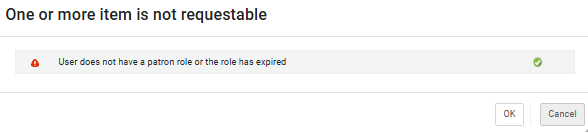
It may enable overriding blocks if you have the necessary privileges.
If you see the One or more item is not requestable message, it means that some or all items under this title are blocked from being requested by the selected patron.
Creazione di richieste per titoli o copie fisiche The request form appears with the available request options, calculated from only the items allowed for requesting.
If all items are blocked, then the request cannot be submitted. Selecting OK will open a request form that cannot be submitted.
If you have the Override Blocks privilege, you will see an Override button. Using this button will override the blocks. The request form appears with the available request options calculated from all of the title's items, including those that otherwise would not be considered requestable.
Creating Requests for Physical Titles or Items
For item-level requests and title-level requests with only one item, Alma can be configured to mark the requested item as not available. The item being requested is marked as Item not Available and will have a Process status of Requested. In such cases, if you release or cancel the request, the item's Status becomes Item in Place. To enable this functionality, contact Ex Libris Support.
The purpose of this functionality is to mark an item as unavailable once a request is placed on them and not to bind an item to a request or prevent further requesting. Activating this mapping table does not prevent additional requests to be placed once a request exists on a physical item.
You can also place a request on both the title and item level from the PO line (see Manually Creating a PO Line).
To create a request for a physical title/item:
Selezionando una copia seriale, viene visualizzato il campo Descrizione, che consente di selezionare il fascicolo esatto. The option All appears if some of the items were not labeled with an Enum or Chron. Selezioni Tutto per indicare tutte le copie (incluse quelle senza descrizioni)
- Search for a physical title/item (see Searching in Alma).
- In the search results, select Request from the row actions list. Viene visualizzata la pagina Crea richiesta.
- The Request type drop-down list is automatically filled per the last request. Se necessario, selezionare un tipo diverso.
- Compila le informazioni come descritto per i vari tipi di richiesta di seguito.
- generale richiesta di prenotazione - Appare solo quando si effettua una richiesta per una holding che non contiene alcuna copia. For details on creating a general hold request, see Creating a General Hold Request. I seguenti campi appaiono:
- Holding – Selezioni una holding per la copia. See Creating a Non-Cataloged Serial Item Request.
- Descrizione manuale – Inserisca una descrizione. See Creating a Non-Cataloged Serial Item Request.
- General Digitization Request- Appears only when placing a request for a holding that contains no items. For details on creating a general digitization request, see Creating a General Digitization Request.
- Booking request- Reserve resources for a patron during a specified time frame. For prerequisites and conditions for creating booking requests, see Creating Booking Requests.
- Crea richiesta:
- richiedente – Cerca o selezioni l'utente.
- Override Booking Policies – Ignore the following booking policies: future limit, maximum allowed booking length, and back-to-back bookings by the same user.
- Note – This field is limited to 1000 characters.
- Date Range – The date range for the request. È possibile inserire solo date future.
- Pickup At – Destination for pickup. This field includes the locations specified by the Pick Up Location policy defined in the Request Terms of Use. Le opzioni nella Lista a discesa sono visualizzate in Ordine alfabetico, secondo il nome della Localizzazione di biblioteca. Cambiare il Luogo di ritiro di una richiesta già presente sullo scaffale prenotazioni richiede la riscanalizzazione della copia per attivare il processo di spostamento della copia al nuovo Luogo di ritiro.
- Attributi aggiuntivi della richiesta:
- Material Type – Select the desired material type from the available types.
- Crea richiesta:
- Move permanently/temporarily – Permanently or temporarily change the location of a physical title or item. Quando si sposta un Titolo, tutte le copie associate al Titolo vengono spostate.
- Crea richiesta:
- Note – This field is limited to 1000 characters.
- To – Select a library from the drop-down list.
- Attributi aggiuntivi della richiesta:
- Destination Locations – Where to deliver the copies.
- Call Number Type – Select from the drop-down list. See also call_number_type in Configuring Other Settings.
- Call Number – Enter the call number.
- Item Policy – The item's override policy for loan rules. For more information, see Configuring Item Policies.
- Manual Priority – Manually override the automatically calculated priority. See Request Priority for details.
- Due Back – When the items are due back. Viene visualizzato solo per Sposta temporaneamente copia .
- Crea richiesta:
- Patron digitization request – Create a digital copy (in full or in part) of a physical/electronic title or item on behalf of a patron. La richiesta di digitalizzazione genera una richiesta di spostamento temporaneo per trasferire la copia al reparto di digitalizzazione. Dopo la digitalizzazione, viene generata un'altra richiesta per restituire la copia alla sua localizzazione di biblioteca permanente.
- Crea richiesta:
- richiedente – Cerca o selezioni l'utente.
- Note – This field is limited to 1000 characters.
- Partial Digitization – Select to indicate that the request is for only part of the item, not the entire item. Selezionando questa casella di controllo vengono visualizzati campi aggiuntivi per aggiungere ulteriori informazioni, come il volume e il fascicolo.
- Managing Department – Select a digitization department. Se è disponibile un solo reparto per gestire la richiesta, il reparto di gestione viene popolato automaticamente con quel reparto. Quando viene inoltrata una richiesta da Primo, l’utente non seleziona il reparto di gestione. In this case, Alma selects the department at the library for the requested item.(New for February 2026) If a library has multiple digitization departments, Alma automatically selects one that is a circulation desk and has a reshelf relation with the item's location.
Calculate Digitization Fee – Show the digitization fee that applies to this request, if any has been configured. This does not apply the fee to the request. The fee is applied when the request is completed or approved. If there are items with different fee policies that may be used to fulfill the request, the fee calculation may change when the digitization is done.
For more information about configuring and using digitization request fees, see the Digitization Request Fees video (4:02 min).
- Copyright Declaration Signed by Patron – Select this checkbox to indicate that the patron selected his or her agreement with the copyright when submitting the request.
- Attributi aggiuntivi della richiesta:
- Material Type – Select the desired material type from the available types.
- Date Needed By – Select the date by which the request is needed.
- Manual Priority – Manually override the automatically calculated priority. See Request Priority for details.
- Crea richiesta:
- Patron physical item request – Create a request to loan a physical title or item to a patron.
- Crea richiesta:
- richiedente – Cerca o selezioni l'utente.
- Note – This field is limited to 1000 characters.
- Pickup At – Destination for pickup. This field includes the locations specified by the Pick Up Location policy defined in the Request Terms of Use. Le opzioni nella Lista a discesa sono visualizzate in Ordine alfabetico, secondo il nome della Localizzazione di biblioteca.
Override On Shelf Request Policy – Override the configured fulfillment policy that determines where you can pick up resources. Questo ti abilita a richiesta qualsiasi Luogo di ritiro. Cambiare il Luogo di ritiro di una richiesta già presente sullo scaffale prenotazioni richiede la riscanalizzazione della copia per attivare il processo di spostamento della copia al nuovo Luogo di ritiro.
The Override On Shelf Request Policy button is only displayed and enabled for users with role of Fulfillment Services Manager.
- Quando sono disponibili più copie che possono soddisfare una richiesta a livello di Titolo, Alma sceglie una copia appropriata in base ai seguenti criteri:
- La copia selezionata è una di quelle disponibili.
- An item whose location is the same as the request's pickup location receives the highest priority to fulfill the request. You can enable a physical item request to be delivered to a user's home or office. Per maggiori dettagli, vedere Creazione di richieste di accesso personale.
- Per default, una copia della struttura di magazzino remoto riceve la priorità più bassa per soddisfare la richiesta. In questi casi, una richiesta viene registrata su un magazzino remoto copia solo se non si trova un'altra copia. You can configure remote storage locations to take priority over non-remote storage locations by selecting the Prefer over other locations setting when configuring remote storage locations (see Adding a Remote Storage Facility).
- When multiple items in the same location are located for a request, an item is chosen randomly.
- Attributi aggiuntivi della richiesta:
- Material Type – Select the desired material type from the available types.
- Date Needed By – Select the date by which the request is needed.
- Loan Period – The amount of time the user has before having to return the item.
- Manual Priority – Manually override the automatically calculated priority. See Request Priority for details.
- Crea richiesta:
- generale richiesta di prenotazione - Appare solo quando si effettua una richiesta per una holding che non contiene alcuna copia. For details on creating a general hold request, see Creating a General Hold Request. I seguenti campi appaiono:
- Staff digitization request – Create a digital copy (in full or in part) of a physical title or item on behalf of a staff member. La richiesta di digitalizzazione genera una richiesta di spostamento temporaneo per trasferire la copia al reparto di digitalizzazione. Dopo la digitalizzazione, viene generata un'altra richiesta per restituire la copia alla sua localizzazione di biblioteca permanente.
- Crea richiesta:
- Note – This field is limited to 1000 characters.
- Partial Digitization – Select to indicate that the request is for only part of the item, not the entire item. Selezionando questa casella di controllo, verranno visualizzati campi aggiuntivi per aggiungere ulteriori informazioni, come volume e fascicolo.
- Managing Department – Select a digitization department. Se è disponibile un solo reparto per gestire la richiesta, il reparto di gestione viene popolato automaticamente con quel reparto.
- Copyright Attributes: These fields are used to record intended usage information. If copyright approval is required by the digitization rules, an approval task appears on the Approval Requests List page; see Digitization Processing.
- Volume – volume per la richiesta.
- Issue – Issue for the request.
- Numero di studenti: numero di studenti che utilizzano il materiale digitalizzato.
- Number of Copies for Students – The number of copies per student.
- Number of Copies per Staf – The number of copies per staff member.
- Pagine totali della risorsa: pagine totali nell'elemento richiesto.
- Required Chapters – Chapter numbers needed for the request. Questo è un testo libero per il Servizio di digitalizzazione per nota quali capitoli devono essere scansionati. I capitoli richiesti devono essere separati da una virgola o inserire un intervallo di capitoli (1,2,5 o 1–3 o 1,3,5–6). If you use the Total Copyright Number of Chapters parameter in the Digitization and copyrights rules, this field must be populated.
- Total Chapters Count – Total number of chapters that are required. Questo è un campo numerico. It is automatically filled after populating the Required Chapters field.
- Required Pages – Two sets of fields for From and To pages that are digitized.
- Total Required Pages – This field is prefilled automatically.
- Copyright Percentage – This field is prefilled automatically.
- Includes image(s) – Whether the pages to digitize include images.
- Data di disponibilità dal/Data di disponibilità al: intervallo di date in cui le copie vengono rese disponibili.
- nota 1/nota 2/nota 3 – Nota privata, se presente.
- Attributi aggiuntivi della richiesta:
- Material Type – Select the desired material type from the available types.
- Date Needed By – Select the date by which the request is needed.
- Manual Priority – Manually override the automatically calculated priority. See Request Priority for details.
- Crea richiesta:
-
Selezionare Invia. The request is created with a unique identification number and processed (see Resource Requests). Nella pagina di monitoraggio delle richieste di risorse appare una richiesta completata con le seguenti informazioni:
- Fase del flusso di lavoro: Ritiro dallo scaffale
- Stato processo: Nuovo
- Gestito dalla biblioteca: la biblioteca in cui si trova l''Inventory disponibile
- Gestito dal Banco: Il Banco di circolazione dove si trova l''Inventory disponibile
A patron receives notification that an item is ready for pickup from the hold shelf after the Hold Shelf Processing status is complete. See Managing the Hold Shelf for details. For details on the resource request workflow, see Resource Requests Workflow. For a digitization request, the request appears on the In Process Items page (see Digitizing Items). For more information, see Digitization Processing.
Creazione di una richiesta per titolo elettronico
In alcuni casi potreste voler creare un file digitale basato su un articolo, un capitolo di un libro, ecc. accessibile elettronicamente. Ciò può accadere, ad esempio, quando si servono utenti che non possono accedere alla biblioteca.
To create a request for an electronic title:
- Search for an electronic title (see Searching in Alma).
- Nei risultati della ricerca selezionare Accesso documento dalla lista delle azioni di riga. Viene visualizzata la pagina Crea richiesta.
- From the Request type drop-down list select the type of request and fill in the information as described for the various request types below.
- Copia elettronica richiesta per il cliente - Creare una copia digitale (completa o parziale) di una risorsa elettronica per conto di un cliente.
- Crea richiesta:
- richiedente – Cerca o selezioni l'utente.
- Parte da digitalizzare – Campo di testo libero per informazioni in aggiunta al campo sotto la casella di controllo Digitalizzazione parziale.
- Partial Digitization - Select to indicate that the request is for only part of the item, not the entire item. Selezionando questa casella di controllo verranno visualizzati campi aggiuntivi per aggiungere ulteriori informazioni, come volume e fascicolo.
- Managing Department - Select a digitization department. Se è disponibile un solo reparto per gestire la richiesta, il reparto di gestione viene popolato automaticamente con quel reparto.
- Attributi aggiuntivi della richiesta:
- Date Needed By – Select the date by which the request is needed.
- Crea richiesta:
- Staff electronic digitization request – Create a digital copy (in full or in part) of an electronic item on behalf of a staff member.
- Crea richiesta:
- Note – This field is limited to 1000 characters.
- Partial Digitization – Select to indicate that the request is for only part of the item, not the entire item. Selezionando questa casella di controllo verranno visualizzati campi aggiuntivi per aggiungere ulteriori informazioni, come volume e fascicolo.
- Managing Department – Select a digitization department. Se è disponibile un solo reparto per gestire la richiesta, il reparto di gestione viene popolato automaticamente con quel reparto.
- Copyright Attributes: These fields are used to record intended usage information. If copyright approval is required by the digitization rules, an approval task appears on the Approval Requests List page; see Digitization Processing.
- Volume – volume per la richiesta.
- Issue – Issue for the request.
- Numero di studenti: numero di studenti che utilizzano il materiale digitalizzato.
- Number of Copies for Students – The number of copies per student.
- Number of Copies per Staff – The number of copies per staff member.
- Pagine totali della risorsa: pagine totali nell'elemento richiesto.
- Required Chapters – Chapter numbers needed for the request. Questo è un testo libero per il Servizio di digitalizzazione per nota quali capitoli devono essere scansionati. I capitoli richiesti devono essere separati da una virgola o inserire un intervallo di capitoli (1,2,5 o 1–3 o 1,3,5–6). If you use the Total Copyright Number of Chapters parameter in the Digitization and copyrights rules, this field must be populated.
- Total Chapters Count – Total number of chapters that are required. Questo è un campo numerico.
- Required Pages – Two sets of fields for From and To pages that are digitized.
- Total Required Pages – This field is prefilled automatically.
- Copyright Percentage – This field is prefilled automatically.
- Includes image(s) – Whether the pages to digitize include images.
- Data di disponibilità dal/Data di disponibilità al: intervallo di date in cui le copie vengono rese disponibili.
- nota 1/nota 2/nota 3 – Nota privata, se presente.
- Attributi aggiuntivi della richiesta:
- Date Needed By – Select the date by which the request is needed.
- Crea richiesta:
- Copia elettronica richiesta per il cliente - Creare una copia digitale (completa o parziale) di una risorsa elettronica per conto di un cliente.
-
Selezionare Invia. The request is created with a unique identification number and processed (see Resource Requests). Nella pagina di monitoraggio delle richieste di risorse appare una richiesta completata con le seguenti informazioni:
- Fase del flusso di lavoro: Ritiro dallo scaffale
- Stato processo: Nuovo
- Gestito dal dipartimento: il dipartimento in cui si trova la copia elettronica
For a digitization request, the request appears on the In Process Items page (see Digitizing Items). For more information, see Digitization Processing.
Creazione di una richiesta di prestito digitale a lungo termine
I membri dello staff possono creare una richiesta per conto di un utente per accedere a una rappresentazione digitale tramite prestiti digitali a lungo termine. For more information, see Long Term Digital Loans.
Creating a Work Order Request
Per creare una richiesta, devi avere il seguente ruolo:
- Operatore attività servizi
- Banco di circolazione operatore/manager
- Operatore richieste
Un work order indica che è necessario eseguire un processo su una copia fisica. Work order types are created on the Work Order Types page, accessible from the General Configuration menu (see Configuring Work Order Types).
You can monitor the progress of work orders on the Resource Request Monitoring page (Fulfillment > Resource Requests > Monitor Requests & Item Processes).
To create a work order request:
- From a physical item search (see Searching in Alma), select Work Order from the row actions list. L'opzione work order appare solo quando si cercano copie fisiche. Si apre la pagina Crea ordine di lavoro.
-
Nell'elenco a discesa tipo di processo, selezioni un work order.
The displayed work orders are created on the Work Order Types page, accessible from the General Configuration menu (see Configuring Work Order Types).
- Nel campo Non ritirare dallo scaffale:
- Se desideri creare un work order per una copia sullo scaffale di ritiro, non selezionare Non Ritira dallo scaffale.
- Se desideri creare un work order per una copia già presente al Banco di circolazione, seleziona Non ritirare dallo scaffale. These items do not appear on the Pick Up Requested Resources page (Fulfillment > Resource Requests > Pick From Shelf).
- Inserisca una nota nel campo nota, se necessario. Questo aggiunge la nota direttamente alla work order richiesta. For adding notes to work orders in process, see Adding a Note to a Work Order in Process).
- Selezionare una destinazione per il work order dal campo Reparto di gestione. Le opzioni in questo campo sono i reparti associati al work order tipo di ordine di lavoro selezionato.
- Selezionare Invia per inviare il work order.
Può anche creare un work order in uno dei seguenti modi:
- Scan an item's barcode on the Scan In Items page when scanning an item, and select Work Order from the row actions list to open the Create Request page. Segui il passaggio 2 fino al passaggio 6 nella procedura sopra.
- Scan an item at a work order department (you must be at a work order department; see Library/Desk Selector in The Persistent Menu). You then select the item's status in the Set status to field. For details on creating item statuses, see Adding a Work Order Type Status.
- Select Work Order from the row actions list for an item on the List of Items page, which appears when selecting Items for a physical titles search result. For details on the List of Items page, see Working with the List of Items.
To create a work order for a set of physical items, define and run the Create Physical Item Work Orders job.
For details on scanning items, see Scanning Items.
For an in-depth overview of work orders, see Physical Inventory - Defining and managing work orders in Alma.
Creating a General Hold Request
Per creare una richiesta generale di prenotazione, è necessario avere il seguente ruolo:
- Operatore attività servizi
- Operatore richieste
Una richiesta generale di prenotazione viene creata quando si richiede un holding che non ha copia. Quando la copia viene aggiunta/inserita in Alma, viene posizionata sullo scaffale prenotazioni finché non viene ritirata dall'utente che ha effettuato la richiesta.
Per impedire o modificare le opzioni di richiesta di prenotazione generale per l'utente finale e personalizzare l'etichetta nella tab Ottieni, eseguire rispettivamente le seguenti configurazioni:
- Add rules for general hold requests on the Discovery Interface Display Logic page (Configuration Menu > Fulfillment > Discovery Interface Display Logic > Display Logic Rules). For more information, see Configuring Display Logic Rules.
- Customize the label for the c.uresolver.getit2.request.noItems parameter on the Discovery Interface Labels Code Table page (Configuration Menu > Discovery > Display Configuration > Labels) or AlmaRequestAnyItem under Request options Labels in Primo VE. For more information, see Configuring Labels.
To create a general hold request:
- Search for a title and locate a result that has a holding but no items.
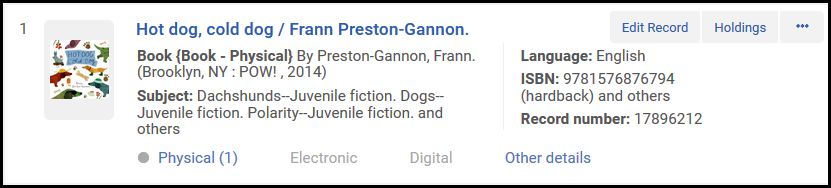
- Seleziona richiesta. Viene visualizzata la pagina Crea richiesta.
- Nel campo tipo di richiesta/processo, selezionare richiesta generale di prenotazione. La pagina si aggiorna.
- Nel campo Richiedente, seleziona l'utente che sta richiedendo l'elemento.Per i record composti da più parti, è obbligatorio il campo "Holdings". One of the following fields needs to be filled; Chapter/Article Title, Chapter/Article Author, From, To, Volume, Issue, Part, Publication Date, Manual Description
- Nel campo Ritiro presso, seleziona una localizzazione di biblioteca in cui ritirare la copia quando sarà disponibile: è il luogo in cui viene creata la richiesta di prenotazione.
-
If the record you are requesting is serial and the holdings record includes a summary field, you'll need to enter information on the specific issue required. Questo può essere fatto compilando uno dei campi descrittivi (volume, fascicolo, parte, titolo del capitolo/articolo, ecc.) o la descrizione manuale.
-
In the Additional Request Attributes section, you can select Date Needed By for a date by which the item is needed (if the request is not fulfilled by that time, it is canceled).
Questa sezione non è obbligatoria.
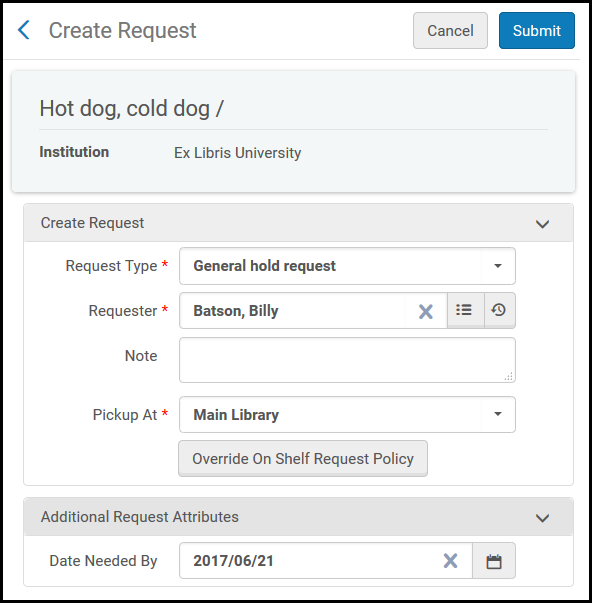
-
Selezionare Invia. Nella parte superiore della pagina viene visualizzato un messaggio di conferma che indica che la richiesta è stata sottomessa correttamente.
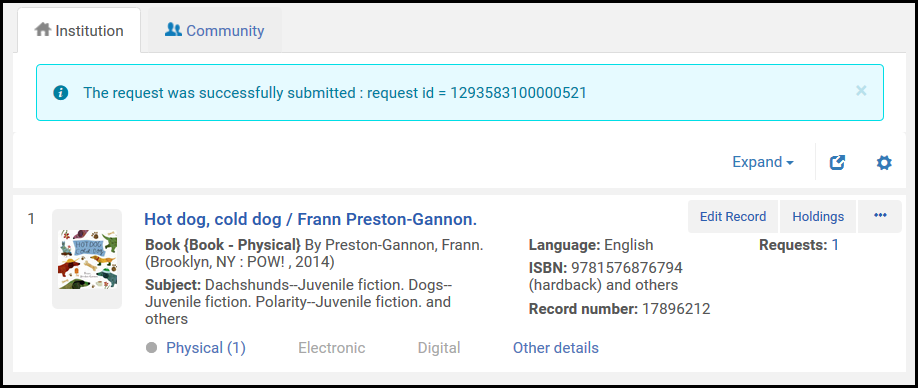
On the Resource Request Monitoring page (Fulfillment > Resource Requests > Monitor Requests & Item Processes), search for the request using the request ID displayed with the confirmation message. La richiesta appare con i seguenti valori:
- Fase del flusso di lavoro = Ritiro dallo scaffale
- richiesta Type = richiesta generale di prenotazione
If you've entered descriptive fields, they appear as part of the manual description, to help librarians locate the required issue. Questa sezione non è obbligatoria.
- Crea una copia e inseriscila in Alma, come segue:
- Ensure your location is the library that is managing the hold request (specified in the Managed by: value on the Resource Request Monitoring page; see Library/Desk Selector in The Persistent Menu).
- On the Scan In Items page (Fulfillment > Resource Requests > Scan In Items) select Create Item. Viene visualizzata la finestra di dialogo Scegli tipo di holdings.
- Seleziona Esistente e Scegli. The Quick Cataloging page appears.
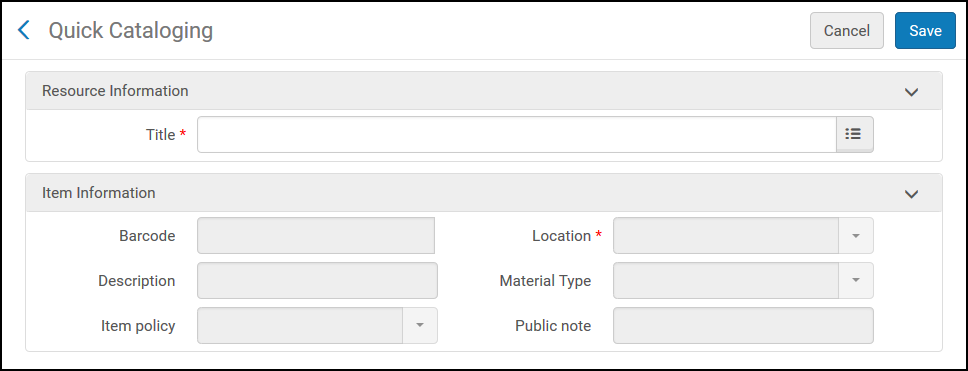
Nel campo Titolo, cerchi il Titolo per il quale ha creato la richiesta generale di prenotazione. Seleziona il Titolo a cui collegare il nuovo elemento e inserisci le informazioni pertinenti sulla copia.
I campi biblioteca e Localizzazione di biblioteca vengono compilati automaticamente con la biblioteca/Localizzazione di biblioteca in cui la copia deve essere posizionata nello scaffale prenotazioni. The barcode in step 9b is to be used.
- Seleziona Salva. Gli elementi sono stati creati.
The item is placed on the hold shelf of the specified library (if our location is indeed that library - otherwise the item is created with a transit request to the pickup library), and the item's Destination value on the Scan In Items page is On Hold Shelf. If the requested holding is a serial, a pop-up is displayed to indicate that the item may fulfill an existing request. Il bibliotecario può allegare la nuova copia alla richiesta selezionando “Allega a richiesta” nelle azioni di riga (purché la copia possa effettivamente soddisfare la richiesta).
Viene creato un work order per i Servizi Tecnici di Acquisizione.
The work order creation mentioned above is not always the case since the general hold request has many variances depending on the workflow selected.
Creating a General Digitization Request
Per creare una richiesta di digitalizzazione generale, devi avere il seguente ruolo:
- Operatore attività servizi
- Operatore richieste
Una richiesta generale di digitalizzazione viene creata quando si richiede una holding che non ha copia. When the item is added/inserted into Alma, the request is set to Pickup from Shelf status. Una volta trovata e scansionata la copia esatta, la richiesta segue il normale flusso di una richiesta di digitalizzazione.
For information on placing requests on issues that haven't been cataloged yet, see requesting non-cataloged serial items.
Per impedire o modificare le opzioni generali delle richieste di digitalizzazione per gli utenti finali e personalizzare l'etichetta nella tab Get It, eseguire rispettivamente le seguenti configurazioni:
- Add rules for general digitization requests on the Discovery Interface Display Logic page (Configuration Menu > Fulfillment > Discovery Interface Display Logic > Display Logic Rules). For more information, see Configuring Display Logic Rules.
- Customize the label for the c.uresolver.getit2.digitize.noItems parameter on the Discovery Interface Labels Code Table page (Configuration Menu > Fulfillment > Discovery Interface Display Logic > Labels)or AlmaGeneralDigitization under Request options Labels in Primo VE. For more information, see Configuring Labels.
To create a general digitization request:
- Search for a title and locate a result that has a holding but no items.

- Seleziona richiesta. Viene visualizzata la pagina Crea richiesta.
- Nel campo richiesta/tipo di processo, selezionare generale richiesta di digitalizzazione. La pagina si aggiorna.
- Nel campo Richiedente, seleziona l'utente che sta richiedendo l'elemento.
- Nel campo Parte da digitalizzare, inserisca le sezioni specifiche da digitalizzare.
- If the record you are requesting is serial, you'll need to enter information on the specific issue required. Questo può essere fatto compilando uno dei campi descrittivi (volume, fascicolo, parte, ecc.) o la descrizione manuale.
- Nel campo Reparto di gestione, selezionare il reparto/ufficio che gestisce la digitalizzazione.
- In the Additional Request Attributes section, you can select Date Needed By to enter a date by which the item is needed (if the request is not fulfilled by then, it is canceled).
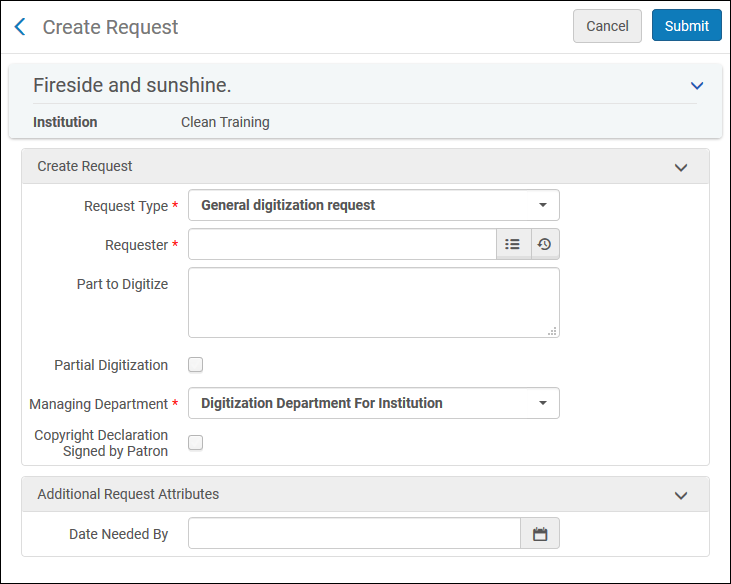
- Selezionare Invia. A confirmation message appears at the top of the page, indicating that the request was successfully submitted.
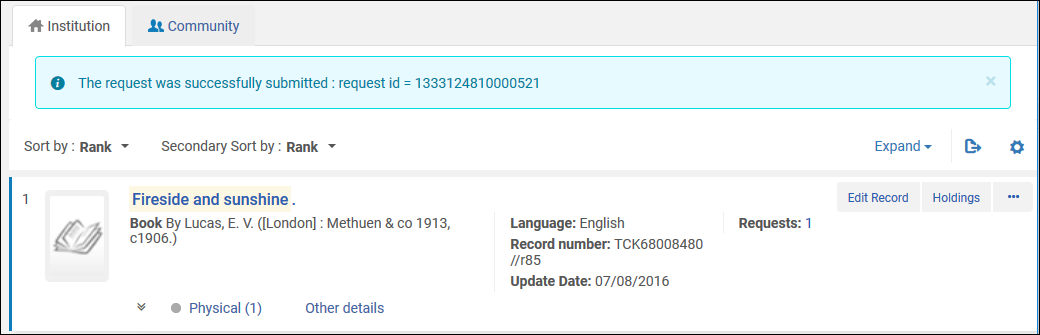
- On the Resource Request Monitoring page (Fulfillment > Resource Requests > Monitor Requests & Item Processes), search for the request using the request ID displayed with the confirmation message. La richiesta appare con i seguenti valori:
- Fase del flusso di lavoro = Ritiro dallo scaffale
- richiesta Tipo = richiesta generale di digitalizzazione
Se hai inserito una descrizione del manuale, un volume, un fascicolo, una parte o una data di pubblicazione, questi vengono visualizzati come parte della descrizione del manuale, per aiutare i bibliotecari a individuare il fascicolo richiesto.
- Fulfill the request: The general digitization request can be fulfilled in two ways (For more information, see:Digitizing Items):
- È possibile caricare un file e inviarlo senza catalogare la copia in Alma, utilizzando la pagina Consegna documenti digitali.
- È possibile creare una copia e scansionarla in Alma, per allegarla alla richiesta ed elaborare la richiesta di digitalizzazione presso uno sportello/reparto, come segue:
- Ensure your location is the library that is managing the digitization request (specified in the Managed by: value on the Resource Request Monitoring page; see Library/Desk Selector in The Persistent Menu).
- On the Scan In Items page (Fulfillment > Resource Requests > Scan In Items), enter a barcode in the Scan item barcode field and select Create Item. Viene visualizzata la finestra di dialogo Scegli tipo di holdings.
- Seleziona Esistente e Scegli. Viene visualizzata la pagina Modulo rapido di catalogazione. Select the title to which the new item should be linked, and fill in the relevant item information.
Nel campo Titolo cerchi il Titolo per il quale ha creato la richiesta generale di digitalizzazione.
Il campo biblioteca e Localizzazione di biblioteca vengono popolati automaticamente con la biblioteca/Localizzazione di biblioteca in cui la copia deve essere posizionata sullo scaffale prenotazioni.
- Seleziona Salva. Gli elementi sono stati creati.
La copia viene messa in transito al reparto digitalizzazione e viene attivato il flusso standard per evadere una richiesta di digitalizzazione. Se il possesso richiesto è una pubblicazione periodica, viene visualizzato un pop-up per indicare che la copia potrebbe soddisfare una richiesta esistente. The librarian can attach the new item to the request by selecting Attach to request in the row actions.
(New for February 2026) You can assign a digitization priority level to a location (seeConfiguring Physical Locations).
Automatically Converting a Hold Request to a Resource Sharing Request
Per configurare le policy e i Termini d'uso in modo da consentire le conversioni automatiche, devi disporre di uno dei seguenti Ruoli:
- Amministratore di Sistema Generale
- Amministratore Servizi
Per servire meglio gli utenti, le richieste non soddisfatte e la Digitalizzazione richiesta dall'utente possono essere convertite in richiesta di condivisione di risorse. If the request has Automatically Convert to Resource Sharing set to true, and the request is going to be canceled due to execution of either of the jobs, Requests - Handle Expiration Step or Requests - Recalculate After Inventory Update, the request is converted.
Prima della conversione, vengono effettuate le seguenti convalide:
- Il Luogo di ritiro è una biblioteca (non un Banco di circolazione) o un accesso personale.
- La biblioteca di condivisione delle risorse deve avere una relazione di consegna con il luogo di ritiro.
- Esiste una Localizzazione di biblioteca default per la condivisione delle risorse della biblioteca.
- La data necessaria non deve essere nel passato.
Se una di queste condizioni non è vera, la richiesta non viene convertita.
Una comunicazione di annullamento con la motivazione Convertita in richiesta di condivisione di risorse viene inviata al cliente quando una richiesta di prenotazione viene convertita in una richiesta di condivisione di risorse. Le richieste esistenti vengono annullate con il motivo di annullamento Convertito in richiesta ILL (Condivisione risorse).
Lo stato delle nuove richieste è Richiesta di prestito creata.
To set a policy for converting:
- On the Terms of Use and Policies table (Configuration Menu > Fulfillment > Physical Fulfillment > Terms of Use and Policies), select Add a Terms of Use.
- Select Request and select Next.
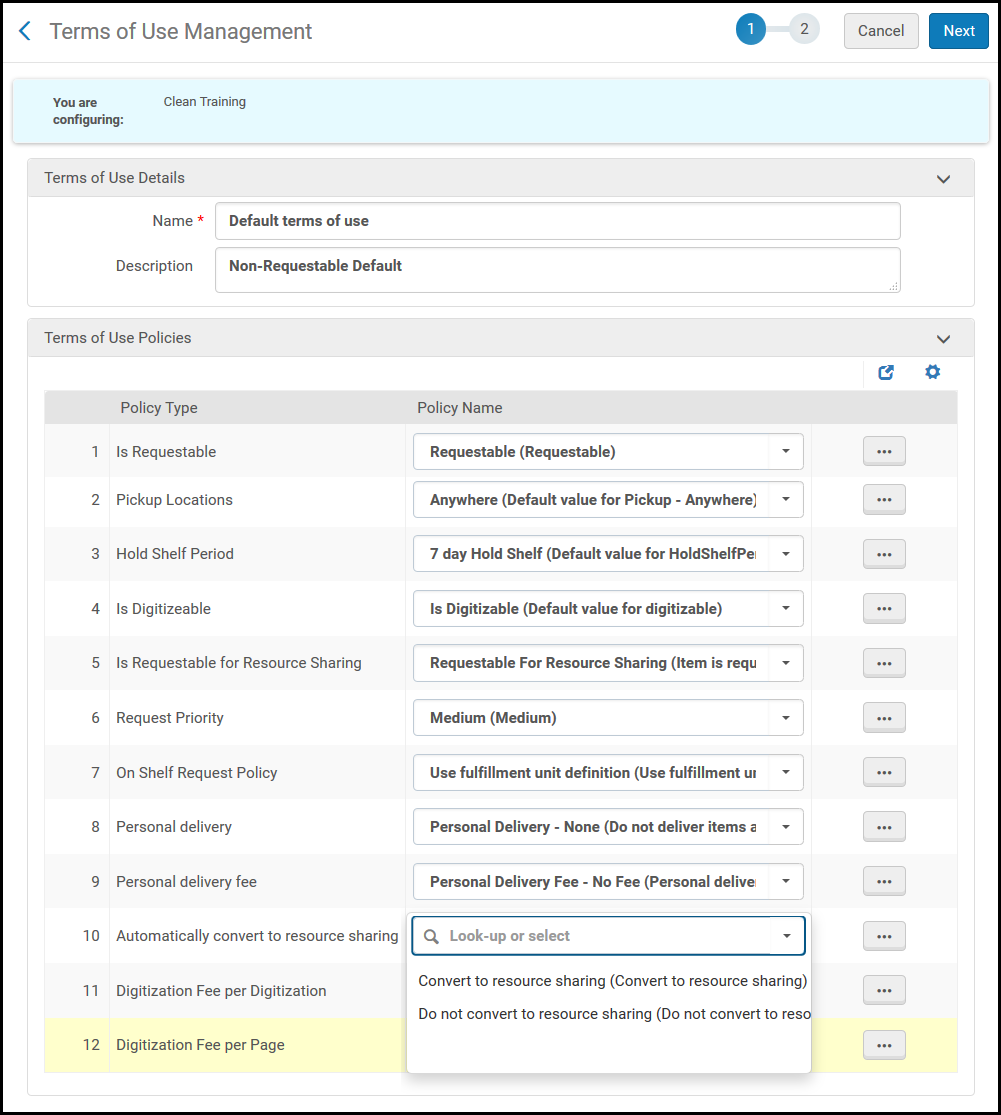
- Dalla casella a discesa accanto a Converti automaticamente in condivisione risorse, selezioni Converti in condivisione risorse e selezioni Avanti.
- Conferma le impostazioni per questa policy e seleziona Salva.
La policy viene attivata solo se uno dei processi sopra menzionati è attivo e determina che una richiesta di prenotazione deve essere annullata a causa della scadenza di un inventario fisico corrispondente esistente che può soddisfare la richiesta.
Conversione manuale di una richiesta a una richiesta ILL
You can manually convert a request to a resource sharing request from the search results - see Handling Processes and Requests for more information. You can also manually convert a request to a resource sharing request from the Pick Up Requested Resources and Resource Request Monitoring pages - see Pages for Managing Requests for more information.
Creating a Request for a Non-Cataloged Serial Item
Per creare una richiesta per una copia seriale non di Modulo di catalogazione, è necessario disporre di uno dei seguenti ruoli:
- Operatore dei servizi, Amministratore di evasione ordini
- Operatore richieste
Quando una copia Seriale esiste in una biblioteca, ma non è ancora nel catalogo in Alma, puoi comunque creare una richiesta per la copia; dopo aver aggiunto la copia all'Archivio, puoi allegarla alla richiesta.
Quando si crea la richiesta, è necessario aggiungere manualmente una descrizione. Quando si aggiunge la copia all'Archivio, è necessario usare la stessa descrizione.
To create a request for a non-cataloged serial item when there are no items in the inventory:
- Search for a physical title or item of a serial item that is not in the inventory (see Searching in Alma).
- Selezionare richiesta dalla lista delle azioni di riga. Viene visualizzata la pagina Crea richiesta.
- In the Request Type field, select General hold request.
- Nel campo richiedente, selezionare una richiesta patrono.
- Nel campo Holding, selezioni una holding per la copia.
- In the Manual Description field or one of the descriptive fields (volume, issue, part, etc.), enter a description for the request to identify the specific issue required.
- Selezionare Invia. A confirmation message appears on the search results page.
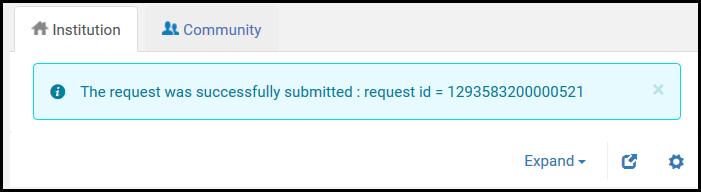
To create a request for a non-cataloged serial item when there are items in the inventory:
- Search for a physical title or item of a serial item that is in the inventory (see Searching in Alma).
- Selezionare richiesta dalla lista delle azioni di riga. Viene visualizzata la pagina Crea richiesta.
- Nel campo Tipo richiesta, selezionare una richiesta o un tipo di processo diverso da Booking. The page refreshes.
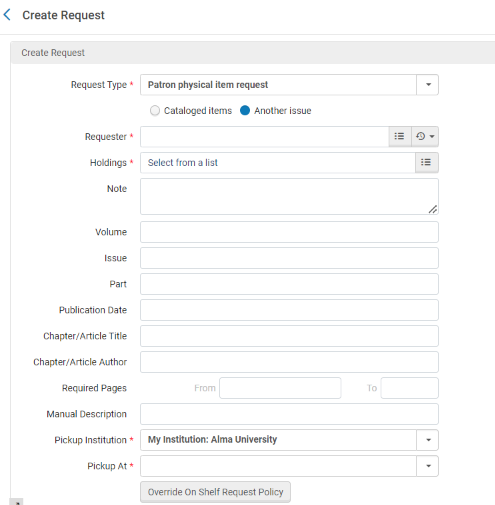
- Under the Request Type field, select Another issue. Note that for Primo VE, the Request other issue button only displays when an item is requestable. Alma randomly picks an item to evaluate for this purpose, since Alma assumes that all items are equally requestable or non-requestable.
- Nel campo richiedente, selezionare una richiesta patrono.
- Nel campo Holding, selezioni una holding per la copia.
- In the Manual Description field or one of the descriptive fields (volume, issue, part, etc.), enter a description for the request to identify the specific issue required.
- Selezionare Invia. A confirmation message appears on the search results page.
To create an item and attach it to a request:
If a cataloged item is found that fits the request, it can be scanned in and attached to the request. Quando viene scansionata una copia del patrimonio richiesto, l’operatore viene informato che ci sono richieste che può soddisfare e può visualizzarle e allegarle alla copia.
It is also possible to fulfill the request without scanning/adding an item, by uploading a file and sending it using the Deliver Digital Documents page (For more information, see:Digitizing Items).
Se la copia richiesta non è ancora nel Modulo di catalogazione, può essere aggiunta ad Alma:
- On the Scan In Items Page (Fulfillment > Resource Requests > Scan In Items), select Create Item and select Existing in the resulting dialog box. Viene visualizzata la pagina Modulo rapido di catalogazione.
- Nel campo Titolo, sfogli il Titolo pertinente. The Library and Location fields enable you to select the existing holdings of the title.
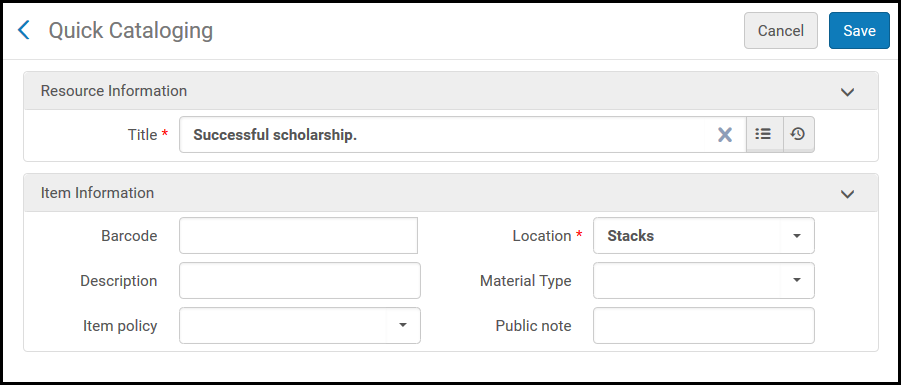
- Nel campo Codice a barre, inserisca un codice a barre per la copia.
- In the Description field, enter the description of the issue you're cataloging.
- Optionally add a material type, item policy, and/or public note (see Configuring Item Display for Primo VE).
-
Seleziona Salva. La copia viene visualizzata nella pagina Scansione della copia.
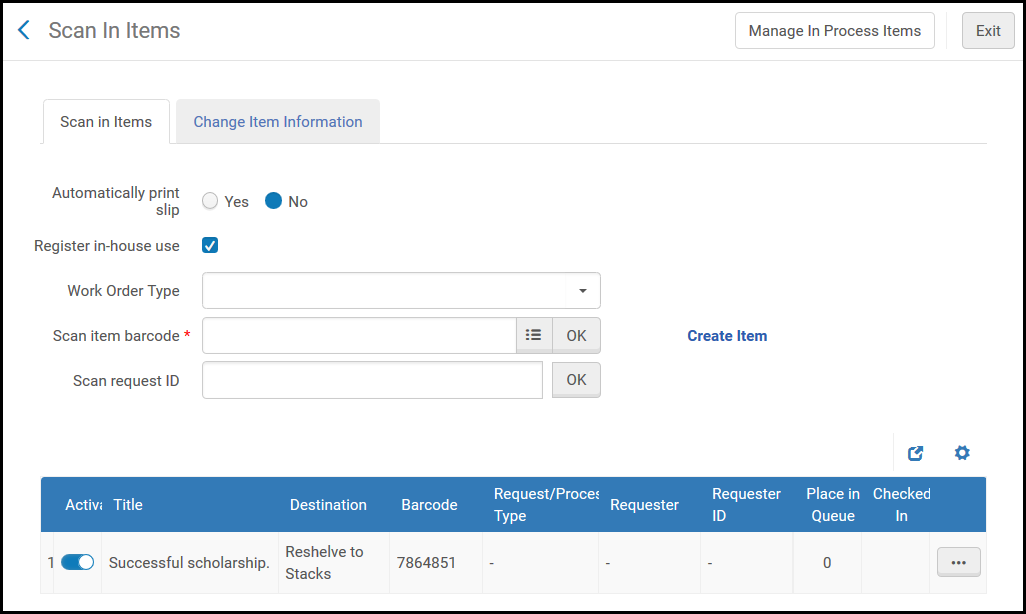
Viene creato un work order Servizi tecnici di acquisizione. Nota che viene creato solo nel caso di un nuovo BIB (record bibliografico).
- Seleziona work order dall'elenco delle azioni di riga per una copia nella pagina Lista delle copie, che appare quando si selezionano copie per un risultato di ricerca di titoli fisici. For details on the List of Items page, see Working with the List of Items.
- Selezionare Allega a richiesta dalla lista delle azioni della riga. A dialog box appears, where you select the request's title to attach.
- Selezionare la casella di controllo per il Titolo e selezionare Allega. La pagina Scansione della copia visualizza la copia scansionata. The item's destination (for Patron physical item requests) is the request destination (the item's pickup location).
Supporting Personal Delivery for Requests
Per configurare Alma affinché supporti l'accesso personale su richiesta, è necessario disporre di uno dei seguenti ruoli:
- Amministratore di Sistema Generale
- Amministratore Servizi
Alma consente l'accesso personale alla copia fisica richiesta all'indirizzo home o dell'ufficio dell'Utente. When an item is scanned in at a desk that can fulfill such a request (according to the configuration detailed below), the item is automatically checked out to the patron, and a Ful Personal Delivery Letter as well as a Loan Receipt Letter are sent to the patron. Se il prestito non viene attivato (ad esempio, a causa di un blocco Utente), la copia rimane nello scaffale di attesa.
L'accesso personale non può essere richiesto tramite Servizi Automatizzati Network.
To enable and use this functionality, the Fulfillment Unit rules must be configured in addition to TOUs (see Configuring Physical Fulfillment).
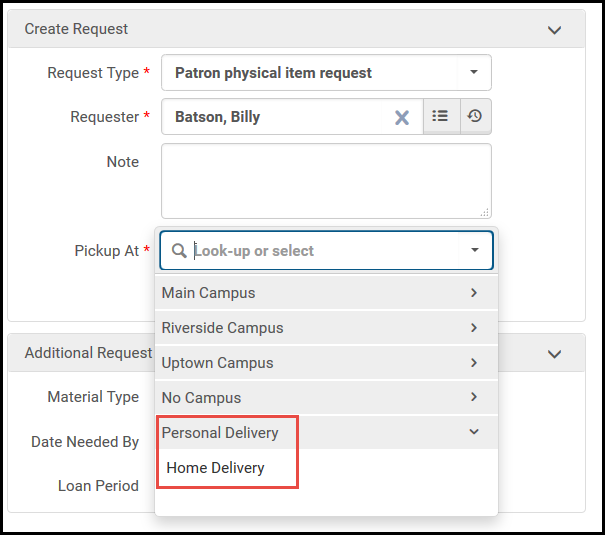
Per abilitare e utilizzare questa funzionalità, è necessario configurare quanto segue:
- L'opzione Supporti accesso personale deve essere configurata presso un Banco di circolazione che può prestare la copia (può eseguire il checkout per la Localizzazione di biblioteca). Questo Banco di circolazione deve avere anche uno scaffale prenotazioni, per contenere la copia in caso di mancato completamento del prestito. For more information, see Adding a Circulation Desk. Se ci sono più di un banco di circolazione, la lista di ritiro viene creata casualmente presso uno degli sportelli.
- Per consentire l’accesso personale degli articoli, è necessario allegare ai Termini d'uso una policy di richiesta di accesso personale. Inoltre, è possibile configurare una policy di richiesta delle spese di accesso personali per includere le spese di accesso. For more information, see Configuring Terms of Use.
- Non ci devono essere blocchi di utente che impediscano l'accesso a home/ufficio. Se esistono blocchi utente, la copia viene inviata allo scaffale prenotazioni. Se i blocchi vengono rimossi, l'utente può quindi ricevere la copia dallo scaffale prenotazioni.
- Addresses with types Home or Office must be configured in the requesting user's User Details record. For more information, see Managing User Contact Information. In addition, the institution can configure additional address types for personal delivery locations. For more information, see Configuring Additional Personal Delivery Locations.
- In order for personal delivery to be performed when an item is scanned in at another library's desk, a library must allow other libraries to handle personal delivery. This also requires the scan-in library's ability to handle personal delivery (having a primary circulation desk that supports personal delivery) and has a relationship with the item owner. See Editing a Library.
An item that is taken off a shelf to fulfill a personal delivery request is put in transit to a desk that is configured to support personal delivery. If the desk at which the item is scanned in does not support personal delivery, the item is transferred to a desk in the item's owning library that supports personal delivery.
For more information about configuring home/office personal delivery, see the Home and Office Delivery video (7:52 min).
