
Managing Requests
From the patron account page, patrons can view and modify outstanding requests or holds. For example:
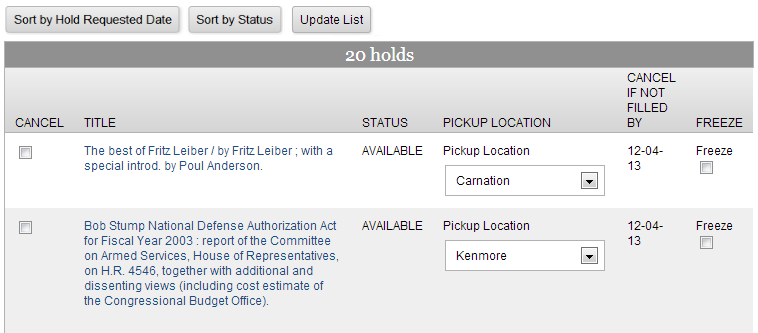
From this display, you can:
- Cancel Requests
- View Titles
- View and Modify Pickup Location
- View the Not Needed By Date
- Freeze Requests
Canceling Requests
To cancel one or more requests:
- Select the check box in the Cancel column for each request you want to cancel.
- Click Update List.
- When prompted, click Yes to confirm the cancellation.
Canceling Holds
When patrons cancel holds, the system does not automatically move the hold to the next patron. To move a hold to the next patron in the hold queue, circulation staff must check the item in or clear expired holds.
Viewing Titles
Each item title is a link to the corresponding record detail page. By default, the system displays holds in order by pickup date. You can sort holds by status, requested date, or expiration date. The expiration date option lists items that are ready for pickup at the top and sorts the remaining items by the "not needed after" date.
Viewing and Modifying Pickup Location
If your organization enables patrons to select a pickup location for their requests, a drop-down list of locations appears in this column.
To update the pickup location for a request:
- Select a new pickup location from the drop-down list in the request entry.
- Click the Update List button.
- When prompted, click Yes to save your change.
Viewing the Not Needed By Date
The Cancel if Not Filled By date is the date specified by the patron after which the item is no longer needed.
Freezing Requests
The Freezing Requests feature does not allow your patrons to freeze INN-Reach holds.
Your library can enable specified patrons to suspend or "freeze" requests. "Freezing a request" means that the patron's position in the hold queue is skipped over until the request is reactivated. This allows the patron to stay in the hold queue while holds are filled for patrons further down in the queue.
The system does not allow a patron to "freeze" (suspend) a request if:
- the hold can be fulfilled by an item that is:
- available
- in-transit
- on the holdshelf for the patron
- the hold status is "IN TRANSIT" or "ON THE HOLDSHELF"
- the item is paged and the patron's hold is next in the hold queue
- the patron's position in the hold queue is fewer than the number of available items that can satisfy a bibliographic-level hold
- the hold is more than 255 days old
When a patron freezes a request, the system changes the patron's "not wanted before" date to 255 days (a system-specific maximum value) from the hold's creation date.
The 255 Setting and the Not Needed By (NNB) Date
The 255 setting is a system setting that indicates that a request is being skipped over until reactivated. Patrons can reactivate the hold via Encore. However, library staff do not have the ability to change the Not Needed By date when the system sets it to 255. A skipped-over record remains in the queue until the patron reactivates the hold, even if the hold extends beyond the actual date calculated by the Not Needed By date.
If your organization permits patrons to freeze requests, this page displays the Freeze column next to each request. The system populates the column based on the following conditions:
| Condition | Freeze Column |
| The hold status is "ON THE HOLDSHELF" | No check box |
| The hold status is "IN TRANSIT" | No check box |
| The hold status is older than 255 days | This hold is too old to be suspended |
| All other hold statuses | Check box |
To freeze or unfreeze a request:
- Do one of the following:
- To freeze a request, select the check box in the Freeze column.
- To unfreeze a request, clear the check box in the Freeze column.
- Click Update List.
- When prompted, click Yes to update your requests.
Encore refreshes the display of requests. If the request satisfies the conditions allowing the patron to freeze it, the system displays the request with a checked box in the Freeze column; otherwise, Encore displays the following error message:
This hold can not be frozen.
