
Configuring Physical Locations
This page covers the basic configuration of physical locations. For links to all the main fulfillment documentation pages, see Fulfillment.
Para configurar las ubicaciones físicas se debe tener uno de los siguientes roles:
- Administrador general del sistema
- Administrador de servicios al usuario
Una ubicación física (es decir, ubicación, estanterías o existencias) es un lugar físico donde se guardan los ejemplares. Una ubicación física está relacionada con una biblioteca, no con la institución. For more information on the relationship between institutions, libraries (organization units), and physical locations, see Configuring the Institution and Its Libraries. Obsérvese que las ubicaciones físicas se pueden ubicar fuera del sitio en una ubicación remota. For details, see Configuring Remote Storage Facilities.
For information on configuring physical locations, watch Fulfillment Organizational Structure (5:36 min.). See also the Managing Libraries and Locations video (6 min.).
You configure physical locations from the Physical Location List page (Configuration Menu > Fulfillment > Locations > Physical Locations) or (General System Administrator only) (Configuration Menu > General > Locations > Physical Locations).
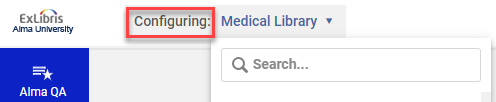
Ensure that you are within the context of the library whose physical locations you want to configure by selecting the required library from the Configuring filter on the Fulfillment Configuration page.
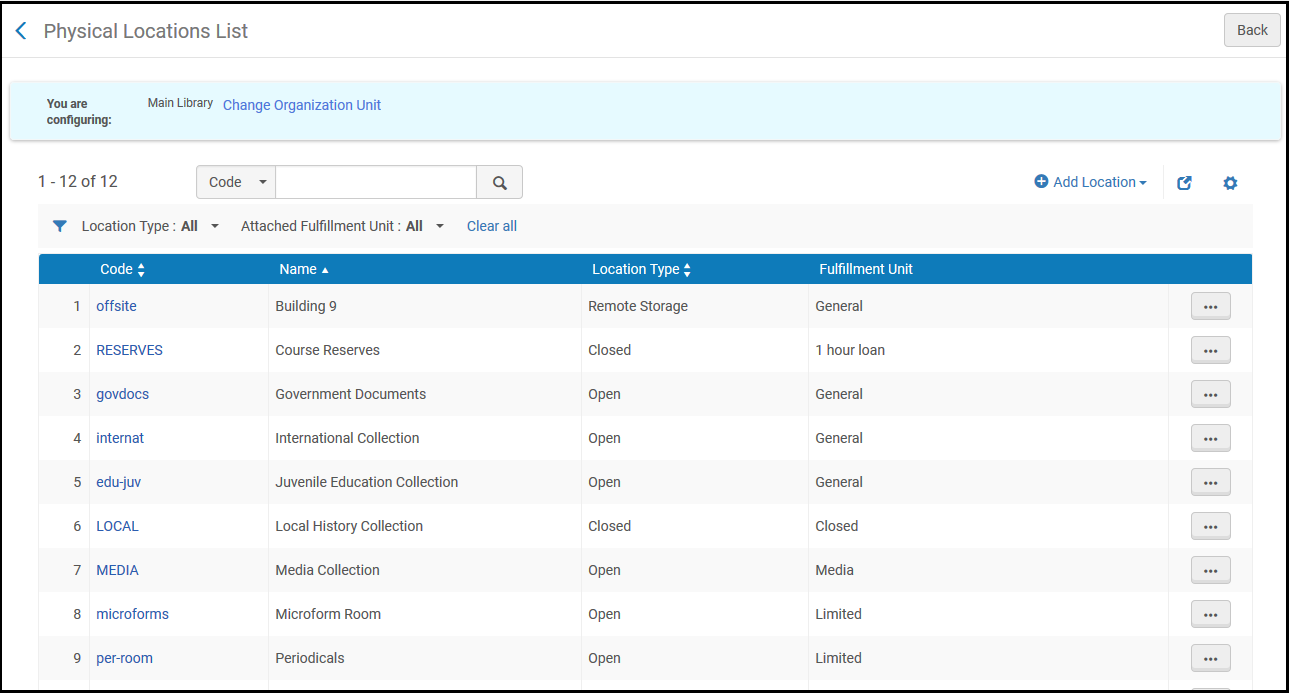
- Duplicate a physical location (Duplicate in the row actions list and edit the relevant fields)
Si se modifica una ubicación física, puede haber implicaciones para varias áreas funcionales en Alma. Verificar que se coordinan correctamente los cambios realizados.
Adding a Physical Location
Puede añadir una ubicación física como se describe a continuación.
-
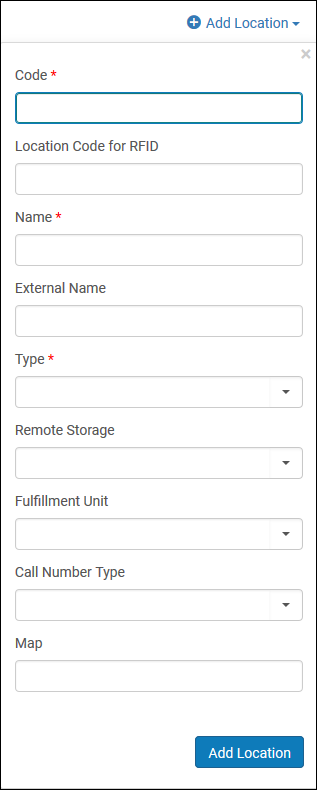
On the Physical Locations List page (Configuration Menu > Fulfillment > Locations > Physical Locations), select Add Location. Aparecerá una casilla.
-
Enter the location code (up to 10 characters, no commas allowed) and name, which are both required fields, as well as the external location name, if applicable.External Name is the name to be displayed to patrons in Get It for holdings in the location. Si está vacío, se mostrará el campo del nombre.
Una ubicación no puede tener caracteres especiales en el nombre, como por ejemplo comillas ('). Use caracteres alfanuméricos, guiones y guiones bajos.
-
From the Type list, select the type of the location. Diferenciar entre los diferentes tipos de ubicaciones que le permiten filtrar por tipo de ubicación en la página Lista de ubicaciones físicas.
The Remote Storage field only needs to be populated when the Type field is marked as Remote Storage. If you do enter an option into the Remote Storage field, this will change the Workflow steps into Awaiting Remote Storage instead of Pickup from Shelf.
- Open – A location that can be accessed by patrons, who can remove an item from the location and then check out the item.
- Closed – A location that is accessible by library personnel only and is not accessible to patrons.
- Remote Storage – A remote storage location, which is similar to a closed location, except that it is located off-site. La recuperación de un ejemplar desde la ubicación de almacenamiento remoto puede tardar más que la recuperación de un ejemplar desde una ubicación regular cerrada.
- Unavailable – A location from which items are considered unavailable for calculating the general electronic services in Primo. Téngase en cuenta que este campo no tiene ninguna otra importancia funcional. For an understanding of how this selection works in conjunction with general electronic services and an example, see the options described for the Disable service field in the Service Details dialog box (under Configuring General Electronic Services).
- Not in Library – This location indicates that a copy belonging to the instructor is currently in that instructor's possession. Se llevará a la biblioteca en un momento posterior.
- If the location has a remote storage facility, from the Remote storage list, select a remote storage option for the location. Obsérvese que una ubicación de cualquier tipo puede estar relacionada con un almacenamiento remoto.
- From the Fulfillment unit list, select a fulfillment unit for the location. La Unidad de servicios al usuario define la regla de la política a aplicar cuando los ejemplares circulan desde esta ubicación. For details, see Physical Fulfillment.
- From the Call number type list, select the type of call number used for holdings in this location, such as the Library of Congress classification, the Dewey Decimal classification, or the National Library of Medicine classification. The type of call number selected here becomes the default for holdings records attached to this location. If this field is left blank, the value of the call_number_type parameter is used as the default. Cuando se adjunta un nuevo registro de existencia a la ubicación, si el tipo de clasificación no se especifica en el registro o en la plantilla del registro, se utiliza el tipo por defecto. If an item that already has a call-number type defined in its holding record is moved to this location, whether the call-number type is changed depends on the value of the update_call_number_type_upon_item_move parameter. See also,use_space_as_call_number_type;Working with Holdings Records.
- Especificar la URL del mapa que puede ayudar a los usuarios a encontrar la ubicación.
-
Select Add Location to add the location.
Se recomienda adjuntar la nueva ubicación a un mostrador de circulación para permitir la gestión de ejemplares (por ejemplo, recogida del estante, registro de entrada y salida, reubicación en estante). This is done by editing the location (see below), or by editing the relevant circulation desk, and then attaching the location to it.
Editing a Physical Location
Puede añadir una ubicación física como se describe a continuación.
- On the Physical Locations List page (Configuration Menu > Fulfillment > Locations > Physical Locations), select Edit in the row actions list for a location.
- On the Edit Physical Location page, in the Physical Location Details section, edit the location information as required. For information on this page, see Adding a Physical Location.
- In the Physical Location Circulation Desks List section.
- To create a new circulation desk and associate it with the physical location, select Attach New Circulation Desk. For additional information, see Adding a Circulation Desk.
- To associate an existing circulation desk with the physical location, select the circulation desk from the drop down list, select the services provided by the circulation desk to the physical location, and select Attach Existing Circulation Desk. For additional information, see Adding a Circulation Desk.
- In the Holdings Configurations section:
In Accession placement, select the MARC subfield that you want to use for the accession number. When you do this, you make the Accession Number field mandatory when creating a holdings record and cause this subfield to be indexed, and thereby searchable in the repository. Las opciones son:
- Designación de piezas (852 $$p)
- Clasificación (852 $$h)
- Ubicación de estantería (852 $$j)
- Ninguno (opción por defecto)
- In the Call number type, select the method in which the call number is generated.
- Select Suppress from discovery to suppress the publishing of items in this location to the discovery interface (Primo and Libraries Australia). Note that if the suppressed item is the only item linked to the title, the title will be suppressed provided the suppressBibWithSuppressedHol parameter (see Configuring Other Settings (Resource Management)) is set to
true. - Si un registro tiene solo un ejemplar que se suprime a nivel de la ubicación, se publica igualmente desde la institución de Red como Nuevo/Actualizado, pero sin el campo AVA. To make the records not retrievable in Primo, suppress the records manually.
- If the Locations Ordering Profile has been defined to use the Use Custom Sorting option, (see 'Configuring the Order of Locations in Primo Search Results'), the priority of each location within the library can be determined by configuring the 'Discovery Priority' attribute of the location. All 'Display First' locations of the same library will be sorted before other locations of the same library, and all 'Regular Display' locations of the same library will be sorted before 'Display last' locations of the same library. Las ubicaciones dentro de la misma Prioridad de descubrimiento se ordenarán alfabéticamente.
- (New for February 2026) Select Digitization Priority to assign a digitization priority level to a location. Cuando se crea una solicitud de digitalización y esta puede satisfacerse copiando desde varias ubicaciones, Alma selecciona la ubicación con mayor prioridad.
- The Host Location Configurations section is available only for the Network Zone and its members that work in Network Zone topology. Stand-alone institutions do not have this section enabled. Select this checkbox if you want to configure joint use of inventory in a Consortia, where one institution can order for another institution in the Network Zone. For details, see Joint User of Inventory in Consortia. Si no se está interesado en configurar este flujo de trabajo, se debe dejar la casilla de verificación vacía.
- Select Save to store the changes you made to the physical location.
If the external location name or Suppress from discovery status has been changed, for Primo a set of physical titles related to this location must be republished. For Primo VE, you need to run indexing on the set of records using the Recalculate Local Resource Types Job (see Manual Jobs).
Duplicating a Physical Location
Puede duplicar una ubicación física como se indica a continuación.
- On the Physical Locations List page (Configuration Menu > Fulfillment > Locations > Physical Locations), select the row actions menu for the physical location to duplicate.
- Select Duplicate in the row actions menu.
Deleting a Physical Location
Puede borrar una ubicación física como se describe a continuación.
- On the Physical Locations List page (Configuration Menu > Fulfillment > Locations > Physical Locations), select the row actions menu for the physical location to delete.
- Select Delete in the row actions menu.
No se puede borrar una ubicación si tiene inventario asociado (es decir, ejemplares con ese código de ubicación). Se deben mover todos los ejemplares a otra ubicación antes de borrar la ubicación.
