
Alma Ambiente Multi tab
Introduzione
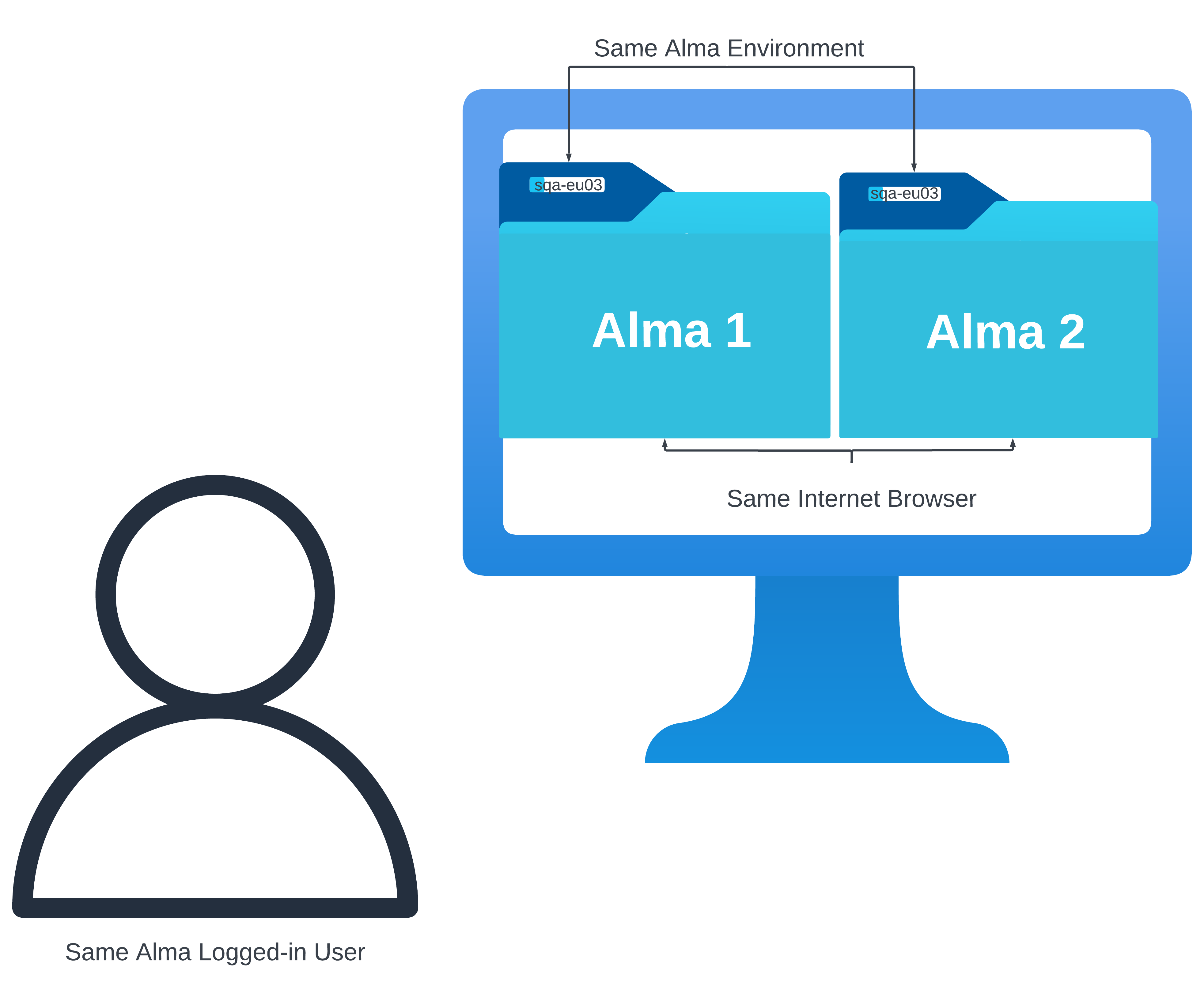
Alma introduces a new feature that enables users to open multiple tabs within the same Alma environment for a logged-in user. Questo miglioramento aumenta la produttività e l'efficienza consentendo agli Utenti di aprire simultaneamente i record in tab distinte del browser internet. Questo facilita la copia senza interruzioni delle informazioni tra le tab e l'esecuzione simultanea di varie attività o flussi. For instance, the same Alma environment logged-in by the same user and in the same internet browser (e.g. Chrome) and has opened two separate Alma sessions in two individual tabs (side-by-side) can continue operating two workflows (e.g. Purchase Orders and Bib records in the Metadata Editor) in each session at the same time.
Some workflows, such as work with records in the Metadata Editor, are only synchronized in both Alma sessions if the tab (session) is refreshed ( )!
Con la funzionalità multi-tab, a ogni tab del browser viene assegnato un ID casuale, che funge da suffisso univoco per le voci di sessione corrispondenti. Questo avanzamento facilita l'operazione simultanea della stessa sessione di Alma su più tab del browser internet. Gli Utenti possono ora aprire Alma in due o più tab e lavorare contemporaneamente senza che una tab influisca sulle altre.
Menzioni/Vincoli notevoli
Nel navigare tra le complessità di qualsiasi sistema, è essenziale riconoscere e comprendere i vincoli intrinseci che possono influenzarne il funzionamento. Di seguito sono elencati i vincoli funzionali associati alla scheda multipla di Alma:
- Multiple tabs functionality ONLY works if multiple browser tabs are opened for the same:
- Ambiente Alma
- Account utente connesso
Alcune cose sono condivise/sincronizzate tra le schede del browser, come la stampante, la localizzazione della biblioteca, la lingua e le preferenze UI.
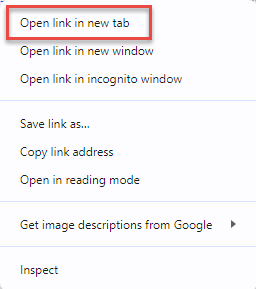
- Noti che se accede in una nuova tab, la sessione precedente verrà annullata. Instead, open the same session in a new tab by selecting for example Open link in new tab for Chrome.
- Trying to sign in as different users of the same institution simultaneously from the same internet browser (through different tabs of the internet browser on the same computer) – will not work (the last signed-in user will override the user in the other tab(s)).
Lavorare con più tab
Supponendo che tu sia connesso ad Alma, ci sono tre modi principali per aprire una nuova tab.
To open a new tab when logged in to Alma:
- Open a new browser tab and navigate to /ng in the same logged-in environment, for example https://abc.alma.exlibrisgroup.com/ng).
- Right-click the logo within an open tab in Alma and then select Open in new tab.
- Clone an already open tab or copy the link in the browser navigation bar of an existing tab to a new one. Note that this may not work in rare cases where a tab ID is already part of a link.
Qualsiasi altro metodo non funzionerà e avrà un impatto sulle sessioni precedenti.
If you have a bookmarked Alma link that takes you through the IdP and initiates a login process, you should not use that to open a new tab after the first login.
