
Gestione dei corsi
Repository Search Results
I risultati della Ricerca appaiono in una Lista dei record, visualizzati in base al tipo di Risorse (bibliografiche) scelta per la tua Ricerca. You can configure the fields and actions that appear for each result; for more information see Record Lists.
Saving and Reusing Search Queries
Per molti risultati della Ricerca, puoi salva le Ricerca per un uso successivo. Salvare una ricerca è un altro modo per creare un set logico. A logical set is dynamic, recalculated each time it is accessed—in other words, the search is rerun and the results are the set. When you save a query (set), you are saving a set of search criteria that can be reused. https://knowledge.exlibrisgroup.com/Alma/Product_Documentation/010Alma_Online_Help_(English)/Metadata_Management/005Introduction_to_Metadata_Management/BIBFRAME_Support Al contrario, un set specificato è una collezione fissa di elementi che possono essere stati immessi manualmente, caricati da un file o il risultato di una Ricerca precedente (ma non più associati ai termini della ricerca). Ora è abilitato l'accesso diretto alle opere.
For more information about sets, see Managing Search Queries and Sets.
- After performing a search, select Save Query on the search results.Viene visualizzata la pagina Dettagli del set.
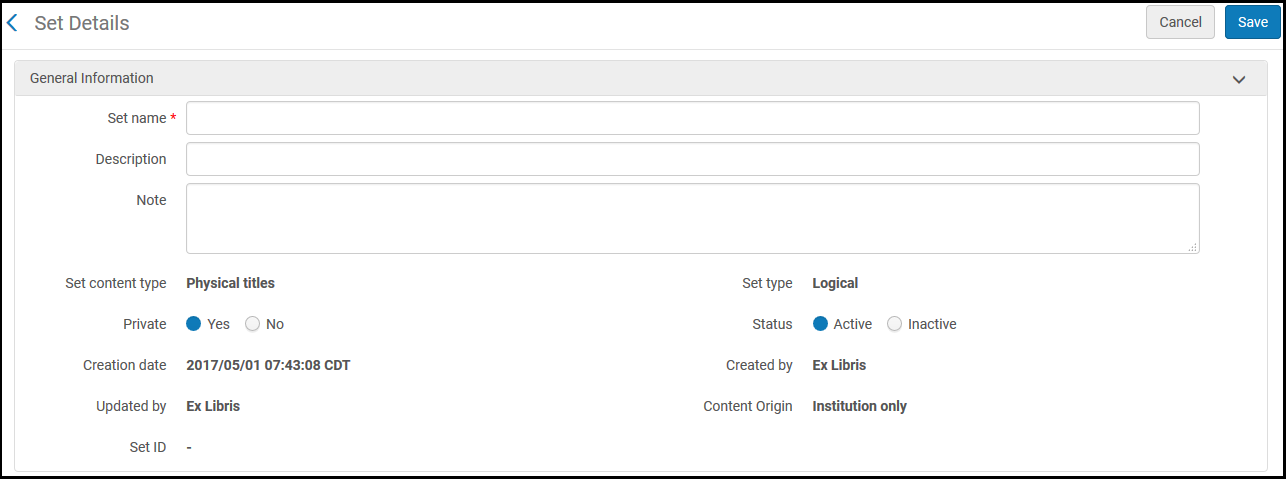
Pagina Dettagli Set - Follow the procedure in Creating Logical Sets.
Performing a Search Using a Saved Query
To run a saved query; on the Manage Sets page (Administration > Manage Jobs and Sets > Manage Sets), locate the saved query (logical set) and select Results in the row actions list. See Managing Search Queries and Sets.
Sorting Search Results
By default, search results are sorted according to an internal ranking mechanism that is based on Apache Solr; for more information, see http://www.solrtutorial.com/solr-search-relevancy.html. I fattori di classificazione includono:
- Term Frequency- The higher the term frequency in the document, the higher the document score.
- Inverse Document Frequency- The rarer a term is across all documents in the index, the higher its contribution to the score.
- Coordination Factor- The more query terms found in a document, the higher its score.
- Field Length- The more words a field contains, the lower its score. La normalizzazione per queste lingue è specifica per campi di testo come titolo e autore.
Per alcuni tipi di ricerca, è possibile modificare l'ordinamento utilizzando l'elenco a discesa Ordina per e Ordina per secondario, utilizzando le seguenti opzioni (dove Asc=crescente e Desc=decrescente):
- Classifica
- Titolo – Asc
- Titolo – Desc
- Creatore – asc
- Creatore – Desc
- Data di pubblicazione - Asc
- Data di pubblicazione - Disc
- Titolo uniforme – Asc
- Uniform Title – Desc
- Series – Asc
- Series – Desc
Queste opzioni sono disponibili per i tipi di ricerca:
- Collezioni elettroniche (Ordina per solo)
- Portfolio elettronici (Ordina per solo titoli)
- Collezioni (solo Ordina per)
The sort order for holdings displayed within a single search result is configured by the sort_library_by_relevance customer parameter (see sort_library_by_relevance).
Filtering Search Results
You can filter search results using the facets in the left pane of the search results. Le Faccette disponibili dipendono dal tipo di Ricerca e dalle copie nei risultati della Ricerca.
| Tipo ricerca | Faccette fornite |
|---|---|
| File Digitali | Tipo di entità |
| File Tipo MIME | |
| Dimensione File in Byte | |
| Estensione File | |
| Tipo di risorsa | |
| Copie fisiche | Tipo di materiale della copia |
| Biblioteca | |
| tipo di processo | |
| Tipo di risorsa | |
| Portfolio elettronico | Tipo |
| Interfaccia | |
| Tipo di collezione elettronica | |
| Servizio | |
| Tipo di materiale elettronico | |
| disponibilità (Portfolio Elettronico) | |
|
Available For (For institutions configured for distributed access to electronic resources and for Network Zone member institutions) |
|
Library - displays portfolios with (For details, see Library set on electronic resource):
|
|
| Assegnazione collezione | Biblioteca |
| Pacchetto elettronico | Tipo |
| Interfaccia | |
| Tipo di collezione elettronica | |
| disponibilità (collezione elettronica)
This facet represents the collection's service availability, such that electronic collections without a service are not considered in the facet count. |
|
|
CDI Search Activation (Available only when using the Fully Flexible CDI activation model) |
|
|
CDI Search Active For (Shows all campuses via Active for Search, for Electronic Collections but not for Group Settings) |
|
| Biblioteca | |
| Authorities |
Utilizzo dell'intestazione - determinato dal contenuto come segue:
Names (if LDR pos. 9 equals "a", "b", or "e") Subjects (if LDR pos. 9 equals "c", "d", or "j")
Names (if 008 pos. 14 equals "a") Subjects (if 008 pos. 15 equals "a") Series (if 008 pos. 16 equals "a") Collocazione/classificazioni (se esiste il campo 084) |
| Vocabulary - According to the Authority record's registryId in the "Vocabulary" database table; in Alma Configuration > Resources > Metadata Configuration > Authority Vocabularies > Code(see Configuring Controlled Vocabulary Registry). | |
- I record Community Zone vengono aggiornati con il tipo corretto di collezione elettronica, come Rivista, Libro e così via.
- Le collezioni elettroniche migrate localmente vengono migrate con il tipo Rivista in tutti i casi (indipendentemente dal tipo che siano).
- Le nuove collezioni elettroniche locali non hanno un tipo di collezione elettronica.
Personalizzazione dei risultati della Ricerca
After a search has been conducted in Alma, users can customize what is visible in the search results.
After searching in Alma, select the gear icon ( ) to customize the search results for the type of search performed.
Ad esempio, se non desideri includere la "nota servizi" nei risultati di Ricerca, puoi rimuoverla utilizzando l'icona di personalizzazione.
- After searching in Alma, select the gear icon (). The Customize view drop-down option menu is displayed.
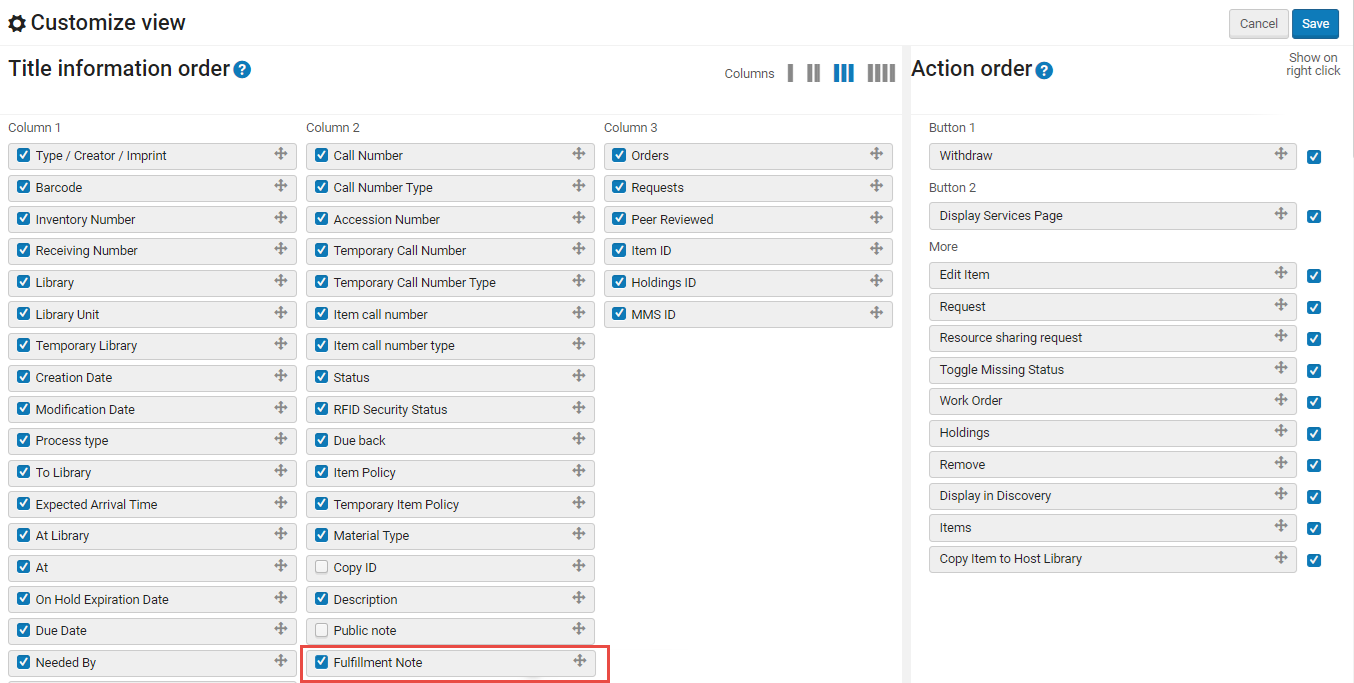 Personalizza il menu a tendina Visualizza
- Select (
 ) the record field(s) you want to remove from appearing in the search results, for example,Fulfillment Note.
- Seleziona Salva. Tutti i campi record selezionati sono visualizzati nei risultati della ricerca (se esistono).
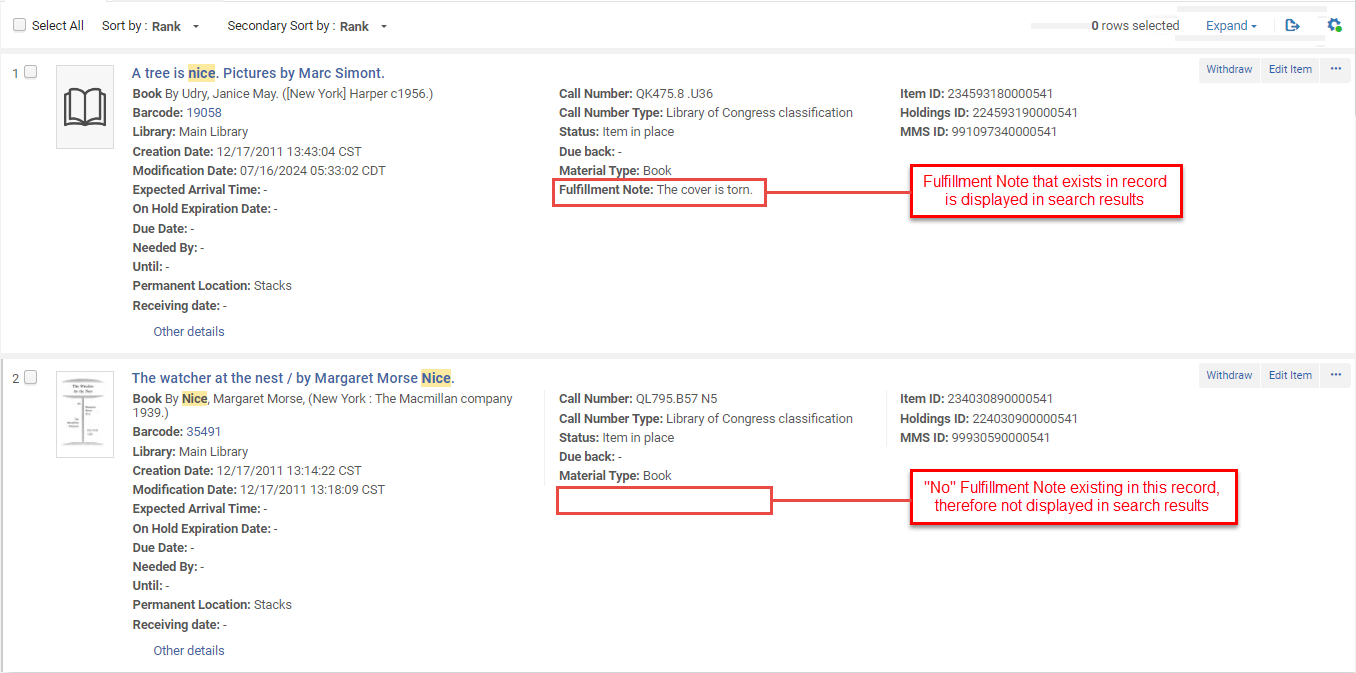 Personalizza la visualizzazione dei record nei risultati di ricerca.
Counts of Search Results
Le faccette includono un conteggio tra parentesi accanto all'etichetta della faccetta.
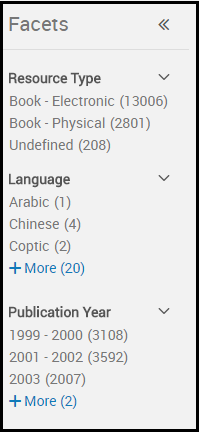
I numeri tra parentesi sono direttamente collegati al conteggio totale fornito con i risultati della tua ricerca.

Il conteggio esatto è fornito solo nel numero totale dei risultati. In all other counts, the count is approximate. Per garantire un tempo di risposta ragionevole con un numero elevato di risultati di ricerca, Alma fornisce un conteggio approssimativo dei risultati di ricerca e dei conteggi delle faccette. Si presume che non sia necessario un conteggio esatto, poiché con un numero di risultati così elevato, non si prevede di sfogliare tutti i risultati. If necessary, you can determine the exact number of results by saving the results to a set and itemizing (see Converting Logical Sets to Itemized Sets). Il numero di elementi visualizzati per il set specificato (durante la creazione del set, la visualizzazione del report del processo di creazione del set e la visualizzazione del set specificato) è esatto. Si nota che in alcuni casi il conteggio fornito può essere indicato come approssimativo, come nello screenshot qui sotto; in altri casi potrebbe non essere indicato direttamente come tale, ma è comunque approssimativo in entrambi i casi.

Selezionare la faccetta per restringere i risultati della ricerca. Può selezionare più di una Faccetta quando sono disponibili più Faccette (vedere sotto). To clear your selection of facets that you previously selected, select beside the facet. Selezioni Cancella tutto per annullare tutte le selezioni di Faccetta.
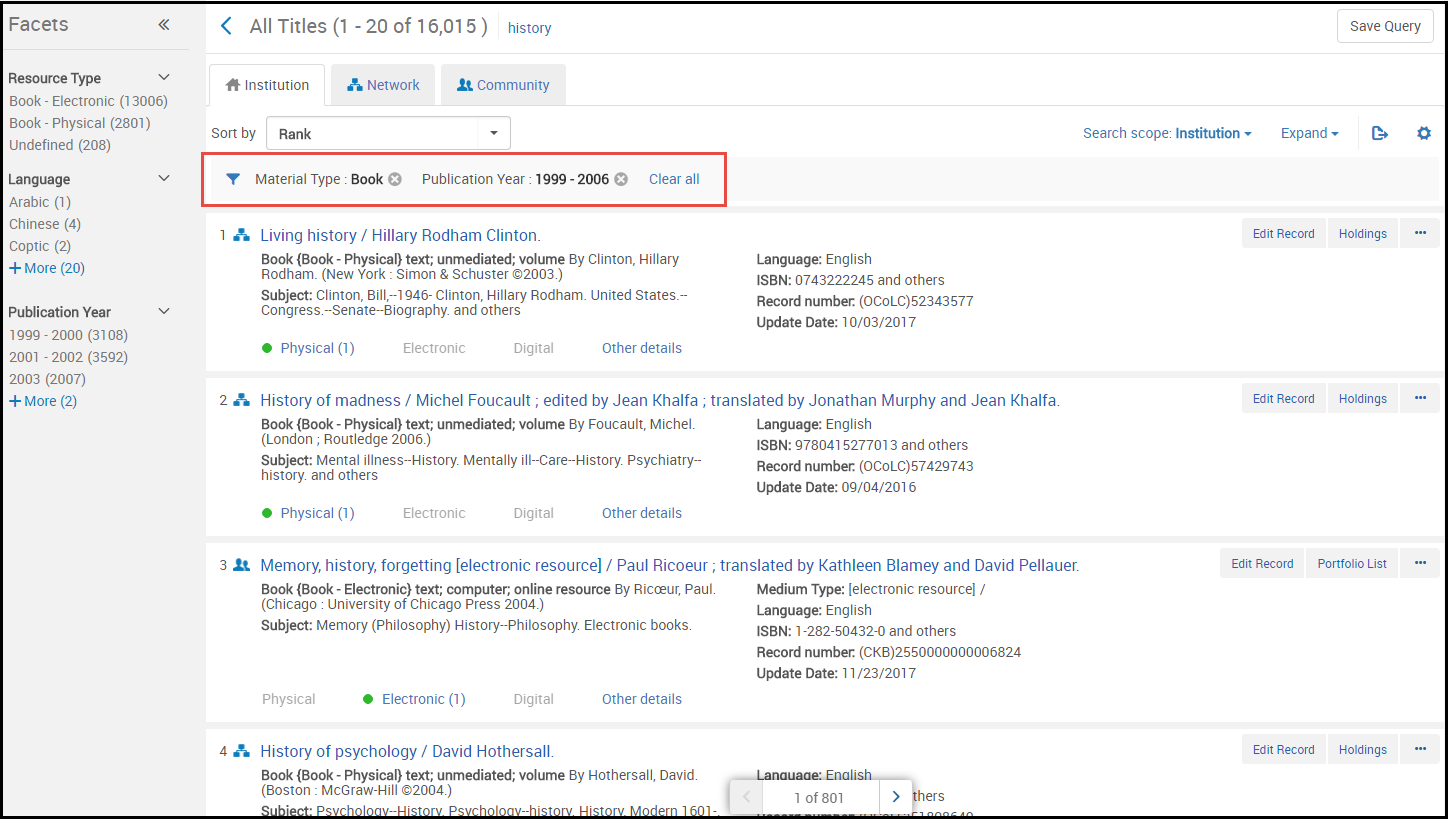
Filtraggio dei portafogli elettronici per ISBN, ISSN o titolo
Quando si visualizzano i risultati nella pagina Portfolio Lista, è possibile cercare all'interno della Lista un ISBN, ISSN o Titolo specifico.

Miniature nei risultati di ricerca
Alma attempts to display a thumbnail image for titles (either for digital titles only, or for all title types - see Customizing the Thumbnail Display). Se il Titolo ha un file digitale, appare una thumbnail di quel file. If the title has no digital inventory, Alma attempts to acquire a thumbnail image of the cover using the title's ISSN/ISBN/LCCN. Se non è disponibile alcuna thumbnail, appare un'immagine generica del Tipo di materiale (Monografia, video, musica e così via).
Institution, Community, and Network Tabs
The results from your institution appear in the Institution tab. The Community tab includes results for records in the Community Zone; these are records that are available to all Alma institutions (see Introduction to Resource Management).
If your institution is a member of a collaborative network working with a Network Zone, the Network tab is also available. The Network tab includes results from your Network Zone. For more information regarding the Network tab, see Repository Search in Collaborative Network. You can ask Ex Libris to enable a feature that allows you to display results from your Network Zone in the Institution tab; see Combining Institution and Network Zone Search Results.
Search Result Icons
Esportazione dei risultati della ricerca Linked records are updated when their target records (in the Community Zone or in the Network Zone) are updated.
| Scheda | Icona | Record Condition | Select to Open the Item In |
|---|---|---|---|
| Istituzione | Record does not appear | NOT defined in the institution | N/D |
| Restricted by an inventory management group | N/D | ||
| Icona | Unlinked, non-electronic resource | N/D | |

|
Record is suppressed, or digital representation is inactive. When a record is suppressed, only the Library staff can see it. The record does not appears in the Primo search results, and students cannot see and cannot request it. For details, see Suppressing Alma Records from Primo. |
N/D | |

|
Revisione tra pari
Quando si esegue una Ricerca di tutti i Titoli, Titoli elettronici, portafogli elettronici, collezione elettronica, Titoli Fisici, copie fisiche, Titoli digitali, file digitali o collezioni, questa icona appare per i record bibliografici MARC 21 che contengono quanto segue: 500 __ $a Referee/Peer-revisione |
N/D | |

|
Open Access
Quando si esegue una ricerca All Titolo, Titolo Elettronico, portafogli elettronici o collezione elettronica, questa icona appare per i record bibliografici MARC 21 che contengono quanto segue: 506 0_ $f Accesso online illimitato $2 stelle |
N/D | |

|
Unlinked, deactivated electronic resource. This icon appears only in Electronic searches (Electronic Titles/ Electronic Portfolio/ Electronic Collection). L'interfaccia utente di Alma |
N/D | |

|
Icona_revisionata_da_pari_02.png
|
N/D | |

|
Collegato a un record della Community Zone. | Scheda Community | |

|
Linked to a Community Zone record, but electronic title, collection, or portfolios are inactive. This icon only appears in Electronic searches (Electronic Titles/ Electronic Portfolio/ Electronic Collection). L'interfaccia utente di Alma |
Scheda Community | |

|
Linked to a Network Zone record | Titoli fisici | |
| Area della Community | Record does not appear | Ricerca in Alma | N/D |
|
|
Revisione tra pari
Quando si esegue una Ricerca di tutti i Titoli, Titoli elettronici, portafogli elettronici, collezione elettronica, Titoli Fisici, copie fisiche, Titoli digitali, file digitali o collezioni, questa icona appare per i record bibliografici MARC 21 che contengono quanto segue: 500 __ $a Referee/Peer-revisione |
N/D | |
|
|
Open Access
Quando si esegue una ricerca All Titolo, Titolo Elettronico, portafogli elettronici o collezione elettronica, questa icona appare per i record bibliografici MARC 21 che contengono quanto segue: 506 0_ $f Accesso online illimitato $2 stelle |
N/D | |
| Icona | Collegato a un record della Network Zone
Faccette fornite Restricted by an inventory management group |
N/D | |
|
|
Collegato a un record della Network Zone
Faccette fornite Ricerca per titolo faccette Faccette fornite Ricerca per titolo (tutti i tipi) Note: This icon also appears if an institution record is linked to the above Network Zone record. |
Titoli fisici | |

|
Collegato a un record presso l'istituzione
The icon is black if the collection is active but the portfolios in the collection are not.For electronic collections of type 'Database', this icon always appears black in the Community tab, since a database does not have portfolios. The correct indication for electronic collections of type 'Database' is in the Institution tab. |
Scheda Rete | |
| Collegato a un record della Network Zone
Faccette fornite Collegato a un record presso l'istituzione Area della Community |
Whichever link was added last. | ||
| Network | Record does not appear | NOT defined in the Network Zone | N/D |
|
|
Revisione tra pari
Quando si esegue una Ricerca di tutti i Titoli, Titoli elettronici, portafogli elettronici, collezione elettronica, Titoli Fisici, copie fisiche, Titoli digitali, file digitali o collezioni, questa icona appare per i record bibliografici MARC 21 che contengono quanto segue: 500 __ $a Referee/Peer-revisione |
N/D | |
|
|
Open Access
Quando si esegue una ricerca All Titolo, Titolo Elettronico, portafogli elettronici o collezione elettronica, questa icona appare per i record bibliografici MARC 21 che contengono quanto segue: 506 0_ $f Accesso online illimitato $2 stelle |
N/D | |
| Nessuna icona | Collegato a un record nella Network Zone
Titoli Elettronici Ricerca per titolo faccette |
N/D | |
|
|
Collegato a un record della Community Zone
Faccette fornite NOT linked to a record in the institution (note that black indicates an inactive electronic title, collection, or portfolio) |
Scheda Community | |
|
|
Collegato a un record presso l'istituzione
The icon is black if the collection is active but the portfolios in the collection are not. |
Scheda Rete |
Collegato a un record nell'istituzione
For title search results, the inventory tabs (Physical,Electronic, and/or Digital),Available For information (see Search Results with Restricted Access), and the Other Details tab appear below each result (see Search Results Tabs for more information). The number of holdings/portfolios/representations appear in parentheses in the name of the tab. L'indicazione corretta per le collezioni elettroniche di tipo 'Database' si trova nella scheda Istituzione. See Record Lists for more options.
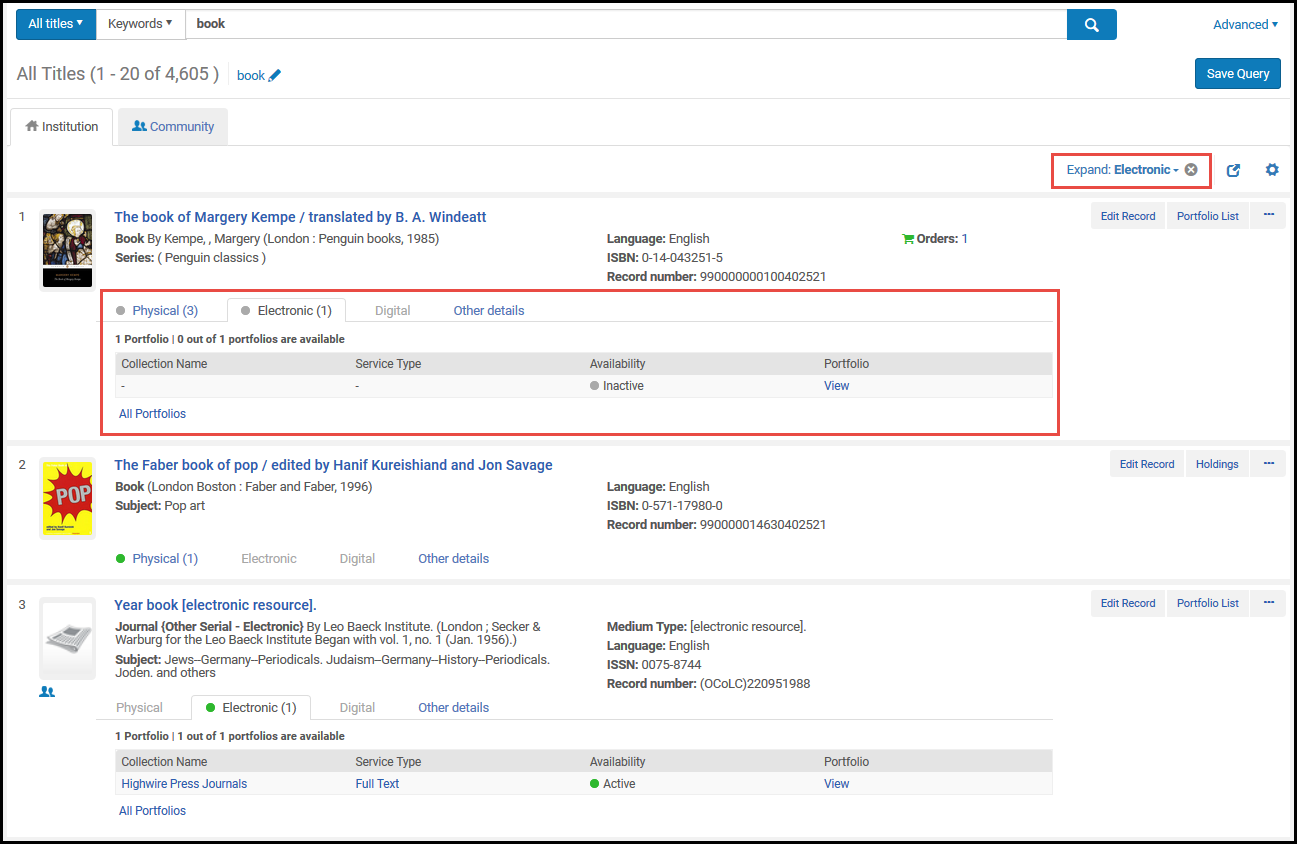
Additionally, in the Physical Title search results, you can navigate to related items for the specific title and see them as physical items search results. This allows the Inventory Operator would like to check possible availability in holdings and items in its hierarchy, and also in related holdings or items:
Note that when a specific item or volume or issue are being referenced in the related record (the 77X field contains a $g with specific item information, or even when $g is unspecified), only the relevant holding or item record is shown when using these new navigation links.
| Scheda | Descrizione |
|---|---|
|
Fisico |
Displays title holdings and item information with links to the List of Holdings page and to the List of Items page.
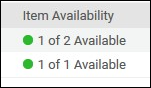
A green dot appears in the tab header if there are holdings and, at least, one of the holdings has an item in place. A grey dot appears if there are holdings but none of them has an item in place. 500 __ $a Referee/Peer-revisione Note that the number displayed is a combination of both real holdings, and "virtual" holdings, which represent an aggregation of items in a temporary location. The Physical tab contains the following columns of information: Library, Location, Call Number, Accession Number, Item Availability, and Related Record. Pulsante Aggiungi Etichette
In the absence of these conditions, a gray dot appears for Item Availability.
Aggiungi etichetta - selezione singola
|
| Elettronico | Displays title electronic inventory, including the collection name, service type, availability, and a link (View) to the portfolio in the Electronic Portfolio Editor. Select Portfolio List to open the Portfolio List page (see Working with the Portfolio List).
A green dot appears in the tab header if there is inventory and at least one of the resources is active. Selezioni una tab per espandere o comprimere ulteriori informazioni sul risultato. |
| Digitale | Modifica icona For each digital representations, this tab displays the label, usage type, repository, number of files, and (if configured for long term digital loans) digital loan availability; and provides a link to view the representation.
Select All Representations to open the Digital Resource Editor page for all the representations. |
| Collezioni | L'interfaccia utente di Alma |
| Altri dettagli | Risultati della ricerca
Select the number, name, or ID to access more details. For portfolios, displays the following information:
For information on displaying the courses associated with a title, see the View Courses Linked to a Title video (2:43 mins). |
Performing Actions on the Repository Search Results Page
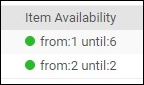
Disponibilità della copia per cronologia/numerazione
| Tipo ricerca | Azione | Descrizione |
|---|---|---|
| Elimina | Remove an item from an itemized set.
This action is available only when managing an itemized set; see Viewing and Removing Members of Itemized Sets. |
|
| File digitali | Visualizzalo | View the digital object. Un punto verde appare nell'intestazione del tab se c'è Inventory e almeno una delle Risorse (bibliografiche) è attivo.
For more information regarding the Alma Link Resolver Services page, see Using the Alma Link Resolver Electronic Services Page. |
| Visualizza l'Inventory dei Titolo digitali. | Displays the file in the New Digital Viewer. Only available when the New Digital Viewer is configured. For more information , see Configuring Viewer Services. | |
| Representations | Edit the digital representation. Opens the Digital Resource Editor. For more information, see Managing Digital Resources. | |
| Visualizza: | Download the digital file. | |
| Richiesta di condivisione delle risorse | Initiate a resource sharing borrowing request on the title. Opens the Resource Sharing Borrowing Request page (see Adding a Resource Sharing Borrowing Task from a Search). This action appears only if you have one of the roles Fulfillment Services Operator or Fulfillment Services Manager in the scope of the resource sharing library. | |
| Holding fisiche | Modifica | Edit the item. Opens the Physical Item Editor page (see Updating Item-Level Information). |
| Partecipazioni | Corsi – Numero di corsi collegati Opens the MARC simple Record View page (single record) or the List of Holdings page (multiple records). For more information, see Viewing Metadata Read-Only in the Simple Record View Page and Working with the List of Holdings. | |
| Copie | View item information. Opens one of the following pages:
|
|
| Richiesta | Initiates a fulfillment request (see Creating a Request). | |
| Richiesta di condivisione delle risorse | Initiate a resource sharing borrowing request on the title. Opens the Resource Sharing Borrowing Request page (see Adding a Resource Sharing Borrowing Task from a Search). This action appears only if you have one of the roles Fulfillment Services Operator or Fulfillment Services Manager in the scope of the resource sharing library. | |
| ordine di lavoro | Initiate a work order for the item, such as to request binding or process a withdrawal (see Creating a Request). | |
| Maggiori informazioni | View more information about the item. Per i portafogli, visualizza le seguenti informazioni:
For information on displaying the courses associated with a title, see the View Courses Linked to a Title video (2:43 mins). |
|
| Copy Item to Host Library |
Select in the below cases:
This option appear only when the below takes place (for details, see Joint User of Inventory in Consortia):
|
|
| Portfolio Elettronico (Scheda Istituzione) | Modifica | Edit the portfolio. Opens the Electronic Portfolio Editor page. For more information, see Editing a Portfolio Using the Electronic Portfolio Editor. |
| File digitali | Visualizzalo Visualizza l'oggetto digitale. | |
| Activate / Deactivate | Activate or deactivate the portfolio. The resource's icon changes when the activation status changes. For example, when an unlinked portfolio is activated, the icon appears in color ( |
|
| Consegna (solo per Nuovo Visualizzatore digitale) | Avviare un ordine di acquisto. Opens the PO Line Owner and Type page (see Creating PO Lines). | |
| Link to Community | Initiate the process to link a local portfolio to a Community Zone portfolio. Rappresentazioni
You may, for example, use this option when you have created a local portfolio during the acquisition process and later want to link the portfolio to an electronic collection in the Community Zone. When you select Link to Community, the Link Standalone Portfolio to Community Zone Collection wizard opens, in which you 1) select a matching Community Zone portfolio, 2) select a local electronic collection with which to associate the standalone portfolio, and 3) select to use the descriptive metadata from the Community Zone bibliographic record or retain the Institution Zone descriptive metadata. If you choose to retain the Institution Zone descriptive metadata, the portfolio's descriptive metadata will not be synchronized with updates from the Community Zone. After the local portfolio is linked to a Community Zone portfolio, the Link to Community search results action no longer appears and the icon changes from the Institution Zone icon to the Community Zone icon (see Search Result Icons). |
|
| Scarica il file digitale. | Create an electronic activation task and displays a confirmation message when successful. | |
| Test accesso | Test access to the portfolio and display the results on the Alma Link Resolver Electronic Services page (see Using the Alma Link Resolver Electronic Services Page). | |
| Delete | Delete a local portfolio or a portfolio that is linked to the Community Zone. | |
| Report to Ex Libris | Send a portfolio update, add, remove, or coverage request to Ex Libris. Opens the Report to Ex Libris page. The contact information provided on the Report to Ex Libris page is defined by an administrator; see Configuring CRM Contacts.
For information on using this option in the Institution tab, see the “Send to Ex Libris” for Local Collections video (3:03 mins). |
|
| Richiesta di condivisione delle risorse | Initiate a resource sharing borrowing request on the title. Opens the Resource Sharing Borrowing Request page (see Adding a Resource Sharing Borrowing Task from a Search). This action only appears if you have one of the roles Fulfillment Services Operator or Fulfillment Services Manager in the scope of the resource sharing library. | |
| Portfolio Elettronico (Scheda Community) | Attivare | Initiate the process to add and activate portfolios from the Community Zone for a library. |
|
Linking Information |
Gestione delle risorse fisiche This action can be selected for activated portfolios and non-activated portfolios. In the pop-up that appears when this action is selected, there is also the option to choose to activate the portfolio. Gestione delle risorse fisiche |
|
| Ordine | Avviare un ordine di acquisto. Opens the PO Line Owner and Type page (see Creating PO Lines). | |
| Report to Ex Libris | Send a portfolio update, add, remove, or coverage request to Ex Libris. Opens the Report to Ex Libris page. The contact information provided on the Report to Ex Libris page is defined by an administrator; see Configuring CRM Contacts. | |
| Operatore Servizi o Manager Servizi. | Initiate a resource sharing borrowing request on the title. Opens the Resource Sharing Borrowing Request page (see Adding a Resource Sharing Borrowing Task from a Search). This action appears only if you have one of the roles Fulfillment Services Operator or Fulfillment Services Manager in the scope of the resource sharing library. | |
| Assegnazione collezione | Edit Record | Edit the bibliographic record (title record) for the collection. Opens the MD Editor. |
| Assegnazione collezione | Manage the collection.
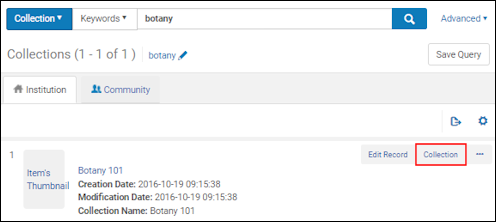 Opens the Collections Resource Editor page where you can view summary information for the collection, look up the history related to this collection, view titles in the collection, and add sub-collections to the collection. 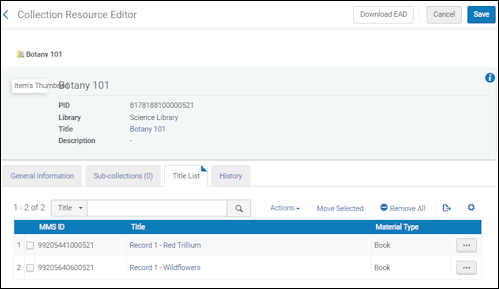 |
|
| Numero di prestiti | Displays the list of titles in the collection.
 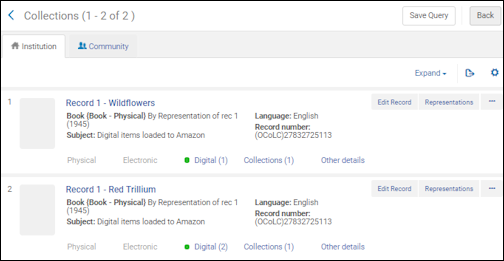 |
|
| ID Localizzazione Magazzino | Prestiti dall'inizio dell'anno (indica il numero di prestiti presentati durante l'anno solare in corso) | |
| Corsi - Numero di corsi collegati (Nessun corso) | Modifica | Modifica la collezione elettronica. Opens the Electronic Collection Editor. |
| Activate/Deactivate for Search in CDI |
A collection can be activated or deactivated for search in CDI if the following three conditions are met:
|
|
| Remove CDI-only full text activation | When the operator has the CDI Inventory Operator role and CDI is configured as Fully Flexible, this option removes the Active for full text in CDI only status from the collection and allows Primo users to access the collection's full text. Once the status has been removed, you cannot add it back.
During CDI enablement, the Active for full text in CDI only status was applied to collections if the following was true prior to enablement:
For more details, see CDI FAQs. |
|
| Delete | Delete the electronic collection.
A confirmation dialog box presents the option to delete the electronic collection (along with deleting associated electronic collection services, portfolios, and e-activation tasks, and unlinking PO lines) and a drop-down list of options (delete, suppress, or do nothing) for handling bibliographic records without inventory when deleting the electronic collection. 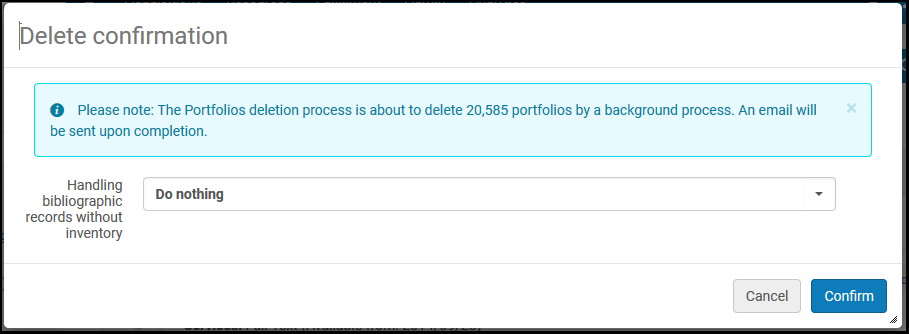 After you select Confirm, a background job runs, deleting the e-collection and its associated components. Apre la pagina dell'Editor del Portfolio Elettronico. The job ID appears at the top of the page. To monitor the job and view the job report, see Delete Electronic Collection Job Report. If the job runs for a long time and the actions are still disabled, you can request Ex Libris Support to restore the action buttons. If the e-collection is empty, the deletion is handled online—that is, without running a job. |
|
| Visualizzazione | L'icona della Risorsa cambia quando lo stato di Attivazione cambia. Opens the Electronic Collection Editor page in view mode. | |
| Portfolio List (number) | Ordine / Ordine aggiuntivo Avvia un ordine di acquisto. For more information see Working with the Portfolio List. | |
| Consegna (solo per Nuovo Visualizzatore digitale) | Avviare un ordine di acquisto. Opens the PO Line Owner and Type page (see Creating PO Lines). | |
| Link to Community | Initiate the process to link a local electronic collection to an electronic collection in the Community Zone. Linking local electronic collections to the Community Zone provides the benefit of Community Zone updates to the electronic collections that you link to the Community Zone. See Linking a Local Electronic Collection to the Community Zone for more information. | |
| Scarica il file digitale. | Create an electronic activation task and displays a confirmation message when successful. | |
| Informazioni Publishing | View publishing information about the electronic collection. Open the Publishing Information page with the following information (Available explicitly for General System, Repository, and Catalog Administrators, and Deposit Managers):
Learn about debugging publishing information in the Debugging Publishing Information video (1:52 mins). |
|
| Edit Service | Edit the electronic service. Gestione delle risorse elettroniche See Modifying an Electronic Service. | |
| Report to Ex Libris | Send a portfolio update, add, remove, or coverage request to Ex Libris. Opens the Report to Ex Libris page. The contact information provided on the Report to Ex Libris page is defined by an administrator; see Configuring CRM Contacts. | |
| Delete | Elimina un portfolio locale o un portfolio collegato alla Community Zone. Per i portafogli, visualizza le seguenti informazioni:
For information on displaying the courses associated with a title, see the View Courses Linked to a Title video (2:43 mins). |
|
| Electronic Collection (Community tab) | Portfolio List (number) | Ordine / Ordine aggiuntivo Avvia un ordine di acquisto. For more information see Working with the Portfolio List. |
| Activate/Deactivate for Search in CDI |
A collection can be activated or deactivated for search in CDI if the following three conditions are met:
|
|
| Attivare | View a simple view of the electronic collection. Opens the Community Zone level bibliographic record available for the electronic collection in the MARC Record Simple View page. See Viewing Metadata Read-Only in the Simple Record View Page and Working with Electronic Collection Bibliographic Records and URLs Added to the Community Zone for more information. | |
| Ordine | Avvia un ordine di acquisto. Opens the Activation Wizard (refer to Activating an Electronic Collection Using the Activation Wizard). Where applicable, the collection can also be activated for CDI in the wizard (only when the CDI model is Fully Flexible). | |
| Ordine | Avviare un ordine di acquisto. Opens the PO Line Owner and Type page (see Creating PO Lines). | |
| Report to Ex Libris | Send a portfolio update, add, remove, or coverage request to Ex Libris. Opens the Report to Ex Libris page. The contact information provided on the Report to Ex Libris page is defined by an administrator; see Configuring CRM Contacts. | |
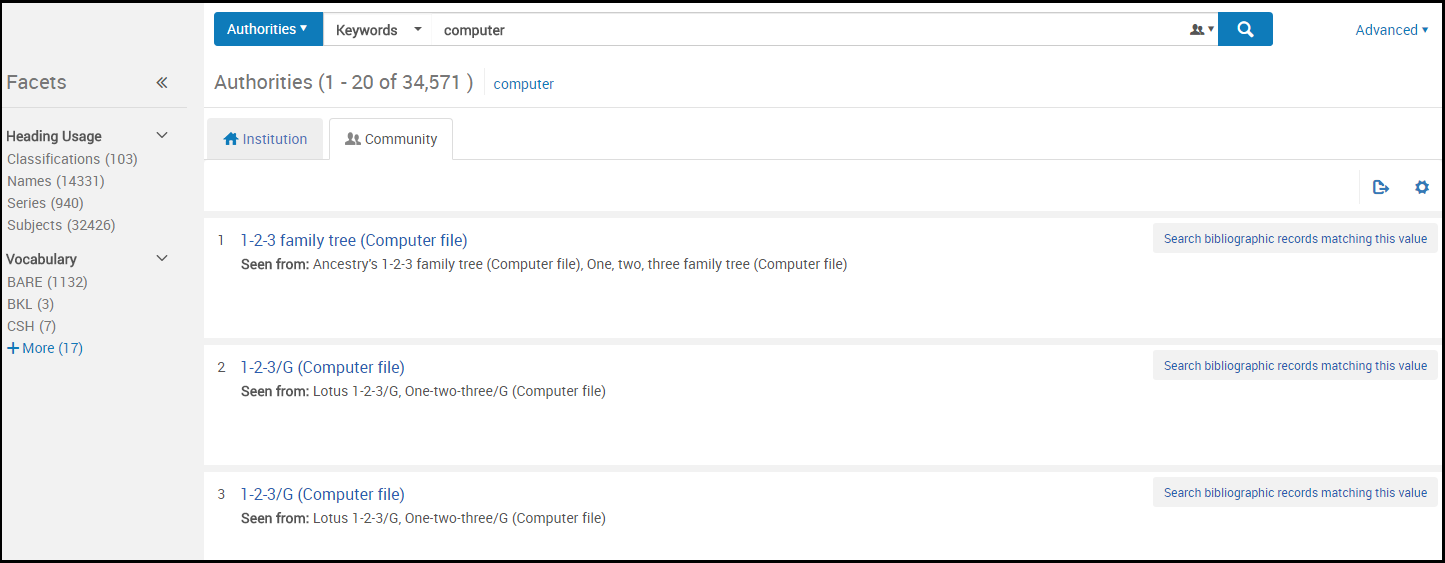
| Operatore Servizi o Manager Servizi. | As available, the Seen from information is provided in the search results. Assegnazione collezione | |
| Modifica record | As available, the See also information is provided in the search results with links to this information. This information is pulled from the 5XX fields. | |
|
Cerca record bibliografici che corrispondono a questo valore |
When you select the Search Bibliographic Records Matching This Value link, Alma searches for bibliographic records that use the authority record from which you selected this link. Note that the search results depend on your linking strategy. L'azione di raccolta apre l'Editor delle risorse di raccolta Editor Elenco titoli The values that appear in the search results are based on a Solr search and not on the fact that these records are linked to a relevant authority record. |
|
| Modifica | Visualizza l'elenco dei titoli nella collezione | |
| Visualizza Risorsa Collezione | As available, the Seen from information is provided in the search results. Assegnazione collezione | |
| Modifica record | As available, the See also information is provided in the search results with links to this information. This information is pulled from the 5XX fields. | |
|
Cerca record bibliografici che corrispondono a questo valore |
When you select the Search Bibliographic Records Matching This Value link, Alma searches for bibliographic records that use the authority record from which you selected this link. Note that the search results depend on your linking strategy. L'azione di raccolta apre l'Editor delle risorse di raccolta Editor Elenco titoli The values that appear in the search results are based on a Solr search and not on the fact that these records are linked to a relevant authority record. |
In addition, the Export button that appears at the top of the page for all search types provides the option to export search results to an Excel file. The columns of information in the Excel file vary depending on the search type that you have used.
Excel files for all search types except Collections and Authorities have an MMS ID column.
For more information, see Export to Excel.
Example Repository Search Results
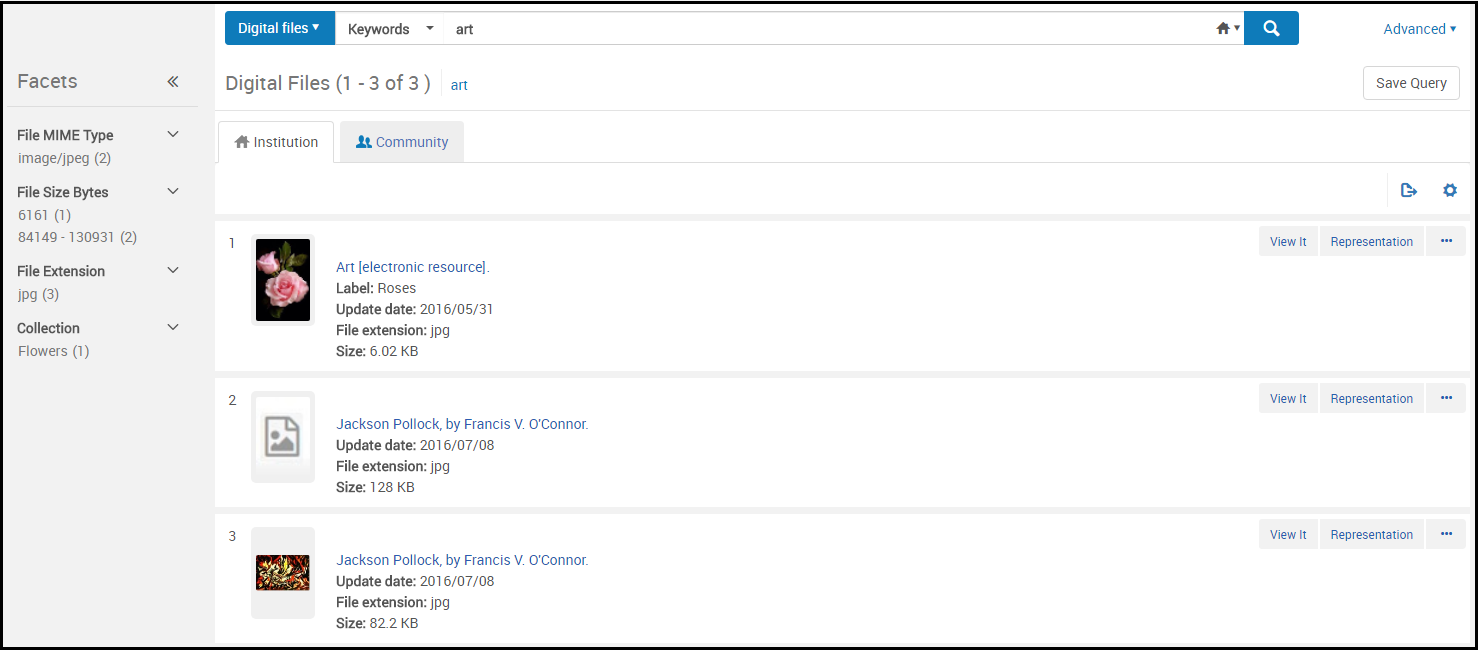
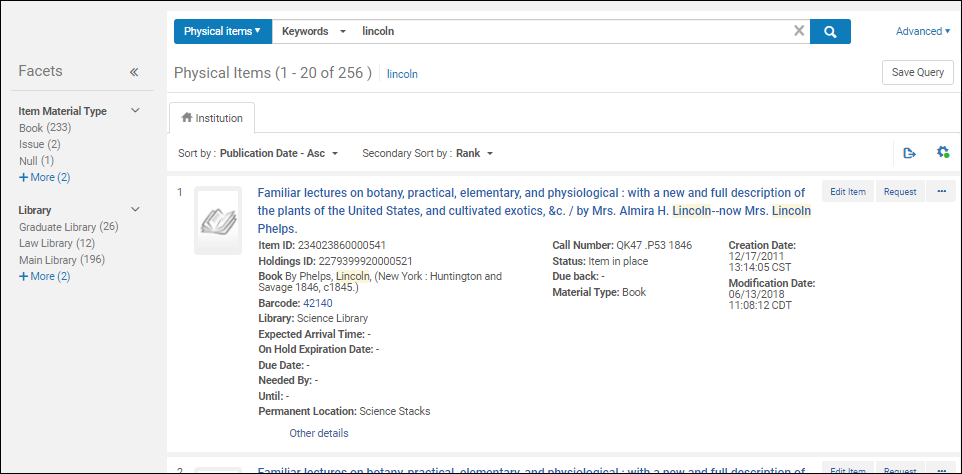
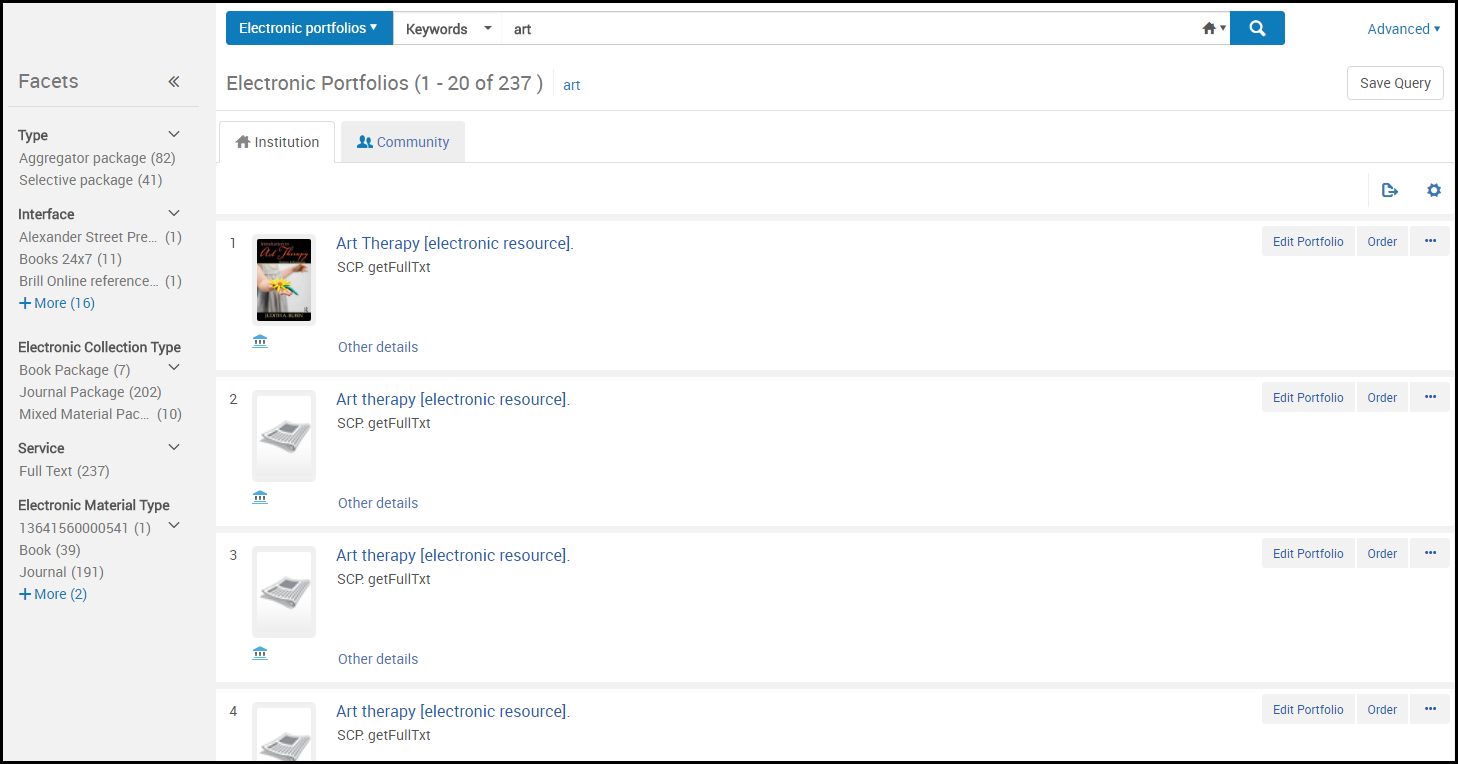
Since the repository search facility in Alma provides the flexibility to conduct a variety of searches, the search results include information related to physical, electronic, and digital resources. As a result, the content of the search results vary and are specific to the type of search you are conducting. For example, the Titles (All, Physical, Electronic, and Digital) search results include bibliographic information (Note: For repeatable bibliographic fields, only one occurrence of the fields is displayed); and the inventory (such as Items, Portfolios, and Files) search results include details from imported data or data that you have entered using the Physical Item Editor (see Updating Item-Level Information) or the Electronic Portfolio Editor (see Editing a Portfolio Using the Electronic Portfolio Editor).
In general, the repository search results include:
- Material type - See Material Types in Search Results for more information regarding bibliographic material types. See Search Indexes for a list of the MARC tags associated with all the displayed fields.
- Process type - When loan text is displayed, it is a checkable link that displays the On Loan Item page with loan information.
- Resource type - See The Resource Type Field for more information.
- View
- Tipo di media
- Carrier type
- Creatore
- dc:soggetto
- Data pubblicazione
- editore
- Soggetto
- Library - For portfolios, one of the two parameters "Library" or "Electronic Collection Library" is displayed (for details, see Library set on electronic resource):
- The "Library" parameter displays the portfolio-level parameter (if defined).
- The "Electronic Collection Library" parameter displays the portfolio's electronic-collection-level value (if defined).
- Localizzazione
- Copia
- Codice a barre
- Policy Copia
- Orders - The Orders link shows the number of orders placed for the title, item, portfolio, or collection. Select the number/link to view the PO lines related to the entry. This link connects you to the PO lines using the PO line ID.
- Identifying numbers:
- Alma record number (the first number in 035a, the Other System Number)
- ISSN, ISBN
- numero di collocazione
- Item ID (Physical Items)
- Holdings ID (Physical Items)
- (Electronic) Collection ID (Electronic Collection and/or Electronic Portfolios)
- Portfolio ID (Electronic Portfolios)
- Service ID (Electronic Portfolios)
- File ID (Digital Files)
- Representation ID (Digital Files)
- Collection ID (Collection)
- MMS ID (Authorities)
- Dates - Dates are formatted on the display according to your date configuration settings and are included as separate columns of information when you export search results to Excel. PID
- Data di creazione
- Data Modifica
- Valore ultima pubblicazione
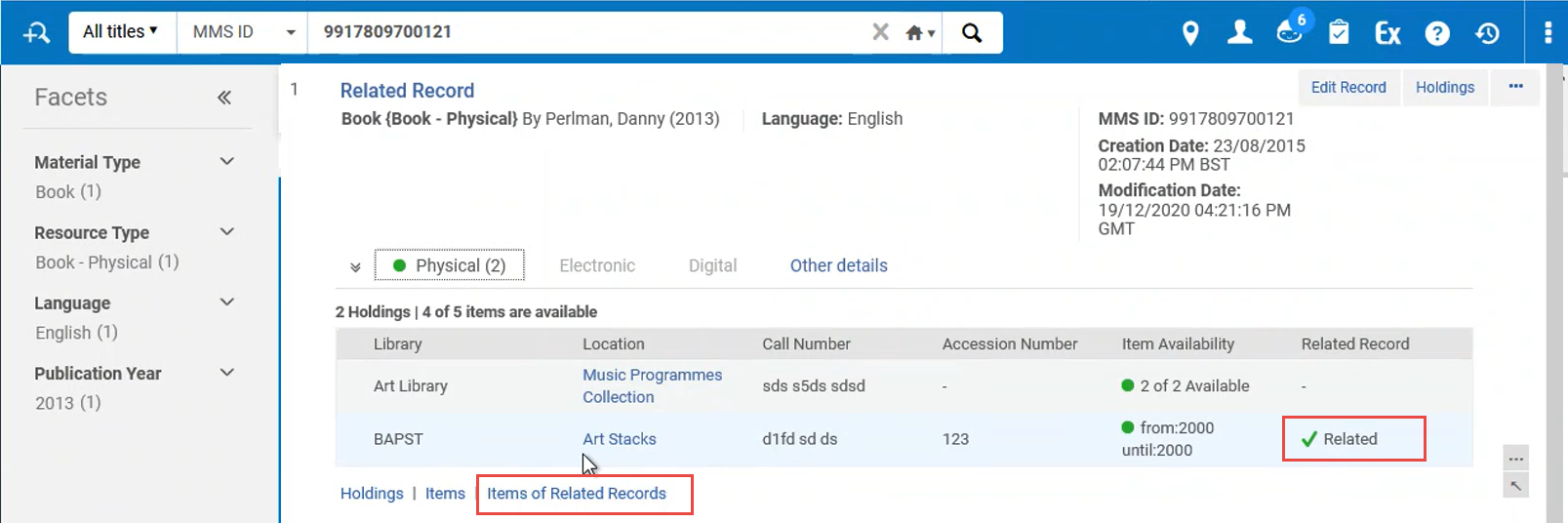
- Availability of related records - The Availability of Related Records appears in the search results when a bibliographic record is found and contains a 773 field with linking information to another bibliographic record with items. See the example below where the search results of an electronic item shows related records of two physical items.

Related Records Search Results You can configure the appearance of the location and library in the Availability line. For more information, see Customizing How Library and Location Appear.For information about enhanced visibility of related records, see the Enhanced Visibility For Related Record Inventory video (1:42 mins). - Servizio
- Icons - See Search Result Icons
The illustrations below highlight the following search result examples. For non-bibliographic/authority related searches, see the page referred to at the end of Performing a Simple Search.
All titles search results (Institution tab):
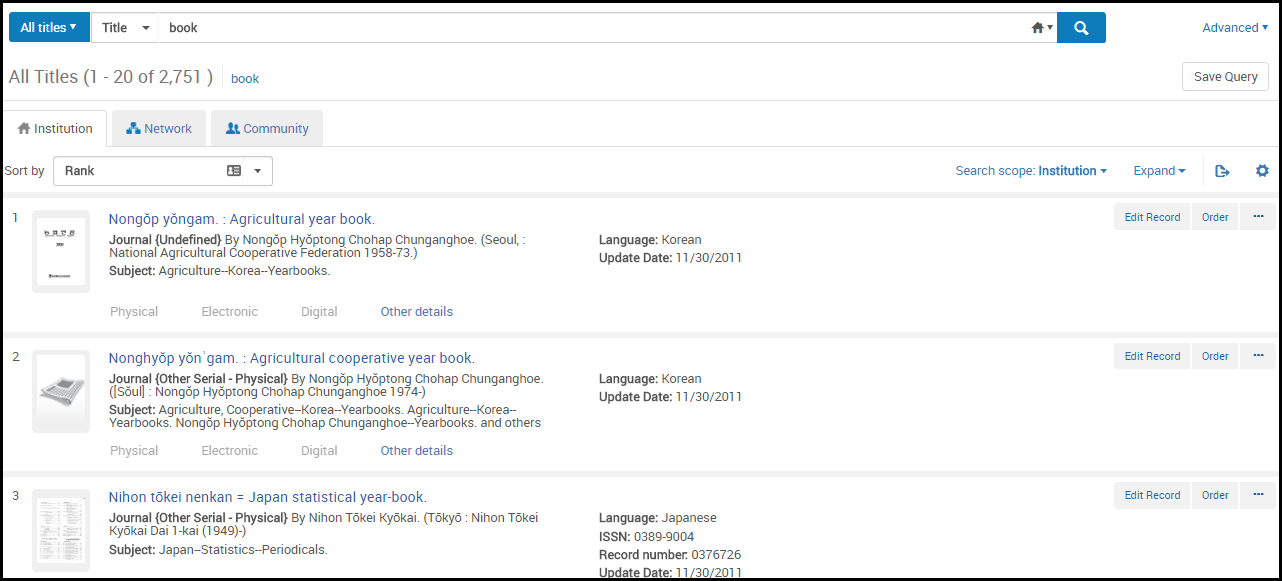
Apre la finestra di dialogo Ulteriori informazioni con le seguenti informazioni:
Ordini aggiuntivi - Numero di ordini aggiuntivi
Digital titles search results (Institution tab):
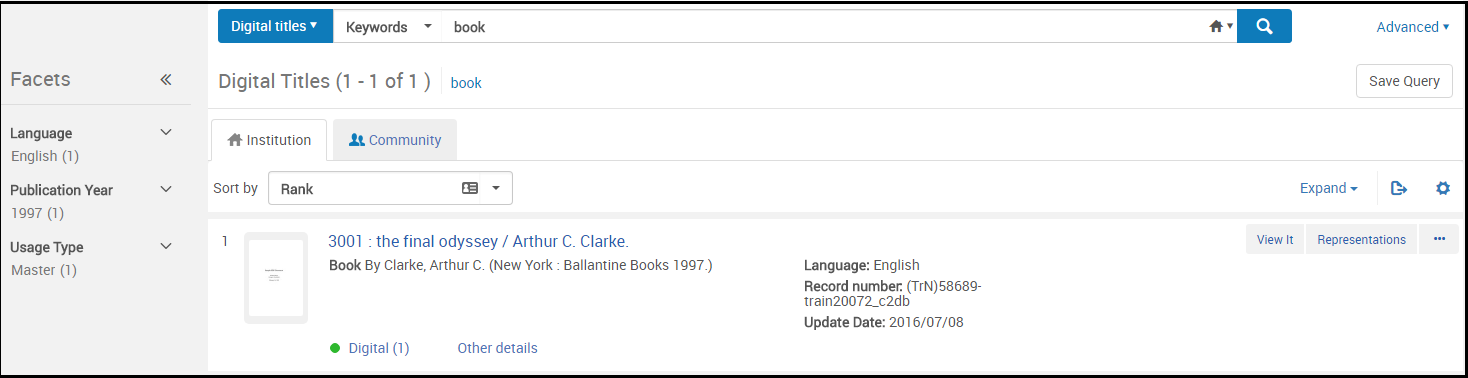
Gestione licenza ed emendamento
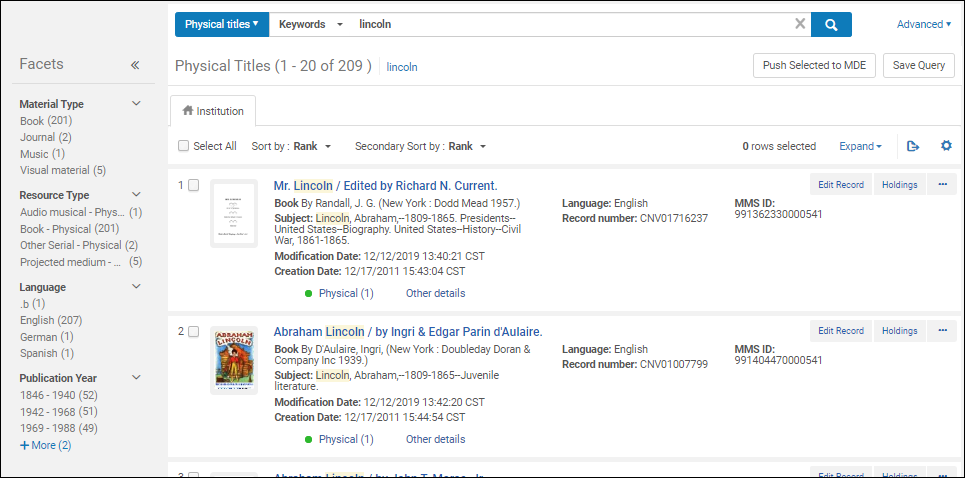
Physical items search results:
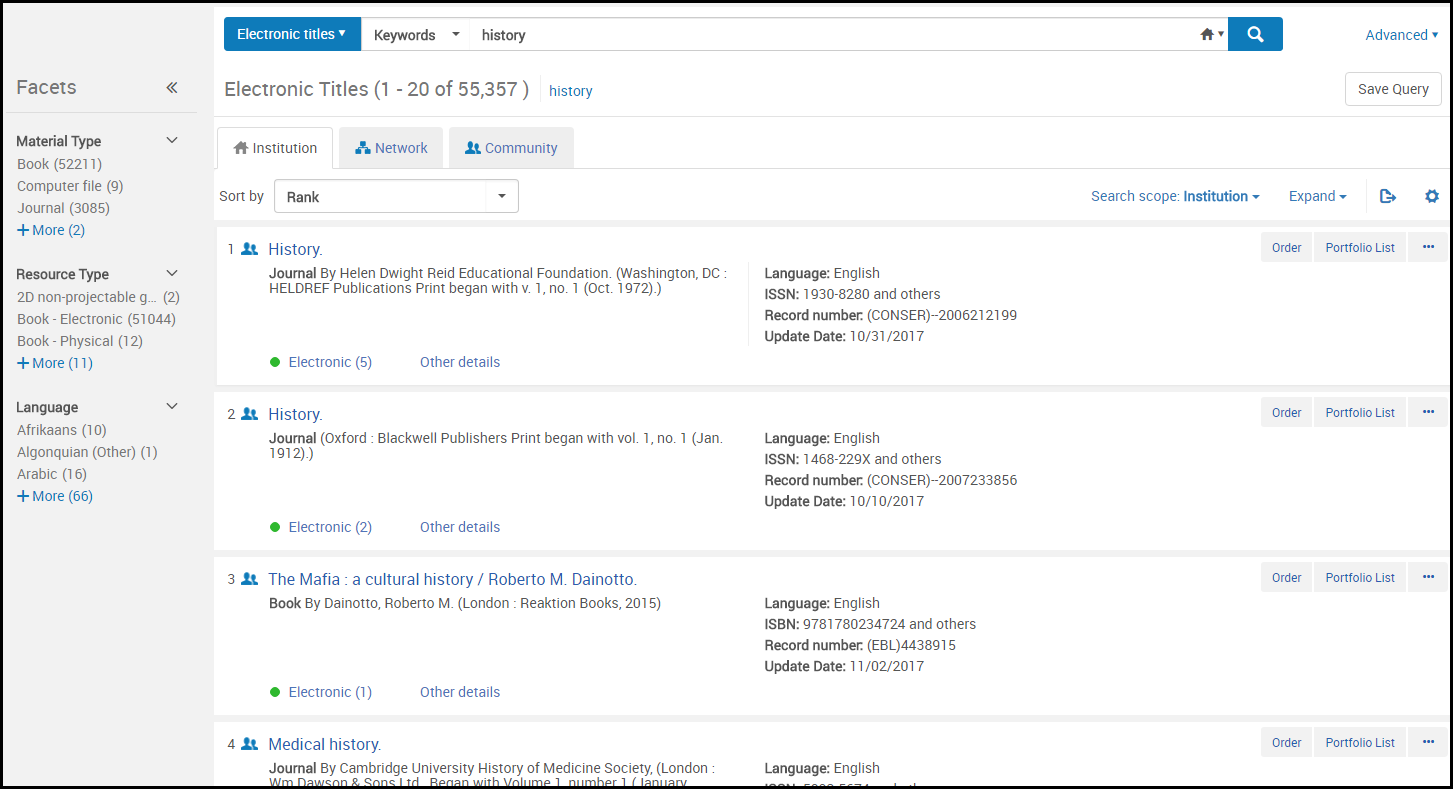
Electronic portfolio search results (Institution tab):
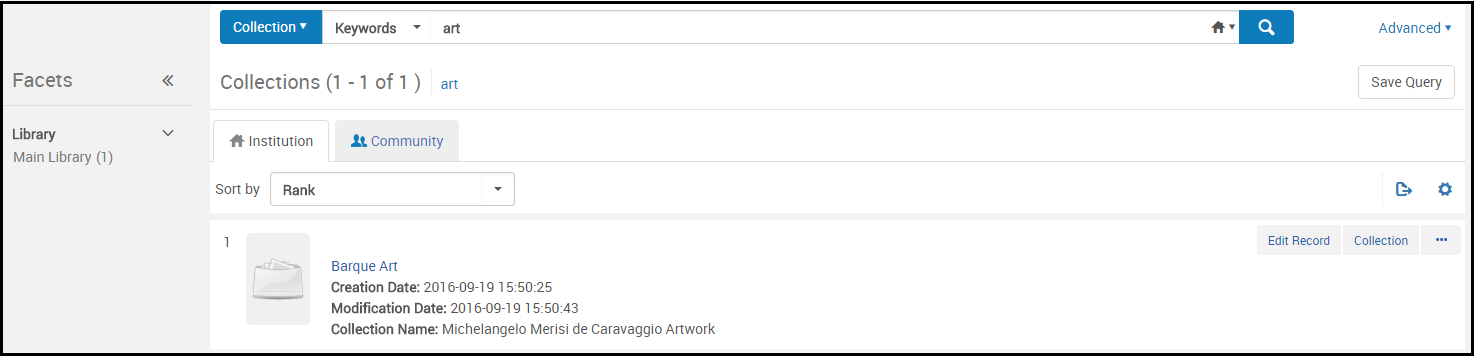
Collection search results (Institution tab):
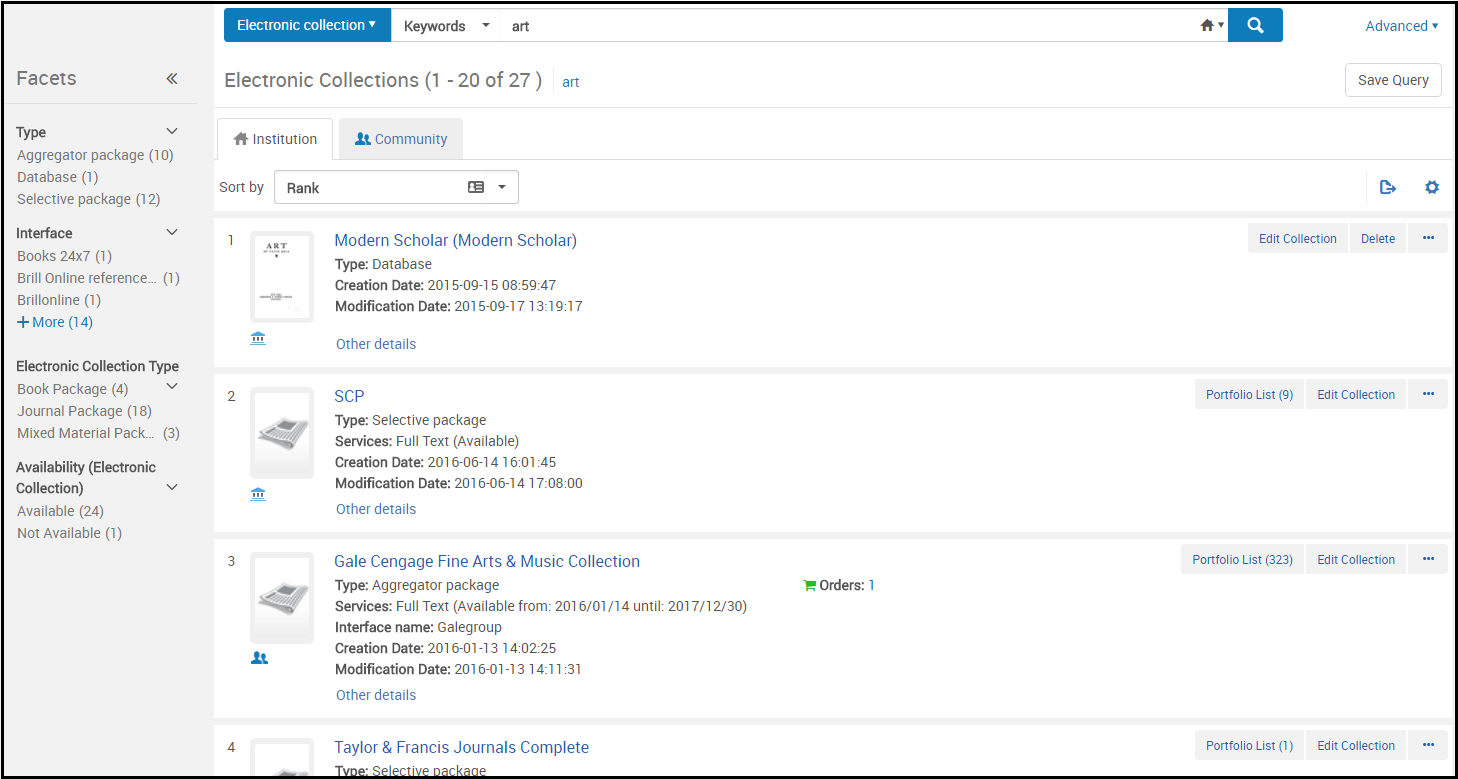
Electronic collection search results (Institution tab):
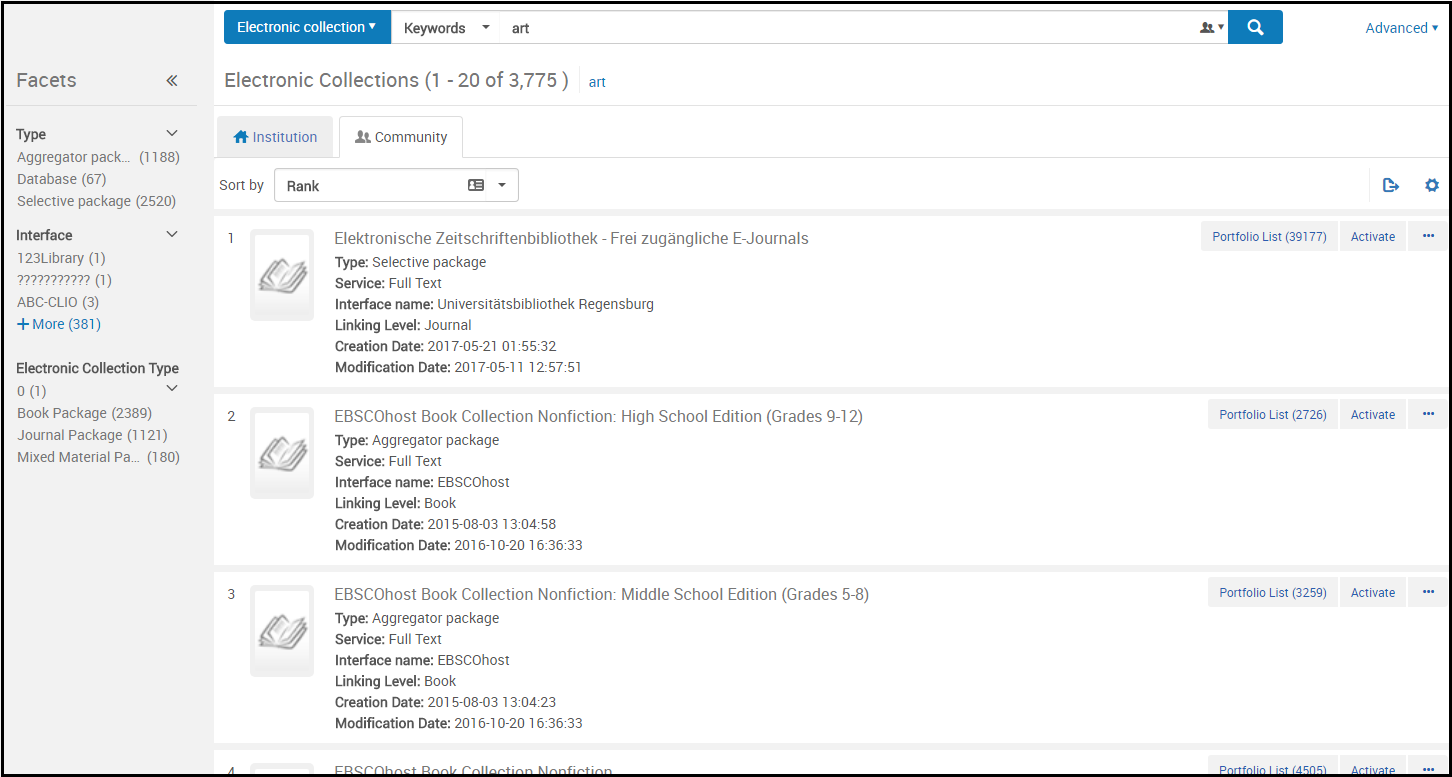
Electronic collection search results (Community tab):
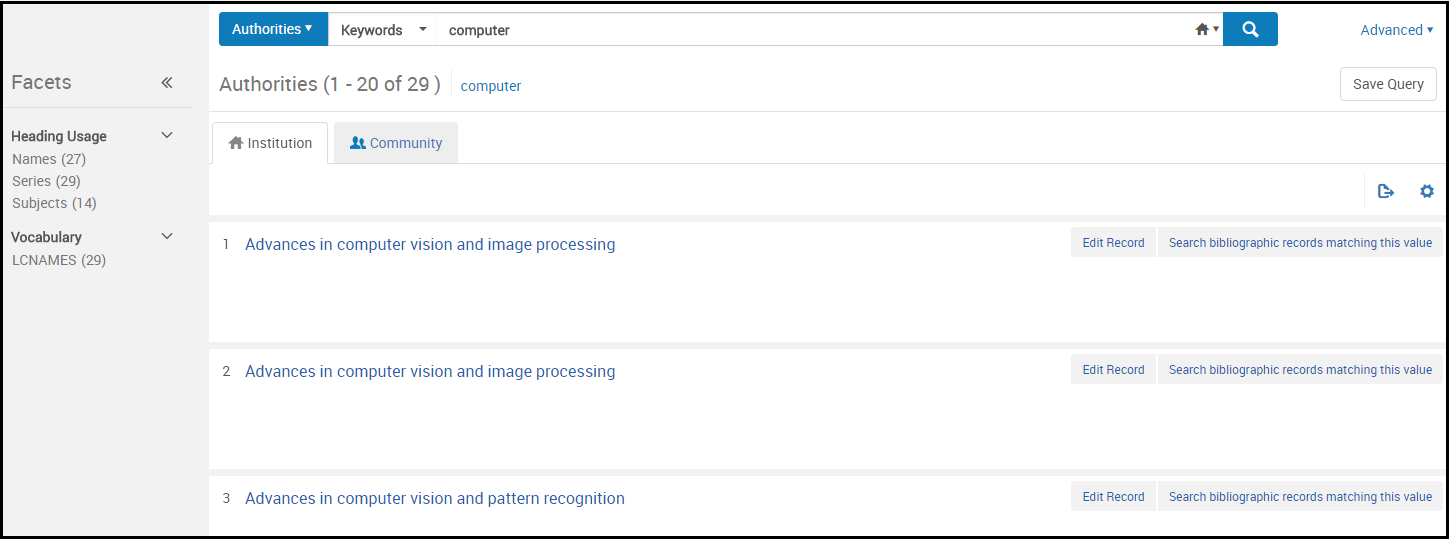
Authorities search results (Institution tab):
La collezione è contrassegnata come “Disponibile per la ricerca CDI Attivazione”.
The Resource Type Field
The Resource Type field is constructed based on existing bibliographic fields such as the LDR and 008 or dc:type or dcterms:type fields, in the case of Dublin Core. The Resource Type field supplements (but does not replace) the Material Type field.
I Record bibliografici sono codificati a colori per una facile revisione di campo e sottocampo. La sezione RDF/XML è disabilitata per impostazione predefinita. As a result, it is a useful means of constructing detailed reports.
For details regarding the Resource Type field and the criteria for its creation, see the following tables:
- Rules Used to Create the Resource Type Field – MARC 21/KORMARC and UNIMARC
- Rules Used to Create the Resource Type Field – CNMARC
- Rules Used to Create the Resource Type Field – Dublin Core
The order of these tables is specific to how the rules are processed from beginning to end for creating the Resource Type field. As soon as a condition is met, the table is no longer consulted. As a result, if a bibliographic record meets conditions of more than one resource type, the first one appearing in the table is used.
After a record is saved or indexed, the Resource Type field information appears in the search results.
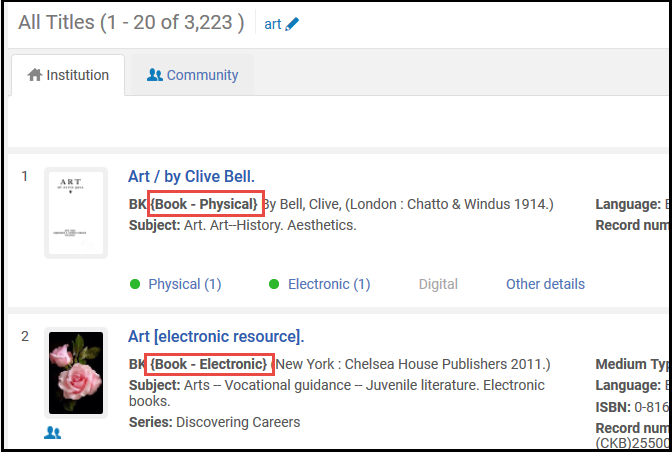
La possibilità di eseguire azioni sulle righe dell'Inventory direttamente dalla Ricerca per titolo.
| Tipo di risorsa | Modifica le informazioni dell'autorità locale. | Autorità (tab comunità) |
|---|---|---|
|
The following notation is used in this table:
|
||
| Libro – Fisico | Posizione LDR 06 = a AND LDR pos. 7 = m AND 008 pos. 23 != a,b,c,o,f,q,s | Posizione LDR 6 = a AND LDR pos. 7 = m |
| Libro – Elettronico | Posizione LDR 06 = a AND LDR pos. 7 = m AND 008 pos. 23 = o,q,s | Posizione LDR 6 = l AND LDR pos. 7 = m |
| Altro materiale - Formato elettronico | Posizione LDR 06 = m | Posizione LDR 6 = l |
|
Gestione delle risorse elettroniche |
Posizione LDR 06 = e AND LDR pos. 7 = m,s AND 008 pos. 29 = a AND 008 pos. 25 != e |
|
|
La sezione Holdings. |
Posizione LDR 06 = e AND LDR pos. 7 = m,s AND 008 pos. 29 = b AND 008 pos. 25 != e |
|
| Tipo di contenuto | Posizione LDR 06 = e AND LDR pos. 7 = m,s AND 008 pos. 29 != a,b,c,o,f,q,s AND 008 pos. 25 != e | Posizione LDR 6 = e, f AND LDR pos. 7 = m |
|
Gestione delle risorse elettroniche |
Posizione LDR 06 = e AND LDR pos. 7 = m,s AND 008 pos. 29 = c AND 008 pos. 25 != e |
|
| Codice a barre | Posizione LDR 06 = !e AND 008 pos. 23 = a,b,c | Posizione LDR 6 = a AND 106 $a = t |
| Materiali misti | Posizione LDR 06 = p AND LDR pos. 7 = c | |
| Braille Book – Physical | Posizione LDR 06 = a AND LDR pos. 7 = m AND 008 pos. 23 = f | Posizione LDR 6 = a, b AND LDR pos. 7 = m AND 106 $a/0 = f |
| Braille seriale – Fisico | Posizione LDR 06 = a AND LDR pos. 7 = i,s AND 008 pos. 23 = f | Posizione LDR 6 = a, b AND LDR pos. 7 = s AND 106 $a/0 = f |
| Mappa Braille – Fisica | Posizione LDR 06 = e AND LDR pos. 7 = m AND 008 pos. 29 = f | Posizione LDR 6 = e, f AND LDR pos. 7 = m AND 106 $a/0 = f |
| Musica Braille – Fisica | Posizione LDR 06 = c AND LDR pos. 7 = m AND 008 pos. 23 = f | Posizione LDR 6 = c, d AND LDR pos. 7 = m AND 106 $a/0 = f |
| Atlante – fisico | Posizione LDR 06 = e AND LDR pos. 7 = m AND 008 pos. 29 != a,b,c,o,f,q,s AND 008 pos. 25 = e | Posizione LDR 6 = e, f AND 121 $a/8 = c |
| Risultati ricerca titoli fisici: | Posizione LDR 06 = e AND LDR pos. 7 = m AND 008 pos. 29 = o,s,q AND 008 pos. 25 = e | Posizione LDR 6 = e, f AND 121 $a/8 = c AND 106 $a/0 = s |
| Risultati della ricerca digitale per titolo (istituzione tab): | Posizione LDR 06 = e AND LDR pos. 7 = m,s AND 008 pos. 29 = a AND 008 pos. 25 = e | |
| Elenco risultati ricerca file digitali | Posizione LDR 06 = e AND LDR pos. 7 = m,s AND 008 pos. 29 = b AND 008 pos. 25 = e | |
| Portfolio elettronici | Posizione LDR 06 = e AND LDR pos. 7 = m,s AND 008 pos. 29 = c AND 008 pos. 25 = e | |
| Risultati della collezione (parziale) | Posizione LDR 06 = e AND LDR pos. 7 = m AND 008 pos. 29 = o,s,q AND 008 pos. 25 != e | (LDR pos. 6 l AND 120 $a/0 = a,b) OR (LDR pos. 6 = e, f AND 106 $a/0 = s) |
| Newspaper – Physical | Posizione LDR 06 = a AND LDR pos. 7 = i,s AND 008 pos. 06 != d AND 008 pos. 21 = n AND 008 pos. 23 != a,b,c,o,f,q,s | Posizione LDR 6 = a AND LDR pos. 7 = s and 110 $a/0 = c |
| Newspaper (Ceased publication) – Physical | Posizione LDR 06 = a AND LDR pos. 7 = i,s AND 008 pos. 06 = d AND 008 pos. 21 = n AND 008 pos. 23 != a,b,c,f,o,q,s | |
| Newspaper – Electronic | Posizione LDR 06 = a AND LDR pos. 7 = i,s AND 008 pos. 06 != d AND 008 pos. 21 = n AND 008 pos. 23 = o,q,s | Posizione LDR 6 = l AND LDR pos. 7 = s and 110 $a/0 = c |
| Newspaper (Ceased publication) – Electronic | Posizione LDR 06 = a AND LDR pos. 7 = i,s AND 008 pos. 06 = d AND 008 pos. 21 = n AND 008 pos. 23 = o,q,s | |
| Rivista – Fisico | Posizione LDR 06 = a AND LDR pos. 7 = i,s AND 008 pos. 06 != d AND 008 pos. 21 = p AND 008 pos. 23 != a,b,c,o,f,q,s | Posizione LDR 6 = a AND LDR pos. 7 = s |
| Journal (Ceased publication) – Physical | Posizione LDR 06 = a AND LDR pos. 7 = i,s AND 008 pos. 06 = d AND 008 pos. 21 = p AND 008 pos. 23 != a,b,c,o,f,q,s | |
| Journal – Electronic | Posizione LDR 06 = a AND LDR pos. 7 = i,s AND 008 pos. 06 != d AND 008 pos. 21 = p AND 008 pos. 23 = o,q,s | Posizione LDR 6 = l AND LDR pos. 7 = s |
| Journal (Ceased publication) – Electronic | Posizione LDR 06 = a AND LDR pos. 7 = i,s AND 008 pos. 06 = d AND 008 pos. 21 = p AND 008 pos. 23 = o,q,s | |
| Posizione LDR 06 = e E LDR pos. 7 = m,s E 008 pos. 29 = c E 008 pos. 25 != e | Posizione LDR 06 = a AND LDR pos. 7 = i,s AND 008 pos. 06 != d AND 008 pos. 21 != n,p AND 008 pos. 23 != a,b,c,o,f,q,s | Posizione LDR 6 = a AND LDR pos. 7 = s and 110 $a/0 = b, e |
| Posizione LDR 06 = f E LDR pos. 7 = a | Posizione LDR 06 = a AND LDR pos. 7 = i,s AND 008 pos. 06 = d AND 008 pos. 21 != n,p AND 008 pos. 23 != a,b,c,o,f,q,s | |
| Posizione LDR 06 = o E LDR pos. 7 = a | Posizione LDR 06 = a AND LDR pos. 7 = i,s AND 008 pos. 06 != d AND 008 pos. 21 != n,p AND 008 pos. 23 = o,q,s | Posizione LDR 6 = l AND LDR pos. 7 = s and 110 $a/0 = b, e |
| Posizione LDR 6 = e, f E 121 $a/8 = c E 106 $a/0 = s | Posizione LDR 06 = a AND LDR pos. 7 = i,s AND 008 pos. 06 = d AND 008 pos. 21 != n,p AND 008 pos. 23 = o,q,s | |
| Serial component part – Physical | Posizione LDR 06 = a AND LDR pos. 7 = b AND 008 pos. 23 != a,b,c,o,f,q,s | |
| Serial component part – Electronic | Posizione LDR 06 = a AND LDR pos. 7 = b AND 008 pos. 23 = o,f,q,s | |
| Manoscritti - Formato fisico | Manoscritti di musica e testo:
Posizione LDR 06 = d,t AND LDR pos. 7 = m AND 008 pos. 23 != a,b,c,o,f,q,s Manoscritti cartografici: Posizione LDR 06 = f AND LDR pos. 7 = m AND 008 pos. 29 != a,b,c,o,f,q,s |
Music and text manuscripts:
Posizione LDR 6 = b |
| Manoscritti - Formato elettronico | Manoscritti di musica e testo:
Posizione LDR 06 = d,t AND LDR pos. 7 = m AND 008 pos. 23 = o,s,q Manoscritti cartografici: Posizione LDR 06 = f AND LDR pos. 7 = m AND 008 pos. 29 = o,s,q |
Elimina collezione elettronica — Elimina la collezione elettronica.
Posizione LDR 6 = b AND LDR pos. 7 = m and 106 $a/0 = s |
| L'interfaccia utente di Alma | Posizione LDR 06 = c AND LDR pos. 7 = m AND 008 pos. 23 != a,b,c,o,f,q,s | Posizione LDR 6 = c |
| Posizione LDR 06 = a E pos. LDR 7 = b E 008 pos. 23 = o,f,q,s | Posizione LDR 06 = c AND LDR pos. 7 = m AND 008 pos. 23 = o,q,s | Posizione LDR 6 = c and 106 $a/0 = s |
| Audio musical – Fisico | Posizione LDR 06 = j AND LDR pos. 7 = m AND 008 pos. 23 != a,b,c,o,f,q,s | Posizione LDR 6 = j |
| Audio musical – Elettronico | Posizione LDR 06 = j AND LDR pos. 7 = m AND 008 pos. 23 = o,q,s | Posizione LDR 6 = j and 106 $a/0 = s |
| Audio nonmusical – Physical | Posizione LDR 06 = i AND LDR pos. 7 = m AND 008 pos. 23 != a,b,c,o,f,q,s | Posizione LDR 6 = i |
| Combina i dati di Name authority e Wikidata di Library of Congress. | Posizione LDR 06 = i AND LDR pos. 7 = m AND 008 pos. 23 = o,q,s | Posizione LDR 6 = i and 106 $a/0 = s |
| Projected medium – Physical | Posizione LDR 06 = g AND LDR pos. 7 = m AND 008 pos. 33 = d,f,i,m,p,s,t,v AND 008 pos. 29 != a,b,c,o,f,q,s | Posizione LDR 6 = g |
| Projected medium – Electronic | Posizione LDR 06 = g AND LDR pos. 7 = m AND 008 pos. 33 = d,f,i,m,p,s,t,v AND 008 pos. 29 = o,s,q | Posizione LDR 6 = g and 106 $a/0 = s |
| Grafico 2D non proiettabile – Fisico | Posizione LDR 06 = k AND LDR pos. 7 = m AND 008 pos. 33 = a,c,i,k,l,n,o AND 008 pos. 29 != a,b,c,o,f,q,s | Posizione LDR 6 = k |
| 2D non-projectable graphic – Electronic | Posizione LDR 06 = k AND LDR pos. 7 = m AND 008 pos. 33 = a,c,i,k,l,n,o AND 008 pos. 29 = o,q,s | Posizione LDR 6 = k AND 106 $a/0 = s |
| Kit - Fisico | Posizione LDR 06 = o AND 008 pos. 33 = b AND 008 pos. 29 != a,b,c,o,f,q,s | Posizione LDR 6 = m |
| Artefatto 3D – Formato fisico | Posizione LDR 06 = r AND 008 pos. 33 = r,w AND 008 pos. 29 != o,q,s | Posizione LDR 6 = r |
| Assegnazione collezione | Posizione LDR 06 = a AND LDR pos. 7 = c | |
| Musica – Parte componente | Posizione LDR 06 = c,d,j AND LDR pos. 7 = a | |
| Sezioni di soggetti nella Ricerca per titolo | Posizione LDR 06 = e AND LDR pos. 7 = a | |
|
Manoscritto – Parte componente |
Manoscritti cartografici:
Posizione LDR 06 = f AND LDR pos. 7 = a
|
|
| Projected media – Component Part | Posizione LDR 06 = g AND LDR pos. 7 =a | |
| Richiesta completata — Numero di volte che questa copia è stata richiesta. | Posizione LDR 06 = i AND LDR pos. 7 = a | |
| Grafico 2D non proiettabile - Parte componente | Posizione LDR 06 = k AND LDR pos. 7 = a | |
| Processo di pubblicazione delle informazioni secondo la tipologia di inventario | Posizione LDR 06 = o AND LDR pos. 7 = a | |
| Informazioni di Publishing per l'inventario collezioni | Posizione LDR 06 = a AND LDR pos. 7 = a AND 008 pos. 23 != a,b,c,o,f,q,s | |
| Il modulo Accesso rapido consente di accedere più rapidamente ad azioni, campi o sezioni specifiche all'interno del riquadro dei dettagli. | Posizione LDR 06 = a AND LDR pos. 7 = a AND 008 pos. 23 = o,q,s | |
| Modulo di Accesso Rapido | Posizione LDR 7 = a | |
| Non definito | Il campo Tipo di risorsa è costruito sulla base di campi bibliografici esistenti come LDR e 008 o dc:type o dcterms:type, nel caso di Dublin Core. Il campo Tipo di risorsa integra (ma non sostituisce) il campo Tipo di materiale. | Il campo Tipo di risorsa è ricercabile, disponibile come faccetta e viene estratto in Analytics. Il campo Tipo di risorsa integra (ma non sostituisce) il campo Tipo di materiale. |
| Tipo di risorsa | CNMARC |
|---|---|
|
In questa tabella viene utilizzata la seguente notazione:
|
|
| Microforme | ha 130 |
| Rare – Physical | Posizione LDR 09 = r,# |
| 2D non-projectable graphic – Electronic | Posizione LDR 06 = k AND LDR pos. 7 = m AND has 135 |
| Grafico 2D non proiettabile – Fisico | Posizione LDR 06 = k AND LDR pos. 7 = m |
| Atlante – Elettronico | Posizione LDR 06 = e AND LDR pos. 7 = m AND 124$b = a AND has 135 |
| Atlante – fisico | Posizione LDR 06 = e AND LDR pos. 7 = m AND 124$b = a AND 106$a = r |
| Risultati della collezione (parziale) | Posizione LDR 06 = e AND LDR pos. 7 = m AND has 135 |
| Tipo di contenuto | Posizione LDR 06 = e AND LDR pos. 7 = m AND 106$a = d,r |
| Audio musical – Elettronico | Posizione LDR 06 = j AND LDR pos. 7 = m AND has 135 |
| Audio musical – Fisico | Posizione LDR 06 = j AND LDR pos. 7 = m AND has 125 |
| Combina i dati di Name authority e Wikidata di Library of Congress. | Posizione LDR 06 = i AND LDR pos. 7 = m AND has 135 |
| Audio nonmusical – Physical | Posizione LDR 06 = i AND LDR pos. 7 = m AND has 125 |
| Manoscritti - Formato elettronico | Manoscritti di musica e testo:
Posizione LDR 06 = b,d AND LDR pos. 7 = m AND has 135 |
| Manoscritti - Formato fisico | Manoscritti di musica e testo:
Posizione LDR 06 = b,d AND LDR pos. 7 = m AND 106$a = h |
| Libro – Elettronico | Posizione LDR 06 = a AND LDR pos. 7 = m AND has 135 |
| Libro – Fisico | Posizione LDR 06 = a AND LDR pos. 7 = m AND 106$a = d,g,j,r |
| Manoscritti - Formato elettronico | Manoscritti cartografici:
Posizione LDR 06 = f AND LDR pos. 7 = m AND has 135 |
| Manoscritti - Formato fisico | Manoscritti cartografici:
Posizione LDR 06 = f AND LDR pos. 7 = m |
| Posizione LDR 06 = a E pos. LDR 7 = b E 008 pos. 23 = o,f,q,s | Posizione LDR 06 = c AND LDR pos. 7 = m AND 125 pos. 0 = a,b,c,d,e,g,m,u,x,z AND has 135 |
| L'interfaccia utente di Alma | Posizione LDR 06 = c AND LDR pos. 7 = m AND 125 pos. 0 = a,b,c,d,e,g,m,u,x,z |
| Projected medium – Electronic | Posizione LDR 06 = g AND LDR pos. 7 = m AND has 135 |
| Projected medium – Physical | Posizione LDR 06 = g AND LDR pos. 7 = m |
| Rare – Physical | Posizione LDR 06 = v AND LDR pos. 7 = m |
| Rubbing – Physical | Posizione LDR 06 = u AND LDR pos. 7 = m |
| Journal – Electronic | Posizione LDR 06 = a AND LDR pos. 7 = s AND 110 pos. 0 = a AND has 135 |
| Rivista – Fisico | Posizione LDR 06 = a AND LDR pos. 7 = s AND 110 pos. 0 = a |
| Newspaper – Electronic | Posizione LDR 06 = a AND LDR pos. 7 = s AND 110 pos. 0 = c AND has 135 |
| Newspaper – Physical | Posizione LDR 06 = a AND LDR pos. 7 = s AND 106$a = e |
| Posizione LDR 06 = o E LDR pos. 7 = a | Posizione LDR 06 = a AND LDR pos. 7 = s AND 110 pos. 0 = z AND has 135 |
| Assegnazione collezione | Posizione LDR 06 = a AND LDR pos. 7 = s AND 110 pos. 0 = z AND 106$a = d,r |
| Artefatto 3D – Formato fisico | Posizione LDR 06 = r |
| Altro materiale - Formato elettronico | Posizione LDR 06 = l |
| Posizione LDR 06 = a E pos. LDR 7 = c | Posizione LDR 06 = a AND LDR pos. 7 = c |
| Modulo di Accesso Rapido | Posizione LDR 7 = a |
| Non definito | Il campo Tipo di risorsa è costruito sulla base di campi bibliografici esistenti come LDR e 008 o dc:type o dcterms:type, nel caso di Dublin Core. Il campo Tipo di risorsa integra (ma non sostituisce) il campo Tipo di materiale. |
|
Tipo di risorsa |
Dublin Core |
|---|---|
| Libro Digitale | Testo |
| Computer file – Digitale
Questo è il tipo di risorsa default quando dc:type o dcterms:type esistono ma non corrispondono alla mappatura. |
Set di dati / Software |
| Rivista Digitale | |
| Map Digital | |
| Materiale misto – Digitale | Evento / Risorsa interattiva / Risorsa interattiva / Servizio |
| Musica – digitale | Audio |
| Materiale visivo – digitale | Immagine / Immagine in movimento / Immagine in movimento / Fermo immagine / Fermo immagine |
| Artefatto 3D – Formato digitale | Oggetto fisico / Oggetto fisico |
|
Se nel record non esiste alcun dc:type o dcterms:type, non viene visualizzato alcun tipo di risorsa o faccetta.
|
|
Material Types in Search Results
The following bibliographic material types are identified in Alma's search results:
- Libri
- Giornali
- File del computer
- Mappe
- Dischi Musicali
- Materiali visivi
- Materiali misti
Bibliographic material types are identified using the MARC 21 format for bibliographic data (described in the Scope of the Bibliographic Format table and the Fields that Identify the Bibliographic Material Type table, both below).
| Ambito del formato bibliografico |
|---|
|
Il formato MARC 21 per i dati bibliografici è un supporto per le informazioni bibliografiche relative a materiali testuali stampati e manoscritti, file informatici, mappe, musica, riviste, materiali visivi e materiali misti. I dati bibliografici comunemente includono il titolo, i nomi, il soggetto, la nota, i dati di pubblicazione e le informazioni sulla descrizione fisica di una copia. The Alma Bibliographic Formats described below are built according to the official Bibliographic Formats in MARC as described at:https://www.loc.gov/marc/bibliograph...e/bdintro.html Il formato bibliografico contiene elementi di dati per i seguenti tipi di materiale:
|
Questi tipi di materiale sono identificati dai campi bibliografici evidenziati nella tabella "Campi che identificano la Tipologia di materiale bibliografico" riportata di seguito.
| Posizione 6 dell'LDR | Posizione 7 dell'LDR | Materiale bibliografico di Alma | Alma tipo di materiale Term |
|---|---|---|---|
| A | a c d m | BK | Libro |
| t | BK | Libro | |
| A | b i s | CR | Rivista |
| c d i j | MU | Musica | |
| e f | MP | Mappa | |
| g k r o | VM | Materiale visivo | |
| m | CF | File del computer | |
| p | MX | Materiale misto | |
| <Default> | BK | Libro |
Search Results with Restricted Access
I risultati della Ricerca per risorsa elettronica possono includere dettagli sulle restrizioni di accesso per gruppi di biblioteca, Campus e/o istituzione. Quando le restrizioni sono abilitate, nei risultati della ricerca viene visualizzata un'etichetta/riga Disponibile per, seguita da una lista di gruppi che hanno accesso. Passa il mouse sopra la Lista per vedere la Lista completa.
I risultati della ricerca Faccette includono quali gruppi sono associati al campus o alla biblioteca.
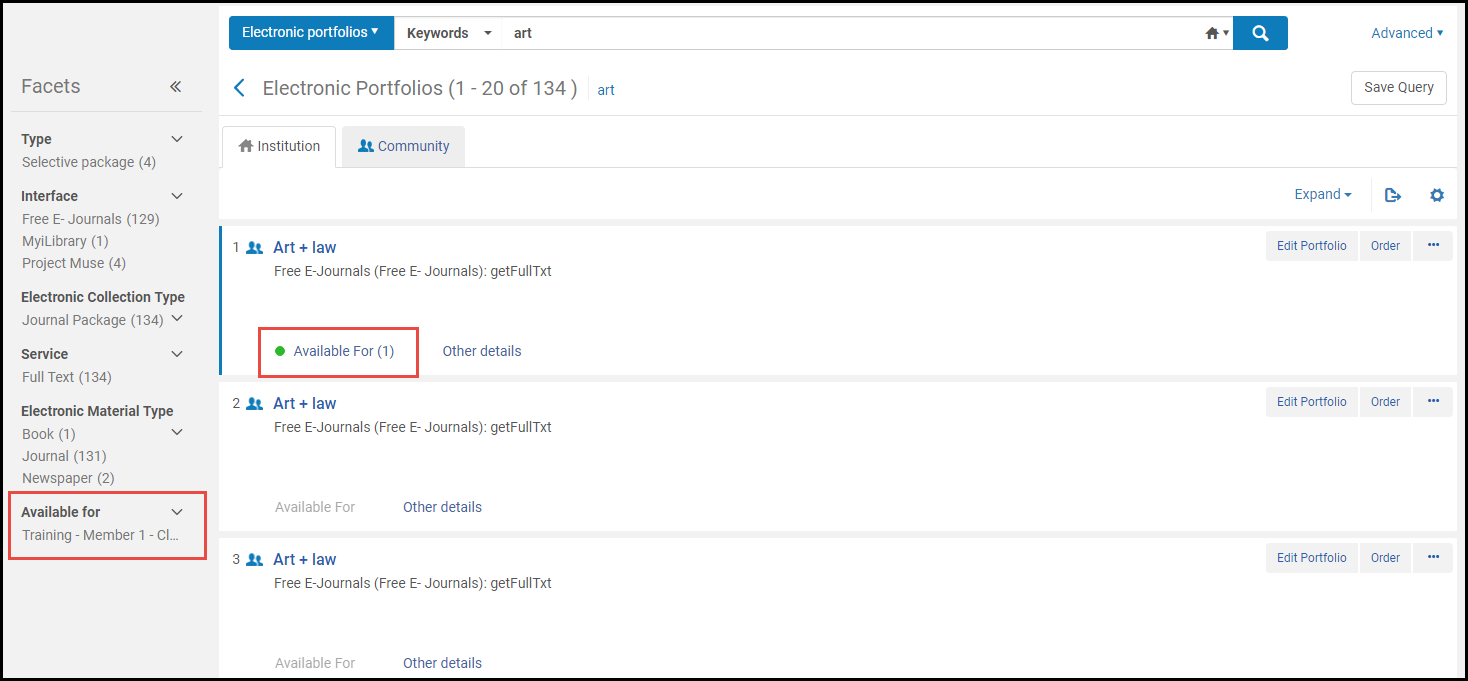
For information on restricting availability for electronic resources, see Configuring Distributed Access to Electronic Resources.
Linked Data in Repository Search Results
È possibile visualizzare i dati collegati nei risultati di ricerca di Archivio per i seguenti tipi di ricerche:
- Tutti i Titoli
- Titoli fisici
- Titoli Elettronici
- Titoli Digitali
For more information about linked data, see https://developers.exlibrisgroup.com/alma/integrations/linked_data.
- Esegui una Ricerca per titolo per la Risorse (bibliografiche) per cui vuoi accedere agli elementi di Linked Data.
- Seleziona l'azione Linked Data. Appare una Lista di Linked Data.

Pagina Lista Dati Collegati Nella Lista vengono visualizzate le informazioni seguenti:- Campo vocabolarioIn base al contesto. Il contesto default è https://open-na.hosted.exlibrisgroup.com/alma/contexts/bib. If there is an active Linked Data integration profile (see Linked Data) with a path to a context, this context is used.Non è necessario definire un profilo di integrazione Linked Data per accedere ai dati collegati nei risultati di ricerca. However, a Linked Data integration profile is required to expose linked data in JSON-LD format (see Linked Data for more information).
- Dati URI collegati
- EtichettaPer ISBN, ISSN e OCLC, il contenuto del campo appare. Per il creatore e il soggetto, appare il valore dell'intestazione.
- Campo vocabolario
- Selezionare un collegamento per accedere ai dati collegati.
Also see Using Linked Data While Working with Bibliographic Records for information regarding linked data in the MD Editor.
Record fantasma (eliminati) nei risultati della ricerca dell'archivio
I record fantasma sono record che sembrano esistere ma non esistono; sono informazioni residue sui record eliminati. Nelle rare occasioni in cui un record fantasma appare nei risultati di ricerca, Alma identifica ed elimina automaticamente il record in modo proattivo.
Appare un record fantasma con il messaggio Indicizzazione fascicolo è stato identificato con record e sarà corretto per la prossima ricerca.
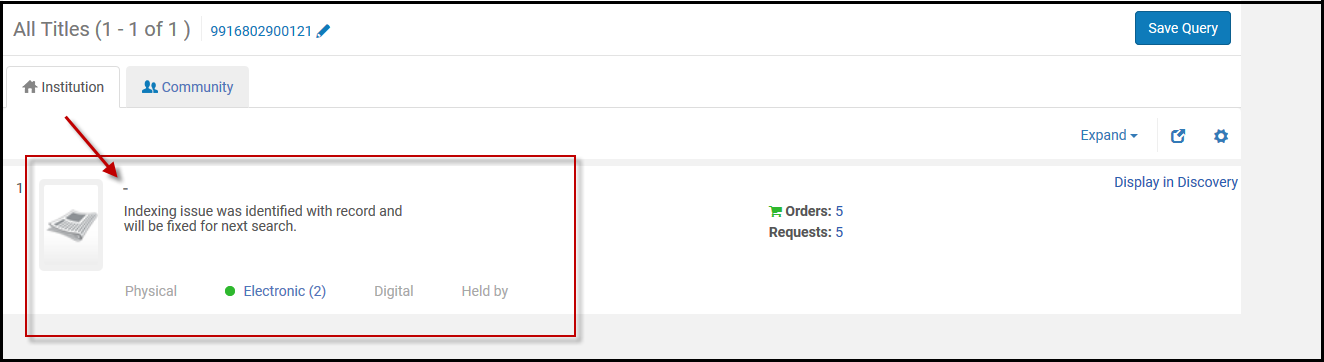
La prossima volta che effettuerà una ricerca, il messaggio e il record fantasma saranno scomparsi. Poiché il record è effettivamente un record eliminato, non appare nella reportistica di Analytics.
Page tags: article:topic product:alma content:Documentation lang:english left anchored search left match search
