
Configuring and Working with Cloud Apps
クラウドアプリを設定するには、以下の役割が必要です:
- 一般システム管理者
クラウドアプリは、開発者がAlma、Primo VE back-office、Esploro、Leganto、RapidoなどのEx Libris高等教育製品内で実行されるアプリを作成するのに役立つオープンフレームワークです。他のシステムと統合したり、機関固有のワークフローにショートカットや効率を提供したりできる、Ex Librisのコア機能を超える新しい機能を追加します。
Enabling Cloud Apps
機関が有効にすると、エンドユーザーはクラウドアプリを検索してインストールできるようになります。クラウドアプリは、ユーザーのセッションのコンテキストに応答して、現在のページに応じて追加の機能を提供できます。
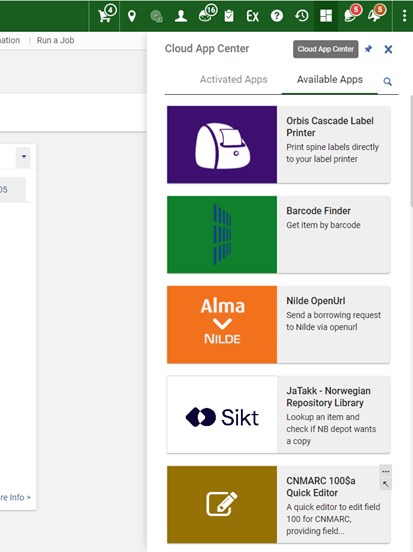
The Cloud Apps icon  appears in the top toolbar.
To enable Cloud Apps:
- Select the Cloud Apps Configuration page from the Alma General Configuration menu (Configuration Menu > General > General Configuration).
- Select Enable Cloud Apps.これにより、開発者ネットワークのページが開きます。
- クラウドアプリの契約を読み、確認のチェックボックスを選択します。
- Select Activate Cloud Apps for [Institution_Code].
- Almaからログアウトしてから、再度ログインします。If you have performed the above steps, logged in and out of your Alma account, and you still do not see the Cloud Apps icon in the top toolbar, open a case with Customer Support to enable it.
To limit which Cloud Apps can be installed by users in your institution:
- Select the Cloud Apps Configuration page from the Alma General Configuration menu (Configuration Menu > General > General Configuration).
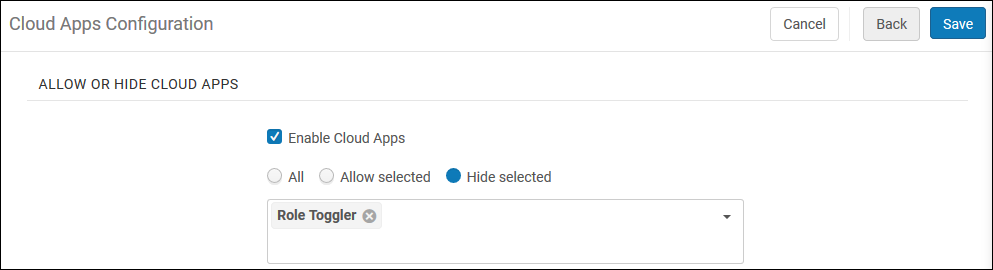
- In the Allow or Hide Cloud Apps section, choose All,Allow Selected, or Hide Selected to define which Apps the users will see.
-
[選択を許可]または[選択を非表示]を選択する場合は、下矢印を選択して、非表示または許可するアプリを選択します。
- [保存]を選択します。
許可されたクラウドアプリリストへの変更は、次回のログイン後に有効になります。
Allow users to activate only those cloud apps for which they have the required roles/privileges to operate:
- Select the Cloud Apps Configuration page from the Alma General Configuration menu (Configuration Menu > General > General Configuration).
- Check the Hide cloud apps for users who are missing roles for the relevant APIs used by the cloud app checkbox.
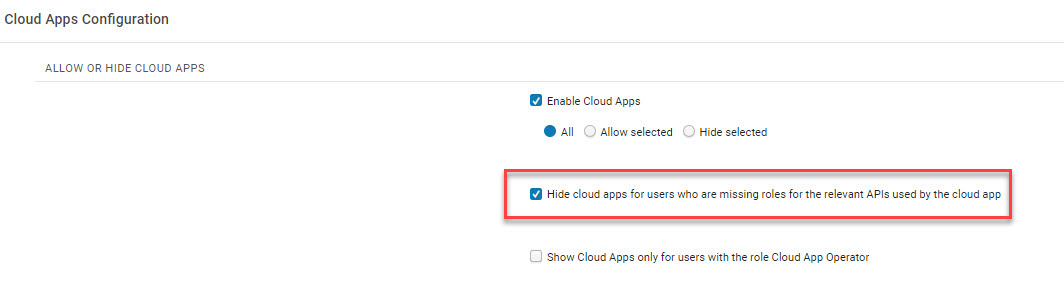
After selecting this option, Cloud Apps that have previously been activated by users that are missing roles for the relevant APIs used by that cloud app, will be hidden from the Activated Apps tab.
To allow only users with the Cloud App Operator role to activate and use cloud apps:
-
Select the Cloud Apps Configuration page from the Alma General Configuration menu (Configuration Menu > General > General Configuration).
-
Check the Show cloud apps only for users with the Cloud App Operator checkbox.
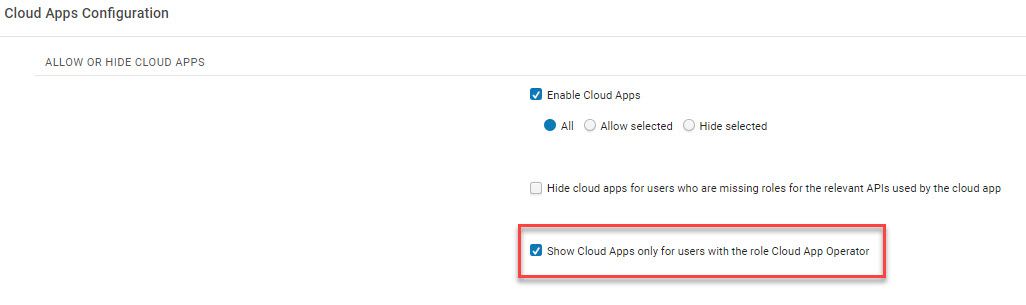
After selecting this option, no users will be able access Cloud Apps until they are assigned the Cloud App Operator role.
Using Cloud Apps
クラウドアプリを使用するには、新しい Alma レイアウトの右上隅にあるクラウドアプリアイコンを選択します。This opens the Cloud App Center, which contains two tabs,Activated Apps, which shows those apps that have been installed and are available to run, and Available Apps, which shows all the apps that can be used.どちらのタブでも参照または検索が可能です。
To use Cloud Apps in a sliding panel, such as in the All Titles search and resource sharing (see New Layout), first open the Cloud App and pin it.すると、スライドパネルを開くことができます。
To find and install Cloud Apps:
- クラウドアプリセンターを選択します。
If the Show Cloud Apps checkbox was marked, then only users with the Cloud App Operator role will be see the Cloud Apps Center icon
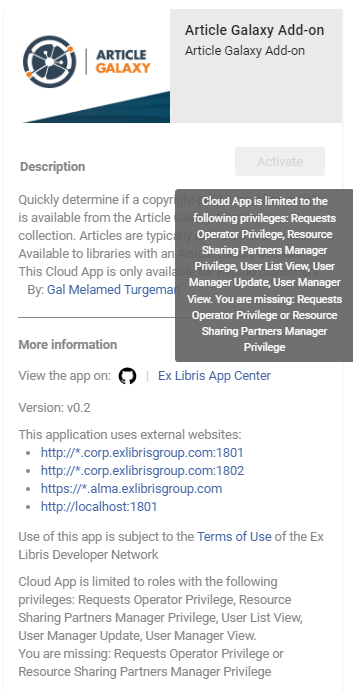
. - [利用可能なアプリ]を選択してアプリのリストを参照するか、検索アイコンを選択して特定のアプリを検索します。各アプリには次の情報が含まれています:
- 説明
- アプリ開発者
- Githubのコードへのリンク
- Ex Librisアプリセンターのアプリへのリンク
- App's license
- アプリが使用する外部サイト
- Required privileges - only visible if the Hide cloud apps checkbox was marked (see Limit Cloud Apps Activation).
- [有効化]を選択します。Note that if the Hide cloud apps checkbox was marked and the user does not have the relevant privileges, a tool tip with the missing privileges displays when hovering over the Activate button.
To use Cloud Apps:
-
クラウドアプリセンターを選択します。
If the Show Cloud Apps checkbox was marked, then only users with the Cloud App Operator role will be see the Cloud Apps Center icon
. - Select Activated Apps and browse the list of Apps, or select the Search icon to search for a specific App.
- 目的のアプリを選択し、アプリリストの下のプロンプトに従います。
アプリがインストールされると、次のアクションが利用可能です:
- Uninstall the app

- Change settings

- Configure the app (for administrators only)

- View help for the app

Watch the Cloud Apps in Alma video (4:22 minutes).
Developing Cloud Apps
To get started developing Cloud Apps for use by your and other institutions, see the Ex Libris Cloud Apps on the Developer Network.
FAQ
- Q:Leganto、Esploro、その他のEx Librisクラウドソフトウェアのクラウドアプリはいつ表示されますか?
A: Currently there are Cloud Apps that are relevant for Alma.クラウドアプリは、LegantoやEsploroを含むすべてのEx Librisプラットフォーム製品用に作成できます。ユーザーはクラウドアプリCLIを使用してアプリを作成できます。その後、これらのアプリをアプリセンターに追加して、コミュニティで見つけられるようにすることができます。 - Q:利用可能なすべてのクラウドアプリについて、どこで確認できますか?
A: All Cloud Apps will be in the developer network in the App Center. - Q:アプリをインストールする際、自分だけにインストールされるのですか?それとも機関全体にもインストールされますか?A: Installing an app installs it only for the user.Note that Administrators can configure the Cloud Apps that are available for users to install.
- Q:アプリのアイデアがあります。どうすればよいですか?
A: Institutions that have developer knowledge and skills, can create Cloud Apps for themselves.On the main Cloud Apps page you will be able to find links to Getting Started,Documentation and Tutorials on how to create a Cloud App.または、コミュニティにアイデアを提案して、誰かがあなたのためにそれを作成するかどうかを確認することもできます。 - Q: I need support for a Cloud App I'm using.誰に連絡すればよいですか?
A:クラウドアプリフレームワークは、アプリの詳細でヘルプリンクをサポートしています。すべてのアプリ開発者は、アプリの使用方法に関するドキュメントと、必要に応じて詳細なヘルプを受ける方法が記載されたヘルプリンクを提供することをお勧めします。アプリの詳細のヘルプリンクにアクセスできます(3つの楕円をクリックしてください)。Cloud Apps developed by Ex Libris are covered by standard support procedures.That means a SalesForce case can be opened for apps identified with the "Ex Libris" tag in the App Center. - Q:サンドボックスでクラウドアプリをテストできますか?
A: Activation and configuration of Cloud Apps are done separately in your sandbox and production environments.サンドボックスで特定のクラウドアプリをテストしてから本番環境のユーザーが使用できるようにする場合は、サンドボックスと本番環境で許可リストと禁止リストを使用して、アプリをインストールできる場所を制御できます。 - Q:インストールされているクラウドアプリのアップデートはどのように受け取りますか?
A: Updates to individual Cloud Apps are made by the app's developer and deployed to the Ex Libris cloud by the developer.Users do not need to perform any action.They will automatically be using the updated app after their next login. - Q:クラウドアプリの権限はどのように決定されますか?クラウドアプリはAlmaのデータにアクセスできますか?
A: One of the main benefits of Cloud Apps is that they use the context of the logged-in user.クラウドアプリが、現在ログインしているユーザーに適切な役職がないデータにアクセスしようとすると、アプリはAlmaから不正なエラーを受け取ります。 - Q:クラウドアプリは私のデータを他のシステムに送信できますか?
A: Cloud Apps can interact with external systems to improve the productivity of your staff.完全に透過的にするには、クラウドアプリは接続できるシステムを宣言する必要があります。この情報は、アプリケーションがインストールされる前に情報ペインに表示されます。 - Q: Are Cloud Apps checked for security issues before they are deployed to the Ex Libris cloud?
A: A new Cloud App undergoes a security audit as part of the deployment to ensure it is not using any code libraries with known security issues.クラウドアプリは、リリースされる前にEx Librisによって手動でレビューされます。 - Q: Are API requests made from Cloud Apps counted against our daily institutional API governance threshold?
A: API requests from Cloud Apps are not counted in the institutional governance thresholds.クラウドアプリのAPI呼び出しには独自の閾値が適用されます。技術的な詳細は、開発者向けのクラウドアプリドキュメントに記載されています。
