
複数のウィジェット
ウィジェットの設定
- 一般システム管理者
In addition to the pre-defined widgets (see Managing Widgets) and Analytics widgets ( see Working with Analytics Objects), Alma lets you link to other widgets to allow staff users to display them on their Alma home page.
ウィジェットの幅は497ピクセル、高さは最大300ピクセルです。ウィジェットに表示されるコンテンツがこれらのサイズを超える場合、垂直・水平スクロールバーが自動で追加されます。
ウィジェットは、ダッシュボードから作成できません。
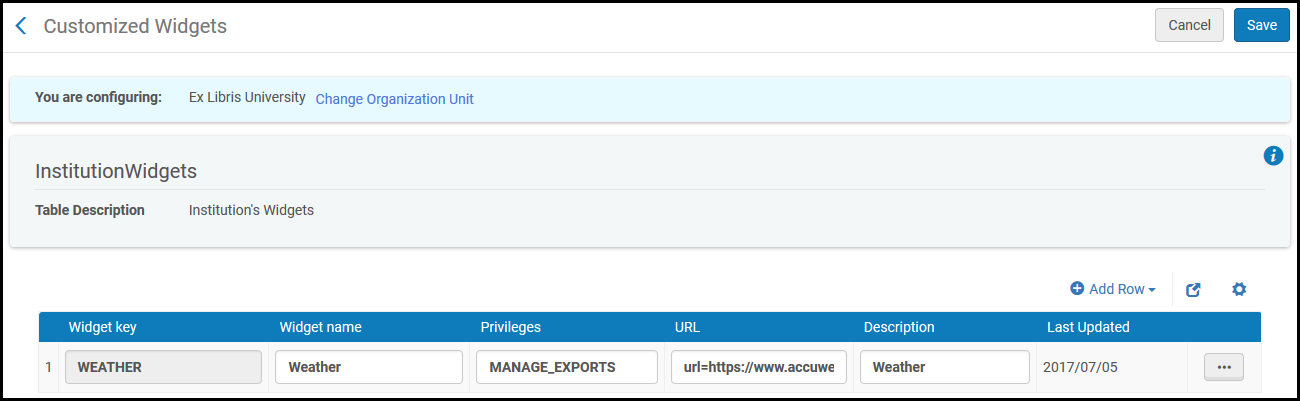
The Customized Widgets page (Configuration Menu > General > Widgets > Customized Widgets) enables you to configure additional widgets.
事前定義されたウィジェット (Discovery Search や Primo Dashboard など) は削除できません。
ウィジェットに関する追加情報:
- For information about the Scheduled Jobs Status widget, see Viewing Scheduled Job Summary Status.
- For information about configuring notification in the Notification widget, see Configuring the Home Page Notification Widget.
- For information on the Primo dashboard and search box, see Adding Primo Search Box to the Alma Home Page.この構成は、Alma-Primo 環境にのみ適用されます。
- For information about the Discovery Search widget, see Configuring the Discovery Search Widget.This is applicable to Primo VE environments only.
- To manage widgets on your home page, see Managing Widgets.
ウィジェットの追加
機関レベルで追加したウィジェットは、その機関内のすべての図書館に適用されます。
- On the Customized Widgets page (Configuration Menu > General > Widgets > Customized Widgets), select Add Row and enter a key and name for the new widget.ウィジェット名はウィジェットの上に表示されます。ウィジェットのキーは恒久的な名前であり編集できません。ウィジェットキーにスペースを含めることはできません。Use underscore ('_') instead of the space, if needed.
- 以下を入力します:
- URLはHTTPSでなくてはいけません。HTTPSでないURLを入力すると、ウィジェットはダッシュボードに表示されません。
- ウェブページは、当該のページがX-Frameに埋め込まれることを許可する必要があります。Ex Librisの資料およびIdeas Exchangeのページは、X-Frameに埋め込まれることを許可していません。そのため、ウィジェットには使用できないことにご注意ください。
- 権限 – ウィジェットの追加と表示に必要な権限を示します。すべての権限を認める場合は空欄のままにします。
- URL – ウィジェットとして機能するように作成されたウェブページのURL。(URLの前にurl=を追加しないでください。Almaが追加します。)
- 説明 – ウィジェットの説明
- 行を追加を選択します。新しいウィジェットが保存され、定義されたウィジェットのリストの下部に表示されます。
- 新しいウィジェットの詳細を保存するには、保存を選択します。
A user can add any widget defined here to the Alma home page; see Managing Widgets.
ウィジェットを削除するには、その行のアクションリストで削除を選択します。
Configuring the Homepage Notifications Widget
- 一般システム管理者
ホームページ通知ウィジェットには、機関からの一般的な通知と情報が表示されます。ユーザーは、他のウィジェットと同様に、自身のホームページからウィジェットを追加または削除できます。
You configure the notifications that appear in this widget on the Home page Notifications page (Configuration Menu > General > General Configuration > Homepage Notifications).
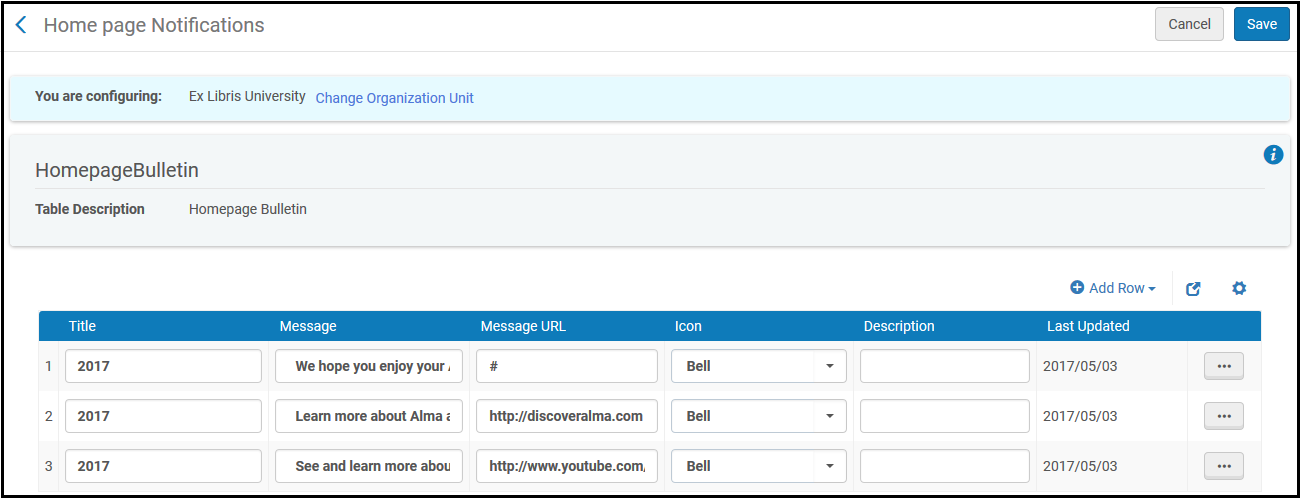
To configure the Notifications widget:
- ホームページ通知のページで[行を追加]を選択し、下記のフィールドに入力します。
- Icon- Select one of the icon types:
- ベル
- カレンダー
- チェックマーク
- 感嘆符
- 設定
- スター
- ツール
- Title- A title for the notification.
- メッセージ – 通知ウィジェットに表示したいメッセージ
- メッセージURL – あなたがメッセージをリンクしたいURL
- 説明 – メッセージの説明 (内部用)
- Icon- Select one of the icon types:
- 通知ウィジェットにメッセージを追加するには、行を追加を選択します。
- 変更を保存するには、保存を選択します。
通知を削除するには、その行のアクションリストで削除を選択します。
ウィジェット内の通知は更新日(降順)で並べ替えられます。
