
Security
Restricting Alma Logins by IP Range
- 総合システム管理者
IPアドレスに応じて、ユーザーがAlmaにログインするのを制限できます。この機能を設定するには2つのステップがあります。まずIPグループを作成してから、これらのグループのログインアクセスを設定します。これらのIPグループのみが、Almaへのログインを許可されます。
To restrict login by IP groups:
- From the IP Group Configuration page (Configuration Menu > General > Security > IP Group Configuration), select Add IP Group.The Add IP Group pane appears.
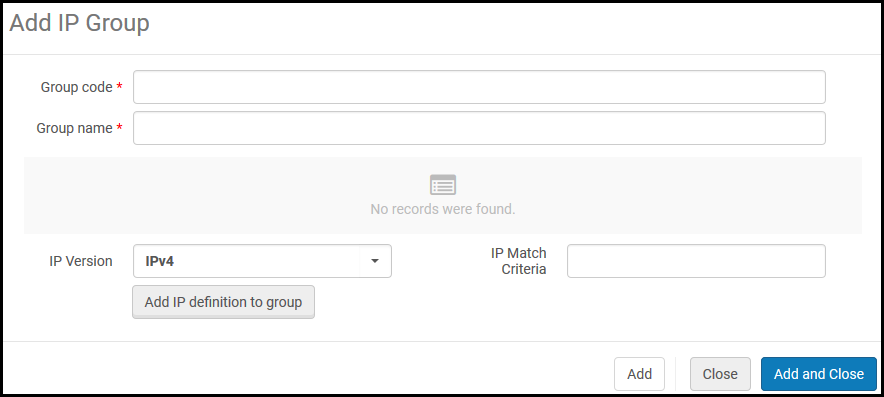
- 以下を入力します:
- グループコード – IPグループのコード
- グループ名 – 後で変更できるIPグループの名称
- IPバージョン – IPv4またはIPv6
- IP一致基準 – 特定のIPアドレスまたはIPレンジ (有効な2つのIPアドレスをハイフンで区切ってください)
- グループにIPの定義を追加を選択します。IPレンジがグループに追加され、テーブルに表示されます。
- 各グループについて複数のIPレンジを定義できます。必要に応じてステップ2と3を繰り返します。IPレンジを削除するには、その行のアクションリストで削除を選択します。
- IPレンジの追加が完了したら、追加して閉じるを選択します。IPグループが追加されます。
グループを編集するには、その行のアクションリストで編集を選択します。グループを削除するには、その行のアクションリストで削除を選択します。
- Open the Login Restriction Configuration page (Configuration Menu > General > Security > Login Restriction Configuration).Note that login restrictions are disabled until you enable them on this page.

- The login restrictions can be overridden for a particular user by selecting Disable all login restrictions when editing the user (see Editing Users).Selecting the Apply restrictions for all users checkbox cancels the user-level override and also applies the login restrictions for users with the General System Administrator role.以前の設定は削除されず、チェックボックスの選択を解除すると元に戻ります。
- ログインアクセスを許可したいIPアドレスのIPグループからIPグループを選択し、追加を選択します。すべてのIPグループを追加するには、全グループを追加を選択できます。IPグループが選択されると、他のすべてのIPアドレスはログインが制限されます。
- IP制限マネージャーボックスからマネージャーを選択します (必須)。制限されたIPアドレスからログインが試行された際に、このマネージャーはユーザーが送信したメッセージを受入します。
- ログイン制限の有効化を選択する。ログイン制限を有効や無効にすることなく変更を保存するには、保存を選択します。
- IPログイン制限を有効にするには、ログイン制限の有効化を選択する必要があります。
- Users with the General System Administrator role are not restricted.
- 後でログイン制限を無効にするには、ログイン制限の無効化を選択します。
制限されたIPアドレスのユーザーがAlmaにログインしようとすると、下記のメッセージが表示されます:
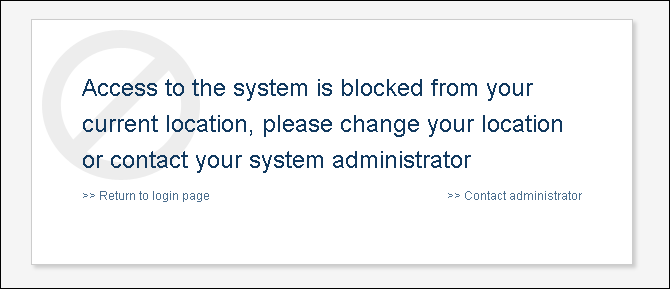
ユーザーは、上記のように設定されたIP制限マネージャーに連絡するため、管理者へコンタクトを選択できます。
CSP (Content Security Policy) Header Configuration
CSPヘッダーディレクティブを有効にして構成し、Webアプリケーションのセキュリティポリシーを微調整できます。To access this configuration go to Configuration > General > CSP Header Configuration.
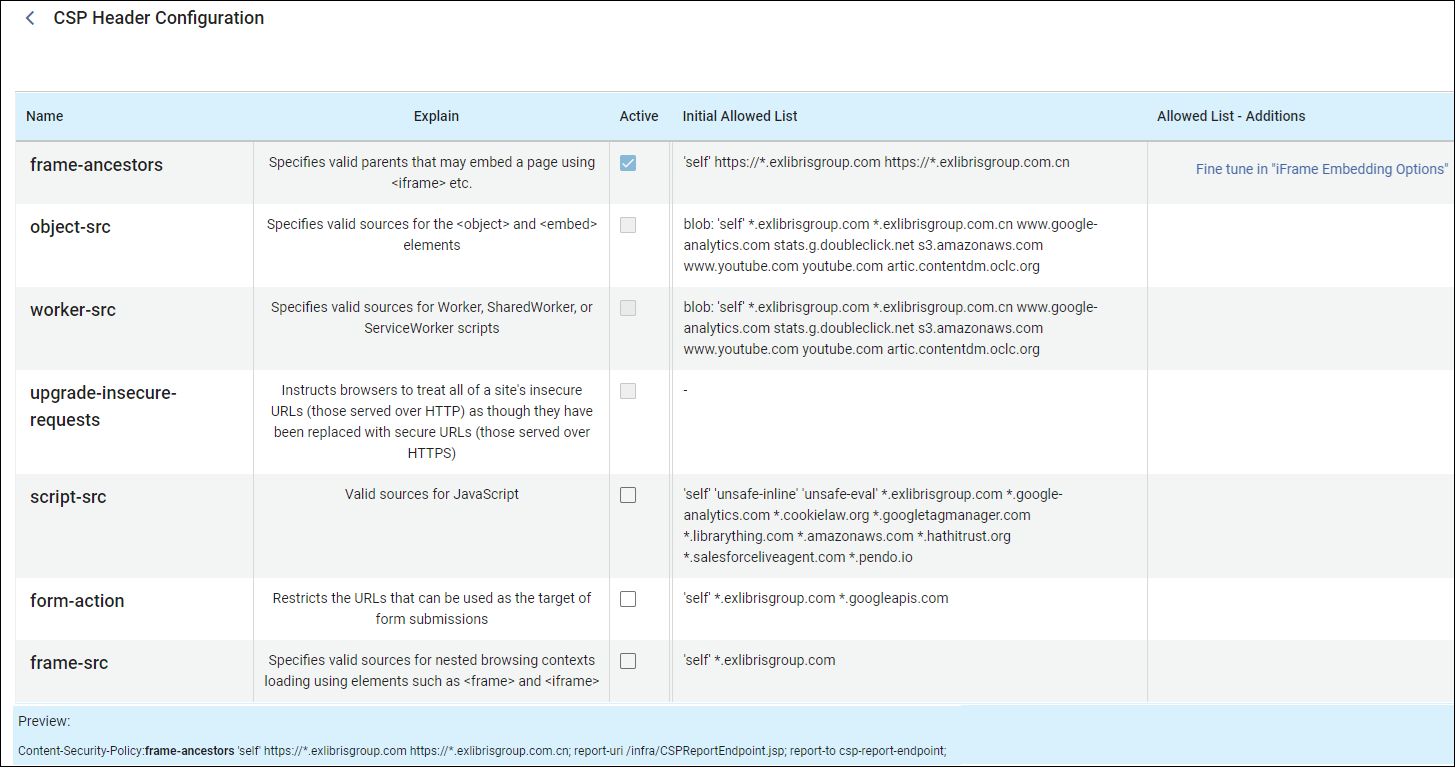
下部のプレビュー ペインにはヘッダーが表示され、設定が変更されると自動的に更新されます。
最初の4つのディレクティブ (frame-ancestors、object-src、worker-src、upgrade-insecure-requests) はデフォルトでアクティブになっており、無効にすることはできません。You can however add additional domains to the allowed list in the Allowed Lis - Additions column, by hovering over the column to locate the edit icon and then adding the domain.
最後の5つのディレクティブ (以下で説明) はデフォルトで無効になっていますが、最初の4 つのディレクティブとは異なり、有効にすることができます。You can add additional domains to the allowed list in the Allowed List - Additions column.
-
form-action:
- This directive restricts the URLs that can be used as the target of form submissions (
<form action="..." />).フォームが悪意のあるサイトに送信されるのを防ぐのに役立ちます。
- This directive restricts the URLs that can be used as the target of form submissions (
-
base-uri:
- This directive restricts the URLs that can be used in a document's
<base>element.The<base>element specifies the base URL to use for all relative URLs in a document, so controlling this can prevent attackers from changing the base URL and redirecting links to malicious sites.
- This directive restricts the URLs that can be used in a document's
-
script-src:
- このディレクティブは、JavaScriptの有効なソースを指定します。信頼できるソースからのスクリプトのみをページ上で実行できるようにすることで、XSS攻撃を軽減するのに役立ちます。たとえば、スクリプトを独自のドメインまたは信頼できる CDN からのみ読み込むように指定できます。
-
frame-src:
- This directive specifies valid sources for embedding content using
<frame>,<iframe>,<object>,<embed>, and<applet>.これは、フレーム内に埋め込むことができるソースを制御し、クリックジャッキングやその他のフレームベースの攻撃を防ぐのに役立ちます。
- This directive specifies valid sources for embedding content using
-
connect-src:
- This directive restricts the URLs that the document can fetch using mechanisms like
XMLHttpRequest,Fetch,WebSocket, and EventSource.スクリプトがデータを送信できる場所を制御し、データ流出のリスクを軽減するのに役立ちます。
- This directive restricts the URLs that the document can fetch using mechanisms like
-
style-src:
- The HTTP
Content-Security-Policy(CSP)style-srcdirective specifies valid sources for stylesheets.
- The HTTP
-
img-src:
- The HTTP
Content-Security-Policyimg-srcdirective specifies valid sources of images and favicons.
- The HTTP
-
font-src:
- The HTTP
Content-Security-Policy(CSP)font-srcdirective specifies valid sources for fonts loaded using@font-face.
- The HTTP
-
child-src:
- The HTTP
Content-Security-Policy(CSP)child-srcdirective defines the valid sources forweb workersand nested browsing contexts loaded using elements such as<frame>and<iframe>.ワーカーの場合、非準拠のリクエストはユーザーエージェントによって致命的なネットワークエラーとして扱われます。
- The HTTP
-
default-src:
- The HTTP
Content-Security-Policy(CSP)default-srcdirective serves as a fallback for the other CSPfetch directives.For each directive that is absent, the user agent looks for thedefault-srcdirective and uses this value for it.
- The HTTP
Login Redirection Allowed List
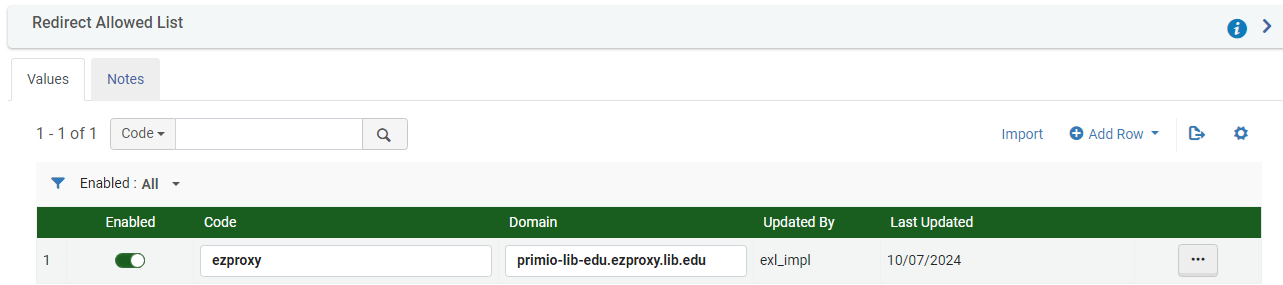
潜在的なセキュリティ問題(オープンリダイレクトの脆弱性)を回避するために、信頼できるサイトのリストを作成できます。
To create a list of trusted sites:
-
Ensure that the limit_login_redirects (Configuration > General > Other Settings) parameter is set to true.
-
Navigate to Configuration > General > Redirection Allowed List.
-
信頼されたドメインごとに新しい行を追加します。このコードは説明のみを目的としており、Almaでは使用されません。
Ex Librisに属するドメイン (*.exlibrisgroup.com) をリストする必要はありません。
Preventing Clickjacking
- 一般システム管理者
Clickjacking is an attack that tricks users by showing them an innocuous page that includes real controls from sensitive pages.これらの制御は、制御以外のすべてをマスクする背景フレームを使用して偽装されており、ユーザーは、他のWebサイトで機密機能をクリックしていることを実際に認識できません。これにより、ユーザーは無意識のうちにマルウェアをダウンロードしたり、資格情報や機密情報を提供したり、送金したり、オンラインで製品を購入したりする可能性があります。
To prevent clickjacking from ExLibris products, ExLibirs has adopted a policy-based mitigation technique.Now institutions can instruct the browser about appropriate actions to perform if their site is included inside an iframe.
Modifying this page may break UI integrations from other products.このページの使用方法について疑問がある場合は、ExLibrisカスタマーサポートにご相談ください。
To set the actions to perform if your site is included inside an iframe:
- Open the iFrame Embedding Options table (Configuration > General > Security > iFrame Embedding Options).
- 目的の製品とコンポーネントについては、行アクションで[カスタマイズ]を選択します。
Alma Management and Esploro Management cannot be framed.この構成は編集できません。
Azure IDPを使用している場合、IFrameの埋め込みはサポートされません。
- In the Action column, select the appropriate action to perform if your site is included inside an iFrame:
- Allow all(default option) — Allow all pages to load this page inside an iFrame.
- Allow protected— Only trusted pages are permitted to load this page inside an iFrame.If you selected this option, in the Safe Domain column indicate the trusted URLs (no limit on the number of URLs you can specify, list multiple URLs with a blank space between them).
We recommend adding https://*.WEBSITEHERE.com, for example,"https://*.amazon.com".
- Block All— Deny all attempts to frame the page.
- [保存]を選択します。
