
You can configure Vega to display call numbers in search results to help patrons find the items they want.
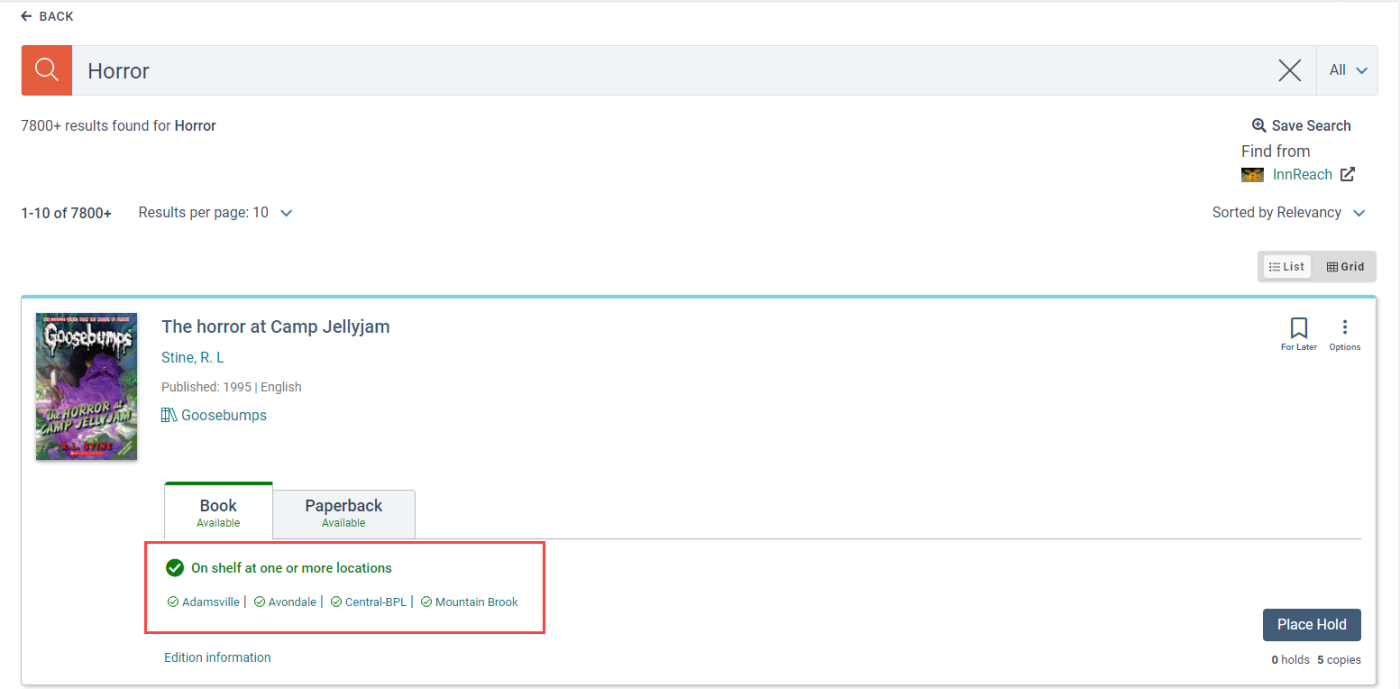
By default, the Search Results page displays locations where patrons can find the items they search for. Patrons then select the location where they want to pick up the items to see the available call numbers.
The following image shows the default search results.
The following image shows search results with first available call numbers displayed.
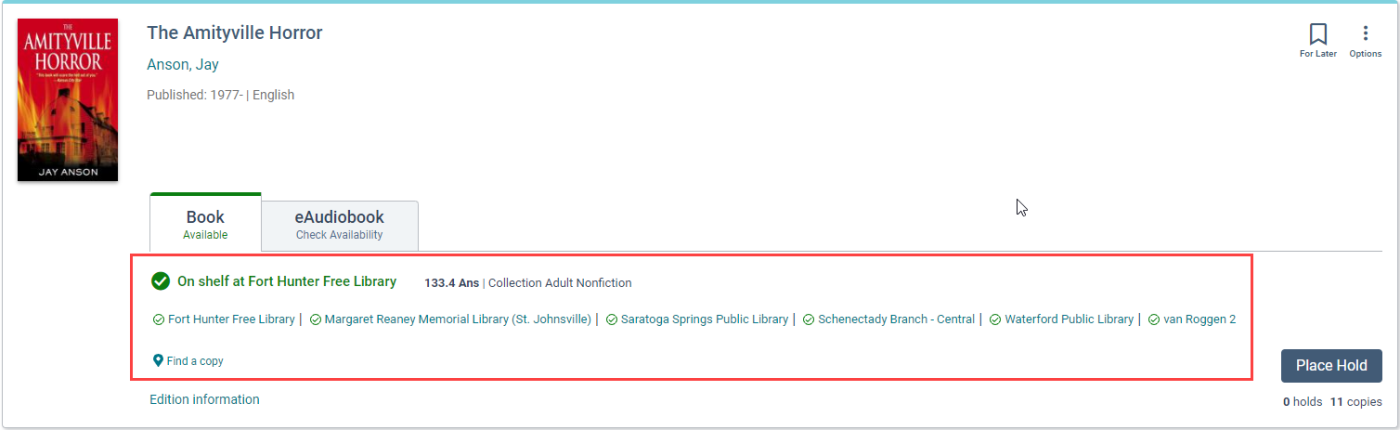
| If a guest patron views a | Vega displays the call number of the first available copy at the |
|---|---|
| Vega catalog | First alphabetical location. |
| Kiosk catalog |
Kiosk preferred location. If the kiosk contains items from other locations and no copies are available at the kiosk location, Vega displays the call number and location of an available copy at the next available copy location. |
| Collection site catalog |
First alphabetical preferred location for the collection site. If the collection site contains items from other locations and no copies are available at a collection site preferred location, Vega displays the call number and location of an available copy at the next available copy location. |
Vega displays locations in the following priority order:
- Kiosk preferred location
- Patron home location (if the patron is logged in)
- Preferred locations in alphabetical order by name
- All other locations in alphabetical order by name
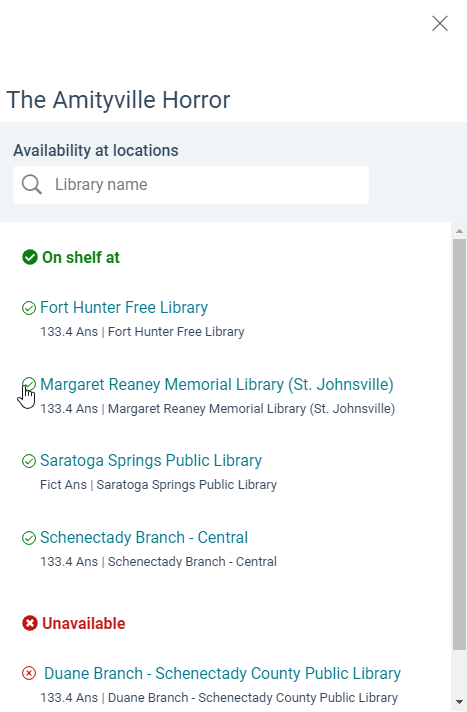
Also, a link called Find a copy appears under the list of locations. When patrons select the link, the Location drawer opens and displays a list of first available call numbers at each location. Locations where the work is unavailable appear at the bottom.
The following image shows the Location drawer with first available call numbers displayed.
To display first available call numbers in search results
- In the upper-right corner, select Settings
 .
. - From the Settings menu, select Library defaults.
- Select Display settings.
- Under Call Number displayed on results, select Show first available call number if no other call number is displayed.
