Purchase Requests (Analytics)
Purchase requests enable librarians using Alma and instructors or patrons using Primo or Leganto to request that a library purchase a resource. The requester, or a librarian on behalf of a requester, fills in the details of the item and then sends the request for review. A purchase request operator or manager reviews the request and can approve or reject it.
The analytics fields in this subject area relate primarily to the details of the resource requested and the status of the request.
Using the Purchase Requests subject area you can answer the following business questions:
- How many purchase requests were made in a time range?
- How many purchase requests were assigned to a user?
- How many purchase requests have a PO line?
- How many purchase requests were made per status?
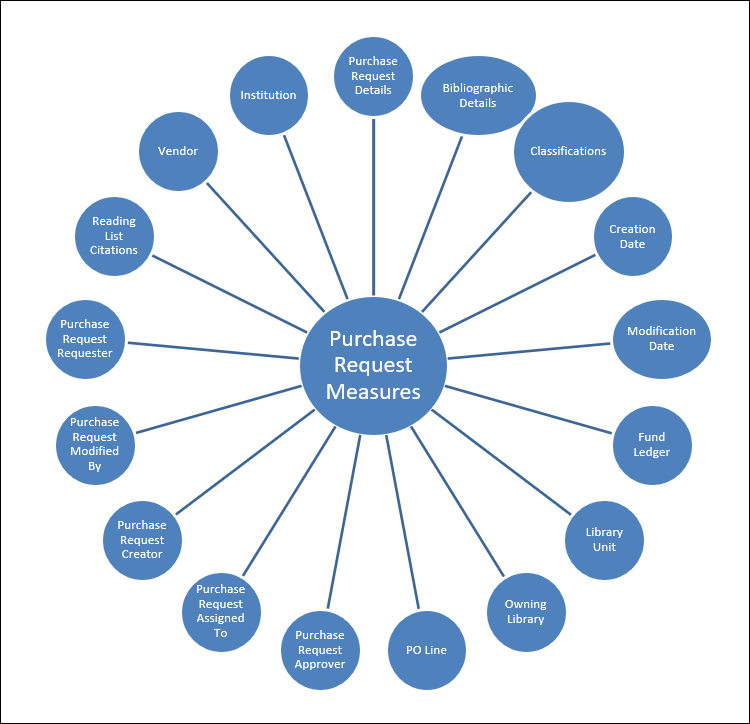
Field Descriptions
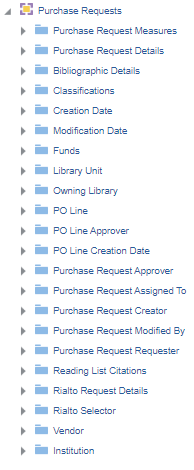
The following lists the fields available in Purchase Requests.
Purchase Request Measures
The Purchase Request Measures table is a fact table that stores the measures of purchase requests.
| Field | Description | Additional Information | Data Type |
|---|---|---|---|
| Number of Purchase Requests | The number of purchase requests | ||
| Number of Purchase Requests - Books | The number of purchase requests for books | ||
| Number of Purchase Requests - Electronic | The number of purchase requests for electronic material | ||
| Number of Purchase Requests - Electronic Books | The number of purchase requests for electronic books | ||
| Number of Purchase Requests - Electronic Journals | The number of purchase requests for electronic journals | ||
| Number of Purchase Requests - Journals | The number of purchase requests for journals | ||
| Number of Purchase Requests - Physical | The number of purchase requests for physical material | ||
| Number of Purchase Requests - Physical Books | The number of purchase requests for physical books | ||
| Number of Purchase Requests - Physical Journals | The number of purchase requests for physical journals | ||
| Number of Purchase Requests Approved | The number of purchase requests approved | ||
| Number of Purchase Requests In Review | The number of purchase requests in review | ||
| Number of Purchase Requests Rejected | The number of purchase requests rejected | ||
| Number of Purchase Requests With Funds | The number of purchase requests with funds | ||
| Number of Purchase Requests With PO Lines | The number of purchase requests with PO lines | ||
| Number of Purchase Requests With Reading Lists | The number of purchase requests with reading lists | ||
| Number of Unique Titles | The number of unique titles (mms ids) associated to a purchase request | INT | |
| Estimated Cost | The estimated cost |
Purchase Request Details
Purchase Request Details is a dimension table that contains fields relating to purchase request details, such as Currency, Purchase Request ID, and Request Status.
| Field | Description | Field Location in Alma | Additional Information | Data Type | Data Size |
|---|---|---|---|---|---|
|
Application |
The application that created the record |
__ |
VARCHAR |
255 |
|
|
Approved Format |
The approved format of the purchase request |
Acquisitions> Manage Purchase Requests > Approve and Order |
Possible values: 'E'-electronic 'P'- physical 'D'- digital |
VARCHAR |
1 |
|
Author |
The author that is recorded on the purchase request |
Acquisitions> Manage Purchase Requests > View [select one]> Resourse information section |
VARCHAR |
4000 |
|
|
Citation Type |
The citation type of the purchase request |
Acquisitions> Manage Purchase Requests > View [select one]> Resourse information section |
Possible values: Book Journal |
VARCHAR |
255 |
|
Creation Date and Time |
The creation date and time |
Acquisitions> Manage Purchase Requests > View [select one]> exclamation mark on the top of the page |
DATETIME |
||
|
Currency |
The currency of the purchase request |
Acquisitions> Manage Purchase Requests > PO Line Reference [select one] |
VARCHAR |
255 |
|
|
ISSN / ISBN |
The ISSN / ISBN that is recorded on the purchase request |
Acquisitions> Manage Purchase Requests > View [select one]> Resourse information section |
VARCHAR |
255 |
|
|
LCCN |
The LCCN that is recorded on the purchase request |
Acquisitions> Manage Purchase Requests > View [select one]> Resourse information section |
VARCHAR |
1000 |
|
|
Located Bibliographic Information |
Indicates (Yes/No) if the purchase request has a linked bibliographic record |
Acquisitions> Manage Purchase Requests > View [select one]> Resourse information section (all Bibliographic Information) |
VARCHAR |
3 |
|
|
Located Bibliographic Information Flag |
Indicates whether the purchase request has a linked bibliographic record |
Acquisitions>Manage Purchase Requests > View [select one]> Resourse information section The label in Alma is "Bibliographic information" |
Possible values: 0 (Create new record) 1 (Use existing record) |
NUMERIC |
1 |
|
Modification Date and Time |
The modification date and time |
Acquisitions> Manage Purchase Requests > View [select one]> exclamation mark on the top of the page |
DATETIME |
||
|
Modified By Job |
The job ID of the last job that updated the record |
Acquisitions> Manage Purchase Requests > View [select one]> exclamation mark on the top of the page The label in Alma is "Last Updated By" |
NUMERIC |
||
|
OCLC Number |
The OCLC number that is recorded on the purchase request |
Acquisitions> Manage Purchase Requests > View [select one]> Resourse information section The label in Alma is "Other System Number" |
VARCHAR |
255 |
|
|
Purchase Request ID |
The ID of the purchase request |
Acquisitions> Manage Purchase Requests > View [select one]> exclamation mark on the top of the page The label in Alma is "Alma ID" |
VARCHAR |
100 |
|
|
Rejection Reason |
The rejection reason of the purchase request |
Acquisitions> Manage Purchase Requests > View [select one]> Request Attributes section |
VARCHAR |
255 |
|
|
Request Status |
The request status of the purchase request |
Acquisitions> Manage Purchase Requests >Request status [select one] |
Possible values: |
VARCHAR |
255 |
|
Approved |
|||||
|
Cancelled |
|||||
|
Failed |
|||||
|
In Cart |
|||||
|
In Review |
|||||
|
Order Complete |
|||||
|
Order Placed |
|||||
|
Rejected |
|||||
|
To be Canceled |
|||||
|
Waiting for Approval |
|||||
|
Requested Format |
The requested format of the purchase request |
Acquisitions> Manage Purchase Requests > View [select one]> Resourse information section The label in Alma is "Material Type" |
Possible values: Physical Electronic |
VARCHAR |
255 |
|
Requester Note |
The requester note of the purchase request |
Acquisitions> Manage Purchase Requests > View [select one]> Request Attributes section |
VARCHAR |
2000 |
|
|
Source Type |
The source type of the purchase request |
Acquisitions> Manage Purchase Requests > View [select one]> Request Attributes section The label in Alma is Created from. |
Possible values: Manually Citation External System API Outgoing Request |
VARCHAR |
255 |
|
Title |
The title of the purchase request |
Acquisitions> Manage Purchase Requests > View [select one]> Resourse information section |
VARCHAR |
4000 |
Bibliographic Details
Bibliographic details is a shared dimension that contains bibliographic information about the purchase request.
Classifications
Classifications contains the Dewey Classification, LC Classification, and Other Classifications shared dimensions.
Dewey Classifications
Users can view measures accumulated to the relevant group, including expenditures, encumbrances, and allocations grouped by classifications. The field descriptions can be found in the Dewey Classifications shared dimension.
LC Classifications
Users may view measures accumulated to the relevant group, including expenditures, encumbrances, and allocations grouped by classifications.
The field descriptions can be found in the LC Classifications shared dimension.
Other Classifications
Creation Date
The Creation Date dimension is a dimension table that stores details about the creation date of the purchase request.
| Field | Description | Additional Information | Data Type | Data Size |
|---|---|---|---|---|
| Creation Date | The creation date of the purchase request | The date in the format DD/MM/YYYY | DATE | |
| Creation Start of Week | The date of the first business day of the week | The date in the format DD/MM/YYYY | DATE | |
| Creation Week Number | The number of the week of the year | There are 52 weeks in a year. | VARCHAR | 2 |
| Creation Month Key | The month of the date in number format | For example - February will show the number 2 in this column. This field is useful when you want to sort by month. | INT | |
| Creation Month | The month of the date in text format | The month, for example, "February" | VARCHAR | 20 |
| Creation Full Month | The year and month that the purchase request was modified | The month in text format and the year. For example - Feb 25 (for February 2025) | VARCHAR | 20 |
| Creation Quarter | The quarter in the year in which the purchase request was modified | The quarter of the date in a display format such as Q1 | VARCHAR | 20 |
| Creation Year | The year in which the purchase request was modified | The year of the date in the format YYYY . For example - 2025 | VARCHAR | 20 |
| Creation Fiscal Month Key | The fiscal month of the date in number format | For example - If the fiscal year starts in June, this column will show the number 1 for June, the number 2 for July, and so on. | INT | |
| Creation Fiscal Year | The fiscal year of the date in string format | The year is presented according to the description in the mapping table "Fund and Ledger Fiscal Period". For more information, see Configuring Fund and Ledger Fiscal Periods | VARCHAR | 50 |
| Creation Date Filter | Used to filter report results by date | Possible values:
|
VARCHAR | 100 |
| Creation Year-Month | The year and the month in which the purchase request was modified | The year and the month in the format YYYY-MM | VARCHAR | 250 |
| Creation Date | The date in a hierarchy format | Enables the user to drill down from the year to the month to the specific date. Using this column provides the user with the option to view the accumulative measures in each level of the hierarchy. |
Modification Date
The Modification Date dimension is a dimension table that stores details about the modification date of the purchase request.
| Field | Description | Additional Information | Data Type | Data Size |
|---|---|---|---|---|
| Modification Date | The modification date of the purchase request | The date in the format DD/MM/YYYY | DATE | |
| Modification Start of Week | The date of the first business day of the week | The date in the format DD/MM/YYYY | DATE | |
| Modification Week Number | The number of the week of the year | There are 52 weeks in a year. | VARCHAR | 2 |
| Modification Month Key | The month of the date in number format | For example - February will show the number 2 in this column. This field is useful when you want to sort by month. | INT | |
| Modification Month | The month of the date in text format | The month, for example, "February" | VARCHAR | 20 |
| Modification Full Month | The year and month that the purchase request was modified | The month in text format and the year. For example - Feb 25 (for February 2025) | VARCHAR | 20 |
| Modification Quarter | The quarter in the year in which the purchase request was modified | The quarter of the date in a display format such as Q1 | VARCHAR | 20 |
| Modification Year | The year in which the purchase request was modified | The year of the date in the format YYYY . For example - 2025 | VARCHAR | 20 |
| Modification Fiscal Month Key | The fiscal month of the date in number format | For example - If the fiscal year starts in June, this column will show the number 1 for June, the number 2 for July, and so on. | INT | |
| Modification Fiscal Year | The fiscal year of the date in string format | The year is presented according to the description in the mapping table "Fund and Ledger Fiscal Period". For more information, see Configuring Fund and Ledger Fiscal Periods | VARCHAR | 50 |
| Modification Date Filter | Used to filter report results by date | Possible values:
|
VARCHAR | 100 |
| Modification Year-Month | The year and the month in which the purchase request was modified | The year and the month in the format YYYY-MM | VARCHAR | 250 |
| Modification Date | The date in a hierarchy format | Enables the user to drill down from the year to the month to the specific date. Using this column provides the user with the option to view the accumulative measures in each level of the hierarchy. |
Funds
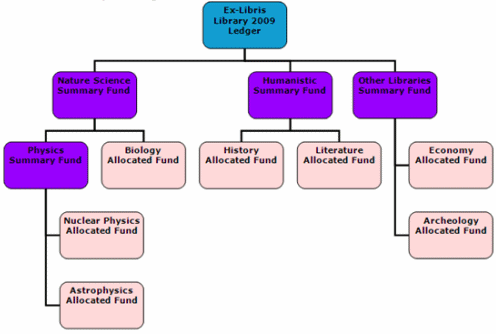
The Funds table is a dimension table that displays the details about the fund with which the transaction is associated. The primary key of the table is FUND_LEDGER_ID.
There are the following types of funds:
- Ledger
- Summary
- Allocated Fund
Funds are kept in a parent-child relationship so that each fund has a connection to its parent.
Creating Reports According to Fund Type
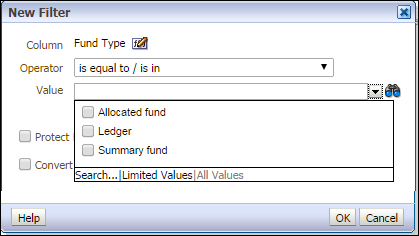
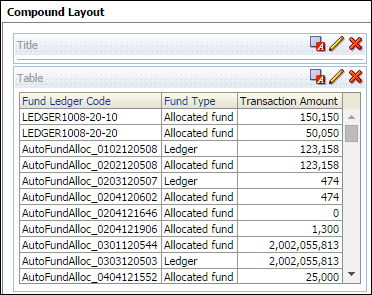
You can create reports according to fund type. If the procedures in this section are not implemented, the sums of all of the fund types may be added together in the transaction amount.
-
To create a report displaying funds of just one type, filter the Fund Type column according to Ledger, Allocated fund, or Summary fund:
-
To create a report shoing all of the fund types, add a column that displays any unique identifier of the fund, such as Fund Ledger Code:
Basic Concepts for Funds in Alma
Allocated and Summary Funds
A fund represents money in an account. A fund can be summary or allocated.
- Summary — This fund is not used for ordering and invoicing, but provides aggregate reporting on subordinate funds. You can add other funds to this type of fund.
- Allocated —This fund contains money that has been paid out or has been reserved for an open purchase.
A Summary Fund can only be associated with an Allocated Fund. A specific Allocated Fund (i.e. Allocated Fund 101) can only be associated with only one Ledger or Summary Fund, but not both.
Fund Balance
Available Balance —The allocated balance, less (encumbrances minus disencumbrances) and less expenditures.
Cash Balance — The allocated balance less expenditures.
Allocated Balance —The total allocation, not counting any expenditures or encumbrances/disencumbrances.
Encumbered Balance — The sum of the fund's encumbrances minus disencumbrances.
Expenditure Balance — Also called expended balance , this is the sum of the fund's expenditures.
Ledger
A ledger is essentially a collection of funds. Ledgers are defined for a specific date range, such as September 1 of this year to August 31 of next year. A Ledger can be associated with a Summary or Allocated Fund.
Transactions
A transaction can be an allocation, encumbrance, disencumbrance, or expenditure. An allocation adds money to the fund, increasing its available balance. An encumbrance indicates money that is expected to be paid out, as the result of a PO line. A disencumbrance is added or increased when adding an expenditure linked to the same PO line as an encumbrance.
Managing and Configuring Funds in Alma
You can manage funds in Alma by navigating to Acquisitions > Funds and Ledgers.
You can configure fund types in Alma by navigating to Configuration > Acquisitions > Fund Types.
For more information on funds see Managing Funds and Ledgers.
The following table describes the fields in the Fund table.
| Field | Description | Field Location in Alma | Additional Information | Data Type | Data Size |
|---|---|---|---|---|---|
| Fund Area Code | The codes defined in the Fund Types table and attributed to funds, for example: Endowed, Gift, General, Grant, Income, and ResourceSharing. For more information, see Configuring Fund Types. | Does not appear in the UI. | Configured in the Code field in Configuration Menu > Acquisitions > General > Fund Types. | VARCHAR | 255 |
| Fund Area Description | The description defined in the Fund Types table for the Fund Area Code (Fund Type). | Fund type in the "General" section on the Summary Details page for Funds and Ledgers. | This description comes from the configuration page as described in Fund Area Code above. | VARCHAR | 255 |
| Fund Code | The fund or ledger code. | Code in the "General" section on the Summary Details page for Funds and Ledgers. |
The code is reused when you roll over the ledger to a new fiscal period. This is filled by the user after selecting Add Ledger. It is not editable once the user saves and then goes back to edit. |
VARCHAR | 255 |
| Fund Currency | The default unit of currency for the ledger. | Currency in the "General" section of the Summary Details page for Funds and Ledgers. | The values are configured in the Currency Subset table (Configuration Menu > Acquisitions > General > Currency Subset). | VARCHAR | 255 |
| Fund Description | The description of the fund. | Description in the "General" section on the Summary Details page for Funds and Ledgers. | VARCHAR | 4000 | |
| Fund External ID | The fund ID in external/legacy systems. | External ID in the "General" section on the Summary Details page for Funds and Ledgers. | This ID is used to link to other system keys. (See also Fund ID.) | VARCHAR | 255 |
| Fund Fiscal Period ID | The ID of the fiscal period to which this fund applies. | Does not appear in the UI. | Configured in the Fund And Ledger Fiscal Period table (Configuration > Acquisitions > Fund and Ledger Fiscal Period). | VARCHAR | 255 |
| Fund ID | The unique ID of the fund within Alma. |
Does not appear in the UI. |
(See also Fund External ID.) | VARCHAR | 255 |
| Fund Name | The fund name. | Name in the "General" section on the Summary Details page for Funds and Ledgers. | The name of the fund can be changed when it is rolled over to a new fiscal year. When working with accrual accounting (see Working With Accrual Accounting), the name of the fund in the new fiscal period should not be changed. | VARCHAR | 255 |
| Fund Note | Notes that are relevant to the fund. | The Notes tab in the Summary Details page for Funds and Ledgers. | If there are multiple notes, they are concatenated. Two notes are separated by a semicolon. | VARCHAR | 4000 |
| Fund Owner Code | The code of the owning institution or library (see also Fund Owner Name). | Does not appear in the UI. | VARCHAR | 50 | |
| Fund Owner Name | The name of the owning institution or library. | Owned by in the "General" section on the Summary Details page for Funds and Ledgers. | A ledger can only have one owner. The ownership from a library to the institution can be changed, but the ownership from a library to another library or from the institution to a library cannot be changed. | VARCHAR | 255 |
| Fund Status | Indicates if the fund is in status active, draft or inactive. It applies to Ledgers, Summary Fund and Allocated Fund. | Status in the "General" section on the Summary Details page for Funds and Ledgers. | The statuses are described below:
|
VARCHAR | 10 |
| Fund Type | One of the following fund types:
|
Type in the "Funds and Ledgers" page accessed from Acquisitions > Acquisitions Infrastructure > Funds and Ledgers. | Fund types are for informational purposes only. You can configure fund types on the Fund Type code table (Configuration Menu > Acquisitions > General > Fund Types). | VARCHAR | 4000 |
|
Parent Fund Code |
The code of the parent fund in the Path hierarchy. | Does not appear in the UI (see Parent Fund Name). | See also Fund Code. | VARCHAR | 255 |
| Parent Fund ID | The unique ID of the parent fund in the Path hierarchy, |
Does not appear in the UI (see Parent Fund Name). |
See also Fund ID. | VARCHAR | 255 |
| Parent Fund Name | The name of the parent fund in the Path hierarchy. | Funds and Ledgers > Summary > Path. | See also Fund Name. | VARCHAR | 255 |
Library Unit
The Library Unit table is a dimension table that stores details about the library where the PO Line was created.
Owning Library
The Owning Library table is a dimension table that stores details about the library/institution that created the purchase request. The fields are the same as the shared Librray Unit dimension. The primary key of the table is ORGANIZATION_ID.
| Field | Description | Field Location in Alma | Additional Information | Data Type | Data Size |
|---|---|---|---|---|---|
| Owning Library Address Line 1 | The first line of the address of the institution. It usually includes the building number and the street name. | Configuration > General > Add a Library or Edit Library Information > Contact Information tab. This is taken from the address configured as the Preferred address.
The label in Alma is Address Line 1. |
VARCHAR | 1000 | |
| Owning Library City | The city of the library. | Configuration > General > Add a Library or Edit Library Information > Contact Information tab. This is taken from the address configured as the Preferred address.
The label in Alma is City. |
VARCHAR | 255 | |
| Owning Library Code | The library code | Configuration > General > Libraries > Add a Library or Edit Library Information > Libraries tab > Path [the text after the period] |
VARCHAR |
50 |
|
| Owning Library Code (Active) | The code of active (not deleted) libraries | Configuration > General > Libraries > Add a Library or Edit Library Information > Libraries tab > Path [the text after the period] | The same as Library Code without deleted libraries. |
VARCHAR |
50 |
| Owning Library Country | The country of the library. | Configuration > General > Add a Library or Edit Library Information > Contact Information tab. This is taken from the address configured as the Preferred address.
The label in Alma isCountry. |
VARCHAR | 320 | |
| Owning Library Description | The library description | Configuration > General > Libraries > Add a Library or Edit Library Information > Libraries tab
The label in Alma is Description. |
VARCHAR |
100 |
|
| Owning Library Name | The library name | Configuration > General > Libraries > Add a Library or Edit Library Information > Libraries tab
The label in Alma is Organization Unit Name. |
VARCHAR |
255 |
|
| Owning Library Name (Active) | The library name of active (not deleted) libraries | Configuration > General > Libraries > Add a Library or Edit Library Information > Libraries tab
The label in Alma is Organization Unit Name. |
The same as Library Name without deleted libraries. |
VARCHAR |
255 |
| Owning Library Postal Code | The postal code of the library. | Configuration > General > Add a Library or Edit Library Information > Contact Information tab. This is taken from the address configured as the Preferred address.
The label in Alma is Postal code. |
VARCHAR | 200 | |
| Owning Library State Province | The state or province of the library. | Configuration > General > Add a Library or Edit Library Information > Contact Information tab. This is taken from the address configured as the Preferred address.
The label in Alma is State/Province. |
VARCHAR | 320 | |
| Owning Library Type | The type of organization unit | Configuration > General > Libraries > Add a Library or Edit Library Information > Libraries tab
The label in Alma is Organization Unit Type. |
Values can be Institution/Library |
VARCHAR |
20 |
| Owning Location Code | The owning library location code | VARCHAR | 50 | ||
| Owning Location Name | The owning library location name | VARCHAR | 255 |
PO Line
The PO Line table is a dimension table that stores details about the PO and the PO Line that is associated with the fund transaction.
PO Line Approver
The PO Line Approver table is a dimension table that stores details about the approver of the PO line.
PO Line Creation Date
Purchase Request Approver
The Purchase Request Approver table is a dimension table that contains fields relating to details of the user that approved the purchase request. Approving a purchase request creates a purchase order line. Whether the user approves or rejects the request, Alma sends an email to the requester. For more information see Approving or Rejecting a Purchase Request.
Most of the information for the purchase request approver is taken from the user record (Admin > Manage Users).
| Field | Description | Field Location in Alma | Additional Information | Data Type | Data Size |
|---|---|---|---|---|---|
| Approver Birth Date | The birth date in the purchase request approver's user record. |
Admin > Manage Users > Edit User > General Information Tab > User Information Section The Alma label is Birth date. |
DATE | ||
| Approver Campus Code | The campus code in the purchase request approver's user record. | Only campus name is displayed in the Users UI. | The full list of campus codes and names can be found in Configuration > General > Libraries > Define Campuses. | VARCHAR | 50 |
| Approver Cataloger Level | The cataloger level in the purchase request approver's user record. |
Admin > Manage Users > Edit User > General Information Tab > User Information Section The Alma label is Cataloger level. |
For this to display in the UI, the Cataloger Permission Levels must be defined (in addition to the default level). See Cataloging Privileges for more information. | VARCHAR | 255 |
| Approver Creation Date |
The creation date of the record for the user that approved the purchase request. |
Admin > Manage Users > Edit User >i icon (Right hand pane) The Alma label is Created on. |
DATE | ||
| Approver Creator | The user that created the purchase request approver's user record. |
Admin > Manage Users > Edit User >i icon (Right hand pane) The Alma label is Created by. |
VARCHAR | 255 | |
| Approver Disable All Login Restrictions | Indicates if the user has IP login restrictions disabled. This is recorded in the purchase request approver's user record. |
Admin > Manage Users > Edit User > General Information Tab > User Management Information Section The Alma label is Disable all login restrictions. |
This is a checkbox. | VARCHAR | 3 |
| Approver Expiry Date | The expiration date in the purchase request approver's user record. |
Admin > Manage Users > Edit User > General Information Tab > User Information Section The Alma label is Expiration date. |
After expiration, the user cannot login. | DATE | |
| Approver External ID | The external ID in the purchase request approver's user record (in the case where the record was created by an external system). | Not displayed in the UI. | For more information see Managing User Identifiers. | VARCHAR | 255 |
| Approver First Name | The first name in the purchase request approver's user record. |
Admin > Manage Users > Edit User > General Information Tab > User Information Section The Alma label is First name. |
VARCHAR | 255 | |
| Approver Full Name | The full name in the purchase request approver's user record. | Not displayed in the UI. | Concatenation of the last name + first name. | VARCHAR | 511 |
| Approver Gender (Not in Use) | The gender in the purchase request approver's user record. |
Admin > Manage Users > Edit User > General Information Tab > User Information Section The Alma label is Gender. |
Can be configured in Configuration > User Management > User Details > Genders. | VARCHAR | 4000 |
| Approver Has Role other than Patron | Indicates if the purchase request approver has a role in addition to Patron. | Does not display in the UI. | The roles for the user can be viewed at Admin > Manage Users > Edit User > General Information Tab > User Roles section. This field checks whether there are any roles in addition to the Patron role that is added by default. | VARCHAR | 3 |
| Approver Has Role other than Patron and Instructor | Indicates if the purchase request approver has a role other than Patron and Instructor. | Does not display in the UI. | The roles for the user can be viewed at Admin > Manage Users > Edit User > General Information Tab > User Roles section. This field checks whether there are any roles in addition to the Patron and Instructor role. | VARCHAR | 3 |
| Approver Identifier 1-2 | Two pre-configured user identifiers for the purchase request approver. | Does not appear for users in the UI. | Choosing a specific identifier to be included in the user details is done in Alma (in an internal table that is not exposed to the users). Users who need assistance in defining this field do so by contacting Ex Libris Support. Note that only only one value per identifier is supported. | VARCHAR | 1000 |
| Approver Is Blocked | Indicates if the purchase request approver is blocked. This is recorded in the purchase request approver's user record. |
Does not display in the UI. |
See Configuring User Blocks for more information. User blocks can be viewed in Admin > Manage Users > Edit User > Blocks Tab. |
VARCHAR | 3 |
| Approver Job Category | The job category in the purchase request approver's user record. |
Admin > Manage Users > Edit User > General Information Tab > User Information Section The Alma label is Job Category. |
Can be configured in Configuration Menu > User Management > User Details > Job Categories. | VARCHAR | 255 |
| Approver Job Description | The job description in the purchase request approver's user record. |
Admin > Manage Users > Edit User > General Information Tab > User Information Section The Alma label is Job description. |
VARCHAR | 255 | |
| Approver Last Activity Date | The last activity date in the purchase request approver's user record. This refers to the last date that the approver made a request or borrowed or returned an item. |
Admin > Manage Users > Edit User > General Information Tab > User Information Section The Alma label is Last Patron Activity Date. |
This only displays if enabled at Configuration Menu > User Management > General > Record Last Patron Activity Date. For more information see Configuring Last Patron Activity Date. | DATE | |
| Approver Last Name | The last name in the purchase request approver's user record. |
Admin > Manage Users > Edit User > General Information Tab > User Information Section The Alma label is Last name. |
VARCHAR | 255 | |
| Approver Linked From Institution Code | In a fulfillment network, this is the ID of the external institution from which the user was copied. |
Admin > Manage Users > Edit User > Right hand pane The Alma label is Owner. |
Applies to linked user in a fulfillment network. See Managing Users for more information. | DOUBLE | |
| Approver Linked From Institution Name | In a fulfillment network, this is the name of the external institution from which the user was copied. |
Admin > Manage Users > Edit User > General Information Tab. It displays in the Not local section. The Alma label is Institution. |
Appears only in very specific cases. Applies to linked user in a fulfillment network. See Managing Users for more information. | VARCHAR | 255 |
| Approver Linked From Other Institution | Indicates if the purchase request approver is linked from another institution. | Doesn't display in the UI. |
Applies to the linked user (the user in the secondary institution - copied from the user in the source institution). Populated only if the user created a link from their institution to another institution via a fulfillment network. Possible values:
|
DOUBLE | |
| Approver Linked To Other Institution | Indicates if the purchase request approver accessed Primo/Alma for services in another institution. Note that this does not necessarily indicate that the services were actually supplied or that a linked account was created. |
Applies to the user in the source institution. Populated only if the user created a link from their institution to another institution via a fulfillment network. See Linking Users in Collaboration Networks for more information. Possible values:
|
VARCHAR | 10 | |
| Approver Middle Name | The middle name in the purchase request approver's user record. |
Admin > Manage Users > Edit User > General Information Tab > User Information Section The Alma label is Middle Name. |
VARCHAR | 255 | |
| Approver Modification Date | The date of the last modification in the purchase request approver's user record. |
Admin > Manage Users > Edit User >i icon (Right hand pane) The Alma label is Last updated on. |
DATE | ||
| Approver Modified By | The last person/system that modified the purchase request approver's user record. |
Admin > Manage Users > Edit User >i icon (Right hand pane) The Alma label is Last updated by. |
VARCHAR | 255 | |
| Approver Patron Letters Opt In | The letters for which the purchase request approver has opted in. This is recorded in the purchase request approver's user record. | Does not display in the UI. |
The user can view the list of letters that are selected (opt-in) at Admin > Manage Users > Edit User > General Information Tab > User Information Section > Selected Patron Letters. The Alma label is Selected Patron Letters. |
VARCHAR | 2000 |
| Approver Patron Letters Opt Out | The letters for which the purchase request approver has opted out. This is recorded in the purchase request approver's user record. | Does not display in the UI. |
The user can view the list of letters that are deselected (opt-out) at Admin > Manage Users > Edit User > General Information Tab > User Information Section > Selected Patron Letters. The Alma label is Selected Patron Letters. |
VARCHAR | 2000 |
| Approver Preferred First Name | The preferred first name in the purchase request approver's user record. |
Admin > Manage Users > Edit User > General Information Tab > User Information Section The Alma label is Preferred first name. |
VARCHAR | 255 | |
| Approver Preferred Language | The preferred language in the purchase request approver's user record. |
Admin > Manage Users > Edit User > General Information Tab > User Information Section The Alma label is Preferred language. |
VARCHAR | 4000 | |
| Approver Preferred Last Name | The preferred last name in the purchase request approver's user record. |
Admin > Manage Users > Edit User > General Information Tab > User Information Section The Alma label is Preferred last name. |
VARCHAR | 255 | |
| Approver Preferred Middle Name | The preferred middle name in the purchase request approver's user record. |
Admin > Manage Users > Edit User > General Information Tab > User Information Section The Alma label is Preferred middle name. |
VARCHAR | 255 | |
| Approver Primary Identifier | The primary identifier in the purchase request approver's user record. |
Admin > Manage Users > Edit User > General Information Tab > User Information Section The Alma label is Primary identifier. |
VARCHAR | 4000 | |
| Approver Purge Date | The purge date in the purchase request approver's user record. |
Admin > Manage Users > Edit User > General Information Tab > User Information Section The Alma label is Purge date. |
For more information see Purging Users. | DATE | |
| Approver Resource Sharing Library | The name of the resource sharing library recorded in the purchase request approver's user record. This is the name of the library associated with the purchase request approver. |
Admin > Manage Users > Edit User > General Information Tab > User Information Section > Resource Sharing Library The Alma label is Resource sharing library. |
VARCHAR | 4000 | |
| Approver Resource Sharing Library Code | The code associated with the resource sharing library that is recorded in the purchase request approver's user record. |
Library codes can be viewed in the library configuration screen. Configuration > General > Add or Edit Library Information > Edit a library > Right hand information window. The Alma label is Code. |
VARCHAR | 4000 | |
| Statistical Category 01-10 | Statistical categories (01-10) that are recorded in the purchase request approver's user record. | Admin > Manage Users > Edit User > Statistics > Add Statistic | These fields, which must be configured, allow you to map add up to ten statistical categories to your user record. This allows you to filter reports based on advanced user information typically stored in the statistical category fields. For more information, see Configuring Statistical Categories for Analytics. | VARCHAR | 4000 |
| Approver Status | The status recorded in the purchase request approver's user record. |
Admin > Manage Users > Edit User > General Information Tab > User Information Section The Alma label is Status. |
The possible values are:
For more information see the Find and Manage Users Page - Column Descriptions table in Managing Users. |
VARCHAR | 8 |
| Approver Status Date | The last date when the Status field of the purchase request approver's user record was modified. |
Admin > Manage Users > Edit User > General Information Tab > User Information Section The Alma label is Status Date. |
DATE | ||
| Approver User Group | The user group in the purchase request approver's user record. |
Admin > Manage Users > Edit User > General Information Tab > User Information Section The Alma label is User group. |
User groups assigned to users can be configured by the institution. For more information see Configuring User Groups. | VARCHAR | 4000 |
| Approver User Group Code | The user group code associated with the user group name in the purchase request approver's user record. | For the full list of user groups codes and names see Configuration > Fulfillment > Patron Configuration > User Groups. | VARCHAR | 255 | |
| Approver User ID | The Alma internal user ID in the purchase request approver's user record. | Not displayed in the UI. | VARCHAR | 50 | |
| Approver User Record Type | The user record type in the purchase request approver's user record. |
Admin > Manage Users > Edit User > Right hand pane The Alma label is Record type. |
The possible values are:
See Managing Users for more information |
VARCHAR | 4000 |
| Approver User Title | The user title in the purchase request approver's user record. |
Admin > Manage Users > Edit User > General Information Tab > User Information Section The Alma label is Title. |
For more information see Configuring User Titles. | VARCHAR | 50 |
| Approver User Type | The user type in the purchase request approver's user record. |
Admin > Manage Users > Edit User > Right hand pane The Alma label is Account type. |
The possible values are:
For more information see User Management. |
CHAR | 20 |
Purchase Request Assigned To
The Purchase Request Assigned To table is a dimension table that contains fields relating to details of the user to whom the purchase request is assigned. It only includes purchase requests in the in review or in cart status. Approved or rejected purchase requests are not included in the table since they are not assigned to anyone.
Most of the information for the user to which the purchase request is assigned to, is taken from the user record (Admin > Manage Users).
For more information see Assigning a Purchase Request.
| Field | Description | Field Location in Alma | Additional Information | Data Type | Data Size |
|---|---|---|---|---|---|
| Assigned To Birth Date | The birth date of the user to which the purchase request is assigned. |
Admin > Manage Users > Edit User > General Information Tab > User Information Section The Alma label is Birth date. |
DATE | ||
| Assigned To Campus Code | The campus code of the user to which the purchase request is assigned. | Only campus name is displayed in the Users UI. | The full list of campus codes and names can be found in Configuration > General > Libraries > Define Campuses. | VARCHAR | 50 |
| Assigned To Cataloger Level | The cataloger level of the user to which the purchase request is assigned. |
Admin > Manage Users > Edit User > General Information Tab > User Information Section The Alma label is Cataloger level. |
For this to display in the UI, the Cataloger Permission Levels must be defined (in addition to the default level). See Cataloging Privileges for more information. | VARCHAR | 255 |
| Assigned To Creation Date | The creation date of the record for the user to which the purchase request is assigned. |
Admin > Manage Users > Edit User >i icon (Right hand pane) The Alma label is Created on. |
DATE | ||
| Assigned To Creator | The creator of the record for the user to which the purchase request is assigned. |
Admin > Manage Users > Edit User >i icon (Right hand pane) The Alma label is Created by. |
VARCHAR | 255 | |
| Assigned To Disable All Login Restrictions | Indicates if the user has IP login restrictions disabled. This is recorded in the record for the user to which the purchase request is assigned. |
Admin > Manage Users > Edit User > General Information Tab > User Management Information Section The Alma label is Disable all login restrictions. |
This is a checkbox. | VARCHAR | 3 |
| Assigned To Expiry Date | The expiration date of the user to which the purchase request is assigned. |
Admin > Manage Users > Edit User > General Information Tab > User Information Section The Alma label is Expiration date. |
After expiration, the user cannot login. | DATE | |
| Assigned To External ID | The external ID of the user to which the purchase request is assigned. | Not displayed in the UI. | For more information see Managing User Identifiers. | VARCHAR | 255 |
| First Name | The first name of the user to which the purchase request is assigned. |
Admin > Manage Users > Edit User > General Information Tab > User Information Section The Alma label is First name. |
VARCHAR | 255 | |
| Assigned To Full Name | The full name of the user to which the purchase request is assigned. | Not displayed in the UI. | Concatenation of the last name + first name. | VARCHAR | 511 |
| Assigned To Gender (Not in Use) | The gender of the user to which the purchase request is assigned. |
Admin > Manage Users > Edit User > General Information Tab > User Information Section The Alma label is Gender. |
Can be configured in Configuration > User Management > User Details > Genders. | VARCHAR | 4000 |
| Assigned to Has Role Other than Patron | Indicates if the user to which the purchase request is assigned has a role in addition to Patron. | Does not display in the UI. | The roles for the user can be viewed at Admin > Manage Users > Edit User > General Information Tab > User Roles section. This field checks whether there are any roles in addition to the Patron role that is added by default. | VARCHAR | 3 |
| Assigned to Has Role Other than Patron and Instructor | Indicates if the user to which the purchase request is assigned has a role in addition to Patron and Instructor. | Does not display in the UI. | The roles for the user can be viewed at Admin > Manage Users > Edit User > General Information Tab > User Roles section. This field checks whether there are any roles in addition to the Patron and Instructor role. | VARCHAR | 3 |
| Assigned To Identifier 1-2 | Two pre-configured user identifiers for the user to which the purchase request is assigned. | Does not appear for users in the UI. | Choosing a specific identifier to be included in the user details is done in Alma (in an internal table that is not exposed to the users). Users who need assistance in defining this field do so by contacting Ex Libris Support. Note that only one value per identifier is supported. | VARCHAR | 4000 |
| Assigned To Is Blocked | Indicates if the user to which the purchase request is assigned, is blocked. This is recorded in the record for the user to which the purchase request is assigned. |
Does not display in the UI. |
See Configuring User Blocks for more information. User blocks can be viewed in Admin > Manage Users > Edit User > Blocks Tab. |
VARCHAR | 3 |
| Assigned To Job Category | The job category of the user to which the purchase request is assigned. |
Admin > Manage Users > Edit User > General Information Tab > User Information Section The Alma label is Job Category. |
Can be configured in Configuration Menu > User Management > User Details > Job Categories. | VARCHAR | 255 |
| Assigned To Job Description | The job description of the user to which the purchase request is assigned. |
Admin > Manage Users > Edit User > General Information Tab > User Information Section The Alma label is Job description. |
VARCHAR | 255 | |
| Assigned To Last Activity Date | The last activity date of the user to which the purchase request is assigned. This refers to the last date that the user made a request or borrowed or returned an item. |
Admin > Manage Users > Edit User > General Information Tab > User Information Section The Alma label is Last Patron Activity Date. |
This only displays if enabled at Configuration Menu > User Management > General > Record Last Patron Activity Date. For more information see Configuring Last Patron Activity Date. | DATE | |
| Assigned To Last Name | The last name of the user to which the purchase request is assigned. |
Admin > Manage Users > Edit User > General Information Tab > User Information Section The Alma label is Last name. |
VARCHAR | 255 | |
| Assigned To Linked From Institution Code | In a fulfillment network, this is the ID of the external institution from which the user was copied. |
Admin > Manage Users > Edit User > Right hand pane The Alma label is Owner. |
Applies to linked user in a fulfillment network. See Managing Users for more information. | DOUBLE | |
| Assigned To Linked From Institution Name | In a fulfillment network, this is the name of the external institution from which the user was copied. |
Admin > Manage Users > Edit User > General Information Tab. It displays in the Not local section. The Alma label is Institution. |
Appears only in very specific cases. Applies to linked user in a fulfillment network. See Managing Users for more information. | VARCHAR | 255 |
| Assigned To Linked From Other Institution |
Indicates if the user to which the purchase request is assigned is linked from another institution. |
Doesn't display in the UI. |
Applies to the linked user (the user in the secondary institution - copied from the user in the source institution). Populated only if the user created a link from their institution to another institution via a fulfillment network. Possible values:
|
DOUBLE | |
| Assigned To Linked to Other Institution | Indicates if the user to which the purchase request is assigned accessed Primo/Alma for services in another institution. Note that this does not necessarily indicate that the services were actually supplied or that a linked account was created. |
Applies to the user in the source institution. Populated only if the user created a link from their institution to another institution via a fulfillment network. See Linking Users in Collaboration Networks for more information. Possible values:
|
VARCHAR | 10 | |
| Assigned To Middle Name | The middle name of the user to which the purchase request is assigned. |
Admin > Manage Users > Edit User > General Information Tab > User Information Section The Alma label is Middle Name. |
VARCHAR | 255 | |
| Assigned To Modification Date | The date of the last modification of the record for the user to which the purchase request is assigned. |
Admin > Manage Users > Edit User >i icon (Right hand pane) The Alma label is Last updated on. |
DATE | ||
| Assigned To Modified By | The last person/system that modified the record for the user to which the purchase request is assigned. |
Admin > Manage Users > Edit User >i icon (Right hand pane) The Alma label is Last updated by. |
VARCHAR | 255 | |
| Assigned To Patron Letters Opt In | The letters for which the user to which the purchase request is assigned has opted in. This is recorded in the record for the user to which the purchase request is assigned. | Does not display in the UI. |
The user can view the list of letters that are selected (opt-in) at Admin > Manage Users > Edit User > General Information Tab > User Information Section > Selected Patron Letters. The Alma label is Selected Patron Letters. |
VARCHAR | 2000 |
| Assigned To Patron Letters Opt Out | The letters for which the user to which the purchase request is assigned has opted out. This is recorded in the record for the user to which the purchase request is assigned. | Does not display in the UI. |
The user can view the list of letters that are deselected (opt-out) at Admin > Manage Users > Edit User > General Information Tab > User Information Section > Selected Patron Letters. The Alma label is Selected Patron Letters. |
VARCHAR | 2000 |
| Assigned To Preferred First Name | The preferred first name of the user to which the purchase request is assigned. |
Admin > Manage Users > Edit User > General Information Tab > User Information Section The Alma label is Preferred first name. |
VARCHAR | 255 | |
| Assigned To Preferred Language | The preferred language of the user to which the purchase request is assigned. |
Admin > Manage Users > Edit User > General Information Tab > User Information Section The Alma label is Preferred language. |
VARCHAR | 4000 | |
| Assigned To Preferred Last Name | The preferred last name of the user to which the purchase request is assigned. |
Admin > Manage Users > Edit User > General Information Tab > User Information Section The Alma label is Preferred last name. |
VARCHAR | 255 | |
| Assigned To Preferred Middle Name | The preferred middle name of the user to which the purchase request is assigned. |
Admin > Manage Users > Edit User > General Information Tab > User Information Section The Alma label is Preferred middle name. |
VARCHAR | 255 | |
| Assigned To Primary Identifier | The primary identifier of the user to which the purchase request is assigned. |
Admin > Manage Users > Edit User > General Information Tab > User Information Section The Alma label is Primary identifier. |
VARCHAR | 255 | |
| Assigned To Purge Date | The purge date of the user to which the purchase request is assigned. |
Admin > Manage Users > Edit User > General Information Tab > User Information Section The Alma label is Purge date. |
For more information see Purging Users. | DATE | |
| Assigned To Resource Sharing Library | The name of the resource sharing library in the record for the user to which the purchase request is assigned. This is the name of the library associated with the user to which the purchase request is assigned. |
Admin > Manage Users > Edit User > General Information Tab > User Information Section > Resource Sharing Library The Alma label is Resource sharing library. |
VARCHAR | 4000 | |
| Assigned To Resource Sharing Library Code | The code associated with the resource sharing library. This is recorded in the record for the user to which the purchase request is assigned. |
Library codes can be viewed in the library configuration screen. Configuration > General > Add or Edit Library Information > Edit a library > Right hand information window. The Alma label is Code. |
VARCHAR | 4000 | |
| Assigned To Statistical Category 01-10 | Statistical categories (01-10) that are recorded in the record for the user to which the purchase request is assigned. | Admin > Manage Users > Edit User > Statistics > Add Statistic | These fields, which must be configured, allow you to map add up to ten statistical categories to your user record. This allows you to filter reports based on advanced user information typically stored in the statistical category fields. For more information, see Configuring Statistical Categories for Analytics. | VARCHAR | 4000 |
| Assigned To Status | The status recorded of the record for the user to which the purchase request is assigned. |
Admin > Manage Users > Edit User > General Information Tab > User Information Section The Alma label is Status. |
The possible values are:
For more information see the Find and Manage Users Page - Column Descriptions table in Managing Users. |
VARCHAR | 8 |
| Assigned To Status Date | The last date when the status of the record for the user to which the purchase request is assigned to, was modified. |
Admin > Manage Users > Edit User > General Information Tab > User Information Section The Alma label is Status Date. |
DATE | ||
| Assigned To User Group | The user group of the user to which the the purchase request is assigned. |
Admin > Manage Users > Edit User > General Information Tab > User Information Section The Alma label is User group. |
User groups assigned to users can be configured by the institution. For more information see Configuring User Groups. | VARCHAR | 4000 |
| Assigned To User Group Code | The user group code associated with the user group. This is recorded in the record for the user to which the purchase request is assigned. | For the full list of user groups codes and names see Configuration > Fulfillment > Patron Configuration > User Groups. | VARCHAR | 255 | |
| Assigned To User ID | The Alma internal user ID in the record for the user to which the purchase request is assigned. | Not displayed in the UI. | VARCHAR | 50 | |
| Assigned To User Record Type | The record type for the user to which the purchase request is assigned. |
Admin > Manage Users > Edit User > Right hand pane The Alma label is Record type. |
The possible values are:
See Managing Users for more information |
VARCHAR | 4000 |
| Assigned To User Title | The title of the user to which the purchase request is assigned. |
Admin > Manage Users > Edit User > General Information Tab > User Information Section The Alma label is Title. |
For more information see Configuring User Titles. | VARCHAR | 50 |
| Assigned To User Type | The user type in the record for the user to which the purchase request is assigned. |
Admin > Manage Users > Edit User > Right hand pane The Alma label is Account type. |
The possible values are:
For more information see User Management. |
CHAR | 20 |
Purchase Request Creator
The Purchase Request Creator table is a dimension table that contains fields relating to details of the creator of the purchase request record in Alma. This can be a system creator.
Most of the information for the purchase request creator is taken from the user record (Admin > Manage Users).
For more information see Creating a Purchase Request.
| Field | Description | Field Location in Alma | Additional Information | Data Type | Data Size |
|---|---|---|---|---|---|
| Creator Birth Date | The birth date in the purchase request creator's user record. |
Admin > Manage Users > Edit User > General Information Tab > User Information Section The Alma label is Birth date. |
DATE | ||
| Creator Campus Code | The campus code in the purchase request creator's user record. | Only campus name is displayed in the Users UI. | The full list of campus codes and names can be found in Configuration > General > Libraries > Define Campuses. | VARCHAR | 50 |
| Creator Cataloger Level | The cataloger level in the purchase request creator's user record. |
Admin > Manage Users > Edit User > General Information Tab > User Information Section The Alma label is Cataloger level. |
For this to display in the UI, the Cataloger Permission Levels must be defined (in addition to the default level). See Cataloging Privileges for more information. | VARCHAR | 255 |
| Creator Creation Date | The creation date of the purchase request creator's user record. |
Admin > Manage Users > Edit User >i icon (Right hand pane) The Alma label is Created on. |
DATE | ||
| Creator Creator | The user that created the purchase request creator's user record. |
Admin > Manage Users > Edit User >i icon (Right hand pane) The Alma label is Created by. |
VARCHAR | 255 | |
| Creator Disable All Login Restrictions | Indicates if the user has IP login restrictions disabled. This is recorded in the purchase request creator's user record. |
Admin > Manage Users > Edit User > General Information Tab > User Management Information Section The Alma label is Disable all login restrictions. |
This is a checkbox. | VARCHAR | 3 |
| Creator Expiry Date | The expiration date recorded in the purchase request creator's user record. |
Admin > Manage Users > Edit User > General Information Tab > User Information Section The Alma label is Expiration date. |
After expiration, the user cannot login. | DATE | |
| Creator External ID | The external ID in the purchase request creator's user record (in the case where the record was created by an external system). | Not displayed in the UI. | For more information see Managing User Identifiers. | VARCHAR | 255 |
| Creator First Name | The first name in the purchase request creator's user record. |
Admin > Manage Users > Edit User > General Information Tab > User Information Section The Alma label is First name. |
VARCHAR | 255 | |
| Creator Full Name | The full name in the purchase request creator's user record. | Not displayed in the UI. | Concatenation of the last name + first name. | VARCHAR | 511 |
| Creator Gender (Not in Use) | The gender in the purchase request creator's user record. |
Admin > Manage Users > Edit User > General Information Tab > User Information Section The Alma label is Gender. |
Can be configured in Configuration > User Management > User Details > Genders. | VARCHAR | 4000 |
| Creator Has Role Other Than Patron | Indicates if the purchase request creator has a role in addition to Patron. | Does not display in the UI. | The roles for the user can be viewed at Admin > Manage Users > Edit User > General Information Tab > User Roles section. This field checks whether there are any roles in addition to the Patron role that is added by default. | VARCHAR | 3 |
| Creator Has Role Other Than Patron and Instructor | Indicates if the purchase request creator has a role other than Patron and Instructor. | Does not display in the UI. | The roles for the user can be viewed at Admin > Manage Users > Edit User > General Information Tab > User Roles section. This field checks whether there are any roles in addition to the Patron and Instructor role. | VARCHAR | 3 |
| Creator Identifier 1-2 | Two pre-configured user identifiers for the purchase request creator. | Does not appear for users in the UI. | Choosing a specific identifier to be included in the user details is done in Alma (in an internal table that is not exposed to the users). Users who need assistance in defining this field do so by contacting Ex Libris Support. Note that only only one value per identifier is supported. | VARCHAR | 4000 |
| Creator Is Blocked | Indicates if the purchase request creator is blocked. This is recorded in the purchase request creator's user record. |
Does not display in the UI. |
See Configuring User Blocks for more information. User blocks can be viewed in Admin > Manage Users > Edit User > Blocks Tab. |
VARCHAR | 3 |
| Creator Job Category | The job category recorded in the purchase request creator's user record. |
Admin > Manage Users > Edit User > General Information Tab > User Information Section The Alma label is Job Category. |
Can be configured in Configuration Menu > User Management > User Details > Job Categories. | VARCHAR | 255 |
| Creator Job Description | The job description in the purchase request creator's user record. |
Admin > Manage Users > Edit User > General Information Tab > User Information Section The Alma label is Job description. |
VARCHAR | 255 | |
| Creator Last Activity Date | The last activity date in the purchase request creator's user record. This refers to the last date that the creator made a request or borrowed or returned an item. |
Admin > Manage Users > Edit User > General Information Tab > User Information Section The Alma label is Last Patron Activity Date. |
This only displays if enabled at Configuration Menu > User Management > General > Record Last Patron Activity Date. For more information see Configuring Last Patron Activity Date. | DATE | |
| Creator Last Name | The last name in the purchase request creator's user record. |
Admin > Manage Users > Edit User > General Information Tab > User Information Section The Alma label is Last name. |
VARCHAR | 255 | |
| Creator Linked From Institution Code | In a fulfillment network, this is the ID of the external institution from which the user was copied. |
Admin > Manage Users > Edit User > Right hand pane The Alma label is Owner. |
Applies to linked user in a fulfillment network. See Managing Users for more information. | DOUBLE | |
| Creator Linked From Institution Name | In a fulfillment network, this is the name of the external institution from which the user was copied. |
Admin > Manage Users > Edit User > General Information Tab. It displays in the Not local section. The Alma label is Institution. |
Appears only in very specific cases. Applies to linked user in a fulfillment network. See Managing Users for more information. | VARCHAR | 255 |
| Creator Linked From Other Institution | Indicates if the purchase request creator is linked from another institution. | Doesn't display in the UI. |
Applies to the linked user (the user in the secondary institution - copied from the user in the source institution). Populated only if the user created a link from their institution to another institution via a fulfillment network. Possible values:
|
DOUBLE | |
| Creator Linked To Other Institution | Indicates if the user accessed Primo/Alma for services in another institution. Note that this does not necessarily indicate that the services were actually supplied or that a linked account was created. |
Applies to the user in the source institution. Populated only if the user created a link from their institution to another institution via a fulfillment network. See Linking Users in Collaboration Networks for more information. Possible values:
|
VARCHAR | 10 | |
| Creator Middle Name | The middle name in the purchase request creator's user record. |
Admin > Manage Users > Edit User > General Information Tab > User Information Section The Alma label is Middle Name. |
VARCHAR | 255 | |
| Creator Modification Date | The date of the last modification that is recorded in the purchase request creator's user record. |
Admin > Manage Users > Edit User >i icon (Right hand pane) The Alma label is Last updated on. |
DATE | ||
| Creator Modified By | The last person/system that modified the purchase request creator's user record. |
Admin > Manage Users > Edit User >i icon (Right hand pane) The Alma label is Last updated by. |
VARCHAR | 255 | |
| Creator Patron Letters Opt In | The letters for which the purchase request creator has opted in. This is recorded in the purchase request creator's user record. | Does not display in the UI. |
The user can view the list of letters that are selected (opt-in) at Admin > Manage Users > Edit User > General Information Tab > User Information Section > Selected Patron Letters. The Alma label is Selected Patron Letters. |
VARCHAR | 2000 |
| Creator Patron Letters Opt Out | The letters for which the purchase request creator has opted out. This is recorded in the purchase request creator's user record. | Does not display in the UI. |
The user can view the list of letters that are deselected (opt-out) at Admin > Manage Users > Edit User > General Information Tab > User Information Section > Selected Patron Letters. The Alma label is Selected Patron Letters. |
VARCHAR | 2000 |
| Creator Preferred First Name | The preferred first name that is recorded in the purchase request creator's user record. |
Admin > Manage Users > Edit User > General Information Tab > User Information Section The Alma label is Preferred first name. |
VARCHAR | 255 | |
| Creator Preferred Language | The preferred language that is recorded in the purchase request creator's user record. |
Admin > Manage Users > Edit User > General Information Tab > User Information Section The Alma label is Preferred language. |
VARCHAR | 4000 | |
| Creator Preferred Last Name | The preferred last name in the purchase request creator's user record. |
Admin > Manage Users > Edit User > General Information Tab > User Information Section The Alma label is Preferred last name. |
VARCHAR | 255 | |
| Creator Preferred Middle Name | The preferred middle name in the purchase request creator's user record. |
Admin > Manage Users > Edit User > General Information Tab > User Information Section The Alma label is Preferred middle name. |
VARCHAR | 255 | |
| Creator Primary Identifier | The primary identifier in the purchase request creator's user record. |
Admin > Manage Users > Edit User > General Information Tab > User Information Section The Alma label is Primary identifier. |
VARCHAR | 255 | |
| Creator Purge Date | The purge date recorded in the purchase request creator's user record. |
Admin > Manage Users > Edit User > General Information Tab > User Information Section The Alma label is Purge date. |
For more information see Purging Users. | DATE | |
| Creator Resource Sharing Library |
The name of the resource sharing library recorded in the purchase request creator's user record. This is the name of the library associated with the purchase request creator. |
Admin > Manage Users > Edit User > General Information Tab > User Information Section > Resource Sharing Library The Alma label is Resource sharing library. |
VARCHAR | 4000 | |
| Creator Resource Sharing Library Code | The code associated with the resource sharing library recorded in the purchase request creator's user record. |
Library codes can be viewed in the library configuration screen. Configuration > General > Add or Edit Library Information > Edit a library > Right hand information window. The Alma label is Code. |
VARCHAR | 4000 | |
| Creator Statistical Category 01-10 | Statistical categories (01-10) that are recorded in the purchase request creator's user record. | Admin > Manage Users > Edit User > Statistics > Add Statistic | These fields, which must be configured, allow you to map add up to ten statistical categories to your user record. This allows you to filter reports based on advanced user information typically stored in the statistical category fields. For more information, see Configuring Statistical Categories for Analytics. | VARCHAR | 4000 |
| Creator Status | The status recorded in the purchase request creator's user record. |
Admin > Manage Users > Edit User > General Information Tab > User Information Section The Alma label is Status. |
The possible values are:
For more information see the Find and Manage Users Page - Column Descriptions table in Managing Users. |
VARCHAR | 8 |
| Creator Status Date | The last date when the Status field of the purchase request creator's user record was modified. |
Admin > Manage Users > Edit User > General Information Tab > User Information Section The Alma label is Status Date. |
DATE | ||
| Creator User Group | The user group in the purchase request creator's user record. |
Admin > Manage Users > Edit User > General Information Tab > User Information Section The Alma label is User group. |
User groups assigned to users can be configured by the institution. For more information see Configuring User Groups. | VARCHAR | 4000 |
| Creator User Group Code | The user group code associated with the user group name in the purchase request creator's user record. | For the full list of user groups codes and names see Configuration > Fulfillment > Patron Configuration > User Groups. | VARCHAR | 255 | |
| Creator User ID | The Alma internal user ID in the purchase request creator's user record. | Not displayed in the UI. | VARCHAR | 50 | |
| Creator User Record Type | The user record type in the purchase request creator's user record. |
Admin > Manage Users > Edit User > Right hand pane The Alma label is Record type. |
The possible values are:
See Managing Users for more information |
VARCHAR | 4000 |
| Creator User Title | The user title in the purchase request creator's user record. |
Admin > Manage Users > Edit User > General Information Tab > User Information Section The Alma label is Title. |
For more information see Configuring User Titles. | VARCHAR | 50 |
| Creator User Type | The user type recorded in the purchase request creator's user record. |
Admin > Manage Users > Edit User > Right hand pane The Alma label is Account type. |
The possible values are:
For more information see User Management. |
CHAR | 20 |
Purchase Request Modified By
The Purchase Request Modified By table is a dimension table that contains fields relating to details of the user that last modified the request record.
Most of the information for the user that modified the purchase request is taken from the user record (Admin > Manage Users).
For more information see Editing a Purchase Request.
| Field | Description | Field Location in Alma | Additional Information | Data Type | Data Size |
|---|---|---|---|---|---|
| Modified By Birth Date | The birth date of the user that modified the purchase request. |
Admin > Manage Users > Edit User > General Information Tab > User Information Section The Alma label is Birth date. |
DATE | ||
| Modified By Campus Code | The campus code of the user that modified the purchase request. | Only campus name is displayed in the Users UI. | The full list of campus codes and names can be found in Configuration > General > Libraries > Define Campuses. | VARCHAR | 50 |
| Modified By Cataloger Level | The cataloger level of the user that modified the purchase request. |
Admin > Manage Users > Edit User > General Information Tab > User Information Section The Alma label is Cataloger level. |
For this to display in the UI, the Cataloger Permission Levels must be defined (in addition to the default level). See Cataloging Privileges for more information. | VARCHAR | 255 |
| Modified By Creation Date | The creation date of the record for the user that modified the purchase request. |
Admin > Manage Users > Edit User >i icon (Right hand pane) The Alma label is Created on. |
DATE | ||
| Modified By Creator | The creator of the record for the user that modified the purchase request. |
Admin > Manage Users > Edit User >i icon (Right hand pane) The Alma label is Created by. |
VARCHAR | 255 | |
| Modified By Disable All Login Restrictions | Indicates if the user has IP login restrictions disabled. This is recorded in the record for the user that modified the purchase request. |
Admin > Manage Users > Edit User > General Information Tab > User Management Information Section The Alma label is Disable all login restrictions. |
This is a checkbox. | VARCHAR | 3 |
| Modified By Expiry Date | The expiration date of the user that modified the purchase request. |
Admin > Manage Users > Edit User > General Information Tab > User Information Section The Alma label is Expiration date. |
After expiration, the user cannot login. | DATE | |
| Modified By External ID | The external ID of the user that modified the purchase request. | Not displayed in the UI. | For more information see Managing User Identifiers. | VARCHAR | 255 |
| Modified By First Name | The first name of the user that modified the purchase request. |
Admin > Manage Users > Edit User > General Information Tab > User Information Section The Alma label is First name. |
VARCHAR | 255 | |
| Modified By Full Name | The full name of the user that modified the purchase request. | Not displayed in the UI. | Concatenation of the last name + first name. | VARCHAR | 511 |
| Modified By Gender (Not in Use) | The gender of the user that modified the purchase request. |
Admin > Manage Users > Edit User > General Information Tab > User Information Section The Alma label is Gender. |
Can be configured in Configuration > User Management > User Details > Genders. | VARCHAR | 4000 |
| Modified By Has Role other than Patron | Indicates if the user that modified the purchase request has a role in addition to Patron. | Does not display in the UI. | The roles for the user can be viewed at Admin > Manage Users > Edit User > General Information Tab > User Roles section. This field checks whether there are any roles in addition to the Patron role that is added by default. | VARCHAR | 3 |
| Modified By Has Role other than Patron and Instructor | Indicates if the user that modified the purchase request has a role in addition to Patron and Instructor. | Does not display in the UI. | The roles for the user can be viewed at Admin > Manage Users > Edit User > General Information Tab > User Roles section. This field checks whether there are any roles in addition to the Patron and Instructor role. | VARCHAR | 3 |
| Modified By Identifier 1-2 | Two pre-configured user identifiers for the user that modified the purchase request. | Does not appear for users in the UI. | Choosing a specific identifier to be included in the user details is done in Alma (in an internal table that is not exposed to the users). Users who need assistance in defining this field do so by contacting Ex Libris Support. Note that only one value per identifier is supported. | VARCHAR | 4000 |
| Modified By Is Blocked | Indicates if the user that modified the purchase request, is blocked. This is recorded in the record for the user that modified the purchase request. |
Does not display in the UI. |
See Configuring User Blocks for more information. User blocks can be viewed in Admin > Manage Users > Edit User > Blocks Tab. |
VARCHAR | 3 |
| Modified By Job Category | The job category of the userthat modified the purchase request. |
Admin > Manage Users > Edit User > General Information Tab > User Information Section The Alma label is Job Category. |
Can be configured in Configuration Menu > User Management > User Details > Job Categories. | VARCHAR | 255 |
| Modified By Job Description | The job description of the user that modified the purchase request. |
Admin > Manage Users > Edit User > General Information Tab > User Information Section The Alma label is Job description. |
VARCHAR | 255 | |
| Modified By Last Activity Date | The last activity date of the user that modified the purchase request. This refers to the last date that the user made a request or borrowed or returned an item. |
Admin > Manage Users > Edit User > General Information Tab > User Information Section The Alma label is Last Patron Activity Date. |
This only displays if enabled at Configuration Menu > User Management > General > Record Last Patron Activity Date. For more information see Configuring Last Patron Activity Date. | DATE | |
| Modified By Last Name | The last name of the user that modified the purchase request. |
Admin > Manage Users > Edit User > General Information Tab > User Information Section The Alma label is Last name. |
VARCHAR | 255 | |
| Modified By Linked from Institution Code | In a fulfillment network, this is the ID of the external institution from which the user was copied. |
Admin > Manage Users > Edit User > Right hand pane The Alma label is Owner. |
Applies to linked user in a fulfillment network. See Managing Users for more information. | DOUBLE | |
| Modified By Linked from Institution Name | In a fulfillment network, this is the name of the external institution from which the user was copied. |
Admin > Manage Users > Edit User > General Information Tab. It displays in the Not local section. The Alma label is Institution. |
Appears only in very specific cases. Applies to linked user in a fulfillment network. See Managing Users for more information. | VARCHAR | 255 |
| Modified By Linked From Other Institution |
Indicates if the user that modified the purchase request is linked from another institution. |
Doesn't display in the UI. |
Applies to the linked user (the user in the secondary institution - copied from the user in the source institution). Populated only if the user created a link from their institution to another institution via a fulfillment network. Possible values:
|
DOUBLE | |
| Modified By Linked To Other Institution | Indicates if the user that modified the purchase request accessed Primo/Alma for services in another institution. Note that this does not necessarily indicate that the services were actually supplied or that a linked account was created. |
Applies to the user in the source institution. Populated only if the user created a link from their institution to another institution via a fulfillment network. See Linking Users in Collaboration Networks for more information. Possible values:
|
VARCHAR | 10 | |
| Modified By Middle Name | The middle name of the user that modified the purchase request. |
Admin > Manage Users > Edit User > General Information Tab > User Information Section The Alma label is Middle Name. |
VARCHAR | 255 | |
| Modified By Modification Date | The date of the last modification of the record for the user that modified the purchase request. |
Admin > Manage Users > Edit User >i icon (Right hand pane) The Alma label is Last updated on. |
DATE | ||
| Modified By Modified By | The last person/system that modified the record for the user that modified the purchase request. |
Admin > Manage Users > Edit User >i icon (Right hand pane) The Alma label is Last updated by. |
VARCHAR | 255 | |
| Modified By Patron Letter Opt In | The letters for which the user that modified the purchase request has opted in. This is recorded in the record for the user that modified the purchase request. | Does not display in the UI. |
The user can view the list of letters that are selected (opt-in) at Admin > Manage Users > Edit User > General Information Tab > User Information Section > Selected Patron Letters. The Alma label is Selected Patron Letters. |
VARCHAR | 2000 |
| Modified By Patron Letter Opt Out | The letters for which the user that modified the purchase request has opted out. This is recorded in the record for the user that modified the purchase request. | Does not display in the UI. |
The user can view the list of letters that are deselected (opt-out) at Admin > Manage Users > Edit User > General Information Tab > User Information Section > Selected Patron Letters. The Alma label is Selected Patron Letters. |
VARCHAR | 2000 |
| Modified By Preferred First Name | The preferred first name of the user that modified the purchase request. |
Admin > Manage Users > Edit User > General Information Tab > User Information Section The Alma label is Preferred first name. |
VARCHAR | 255 | |
| Modified By Preferred Language | The preferred language of the user that modified the purchase request. |
Admin > Manage Users > Edit User > General Information Tab > User Information Section The Alma label is Preferred language. |
VARCHAR | 4000 | |
| Modified By Preferred Last Name | The preferred last name of the user that modified the purchase request. |
Admin > Manage Users > Edit User > General Information Tab > User Information Section The Alma label is Preferred last name. |
VARCHAR | 255 | |
| Modified By Preferred Middle Name | The preferred middle name of the user that modified the purchase request. |
Admin > Manage Users > Edit User > General Information Tab > User Information Section The Alma label is Preferred middle name. |
VARCHAR | 255 | |
| Modified By Primary Identifier | The primary identifier of the user that modified the purchase request. |
Admin > Manage Users > Edit User > General Information Tab > User Information Section The Alma label is Primary identifier. |
VARCHAR | 255 | |
| Modified By Purge Date | The purge date of the user that modified the purchase request. |
Admin > Manage Users > Edit User > General Information Tab > User Information Section The Alma label is Purge date. |
For more information see Purging Users. | DATE | |
| Modified By Resource Sharing Library | The name of the resource sharing library in the record for the user that modified the purchase request. This is the name of the library associated with the user that modified the purchase request. |
Admin > Manage Users > Edit User > General Information Tab > User Information Section > Resource Sharing Library The Alma label is Resource sharing library. |
VARCHAR | 4000 | |
| Modified By Resource Sharing Library Code | The code associated with the resource sharing library. This is recorded in the record for the user that modified the purchase request. |
Library codes can be viewed in the library configuration screen. Configuration > General > Add or Edit Library Information > Edit a library > Right hand information window. The Alma label is Code. |
VARCHAR | 4000 | |
| Modified By Statistical Category 01-10 | Statistical categories (01-10) that are recorded in the record for the user that modified the purchase request. | Admin > Manage Users > Edit User > Statistics > Add Statistic | These fields, which must be configured, allow you to map add up to ten statistical categories to your user record. This allows you to filter reports based on advanced user information typically stored in the statistical category fields. For more information, see Configuring Statistical Categories for Analytics. | VARCHAR | 4000 |
| Modified By Status | The status recorded for the record of the user that modified the purchase request. |
Admin > Manage Users > Edit User > General Information Tab > User Information Section The Alma label is Status. |
The possible values are:
For more information see the Find and Manage Users Page - Column Descriptions table in Managing Users. |
VARCHAR | 8 |
| Modified By Status Date | The last date when the status of the record for the user that modified the purchase request was modified. |
Admin > Manage Users > Edit User > General Information Tab > User Information Section The Alma label is Status Date. |
DATE | ||
| Modified By User Group | The user group of the user that modified the purchase request. |
Admin > Manage Users > Edit User > General Information Tab > User Information Section The Alma label is User group. |
User groups assigned to users can be configured by the institution. For more information see Configuring User Groups. | VARCHAR | 4000 |
| Modified By User Group Code | The user group code associated with the user group. This is recorded in the record for the user that modified the purchase request. | For the full list of user groups codes and names see Configuration > Fulfillment > Patron Configuration > User Groups. | VARCHAR | 255 | |
| Modified By User ID | The Alma internal user ID in the record for the user that modified the purchase request. | Not displayed in the UI. | VARCHAR | 50 | |
| Modified By User Record Type | The record type for the user that modified the purchase request. |
Admin > Manage Users > Edit User > Right hand pane The Alma label is Record type. |
The possible values are:
See Managing Users for more information |
VARCHAR | 4000 |
| Modified By User Title | The title of the user that modified the purchase request. |
Admin > Manage Users > Edit User > General Information Tab > User Information Section The Alma label is Title. |
For more information see Configuring User Titles. | VARCHAR | 50 |
| Modified By User Type | The user type in the record for the user that modified the purchase request. |
Admin > Manage Users > Edit User > Right hand pane The Alma label is Account type. |
The possible values are:
For more information see User Management. |
CHAR | 20 |
Purchase Request Requester
The Purchase Request Requester table is a dimension table that contains fields relating to details of the patron who made the request for the purchase. The requestor refers to the user who makes the request. Once the request is approved, the requester becomes an interested user on the PO line that is created following the approval of the purchase request.
Most of the information for the purchase request requester is taken from the user record (Admin > Manage Users).
| Field | Description | Field Location in Alma | Additional Information | Data Type | Data Size |
|---|---|---|---|---|---|
| Requester Birth Date | The birth date in the purchase request requester's user record. |
Admin > Manage Users > Edit User > General Information Tab > User Information Section The Alma label is Birth date. |
DATE | ||
| Requester Campus Code | The campus code in the purchase request requester's user record. | Only campus name is displayed in the Users UI. | The full list of campus codes and names can be found in Configuration > General > Libraries > Define Campuses. | VARCHAR | 50 |
| Requester Cataloger Level | The cataloger level in the purchase request requester's user record. |
Admin > Manage Users > Edit User > General Information Tab > User Information Section The Alma label is Cataloger level. |
For this to display in the UI, the Cataloger Permission Levels must be defined (in addition to the default level). See Cataloging Privileges for more information. | VARCHAR | 255 |
| Requester Creation Date | The creation date of the purchase request requester's user record. |
Admin > Manage Users > Edit User >i icon (Right hand pane) The Alma label is Created on. |
DATE | ||
| Requester Creator | The user that created the purchase request requester's user record. |
Admin > Manage Users > Edit User >i icon (Right hand pane) The Alma label is Created by. |
VARCHAR | 255 | |
| Requester Disable All Login Restrictions | Indicates if the user has IP login restrictions disabled. This is recorded in the purchase request creator's user record. |
Admin > Manage Users > Edit User > General Information Tab > User Management Information Section The Alma label is Disable all login restrictions. |
This is a checkbox. | VARCHAR | 3 |
| Requester Expiry Date | The expiration date recorded in the purchase request requester's user record. |
Admin > Manage Users > Edit User > General Information Tab > User Information Section The Alma label is Expiration date. |
After expiration, the user cannot login. | DATE | |
| Requester External ID | The external ID in the purchase request requester's user record (in the case where the record was created by an external system). | Not displayed in the UI. | For more information see Managing User Identifiers. | VARCHAR | 255 |
| Requester First Name | The first name in the purchase request requester's user record. |
Admin > Manage Users > Edit User > General Information Tab > User Information Section The Alma label is First name. |
VARCHAR | 255 | |
| Requester Full Name | The full name in the purchase request requester's user record. | Not displayed in the UI. | Concatenation of the last name + first name. | VARCHAR | 511 |
| Requester Gender (Not in Use) | The gender in the purchase request requester's user record. |
Admin > Manage Users > Edit User > General Information Tab > User Information Section The Alma label is Gender. |
Can be configured in Configuration > User Management > User Details > Genders. | VARCHAR | 4000 |
| Requester Has Role other than Patron | Indicates if the purchase request requester has a role in addition to Patron. | Does not display in the UI. | The roles for the user can be viewed at Admin > Manage Users > Edit User > General Information Tab > User Roles section. This field checks whether there are any roles in addition to the Patron role that is added by default. | VARCHAR | 3 |
| Requester Has Role other than Patron and Instructor | Indicates if the purchase request requester has a role other than Patron and Instructor. | Does not display in the UI. | The roles for the user can be viewed at Admin > Manage Users > Edit User > General Information Tab > User Roles section. This field checks whether there are any roles in addition to the Patron and Instructor role. | VARCHAR | 3 |
| Requester Identifier 1-2 | Two pre-configured user identifiers for the purchase request requester. | Does not appear for users in the UI. | Choosing a specific identifier to be included in the user details is done in Alma (in an internal table that is not exposed to the users). Users who need assistance in defining this field do so by contacting Ex Libris Support. Note that only only one value per identifier is supported. | VARCHAR | 4000 |
| Requester Is Blocked | Indicates if the purchase request requester is blocked. This is recorded in the purchase request requester's user record. |
Does not display in the UI. |
See Configuring User Blocks for more information. User blocks can be viewed in Admin > Manage Users > Edit User > Blocks Tab. |
VARCHAR | 3 |
| Requester Job Category | The job category recorded in the purchase request requester's user record. |
Admin > Manage Users > Edit User > General Information Tab > User Information Section The Alma label is Job Category. |
Can be configured in Configuration Menu > User Management > User Details > Job Categories. | VARCHAR | 255 |
| Requester Job Description | The job description in the purchase request requester's user record. |
Admin > Manage Users > Edit User > General Information Tab > User Information Section The Alma label is Job description. |
VARCHAR | 255 | |
| Requester Last Activity Date | The last activity date in the purchase request requester's user record. This refers to the last date that the requester made a request or borrowed or returned an item. |
Admin > Manage Users > Edit User > General Information Tab > User Information Section The Alma label is Last Patron Activity Date. |
This only displays if enabled at Configuration Menu > User Management > General > Record Last Patron Activity Date. For more information see Configuring Last Patron Activity Date. | DATE | |
| Requester Last Name | The last name in the purchase request requester's user record. |
Admin > Manage Users > Edit User > General Information Tab > User Information Section The Alma label is Last name. |
VARCHAR | 255 | |
| Requester Linked from Institution Code | In a fulfillment network, this is the ID of the external institution from which the user was copied. |
Admin > Manage Users > Edit User > Right hand pane The Alma label is Owner. |
Applies to linked user in a fulfillment network. See Managing Users for more information. | DOUBLE | |
| Requester Linked from Institution Name | In a fulfillment network, this is the name of the external institution from which the user was copied. |
Admin > Manage Users > Edit User > General Information Tab. It displays in the Not local section. The Alma label is Institution. |
Appears only in very specific cases. Applies to linked user in a fulfillment network. See Managing Users for more information. | VARCHAR | 255 |
| Requester Linked From Other Institution | Indicates if the purchase request requester is linked from another institution. | Doesn't display in the UI. |
Applies to the linked user (the user in the secondary institution - copied from the user in the source institution). Populated only if the user created a link from their institution to another institution via a fulfillment network. Possible values:
|
DOUBLE | |
| Requester Linked To Other Institution | Indicates if the user accessed Primo/Alma for services in another institution. Note that this does not necessarily indicate that the services were actually supplied or that a linked account was created. |
Applies to the user in the source institution. Populated only if the user created a link from their institution to another institution via a fulfillment network. See Linking Users in Collaboration Networks for more information. Possible values:
|
VARCHAR | 10 | |
| Requester Middle Name | The middle name in the purchase request requester's user record. |
Admin > Manage Users > Edit User > General Information Tab > User Information Section The Alma label is Middle Name. |
VARCHAR | 255 | |
| Requester Modification Date | The date of the last modification that is recorded in the purchase request requester's user record. |
Admin > Manage Users > Edit User >i icon (Right hand pane) The Alma label is Last updated on. |
DATE | ||
| Requester Modified By | The last person/system that modified the purchase request requester's user record. |
Admin > Manage Users > Edit User >i icon (Right hand pane) The Alma label is Last updated by. |
VARCHAR | 255 | |
| Requester Patron Letters Opt In | The letters for which the purchase request requester has opted in. This is recorded in the purchase request requester's user record. | Does not display in the UI. |
The user can view the list of letters that are selected (opt-in) at Admin > Manage Users > Edit User > General Information Tab > User Information Section > Selected Patron Letters. The Alma label is Selected Patron Letters. |
VARCHAR | 2000 |
| Requester Patron Letters Opt Out | The letters for which the purchase request requester has opted out. This is recorded in the purchase request requester's user record. | Does not display in the UI. |
The user can view the list of letters that are deselected (opt-out) at Admin > Manage Users > Edit User > General Information Tab > User Information Section > Selected Patron Letters. The Alma label is Selected Patron Letters. |
VARCHAR | 2000 |
| Requester Preferred First Name | The preferred first name that is recorded in the purchase request requester's user record. |
Admin > Manage Users > Edit User > General Information Tab > User Information Section The Alma label is Preferred first name. |
VARCHAR | 255 | |
| Requester Preferred Language | The preferred language that is recorded in the purchase request requester's user record. |
Admin > Manage Users > Edit User > General Information Tab > User Information Section The Alma label is Preferred language. |
VARCHAR | 4000 | |
| Requester Preferred Last Name | The preferred last name in the purchase request requester's user record. |
Admin > Manage Users > Edit User > General Information Tab > User Information Section The Alma label is Preferred last name. |
VARCHAR | 255 | |
| Requester Preferred Middle Name | The preferred middle name in the purchase request requester's user record. |
Admin > Manage Users > Edit User > General Information Tab > User Information Section The Alma label is Preferred middle name. |
VARCHAR | 255 | |
| Requester Primary Identifier | The primary identifier in the purchase request requester's user record. |
Admin > Manage Users > Edit User > General Information Tab > User Information Section The Alma label is Primary identifier. |
VARCHAR | 255 | |
| Requester Purge Date | The purge date recorded in the purchase request requester's user record. |
Admin > Manage Users > Edit User > General Information Tab > User Information Section The Alma label is Purge date. |
For more information see Purging Users. | DATE | |
| Requester Resource Sharing Library |
The name of the resource sharing library recorded in the purchase request requester's user record. This is the name of the library associated with the purchase request requester. |
Admin > Manage Users > Edit User > General Information Tab > User Information Section > Resource Sharing Library The Alma label is Resource sharing library. |
VARCHAR | 4000 | |
| Requester Resource Sharing Library Code | The code associated with the resource sharing library recorded in the purchase request requester's user record. |
Library codes can be viewed in the library configuration screen. Configuration > General > Add or Edit Library Information > Edit a library > Right hand information window. The Alma label is Code. |
VARCHAR | 4000 | |
| Requester Statistical Category 01-10 | Statistical categories (01-10) that are recorded in the purchase request requester's user record. | Admin > Manage Users > Edit User > Statistics > Add Statistic | These fields, which must be configured, allow you to map add up to ten statistical categories to your user record. This allows you to filter reports based on advanced user information typically stored in the statistical category fields. For more information, see Configuring Statistical Categories for Analytics. | VARCHAR | 4000 |
| Requester Status | The status recorded in the purchase request requester's user record. |
Admin > Manage Users > Edit User > General Information Tab > User Information Section The Alma label is Status. |
The possible values are:
For more information see the Find and Manage Users Page - Column Descriptions table in Managing Users. |
VARCHAR | 8 |
| Requester Status Date | The last date when the Status field of the purchase request requester's user record was modified. |
Admin > Manage Users > Edit User > General Information Tab > User Information Section The Alma label is Status Date. |
DATE | ||
| Requester User Group | The user group in the purchase request requester's user record. |
Admin > Manage Users > Edit User > General Information Tab > User Information Section The Alma label is User group. |
User groups assigned to users can be configured by the institution. For more information see Configuring User Groups. | VARCHAR | 4000 |
| Requester User Group Code | The user group code associated with the user group name in the purchase request requester's user record. | For the full list of user groups codes and names see Configuration > Fulfillment > Patron Configuration > User Groups. | VARCHAR | 255 | |
| Requester User ID | The Alma internal user ID in the purchase request requester's user record. | Not displayed in the UI. | VARCHAR | 50 | |
| Requester User Record Type | The user record type in the purchase request requester's user record. |
Admin > Manage Users > Edit User > Right hand pane The Alma label is Record type. |
The possible values are:
See Managing Users for more information |
VARCHAR | 4000 |
| Requester User Title | The user title in the purchase request requester's user record. |
Admin > Manage Users > Edit User > General Information Tab > User Information Section The Alma label is Title. |
For more information see Configuring User Titles. | VARCHAR | 50 |
| Requester User Type | The user type recorded in the purchase request requester's user record. |
Admin > Manage Users > Edit User > Right hand pane The Alma label is Account type. |
The possible values are:
For more information see User Management. |
CHAR | 20 |
Reading List Citations
The Reading List Citations table is a dimension table that contains fields relating to reading list citations.
| Field | Description | Additional Information |
|---|---|---|
| Additional Person Name | The additional person name | |
| Article End Page | The end page of the article | |
| Article Number of Pages | The number of pages in the article | |
| Article Start Page | The start page of the article | |
| Assign to ID | The assign to ID | |
| Author | The author of the article | |
| Barcode | The barcode | |
| Book Call Number | The call number of the book | |
| Book Chapter Author | The author of the book chapter | This field is relevant only for citations created after March 2018. |
| Book Chapter Editor | The editor of the book chapter | This field is relevant only for citations created after March 2018. |
| Book Chapter Number | The chapter number of the book | |
| Book Chapter Title | The title of the book chapter | This field is relevant only for citations created after March 2018. |
| Book Edition | The edition of the book | |
| Citation Alerts | The alerts of the citation | |
| Citation Attribute (1-5) | The citation attributes. | For information on configuring the citation attribute fields, see Displaying Citation Attributes in Analytics Reports. |
| Citation Copyright ID | The citation copyright ID | |
| Citation Copyright Status | The citation copyright status | |
| Citation Creation Date | The date the citation was created | |
| Citation Created By | The creator of the citation | |
| Citation Due Date | The due date of the citation | |
| Citation Has Public Note | Indicates if the citation has a public note | |
| Citation ID | The ID of the citation | |
| Citation Public Tags Code | The code of the public tags of the citation | Includes tags of type "Public". |
| Citation Public Tags Description | The description of the public tags of the citation | Includes tags of type "Public". |
| Citation Instructor Library Tags Code | The code of the library tags of the citation | Includes tags of type "Instructor-Library" |
| Citation Instructor Library Tags Description | The description of the library tags of the citation | Includes tags of type "Instructor-Library". |
| Citation Library External Tags Code | The code of the library external tags of the citation | Includes tags of type "Library-External". |
| Citation Library External Tags Description | The description of the library external tags of the citation | Includes tags of type "Library-External". |
| Citation Library Internal Tags Code | The code of the library internal tags of the citation | Includes tags of type "Library-Internal". |
| Citation Library Internal Tags Description | The description of the library internal tags of the citation | Includes tags of type "Library-Internal". |
| Citation License Type | Indicates the type of the citation license, for example: Creative commons and DCS. | |
| Citation License Type Code | Indicates the code of the license type of the citation | |
| Citation Locate Status | Indicates if the resource is located. | Possible values are:
|
| Citation Material Type | The citation material type. | |
| Citation Material Type Code | The citation material type code. | |
| Citation Modification Date | The citation modification date | |
| Citation Modified By | The person who modified the citation | |
| Citation Order | A number indicating the place of the citation in order | |
| Citation Origin | Where the citation originated. | Possible values are the following. Values such as Digital/Physical/Electronic indicate that the citation's origin is the Alma repository and the available formats of the resource:
|
| Citation Public Note | The public note of the citation | |
| Citation Public Tags | The public tags of the citation | The label of the tags are displayed. |
| Citation Source | The source of the citation | |
| Citation Source 1-10 | The sources of the citation | |
| Citation Status | The status of the citation | |
| Citation System Tags Code | Displays the code of all tags not mapped to a tag type, including tags added from the integration with the UK Digital Content Store and possibly tags added from the Leganto Questions feature. | |
| Citation System Tags Description | Displays the description of all tags not mapped to a tag type, including tags added from the integration with the UK Digital Content Store and possibly tags added from the Leganto Questions feature. | |
| Citation Type | The citation type. | Possible values are:
|
| Citation Uploaded File | The file name that was uploaded to the citation | |
| CLA/DCS Link | The CLA/DCS link | |
| Course End date | The course end date | |
| Course ID | The course ID | |
| Course Start Date | The course start date | |
| Digital File Date Added | The date that the digital file was added | |
| Digital File Name | The name of the digital file | |
| DOI | The digital object identifier | |
| ISBN | The ISBN of the book | |
| ISSN | The ISSN of the journal | |
| Issue | The issue of the journal | |
| Journal Title | The title of the journal | |
| Leganto Citation Hidden Links | Indicates if there are hidden links in the citation | Possible values:
|
| Leganto Citation Library Discussion Last Update | The last day the citation was discussed | |
| Leganto Citation Link Set First | Indicates (Yes/No) if a link is set first in the citation | |
| Library ID | The library ID | |
| Link to PDF | The URL of the PDF of the citation | The URL of the Link in Record. See Link in Record for more information. This link displays in Leganto as GetPDF.
For this field to display data, you must activate Quicklinks in Primo. For more information, see Default Settings. |
| Locate Status | The locate status | |
| MMS ID | The MMS ID | |
| Note | The note | |
| Number of Citations | The number of citations | |
| Number of Library Discussions | The number of library discussions of the citation | |
| Number of Likes | The number of likes of the citation | |
| Number of Read It | The number of Read Its of the citation | |
| Number of Student Comments | The number of student comments of the citation | |
| OCLC Number | The OCLC number | |
| Owner ID | The owner ID | |
| Pages | The pages of the citation | |
| Part | The part | |
| Publication Date | The date of publication | |
| Publication Place | The place of publication | |
| Publish Citation End Date | The publish citation end date | |
| Publish Citation Start Date | The publish citation start date | |
| Publish Materials End Date | The publish materials end date | |
| Publish Materials Start Date | The publish materials start date | |
| Publish Section Visible | Indicates whether the section is hidden from students outside of the section dates | |
| Publisher | The publisher | |
| Reading List ID | The reading list ID | |
| Representation URL | The representation URL | |
| Section ID | The section ID | |
| Section Library Internal Tags Code | The code of the library internal tags of the section | Includes tags of type "Library-Internal" |
| Section Library Internal Tags Description | The description of the library internal tags of the section | Includes tags of type "Librray-Internal" |
| Section Library Tags Code | The code of the library tags of the section | Includes tags of type "Instructor-Library" |
| Section Library Tags Description | The description of the library tags of the section | Includes tags of type "Instructor-Library" |
| Section Public Tags Code | The code of the public tags of the section | Include tags of type "Public" |
| Section Public Tags Description | The description of the public tags of the section | Include tags of type "Public" |
| Title | The title of the citation | |
| Volume | The volume of the citation |
Rialto Request Details
The Rialto Request Details table is a dimension table that contains fields relating to Rialto.
| Field | Description | Additional Information |
|---|---|---|
|
Fulfilled by Rialto |
Orders that were placed with Rialto and were received/activated. |
|
|
Rialto Cart Origin |
The last touch point of an order before it was placed. This can indicate if it was found through search, selection plan, sent to a list, etc. |
This field can be helpful if end users want to get a feel for how their staff are finding titles. However, since it is the last touch point, it is limited in scope. When the Rialto Cart Origin value is set to Market, it indicates that the purchase was created from a Market offering using the Create Purchase Request action. |
|
Rialto EBA ID |
A unique identifier for an EBA plan managed in Rialto. |
This allows end users to focus on a specific EBA plan. |
|
Rialto Fail Code |
The code of a failed purchase. | |
|
Rialto License |
The license selected by the user for an electronic purchase:
|
|
|
Rialto List ID |
A unique identifier for user created offer lists within Rialto. |
|
|
Rialto Order Status |
The most recent order status sent from the Rialto order processing system. |
|
|
Rialto Origin ID |
The ID of the order origin if it is a list, feed, or selection plan. | |
|
Rialto Request Cancellation By |
The user who requested to cancel an order. |
|
|
Rialto SP ID |
A unique identifier for selection plans in Rialto. |
This allows end users to focus on a specific selection plan. |
|
Rialto Template ID |
A unique identifier for cart templates that were created in Rialto. |
|
|
Rialto Transaction Type |
The transaction type. | Possible values:
|
Rialto Selector
The Rialto Selector table is a dimension table that contains fields relating to Rialto selectors, who can browse for and purchase titles in the Rialto marketplace. For more information about Rialto selectors, see Rialto Selector Guide.
| Field | Description | Field Location in Alma | Additional Information | Data Type | Data Size |
|---|---|---|---|---|---|
| Rialto Selector Birth Date | The birth date in the Rialto Selector's user record. | Admin > Manage Users > Edit User > General Information Tab > User Information section
The Alma label is Birth date. |
DATE | ||
| Rialto Selector Campus Code | The campus code in the Rialto Selector's user record. | Only Campus name is displayed in Alma. | The full list of campus codes and names can be found in Configuration > General > Libraries > Define Campuses. | VARCHAR | 50 |
| Rialto Selector Cataloger Level | The cataloger level in the Rialto Selector's user record. | Admin > Manage Users > Edit User > General Information Tab > User Information section
The Alma label is Cataloger level. |
For this to display in the UI, the Cataloger Permission Levels must be defined (in addition to the default level). See Cataloging Privileges for more information. | VARCHAR | 255 |
| Rialto Selector Creation Date | The creation date in the Rialto Selector's user record. | Admin > Manage Users > Edit User > i icon (Right hand pane)
The Alma label is Created on. |
DATE | ||
| Rialto Selector Creator | The user that created the Rialto Selector's user record. | Admin > Manage Users > Edit User > i icon (Right hand pane)
The Alma label is Created by. |
VARCHAR | 255 | |
| Rialto Selector Disable All Login Restrictions | Indicates if the user has IP login restrictions disabled. This is recorded in the Rialto Selector's user record. | Admin > Manage Users > Edit User > General Information Tab > User Management Information section
The Alma label is Disable all login restrictions. |
This is a checkbox. | VARCHAR | 3 |
| Rialto Selector Expiry Date | The expiration date recorded in the Rialto Selector's user record. | Admin > Manage Users > Edit User > General Information Tab > User Information section
The Alma label is Expiration date. |
After expiration, the user cannot login. | DATE | |
| Rialto Selector External ID | The external ID in the Rialto Selector's user record (in the case where the record was created by an external system). | -- | For more information see Managing User Identifiers. | VARCHAR | 255 |
| Rialto Selector First Name | The first name in the Rialto Selector's user record. | Admin > Manage Users > Edit User > General Information Tab > User Information Section
The Alma label is First name. |
VARCHAR | 255 | |
| Rialto Selector Full Name | The full name in the Rialto Selector's user record. | -- | Concatenation of the last name + first name. | VARCHAR | 511 |
| Rialto Selector Gender (Not in Use) | The gender in the Rialto Selector's user record. | Admin > Manage Users > Edit User > General Information Tab > User Information Section
The Alma label is Gender. |
Can be configured in Configuration > User Management > User Details > Genders. | VARCHAR | 4000 |
| Rialto Selector Has Role Other Than Patron | Indicates if the Rialto Selector has a role in addition to Patron. | -- | The roles for the user can be viewed at Admin > Manage Users > Edit User > General Information Tab > User Roles section. This field checks whether there are any roles in addition to the Patron role that is added by default. | VARCHAR | 3 |
| Rialto Selector Has Role Other Than Patron and Instructor | Indicates if the Rialto Selector has a role in addition to Patron and Instructor. | -- | The roles for the user can be viewed at Admin > Manage Users > Edit User > General Information Tab > User Roles section. This field checks whether there are any roles in addition to the Patron role that is added by default. | VARCHAR | 3 |
| Rialto Selector Identifier 1-2 | Two pre-configured user identifiers for the Rialto Selector. | -- | Choosing a specific identifier to be included in the user details is done in Alma (in an internal table that is not exposed to the users). Users who need assistance in defining this field do so by contacting Ex Libris Support. Note that only only one value per identifier is supported. | VARCHAR | 1000 |
| Rialto Selector Is Blocked | Indicates if the Rialto Selector is blocked. This is recorded in the Rialto Selector's user record. | -- | See Configuring User Blocks for more information.
User blocks can be viewed in Admin > Manage Users > Edit User > Blocks Tab. |
VARCHAR | 3 |
| Rialto Selector Job Category | The job category recorded in the Rialto Selector's user record. | Admin > Manage Users > Edit User > General Information Tab > User Information Section
The Alma label is Job Category. |
Can be configured in Configuration Menu > User Management > User Details > Job Categories. | VARCHAR | 255 |
| Rialto Selector Job Description | The job description in the Rialto Selector's user record. | Admin > Manage Users > Edit User > General Information Tab > User Information Section
The Alma label is Job description. |
VARCHAR | 255 | |
| Rialto Selector Last Activity Date | The last activity date in the Rialto Selector's user record. This refers to the last date that the approver made a request or borrowed or returned an item. | Admin > Manage Users > Edit User > General Information Tab > User Information Section
The Alma label is Last Patron Activity Date. |
This only displays if enabled at Configuration Menu > User Management > General > Record Last Patron Activity Date. For more information see,Configuring Last Patron Activity Date. |
DATE | |
| Rialto Selector Last Name | The last name in the Rialto Selector's user record. | Admin > Manage Users > Edit User > General Information Tab > User Information Section
The Alma label is Last name. |
VARCHAR | 255 | |
| Rialto Selector Line 1-5 | Lines 1-5 of the user's address | -- | |||
| Rialto Selector Linked From Institution Code | In a fulfillment network, this is the ID of the external institution from which the user was copied. | Admin > Manage Users > Edit User > Right hand pane
The Alma label is Owner. |
|||
| Rialto Selector Linked From Institution Name | In a fulfillment network, this is the name of the external institution from which the user was copied | Admin > Manage Users > Edit User > General Information Tab. It displays in the Not local section.
The Alma label is Institution. |
|||
| Rialto Selector Linked to Other Institution | Indicates if the Rialto Selector accessed Primo/Alma for services in another institution. Note that this does not necessarily indicate that the services were actually supplied or that a linked account was created. | -- | Applies to the user in the source institution. Populated only if the user created a link from their institution to another institution via a fulfillment network. See Linking Users in Collaboration Networks for more information.
Possible Values:Yes/No |
VARCHAR | 10 |
| Rialto Selector Middle Name | The middle name in the Rialto Selector's user record. | Admin > Manage Users > Edit User > General Information Tab > User Information Section
The Alma label is Middle Name. |
VARCHAR | 255 | |
| Rialto Selector Modification Date | The date of the last modification that is recorded in the Rialto Selector's user record. | Admin > Manage Users > Edit User > i icon (Right hand pane)
The Alma label is Last updated on. |
DATE | ||
| Rialto Selector Modified By | The last person/system that modified the Rialto Selector's user record. | Admin > Manage Users > Edit User > i icon (Right hand pane)
The Alma label is Last updated by. |
VARCHAR | 255 | |
| Rialto Selector Patron Letters Opt In | The letters for which the Rialto Selector has opted in. This is recorded in the Rialto Selector's user record. | -- | The user can view the list of letters that are selected (opt-in) at Admin > Manage Users > Edit User > General Information Tab > User Information Section > Selected Patron Letters. | VARCHAR | 2000 |
| Rialto Selector Patron Letters Opt Out | The letters for which the Rialto Selector has opted out. This is recorded in the Rialto Selector's user record. | -- | The user can view the list of letters that are deselected (opt-out) at Admin > Manage Users > Edit User > General Information Tab > User Information Section > Selected Patron Letters.
The Alma label isSelected Patron Letters. |
VARCHAR | 2000 |
| Rialto Selector Preferred First Name | The preferred first name that is recorded in the Rialto Selector's user record. | Admin > Manage Users > Edit User > General Information Tab > User Information Section
The Alma label is Preferred first name. |
VARCHAR | 255 | |
| Rialto Selector Preferred Language | The preferred language that is recorded in the Rialto Selector's user record. | Admin > Manage Users > Edit User > General Information Tab > User Information Section
The Alma label is Preferred language. |
VARCHAR | 4000 | |
| Rialto Selector Preferred Last Name | The preferred last name in the Rialto Selector's user record. | Admin > Manage Users > Edit User > General Information Tab > User Information Section
The Alma label is Preferred last name. |
VARCHAR | 255 | |
| Rialto Selector Preferred Middle Name | The preferred middle name in the Rialto Selector's user record. | Admin > Manage Users > Edit User > General Information Tab > User Information Section
The Alma label is Preferred middle name. |
VARCHAR | 255 | |
| Rialto Selector Primary Identifier | The primary identifier in the Rialto Selector's user record. | Admin > Manage Users > Edit User > General Information Tab > User Information Section
The Alma label is Primary identifier. |
VARCHAR | 4000 | |
| Rialto Selector Purge Date | The purge date recorded in the Rialto Selector's user record. | Admin > Manage Users > Edit User > General Information Tab > User Information Section
The Alma label is Purge date. |
For more information see Purging Users. | DATE | |
| Rialto Selector Resource Sharing Library Code | The code associated with the resource sharing library recorded in the Rialto Selector's user record. | -- | Library codes can be viewed in the library configuration screen. Configuration > General > Add or Edit Library Information > Edit a library > Right hand information window.
The Alma label is Code. |
VARCHAR | 4000 |
| Rialto Selector Resource Sharing Library Name | The resource sharing library name recorded in the Rialto Selector's user record. This is the name of the library associated with the Rialto Selector. | Admin > Manage Users > Edit User > General Information Tab > User Information Section > Resource Sharing Library
The Alma label is Resource sharing library. |
VARCHAR | 4000 | |
| Rialto Selector Statistical Category 01-10 | Statistical categories (1-10) that are recorded in the Rialto Selector's user record. | Admin > Manage Users > Edit User > Statistics > Add Statistic | These fields, which must be configured, allow you to map add up to ten statistical categories to your user record. This allows you to filter reports based on advanced user information typically stored in the statistical category fields. For more information, see Configuring Statistical Categories. | VARCHAR | 4000 |
| Rialto Selector Status | The status recorded in the Rialto Selector's user record. | Admin > Manage Users > Edit User > General Information Tab > User Information Section
The Alma label is Status. |
The possible values are: Active/Inactive For more information see the Find and Manage Users Page - Column Descriptions table in Managing Users. |
VARCHAR | 8 |
| Rialto Selector Status Date | This is the last date when the Status field of the Rialto Selector's user record was modified. | Admin > Manage Users > Edit User > General Information Tab > User Information Section
The Alma label is Status Date. |
DATE | ||
| Rialto Selector User Email | The preferred email for correspondence that is recorded in the Rialto Selector's user record. | Admin > Manage Users > Edit User > General Information Tab > Contact Information Tab > Email Addresses section > Edit an email
The Alma label is Email Address. |
Note that even if there are multiple emails for the user, only the email marked as preferred will display in analytics. | VARCHAR | 255 |
| Rialto Selector User Group | The user group in the Rialto Selector's user record. | Admin > Manage Users > Edit User > General Information Tab > User Information Section
The Alma label is User group. |
User groups assigned to users can be configured by the institution. For more information see Configuring User Groups. | VARCHAR | 4000 |
| Rialto Selector User Group Code | The user group code associated with the user group name in the Rialto Selector's user record. | -- | For the full list of user groups codes and names see Configuration > Fulfillment > Patron Configuration > User Groups. | VARCHAR | 255 |
| Rialto Selector User ID | The Alma internal user ID in the Rialto Selector's user record. | -- | VARCHAR | 50 | |
| Rialto Selector User Record Type | The user record type in the Rialto Selector's user record. | Admin > Manage Users > Edit User > Right hand pane
The Alma label is Record type. |
The possible values are:Staff/Public For more information, see Managing Users. |
VARCHAR | 4000 |
| Rialto Selector User Title | The user title in the Rialto Selector's user record. | Admin > Manage Users > Edit User > General Information Tab > User Information Section
The Alma label is Title. |
For more information see, Configuring User Titles. | VARCHAR | 50 |
| Rialto Selector User Type | The user type recorded in the Rialto Selector's user record. | Admin > Manage Users > Edit User > Right hand pane
The Alma label is Account type. |
The possible values are: External/Internal For more information see Managing Users. |
CHAR | 20 |
Vendor
For a purchase request to be filled, a purchase order is sent to a vendor to supply the material being ordered. The Vendor table contains fields relating to the vendors from which the material is purchased.
Institution
Page tags: article:topicproduct:almacontent:Documentationlang:english
