Funds Expenditure
Create reports and dashboards concerning funds expenditure.
Using the Funds Expenditure subject area, the Design Analytics user may create reports and dashboards that help to answer the following types of business questions:
- How much was expended last year per month?
- What is the comparison of encumbrances versus expenditures versus allocations?
- How much was expended per item material type or per item type?
- What is the share of E/P expenditures out of the total expenditures?
- How much was paid per vendor?
- How much was expended per reporting code?
- How much was expended per fund, ledger, or library out of the allocations?
- How much was expended per library?
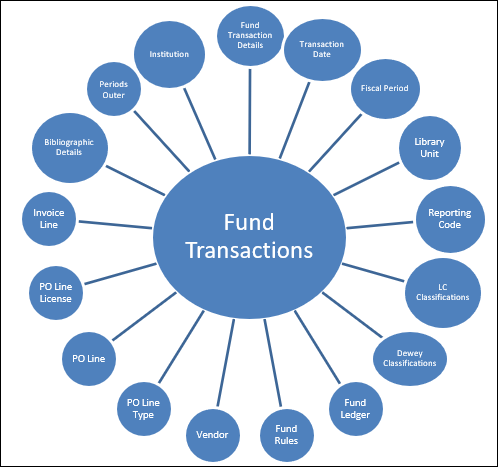
- Do not create reports with fields from the Funds Expenditure subject area and attribute fields (yellow fields) from the Physical Items subject area or you will receive incorrect results.
- When PO Lines, POs, Invoices, and Licenses are deleted in Alma, they are no longer available in Alma Analytics.
- PO lines without transactions are available in Alma Analytics. Migrated PO lines without transactions also appear initially. However, their visibility after adding measures depends on the internal configuration parameter (CP):
- If CP is set to false, migrated PO lines without transactions do not appear once a measure is added.
- If CP is set to true, they remain visible even after adding a measure.
Field Descriptions
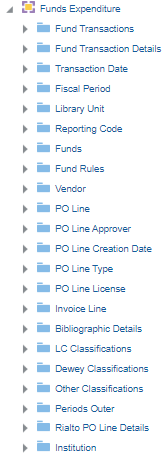
The following sections present the fields available in Funds Expenditure.
Fund Transactions
The Fund Transactions table is the fact table that contains all the measures (activities) of specific transactions. There are three types of transactions:
- expenditure
- allocation
- encumbrance
Each transaction is associated with a fund and each fund is associated with a fiscal period:
- The allocation transaction is made on the fund level and is used to allocate budgets to a fund
- The encumbrance transaction is created from the PO line. Another transaction with negative amounts is made after the invoice line is created. In a common scenario, the encumbrance amount is zero after the invoice arrives. Sometimes there are differences in the amounts between the two transactions, so that the remaining encumbrance amount is not always zero.
- The expenditure transaction is created from the invoice line and represents the actual payment for the item
Report Creation Tips
- Creating a report based on expenditures
Because of the way encumbrance transactions are created (with a plus and minus transaction), when building a report on the transaction level, it is common to use the Transaction Item Type = "expenditure" filter. Many of the out-of-the-box reports are built this way.
- Combining invoice and PO amounts in reports
The fact that in the same SA there are amounts from the transaction level as well as amounts from the PO and invoice level can create duplications when combined together. To ensure that you get correct results in your reports, follow the below guidelines:
- When adding the PO Line Total Price field, also add the PO Line Reference field to your report columns. (It can be excluded from display, but it has to be selected.) Additionally, you must set the Aggregation Rule for the PO Line Total Price field to Sum(found by selecting Edit Formula).
- When adding the Invoice Line Total Price field or the Transaction Amount field, also add the Invoice Line > Invoice Line-Unique Identifier field to your report columns. (It can be excluded from display, but it has to be selected.)
The following is an example of the invoice line amount in Alma:Invoice Line AmountIf you create a report with invoice line amounts as well as amounts from the transaction level (in this example the remaining encumbrance) you get incorrect results:Invoice Line Total Price - Incorrect If you add the invoice number, the results are correct:Invoice Line Total Price - Correct - Creating a report that displays the sum of invoice lines in separate groups
To receive correct totals of invoice lines when divided into groups of invoices, edit the formula of the Invoice Line Total Price column and set the aggregation rule to Sum.
The following table describes the fields in the Fund Transactions dimension.
| Field | Description | Additional Information | Data Type |
|---|---|---|---|
| Transaction Allocation Amount | The transaction allocation amount. | Typically, you filter the report to show only one type of transaction amount, such as transaction allocation amount. | |
| Transaction Amount | The transaction amount for all transaction types, including allocation, encumbrance, and expenditure. | The amount is displayed in the currency of the corresponding fund of the transaction. This is generally the default currency for your institution. | |
| Transaction Available Balance | This is the value of the Allocated Balance minus the Expenditure Balance minus the Encumbered Balance. | ||
| Transaction Cash Balance | This is the value of the Allocated Balance minus the Expenditure Balance. | ||
| Transaction Encumbrance Amount | The transaction encumbrance amount. | Typically you filter the report to show amount per transaction type, such as transaction encumbrance amount. | |
| Transaction Expenditure Amount | The transaction expenditure amount of PO lines, regardless of type. | Typically you filter the report to show amount per transaction type, such as transaction expenditure amount. | |
| Transaction Expenditure Amount of type Electronic Format | The transaction expenditure amount of PO lines whose PO line type is marked as Electronic. | PO Line types are configured at: Configuration > Acquisitions > Purchase Orders > PO line types > Inventory Format column. | |
| Transaction Expenditure Amount of type General Format | The transaction expenditure amount of PO lines whose PO line type is marked as Generic. | PO Line types are configured at: Configuration > Acquisitions > Purchase Orders > PO line types > Inventory Format column. | |
| Transaction Expenditure Amount of type Physical Format | The transaction expenditure amount of PO lines whose PO line type is marked as Physical. | PO Line types are configured at: Configuration > Acquisitions > Purchase Orders > PO line types > Inventory Format column. | |
| Transaction Foreign Currency Amount | The transaction amount displayed in the original transaction currency. | This field displays data for all transactions, whether originally in a foreign currency or the institution default currency.
We recommend including a currency field in your report for clarity. |
|
| Transaction Foreign Currency Encumbrance Amount | The transaction encumbrance amount displayed in the original transaction currency. | This field displays data for all encumbrance transactions, whether originally in a foreign currency or the institution default currency.
We recommend including a currency field in your report for clarity. |
|
| Transaction Foreign Currency Expenditure Amount | The transaction expenditure amount displayed in the original transaction currency. | This field displays data for all expenditure transactions, whether originally in a foreign currency or the institution default currency.
We recommend including a currency field in your report for clarity. |
|
| Transaction VAT | The value-added tax. | ||
| % remaining (Considering expended and encumbered) | (Available Balance / Allocated Balance) * 100 | ||
| % remaining (Considering only expended) | (Cash Balance / Allocated Balance) * 100 | ||
| Number of Unique Titles | The number of unique titles (mms ids) associated to a transaction. | INT | |
| Number of POLs | The number of PO lines whose PO line type is marked as any type (Electronic, Physical, and Generic). | PO Line types are configured at: Configuration > Acquisitions > Purchase Orders > PO line types > Inventory Format column. | |
| Number of POLs of type Electronic Format | The number of PO lines whose PO line type is marked as Electronic. | PO Line types are configured at: Configuration > Acquisitions > Purchase Orders > PO line types > Inventory Format column. | |
| Number of POLs of type General Format | The number of PO lines whose PO line type is marked as Generic. | PO Line types are configured at: Configuration > Acquisitions > Purchase Orders > PO line types > Inventory Format column. | |
| Number of POLs of type Physical Format | The number of PO lines whose PO line type is marked as Physical. | PO Line types are configured at: Configuration > Acquisitions > Purchase Orders > PO line types > Inventory Format column. | |
| Number of POLs without Transactions | The number of PO lines without transactions. | ||
| PO Line Pct | Displays 100 times the Transaction Amount/PO Line Total Price | ||
| PO Line Quantity | The number of items in the PO line. | You must add the PO Line Reference field to the report to ensure that the PO Line Quantity is calculated correctly. | |
| PO Line Total Price | The total price (includes additional charges, if any). | Add the PO Line Reference field to the report to ensure that the PO Line Total Price is calculated correctly. | |
| Invoice Line Pct | Displays 100 times the Transaction Amount / Invoice Line Total Price. | ||
| Invoice Line Quantity | The number of elements ordered in the invoice line. | ||
| Invoice Line Total Price | The total amount (includes additional charges, if any). | Add the Invoice Line > Invoice Line-Unique Identifier field to the report to ensure that the Invoice Line Total Price is calculated correctly. |
Fund Transactions Details
The Fund Transactions Details table is the dimension table that displays more details about specific transactions performed from the fund. The primary key is FUND_TRANSACTION_ID. As with the Fund Transactions table, there are three types of transactions, i.e., expenditure, allocation and encumbrance. Each transaction is associated with a fund and each fund is associated with a fiscal period. See Fund Transactions for more details regarding transactions.
| Field | Description | Field Location in Alma | Additional Information | Data Type | Data Size |
|---|---|---|---|---|---|
| Dewey Classification Top Line | The first 3 digits of the Dewey Classification. | -- | Classification information comes from the bibliographic record. | VARCHAR | 15 |
| Exchange Rate | The exchange rate between the fund's currency and that of the invoice. | Acquisitions > Acquisitions Infrastructure > Funds and Ledgers [select a fund] >Transactions Tab > [view a transaction] > Exchange Details Section | This field does not appear for allocation type transactions. | DOUBLE | |
| Exchange Rate Date | The date that the exchange rate was calculated. | Acquisitions > Acquisitions Infrastructure > Funds and Ledgers [select a fund] >Transactions Tab > [view a transaction] > Exchange Details Section | This field does not appear for allocation type transactions. | DATE | |
| Explicit Ratio | Indicates (Yes/No) if an exchange rate is set between the fund's currency and that of the invoice. | Acquisitions > Acquisitions Infrastructure > Funds and Ledgers [select a fund] >Transactions Tab > [view a transaction] > Exchange Details Section | This field does not appear for allocation type transactions. | VARCHAR | 4000 |
| Fund Transaction Reference | A number that can be used to reference a particular allocation to a fund, set from the Transaction tab of the Funds and Ledgers page | Acquisitions > Acquisitions Infrastructure > Funds and Ledgers [select a fund] >Transactions Tab > [view a transaction] > Transaction Section
The label in Alma is Transaction Reference. |
VARCHAR | 255 | |
| LC Classification Code | The LC classification code, the letters with which the LC class number starts such as BF or QA. | -- | Classification information comes from the bibliographic record. | VARCHAR | 50 |
| LC Classification Number | The LC classification number, that is, the numbers followed by the letters until the first period followed by a letter. | -- | Classification information comes from the bibliographic record. | DOUBLE | |
| LC Classification Top Line | The combined LC code and classification numbers until the first period followed by a letter, such as NB933 when the lc_class_number is NB933.F44. | -- | Classification information comes from the bibliographic record. | VARCHAR | 4000 |
| Related Record | Indicates the related resource sharing record. | Acquisitions > Acquisitions Infrastructure > Funds and Ledgers [select a fund] >Transactions Tab > [view a transaction] > Transaction Section | Although in Alma this field can display the fund, invoice, PO line, and request ID, currently, only the request ID for related records of type Resource Sharing is displayed in this analytics field. | VARCHAR | 50 |
| Source Amount | The amount of the source currency. | Acquisitions > Acquisitions Infrastructure > Funds and Ledgers [select a fund] >Transactions Tab > [view a transaction] > Exchange Details Section | This field does not appear for allocation type transactions. | DOUBLE | |
| Source Currency | The currency from which you want to convert the invoice currency. | Acquisitions > Acquisitions Infrastructure > Funds and Ledgers [select a fund] >Transactions Tab > [view a transaction] > Exchange Details Section
The currency is displayed with the Source Amount. |
This field does not appear for allocation type transactions. | VARCHAR | 4000 |
| Transaction Date | The date that the transaction occurred. | Acquisitions > Acquisitions Infrastructure > Funds and Ledgers [select a fund] >Transactions Tab
The label in Alma is Date. |
DATETIME | ||
| Transaction ID | The internal ID of the transaction. | -- | VARCHAR | 50 | |
| Transaction Item Sub Type | Displays the relevant Transaction Item Sub-Type of the specific Transaction Item Type.
|
Acquisitions > Acquisitions Infrastructure > Funds and Ledgers [select a fund] > Transactions Tab
The label in Alma is Type. |
The sub-type is listed under the Type column in Alma. | VARCHAR | 20 |
| Transaction Item Type | Includes the transaction types available in Alma: Allocation, Encumbrance, and Expenditure, and Non-transactional, which indicates that the PO lines do not have a transaction because no funds are associated with them. | -- | Only the sub-type is listed in Alma under the Type column. Use the sub-type to determine the type. | VARCHAR | 20 |
Transaction Date
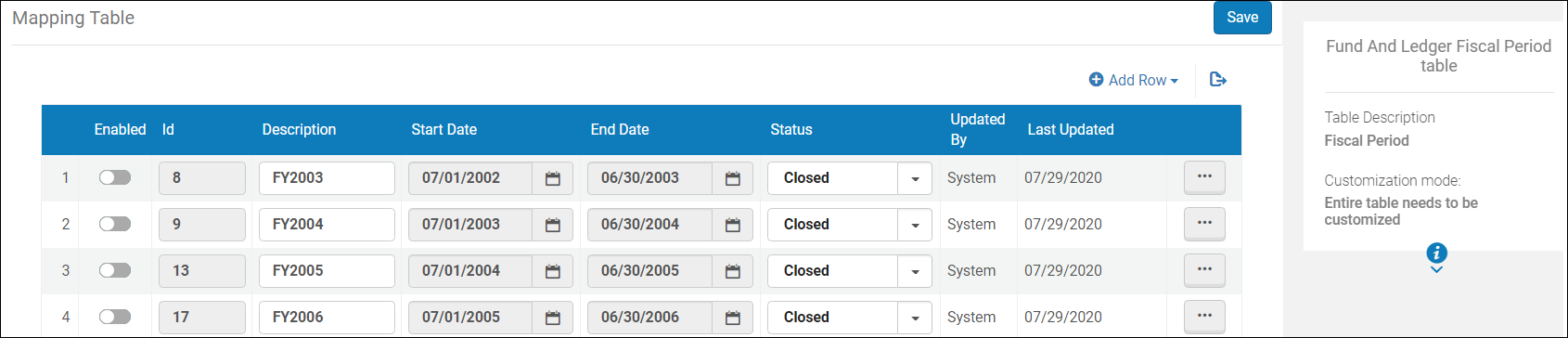
The Transaction Date dimension lists different forms of the date that the transaction occurred, including the fiscal date. The start and end of the fiscal year is configured in the Fund and Ledger Fiscal Period table, located in Alma at:Configuration > Acquisitions > General > Fund and Ledger Fiscal Period.
Since each transaction is associated with a fund and each fund is associated with a specific fiscal period, this date dimension includes a logic that changes the actual dates if they do not fall into the fiscal year assigned to the fund according to the following logic:
- If the transaction date is greater than the fund end fiscal date, the transaction date is set to the fund end fiscal date
- If the transaction date is less than the fund start fiscal date, the transaction date is set to the fund start fiscal date
The date calculations for this table are according to the ISO 8601 standard. Week number is calculated as explained at The ISO week date system. The week starts on Monday, according to the standard.
| Field | Description | Additional Information |
|---|---|---|
| Transaction Date | The date that the transaction occurred. The transaction date in a date format such as 2/29/2014. | This field is located at: Acquisitions > Acquisitions Infrastructure > Funds and Ledgers [select a fund] > Transactions Tab
The label in Alma is Date. |
| Transaction Date Start of Week | The date of the first business day of the week in a date format such as 2/29/2014. | |
| Transaction Date Week Number | The number of the week of the year in a two-digit format, such as 04. | |
| Transaction Date Month Key | The month of the date in number format such as 2 for February. | This field is useful when you want to sort by the month, which does not work properly when using the alphabetical field. |
| Transaction Date Month | The month of the date in month description format such as February. | |
| Transaction Date Full Month | The month and the year of the date in a display format such as Feb 12. | This field is useful when comparing data on a month basis between years. |
| Transaction Date Quarter | The quarter of the date in a display format such as Q1. | |
| Transaction Date Year | The year of the date in number format such as 2012. | |
| Transaction Date Fiscal Month | The fiscal month of the date in a number format such as 9. | Configured at Configuration Menu > Acquisitions > General > Fund and Ledger Fiscal Period. |
| Transaction Date Fiscal Full Month | The fiscal year and month of the date in a display format such 201202. | Configured at Configuration Menu > Acquisitions > General > Fund and Ledger Fiscal Period. |
| Transaction Date Fiscal Quarter | The fiscal quarter of the date in a display format such as Q1. | Configured at Configuration Menu > Acquisitions > General > Fund and Ledger Fiscal Period. |
| Transaction Date Fiscal Full Quarter | The fiscal quarter and the year of the date in a display format such as Q3/2012. | Configured at Configuration Menu > Acquisitions > General > Fund and Ledger Fiscal Period. |
| Transaction Date Fiscal Year | The fiscal year of the date in a string format such as 2012. | Configured at Configuration Menu > Acquisitions > General > Fund and Ledger Fiscal Period. |
| Transaction Date Fiscal Year Desc | The description as configured in the Fund And Ledger Fiscal Period table or the fiscal year if the description is empty. | The Fund And Ledger Fiscal Period table is located at Configuration > Acquisitions > General > Fund and Ledger Fiscal Period |
| Transaction Date Year-Month | The year and the month in a format such as 2023-01. | |
| Transaction Date Filter | Used to filter report results by date. | Possible values:
|
| Periods | The Hierarchy column that allows the user to drill down from the year to the month to the specific loan date. Using this column provides the user with the option to view the accumulative measures in each level of the hierarchy. |
Fiscal Period
The Fiscal Period table is a dimension table that displays details about the fiscal periods configured for the institution in the Fund and Ledger Fiscal Period mapping table, located in Alma at:Configuration > Acquisitions > General > Funds and Ledger Fiscal Period.
| Field | Description | Additional Information |
|---|---|---|
| Fiscal Period Description | The description of the fiscal period (as configured in the Fund And Ledger Fiscal Period table) or the fiscal year if the description is empty. | Configured at Configuration Menu > Acquisitions > General > Fund and Ledger Fiscal Period. |
| Fiscal Period Start Date | The start date of the fiscal period of the institution, in format 20210701. | Date fields can consist of a partial date, such as just the year or a month and year.
Configured at Configuration Menu > Acquisitions > General > Fund and Ledger Fiscal Period. |
| Fiscal Period Start Date (Calendar) | The start date of the fiscal period of the institution, in format 7/1/2021. | Calendar Date fields always consist of a month, date, and year. If the information is not provided, 1 is added, so that a date of 2020 is rendered 1/1/2020. This date format is useful when filtering the report by date.
Configured at Configuration Menu > Acquisitions > General > Fund and Ledger Fiscal Period. |
| Fiscal Period End Date | The end date of the fiscal period of the institution, in format 20220630. | Date fields can consist of a partial date, such as just the year or a month and year.
Configured at Configuration Menu > Acquisitions > General > Fund and Ledger Fiscal Period. |
| Fiscal Period End Date (Calendar) | The end date of the fiscal period of the institution, in format 6/30/2022. | Calendar Date fields always consist of a month, date, and year. If the information is not provided, 1 is added, so that a date of 2020 is rendered 1/1/2020. This date format is useful when filtering the report by date.
Configured at Configuration Menu > Acquisitions > General > Fund and Ledger Fiscal Period. |
| Fiscal Period Start End | The start and end dates of the fiscal period of the institution in format: 20210701 - 20220630. | Configured at Configuration Menu > Acquisitions > General > Fund and Ledger Fiscal Period. |
| Fiscal Period Status | The status of the fiscal period such as Active, Inactive, Draft, or Close. | The status of the fiscal period as configured in the Fund And Ledger Fiscal Period table.
Configured at Configuration Menu > Acquisitions > General > Fund and Ledger Fiscal Period. |
| Fiscal Period Filter | The filter on the fiscal period. | Possible values:
|
Library Unit
The Library Unit table is a dimension table that displays details about the library that manages acquisitions. The list of active libraries and their codes can be found in Configuration > General > Libraries > Add a Library or Edit Library Information > Libraries tab. The data for this dimension in the Funds Expenditure subject area comes from the PO line owner.
Reporting Code
The Reporting Code table is a dimension table that displays details about the reporting code and transactions where it is used. You define reporting codes that can be used for analyzing acquisitions in subsequent reporting. These codes appear in Alma in drop-down lists on the PO line Summary tab. For example, if you have a reporting code for postage, you can then create a report that lists all PO lines that have the postage reporting code. Reporting codes apply to all libraries within your institution. Each institution may categorize transactions in different ways. Usually this is done by applying a unique reporting code. For more information, see Configuring Reporting Codes.
| Field | Description | Field Location in Alma | Additional Information | Data Type | Data Size |
|---|---|---|---|---|---|
| Reporting Code - 1-5 | Five fields that store the reporting codes. | Configuration > Acquisitions > Purchase Orders > 1-5 Reporting Codes | You configure multiple values for each reporting code field at Configuration > Acquisitions > Purchase Orders > 1-5 Reporting Codes. Then you select one code per field for a PO line when you create or edit the PO line. For more information, see Manually Creating a PO Line. Analytics displays the code you selected for each PO line.
The label in Alma is Code. |
VARCHAR |
255 |
| Reporting Code Description -1-5 | Five fields that store the description of the five reporting code fields. | Configuration > Acquisitions > Purchase Orders > 1-5 Reporting Codes | You configure descriptions for the values of each reporting code field at Configuration > Acquisitions > Purchase Orders > 1-5 Reporting Codes. Then you select one code per field for a PO line when you create or edit the PO line. Analytics displays the description of the code you selected for each PO line.
The label in Alma is Description. |
VARCHAR |
4000 |
LC Classifications
Users may view measures accumulated to the relevant group, including expenditures, encumbrances, and allocations grouped by classifications.
The field descriptions can be found in the LC Classifications shared dimension.
Dewey Classifications
Users can view measures accumulated to the relevant group, including expenditures, encumbrances, and allocations grouped by classifications. The field descriptions can be found in the Dewey Classifications shared dimension.
Other Classifications
Funds
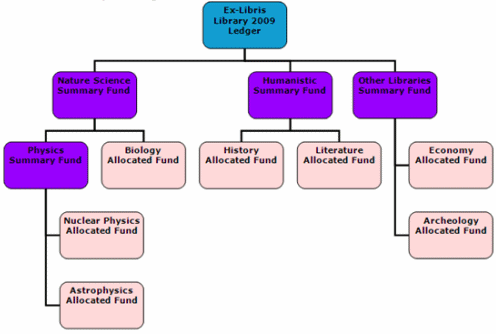
The Fund table is a dimension table that displays the details about the fund with which the transaction is associated. The primary key of the table is FUND_LEDGER_ID.
There are the following types of funds:
- Ledger
- Summary
- Allocated Fund
Funds are kept in a parent-child relationship so that each fund has a connection to its parent.
Creating Reports According to Fund Type
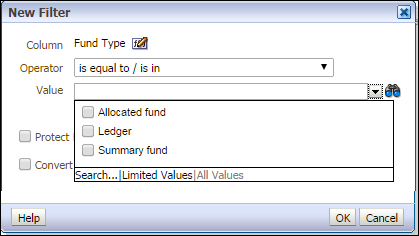
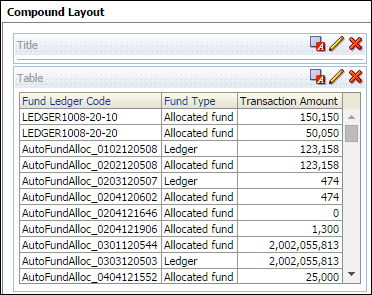
You can create reports according to fund type. If the procedures in this section are not implemented, the sums of all of the fund types may be added together in the transaction amount.
- To create a report displaying funds of just one type, filter the Fund Type column according to Ledger, Allocated fund, or Summary fund:
 Filter By Fund
 - To create a report showing all of the fund types, add a column that displays any unique identifier of the fund, such as Fund Ledger Code:
 Fund Ledger Code
Basic Concepts for Funds in Alma
Allocated and Summary Funds
A fund represents money in an account. A fund can be summary or allocated.
- Summary — This fund is not used for ordering and invoicing, but provides aggregate reporting on subordinate funds. You can add other funds to this type of fund.
- Allocated —This fund contains money that has been paid out or has been reserved for an open purchase.
A Summary Fund can only be associated with an Allocated Fund. A specific Allocated Fund (i.e. Allocated Fund 101) can only be associated with only one Ledger or Summary Fund, but not both.
Fund Balance
Available Balance —The allocated balance, less (encumbrances minus disencumbrances) and less expenditures.
Cash Balance — The allocated balance less expenditures.
Allocated Balance —The total allocation, not counting any expenditures or encumbrances/disencumbrances.
Encumbered Balance — The sum of the fund's encumbrances minus disencumbrances.
Expenditure Balance — Also called expended balance , this is the sum of the fund's expenditures.
Ledger
A ledger is essentially a collection of funds. Ledgers are defined for a specific date range, such as September 1 of this year to August 31 of next year. A Ledger can be associated with a Summary or Allocated Fund.
Transactions
A transaction can be an allocation, encumbrance, disencumbrance, or expenditure. An allocation adds money to the fund, increasing its available balance. An encumbrance indicates money that is expected to be paid out, as the result of a PO line. A disencumbrance is added or increased when adding an expenditure linked to the same PO line as an encumbrance.
Managing and Configuring Funds in Alma
You can manage funds in Alma by navigating to Acquisitions > Funds and Ledgers.
You can configure fund types in Alma by navigating to Configuration > Acquisitions > Fund Types.
For more information see Managing Funds and Ledgers.
The following table describes the fields in the Fund table.
| Field | Description | Field Location in Alma | Additional Information | Data Type | Data Size |
|---|---|---|---|---|---|
| Fund Area Code | The codes defined in the Fund Types table and attributed to funds, for example: Endowed, Gift, General, Grant, Income, and ResourceSharing. For more information, see Configuring Fund Types. | Does not appear in the UI. | Configured in the Code field in Configuration Menu > Acquisitions > General > Fund Types. | VARCHAR | 255 |
| Fund Area Description | The description defined in the Fund Types table for the Fund Area Code (Fund Type). | Fund type in the "General" section on the Summary Details page for Funds and Ledgers. | This description comes from the configuration page as described in Fund Area Code above. | VARCHAR | 255 |
| Fund Code | The fund or ledger code. | Code in the "General" section on the Summary Details page for Funds and Ledgers. |
The code is reused when you roll over the ledger to a new fiscal period. This is filled by the user after selecting Add Ledger. It is not editable once the user saves and then goes back to edit. |
VARCHAR | 255 |
| Fund Currency | The default unit of currency for the ledger. | Currency in the "General" section of the Summary Details page for Funds and Ledgers. | The values are configured in the Currency Subset table (Configuration Menu > Acquisitions > General > Currency Subset). | VARCHAR | 255 |
| Fund Description | The description of the fund. | Description in the "General" section on the Summary Details page for Funds and Ledgers. | VARCHAR | 4000 | |
| Fund External ID | The fund ID in external/legacy systems. | External ID in the "General" section on the Summary Details page for Funds and Ledgers. | This ID is used to link to other system keys. (See also Fund ID.) | VARCHAR | 255 |
| Fund ID | The unique ID of the fund within Alma. |
Does not appear in the UI. |
(See also Fund External ID.) | VARCHAR | 255 |
| Fund Name | The fund name. | Name in the "General" section on the Summary Details page for Funds and Ledgers. | The name of the fund can be changed when it is rolled over to a new fiscal year. When working with accrual accounting (see Working With Accrual Accounting), the name of the fund in the new fiscal period should not be changed. | VARCHAR | 255 |
| Fund Note | Notes that are relevant to the fund. | The Notes tab in the Summary Details page for Funds and Ledgers. | If there are multiple notes, they are concatenated. Two notes are separated by a semicolon. | VARCHAR | 4000 |
| Fund Owner Code | The code of the owning institution or library (see also Fund Owner Name). | Does not appear in the UI. | VARCHAR | 50 | |
| Fund Owner Name | The name of the owning institution or library. | Owned by in the "General" section on the Summary Details page for Funds and Ledgers. | A ledger can only have one owner. The ownership from a library to the institution can be changed, but the ownership from a library to another library or from the institution to a library cannot be changed. | VARCHAR | 255 |
| Fund Status | Indicates if the fund is in status active, draft or inactive. It applies to Ledgers, Summary Fund and Allocated Fund. | Status in the "General" section on the Summary Details page for Funds and Ledgers. | The statuses are described below:
|
VARCHAR | 10 |
| Fund Type | One of the following fund types:
|
Type in the "Funds and Ledgers" page accessed from Acquisitions > Acquisitions Infrastructure > Funds and Ledgers. | Fund types are for informational purposes only. You can configure fund types on the Fund Type code table (Configuration Menu > Acquisitions > General > Fund Types). | VARCHAR | 4000 |
| Parent Fund Code | The code of the parent fund in the Path hierarchy. | Does not appear in the UI (see Parent Fund Name). | See also Fund Code. | VARCHAR | 255 |
| Parent Fund ID | The unique ID of the parent fund in the Path hierarchy, |
Does not appear in the UI (see Parent Fund Name). |
See also Fund ID. | VARCHAR | 255 |
| Parent Fund Name | The name of the parent fund in the Path hierarchy. | Funds and Ledgers > Summary > Path. | See also Fund Name. | VARCHAR | 255 |
| Fund Ledger Hierarchy | The Hierarchy column that allows the user to drill down from the ledger to the summary to the specific allocated fund. Using this column provides the user with the option to view the accumulative measures in each level of the hierarchy. | The Path field in the "General" section on the Summary Details page for Funds and Ledgers. | To drill down, add the Fund Name field to the report. If the Fund Name field is already added to the report, delete it and re-add it. If the Fund field was added to the report, remove it and re-add it as well. The report now operates properly. | VARCHAR | 255 |
Fund Rules
The Fund Rules table is a dimension table that displays details about the fund rules. The rules can be accessed in Alma from Acquisitions > Acquisitions Infrastructure > Funds and Ledgers > Allocated Funds (Facets) > Summary (Tab) > Rules (Section).
Fund rules are inherited automatically from the ledger if there is nothing configured in the Summary tab. All changes applied to the rules of the ledger can be automatically seen in the funds associated with them (for example, the grace period).
| Field | Description | Field Location in Alma | Additional Information | Data Type | Data Size |
|---|---|---|---|---|---|
| Encumbrances prior to fiscal period (days) | The number of days, prior to the fiscal period start date, that new encumbrances can be created. | Rules section of the Summary tab. | Configured at Configuration Menu > Acquisitions > General > Fund and Ledger Fiscal Period. If negative, you cannot create encumbrances during the specified number of days after the fiscal period start date.
If a fund for the current period is active at the same time as a fund from the next fiscal period, the one from the next fiscal period is used if this value permits it. |
NUMBER | 10 |
| Expenditures prior to fiscal period (days) | The number of days, prior to the fiscal period start date, that new expenditures can be created. | Rules section of the Summary tab. | Configured at Configuration Menu > Acquisitions > General > Fund and Ledger Fiscal Period.
If negative, expenditures cannot be created during the specified number of days after the fiscal period start date. |
NUMBER | 10 |
| Fiscal period end encumbrance grace period (days) | The number of days, after the fiscal period end date, that new encumbrances can be created. | Rules section of the Summary tab. | Configured at Configuration Menu > Acquisitions > General > Fund and Ledger Fiscal Period.
If negative, the system blocks new encumbrances during the specified number of days prior to the end of the fiscal period. |
NUMBER | 10 |
| Fiscal period end expenditure grace period (days) | The number of days, after the fiscal period end date, that new expenditures can be created. | Rules section of the Summary tab. | Configured at Configuration Menu > Acquisitions > General > Fund and Ledger Fiscal Period.
If negative, the system blocks new expenditures during the specified number of days prior to the end of the fiscal period. |
NUMBER | 10 |
| Overencumbrance allowed | Whether the fund allows you to add an encumbrance whose amount exceeds the fund's available balance (the allocated balance less any expenditures and encumbrances). Possible values are:
|
Rules section of the Summary tab. | CHAR | 10 | |
| Overencumbrance limit percent | The maximum percentage of allowed encumbrances permitted before the system blocks the creation of an encumbrance. When that amount is reached, the transaction creation is blocked. | Rules section of the Summary tab. | FLOAT | 126 | |
| Overencumbrance warning percent | The percentage of allowed overencumbrances permitted before the system provides a warning. When that amount is reached, an alert is displayed that the overencumbrance warning threshold has been reached. If the user confirms that the transaction should be added, an alert is added for the entity that created the fund transaction. | Rules section of the Summary tab. | FLOAT | 126 | |
| Overexpenditure allowed | Whether the fund allows you to add an expenditure whose amount exceeds the fund's available balance. Possible values are:
|
Rules section of the Summary tab. | CHAR | 10 | |
| Overexpenditure limit sum | The amount of overexpenditure (checked against the allocated balance) before the system blocks the creation of an overexpenditure. | Rules section of the Summary tab. | FLOAT | 126 | |
| Overexpenditure warning sum | The amount of overexpenditure before the system provides a warning. | Rules section of the Summary tab. | FLOAT | 126 | |
| Override Rules Information | Override the rules set by the ledger.
Possible values are:
|
If the button in Alma UI is “Override Rules Information“, the value for the field in analytics is No. This means that the rules were not overridden, because the override option is still available. If the button in Alma UI is “Restore Rules Information”, the value for the field in analytics is Yes. |
If extra fund rules are configured which cause the Ledger Rules to be overridden and the inheritance to be annulled, the Restore Rules Information button appears in the Rules section of the Summary tab. | N/A | Yes/No |
| Transfers prior to fiscal period (days) | The number of days, prior to the fiscal period start date, that new money transfers can be created. | Rules section of the Summary tab. | Configured at Configuration Menu > Acquisitions > General > Fund and Ledger Fiscal Period.
If negative, money transfers are blocked during the specified number of days after the fiscal period start date. Money can only be transferred between funds of the same fiscal period. |
NUMBER | 10 |
Vendor
The Vendor table is a dimension table that displays details about vendors. The data is taken from the PO Line for transactions of type encumbrance and from Invoice Line for transactions of type expenditure. Transactions of type allocation are not related to any particular vendor; therefore, they return a NULL/unknown value for all vendor fields. Vendors are the expected suppliers of materials ordered by the library.
PO Line Approver
The PO Line Approver table is a dimension table that displays details about the approver of the PO line.
PO Line Creation Date
PO Line Type
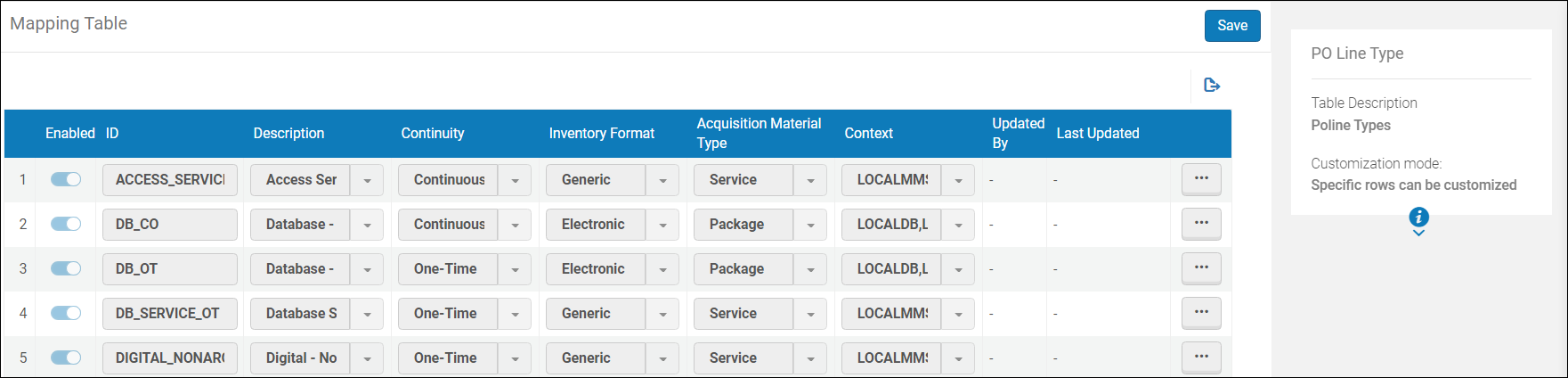
The PO Line Type table is a dimension table that displays details about the PO line type associated with the transaction that determines the type of order created (one time/continuous) and the type of inventory that is created (Ebook, Ejournal, etc.). The primary key of the table is PO_LINE_TYPE. For more information, see Enabling/Disabling PO Line Types.
| Field | Description | Field Location in Alma | Additional Information | Data Type | Data Size |
|---|---|---|---|---|---|
| Acquisition Material Type | The acquisition material type code. | For the list of physical material types, see Configuring Physical Item Material Type Descriptions. | VARCHAR | 255 | |
| Acquisition Material Type Description | The description of the acquisition material type. | Configuration > Acquisitions > Purchase Orders > PO Line Types
The label in Alma is Acquisition Material Type. |
VARCHAR | 255 | |
| Continuity | If the PO line is one-time, continuous, or standing order. | Configuration > Acquisitions > Purchase Orders > PO Line Types | See the field location in Alma in the figure PO Line Types, below. | VARCHAR | 255 |
| Format | The inventory format, which can be Electronic, Physical, or Generic. | Configuration > Acquisitions > Purchase Orders > PO Line Types
The label in Alma is Inventory Format. |
Possible values are P, E, and G. This value comes from the Inventory Format column of the PO Line Type mapping table (Acquisitions > Purchase Orders > PO Line Types).
See the field location in Alma in the figure PO Line Types, below. |
VARCHAR | 255 |
| PO Line Type Name | The name of the PO Line Type. | Configuration > Acquisitions > Purchase Orders > PO Line Types The label in Alma is Description. | For the list of PO line types, see Enabling/Disabling PO Line Types. See the field location in Alma in the figure PO Line Types, below. | VARCHAR | 255 |
PO Line
The PO Line table is a shared dimension table that displays details about the PO and the PO Line.
The field descriptions can be found in the PO Line shared dimension.
PO Line License
Many electronic resources require licenses from the vendors that provide the resources. Alma enables you to enter license information for tracking and informational purposes. Licenses are created at Acquisitions > Acquisitions Infrastructure > License.(For more information, see Managing Licenses and Amendments.) You can associate a PO Line with a license when creating or editing a PO Line from the License field. (For more information, see Creating PO Lines.)
The PO Line License table is a dimension table that displays information about the license such as the license code, the license name, and the license creator. The fields are taken from the Summary tab of the License page.
tr>
| Field | Description | Field Location in Alma | Additional Information | Data Type | Data Size |
|---|---|---|---|---|---|
| License Begins | The date the license begins. | Acquisitions > Acquisitions Infrastructure > Licenses > [select a license] > Summary Tab
The label in Alma is Start date. |
DATE | ||
| License Code | The code of the license. | Acquisitions > Acquisitions Infrastructure > Licenses > [select a license] > Summary Tab | VARCHAR | 255 | |
| License Creation Date | The date the license was created. | Acquisitions > Acquisitions Infrastructure > Licenses > [select a license] >Side information panel
The label in Alma is Creation date. |
DATE | ||
| License Creator Name | The first and last name of the user who created the license. | Acquisitions > Acquisitions Infrastructure > Licenses > [select a license] >Side information panel
The label in Alma is Created by. |
VARCHAR | 255 | |
| License Ends | The date the license ends. | Acquisitions > Acquisitions Infrastructure > Licenses > [select a license] > Summary Tab
The label in Alma is End Date. |
DATE | ||
| License ID | The ID of the license. | The License ID is not visible in Alma from either the License Details page or the Electronic Portfolio Editor or collection. The system ID of the license can only be seen in Analytics. | VARCHAR | 50 | |
| License Modification Date | The date the license was modified. | Acquisitions > Acquisitions Infrastructure > Licenses > [select a license] > Summary Tab > i icon
The label in Alma is Last updated on. |
DATE | ||
| License Modifier Name | The first and last name of the user who modified the license. | Acquisitions > Acquisitions Infrastructure > Licenses > [select a license] > Summary Tab > i icon
The label in Alma is Last updated by. |
VARCHAR | 255 | |
| License Name | The name of the license. | Acquisitions > Acquisitions Infrastructure > Licenses > [select a license] > Summary Tab
The label in Alma is Name. |
VARCHAR | 255 | |
| License Note | The note of the license. | Acquisitions > Acquisitions Infrastructure > Licenses > Notes Tab | VARCHAR | 4000 | |
| License Originating Licensor Key | The licensor key of the license in the legacy system from which the data was migrated. | -- | Data is stored in the DB and not exposed in the Alma UI. | VARCHAR | 255 |
| License Originating Parent Code | The parent code of the license in the legacy system from which the data was migrated. | -- | Data is stored in the DB and not exposed in the Alma UI. | VARCHAR | 255 |
| License Parent ID | The unique internal ID for the parent license. | -- | Data is stored in the DB and not exposed in the Alma UI. | VARCHAR | 50 |
| License Review Status | The status of the license review. | Acquisitions > Acquisitions Infrastructure > Licenses > [select a license] > Summary Tab | The values for this field are configured under Configuration > Licenses > License Review Status. Out-of-the-box, the possible values are:
These values are for informational purposes, only. |
VARCHAR | 4000 |
| License Second Party Signed By | The user who is a secondary approver of the license. | Acquisitions > Acquisitions Infrastructure > Licenses > [select a license] > Summary Tab
The label in Alma is Second party's Signed by. |
VARCHAR | 255 | |
| License Second Party Signed On | The date on which the license was approved by the secondary approver. | Acquisitions > Acquisitions Infrastructure > Licenses > [select a license] > Summary Tab
The label in Alma is Second Party's Signed on. |
DATE | ||
| License Signed By | The user who approved of the license. | Acquisitions > Acquisitions Infrastructure > Licenses > [select a license] > Summary Tab
The label in Alma is Signed by. |
VARCHAR | 50 | |
| License Signed On | The date the license was approved. | Acquisitions > Acquisitions Infrastructure > Licenses > [select a license] > Summary Tab
The label in Alma is Signed on. |
DATE | ||
| License Status | The status of the license. | Acquisitions > Acquisitions Infrastructure > Licenses > [select a license] > Summary Tab | Possible values:
|
VARCHAR | 4000 |
| License Storage Location | The physical location of a printed license. | Acquisitions > Acquisitions Infrastructure > Licenses > [select a license] > Summary Tab
The label in Alma is License Location. |
The values for this field are configured under Configuration > Licenses > License Storage Location. For information on configuring the license storage locations, see Configuring License Storage Locations. | VARCHAR | 4000 |
| License Type | The type of the license. | Acquisitions > Acquisitions Infrastructure > Licenses > [select a license] >Side information panel | Possible Values:
|
VARCHAR | 4000 |
| License URI | The URI where an electronic license is available. | Acquisitions > Acquisitions Infrastructure > Licenses > [select a license] > Summary Tab | VARCHAR | 255 | |
| Licensing Agent Name | An additional vendor, which is the organization (such as a subscription agent) or individual that facilitates a licensing transaction on behalf of one or more parties. | Acquisitions > Acquisitions Infrastructure > Licenses > [select a license] > Summary Tab
The label in Alma is Licensing agent. |
Possible functions of the agent include acting as a negotiating intermediary (with or without a fee for services), a vendor accepting payment for the product, or the named licensee for a particular agreement. | VARCHAR | 255 |
| Licensor ID | The unique internal ID of the vendor associated with the license. | -- | Data is stored in the DB and not exposed in the Alma UI. | DOUBLE | |
| Licensor Name | The name of the vendor associated with the license. | Acquisitions > Acquisitions Infrastructure > Licenses > [select a license] > Summary Tab
The name associated with the licensor code in the Licensor field. |
VARCHAR | 255 |
Invoice Line
The Invoice Line table is a dimension table that displays details about the invoice and invoice line associated with the transaction. The primary key of the table is INVOICE_LINE_ID.
While an invoice describes what was paid to the vendor, the invoice line describes the details of the various payments. Therefore an invoice can have multiple invoice lines. When creating an invoice from a PO, one invoice line is created for each PO line in the PO. The details for the invoice line are taken from the related PO line. In this case, the invoice line price is the full PO line price (fully disencumbered). The encumbrance created by the PO Line is released by the expenditure created by the related invoice line.
To access the Invoice Line fields in the Alma UI, navigate to Acquisitions > Review (Invoice) > Edit an invoice > Invoice Lines tab > Edit an invoice line. Note that you sometimesmay need to go into the main Invoice Summary tab (not the invoice line tab) in order to see the field.
For more information, see Creating Invoices.
| Field | Description | Field Location in Alma | Additional Information | Data Type | Data Size |
|---|---|---|---|---|---|
|
Invoice Line - Additional Information
|
Additional information for the invoice line.
|
Acquisitions > Review (Invoice) > Edit an invoice > Invoice Lines tab > Edit invoice line > Invoice Line Details section
The Alma label is Additional Information.
|
Only displays when the invoice line is connected to a continuous PO line.
|
VARCHAR
|
2000
|
|
Invoice Line - Creation Date
|
The timestamp of the Invoice Line creation date.
|
Acquisitions > Review (Invoice) > Edit an invoice > Invoice Lines tab > Edit invoice line >i icon (Right hand pane)
The Alma label is Created on.
|
TIMESTAMP
|
||
|
Invoice Line - Creation Date (Calendar)
|
The Invoice Line - Creation Date with the date only (the timestamp is removed).
|
Does not display in the UI.
|
Enables the filter by date (range) option to be used for the invoice line creation date.
|
DATE
|
|
|
Invoice Line - Creator
|
The First and Last name of the user who created the Invoice Line.
|
Acquisitions > Review (Invoice) > Edit an invoice > Invoice Lines tab > Edit invoice line >i icon (Right hand pane)
The Alma label is Created by.
|
VARCHAR
|
255
|
|
|
Invoice Line - Currency
|
The currency of the invoice line.
|
Acquisitions > Review (Invoice) > Edit an invoice > Invoice Lines tab > Edit invoice line > Invoice Line Charges section
The Alma label is Total price.
|
Configured in the Currency Subset table (Configuration Menu > Acquisitions > General > Currency Subset).
|
VARCHAR
|
3
|
|
Invoice Line - Modification Date
|
The timestamp of the Invoice Line Modification date.
|
Acquisitions > Review (Invoice) > Edit an invoice > Invoice Lines tab > Edit invoice line >i icon (Right hand pane)
The Alma label is Last updated on.
|
TIMESTAMP
|
||
|
Invoice Line - Modification Date (Calendar)
|
The Invoice Line - Modification Date without a timestamp.
|
Does not display in the UI.
|
Enables the filter by date (range) option to be used for the invoice line modification date.
|
DATE
|
|
|
Invoice Line - Modified By
|
The First and Last name of the user who modified the Invoice Line.
|
Acquisitions > Review (Invoice) > Edit an invoice > Invoice Lines tab > Edit invoice line >i icon (Right hand pane)
The Alma label is Last updated by.
|
VARCHAR
|
255
|
|
|
Invoice Line - Note
|
Note providing more information for the invoice line.
|
Acquisitions > Review (Invoice) > Edit an invoice > Invoice Lines tab > Edit invoice line > Invoice Line Charges section
The Alma label is Note.
|
VARCHAR
|
2000
|
|
|
Invoice Line - Number
|
The invoice line number. These are added automatically when the invoice line is created.
|
Acquisitions > Review (Invoice) > Edit an invoice > Invoice Lines tab > Edit invoice line >i icon (Right hand pane)
The Alma label is Line number.
|
VARCHAR
|
100
|
|
|
Invoice Line - Price Note
|
The price note of the invoice line.
|
Acquisitions > Review (Invoice) > Edit an invoice > Invoice Lines tab > Edit invoice line > Invoice Line Charges section
The Alma label is Price note.
|
VARCHAR
|
1000
|
|
|
Invoice Line -Reporting Code - 1st - 5th
|
Five fields that store the reporting codes.
|
The codes are only displayed in the Configuration page. In the Invoice Lines page only the Description for Invoice Line -Reporting Code is displayed.
|
Configured in Configuration > Acquisitions > Purchase Orders > 1st Reporting Codes, 2nd Reporting Codes, etc.
|
VARCHAR
|
255
|
|
Invoice Line - Reporting Code Description -1st - 5th
|
Five fields that store the description of the 5 reporting code fields.
|
Acquisitions > Review (Invoice) > Edit an invoice > Invoice Lines tab > Edit invoice line > Reporting Codes section
The Alma labels are 1st reporting code, 2nd reporting code, 3rd reporting code, 4th reporting code and 5th reporting code.
|
Configured in Configuration > Acquisitions > Purchase Orders > 1st Reporting Codes, 2nd Reporting Codes, etc.
|
VARCHAR
|
4000
|
|
Invoice Line - Status
|
The status of the invoice line.
|
Acquisitions > Review (Invoice) > Invoice Lines tab > Status column
The Alma label is Status.
|
The possible values are:
Ready - ready to be paid if the line is valid
In Review - otherwise
This is not the same status seen in the right hand panel of the Invoice Lines tab, which refers to the Invoice Approval Status.
|
VARCHAR
|
255
|
|
Invoice Line - Subscription From Date
|
Start date of the subscription.
|
Acquisitions > Review (Invoice) > Edit an invoice > Invoice Lines tab > Edit invoice line > Invoice Line Details section
The Alma label is Subscription dates range.
|
Only applies to continuous invoice lines.
The start date is extracted from the subscription dates range.
|
DATE
|
|
|
Invoice Line - Subscription To Date
|
End date of the subscription.
|
Acquisitions > Review (Invoice) > Edit an invoice > Invoice Lines tab > Edit invoice line > Invoice Line Details section
The Alma label is Subscription dates range.
|
Only applies to continuous invoice lines.
The end date is extracted from the subscription dates range.
|
DATE
|
|
|
Invoice Line - Type
|
Type of the invoice line.
|
Acquisitions > Review (Invoice) > Edit an invoice > Invoice Lines tab > Edit invoice line > Invoice Line Details section
The Alma label is Type.
|
Out of the box, the options for invoice-line type are Regular,Shipment,Insurance,Overhead,Discount, and Other.
Can be configured from Configuration > Acquisitions > Invoices > Invoice Line Types. To access this table you need to enable the invoice_split_additional_charges customer parameter (see Invoice Line Types).
If Pro rata was selected when creating the invoice, the additional charges are pro-rated against all invoice lines, and only the Regular and Other types are available.
If you did not select Pro rata, the additional charges are not allocated to a specific invoice line.
|
VARCHAR
|
4000
|
|
Invoice Line - Unique Identifier
|
Unique ID created automatically when the invoice line is created.
|
Not available in the UI.
|
VARCHAR
|
255
|
|
|
Invoice Line-VAT Code
|
A VAT code to assign a preconfigured VAT percentage to the invoice.
|
Does not display in the invoice or invoice line UI.
|
Only displays in the Configuration page - see Invoice Line-VAT Code Description.
|
VARCHAR
|
4000
|
|
Invoice Line-VAT Code %
|
The invoice line VAT code percent.
|
Acquisitions > Review (Invoice) > Edit an invoice > Invoice Lines tab > Edit invoice line > Summary tab > VAT section
The Alma label is VAT %.
|
The VAT section only displays when the VAT per invoice line checkbox (in the Invoice page) is checked.
|
DOUBLE
|
|
|
Invoice Line-VAT Code Description
|
The invoice line VAT code description.
|
Acquisitions > Review (Invoice) > Edit an invoice > Invoice Lines tab > Edit invoice line > Summary tab > VAT section
The Alma label is VAT code.
|
This is a read only field.
The VAT section only displays when the VAT per invoice line checkbox (in the Invoice page) is checked.
|
VARCHAR
|
4000
|
|
Invoice Line-VAT Note Data
|
A note regarding the VAT that is automatically added to the invoice line.
|
Acquisitions > Review (Invoice) > Edit an invoice > Invoice Lines tab > Edit invoice line > Summary tab > Invoice Line Charges section
The Alma label is VAT note.
|
Displays a message for the VAT amount. For example:
The amount in the message is automatically updated as information changes for the invoice (VAT) and the invoice line (Price). It takes into account whether Inclusive, Exclusive or Line Exclusive was selected for the VAT. For more information see VAT Calculation - Example.
|
See VARCHAR
|
32
|
|
Invoice - Approval Date
|
The date that the Invoice was approved.
|
Acquisitions > Review (Invoice) > Edit an invoice > Right hand pane
Appears in brackets next to the value for "Invoice - Approver Name" under the Approved by label.
|
TIMESTAMP
|
||
|
Invoice - Approval Status
|
The approval status for the invoice.
|
Acquisitions > Review (Invoice) > Edit an invoice > Right hand pane
The Alma label is Status.
|
From an invoice under review where approval is automatic:
From an invoice waiting for approval (that is, approval is not automatic), if the Invoice Manager approves the invoice, the status becomes Approved.
Therefore, even if there is a name in the Approved By field, it does not necessarily mean that the invoice was approved manually.
In Analytics, if the Invoice Approved Status =Not Required, the invoice was approved automatically or it did not require approval.
However, if the Invoice Approved Status =Approved, it does not necessarily mean that the invoice was approved manually.
The values for Invoice - Approval Status are:
|
VARCHAR
|
255
|
|
Invoice - Approver Name
|
The First and Last name of the user who approved the invoice.
|
Acquisitions > Review (Invoice) > Edit an invoice > Right hand pane
The Alma label is Approved By.
|
|||
|
Invoice - Creation Date
|
The creation date of the invoice.
|
Acquisitions > Review (Invoice) > Edit an invoice > Right hand pane >i icon
The Alma label is Created on.
|
The timestamp of the Invoice creation date.
|
TIMESTAMP
|
|
|
Invoice - Creation Date (Calendar)
|
The Invoice - Creation Date without a timestamp.
|
Does not display as a field in the UI.
|
A calculated field from Invoice - Creation Date.
Invoice - Creation Date contains both the date and a timestamp, and therefore cannot be used for filtering. Note that this is not the same as Invoice Date below.
|
DATE
|
|
|
Invoice - Creation From
|
The method by which the invoice was created.
|
Acquisitions > Review (Invoice) > Edit an invoice > Summary tab > Invoice Details section
The Alma label is Creation from.
|
The possible values are:
|
VARCHAR
|
255
|
|
Invoice - Creator
|
The First and Last name of the user who created the Invoice.
|
Acquisitions > Review (Invoice) > Edit an invoice >i icon (Right hand pane)
The Alma label is Created by.
|
VARCHAR
|
255
|
|
|
Invoice - Currency
|
The currency of the invoice.
|
Acquisitions > Review (Invoice) > Edit an invoice > Summary tab > Invoice Details section
|
The currency value appears to the right of the amount next to the Total amount (Acquisitions > Review (Invoice) > Edit an invoice > Summary tab > Invoice Details section).
The currency can be be configured in the Currency Subset table (Configuration Menu > Acquisitions > General > Currency Subset).
|
VARCHAR
|
3
|
|
Invoice - Date
|
The date on the invoice header.
|
Acquisitions > Review (Invoice) > Edit an invoice > Summary tab > Invoice Details section
The Alma label is Invoice date.
|
The value that was entered by the user in the Calendar dialog box.
|
DATE
|
|
|
Invoice - Disapprove Reason
|
The reason for which an invoice was not approved.
|
Acquisitions > Approve (Invoice) > Edit an invoice > Need Additional Review button
The Alma label is Disapproval Reason.
|
If the invoice needs additional review, it is returned to the review stage of the workflow. When you select this, a dialog box appears, allowing you to select a reason for the action. To configure the reasons, see Configuring Invoice Disapproval Reasons.
|
VARCHAR
|
255
|
|
Invoice - Due Date
|
The date on which the payment is due.
|
Acquisitions > Review (Invoice) > Edit an invoice > Summary tab > Invoice Details section
The Alma label is Invoice due date.
|
DATE
|
||
|
Invoice - Expended From Fund
|
Indicates if the VAT is expended from the invoice line's funds.
|
Acquisitions > Review (Invoice) > Edit an invoice > Summary tab > VAT section
The Alma label is Expended from fund.
|
If Expended from fund is No, it indicates that the VAT amount is to be expended from a separate fund (Adjustment invoice line type). In this case a new adjustment invoice line is added to the invoice which includes invoice VAT amounts.
For an example showing usage of this see VAT Calculation Example.
The possible values are:
|
VARCHAR
|
3
|
|
Invoice - External Reference Number
|
The External Invoice Reference Number.
|
Acquisitions > Review (Invoice) > Edit an invoice > Summary tab > Invoice Details section
The Alma label is I nvoice reference #.
|
VARCHAR
|
255
|
|
| Invoice-General Note | The general note on the invoice | Acquisitions > Review (Invoice) > Edit an invoice > Notes tab | If there are multiple notes, they are concatenated with the newest note first, separated by a semi-colon. Only the first 1330 characters of each note is displayed, with a maximum length of 4000 characters for the whole field. | VARCHAR | 4000 |
|
Invoice-Internal copy Ind
|
Indicates if the invoice is handled internally by the library and not by the ERP.
|
Acquisitions > Review (Invoice) > Edit an invoice > Summary tab > Payment Information section
The Alma label is Internal copy.
|
Appears in the UI if Alma is set to send invoices via ERP (invoice_skip_erp parameter is set to false).
The possible values are:
If marked as Yes, the invoice is not sent to the ERP financial system and is not marked as prepaid.
For more information see Creating Invoices.
|
VARCHAR
|
3
|
|
Invoice - Modification Date
|
The Invoice modification date.
|
Acquisitions > Review (Invoice) > Edit an invoice >i icon (Right hand pane)
The Alma label is Last updated on.
|
The timestamp of the Invoice modification date.
|
TIMESTAMP
|
|
|
Invoice - Modification Date (Calendar)
|
The Invoice - Modification Date without a timestamp.
|
Does not display in the UI.
|
Enables the filter by date (range) option to be used for the invoice line modification date.
|
DATE
|
|
|
Invoice - Modified By
|
First and Last name of the user who modified the Invoice.
|
Acquisitions > Review (Invoice) > Edit an invoice >i icon (Right hand pane)
The Alma label is Last updated by.
|
VARCHAR
|
255
|
|
|
Invoice - Number
|
Number of the invoice.
|
Acquisitions > Review (Invoice) > Edit an invoice > Summary tab > Invoice Details section
The Alma label is Invoice number.
|
Displays also at the top of the right hand panel (i icon).
Invoice numbers from the same vendor can be repeated if the customer parameter invoice_not_unique is set to true (see Configuring Other Settings (Acquisitions).
|
VARCHAR
|
100
|
|
Invoice - Owner Code
|
The code of the invoice owner (see Invoice - Owner Name).
|
Not visible in the UI.
|
VARCHAR
|
50
|
|
|
Invoice - Owner Name
|
The institution or the library associated with the invoice.
|
Acquisitions > Review (Invoice) > Edit an invoice > Summary tab > Invoice Details section
The Alma label is Owner.
|
The institution and/or libraries available in the drop-down box depend on your scope. When you select an owning library, the list of vendors is filtered to display only vendors available for that library. In addition, only PO lines owned by this library can be added to an invoice line for this invoice.
|
VARCHAR
|
255
|
|
Invoice - Payment Method
|
Payment method of the Invoice.
|
Acquisitions > Review (Invoice) > Edit an invoice > Summary tab > Invoice Details section
The Alma label is Payment method.
|
The possible values are:
These can be configured in Configuration Menu > Acquisitions > Invoices > Payment Method (see Configuring the Default Payment Method).
|
VARCHAR
|
4000
|
|
Invoice - Payment Status
|
Whether the Invoice was paid or not.
|
Acquisitions > Review (Invoice) > Edit an invoice > Summary tab > Payment Information section
The Alma label is Payment status.
|
Only available when the Prepaid or Internal copy field is selected.
The possible values are NOT_PAID and PAID.
|
VARCHAR
|
255
|
|
Invoice - Payment Voucher Amount
|
The invoice payment amount
|
Acquisitions > Review (Invoice) > Edit an invoice > Summary tab > Payment Information section
The Alma label is Payment amount.
|
DOUBLE
|
||
|
Invoice-Payment Voucher Currency
|
The invoice currency.
|
Acquisitions > Review (Invoice) > Edit an invoice > Summary tab > Payment Information section
|
The field to the right of the payment amount.
|
VARCHAR
|
3
|
|
Invoice - Payment Voucher Date
|
The date that the invoice was paid.
|
Acquisitions > Review (Invoice) > Edit an invoice > Summary tab > Payment Information section
The Alma label is Payment date.
|
DATE
|
||
|
Invoice - Payment Voucher Number
|
A reference number for the payment, such as an invoice or check number.
|
Acquisitions > Review (Invoice) > Edit an invoice > Summary tab > Payment Information section
The Alma label is Payment identifier.
|
When you work with an integrated external system, this field can contain an external reference number from the ERP system.
|
VARCHAR
|
100
|
|
Invoice - Prepaid Ind
|
Whether or not the Invoice is prepaid.
|
Acquisitions > Review (Invoice) > Edit an invoice > Summary tab > Payment Information section
The Alma label is Prepaid.
|
When Accounting department is selected for the Payment method, the Prepaid check box in the Payment section is disabled.
The possible values are:
|
VARCHAR
|
3
|
|
Invoice - Report Tax
|
Whether or not an invoice needs to report state tax.
|
Acquisitions > Review (Invoice) > Edit an invoice > Summary tab > VAT section
The Alma label is Report tax.
|
Appears only if a governmental vendor is linked to the invoice's vendor. When selecting this field, the VAT % and Amount fields are disabled, and any values in these fields revert to 0.
The possible values are:
|
VARCHAR
|
3
|
|
Invoice - Status
|
Invoice Status
|
Can be seen in the invoice search results status column. This is not the same status seen in the right hand panel of the Invoice Lines tab, which refers to the Invoice Approval Status.
The Alma label is Status.
|
The possible values are:
|
ARCHAR
|
4000
|
|
Invoice - Unique Identifier
|
Unique ID created automatically when the invoice is created.
|
Acquisitions > Review (Invoice) > Edit an invoice > Right hand pane
The Alma label is Unique invoice identifier.
|
VARCHAR
|
255
|
|
|
Invoice - VAT Amount
|
The total VAT amount.
|
Acquisitions > Review (Invoice) > Edit an invoice > Summary tab > VAT section
The Alma label is Amount.
|
For details on how VAT amount is calculated see VAT Calculation Example.
|
DOUBLE
|
|
|
Invoice - VAT Code
|
A VAT code to assign a preconfigured VAT percentage to the invoice.
|
Acquisitions > Review (Invoice) > Edit an invoice > Summary tab > VAT section
The Alma label is VAT code.
|
Appears only when VAT codes are configured (see Configuring VAT Codes).
When an invoice is created via EDI, and the Use VAT Code option is selected in the EDI Information tab of the Vendor Details page (see Electronic Data Interchange (EDI)), if a VAT code is included in the EDI code of the invoice, it is also included in the invoice in Alma. See also Creating Invoices.
When an invoice is created from an Excel file, users have the option to use the VAT Code if it exists by selecting the Add VAT Code option during the invoice creation.
Configured in Configuration > Acquisitions > VAT Codes.
|
VARCHAR
|
4000
|
|
Invoice - VAT Code %
|
The VAT % of the invoice total amount.
|
Acquisitions > Review (Invoice) > Edit an invoice > Summary tab > VAT section
The Alma label is VAT %.
|
When the VAT code is not filled in the VAT % field is disabled. When the VAT code is filled in the VAT % field displays the VAT % which corresponds to the VAT Code.
|
DOUBLE
|
|
|
Invoice - VAT Code Description
|
The description for the Invoice - VAT Code that is displayed to the user.
|
Acquisitions > Review (Invoice) > Edit an invoice > Summary tab > VAT section
The Alma label is VAT code.
|
This field only displays if codes were configured (see Invoice - VAT Code).
After the value in this field is selected, it will only be saved and applied to the invoice if the Update Amount button is then selected.
|
VARCHAR
|
4000
|
|
Invoice - VAT per invoice line
|
Indicates whether the VAT is configured on the invoice line level.
|
Acquisitions > Review (Invoice) > Edit an invoice > Summary tab > VAT section
The Alma label is VAT per invoice line.
|
Selecting this option disables the other fields in this section that are relevant to configuring VAT on the invoice level.
This option appears only if the invoice_allow_vat_in_line_level parameter is set to true in Configuration > Acquisitions > General > Other Settings (see Configuring Other Settings).
Possible values are:
|
VARCHAR
|
3
|
|
Invoice - VAT Type
|
Whether VAT is Exclusive or Inclusive in the invoice total amount.
|
Acquisitions > Review (Invoice) > Edit an invoice > Summary tab > VAT section
The Alma label is VAT type.
|
The possible values are:
For details on how VAT type is used see VAT Calculation Example.
|
VARCHAR
|
4000
|
|
Invoice - Vendor Account Code
|
The code of the vendor account for this invoice.
|
Acquisitions > Review (Invoice) > Edit an invoice > Summary tab > Invoice Details section
The Alma label is Vendor.
|
Configured in Acquisitions > Acquisitions Infrastructure > Vendors > Accounts section. See Managing Vendors for more information.
|
VARCHAR
|
255
|
|
Invoice - Vendor Account Description
|
The description of the vendor account for this invoice.
|
Acquisitions > Review (Invoice) > Edit an invoice > Summary tab > Invoice Details section
The Alma label is Vendor account.
|
Configured in Acquisitions > Acquisitions Infrastructure > Vendors > Accounts section. See Managing Vendors for more information.
|
VARCHAR
|
255
|
Bibliographic Details
The Bibliographic Details table is a dimension table that displays bibliographic details about the inventory item that was purchased. The primary key of the table is MMS_ID.
The field descriptions can be found in the Bibliographic Details shared dimension.
Periods Outer
The Periods Outer table is a dimension table that displays details about the transaction date, including the fiscal date. Different fields display various calculated date formats that you may find useful when creating reports.The difference between this table and the transaction date table is that in this table the transaction dates are not normalized to the fiscal period.
The date calculations for this table are according to the ISO 8601 standard. Week number is calculated as explained at The ISO week date system. The week starts on Monday, according to the standard.
The primary key is Date_Key.
| Field | Description | Additional Information |
|---|---|---|
| Date Key | The date in the date format 2/29/2012. |
The transaction date field which is located at: Acquisitions > Acquisitions Infrastructure > Funds and Ledgers [select a fund] >Transactions Tab The label in Alma is Date. |
| Start of Week | The date of the first business day of the week in a date format such as 2/29/2014. | |
| Week Number | The number of the week of the year in a two-digit format, such as 04. | |
| Month Key | The month of the date in number format such as 2 for February. | This field is useful when you want to sort by month. |
| Month Desc | The month of the date in month description format such as February. | |
| Full Month Key | The year and month in format 201201. | |
| Full Month Desc | The month and the year of the date in a display format such as Feb 12. | |
| Full Quarter Key | The year and the quarter of the date in a display format such as 201201. | |
| Full Quarter Desc | The quarter of the date in a display format such as Q1/2012. | |
| Quarter Key | The quarter of the date in a display format such as 1. | |
| Quarter Desc | The quarter of the date in a display format such as Q1. | |
| Year Key | The year of the date in number format such as 2012. | Use this field when filtering by year. |
| Year | The year of the date in string format such as 2012. | |
| Fiscal Month Key | The fiscal month of the date in number format such as 2 for February. | This field is useful when you want to sort by month.
Configured at Configuration Menu > Acquisitions > General > Fund and Ledger Fiscal Period. |
| Fiscal Full Month Key | The fiscal year and the month in a number format such as 201202. | Configured at Configuration Menu > Acquisitions > General > Fund and Ledger Fiscal Period. |
| Fiscal Full Quarter Key | The fiscal year and the quarter of the date in a display format such as 20121. | Configured at Configuration Menu > Acquisitions > General > Fund and Ledger Fiscal Period. |
| Fiscal Full Quarter Desc | The fiscal year and and the fiscal quarter of the date in a display format such as Q2/2012. | Configured at Configuration Menu > Acquisitions > General > Fund and Ledger Fiscal Period. |
| Fiscal Quarter Key | The fiscal quarter of the date in a display format such as 1. | Configured at Configuration Menu > Acquisitions > General > Fund and Ledger Fiscal Period. |
| Fiscal Quarter Desc | The fiscal quarter of the date in a display format such as Q1. | Configured at Configuration Menu > Acquisitions > General > Fund and Ledger Fiscal Period. |
| Fiscal Year Key | The fiscal year of the date in number format such as 2012. | Use this field when filtering by fiscal year.
Configured at Configuration Menu > Acquisitions > General > Fund and Ledger Fiscal Period. |
| Fiscal Year Desc | The fiscal year of the date in string format such as 2012. | Configured at Configuration Menu > Acquisitions > General > Fund and Ledger Fiscal Period. |
| Date Filter | Used to filter report results by date. |
Rialto PO Line Details
The Rialto PO Line Details is a dimension table that contains fields relating to PO Lines fulfilled by Rialto, which can be used to answer the following business questions:
- How much was spent for Rialto PO Lines?
- How many PO Lines are Rialto?
- What are the fiscal year expenditures for Rialto?
| Field | Description | Field Location in Rialto | Additional Information | Data Type | Data Size |
|---|---|---|---|---|---|
|
Fulfilled by Rialto |
Orders that were placed with Rialto and were received/activated. |
Market > Order History > Order History | VARCHAR | 10 | |
|
Rialto Cart Origin |
The last touch point of an order before it was placed. This can indicate if it was found through search, selection plan, sent to a list, etc. |
Market > Persistent Search toolbar > Cart icon |
This can be helpful if end users wants to get a feel for how their staff are finding titles. However, since it is the last touch point, it is a limited scope. |
VARCHAR | 2000 |
|
Rialto EBA ID |
A unique identifier for an EBA plan managed in Rialto. |
Market > Automatic Selection > Evidence Based Acquisition |
This allows end users to focus on a specific EBA plan. |
DOUBLE | |
|
Rialto Fail Code |
The code of a failed purchase. | Configuration menu > Market > Rialto Vendor Codes | VARCHAR | 255 | |
|
Rialto License |
The license selected by the user for an electronic purchase. | Market > Market > Market Search...On the Offers page, to the right of each upgradeable item | Possible values:
|
VARCHAR | 255 |
|
Rialto List ID |
A unique identifier for user created offer lists within Rialto. |
Market > My Lists > My Lists | DOUBLE | ||
|
Rialto Order Status |
The most recent order status sent from the Rialto order processing system. |
Market > Order History > Order History | Possible values:
For more information on order statuses, see Rialto Order Statuses. |
VARCHAR | 4000 |
|
Rialto Origin ID |
The ID of the order origin if it is a list, feed, or selection plan. | Market > Order History > Order History...search for an order by Origin ID | DOUBLE | ||
|
Rialto Request Cancellation By |
The user who requested to cancel an order. |
Market > Order History > Order History...selecting "Request cancellation" | DOUBLE | ||
|
Rialto SP ID |
A unique identifier for selection plans in Rialto. |
Market > Automatic Selection > Selection Plans | This allows end users to focus on a specific selection plan. | DOUBLE | |
|
Rialto Template ID |
A unique identifier for cart templates that were created in Rialto. |
Market > Orders > Cart Templates | DOUBLE | ||
|
Rialto Transaction Type |
The transaction type. | Market > Order History > Order History...Facets on the Order History Page | Possible values:
|
VARCHAR | 2000 |
Institution
Shared Dimensions with Other Subject Areas
For information concerning shared dimensions with other subject areas, see Shared Dimensions.
Page tags: article:topicVendorFunds Expenditureproduct:almacontent:DocumentationInvoice Linelang:englishPO LineReporting CodeFiscal PeriodPO Line TypeInstitution languagesBibliographic DetailsLibrary UnitLC ClassificationsFund TransactionsFund Transaction DetailsTransaction DatesDewey ClassificationsFund LedgerPO Line LicensePeriods Outer
