
NACSIS-ILL との統合
This page contains information on working with NACSIS-ILL including creating borrowing requests, the "Import Resource Sharing Requests" synchronization job, resource sharing actions, shipping costs, etc. For information on working with NACSIS-ILL in general including configuration, NACSIS holdings management, etc., see Integration with NACSIS-CAT/ILL.
For additional information about Alma Resource Sharing borrowing see Managing Borrowing Requests.
For additional information about Alma Resource Sharing lending see Managing Lending Requests
NACSIS-ILLシステムは、日本のお客様が使用されるリソース共有システムです。
AlmaとNACSIS-ILLシステムの統合の一環として、Almaのリソース共有ワークフローはNACSIS-ILLシステムと連携しています。NIIが提供するILLサービスをご利用の日本のお客様は、AlmaをILSシステムとして使用しながら、引き続きNACSIS-ILLシステムをご利用いただけます。All borrowing and lending actions done in NACSIS-ILL system are reflected in Alma's Resource Sharing Borrowing and Lending Requests pages, and Resource Sharing actions performed in Alma are pushed to NACSIS-ILL.
AlmaとNACSIS-ILLの統合 - 概要
AlmaとNACSIS-ILLの統合は、次のプロセスで構成されています。
-
Create a NACSIS ILL request using the ILL Request section of the NACSIS-CAT/ILL cloud app.For details, see Creation of Borrowing Requests.
-
The synchronization job "Import Resource Sharing Requests" retrieves the institution's borrowing and lending requests from NACSIS-ILL into Alma, as follows.For details, see Integration with NACSIS-ILL:
-
New borrowing requests that were created directly in NACSIS-ILL (by the librarian using the NACSIS-ILL client) are retrieved and created in Alma.(Almaで作成された、または検出システムによってプッシュされた)既存の取寄せリクエストが更新され、拡張されます。
-
New lending requests are created in Alma by retrieving the lenders' requests from NACSIS-ILL.
-
Existing borrowing and lending request statuses are updated in Alma to be compliant with the NACSIS-ILL statuses
-
-
Alma resource-sharing actions are pushed to NACSIS-ILL to be compliant with Alma.
NACSIS貸出リクエストの作成
The first stage in the integration of Alma with the NACSIS-ILL system is creating a NACSIS ILL request using the 'ILL Request' section of the NACSIS-CAT/ILL cloud app.
前提条件
Install the NACSIS-CAT/ILL cloud app from the Cloud App Center (see Configuring Cloud Apps).
Creating a NACSIS Borrowing Request
- Almaでクラウドアプリセンターを開き、NACSIS-CATアプリを選択します。
- Within the app, open the ILL Request section and select
 to pin the panel to the Alma page.
- プロセスを開始するには、必要に応じて、以下のいずれかを実行します。
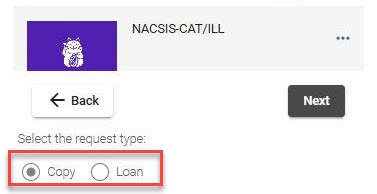
The panel displays a list of fields, where the relevant fields are filled in with the values of the bibliographic record you selected or that is linked to the borrowing request.貸出リクエストを最初から作成することを選択した場合、フィールドは空です。You may want to expand the panel for convenience.Select theもし: 次を行います: You have not yet created a request Select the request type, Copy or Loan.
あなたはすでに、ユーザーによって提出されたAlmaでの貸出リクエストをお持ちです - 貸出リクエストページを開きます([フルフィルメント] > [リソースシェア] > [貸出リクエスト])。The cloud app's panel displays the existing requests:
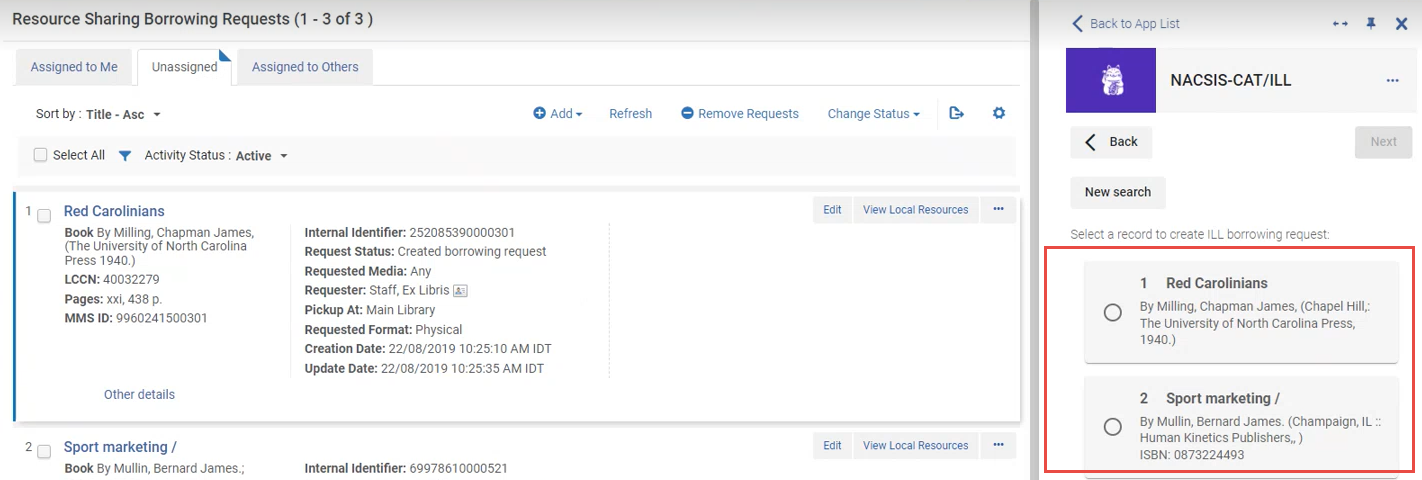
- Select the desired request in the panel and select Next.
貸出リクエストを作成したい書誌レコードがわかっている場合 - 書誌レコードを開きます。The cloud app's panel displays the record:
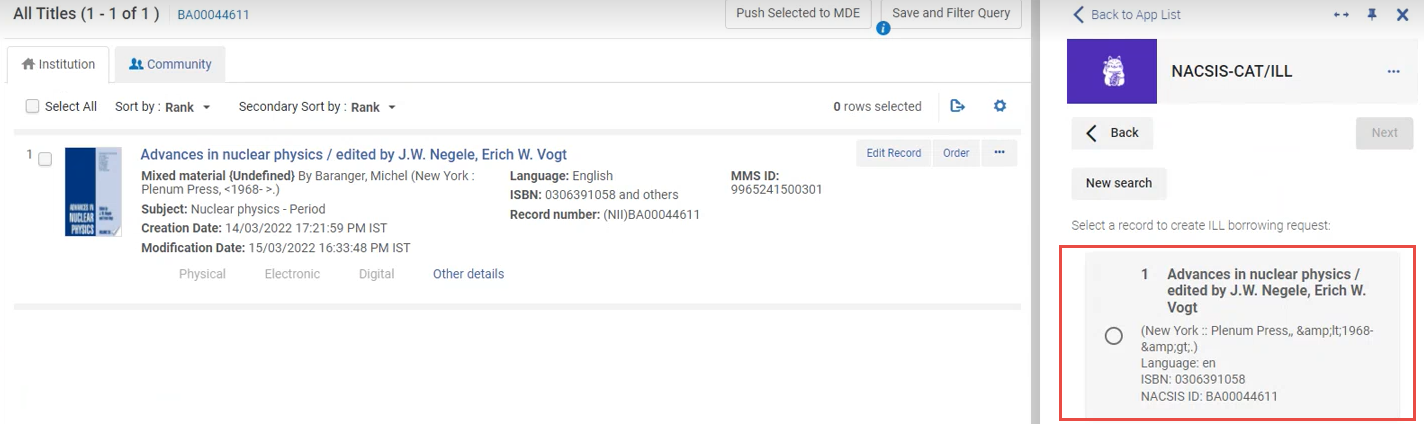
- Select the record in the panel and select Next.
You want to create a borrowing request from scratch - Select New Search in the panel and select Next:
 button on the panel.
- 貸出リクエストページを開きます([フルフィルメント] > [リソースシェア] > [貸出リクエスト])。The cloud app's panel displays the existing requests:
- Enter or edit the values of the bibliographic record you want to borrow and select Search.The record, as it appears in the NACSIS catalog, is displayed:
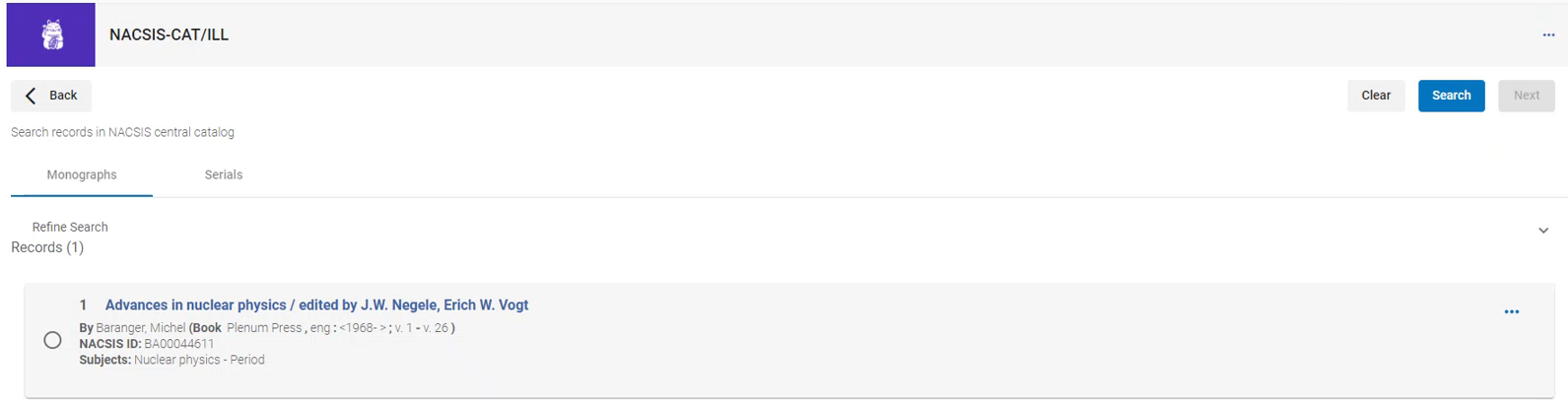
- To view the full details of this record, select its name or select View in the row actions.
- If this is indeed the desired record, select it via the radio button and select Next.
- In the page that opens, make your selections to filter the list of holdings you want to search for, and select Retrieve NACSIS Holdings.
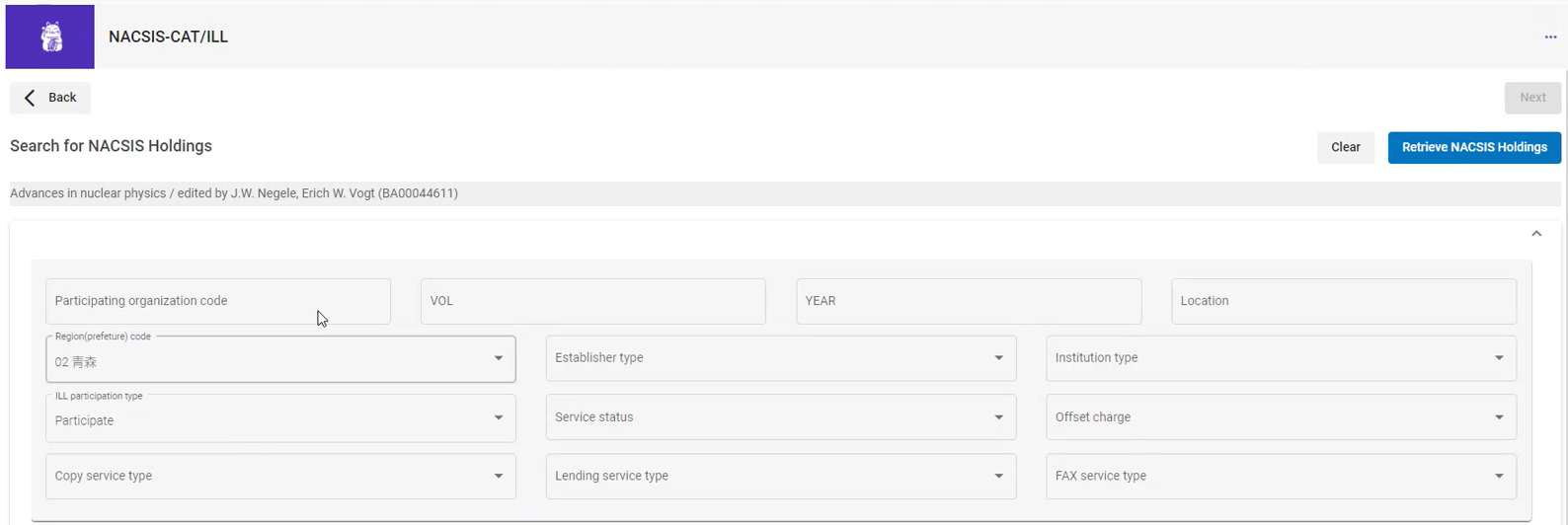
- 表示されたページで、貸出リクエストを送信する貸出先候補を選択し、次へを選択します。You can submit the borrowing request to up to 5 potential lenders.
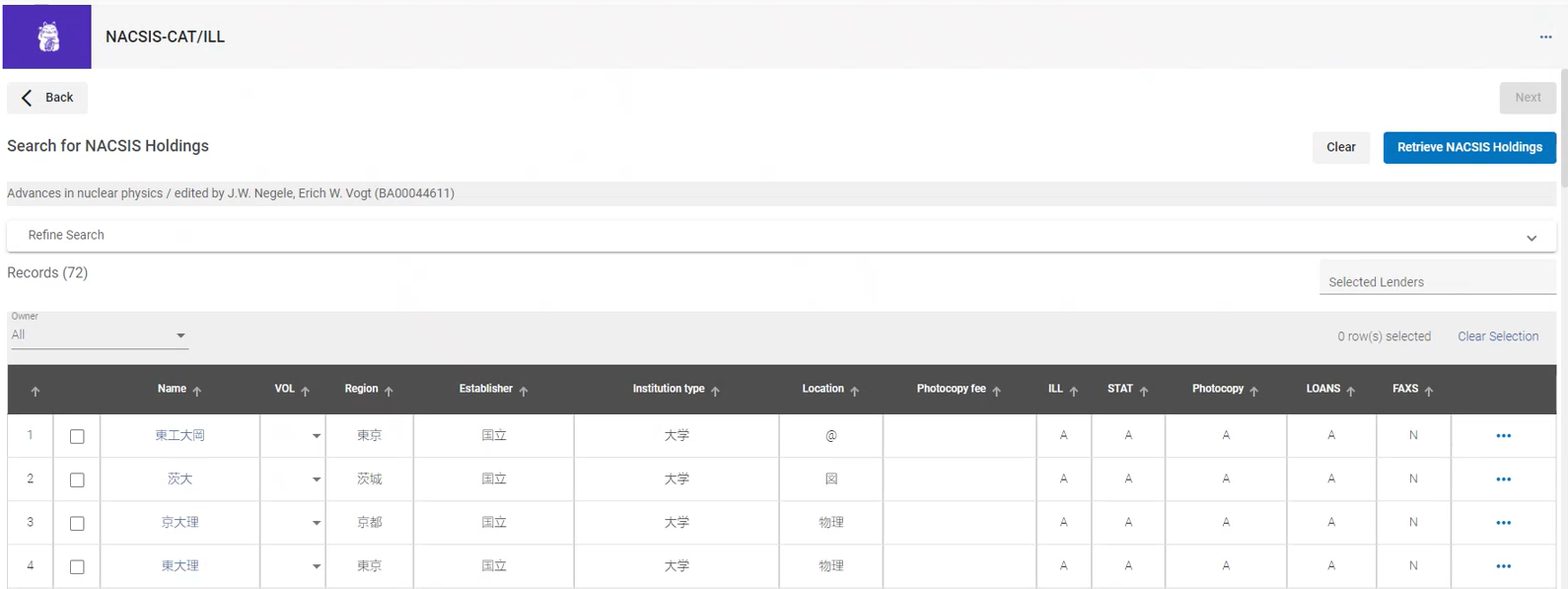 Additional actions you can do on this page:
変更後: 次を行います: 完全な所蔵レコードを見る Select the View Holding in the row actions. View the NACSIS member information including the ILL policy Select the member's name or select View Member Information in the row actions. 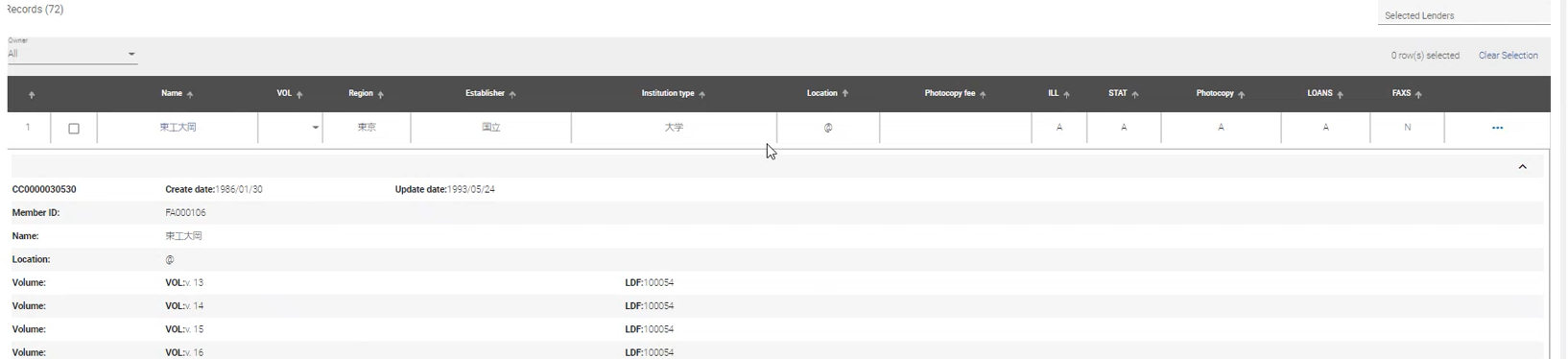
所蔵レコードにリンクされている特定の巻またはアイテムを選択します Expand the Vol. (for monographs) or Coverage(for serials) field, and select the desired one. 
所蔵リストを特定の列で並べ替える The Holdings table can be sorted by a specific column by clicking the column's up arrow (↑). 
-
You can view and edit the available information for the NACSIS borrowing request on the opening page.The page comprises three sections: Resource Information, Rota and Requester Information.
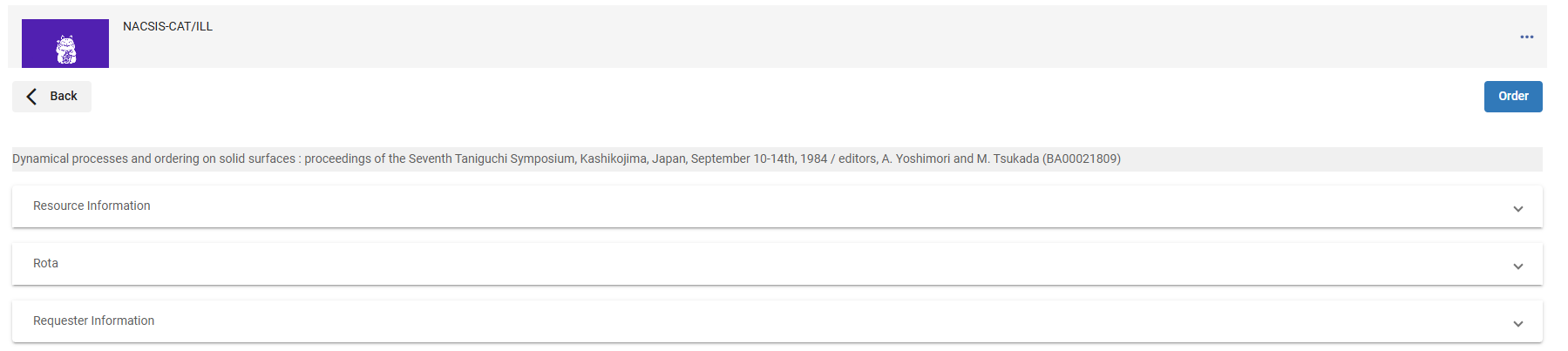
-
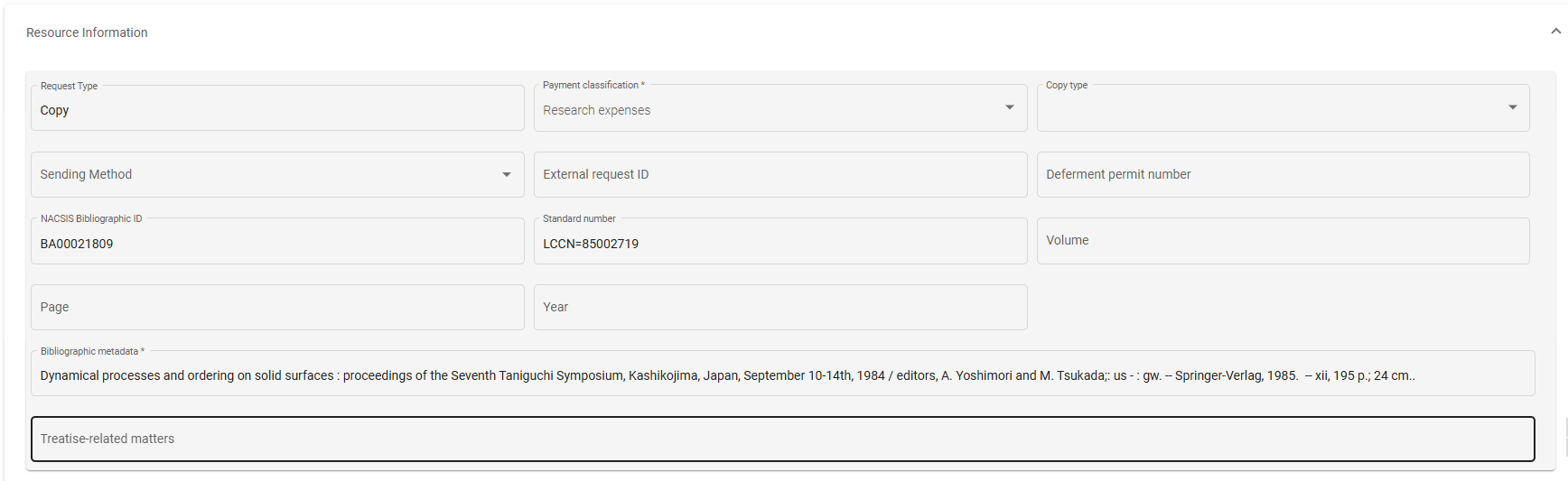
Resource Information – Request details
-
Request type- Automatically populated based on the ILL operator selection at the beginning of the process for creating a new borrowing request.
-
-
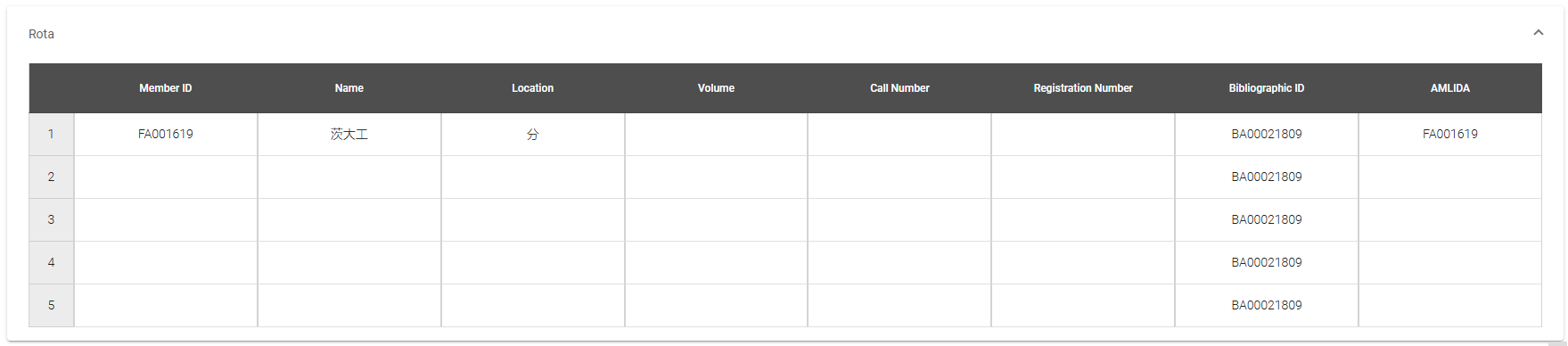
Rota – Potential lender details
-
The information is automatically populated from the NACSIS member information.Users can add or edit any of the fields.
-
-
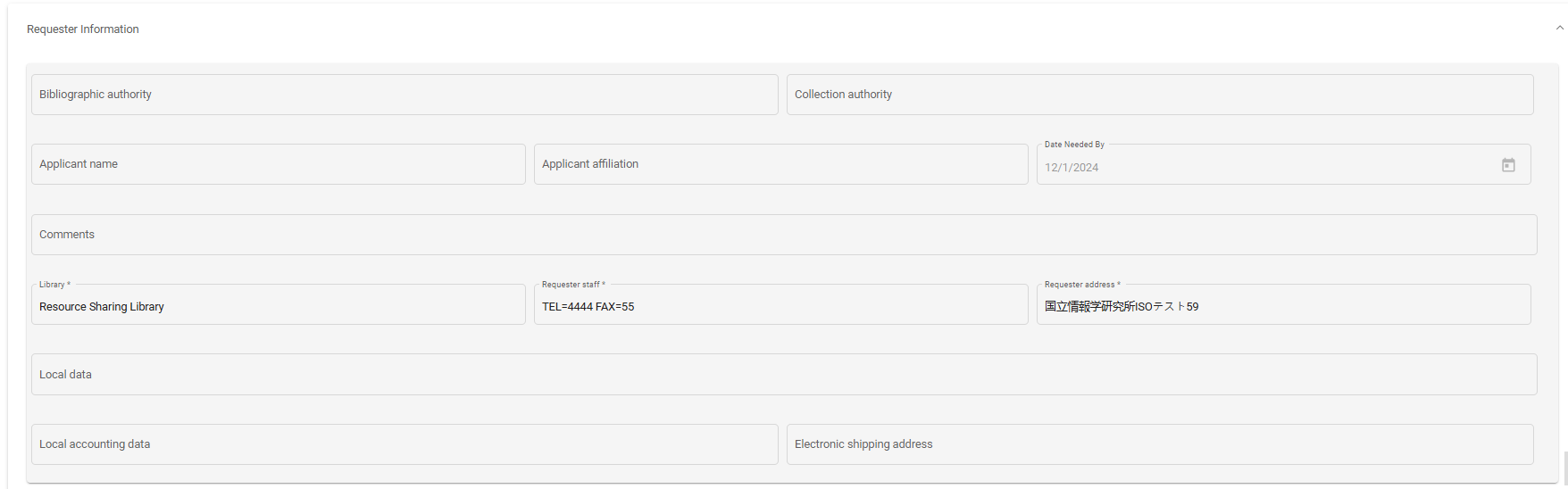
Requester Information – Requester details
-
Requester staff – Automatically populated from the member information.
-
Date Needed By- The request creation date (not editable).
-
-
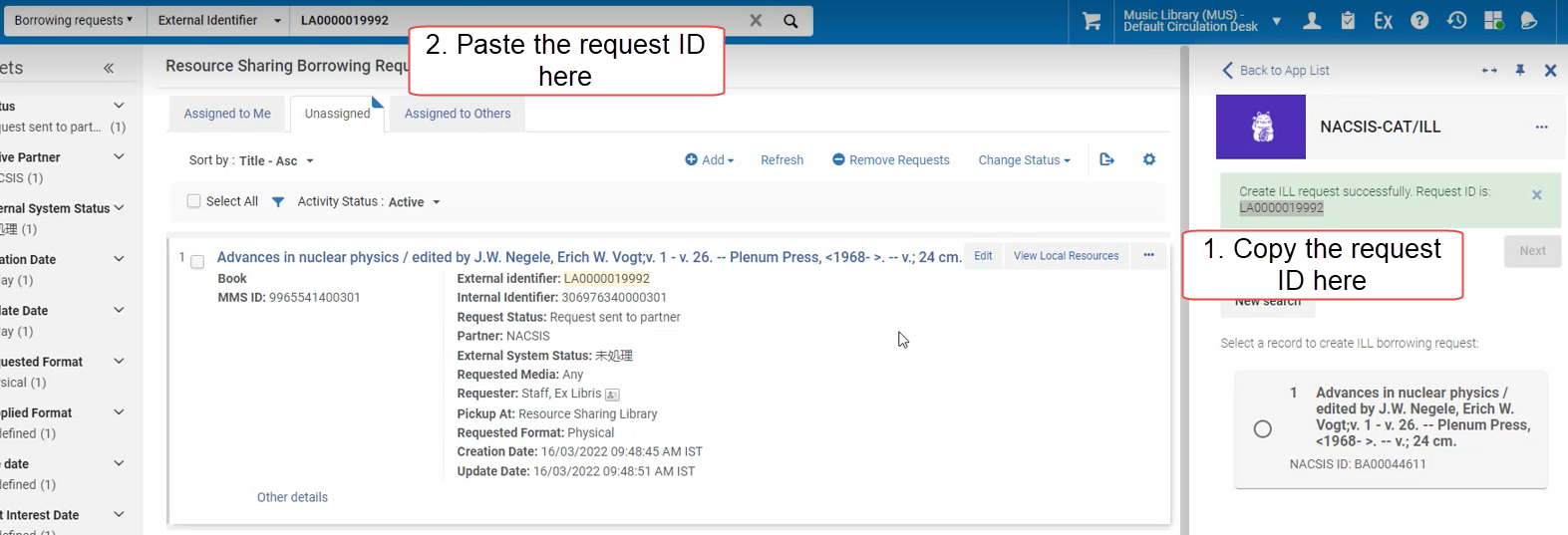
- 必要に応じてこのページの情報を編集して、貸出リスエストに対して最良の結果を取得し、注文を選択します。If your borrowing request was successfully created in NACSIS and in Alma, the message "Create ILL request successfully.リクエストIDは:..........」と表示されます。If at the first step of this process, you selected to submit a request for an existing borrowing request that was created by a patron, the NACSIS request is updated on that existing borrowing request (an additional borrowing request is not created in Alma).その既存のリクエストの外部識別子がNACSIS識別子に変わることに注意してください。If creation failed, a message appears that provides the reason for this, so you can rectify it.
- Copy the NACSIS request ID.To find the request in Alma, paste the ID in the Borrowing Requests search:
"Import Resource Sharing Requests" Synchronization Job
The "Import Resource Sharing Requests" job retrieves the institution's borrowing and lending request statuses from NACSIS-ILL into Alma, as follows:
-
New borrowing and lending requests for which a match was not found in Alma are created.
-
Existing borrowing and lending request metadata is enriched in Alma by retrieving the request's metadata from NACSIS-ILL.
-
Existing borrowing and lending request statuses are updated in Alma to reflect NACSIS-ILL statuses (only for NACSIS statuses that have matching statuses in Alma).
-
フィルタリングの目的で、すべてのNACSIS-ILLステータス(日本語)が取得され、「外部システムステータス」ファセットに配置されます。
Requests are imported by this job at the frequency selected in the Schedule section of the NACSIS integration profile.
You can also manually refresh the NACSIS requests in Alma - see Manual Refresh of NACSIS Requests.
取寄せリクエスト
The synchronization job updates borrowing requests that were created or updated in NACSIS-ILL as follows:
-
If the request does not exist in Alma, the request is created automatically by the synchronization job.下記を参照してください。
-
If the request already exists in Alma: The sync job attempts to match the Alma external identifier to the NACSIS request ID.一致するものが見つかった場合、Almaのリクエストのメタデータは、NACSISILLリクエストのメタデータで更新されます。
To display the External Identifier field in the Alma request, the NACSIS partner must be defined in your institution's Alma.See NACSIS Partner.
ILL(受付)
NACSIS-ILLのILL(受付)がAlmaで一致しない場合、同期ジョブによって新しいILL(受付)がAlmaで作成されます。The following data is retrieved from NACSIS-ILL to be used for the creation of the lending request:
- The institution/library information.This is to allow the lender to know which borrowing institution/library is requesting the material.
- 依頼者名(NACSIS-ILLフィールド「OMLNM」)。
The "Import Resource Sharing Requests" Job Report
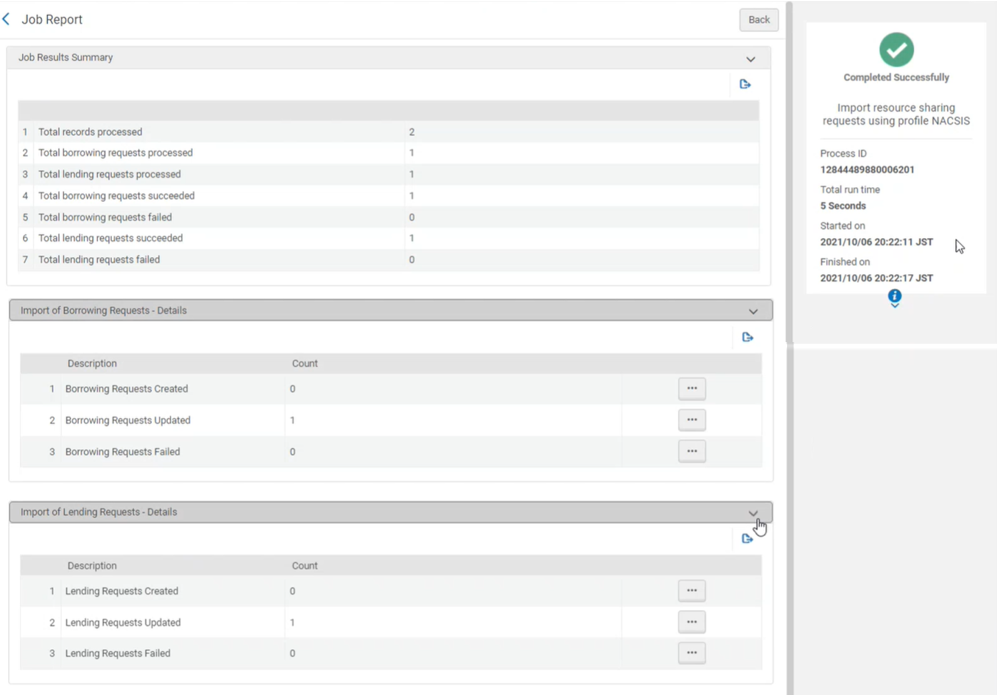
The Import Resource Sharing Requests job report provides a detailed report indicating which NACSIS requests (borrowing and lending) were retrieved in each iteration of the job by the NACSIS ID.このリポートには下記の事項が含まれます:
-
処理されたレコードの総数
-
処理された取寄せリクエストの総数
-
処理されたILL(受付)の総数
-
成功した取寄せリクエストの総数
-
失敗した取寄せリクエストの総数
-
成功したILL(受付)の総数
-
失敗したILL(受付)の総数
下部のセクション「ILL(依頼)のインポート - 詳細」および「ILL(受付)のインポート - 詳細」には、Almaでの作成に失敗したリクエストのリクエストIDが表示されます。IDを表示するには、関連するリンクを選択します。
Manual Refresh of NACSIS Requests
In addition to refreshing NACSIS resource sharing requests in Alma using the Import Resource Sharing Requests job on the NACSIS integration profile (see Import Resource Sharing Requests Synchronization Job), you can also refresh them manually.
-
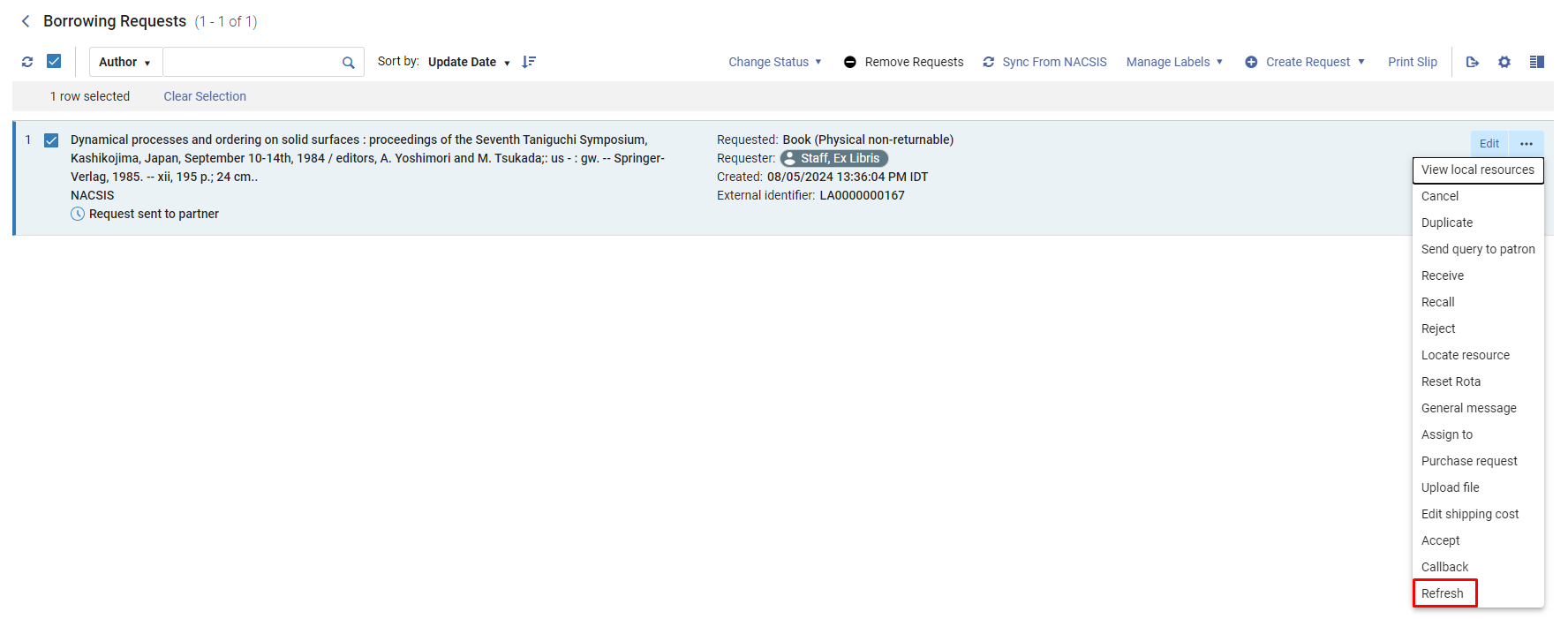
リソース共有リクエストリストに移動します(設定 > フルフィルメント > リソース共有 > ILL(受付)/ILL(依頼))。
-
Select Refresh from the row actions list.
-
リソース共有リクエストリストに移動します(設定 > フルフィルメント > リソース共有 > ILL(受付)/ILL(依頼))。
-
更新するリクエストを選択します。
-
Select the Sync from NACSIS button
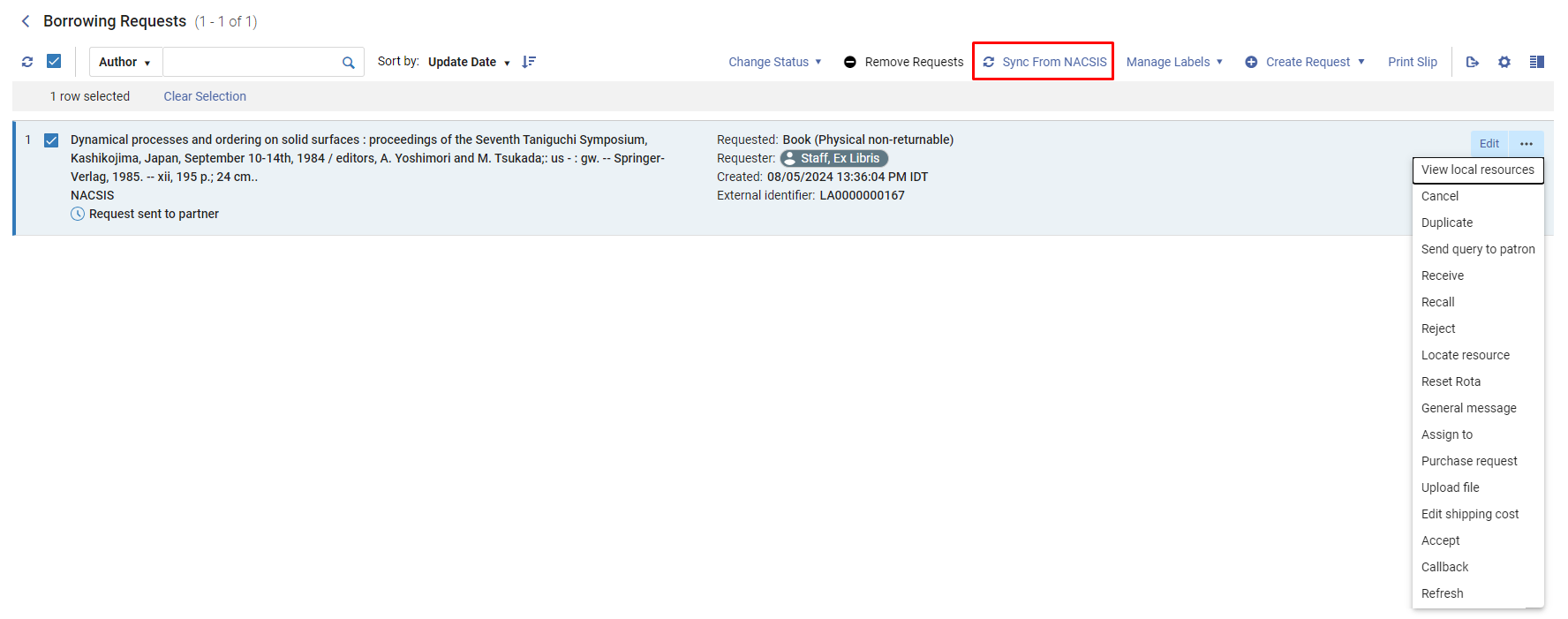
After refreshing the NACSIS request/s, you need to select the refresh icon at the top of the Resource Sharing Requests Lists page for the changes to be displayed.
NACSIS-ILL Request Statuses and Actions
As part of the Alma integration with the NACSIS-ILL system, Japanese customers perform all Resource Sharing workflows (ILL) in Alma, and Alma automatically pushes the actions to NACSIS-ILL.For example, when a lender selects Ship on a request in Alma, and this request is linked to the NACSIS partner, Alma sends the Ship message to NACSIS-ILL and NACSIS-ILL updates its database with this new information.
NACSISリクエストに使用できるリソースシェアアクションリストは、NACSISによって定義されたリクエストステータスによって制限されます。
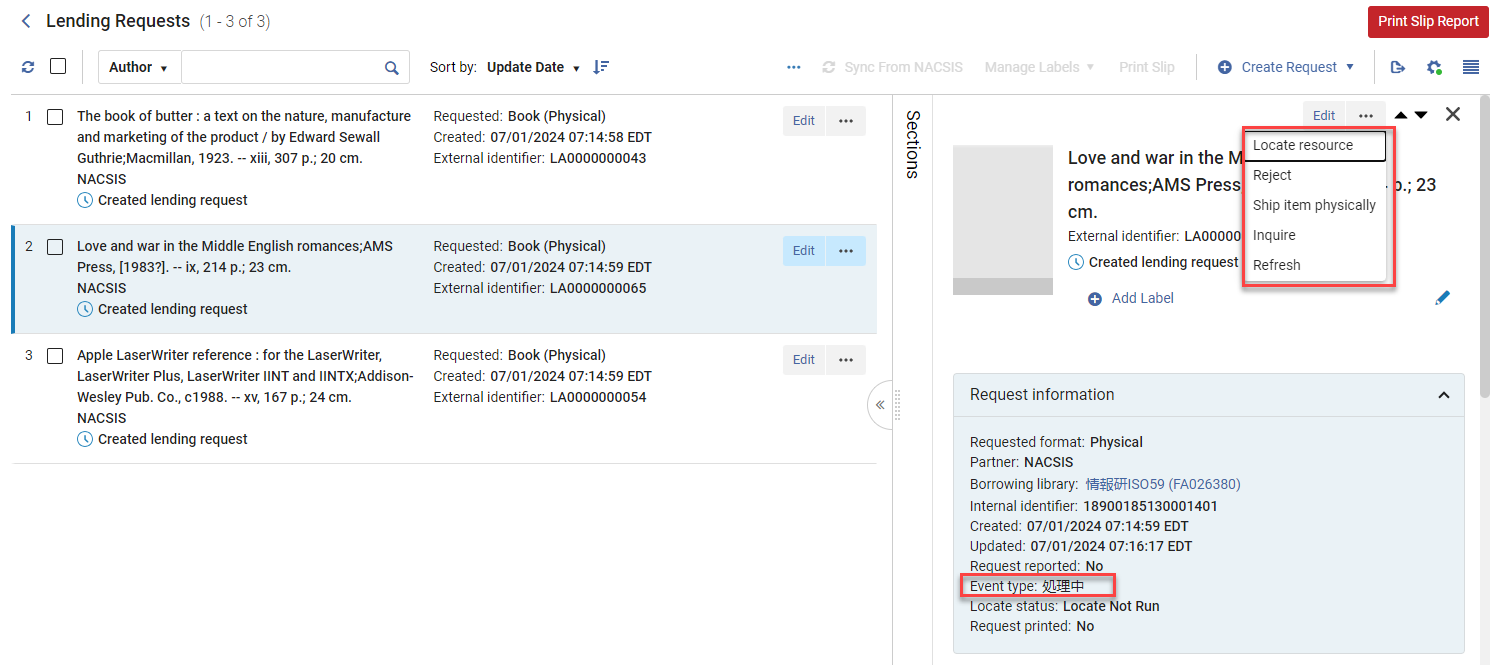
Actions for NACSIS Borrowing Requests
The following table lists the actions available based on the corresponding statuses for borrowing requests, as defined by NACSIS.
| リクエストタイプ | リクエストステータス | リストで利用可能なリソースシェアアクション | |
|---|---|---|---|
| 貸出/コピー | 準備中 |
|
以下のアクションは、NACSISステータスに依存しません:
|
| 未処理 | コールバック | ||
| 新着商品に関するお問い合わせ | 許可する | ||
| 照会 |
|
||
| 回答を待っています | コールバック | ||
| キャンセル | コールバック | ||
| 発送 | 許可する | ||
| 督促は未処理です | コールバック | ||
| 督促回答を待機中 | 許可する | ||
| 貸出のみ | 取寄せ |
|
|
| 更新リクエスト | コールバック | ||
| 返却 | コールバック | ||
| 到着処理 |
|
||
| 未処理の返却請求 | 許可する | ||
| コピーのみ | 確認 | コールバック | |
| 到着処理 |
|
||
Actions for NACSIS Lending Requests
The following table lists the actions available based on the corresponding statuses for lending requests, as defined by NACSIS.
| リクエストタイプ | リクエストステータス(英語) | リクエストステータス(日本語) | リストで利用可能なリソースシェアアクション | |
|---|---|---|---|---|
| 貸出/コピー | 未処理 | 許可する |
以下のアクションは、NACSISステータスに依存しません:
|
|
| 処理中 |
|
|||
| 新着商品に関するお問い合わせ | コールバック | |||
| 回答を待っています | 許可する | |||
| 発送 | コールバック | |||
| 督促は未処理です | 許可する | |||
| 督促回答を待機中 | コールバック | |||
| 貸出のみ | 更新リクエスト | 許可する | ||
| 返却 | 許可する | |||
| 返却処理 |
|
|||
| 未処理の返却請求 | コールバック | |||
| 返却確認 | コールバック | |||
承認アクションについて
The Accept action is only supported in Alma for Resource Sharing requests that are assigned to a NACSIS partner.It indicates an acknowledgement on the part of the borrower or lender of receipt of communication from the partner.NACSIS-ILL では、次の手順を実行する前に、ワークフローのいくつかのポイントでこのタイプの確認が必要です。For example, when the lender selects the Ship action to indicate that the requested resource has been shipped to the borrower, the borrower receives a notification from the NACSIS-ILL system that the item has been shipped.借り手は、承認アクションを選択して応答し、データの受信を確認します。Only after the borrower has done this can they then select Receive to indicate that the resource that was shipped has actually been received.
コールバックアクションについて
At many stages in the NACSIS-ILL workflow, the last side to perform an action has the option to revert that action.For example, the borrower may wish to revert the request before the lender acknowledges it, or the lender may wish to revert their agreement to supply the requested item.Reverting one's last action is performed by selecting the Callback action.ユーザーがコールバックアクションを選択すると、NACSIS-ILLとAlmaは、ワークフローのステータスをプロセスの前のステップに戻します。
Request Status Available as a Facet in the Request List
All NACSIS-ILL borrowing and lending request statuses (in Japanese) are displayed in Alma in the "External System Status" facet in the Requests list.このファセットで目的のステータスを選択すると、このステータスのリクエストのみが表示されます。
[外部システムステータス]フィールド(通常はAlmaステータスが表示されます)には、NACSIS-ILLステータスも表示されます。
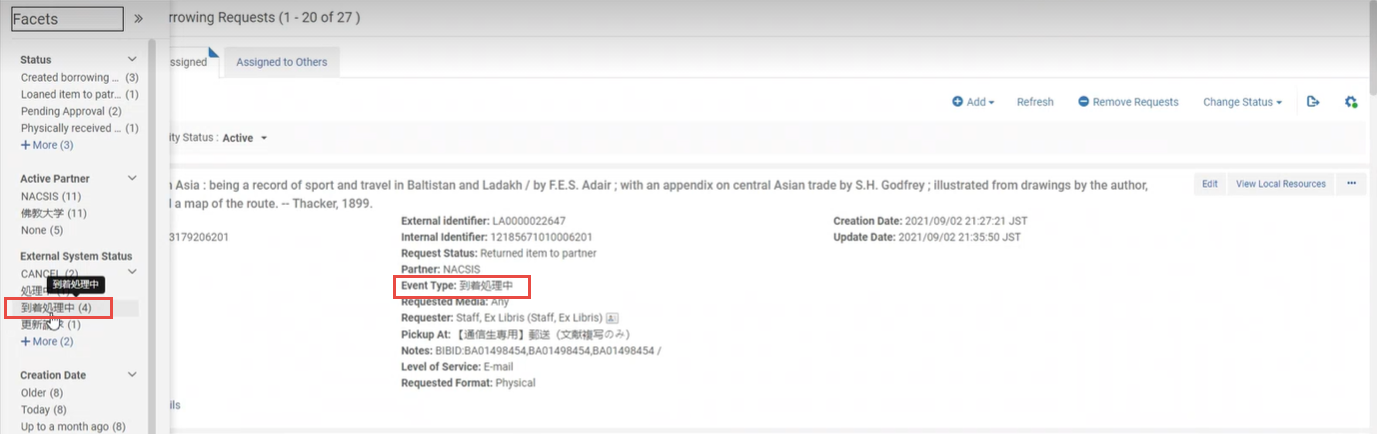
Review Request History
You can review request history in the History tab of the request.You can filter on all actions for the request (Full), a subset of the actions (Brief) that can be configured - see here, and only NACSIS actions (Notes).
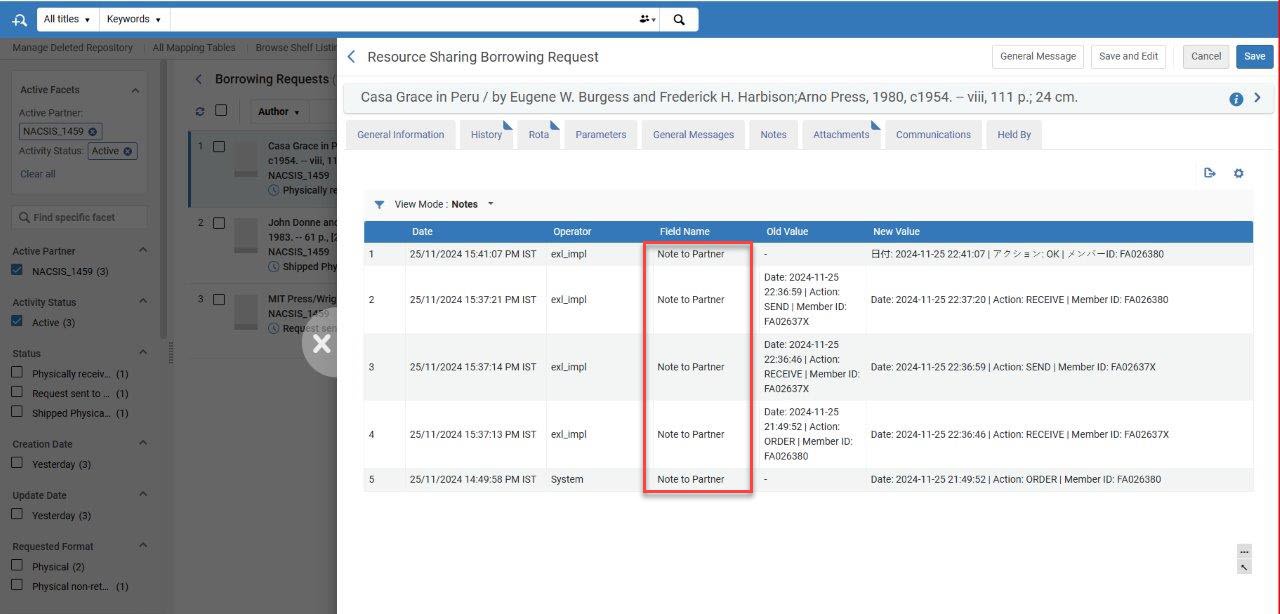
To include Notes in the filter options contact Ex Libris Support.
NACSIS Comments
The exchange comments sent between the borrower and lender on the NACSIS request are available for the ILL operators in the dedicated Comments section.Each comment comprises the date, action, and message, separated by ‘|'.
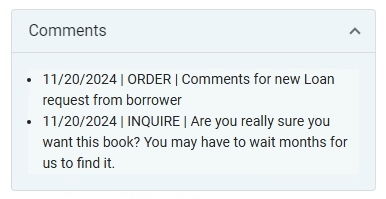
NACSIS Shipping Costs
日本の貸出機関が資料を借り手に発送する場合、NACSIS の配送料金がリクエストに追加されることがあります。
To configure the paper format that is used for the NACSIS shipping costs see Configuring Paper Format for NACSIS Shipping Costs.
-
When the lender ships a NACSIS request by selecting Shipped Physically ( see Managing Resource Sharing Lending Requests), the Shipping Items page appears.
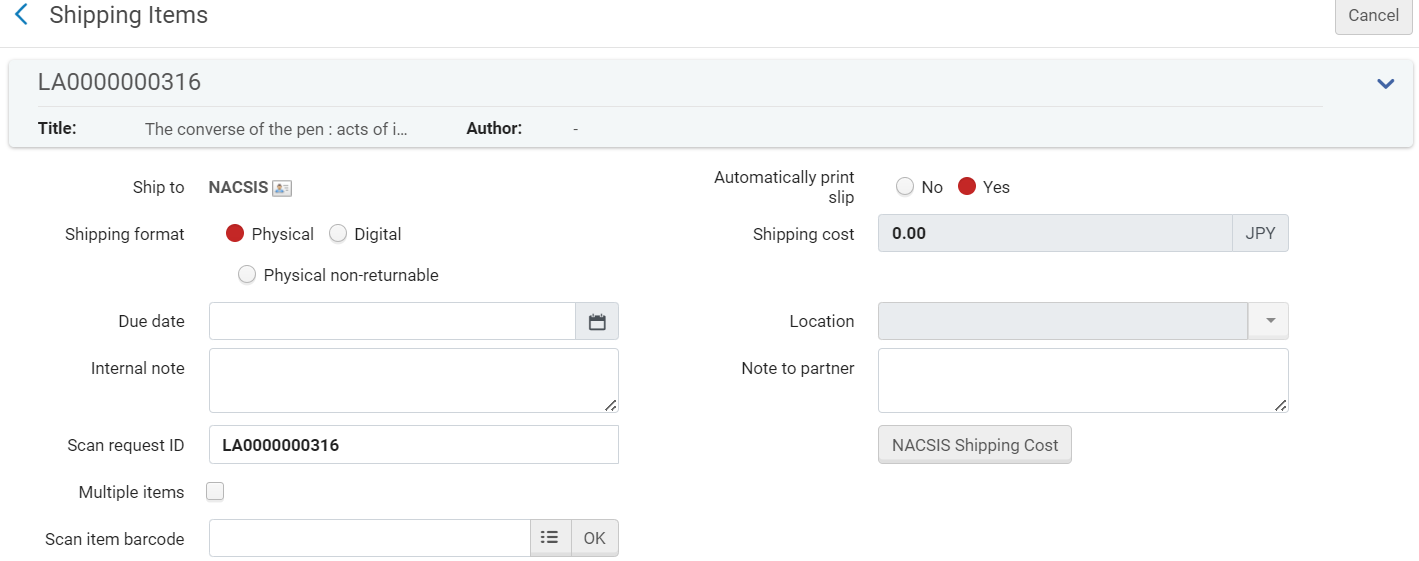 NACSIS配送料金ボタン
-
Select the NACSIS Shipping Costs button.This triggers the NACSIS Shipping Costs pop up.
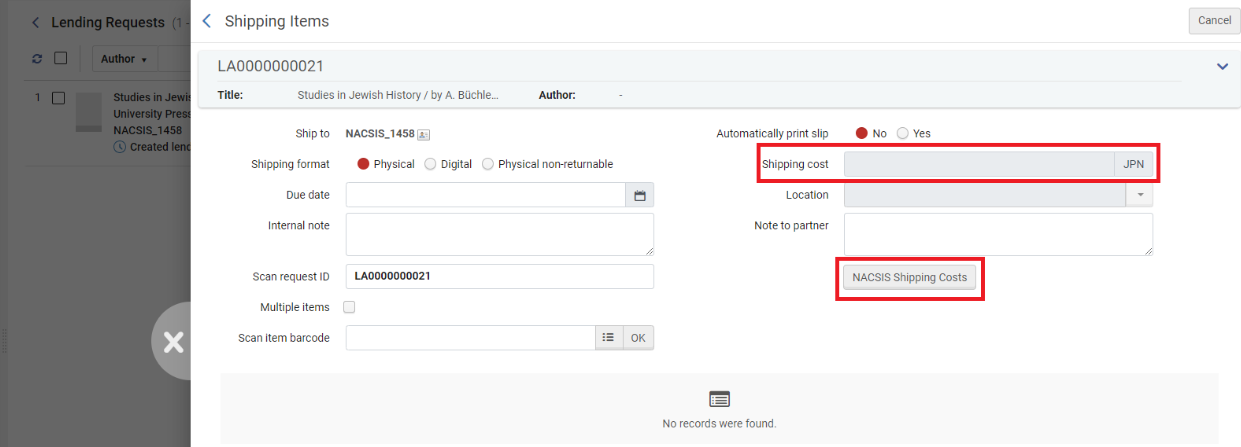 NACSIS配送料金ポップアップ
The operator can add a line for each item type that is shipped by selecting the + button.
-
各行について、用紙フォーマット/サイズ(オプション)を選択し、数量を追加します。The Unit price is filled automatically per the settings in Configuration > Fulfillment > Paper Format(see Configuring Paper Format for NACSIS Shipping Costs).
-
Add the Base fee and Shipping fee and then press Sum.For each line, the subtotal is calculated (unit price * quantity) and displays in the Subtotal field.Almaはすべての小計フィールドを追加してから、それに基本料金と送料を追加します。This final total displays in the Total price field.
-
完了を押します。The Total price value is saved in the Shipping cost field.このフィールドは編集できません。貸し手が更新したい場合、NACSIS配送料金ボタンを再度選択して、情報を更新する必要があります。
リソースシェアリクエストに関するNACSISメンバー向け情報
NACSIS resource sharing operators can view the participant member in the Member information Borrowing/Lending library field.Selecting the member name/ID link opens up the full Member Information section.
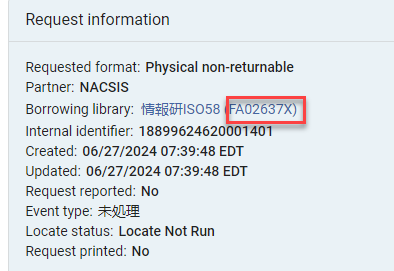
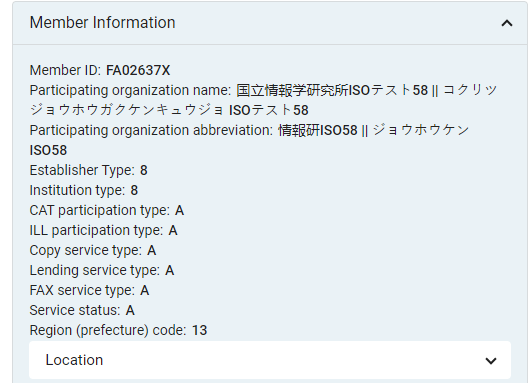
メンバー情報セクションには、メンバーの住所、ILLポリシーなど、リソースシェア操作に関連するすべての詳細が含まれています。
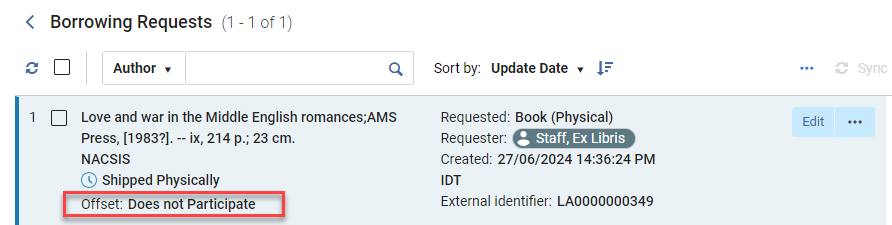
オフセット表示
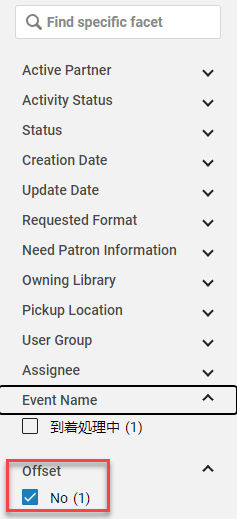
デフォルトでは、このオプションは有効ではありません。To enable it select the Customize gear icon and then in Facets Customization mark the Offset checkbox .
NACSIS resource sharing requests include the Offset field on the request summary details.
さらに、オフセットファセットを使用してリクエストリストをフィルターすることもできます。
NACSIS-ILLワークフロー終了ポイント
NACSIS-ILL ワークフローには、借り手による終了ポイントが2つ、貸し手による終了ポイントが1つ、合計3つの終了ポイントが含まれます。これらの終了ポイントは反対側に反映される必要があります。
-
Borrower Cancels Request - After the borrowing request is cancelled in Alma with the appropriate status "Cancelled by Staff", the lending request is cancelled with the status "Cancelled".
-
Borrower Receives Physical Non-Returnable Materials - After the borrower receives the shipped physical non-returnable materials from the lender, the Copy request is completed with the appropriate Alma status "Request Completed".ILL(受付)も完了し、Almaステータスは「リクエスト完了」になります。
-
貸し手が物的資料をチェックインする - 貸し手は借り手から返却された物的資料を受け取った後、資料のチェックインを実行し、貸出リクエストは Almaステータス「リクエスト完了」で完了します。The borrowing request is completed as well, with the Alma status "Request Completed".
NACSISリクエストの印刷
NACSIS貸出リクエストを印刷するための伝票があります。For more information see Resource Sharing Borrowing Request Slip Letter.
NACSISラベルは次の伝票で入手できます。
- Resource Sharing Return Slip Letter
- Resource Sharing Receive Slip Letter
- Ful Incoming Slip Letter
- Resource Sharing Shipping Slip Letter
NACSIS-CAT/ILLとの統合のためのマルチ図書館サポート
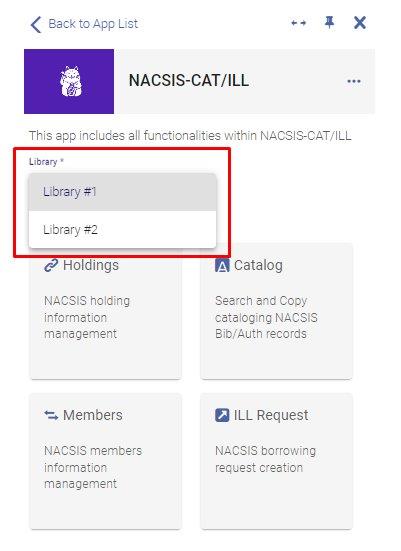
NACSIS-CAT/ILLとの統合の一環として、Almaは NACSISに複数のFANO IDが登録されている顧客向けにさまざまな機能をサポートしています。
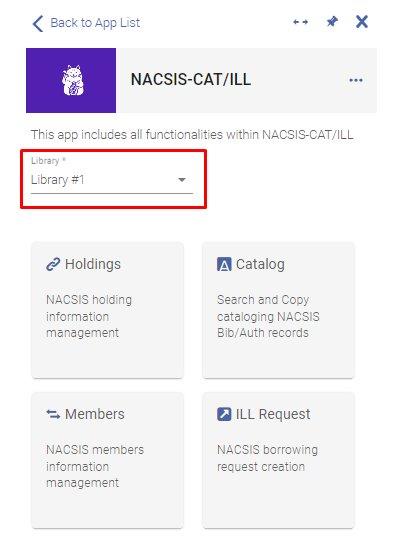
ドロップダウンリストで特定の図書館を選択すると、その選択したト図書館がユーザー用に保存され、次回クラウドアプリを開いたときに表示されます。
Page tags: article:topic product:alma content:Documentation lang:english
