
Greeting
The Greeting product integration displays a greeting message along with a photo of the user.
Overview
The Greeting product integration displays a greeting message on the homepage along with a photo of the user. You can configure the tile to link to the Personal Info product integration or any external link.
Vendors
The Greeting product integration is supported by the RESTful API.
User Experience
The following section describes information relating to the user experience for the Greetings product integration.
User Activities
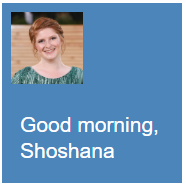
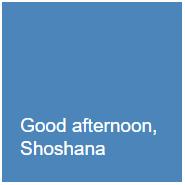
The user sees a greeting message along with a photo of the user (optional) on a tile on the homepage. The greeting message can change according to the time of the day. You can configure the tile to link to the Personal Info product integration or any external link.
Authentication
The connection to the vendor to receive the user's image is handled as part of the RESTful API Configuration under the Vendor section. The first part of the API Configuration contains the details of the URL to which to connect and any parameters that are required. The second part relates to the API Authentication for the URL, which is vendor-specific and can also be specific to the vendor instance that the client is running.
Offline Support
No offline support is available.
Screenshots
The following is an overview of the Greetings product integration user interface for a reference when configuring it:
Technical Overview
To retrieve the images, create an API that meets the following requirements:
GET https://{base URL set within the config}/getUserPicture
Different types of auth can be set on the service.
Query Parameters:
user={user identifier set within the config}
Here is an example:
GET https://example-domain.edu/examplePath/getUserPicture
user=exampleUsername
In the config, the base URL should not contain the getUserPicture part of the path. Thus, in the example above, the base URL would be:
https://example-domain.edu/examplePath/
Be sure to include the ending slash (/).
The response must follow this format:
Prerequisites
- The native app (Android/iOS) must be updated with the May 2020 release or later.
- The first name and last name have a maximum length of 18 characters each.
Configuration
The following section describes configurations for the Greetings product integration.
Configuring the Greetings Product Integration
To configure the Greeting product integration, select Add Product Integration from the Product Integrations main menu option.
Select Greeting.
| Configuration Option | Description | Mandatory | Data Type | Default | Example |
|---|---|---|---|---|---|
| Manage Integration | |||||
| Enable Product Integration | Select to enable the product integration on the user's app. | No | Checkbox | Unselected | |
| Product Integration Description | A description of the product integration for internal use. | Yes | String | ||
| Image | |||||
| Image Source | The vendor that provides the image. | No | Object | RESTful API | |
| API Configuration (The API to retrieve the user's image) | |||||
| Base URL to retrieve the information | The base URL for the API. This should end with a slash (/). | No | URI | https://example-domain.edu/examplePath/ | |
| User Input Identifier | |||||
| Parameter Input Option | Choose a parameter input option that matches your needs. i.e. Select Username to use the username attribute associated with the end-user. | No | Object | Username | |
| Token Property Name | Enter the property name to be retrieved from the token ({ USERNAME, MAIL, GIVEN_NAME, SURNAME, FULL_NAME } or as named in the integration profile). | No | String | USERNAME | |
| Constant Value | The value when the User Identifier is set to Constant. | No | String | ||
| API Authentication | |||||
| Authentication Type | Authentication type against the web service. The options are the following:
|
No | Drop-down list | No Auth | |
| Default Image | |||||
| Use Default Image | Defines whether to use a default image when no image comes back from the API or when no API is configured. | No | String | Never use the default image | |
| Default Image URL | The URL of the image to use as a default. | No | URL | https://defaultImage.jpg | |
| General | |||||
| Name | Which name to display on the tile - only the first name or the full name. | No | Object | First name | |
| Text and Image Orientation | The positioning of the image and the text on the tile. | No | String | Left (both image and text) | |
| Image Corner Radius | How round the image should be. | No | Object | 10% (rounded) | |
| Greeting Range 1 | |||||
| Label | The message to display during this hour range. | No | String | Hello | |
| Start Time | The start time for this range in the format HH:mm. | No | String | 06:00 | |
| End Time | The end time for this range in the format HH:mm. | No | String | 12:00 | |
| Greeting Range 2 | |||||
| Enabled | Check this to enable this hour range. | No | Boolean | False | |
| Label | The message to display during this hour range. | No | String | Good Afternoon | |
| Start Time | The start time for this range in the format HH:mm. | No | String | 12:00 | |
| End Time |
The end time for this range in the format HH:mm. |
No | String | 16:00 | |
| Greeting Range 3 | |||||
| Enabled | Check this to enable this hour range. | No | Boolean | False | |
| Label | The message to display during this hour range. | No | String | Good evening | |
| Start Time | The start time for this range in the format HH:mm. | No | String | 16:00 | |
| End Time |
The end time for this range in the format HH:mm. |
No | String | 20:00 | |
| Greeting Range 4 | |||||
| Enabled | Check this to enable this hour range. | No | Boolean | False | |
| Label |
The message to display during this hour range. |
No | String | Good night | |
| Start Time | The start time for this range in the format HH:mm. | No | String | 20:00 | |
| End Time | The end time for this range in the format HH:mm. | No | String | 06:00 | |
| Default Message | The message to display outside the time ranges configured above. | No | String | Welcome | |
| Error Message | The text to be displayed when there is an error reaching the API. | No | String | There was an error retrieving the data | |
| Import/Export Configuration | |||||
| Import | Create a JSON file with all product integration configurations. | No | Create a JSON file with all product integration configuration. | ||
| Export | Use this option in order to load configuration from JSON of an exported product integration. | No | |||
Configuring the Greetings Live Tile
By default, the live tile does not link to any other page. For information on how to configure the live tile to link to the Personal Info product integration or any external link, see Configuring Live Tile Linking.
Page tags: article:topiccontent:Documentationproduct:campusmlang:english

